How to Apply Custom CSS Before Capturing a Website
Use Playwright or Puppeteer to hide volatile elements, adjust page styles, and capture a more consistent website screenshot.
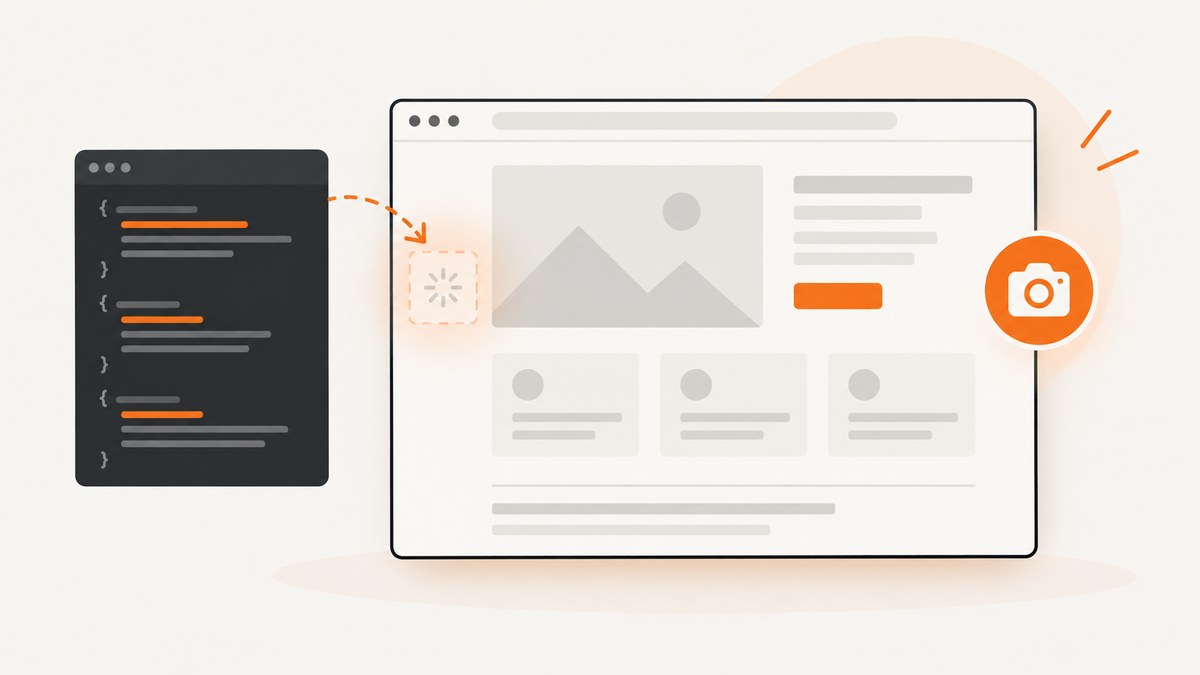
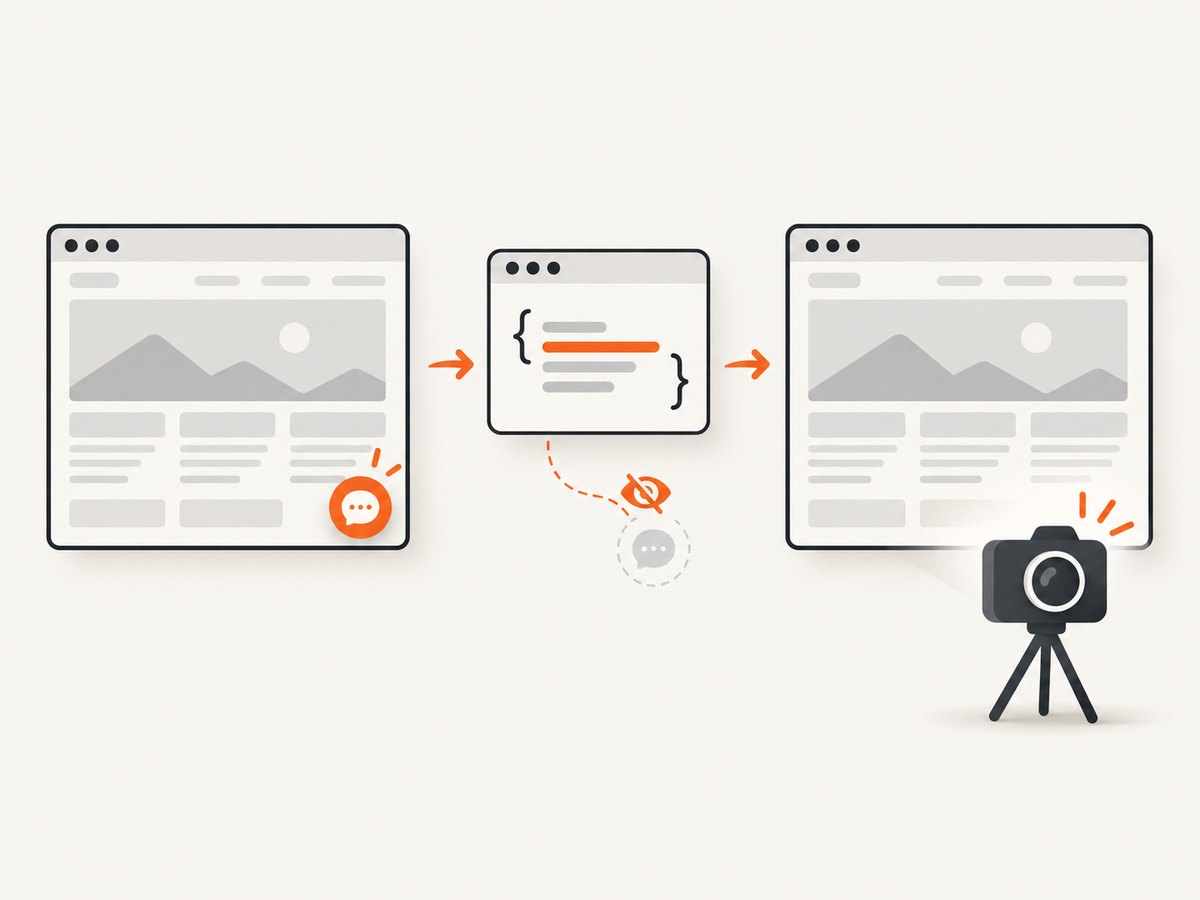
To apply custom CSS before capturing a website, use Playwright’s screenshot style option for a one-off capture, or add CSS to the page with page.addStyleTag() before taking the screenshot. For Playwright Test visual assertions, use stylePath to load a stylesheet. Puppeteer also supports page.addStyleTag(). These techniques are useful for hiding irrelevant moving elements, such as a live chat widget, while preserving the underlying page content.
For a screenshot-only override, prefer a capture-scoped option so the page’s normal state remains unchanged. Inject a stylesheet into the page when later steps should also see the styling. This guide covers both approaches, readiness, element screenshots, visual comparison pitfalls, common errors, and an API option for avoiding browser setup. See the Playwright visual comparisons guide, Playwright Page API, and Puppeteer screenshot guide.
1. Choose how the CSS should apply
| Method | Use it for | Scope |
|---|---|---|
Playwright Test stylePath |
Screenshot assertions and visual regression tests | Applied to the assertion screenshot |
Playwright page.screenshot({ style }) |
A script or one-off capture with inline CSS | Applied while producing that screenshot |
Playwright or Puppeteer page.addStyleTag() |
Page changes that should remain for later page actions | Inserted into the page document |
Use narrow selectors and hide only elements that are irrelevant to the image. Hiding an element can change layout if it occupies space; choose visibility: hidden when you want to preserve its layout footprint, and display: none when you want it removed from layout. A sticky banner that obscures content may need to be removed from layout, while a changing timestamp may simply need to be made invisible.
2. Playwright Test: load a screenshot stylesheet
For a Playwright Test assertion, put screenshot-specific rules in a separate CSS file and provide its path as stylePath. Playwright documents this option for hiding dynamic or volatile elements and improving screenshot determinism. It can also apply through Shadow DOM and to inner frames.
import { test, expect } from '@playwright/test';
import path from 'node:path';

test('page screenshot is stable', async ({ page }) => {
  await page.goto('https://example.com');
  await expect(page).toHaveScreenshot({
    stylePath: path.join(__dirname, 'screenshot.css'),
  });
});
Create screenshot.css beside the test:
/* Hide a volatile widget without changing the page's layout. */
.live-chat-widget {
  visibility: hidden !important;
}

/* A transient toast can be removed from layout entirely. */
.toast-notification {
  display: none !important;
}
Use a file when the rules are shared across tests, need comments, or are substantial. An array of stylesheet paths can be passed when several files contribute to the screenshot override. Keep the rules limited to test capture needs; screenshot styling should not silently mask a real visual regression.
3. Playwright direct screenshot: pass CSS inline
For a direct page screenshot, Playwright’s screenshot option accepts stylesheet text in style. This is convenient for a small, capture-only override that does not need its own file.
import { chromium } from 'playwright';

const browser = await chromium.launch();
const page = await browser.newPage({ viewport: { width: 1440, height: 1000 } });

try {
  await page.goto('https://example.com', { waitUntil: 'domcontentloaded' });
  await page.locator('main').waitFor({ state: 'visible' });
  await page.screenshot({
    path: 'capture.png',
    fullPage: true,
    style: `
      .live-chat-widget { visibility: hidden !important; }
      .timestamp { font-variant-numeric: tabular-nums; }
    `,
  });
} finally {
  await browser.close();
}
The example waits for a meaningful page landmark rather than assuming that the document event means every image or application request has finished. Replace the selector and readiness condition with one that reflects the target page. The screenshot’s style is scoped to that capture, which is usually preferable when the CSS is only a masking or stabilization aid.
4. Inject CSS into the page before capturing
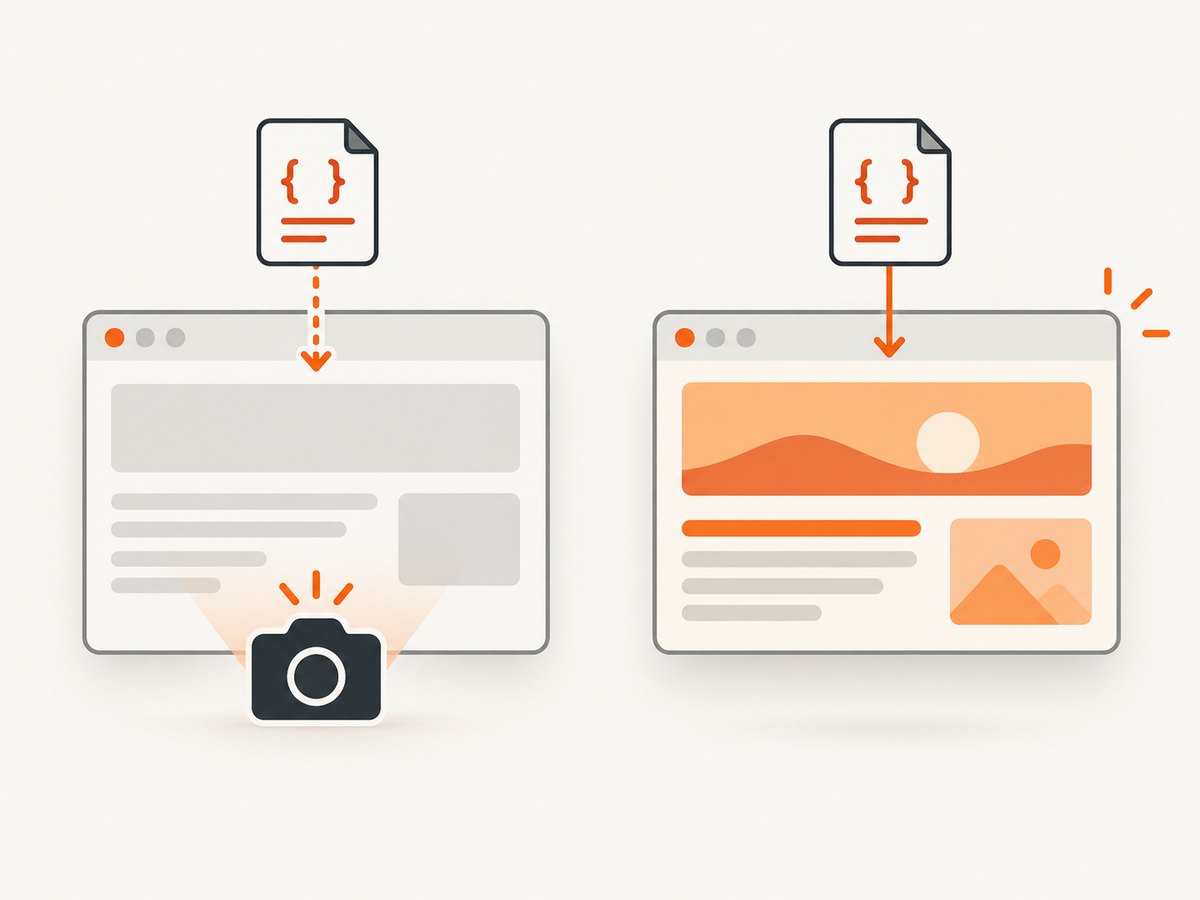
Call page.addStyleTag() when subsequent interactions should observe the stylesheet too, or when you want to load it from a file. Playwright accepts content, a path, or a URL. Puppeteer also supports adding a style tag with content or a path.
Playwright with inline CSS
import { chromium } from 'playwright';

const browser = await chromium.launch();
const page = await browser.newPage();

try {
  await page.goto('https://example.com', { waitUntil: 'domcontentloaded' });
  await page.addStyleTag({
    content: '.live-chat-widget { display: none !important; }',
  });
  await page.screenshot({ path: 'capture.png', fullPage: true });
} finally {
  await browser.close();
}
Puppeteer with inline CSS
import puppeteer from 'puppeteer';

const browser = await puppeteer.launch();
const page = await browser.newPage();

try {
  await page.goto('https://example.com', { waitUntil: 'networkidle2' });
  await page.addStyleTag({
    content: '.live-chat-widget { visibility: hidden !important; }',
  });
  await page.screenshot({ path: 'capture.png', fullPage: true });
} finally {
  await browser.close();
}
Puppeteer’s screenshot guide uses networkidle2 as one navigation example. It is not a universal readiness guarantee: pages with polling, analytics, streaming, or delayed content may continue changing, and some pages are ready before network activity fully subsides. Prefer a page-specific selector or application signal when you know what must be present.
5. Capture a specific element instead of the whole page
If the goal is a component snapshot, capture the relevant element rather than the entire page. This reduces unrelated visual changes around it. Playwright supports locator screenshots; Puppeteer supports an element handle screenshot.
// Playwright
const card = page.locator('.product-card');
await card.waitFor({ state: 'visible' });
await card.screenshot({ path: 'product-card.png' });
// Puppeteer
const card = await page.$('.product-card');
if (!card) throw new Error('Product card was not found');
await card.screenshot({ path: 'product-card.png' });Inject or scope CSS before the element capture just as you would for a page capture. Check whether the selector matches one element or several, and make the intended target explicit. If the target is inside a frame or shadow root, use the relevant locator or frame APIs; a document-level selector may not reach it.
6. Write CSS that stabilizes without hiding defects
Before adding a rule, decide whether the element is noise in the screenshot or meaningful page behavior. Reasonable candidates include a live chat bubble, a rotating carousel that is outside the test’s purpose, a clock, or a transient toast. Avoid broad selectors such as aside, iframe, or * unless you have confirmed every matching element is irrelevant.
- Prefer a stable class or data attribute over a generated class name that changes between builds.
- Use
!importantonly where site styles otherwise override the test rule. - Do not hide an element that is the subject of the test or a key page outcome.
- If layout matters, use
visibility: hiddento retain space; usedisplay: nonewhen removing the space is intended. - For animations, consider a test stylesheet that disables transitions and animation only when motion is irrelevant to the assertion.
CSS controls styling, not whether the page has finished loading. It cannot ensure a web font arrived, a lazy image was loaded, or asynchronous content populated. Wait for those conditions independently.
7. Keep visual comparisons repeatable
A stable stylesheet helps, but it does not eliminate all screenshot differences. Playwright notes that rendering may vary with the host operating system, browser version, browser settings, hardware, power source, and headless mode. Run baseline generation and comparisons in a consistent environment where possible.
- Pin the browser and dependency versions used for snapshots.
- Use the same viewport, device scale factor, color scheme, and locale for baseline and comparison runs.
- Wait for the content that matters, then apply capture CSS and take the screenshot.
- Review diffs after changing a masking rule; make sure it has not hidden the behavior the test is meant to catch.
For screenshot assertions, set an appropriate visual comparison threshold only after understanding the source of variation. A looser threshold can hide real changes. A tighter threshold can produce noise across rendering environments.
8. Or skip the browser setup
If your goal is a screenshot file rather than browser automation, ScreenshotNeo provides a website screenshot API. One GET request returns an image or PDF; this example saves a WebP response. See the ScreenshotNeo API documentation for options and response details.
curl -G "https://api.screenshotneo.com/v1/shot" \
  -d access_key=YOUR_API_KEY \
  --data-urlencode url=https://stripe.com \
  -o shot.webp
ScreenshotNeo accepts cookie and consent banners like a visitor and removes 60+ known consent platforms, newsletter popups, and chat widgets before the capture; each of those steps can be turned off. Bot checks and CAPTCHAs, blank pages, timeouts, failed loads, and cache hits cost nothing, and the response indicates the page verdict and billing status in X-Page-Verdict and X-Billed headers. Its MCP server gives AI agents, including Claude, Cursor, and other MCP clients, the take_screenshot, get_page_info, and capture_pdf tools. The free plan includes 1,000 shots per month with no card; paid plans start at $5 for 3,000 shots.
Create a free ScreenshotNeo account for 1,000 screenshots a month, with no card required.
9. cURL, Python, and Node.js API examples
These examples make the same request and write the response bytes to a WebP file. Substitute your API key and target URL. Keep API keys in environment variables or a secret manager in production; do not commit them to source control or expose them in browser-side code.
cURL
curl -G "https://api.screenshotneo.com/v1/shot" \
  -d access_key=YOUR_API_KEY \
  --data-urlencode url=https://stripe.com \
  -o shot.webp
Python
import requests

r = requests.get(
    "https://api.screenshotneo.com/v1/shot",
    params={"access_key": "YOUR_API_KEY", "url": "https://stripe.com"},
    timeout=90,
)
r.raise_for_status()
with open("shot.webp", "wb") as f:
    f.write(r.content)

print("Saved shot.webp")
Node.js
const q = new URLSearchParams({
  access_key: process.env.SCREENSHOTNEO_API_KEY,
  url: 'https://stripe.com',
});
const res = await fetch(`https://api.screenshotneo.com/v1/shot?${q}`);
if (!res.ok) throw new Error(`Screenshot request failed: ${res.status}`);
const bytes = new Uint8Array(await res.arrayBuffer());
await (await import('node:fs/promises')).writeFile('shot.webp', bytes);
The title’s core use case is applying your own CSS, so browser automation remains the right fit when you need arbitrary stylesheet rules, test assertions, or access to page state. ScreenshotNeo’s listed options include custom CSS and JavaScript, CSS-selector element capture, full-page capture with lazy images loaded, device presets and custom viewports, dark mode, retina scale, wait conditions, hiding selectors, and output formats including PNG, JPEG, WebP, and PDF. Refer to the docs for the current request parameter names and details.
10. Troubleshooting
| Symptom | Likely cause | What to do |
|---|---|---|
| The widget still appears | The selector does not match, the widget is inside a frame or shadow tree, or a later script recreated it. | Inspect the rendered DOM, use the actual stable selector, and check frame or shadow-root scope. For a page mutation, inject after navigation and after the widget exists. |
| CSS changes normal interactions | addStyleTag() changed the page document for subsequent actions. |
Use Playwright screenshot style or test assertion stylePath for a capture-only override. |
| Hidden content leaves a blank gap | visibility: hidden preserves the element’s layout space. |
Use display: none if removing that space is desired, then check whether the layout shift affects the intended capture. |
| Screenshot is blank or incomplete | The page or target was not ready when captured, or navigation ended before client-side rendering. | Wait for a page-specific locator or application-ready signal. Confirm the target URL and selector. |
| Fonts or images differ from the expected result | Assets may still be loading, or the comparison uses another browser or operating system. | Wait for required assets and use the same browser and host environment for baselines and comparisons. |
| Playwright cannot find the stylesheet | The relative file path is resolved from a different working directory than expected. | Build the path from the test file location, as in the path.join(__dirname, 'screenshot.css') example, and verify the file is included. |
| Inline CSS appears malformed | Quotes, braces, or template-string interpolation changed the CSS string. | Log or inspect the stylesheet text, escape JavaScript template syntax as needed, and first try a single simple rule. |
11. Performance, reliability, and cost
A stylesheet is usually a small part of capture work; browser launch, navigation, rendering, and waiting for page readiness are commonly the more operationally significant steps. Reuse a browser process for multiple captures when your automation design allows it, but isolate page state between jobs and close pages reliably. A per-screenshot browser launch is simple but adds startup work.
Choose readiness conditions deliberately. Waiting for network idle can add latency or never settle on pages with persistent requests; capturing too early risks missing content. Waiting for one important selector is often more reliable than relying on a generic delay. A fixed delay is easy to understand but can waste time on fast pages and still be too short on slow ones.
Visual snapshots are most reliable when the browser version, operating system, viewport, fonts, and page state are controlled. CSS masks should be reviewed because they can make a test pass while hiding a genuine defect. Keep capture failures observable: distinguish navigation failure, missing selectors, and a screenshot mismatch so retries do not conceal a persistent issue.
For self-hosted browser automation, account for the compute and maintenance needed to run browser processes. For ScreenshotNeo, the stated plans are Free: 1,000 shots/month with no card; Starter: $5 for 3,000; Growth: $15 for 15,000; Pro: $39 for 60,000; Scale: $99 for 250,000; and Business: $249 for 1,000,000. Yearly billing gives two months free, and every feature is on every plan. Clean shots are billed; bot checks/CAPTCHAs, blank pages, timeouts, failed loads, and cache hits cost nothing, with billing status returned in response headers. Check the docs and account for the options relevant to your workload.
12. FAQ
Does screenshot CSS change the website for real visitors?
No. These examples apply styles inside your automation browser for a capture or page session; they do not modify the website’s deployed stylesheets.
Can I use several CSS files?
Playwright Test’s stylePath accepts a filename or an array of filenames. For page injection, add multiple style tags or combine the rules in one stylesheet.
Should I use CSS to hide cookie banners?
For a controlled test, CSS can hide a banner when that is explicitly the behavior under test. If you need a clean capture that treats consent banners and common popups as part of the capture workflow, ScreenshotNeo handles known consent platforms, newsletter popups, and chat widgets before taking the shot.
Will the same CSS guarantee identical screenshots on every machine?
No. Browser and operating-system rendering can vary. Keep the rendering environment consistent and treat CSS as one part of repeatability.


