How to Archive News Websites with Screenshots
Learn how to preserve news articles with Wayback Machine captures, screenshots, metadata, verification steps, and repeatable workflows.
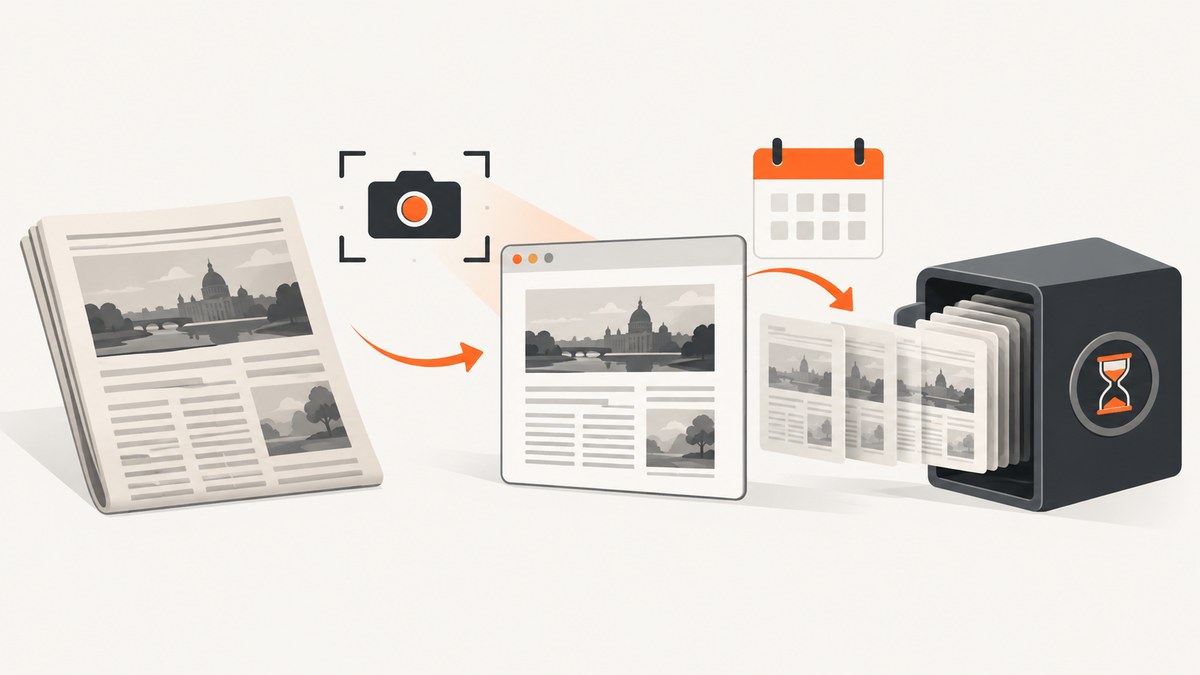
Short answer: To archive one news article, copy its canonical URL, submit it to the Internet Archive’s Save Page Now, enable Save screenshot when the option is available, then open the returned timestamped URL and verify the text, images, and important links. Save the original URL, archive URL, capture time, and method together. Save Page Now captures a single page; it is not a whole-site crawler.
A screenshot and a web archive serve different purposes. The screenshot records how the page looked at capture time. The replayable archive URL lets a reader inspect the captured HTML and archived assets later. Neither guarantees that every script, video, advertisement, embedded document, or interactive feature will replay perfectly.
What “archive a news website” can mean
Decide on the scope before you capture anything. Most requests fall into one of these categories:
| Goal | Suitable method | What it preserves |
|---|---|---|
| Document one article | Wayback Save Page Now | One URL and resources the crawler can fetch |
| Keep a visual record | Save Page Now screenshot or a local screenshot | The rendered appearance at one moment |
| Capture linked coverage | Save the article, then save selected outlinks | The article plus specifically chosen linked pages |
| Record a missing or broken source | Save the page and, where offered, save error pages | The response or error state at capture time |
| Collect a publication repeatedly | A dedicated crawling project such as Archive-It | Scheduled or institution-wide collections |
The Internet Archive explicitly explains that Save Page Now saves a single page rather than a whole site. Read the Save Pages help article before planning a larger collection.
Step-by-step: archive one news article
- Find the exact article URL. Prefer the canonical or direct article address, not a search-result URL, homepage URL, or shortened tracking link. Copy it into your notes.
- Submit it to Save Page Now. Open web.archive.org/save, paste the URL, and start the save. You can also use the Wayback Machine browser extension.
- Choose optional capture settings. If the interface offers them, enable Save screenshot for a visual record. Use Save outlinks only when linked pages are part of your evidence. Use Save error pages when the point is to document that a source was unavailable.
- Wait for the result. Copy the timestamped archive URL. Record the capture date and time, including the time zone if your notes may be shared internationally.
- Verify the replay. Open the archive URL in a new browser tab. Check the headline, byline, publication date, article body, photographs, captions, charts, and any linked document that matters.
- Label your evidence. Keep the original URL, archive URL, capture timestamp, screenshot filename, and a short description together. A screenshot without its source and date is difficult to audit.
How to verify an archived news page
Do not treat a successful submission message as proof that the page is complete. Compare the replay with the live page when it is still available, or compare it with your notes and downloaded source material.
- Confirm that the archive URL contains the expected host and timestamp.
- Search the replay for the headline, author, date, and a distinctive sentence from the article.
- Open each important image in the replay. Missing images often indicate that a dependent asset was not captured.
- Check captions, chart labels, footnotes, and downloadable PDFs separately.
- Test navigation only as evidence of what was captured; links may lead back to the live web or to uncaptured pages.
- Note visible consent dialogs, paywalls, login prompts, bot checks, or JavaScript-only content.
The Internet Archive notes that pages can be absent or incomplete because crawlers did not encounter them, access was restricted, a site owner excluded them, security settings blocked the request, or the page depended on JavaScript and uncaptured resources. See the Wayback Machine usage guidance for replay limitations.
Screenshot versus replayable archive
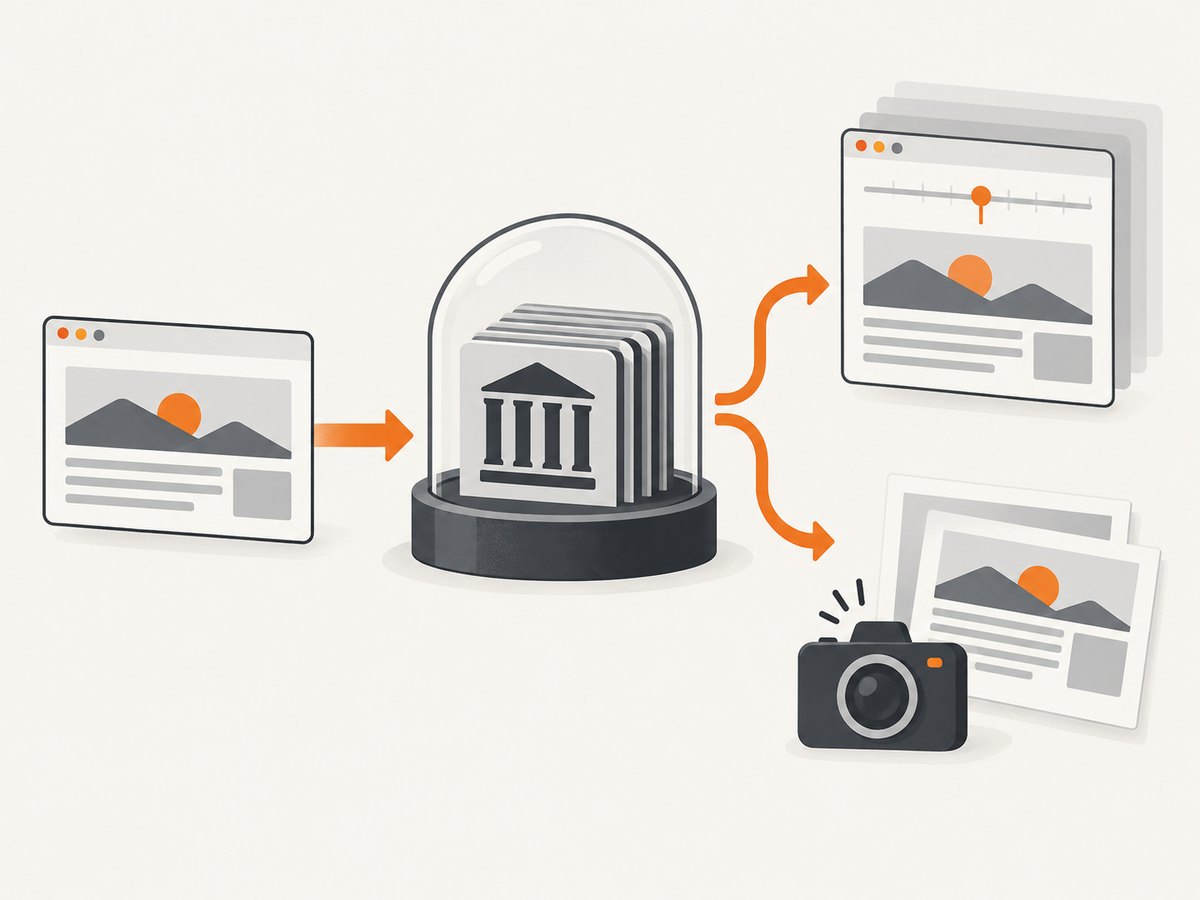
Use both when the record may be challenged. A screenshot is a flat visual artifact: it shows layout, visible text, and the state of the page at capture time. An archive capture can preserve HTML, stylesheets, and images in a way that readers can inspect and search. A replay may still differ from the original because fonts, scripts, embeds, advertisements, video, or external APIs were unavailable.
For a defensible record, store a small manifest beside the screenshot:
original_url: https://news.example/article
archive_url: https://web.archive.org/web/20250929120000/https://news.example/article
captured_at_utc: 2025-09-29T12:00:00Z
method: Wayback Save Page Now; screenshot enabled
notes: headline and two images replayed; embedded video unavailable
For institutional preservation, prefer a non-proprietary web-archive format such as WARC when your collection process supports it. The Library of Congress WARC guidance describes why standardized, self-describing archive files are useful for long-term management.
Capturing a local screenshot for your evidence set
A local screenshot can complement the Wayback record, especially when you need to show the exact viewport, a paywall notice, or a rendering detail. Capture after the article has finished loading and note the viewport and browser.
Browser print or screenshot
- Open the original article in a clean browser profile.
- Wait for the headline, article body, and important media to load.
- Dismiss overlays only if doing so reflects the page state you want to document; record that action.
- Capture the visible viewport or use the browser’s full-page screenshot command.
- Name the file with the date and a stable slug, for example
2025-09-29-news-example.png.
Automated capture with Playwright
import { chromium } from 'playwright';

const browser = await chromium.launch();
const page = await browser.newPage({ viewport: { width: 1440, height: 1000 } });
await page.goto('https://news.example/article', { waitUntil: 'networkidle' });
await page.screenshot({ path: 'article-2025-09-29.png', fullPage: true });
await browser.close();
Automation is useful for repeatable local records, but it does not create a Wayback archive. Keep the archive URL separately, and follow the publication’s access rules.
Common edge cases
Paywalls and subscriptions
An archive may preserve the paywall shell while omitting subscriber-only text. Do not represent a partial replay as the complete article. Record what was visible and whether access required an account.
Consent banners and overlays
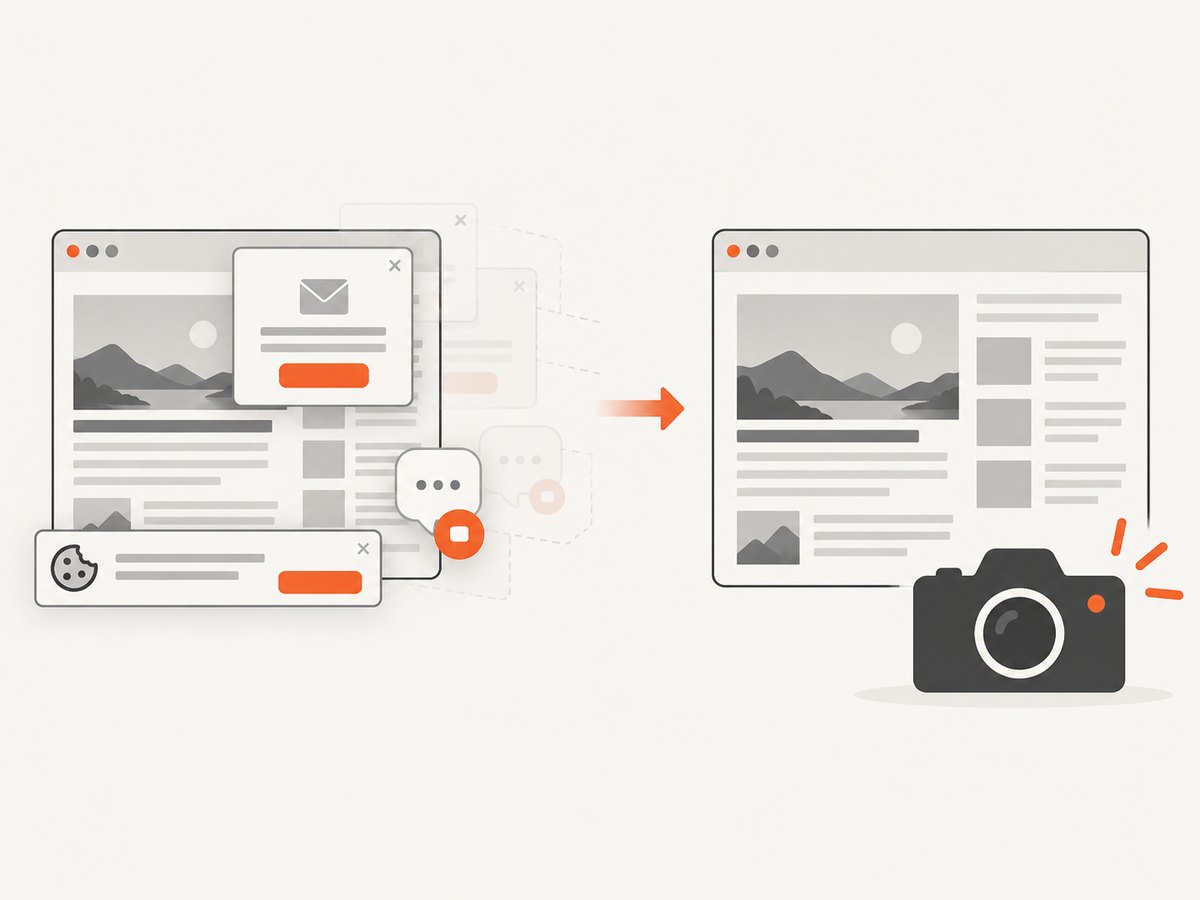
Consent managers, newsletters, chat widgets, and sticky video players can cover the article or change the layout. Capture the state intentionally and record whether an overlay was dismissed. A screenshot alone cannot prove content hidden below an overlay was absent.
JavaScript-rendered stories
Interactive graphics may load data after the initial HTML request. Verify charts and scrollytelling sections manually. If a graphic is essential, save a separate screenshot or export supplied by the publisher.
Updates and corrections
News pages change. Archive each meaningful revision and record the timestamp. Include the article’s visible “updated” or “corrected” label in your notes.
Deleted or blocked pages
Save the URL even when the request fails. If the interface offers Save error pages, use it when documenting the failure. A failed capture is evidence of an attempted request, not proof of what the page previously contained.
Or skip the browser setup
For a controlled screenshot of a news URL, ScreenshotNeo provides a GET-based screenshot API and an MCP server for AI agents. It can return PNG, JPEG, WebP, or PDF. Before capture, it accepts cookie and consent banners like a visitor and removes more than 60 known consent platforms, newsletter popups, and chat widgets; each step can be turned off. Bot checks, CAPTCHAs, blank pages, timeouts, failed loads, and cache hits are not billed, and response headers identify the page verdict and billing result.
See the ScreenshotNeo API documentation for the complete option list. The basic call uses the article URL as input:
curl -G "https://api.screenshotneo.com/v1/shot" \
  -d access_key=YOUR_API_KEY \
  --data-urlencode url=https://stripe.com \
  -o shot.webp
import requests
r = requests.get(
'https://api.screenshotneo.com/v1/shot',
params={'access_key': 'YOUR_API_KEY', 'url': 'https://stripe.com'},
timeout=90,
)
r.raise_for_status()
open('shot.webp', 'wb').write(r.content)const q = new URLSearchParams({ access_key: 'YOUR_API_KEY', url: 'https://stripe.com' });
const res = await fetch(`https://api.screenshotneo.com/v1/shot?${q}`);
if (!res.ok) throw new Error(`HTTP ${res.status}`);
const data = Buffer.from(await res.arrayBuffer());
await import('node:fs/promises').then(fs => fs.writeFile('shot.webp', data));For archiving workflows, useful options include full-page capture with lazy images loaded, CSS-selector element capture, dark mode, 12 device presets or any viewport, retina scale, custom CSS and JavaScript, click-before-capture actions, hide selectors, waits for a selector, delay, or network idle, and blocking ads, trackers, requests, or resource types. You can also set headers, cookies, user agent, Authorization, timezone, geolocation, transparent backgrounds, image resizing, a chosen cache TTL, signed links, asynchronous jobs with signed webhooks, bulk capture for up to 100 URLs per call, usage reporting, and PDF paper size, margins, landscape, and page ranges.
ScreenshotNeo is useful when you need consistent visual evidence across many URLs or want an AI agent to capture pages through its MCP tools: take_screenshot, get_page_info, and capture_pdf. It does not replace the Wayback Machine’s timestamped replay archive; keep the original URL and archive URL when historical verifiability matters.
Free accounts include 1,000 screenshots per month with no card. Paid plans start at $5 for 3,000 shots; every feature is available on every plan. Create a free ScreenshotNeo account.
Reliability, performance, and cost notes
- Reliability: Always verify a Wayback replay and keep your own manifest. Network failures and missing dependent assets are normal failure modes for web preservation.
- Performance: Full-page captures and lazy-loaded images take longer than a fixed viewport. Waiting for network idle can improve completeness but may delay pages with long-lived connections. Use a selector wait when one article container defines readiness.
- Repeatability: Fix the viewport, device preset, timezone, geolocation, user agent, and color scheme when comparing captures. Record these values with the file.
- Cost: Save Page Now is a public web-archiving workflow; recurring organizational crawling is a separate paid Archive-It service. ScreenshotNeo charges only for clean shots; bot checks, blank pages, timeouts, failed loads, and cache hits are not billed.
- Storage: Keep the screenshot, archive URL, manifest, and any separately saved PDF together. Use checksums if your organization requires tamper-evident records.
Troubleshooting
| Symptom | Likely cause | Fix |
|---|---|---|
| No archive URL appears | The save request failed or the site blocked crawling | Retry the exact canonical URL, check SSL and access restrictions, and record the failed attempt. |
| Article text is present but images are missing | Image hosts or lazy-loaded resources were not captured | Open image URLs in the replay, save important images separately, and document the gap. |
| The replay shows a paywall or login | The protected content was not publicly available to the crawler | Describe the visible state; do not claim the full article was preserved. |
| Interactive chart is blank | JavaScript or an external API was unavailable | Capture the chart locally while live, or preserve a publisher-provided static version. |
| Screenshot is covered by a popup | Newsletter, consent, or chat overlay loaded after navigation | Record the overlay state, dismiss it if appropriate, and recapture with the action noted. |
| ScreenshotNeo returns an error | Invalid key, inaccessible URL, timeout, or blocked page | Check the access key and URL encoding, increase the timeout in your client, inspect X-Page-Verdict and X-Billed, and retry only when the page is expected to become available. |
Short FAQ
Does Save Page Now archive an entire news website?
No. The normal workflow saves one page. Save selected outlinks when they matter, or use a recurring crawling service for a broader collection.
Is a screenshot enough to cite a news article?
Use it as a visual companion. Cite the original URL, the timestamped archive URL, and the capture date so readers can inspect the preserved page.
Can an archived page prove that every asset existed?
No. Missing resources, blocked requests, JavaScript behavior, and later replay limitations can produce an incomplete page.
When should I use WARC?
Use WARC or another non-proprietary archive format when your institution needs managed, long-term preservation and your capture tooling supports it.
Can ScreenshotNeo create the historical Wayback record?
No. ScreenshotNeo creates controlled screenshots or PDFs through its API and MCP server. Submit the URL to the Internet Archive separately when you need a timestamped replayable archive.