How to Create Clickable Links in HTML-to-PDF Output With ASP.NET
Render your ASP.NET HTML first, keep standard anchors, and convert with a PDF library that writes link annotations.

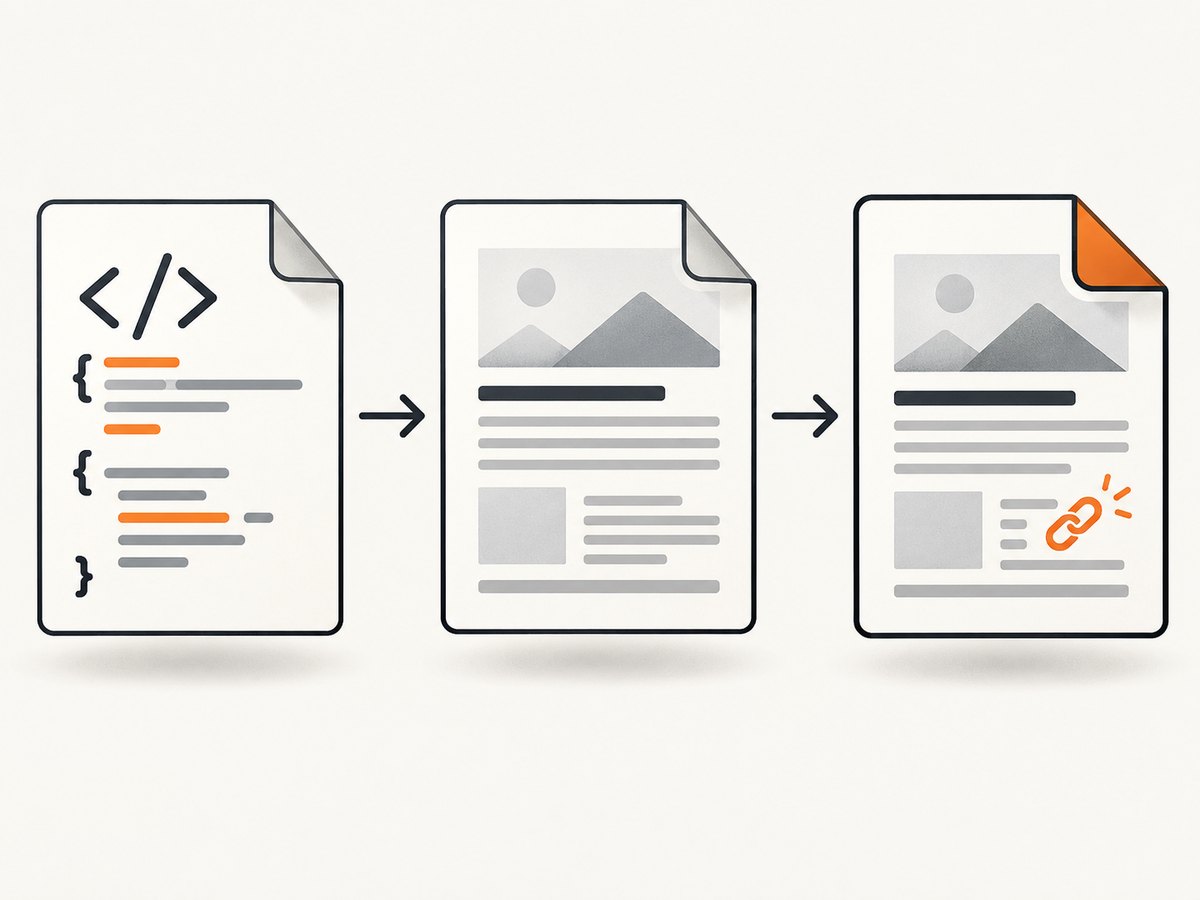
Render the ASP.NET view to final HTML before converting it to PDF, then use ordinary HTML anchors such as <a href="https://example.com/docs">Read the documentation</a>. Razor directives, tag helpers and server controls must be processed by ASP.NET first. The HTML-to-PDF converter receives the resulting HTML and CSS; it does not execute ASP.NET syntax. iText describes pdfHTML this way in its Knowledge Base: “The pdfHTML add-on parses HTML and CSS. That’s it.”
With iText pdfHTML for .NET, the conversion entry point is HtmlConverter.ConvertToPdf. Supply a base URI when the rendered page contains relative images, stylesheets or fonts. A clickable web link becomes a PDF link annotation whose action targets the URI.
How the pipeline works
- Render the Razor, MVC or ASP.NET view using the normal application path.
- Inspect the resulting HTML. Confirm every anchor has the intended
hrefand visible text. - Pass that HTML string, stream or file to the converter.
- Set a base URI for relative assets.
- Open the PDF and click the links. For automated validation, inspect the PDF annotations and compare each URI with the expected destination.
Minimal HTML that creates a clickable PDF link
<!doctype html>
<html>
<body>
  <p>
    Read the
    <a href="https://example.com/docs">product documentation</a>.
  </p>
</body>
</html>
Use an absolute URL when the link should open a website. Relative URLs are resolved against the document base URI and require the converter to know that base.
Complete ASP.NET Core example with iText pdfHTML
The following controller creates the final HTML string in application code and converts it to a PDF. In a Razor application, replace the sample string with the HTML produced by your view-rendering service.
using System.IO;
using iText.Html2pdf;
using iText.Kernel.Pdf;
using Microsoft.AspNetCore.Mvc;

public sealed class PdfController : Controller
{
    [HttpGet("pdf/invoice")]
    public IActionResult Invoice()
    {
        // This must be the final HTML after Razor has run.
        var html = """
        <!doctype html>
        <html>
        <head>
          <meta charset=\"utf-8\">
          <style>
            body { font-family: sans-serif; }
            a { color: #075985; text-decoration: underline; }
          </style>
        </head>
        <body>
          <h1>Invoice 1042</h1>
          <p>
            Questions? Visit the
            <a href=\"https://example.com/support\">support page</a>.
          </p>
        </body>
        </html>
        """;

        using var output = new MemoryStream();
        using (var writer = new PdfWriter(output))
        using (var pdf = new PdfDocument(writer))
        {
            var properties = new ConverterProperties();
            // Needed for relative images, CSS and fonts.
            properties.SetBaseUri("https://example.com/invoices/");
            HtmlConverter.ConvertToPdf(html, pdf, properties);
        }

        return File(output.ToArray(), "application/pdf", "invoice-1042.pdf");
    }
}
Install the iText pdfHTML .NET package version approved for your project, and review its AGPL or commercial licensing terms before deployment. The feature matrix is version-specific; verify that the version you deploy supports the HTML and CSS you rely on.
Rendering a Razor view before conversion
Do not pass a file containing @Model.Name, <partial>, tag helpers or other Razor syntax directly to pdfHTML. Render the view first through ASP.NET’s view engine. A typical service accepts a view name and model, writes the rendered result to a string, and then calls HtmlConverter.ConvertToPdf.
public async Task<byte[]> CreatePdfAsync(
    string viewName,
    object model,
    CancellationToken cancellationToken)
{
    var html = await razorRenderer.RenderAsync(viewName, model, cancellationToken);

    await using var output = new MemoryStream();
    using (var writer = new PdfWriter(output))
    using (var pdf = new PdfDocument(writer))
    {
        var properties = new ConverterProperties()
            .SetBaseUri("https://www.example.com/");

        HtmlConverter.ConvertToPdf(html, pdf, properties);
    }

    return output.ToArray();
}
External URLs, relative URLs and internal destinations
| Requirement | Markup or design |
|---|---|
| Open a website | <a href="https://example.com/docs">Docs</a> |
| Resolve a relative web URL | Use href="/docs" with an appropriate base URI. |
| Resolve a relative asset | Set ConverterProperties.SetBaseUri for images, CSS and fonts. |
| Jump to another place in the same PDF | Use a PDF destination or bookmark design; do not assume a web URL behaves like an internal destination. |
A base URI locates resources. It does not change an explicit absolute URL in an anchor. If you need a same-document jump, create and validate a PDF destination according to the converter’s supported anchor and destination features.
Making links obvious and accessible
- Use descriptive link text such as “Download the API guide,” not “click here.”
- Keep the destination explicit and stable.
- Use color and underlining or another visible treatment so readers can identify interactive text.
- Check contrast and keyboard or assistive-technology requirements for your PDF profile.
- Ensure the link text remains visible after CSS is converted; a PDF annotation can exist even when the text is hard to distinguish.
When to create annotations directly
For documents that do not originate as HTML, iText’s low-level PDF API can create a link annotation and URI action directly. The interactive-PDF tutorial uses a PdfLinkAnnotation with PdfAction.CreateURI(...), wrapped in a Link object. This is useful when you draw text or shapes yourself and need a clickable region independent of HTML parsing.
var link = new Link(
    "Open the documentation",
    new PdfLinkAnnotation(new Rectangle(100, 700, 180, 20))
        .SetAction(PdfAction.CreateURI("https://example.com/docs")));

var paragraph = new Paragraph(link);
document.Add(paragraph);
Common failures and fixes
| Symptom | Likely cause | Fix |
|---|---|---|
| Razor appears literally in the PDF | The converter received the template instead of rendered HTML. | Render the view through ASP.NET first, then convert the resulting string. |
| Link text is present but does nothing | The href is missing, malformed or stripped before conversion. |
Log the final HTML and verify a valid absolute or resolvable URL. |
| Relative images or CSS are missing | No base URI was configured, or the URI points to an inaccessible location. | Call SetBaseUri and verify the asset URL from the converter’s deployment environment. |
| Link opens the wrong location | A relative URL resolves against an unexpected base. | Use an absolute URL or set the intended document base explicitly. |
| Only some CSS links work | The deployed pdfHTML version does not support the CSS used. | Check the versioned feature matrix and simplify or adapt the styles. |
| External link works but an internal jump fails | Web URLs and PDF destinations are different action types. | Create a PDF destination or bookmark and validate it as a PDF annotation. |
| Links are hard to see | PDF text has no visual link treatment. | Add color, underline or another clear style while preserving contrast. |
| Conversion works locally but fails in production | Fonts, images or URLs are unavailable from the production process. | Use deployable assets, a correct base URI and network access appropriate for the server. |
Validation checklist
- Save or log the final rendered HTML for a failing document.
- Check every anchor’s
href, text and resolved URL. - Open the PDF in more than one viewer.
- Inspect link annotations in an automated PDF inspection step.
- Test redirects, authentication requirements and expired destinations.
- Test documents with long link text, page breaks and repeated headers or footers.
- Confirm the converter version and license are approved for production.
Performance, reliability and cost considerations
Rendering the view and converting the PDF are separate stages, so measure them separately. Cache stable CSS, fonts and images where your deployment permits. Avoid remote dependencies that can add latency or fail during conversion; package critical assets or serve them from a reliable internal endpoint. Set request timeouts around external resource retrieval and record the document identifier when conversion fails.
For high-volume generation, bound concurrent conversions to the CPU and memory available to the worker. Large images and full-page documents increase memory use. Keep a representative HTML fixture set and compare generated PDFs after library upgrades, because CSS support and layout behavior can vary by version.
Alternative libraries and selection criteria
MigraDoc documents an explicit AddHyperlink API for web URLs, files and bookmarks. That authoring path is different from converting arbitrary ASP.NET HTML. When comparing libraries, evaluate:
- Fidelity for your actual HTML, CSS and anchor patterns.
- How the library obtains rendered ASP.NET HTML.
- Relative URL and asset resolution.
- External URI actions versus internal PDF destinations.
- PDF/A, tagging and accessibility requirements.
- Deployment model, supported .NET versions and license terms.
Or skip the browser setup
If your workflow also needs screenshots of the rendered page, ScreenshotNeo provides a single request for a clean PNG, JPEG, WebP or PDF. It accepts cookie and consent banners before capture and removes more than 60 known consent platforms, newsletter popups and chat widgets. Bot checks, blank pages, timeouts, failed loads and cache hits are not billed, and response headers identify the page verdict and billing status.

See the ScreenshotNeo API documentation for all options. A direct PDF request is:
curl -G "https://api.screenshotneo.com/v1/shot" \
  -d access_key=YOUR_API_KEY \
  --data-urlencode url=https://example.com/invoice \
  -d format=pdf \
  -o invoice.pdf
import requests
r = requests.get(
"https://api.screenshotneo.com/v1/shot",
params={
"access_key": "YOUR_API_KEY",
"url": "https://example.com/invoice",
"format": "pdf",
},
timeout=90,
)
r.raise_for_status()
open("invoice.pdf", "wb").write(r.content)const q = new URLSearchParams({
access_key: 'YOUR_API_KEY',
url: 'https://example.com/invoice',
format: 'pdf'
});
const res = await fetch(`https://api.screenshotneo.com/v1/shot?${q}`);
if (!res.ok) throw new Error(`HTTP ${res.status}`);
require('node:fs').writeFileSync('invoice.pdf', Buffer.from(await res.arrayBuffer()));ScreenshotNeo also has an MCP server with take_screenshot, get_page_info and capture_pdf tools for Claude, Cursor and other MCP clients. The free plan includes 1,000 screenshots a month with no card; paid plans start at $5 for 3,000 shots. Create a free ScreenshotNeo account.
FAQ
Does pdfHTML execute Razor?
No. ASP.NET must render Razor and server controls before the converter receives the HTML.
Do I need a base URI for an absolute link?
No. An absolute https:// URL is already complete. A base URI is needed for relative assets and relative links.
Can a link jump to another page in the same PDF?
That requires a PDF destination or bookmark action. Treat it separately from an external URI.
Why is a link clickable but not visually distinct?
PDF annotations and page text are separate. Add an underline or contrasting color in the HTML or create a styled link when using the PDF API.
Should I use a browser renderer instead?
Choose based on the HTML and CSS fidelity you need. Test representative pages because browser renderers and HTML parsers can produce different results.


