How to Convert HTML to PDF in ASP.NET Core with Rotativa
Render Razor views as PDFs in ASP.NET Core with Rotativa.AspNetCore, configure wkhtmltopdf, handle downloads, deployment, security, errors, and alternatives.
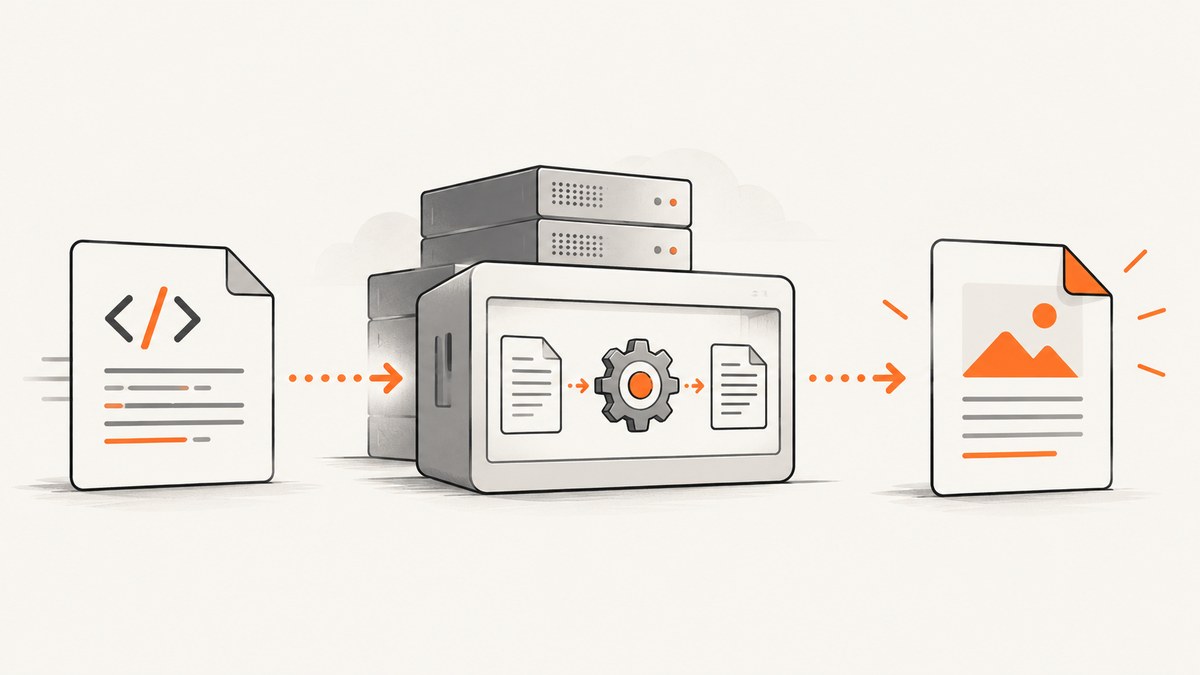
Rotativa.AspNetCore converts an ASP.NET Core Razor view into a PDF or image by invoking the wkhtmltopdf or wkhtmltoimage executable. The practical flow is: install the package, deploy a platform-appropriate renderer, configure Rotativa middleware, and return a ViewAsPdf result from a controller action.
The documented project guidance covers .NET Core 3.1, .NET 5, and .NET 6 through .NET 8. Verify compatibility before using a newer target framework. Rotativa.AspNetCore is distributed through NuGet; the package listing used for this guide shows version 1.4.0, but package metadata can change.
1. How the conversion works
Your controller selects a Razor view. Rotativa renders that view to HTML, starts wkhtmltopdf, and returns the generated PDF as the HTTP response. CSS, images, fonts, and scripts must therefore be reachable by the renderer in the deployment environment.
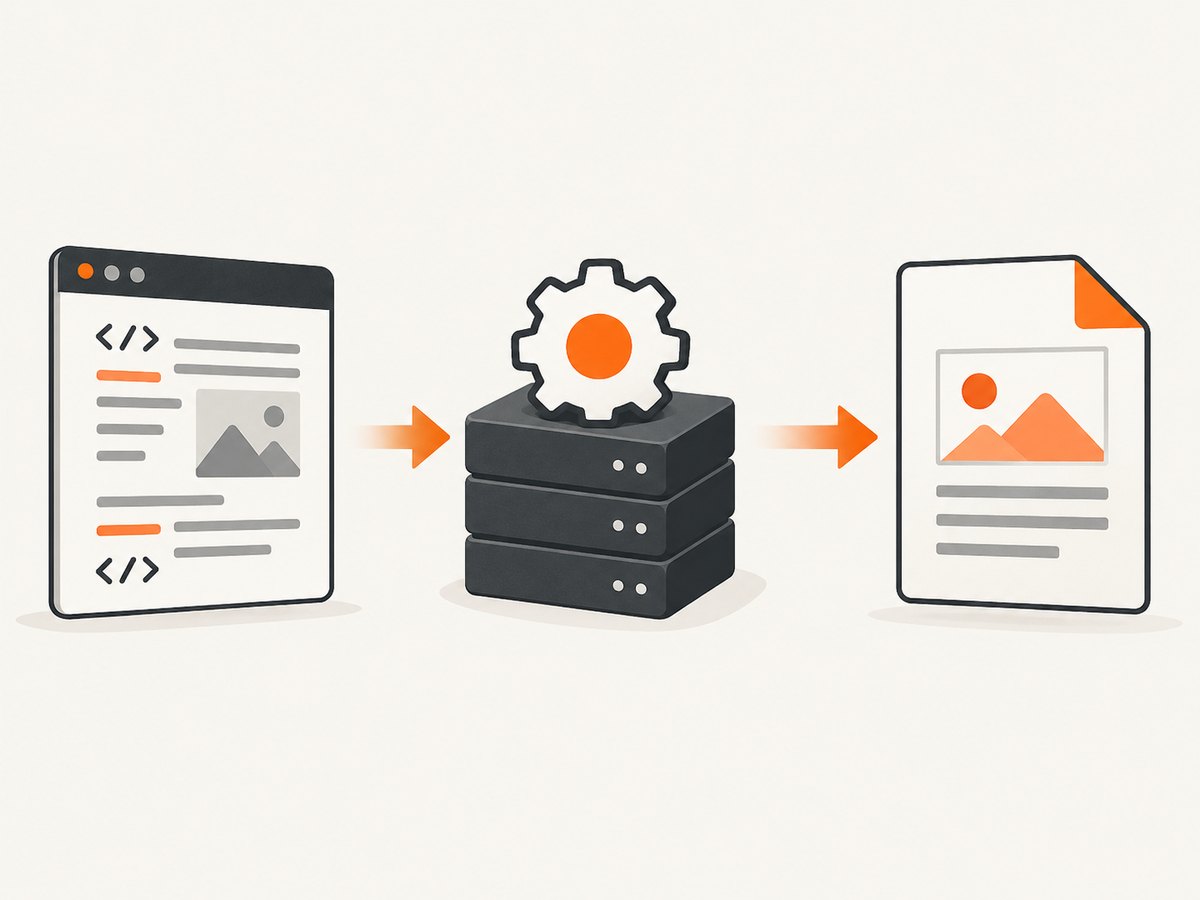
- Create a Razor view containing the document markup.
- Ensure the wkhtmltopdf executable is present and executable by the web-process account.
- Configure the renderer folder and Rotativa middleware.
- Return
ViewAsPdffrom an action. - Choose inline display or attachment download behavior.
2. Install Rotativa.AspNetCore
dotnet add package Rotativa.AspNetCoreCheck the NuGet package page for the current version before publishing. The package wraps wkhtmltopdf and wkhtmltoimage; installing the .NET package alone does not guarantee that the native executable is available on your server.
3. Add the wkhtmltopdf executable
The application process must be able to access the renderer. The project documentation uses a Rotativa directory in the application root by default and also supports a custom relative directory. Windows uses wkhtmltopdf.exe; Linux and other Unix-like hosts use wkhtmltopdf.
Deployment checklist
- Download a renderer build that matches the operating system and CPU architecture.
- Copy the executable and its required libraries into the deployed application or an explicitly configured directory.
- Mark the Unix executable as executable, for example with
chmod +x wkhtmltopdf. - Give the service account read and execute access to the directory.
- Run the binary under the same account as the web application once to verify permissions and dependencies.
- Keep the renderer outside publicly served static-file directories.
The official wkhtmltopdf site lists the 0.12.6 series as stable, released June 11, 2020. Treat that as an aging native dependency and review its maintenance and security status before adopting it.
4. Configure Rotativa in Program.cs
.NET 6 through .NET 8
var builder = WebApplication.CreateBuilder(args);

builder.Services.AddControllersWithViews();

var app = builder.Build();

if (!app.Environment.IsDevelopment())
{
    app.UseExceptionHandler("/Home/Error");
    app.UseHsts();
}

app.UseHttpsRedirection();
app.UseStaticFiles();
app.UseRouting();

app.UseRotativa();

app.MapControllerRoute(
    name: "default",
    pattern: "{controller=Home}/{action=Index}/{id?}");

app.Run();
.NET Core 3.1 and .NET 5
public void Configure(IApplicationBuilder app, IWebHostEnvironment env)
{
    if (env.IsDevelopment())
        app.UseDeveloperExceptionPage();
    else
        app.UseExceptionHandler("/Home/Error");

    app.UseStaticFiles();
    app.UseRouting();

    app.UseRotativa(env);

    app.UseEndpoints(endpoints =>
    {
        endpoints.MapControllerRoute(
            name: "default",
            pattern: "{controller=Home}/{action=Index}/{id?}");
    });
}
If the executable is in a custom relative folder, pass that folder through the setup overload documented by the project instead of assuming the default Rotativa path. The folder must exist in the deployed application.
5. Create a Razor view
Place a view such as Views/Invoices/Invoice.cshtml. Use print-oriented CSS and provide absolute or fully resolvable resource URLs when the renderer runs outside a browser.
@model InvoiceViewModel
<!doctype html>
<html>
<head>
    <meta charset="utf-8" />
    <style>
        @@page { size: A4; margin: 18mm; }
        body { font-family: Arial, sans-serif; color: #222; }
        table { width: 100%; border-collapse: collapse; }
        th, td { padding: 8px; border-bottom: 1px solid #ddd; text-align: left; }
        .total { text-align: right; font-weight: bold; }
    </style>
</head>
<body>
    <h1>Invoice @Model.Number</h1>
    <p>Issued: @Model.IssuedOn.ToString("yyyy-MM-dd")</p>
    <table>
        <thead><tr><th>Description</th><th>Amount</th></tr></thead>
        <tbody>
        @@foreach (var line in Model.Lines)
        {
            <tr><td>@line.Description</td><td>@line.Amount.ToString("C")</td></tr>
        }
        </tbody>
    </table>
    <p class="total">Total: @Model.Total.ToString("C")</p>
</body>
</html>
6. Return a PDF from a controller
Use the action’s default view
using Microsoft.AspNetCore.Mvc;
using Rotativa.AspNetCore;

public class InvoicesController : Controller
{
    public IActionResult Invoice()
    {
        return new ViewAsPdf();
    }
}
Select a named view and pass a model
public IActionResult Invoice(int id)
{
    var invoice = invoiceService.GetInvoice(id);
    if (invoice is null)
        return NotFound();

    return new ViewAsPdf("Invoice", invoice)
    {
        FileName = $"invoice-{invoice.Number}.pdf"
    };
}
Display inline or force download
PDF output is displayed in the browser by default. Set ContentDisposition to Attachment and provide FileName when the response should download.
using Rotativa.AspNetCore;
using Rotativa.AspNetCore.Options;

public IActionResult DownloadInvoice(int id)
{
    var invoice = invoiceService.GetInvoice(id);
    if (invoice is null)
        return NotFound();

    return new ViewAsPdf("Invoice", invoice)
    {
        ContentDisposition = ContentDisposition.Attachment,
        FileName = $"invoice-{invoice.Number}.pdf"
    };
}
7. Supply wkhtmltopdf options
ViewAsPdf accepts custom wkhtmltopdf switches. Use options for page size, orientation, margins, headers, footers, JavaScript delays, and other renderer behavior supported by your installed binary. Keep the switches explicit and review them after renderer upgrades because native-tool behavior can vary.
public IActionResult LandscapeInvoice(InvoiceViewModel model)
{
    return new ViewAsPdf("Invoice", model)
    {
        PageOrientation = Rotativa.AspNetCore.Options.Orientation.Landscape,
        PageSize = Rotativa.AspNetCore.Options.Size.A4,
        CustomSwitches = "--margin-top 15mm --margin-bottom 15mm --print-media-type"
    };
}
Prefer the strongly typed properties supplied by the package for common settings. Use CustomSwitches only for switches your installed wkhtmltopdf supports, and avoid accepting arbitrary switches from an HTTP request.
8. Build and store the PDF yourself
When a workflow needs a byte array—for example, storing an invoice in object storage or attaching it to another service—use BuildFile. Protect the resulting bytes as sensitive data and apply an explicit retention policy. Do not place private documents in a publicly served directory by default.
public async Task ArchiveInvoice(int id)
{
    var invoice = invoiceService.GetInvoice(id);
    if (invoice is null)
        return NotFound();

    var result = new ViewAsPdf("Invoice", invoice);
    byte[] pdf = await result.BuildFile(ControllerContext);

    await archiveStore.SaveAsync($"invoices/{invoice.Number}.pdf", pdf);
    return Accepted();
}
9. URLs, assets, fonts, and JavaScript
- Use absolute HTTPS URLs for external images, stylesheets, and fonts when the renderer cannot resolve application-relative paths.
- Ensure authentication is available to the renderer if the view loads protected assets; a browser session cookie is not automatically present.
- Keep JavaScript deterministic. If a chart or component renders asynchronously, configure a renderer delay or make the view server-rendered.
- Check that CSS features are supported by your wkhtmltopdf build; it is not a current Chromium browser.
- For repeatable output, pin asset versions and avoid time-dependent content unless the document requires it.
10. Security and renderer isolation
The official wkhtmltopdf project warns: “Do not use wkhtmltopdf with any untrusted HTML – be sure to sanitize any user-supplied HTML/JS, otherwise it can lead to complete takeover of the server it is running on!” Never pass attacker-controlled HTML directly to the renderer.
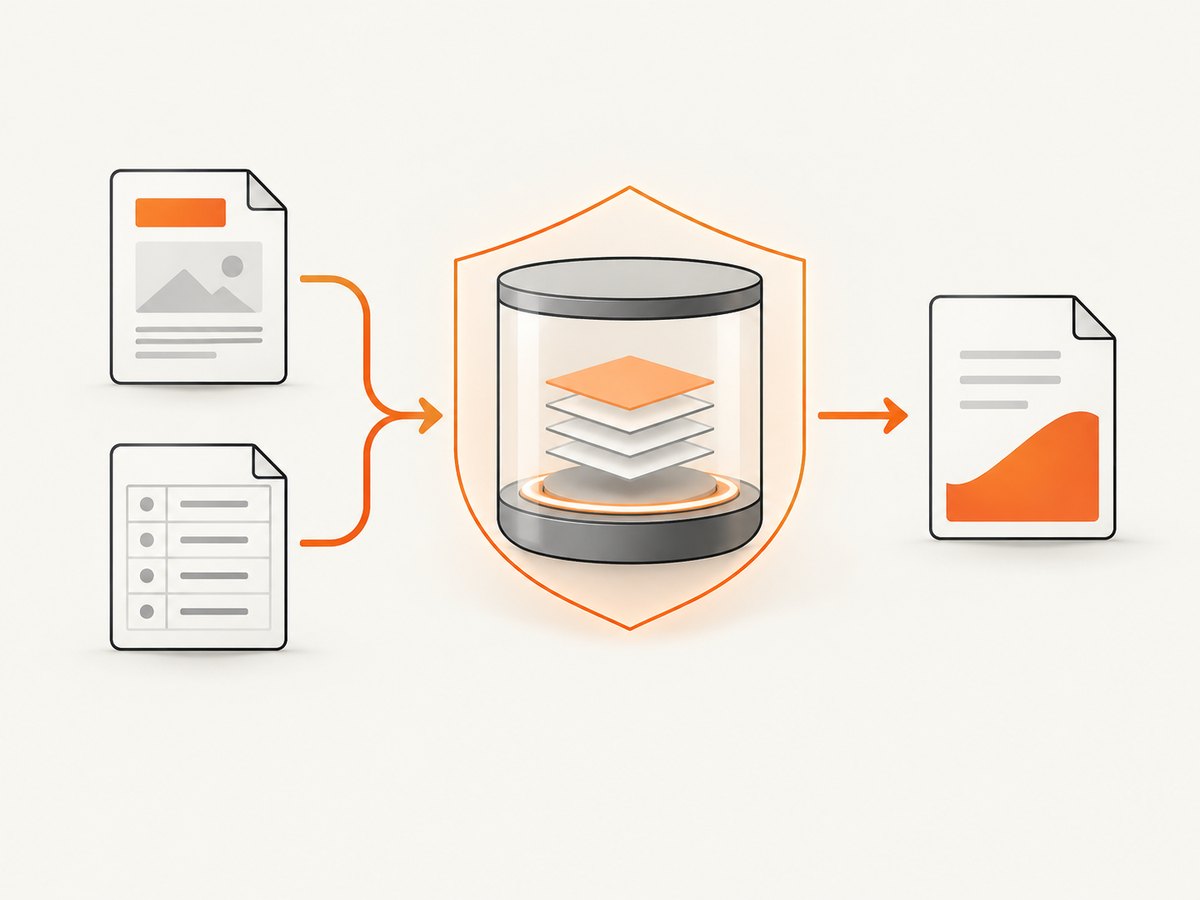
- Render trusted server-side Razor templates rather than arbitrary submitted markup.
- Encode user values through Razor’s normal output encoding.
- Sanitize any permitted rich text with a maintained HTML sanitizer and remove scripts, event handlers, dangerous URLs, and embedded objects.
- Run conversion in a restricted service account or isolated worker where practical.
- Limit outbound network access from the renderer if documents do not need arbitrary external resources.
- Apply request authentication and authorization before generating private PDFs.
- Do not expose command-line switches, file paths, or executable selection to clients.
11. Troubleshooting
| Symptom | Likely cause | Fix |
|---|---|---|
| Executable not found | The binary is missing or the relative folder is wrong. | Deploy the correct platform binary, verify the application root, and configure the actual folder. |
| Permission denied | The service account cannot execute the file. | Set Unix execute permission and grant the service account read/execute access. |
| Works locally, fails in production | Production lacks native libraries, fonts, or a writable temporary directory. | Install runtime dependencies, deploy required fonts, and inspect the service account’s filesystem permissions. |
| Blank PDF | The view failed, assets cannot be loaded, or the renderer exited early. | Open the view directly, inspect application logs, use absolute asset URLs, and verify the executable manually. |
| Missing images or CSS | Relative URLs resolve differently outside the browser. | Use absolute URLs or inline critical CSS and confirm the renderer can reach the host. |
| Charts are missing | JavaScript has not finished before capture. | Reduce client-side rendering or add a carefully chosen JavaScript delay. |
| Fonts differ | The server does not have the same fonts as development. | Install licensed fonts on the host or embed a permitted web font. |
| PDF downloads unexpectedly | Content disposition is set to attachment. | Remove the attachment setting for inline display, or keep it for downloads. |
| Large or slow documents | High-resolution images, many pages, or expensive scripts. | Resize assets, simplify the view, paginate large jobs, and move conversion to a background worker. |
12. Performance and reliability
- Reuse a dedicated conversion worker rather than creating unbounded concurrent renderer processes.
- Set request timeouts and cancellation behavior around long-running conversions.
- Queue large reports and return a job identifier instead of holding an HTTP request open.
- Measure conversion duration, process failures, output size, and renderer exit codes.
- Cache immutable documents using a content key, but invalidate the cache when source data or assets change.
- Keep temporary files on a volume with sufficient space and clean them after success or failure.
- Retry only transient process or infrastructure failures; do not blindly retry malformed HTML or unauthorized requests.
- Test page breaks, right-to-left text, tables, images, and fonts with production-like data.
13. Rotativa versus a hosted PDF API
Running Rotativa gives you control over deployment and keeps conversion in your infrastructure, but you must maintain the native executable, libraries, fonts, permissions, isolation, and worker capacity. A hosted service can remove that server maintenance and renderer dependency, but it introduces a network dependency and requires reviewing its current terms and data handling. Rotativa.io describes a hosted API for applications that cannot install or operate PDF tools on their own servers; verify its current pricing and service terms before choosing it.
14. Or skip the browser setup
ScreenshotNeo can return a screenshot or PDF from one GET request, so you do not need to package a browser or wkhtmltopdf process for URL-based documents. Cookie banners, newsletter popups, and chat widgets are removed before the shot. Bot checks, blank pages, failed loads, timeouts, and cache hits are not billed, and response headers report the page verdict and billing result. Its MCP server lets Claude, Cursor, and other MCP clients take screenshots or capture PDFs.
See the ScreenshotNeo API documentation for request options and authentication.
curl -G "https://api.screenshotneo.com/v1/shot" -d access_key=YOUR_API_KEY --data-urlencode url=https://stripe.com -o shot.webpimport requests
r = requests.get("https://api.screenshotneo.com/v1/shot", params={"access_key": "YOUR_API_KEY", "url": "https://stripe.com"}, timeout=90)
open("shot.webp", "wb").write(r.content)const q = new URLSearchParams({ access_key: 'YOUR_API_KEY', url: 'https://stripe.com' });
const res = await fetch(`https://api.screenshotneo.com/v1/shot?${q}`);The free plan includes 1,000 screenshots each month with no card. Paid plans start at $5 for 3,000 shots. Create a free ScreenshotNeo account.
15. FAQ
Does Rotativa.AspNetCore render Razor views?
Yes. ViewAsPdf renders the selected Razor view and passes it to wkhtmltopdf.
Can I use a named view?
Yes. Return new ViewAsPdf("YourViewName", model).
Why must wkhtmltopdf be installed separately?
Rotativa.AspNetCore is the .NET integration layer. The native wkhtmltopdf executable performs the actual conversion.
Is wkhtmltopdf suitable for untrusted HTML?
No. Sanitize user input and isolate the renderer before processing any user-supplied markup.
Can I save the generated bytes?
Yes. Build the result with BuildFile, then store the bytes in protected storage with an appropriate retention policy.


