How to Associate a User with a Website Screenshot
Link every screenshot to an account or pseudonymous ID in your app while keeping attribution, analytics, and privacy boundaries clear.

Direct answer: associate a screenshot with the authenticated account or a carefully scoped pseudonymous application User-ID at the moment your application captures or accepts the image. Store that identity reference on a capture record together with the image reference, timestamp, page context, and access policy. Treat the association as an application record showing which account initiated the workflow—not as proof of which person physically operated a device.
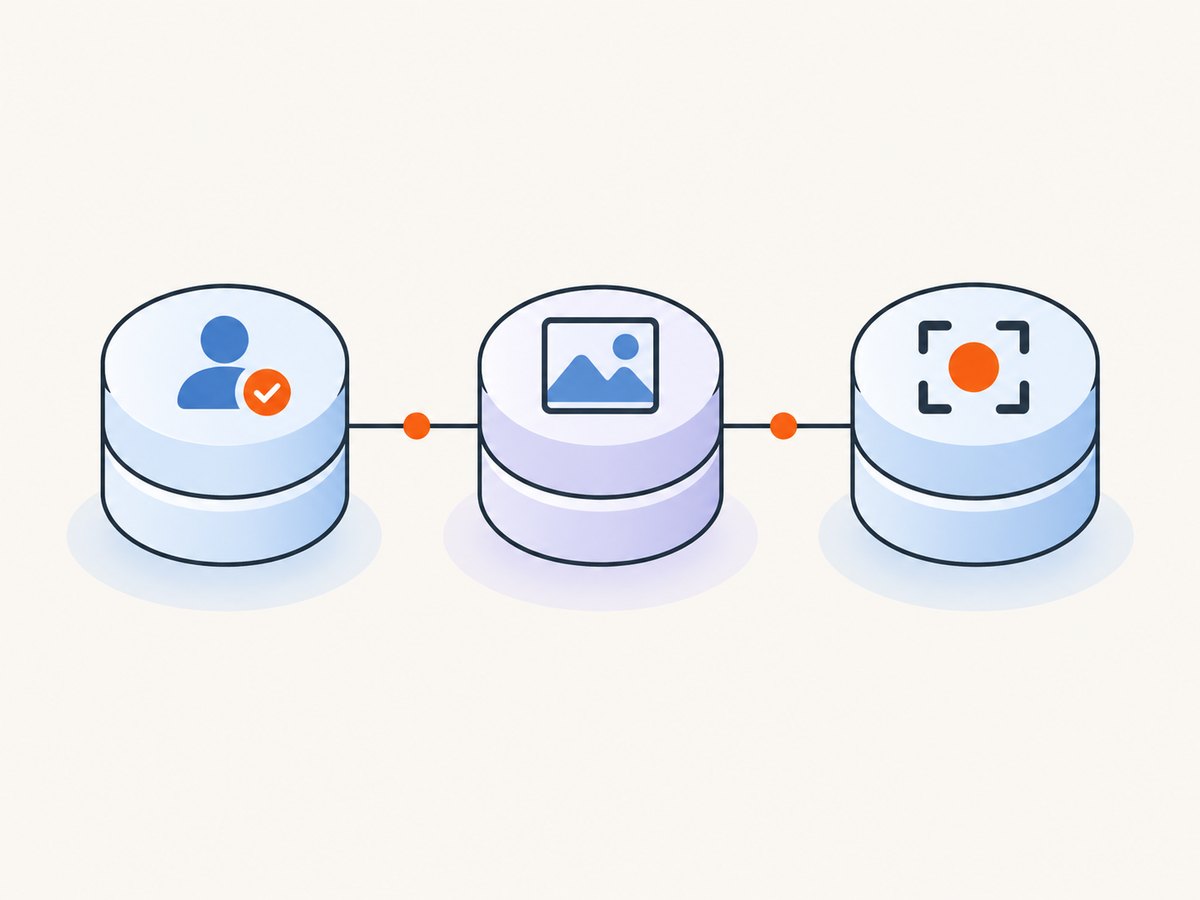
A robust design keeps three things separate:
- Identity link: your account ID or pseudonymous User-ID.
- Capture event: what happened, when, where, and with which session context.
- Image object: the PNG, JPEG, WebP, or PDF and its storage location.
1. Decide what “associate” means
Before writing code, define the claim your product needs to make. A signed-in account can establish that an account initiated a capture or upload. It does not establish that a named person was physically at the keyboard. An analytics User-ID can connect activity across sessions, devices, and platforms when configured correctly, but it is still an application or analytics signal.
| Pattern | What it links | Advantage | Limit |
|---|---|---|---|
| Authenticated account reference | Capture or upload record to an account | Clear application-level association | Does not prove who operated the device |
| Pseudonymous User-ID | Events and records to a stable site identifier | Connects activity across sessions and devices | Depends on implementation and reporting settings |
| Device or browser signals | Recognition hints for analytics | Can support product analysis | Settings affect results; fingerprinting creates privacy risk |
| Managed-browser controls | Whether captures are allowed in a managed deployment | Useful administrative restriction | Limited scope and does not attribute a capture |
Google describes User-ID as a way to associate your own identifiers with individual users across sessions and devices. Its reporting identity can also depend on device settings and the reporting identity option selected for the property. Read the GA4 User-ID documentation and scopes of traffic-source dimensions before treating analytics data as an identity record.
2. Design the data model
Create a capture record first, then attach the image object. A relational design might look like this:
CREATE TABLE screenshot_captures (
  id UUID PRIMARY KEY,
  account_id UUID NULL REFERENCES accounts(id),
  pseudonymous_user_id VARCHAR(128) NULL,
  session_id VARCHAR(128) NULL,
  initiated_by VARCHAR(32) NOT NULL, -- capture or upload
  source_url TEXT NOT NULL,
  image_object_key TEXT NOT NULL,
  mime_type VARCHAR(64) NOT NULL,
  captured_at TIMESTAMPTZ NOT NULL,
  metadata JSONB NOT NULL DEFAULT '{}',
  retention_until TIMESTAMPTZ NULL,
  visibility VARCHAR(16) NOT NULL DEFAULT 'private'
);
Use exactly one primary identity path for each record: an authenticated account_id or a scoped pseudonymous ID. Keep the session ID as context, not as a substitute for the account. Generate an internal capture ID that is unrelated to email addresses. Store the image under an object key such as screenshots/2026/09/<capture-id>.webp, and keep the object private until an authorized request produces a short-lived URL.
Record enough provenance to answer later questions:
- Who initiated the workflow according to your application?
- Was the image captured by your browser automation or uploaded?
- Which URL, route, viewport, and options were used?
- When was it captured, and when should it be deleted?
- Who can view, download, share, or delete it?
3. Associate an authenticated user during capture
Authenticate before starting the browser job. Pass an internal account ID to the worker through a trusted job record rather than accepting an arbitrary user ID from the browser.
// Node.js / Express example
app.post('/screenshots', requireAuth, async (req, res) => {
  const captureId = crypto.randomUUID();
  const accountId = req.user.accountId;

  await db.query(`
    INSERT INTO screenshot_captures
      (id, account_id, initiated_by, source_url, image_object_key, mime_type, captured_at)
    VALUES ($1, $2, 'capture', $3, $4, 'image/webp', NOW())
  `, [captureId, accountId, req.body.url, `screenshots/${captureId}.webp`]);

  await queue.add('capture', {
    captureId,
    accountId,
    url: req.body.url
  });

  res.status(202).json({ captureId });
});
The worker should load the job by captureId, perform the capture, upload the bytes to the preselected object key, and update status. Never let a client choose another account’s object key. Enforce authorization on every read, download, share, and delete endpoint.
4. Associate an uploaded screenshot
For uploads, require sign-in before issuing an upload URL. Create the database record before the upload so an orphaned object can be found and cleaned up.
// Python / Flask-style upload flow
@app.post('/uploads')
@login_required
def create_upload():
    capture_id = str(uuid.uuid4())
    object_key = f"screenshots/{capture_id}.png"
    db.insert_capture(
        id=capture_id,
        account_id=current_user.account_id,
        initiated_by='upload',
        source_url=request.form.get('source_url', 'user-upload'),
        image_object_key=object_key,
        mime_type='image/png',
        captured_at=datetime.now(timezone.utc)
    )
    upload_url = storage.presigned_put(object_key, content_type='image/png')
    return {'captureId': capture_id, 'uploadUrl': upload_url}, 201
After the upload completes, verify the object’s content type and size, scan it according to your environment’s requirements, and mark the record ready. Do not infer identity from EXIF metadata, filenames, pixels, or browser fingerprints. A third party can send you an image without reliable evidence of who created it.
5. Add analytics without confusing attribution and identity
If you use Google Analytics, send a configured User-ID and a screenshot event only when that collection fits your notice and data-handling choices. Keep your application database as the source of truth for the image-to-account relationship.
gtag('config', 'G-EXAMPLE', {
  user_id: signedInAccountId
});

gtag('event', 'screenshot_captured', {
  capture_id: internalCaptureId,
  page_context: location.pathname
});
Do not put email addresses, names, access tokens, or raw image URLs into analytics parameters. Use an opaque capture ID. Analytics reports can be modeled or affected by browser settings; they are not identity verification.
6. Privacy and provenance boundaries
Tell users what is collected, why screenshots are stored, how long they remain available, and whether links can be shared publicly. Provide deletion and export paths that remove both the database record and the image object. If a public link is enabled, make it unguessable, support revocation, and explain that recipients or other services may retain copies.
Do not recommend fingerprinting as an identity shortcut. The W3C fingerprinting guidance explains how correlating browser characteristics with identifying information can make a pseudonymous user identifiable. Use explicit authentication or a user-selected association instead.
Chrome Enterprise screenshot prevention is an administrative control for managed deployments. The Chrome policy documentation describes platform and licensing boundaries; it does not provide a way for an ordinary website to identify who took a screenshot.
7. Capture screenshots with your own browser automation
If your application needs to capture a page itself, associate the account before launching the browser and keep the browser job separate from the identity record. This Playwright example saves a local file and returns the capture ID to your application.
import { chromium } from 'playwright';

export async function captureForAccount({ accountId, url, captureId }) {
  const browser = await chromium.launch();
  try {
    const page = await browser.newPage({ viewport: { width: 1440, height: 900 } });
    await page.goto(url, { waitUntil: 'networkidle', timeout: 60000 });
    await page.screenshot({ path: `/tmp/${captureId}.png`, fullPage: true });
    await db.markReady(captureId, { accountId, mimeType: 'image/png' });
    return captureId;
  } catch (error) {
    await db.markFailed(captureId, { reason: String(error) });
    throw error;
  } finally {
    await browser.close();
  }
}
Production workers should limit concurrency, set navigation and total-job timeouts, close every browser context, retry transient navigation failures with a cap, and make the capture update idempotent. Keep the account association in your queue payload or database, never in untrusted page content.
8. Or skip the browser setup
ScreenshotNeo provides a website screenshot API and MCP server. A GET request returns PNG, JPEG, WebP, or PDF, while your application continues to own the account-to-capture record. Store the returned bytes under your internal capture ID and associate that ID with the signed-in account as shown above. See the ScreenshotNeo API documentation for request options.
cURL
curl -G "https://api.screenshotneo.com/v1/shot" -d access_key=YOUR_API_KEY --data-urlencode url=https://stripe.com -o shot.webpPython
import requests
r = requests.get("https://api.screenshotneo.com/v1/shot", params={"access_key": "YOUR_API_KEY", "url": "https://stripe.com"}, timeout=90)
open("shot.webp", "wb").write(r.content)
Node.js
const q = new URLSearchParams({ access_key: 'YOUR_API_KEY', url: 'https://stripe.com' });
const res = await fetch(`https://api.screenshotneo.com/v1/shot?${q}`);
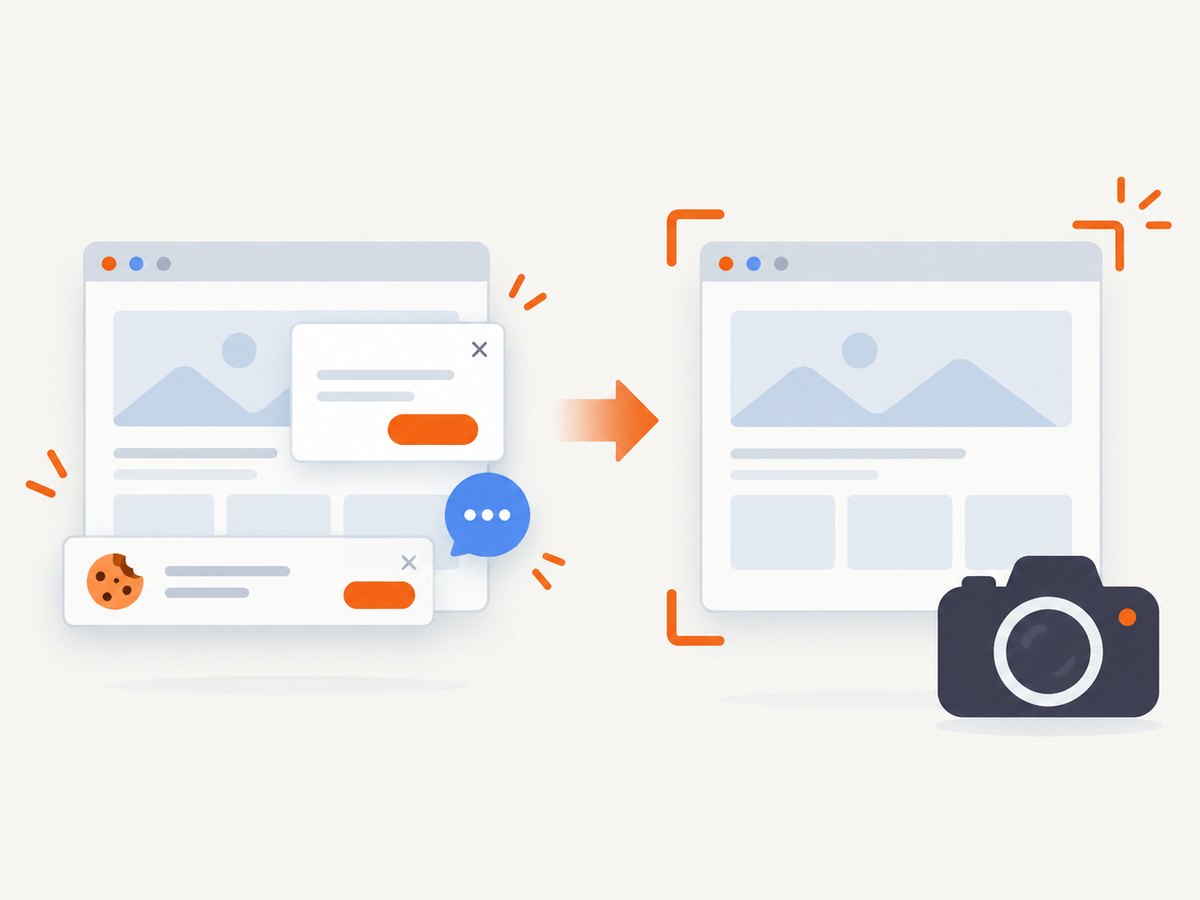
ScreenshotNeo removes cookie banners, newsletter popups, and chat widgets before capture. Bot checks, blank pages, failed loads, timeouts, and cache hits are not billed; response headers identify the page verdict and whether the request was billed. Its MCP server exposes take_screenshot, get_page_info, and capture_pdf for Claude, Cursor, and other MCP clients.
You can also use full-page capture with lazy images, CSS element selection, dark mode, device presets or custom viewports, retina scale, PDF paper and margin settings, custom CSS and JavaScript, clicks, waits, blocked resources, headers, cookies, user agents, authorization, timezone, geolocation, transparent backgrounds, resizing, TTL caching, signed image links, asynchronous signed webhooks, bulk capture of up to 100 URLs per call, and the usage API. Every feature is on every plan. The Free plan includes 1,000 shots per month without a card; paid plans start at $5 for 3,000 shots.
Create a free ScreenshotNeo account and keep the returned capture ID beside your application’s account ID.
9. Reliability, performance, and cost
- Reliability: use a durable job queue, idempotency keys, bounded retries, and a dead-letter path. Persist a failure reason and page verdict.
- Performance: reuse worker processes, avoid unnecessary full-page captures, select only the needed element, and use a cache TTL for identical inputs. Network-idle waits improve completeness but increase latency.
- Cost: estimate captures per active account and retain only the resolution and format you need. ScreenshotNeo bills only clean shots; failed loads and cache hits do not consume billable captures.
- Storage: object storage usually dominates long retention. Generate derivatives on demand and expire temporary files.
- Security: keep API keys server-side, redact authorization headers from logs, and make signed links short-lived.
10. Troubleshooting checklist
| Symptom | Likely cause | Fix |
|---|---|---|
| Screenshot belongs to the wrong account | Account ID accepted from client input | Derive identity from the authenticated session and load jobs by server-generated capture ID. |
| Image exists without a database row | Upload completed before record creation or callback failed | Create the record first and run an object-to-record reconciliation job. |
| Analytics user does not match application data | Different IDs, consent state, or reporting identity settings | Use one opaque ID, document the mapping, and treat analytics as secondary evidence. |
| Browser job times out | Slow resources, never-ending requests, or an overly strict timeout | Set navigation and total-job limits, block unnecessary resource types, and retry once with a cap. |
| Blank or obstructed page | Bot check, consent dialog, popup, or failed JavaScript | Inspect the verdict, wait for a selector, or use a capture service that handles common overlays. |
| Public link exposes private data | Permanent object URL or missing authorization check | Use private objects, short-lived signed links, revocation, and access logging. |
11. FAQ
Can a screenshot file prove who took it?
No. Your application can document which account initiated a capture or upload. The pixels alone do not prove the physical operator.
Should I use an email address as the screenshot owner?
No. Use an immutable internal account ID. Keep email in the account table and apply normal access controls.
Is a Google Analytics User-ID enough?
No. It is useful for analytics association, but your application should maintain the authoritative capture record and image link.
Can I identify a user from browser fingerprints?
Do not use fingerprinting as a replacement for authentication. It can increase identifiability and has privacy implications.
What if someone uploads an image for another person?
Record the signed-in uploader as the initiator, preserve any user-supplied context separately, and avoid claiming that the uploader created the original image.
How should I delete a screenshot?
Authorize the request against the account, delete or tombstone the capture record, remove the object and derivatives, revoke links, and document retention windows for backups.


