How to Take Asynchronous Screenshots in Playwright
Capture viewport, full-page, and element screenshots with Playwright async/await in Python and Node.js, with reliable waits and troubleshooting.
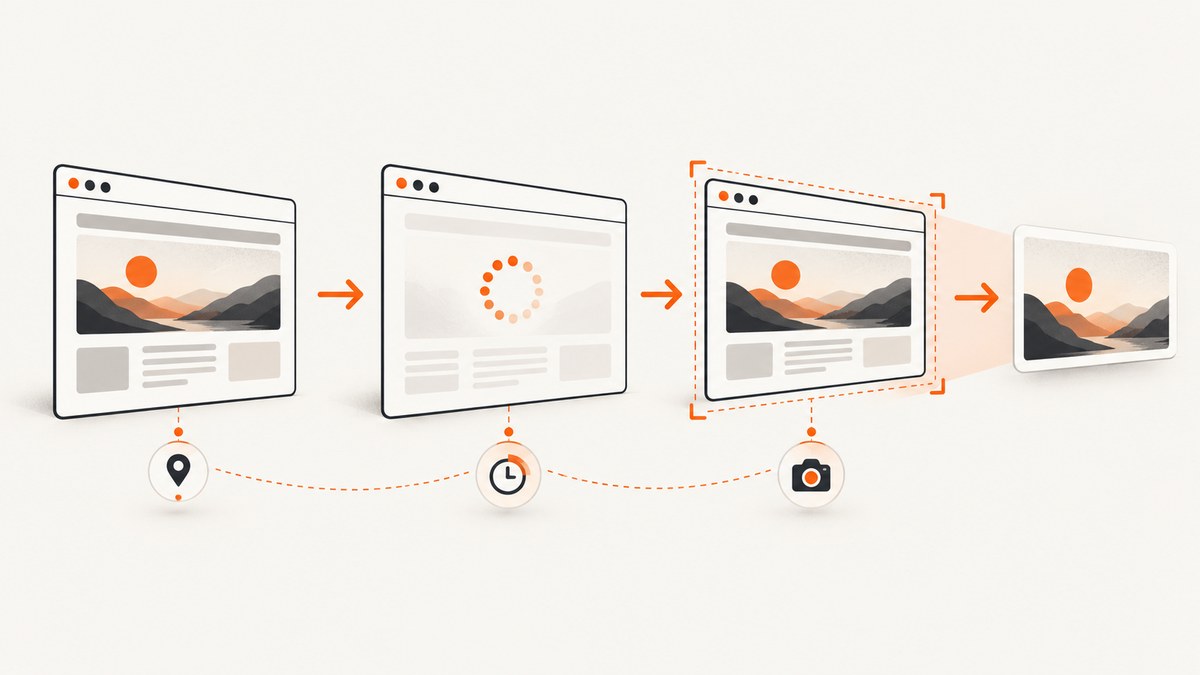
To take an asynchronous screenshot in Playwright, await the screenshot call inside your async flow:
await page.screenshot(path="screenshot.png")In Python, use Playwright’s asyncio binding from playwright.async_api. In Node.js, use the regular Playwright package with async/await. The same method can save an image to disk or return image bytes for further processing. Full-page capture is a separate option: Python uses full_page=True, while JavaScript uses fullPage: true. The spelling is language-specific.
This guide covers setup, complete runnable examples, viewport and full-page shots, element screenshots, in-memory results, waiting for dynamic pages, reliability, concurrency, troubleshooting, and an API alternative when you do not want to manage a browser.
What “asynchronous screenshot” means
Screenshot capture is asynchronous because Playwright may need to communicate with a browser process, wait for rendering, and encode the image. Calling the method without await gives you a coroutine or promise instead of completed image data.
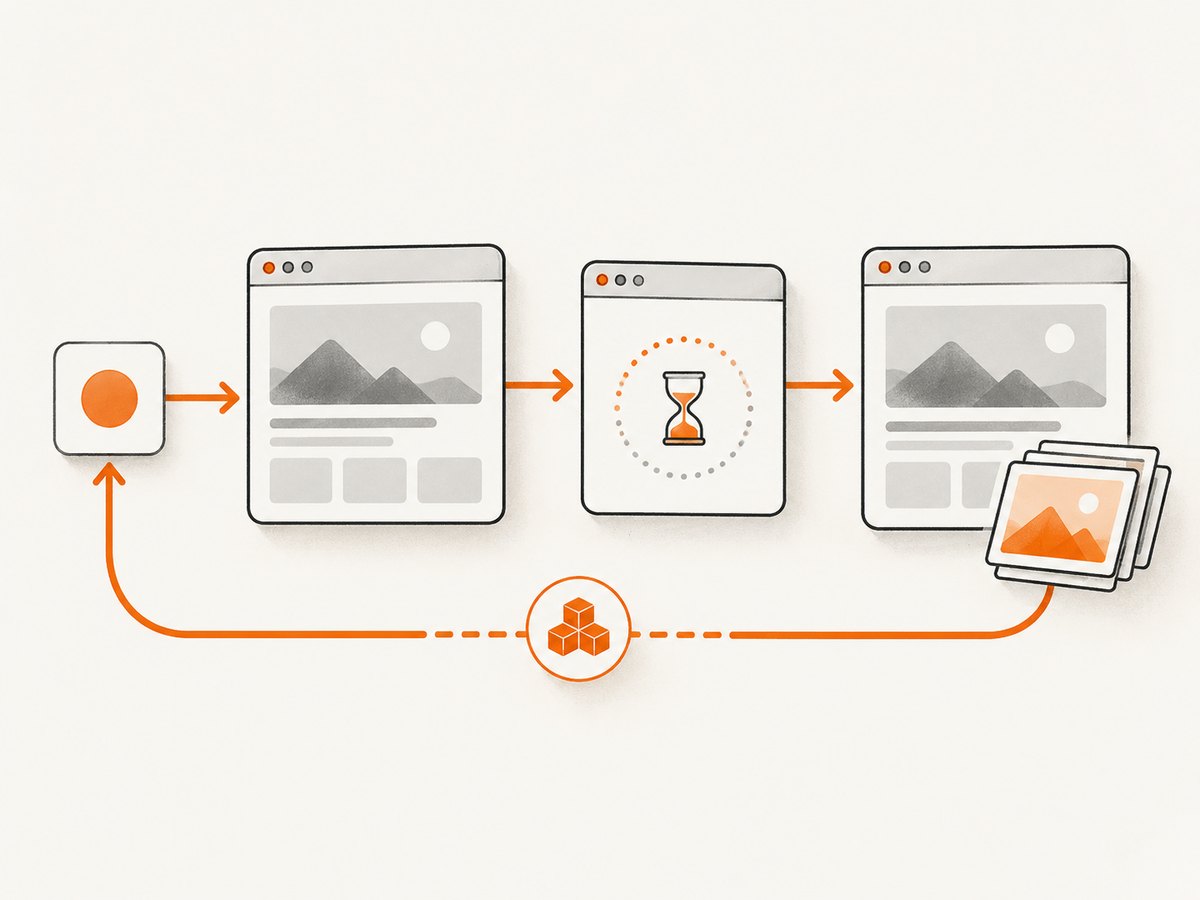
Async capture is independent of capture size. A normal viewport screenshot and a full-page screenshot are both asynchronous operations. Select the scope explicitly:
- Viewport: captures the currently visible area.
- Full page: captures the full scrollable document.
- Element: captures one locator’s bounding box.
Playwright’s screenshot API also accepts options for image format, clip area, quality, and other capture behavior. Use the language-specific API reference for the exact option names and limits in the Playwright version you install.
Install Playwright and browser binaries
Python asyncio
python -m pip install playwright
python -m playwright install chromium
The browser installation command downloads the browser binaries used by Playwright. Run it in the same environment as your application or CI job.
Node.js
npm install playwright
npx playwright install chromium
Use a pinned Playwright version in production so browser and library updates happen deliberately. If your deployment image already supplies a compatible browser, follow that environment’s Playwright configuration instead.
Minimal asynchronous screenshot examples
Python with asyncio
import asyncio
from playwright.async_api import async_playwright


async def main():
    async with async_playwright() as p:
        browser = await p.chromium.launch()
        page = await browser.new_page()
        await page.goto("https://example.com")
        await page.screenshot(path="screenshot.png")
        await browser.close()


if __name__ == "__main__":
    asyncio.run(main())
Every browser operation, navigation, and screenshot is awaited. The asynchronous context closes Playwright’s driver when the function exits; explicitly closing the browser still makes the lifecycle clear.
Node.js with async/await
const { chromium } = require('playwright');

(async () => {
  const browser = await chromium.launch();
  const page = await browser.newPage();
  await page.goto('https://example.com');
  await page.screenshot({ path: 'screenshot.png' });
  await browser.close();
})();
Run this file with node screenshot.js. In an application, put the same operations in an async function and close the browser in a finally block so failures do not leave browser processes running.
Full-page screenshots
A full-page shot captures the complete scrollable page as if it were displayed on a sufficiently tall screen. It is useful for documentation, visual regression references, and archived pages.
Python
import asyncio
from playwright.async_api import async_playwright


async def main():
    async with async_playwright() as p:
        browser = await p.chromium.launch()
        page = await browser.new_page(viewport={"width": 1440, "height": 900})
        await page.goto("https://example.com")
        await page.screenshot(path="full-page.png", full_page=True)
        await browser.close()


asyncio.run(main())
Node.js
const { chromium } = require('playwright');

(async () => {
  const browser = await chromium.launch();
  const page = await browser.newPage({ viewport: { width: 1440, height: 900 } });
  await page.goto('https://example.com');
  await page.screenshot({ path: 'full-page.png', fullPage: true });
  await browser.close();
})();
Very long pages produce large images. If an output becomes impractical for your downstream system, capture a viewport, a clipped region, or several sections instead.
Capture one element
Use a locator’s screenshot method when you need a component rather than the entire page. Locators wait for the element to resolve and make the target explicit.
Python
await page.locator(".header").screenshot(path="header.png")Node.js
await page.locator('.header').screenshot({ path: 'header.png' });For animated elements, the Python Locator API documents an animations="disabled" option. Disabling animations can make repeated captures stable. If the selector matches nothing, inspect the page and use a selector that exists after navigation.
Wait for the page before capturing
page.goto() waits according to its navigation settings, but modern pages often render important content after the initial document load. Choose a wait that represents the state you need:
- Wait for a selector: use
await page.locator("[data-ready]").wait_for()in Python orawait page.locator('[data-ready]').waitFor()in Node.js when a known element signals readiness. - Wait for a delay: use a short timeout only when the page has a predictable animation or delayed render.
- Wait for network idle: use the navigation or wait API when the page’s requests settle, while remembering that analytics or long polling can prevent an idle state.
import asyncio
from playwright.async_api import async_playwright


async def main():
    async with async_playwright() as p:
        browser = await p.chromium.launch()
        page = await browser.new_page()
        await page.goto("https://example.com")
        await page.locator("main").wait_for(state="visible")
        await page.screenshot(path="ready.png", full_page=True)
        await browser.close()


asyncio.run(main())
Prefer a semantic readiness signal over an arbitrary sleep. A selector such as a completed table, chart container, or application-ready marker gives a clearer contract and usually reduces unnecessary waiting.
Screenshot options you will use most
| Need | Python | Node.js |
|---|---|---|
| Output file | path="shot.png" |
path: 'shot.png' |
| Full document | full_page=True |
fullPage: true |
| Image format | type="png" or the documented format |
type: 'png' or the documented format |
| JPEG quality | quality=80 where supported |
quality: 80 where supported |
| Region | clip={"x": 0, "y": 0, "width": 800, "height": 600} |
clip: { x: 0, y: 0, width: 800, height: 600 } |
The official screenshots guide describes parameters for image format, clip area, quality, and related controls. Option names and supported combinations can vary by binding, so check the current Playwright screenshots documentation and language API reference before relying on a default.
Keep the screenshot in memory
Omit path to receive image data. This is useful when uploading directly to object storage, returning an HTTP response, or computing a hash without creating a temporary file.
Python bytes
image_bytes = await page.screenshot(full_page=True)
with open("screenshot.png", "wb") as output:
    output.write(image_bytes)
Node.js buffer
const imageBuffer = await page.screenshot({ fullPage: true });
require('fs').writeFileSync('screenshot.png', imageBuffer);
Reliable production flow
- Launch one browser process for a batch of work, then create an isolated context for each job or tenant.
- Set an explicit viewport and device scale factor when pixel dimensions matter.
- Navigate to the URL and set a navigation timeout appropriate for your pages.
- Wait for a deterministic selector or application-ready state.
- Disable or finish animations before capture when visual consistency matters.
- Capture to bytes or a controlled path.
- Close the page, context, and browser in cleanup code.
For multiple independent pages, asynchronous concurrency can improve throughput, but limit the number of simultaneous pages. Each page consumes CPU, memory, network connections, and browser resources. Start with a small worker pool and increase it only after observing your own workload.
Retry policy
Retry transient navigation failures with a bounded number of attempts and increasing delay. Do not blindly retry a deterministic selector failure or an authentication error. Log the URL, attempt number, navigation error, and final screenshot status so a failed job can be diagnosed.
Authentication and private pages
Use a browser context with the required storage state, cookies, or headers. Keep credentials outside source code. For repeatable captures, create a context with the same locale, timezone, viewport, and user agent each time.
Common errors and fixes
| Error or symptom | Cause | Fix |
|---|---|---|
| Coroutine or promise is returned instead of an image | The screenshot call was not awaited. | Use await page.screenshot(...) inside an async function. |
ModuleNotFoundError: playwright or missing Node package |
The library is not installed in the active environment. | Install Playwright, then install its browser binaries. |
| Browser executable does not exist | Playwright’s browser download was skipped or ran in another environment. | Run the appropriate playwright install command in the deployment image. |
| Timeout waiting for navigation | The site is slow, blocked, or keeps requests open. | Set a suitable timeout, inspect the failing URL, and wait for a specific selector instead of network idle when long polling is present. |
| Element is not found | The selector is wrong or the element is rendered later. | Wait for the locator, verify the selector, and check frames or shadow DOM when applicable. |
| Blank or incomplete screenshot | Capture happened before application content rendered. | Wait for a visible, content-specific readiness marker and ensure the page was not redirected. |
| Screenshot differs between runs | Animations, fonts, ads, time, or responsive layout changed. | Fix viewport and locale, disable animations, wait for fonts/content, and control external data where possible. |
| Full-page image is unexpectedly huge | The document is very long or contains expanding content. | Capture a clip or sections, or set page behavior so content does not expand indefinitely. |

Performance, reliability, and cost considerations
Browser screenshots include startup, navigation, rendering, and image encoding. Reusing a browser process avoids repeated startup overhead, while separate contexts preserve isolation. Reuse pages only when you can reliably clear state between jobs.
Full-page captures generally require more rendering and produce larger files than viewport captures. JPEG can reduce file size when photographic content allows it; PNG is appropriate when lossless output or sharp text is important. Test the format and quality that your consumer accepts.
Network-heavy pages can dominate the total time. Waiting for a page-specific selector often finishes sooner and is more reliable than waiting for every request to become idle. Cache stable assets where your environment permits, but do not hide failures by treating an incomplete page as successful.
Playwright itself is software you run, so budget for browser CPU, memory, storage, and the network traffic generated by each capture. A hosted screenshot API can move those operational costs into a per-request plan when you only need an image result.
Or skip the browser setup
If you need screenshots from an application or job queue but do not want to install and operate Playwright browsers, ScreenshotNeo provides a single GET request that returns PNG, JPEG, WebP, or PDF. Its cleanup steps accept cookie and consent banners before capture and remove more than 60 known consent platforms, newsletter popups, and chat widgets. Each step can be turned off.
Only clean shots are billed. Bot checks or CAPTCHAs, blank pages, timeouts, failed loads, and cache hits cost nothing, and the response identifies the result with X-Page-Verdict and X-Billed headers. ScreenshotNeo also has an MCP server with take_screenshot, get_page_info, and capture_pdf tools for Claude, Cursor, and other MCP clients.
See the ScreenshotNeo API documentation for all options. A basic request looks like this:
cURL
curl -G "https://api.screenshotneo.com/v1/shot" -d access_key=YOUR_API_KEY --data-urlencode url=https://stripe.com -o shot.webpPython
import requests

r = requests.get(
    "https://api.screenshotneo.com/v1/shot",
    params={"access_key": "YOUR_API_KEY", "url": "https://stripe.com"},
    timeout=90,
)
r.raise_for_status()
open("shot.webp", "wb").write(r.content)
Node.js
const q = new URLSearchParams({ access_key: 'YOUR_API_KEY', url: 'https://stripe.com' });
const res = await fetch(`https://api.screenshotneo.com/v1/shot?${q}`);
if (!res.ok) throw new Error(`Screenshot failed: ${res.status}`);
const image = Buffer.from(await res.arrayBuffer());
require('fs').writeFileSync('shot.webp', image);
The API supports full-page capture with lazy images loaded, CSS-selector element capture, dark mode, device presets and custom viewports, retina scale, PDF paper settings and page ranges, custom CSS and JavaScript, clicks, selector or network-idle waits, request blocking, headers, cookies, user agents, authorization, timezone, geolocation, transparent backgrounds, resizing, configurable caching, signed image links, asynchronous jobs with signed webhooks, bulk capture for up to 100 URLs per call, usage reporting, and an OpenAPI specification. Parameter names used by other screenshot APIs also work, which can simplify migration.
The Free plan includes 1,000 screenshots per month with no card. Paid plans start at $5 for 3,000 shots; yearly billing gives two months free, and every feature is available on every plan. Create a free ScreenshotNeo account and start with the included monthly screenshots.
FAQ
Is asynchronous Playwright the same as a full-page screenshot?
No. Asynchronous describes awaiting browser operations. Full-page capture is selected separately with full_page=True in Python or fullPage: true in Node.js.
Can I return screenshot bytes instead of writing a file?
Yes. Omit the path. Python returns bytes and Node.js returns a buffer.
Which Python API should an asyncio application use?
Use playwright.async_api with asyncio. Playwright also documents a synchronous Python API for programs that do not use asyncio.
Why does my page look different on each run?
Control the viewport and environment, wait for content, and disable animations. External data, advertisements, fonts, time, and responsive breakpoints can all change pixels.
When should I use an API instead of Playwright?
Use Playwright when you need browser-level control and custom automation. Use a hosted API when you want a screenshot result without managing browser binaries, cleanup, scaling, or failed-page handling.


