How to Attach Cypress Screenshots for Passed and Failed Cucumber Scenarios
Capture screenshots for passing Cypress Cucumber scenarios and keep automatic failure images in your report, with setup, troubleshooting, and code examples.
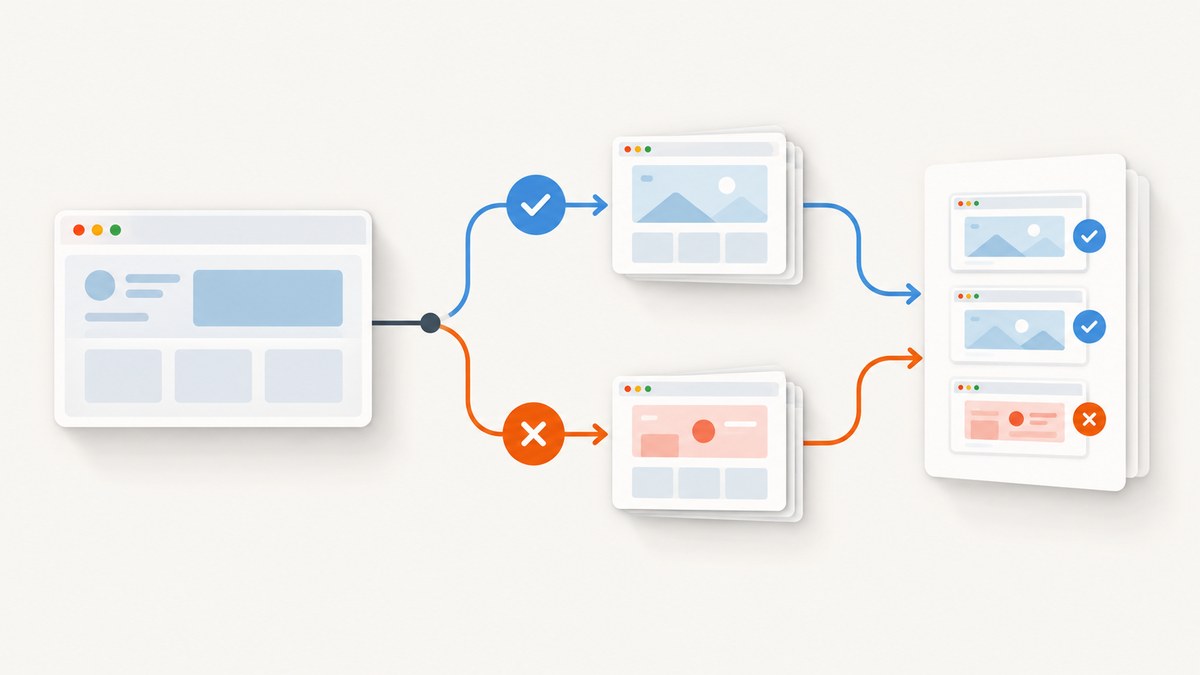
To get screenshots for both outcomes, use cy.screenshot() at the point in a passing scenario where the desired page state is visible, and let Cypress capture failures automatically during cypress run. Then confirm that your specific Cucumber preprocessor and reporter include those screenshot files as report attachments. With @badeball/cypress-cucumber-preprocessor, its JSON reporter feature tests demonstrate attachments for captured screenshots and an opt-out setting. Its After() hook does not run when the scenario fails, so do not depend on that hook to capture a failed scenario. Cypress screenshots and videos, preprocessor documentation and tests.
1. Know which screenshot you need
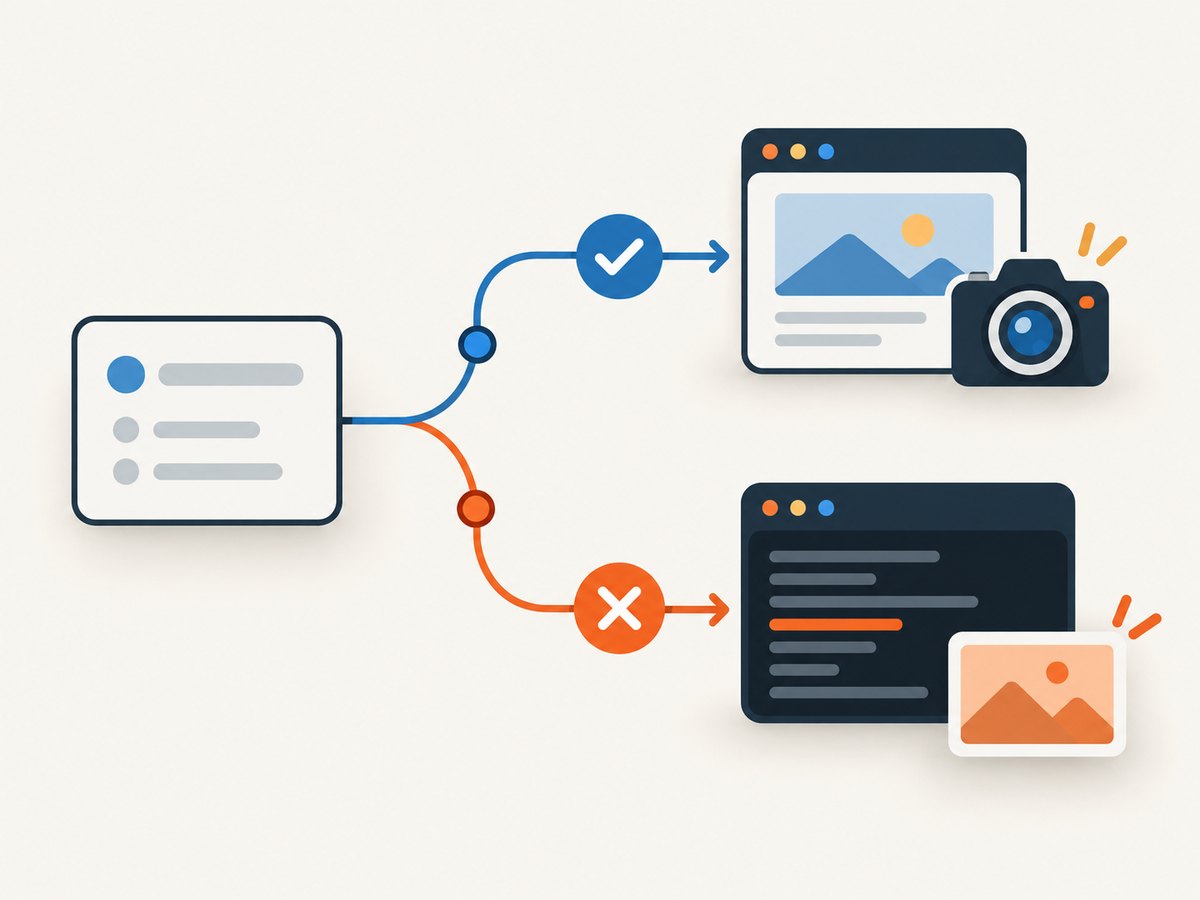
“Attach a screenshot” can mean two separate things: write an image to Cypress’s screenshots folder, or embed that image as an attachment in a Cucumber report. Cypress handles capture. The installed Cucumber integration and reporter determine how capture files become report attachments. A screenshot file existing on disk does not, by itself, prove that an HTML report or other formatter embeds it.
| Scenario and execution | Capture approach | What to verify |
|---|---|---|
| Passed scenario, interactive or run | Call cy.screenshot() explicitly at the useful point. |
Whether your reporter includes manual screenshots. |
Failed scenario, cypress run |
Cypress automatically captures on failure by default. | Whether the selected reporter attaches that failure image. |
Failed scenario, cypress open |
Do not assume an automatic failure screenshot. | Use an explicit screenshot where appropriate and check your integration’s behavior. |
The documented default for screenshotOnRunFailure is true. It applies when a test fails during cypress run; Cypress does not automatically take failure screenshots in cypress open. The screenshots folder defaults to cypress/screenshots. Cypress configuration reference.
2. Set up the Cucumber integration and reporter
This guide’s reporter-specific example is for @badeball/cypress-cucumber-preprocessor. Other adapters and report formatters can behave differently. Check the package name and version in your lockfile and consult its matching documentation before copying reporter settings. The preprocessor quick start requires a feature-file spec pattern and setup through setupNodeEvents; the example below uses its Esbuild integration. Install and configure the required dependencies for your project’s Cypress version and bundler as described by the preprocessor quick start.
// cypress.config.ts
import { defineConfig } from "cypress";
import createBundler from "@bahmutov/cypress-esbuild-preprocessor";
import { addCucumberPreprocessorPlugin } from "@badeball/cypress-cucumber-preprocessor";
import { createEsbuildPlugin } from "@badeball/cypress-cucumber-preprocessor/esbuild";

export default defineConfig({
  e2e: {
    specPattern: "**/*.feature",
    screenshotOnRunFailure: true,
    async setupNodeEvents(on, config) {
      await addCucumberPreprocessorPlugin(on, config);
      on(
        "file:preprocessor",
        createBundler({ plugins: [createEsbuildPlugin(config)] })
      );
      return config;
    },
  },
});
The setting is shown explicitly to make the failure-capture intent visible; it is already Cypress’s documented default. Keep the plugin initialization and its returned, potentially modified config. If your project already has a bundler, event handlers, or a different module format, integrate with that setup rather than registering a competing preprocessor. The preprocessor documentation calls out care when combining plugins in event handlers.
3. Capture a screenshot for a passing scenario
A passing test does not trigger Cypress’s automatic failure capture. Put a screenshot command in the scenario’s step definitions after the meaningful UI state is reached. That makes the capture point explicit and gives the report integration a screenshot to include. The preprocessor’s reporter feature tests demonstrate a passing step taking an element screenshot and the JSON output including a screenshot attachment.
For example, a feature file might contain:
# cypress/e2e/checkout.feature
Feature: Checkout
  Scenario: Confirmation page is shown
    Given I have completed checkout
    Then I should see the confirmation page
Implement the capture in the step that verifies the final state:
// cypress/e2e/checkout.ts
import { Given, Then } from "@badeball/cypress-cucumber-preprocessor";

Given("I have completed checkout", () => {
  cy.visit("https://example.com/checkout/confirmation");
});

Then("I should see the confirmation page", () => {
  cy.get("h1").should("contain.text", "Confirmation");
  cy.screenshot("checkout-confirmation");
});
Replace the example URL and assertion with your application’s behavior. Cypress queues commands, so placing the screenshot after the assertion captures after that assertion succeeds. Use cy.screenshot() for the current application view; use the element form when the relevant evidence is a particular element:
cy.get("[data-testid='order-summary']").screenshot("order-summary");Choose stable, scenario-specific names if you need predictable artifacts. Avoid capturing too early: a screenshot before a navigation, animation, or asynchronous update may show the previous or incomplete state. Prefer an assertion or selector-based wait for the actual state over an arbitrary delay where possible. Cypress documents both full-page and viewport capture options in its screenshot command API.
4. Keep failure screenshots from cypress run
For a failed scenario under cypress run, Cypress takes a screenshot automatically when screenshotOnRunFailure is enabled. Because the preprocessor’s After() hook does not run after scenario failure, an After() hook is not a dependable place to call cy.screenshot() for that failure. Let Cypress’s failure capture happen, then use the reporter’s supported integration to attach or embed its image.
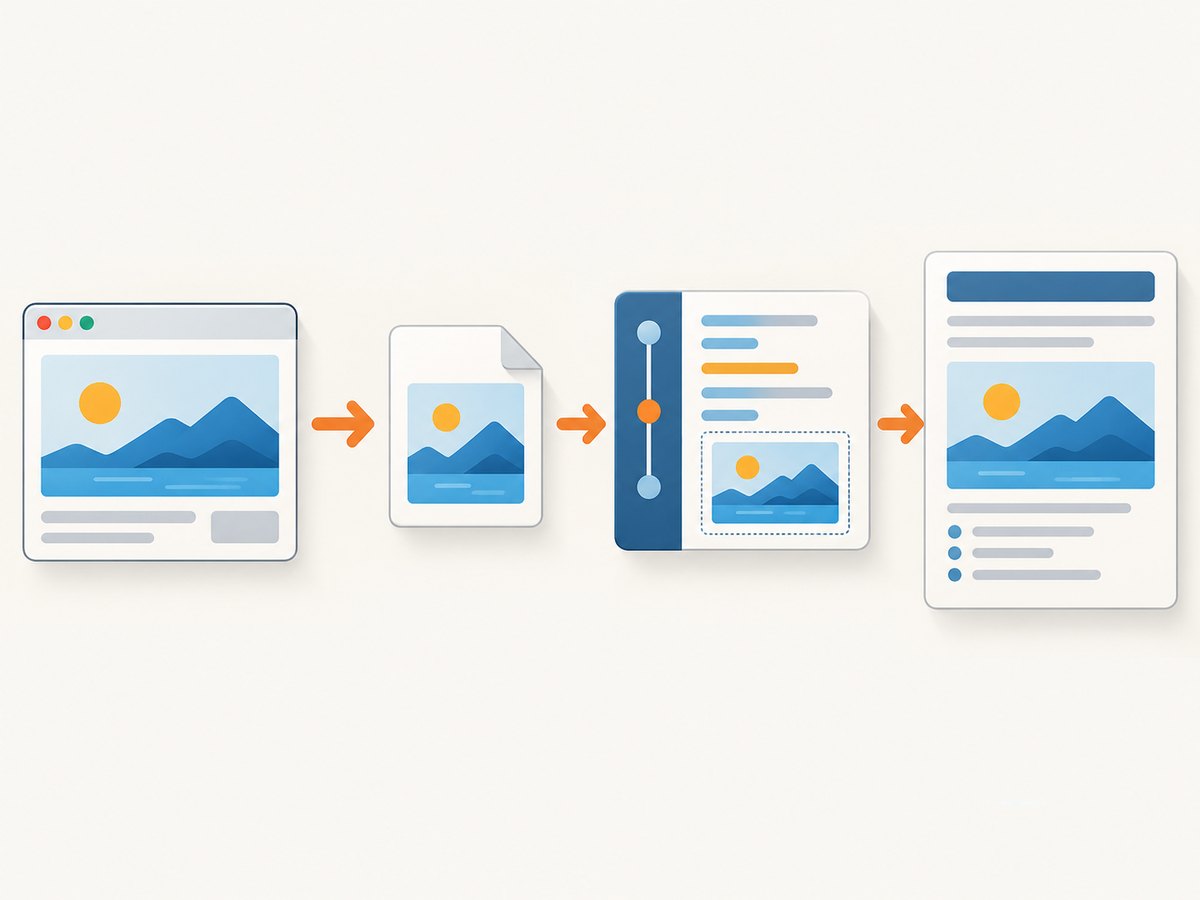
This distinction matters when a report contains no failure image even though Cypress wrote one. First locate the file in the configured screenshots folder. If the file is there, capture worked and the remaining issue is report generation or attachment mapping. If no file exists, inspect execution mode and configuration: the automatic capture is for cypress run, and screenshotOnRunFailure may have been set to false.
Do not copy a generic Cucumber-JS After example into the Cypress preprocessor without checking compatibility. Cucumber-JS documents attaching binary screenshot data with an image media type from an After hook when a result failed; that API applies to its documented integration. The Badeball preprocessor documents different failure-hook behavior. Confirm which API your project actually runs.
5. Configure report attachments deliberately
Attachment support is a reporter concern. The Badeball preprocessor’s JSON reporter feature tests cover screenshot attachments and demonstrate disabling them with attachmentsAddScreenshots=false. Treat this as a reporter-specific setting, not a Cypress screenshot option and not a universal setting for every Cucumber formatter. Consult the feature tests and configuration documentation for the exact version in your lockfile to confirm how that value is supplied.
When attachments are disabled, Cypress can still save screenshot files. When attachments are enabled, the reporter may add image data or references to its JSON output, depending on its implementation. A later report-generation stage must preserve and resolve those attachments. Keep the JSON and image artifacts together through CI upload and report rendering, and make sure your final report viewer supports the emitted attachment format.
- Decide whether reports need screenshots for every pass, only failures, or selected scenarios.
- Capture a pass explicitly only when that image adds useful evidence.
- Keep Cypress’s run-failure screenshot setting enabled if you need automatic failure images.
- Confirm the reporter’s attachment behavior with the installed adapter, reporter, and version.
- Check both the generated JSON and the rendered report; they are separate outputs.
6. Optional post-capture file handling
Cypress exposes an after:screenshot Node event that fires after a screenshot has been written to disk. It applies to cy.screenshot() and failure screenshots and provides details about the image for processing. Use it when you need Node-side file handling such as recording metadata or moving/copying an artifact. It does not itself add an attachment to a Cucumber report. Keep this lifecycle event separate from both Cucumber’s attachment API and reporter configuration. See Cypress’s after-screenshot event reference.
// Inside setupNodeEvents in cypress.config.ts
on("after:screenshot", (details) => {
  console.log("Screenshot saved:", details.path);
  // Perform optional Node-side processing here.
  // Return details unchanged unless intentionally updating supported metadata.
});
For automatic failure screenshots, the event is useful for observing the file after capture; it is not a replacement for enabling failure screenshots. Keep processing fast and handle filesystem errors so an optional artifact step does not obscure the original test result.
7. Retries, naming, and artifact volume
When retries are enabled, Cypress takes screenshots for failed attempts and adds the attempt number to screenshot names. Multiple images for one scenario may therefore be expected. Preserve those names when uploading artifacts; renaming everything to a single scenario name can overwrite evidence from an earlier attempt. Cypress’s test retries guide describes this behavior.
Screenshot volume affects CI storage, report size, and upload time. Capturing every step in every passing scenario can create many large artifacts, while a single final-state capture may be enough for a pass. Failure images are often more valuable for debugging; retain the relevant attempt artifacts and set a retention policy that matches your team’s needs. Cypress’s documented defaults include a configurable screenshots folder; CI systems may have their own artifact size and retention limits.
8. Troubleshooting missing or unexpected images
| Symptom | Likely cause | What to check or change |
|---|---|---|
| No image for a passed scenario | No explicit screenshot command ran, or it ran before the desired state. | Call cy.screenshot() after the state assertion; wait for the real UI condition. |
| Failure image missing in interactive mode | Automatic failure capture is documented for cypress run, not cypress open. |
Reproduce with cypress run, or add an explicit capture at a safe point for interactive debugging. |
| Failure image missing in CI | Automatic screenshots may be disabled or the folder may not be uploaded. | Check screenshotOnRunFailure, Cypress output, configured screenshotsFolder, and CI artifact paths. |
| Image on disk, none in report | The reporter did not attach it, attachments are disabled, or the report stage dropped the data. | Inspect reporter/version settings and generated JSON before troubleshooting Cypress capture. |
After() did not capture the failure |
The Badeball preprocessor’s After() hook does not run after scenario failure. |
Use Cypress automatic run-failure capture and the reporter’s attachment integration. |
| Several images for one scenario | Retries captured failed attempts, or multiple explicit screenshots used distinct names. | Keep attempt-labelled files and inspect retry configuration before deleting artifacts. |
| Wrong or partial page appears | Capture occurred before navigation, rendering, or a lazy UI update completed. | Wait on an application condition and assert the target content before capture. |
For a quick diagnosis, answer these questions in order: Did the run use cypress run? Is automatic failure capture enabled? Is there a PNG in the screenshots folder? Does the generated JSON contain an attachment? Does the final report renderer display that attachment? Each “yes” moves the problem to the next stage.
9. Performance, reliability, and cost notes
Capturing screenshots adds image files and may add embedded image data to report output. Captures at every step multiply artifact count and can make report uploads and rendering heavier. Capture at meaningful milestones, particularly for passing cases; retain automatic failure captures for diagnosis. Avoid slow, fixed waits solely to make screenshots look complete: synchronize on the page state that the screenshot is intended to prove.
For reliability, preserve the entire artifact chain: Cypress output folder, Cucumber JSON, report-generation inputs, and rendered report. Verify the run mode and screenshot configuration in CI rather than assuming local interactive behavior matches CI. If a retry succeeds after an initial failure, keep attempt-level evidence where it helps explain flaky behavior.
No screenshot service is required for this in-run workflow: Cypress captures the browser it is testing, and the reporter handles report attachments. If your separate need is to capture arbitrary public web pages without setting up a browser runner, ScreenshotNeo is a website screenshot API and MCP server for developers. Its API supports screenshot or PDF output and its options include waiting, selectors, and custom CSS/JavaScript. Those external page captures are a different task from recording the live browser state inside a Cypress scenario.
Or skip the browser setup
For a public-page capture outside the test runner, one GET request can save an image. See the ScreenshotNeo API documentation for request options.
curl -G "https://api.screenshotneo.com/v1/shot" -d access_key=YOUR_API_KEY --data-urlencode url=https://stripe.com -o shot.webpScreenshotNeo accepts cookie/consent banners and removes more than 60 known consent platforms, newsletter popups, and chat widgets before capture; each step can be turned off. Bot checks/CAPTCHAs, blank pages, timeouts, failed loads, and cache hits cost nothing, and responses identify page verdict and billing with headers. Its MCP server provides take_screenshot, get_page_info, and capture_pdf tools for AI agents. The Free plan includes 1,000 shots per month with no card; paid plans start at $5 for 3,000 shots.
Sign up for 1,000 free screenshots a month, no card required.
FAQ
Can I capture a screenshot after every passing step?
Yes, by calling cy.screenshot() in the relevant step. Choose deliberately: every capture adds an artifact, and a report may become larger.
Does an automatic Cypress failure screenshot guarantee a Cucumber attachment?
No. It guarantees a Cypress capture under the documented run conditions and configuration. Whether a report embeds it depends on the installed preprocessor and reporter.
Can I turn off screenshots in the JSON report but still save images?
The Badeball JSON reporter tests demonstrate an attachmentsAddScreenshots=false opt-out. Verify the exact configuration syntax for your installed version; this reporter setting is distinct from Cypress’s capture setting.
Should I use Cucumber-JS attachment examples with Cypress?
Only if your integration actually exposes that Cucumber-JS API and its hook behavior. The Badeball preprocessor’s failed-scenario After() behavior differs, so follow its documentation and reporter examples.


