How to Attach Playwright Screen Videos to Allure Reports
Record Playwright test videos and attach finalized files to Allure reports, with working TypeScript examples and fixes for missing or unplayable video.
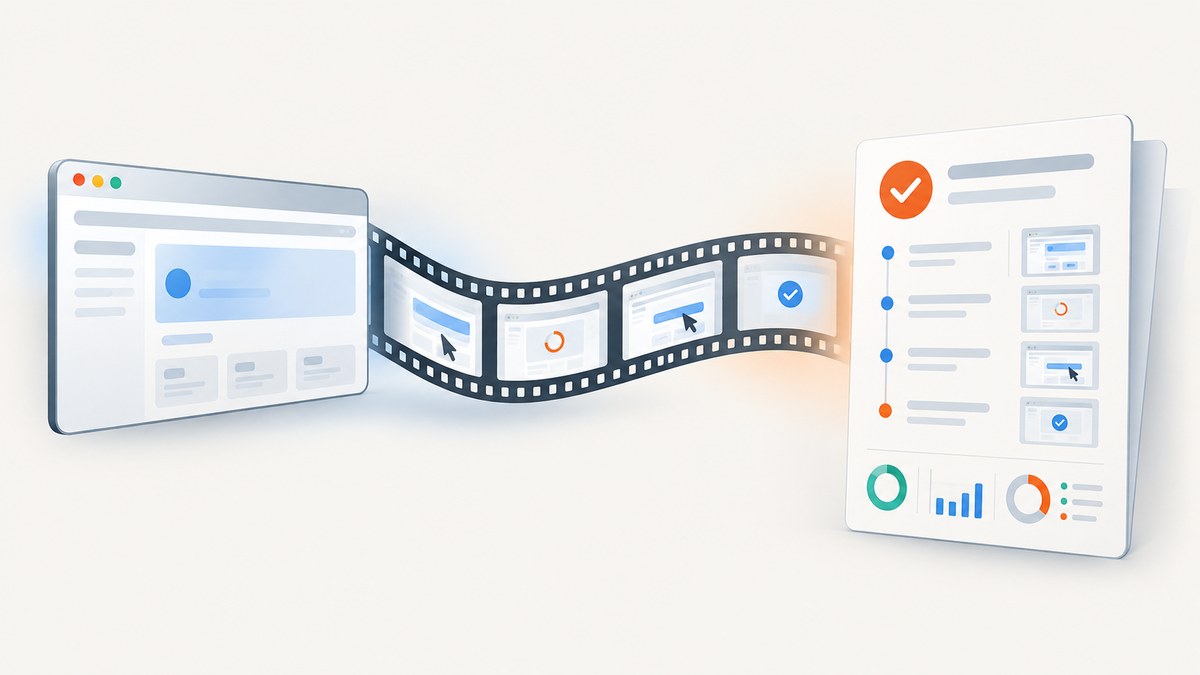
To attach Playwright videos to an Allure report, enable video recording in Playwright Test, wait for the browser context to close so the video is finalized, then attach the file with Allure Playwright’s allure.attachmentPath() and the correct video content type. For a test-failure workflow, start with video: 'retain-on-failure'. Playwright also offers testInfo.attach() for reporter-accessible files. Playwright Videos · Allure Playwright reference.
1. Configure Playwright to record videos
Playwright Test video recording is off by default. Set the video option in playwright.config.ts. This minimal configuration retains recordings for failed tests and removes recordings from successful tests:
import { defineConfig } from '@playwright/test';

export default defineConfig({
  reporter: [
    ['list'],
    ['allure-playwright'],
  ],
  use: {
    video: 'retain-on-failure',
  },
});
The Allure Playwright reporter is configured alongside any other reporters your project uses. Install and configure it following the Allure Playwright setup documentation for your project’s installed version. The video setting belongs to Playwright Test’s use configuration and applies to its runner-managed browser contexts.
Playwright supports four recording modes:
| Mode | What it records and retains | Useful when |
|---|---|---|
off |
No video is created. | Video evidence is not needed, or storage and report size must be minimized. |
on |
Records every test, including passing tests. | You need visual history for all outcomes. |
retain-on-failure |
Records tests and removes videos from successful runs. | You primarily need evidence for failures. |
on-first-retry |
Records only on the first retry. | You want video evidence when a test is retried. |
These modes trade retained evidence against the storage and report weight caused by video files. Choose the mode that matches your debugging workflow. In particular, on-first-retry is retry-focused; it is not a substitute for retaining every initial failure’s video.
2. Attach a video from a Playwright test
For a runner-managed page, register cleanup that runs after the test body. When the test ends, Playwright closes its context and finalizes its video. Then look up the video path and pass it to Allure. The exact lifecycle details can depend on fixture setup, so the key requirement is that the context has closed before the attachment API reads the video.
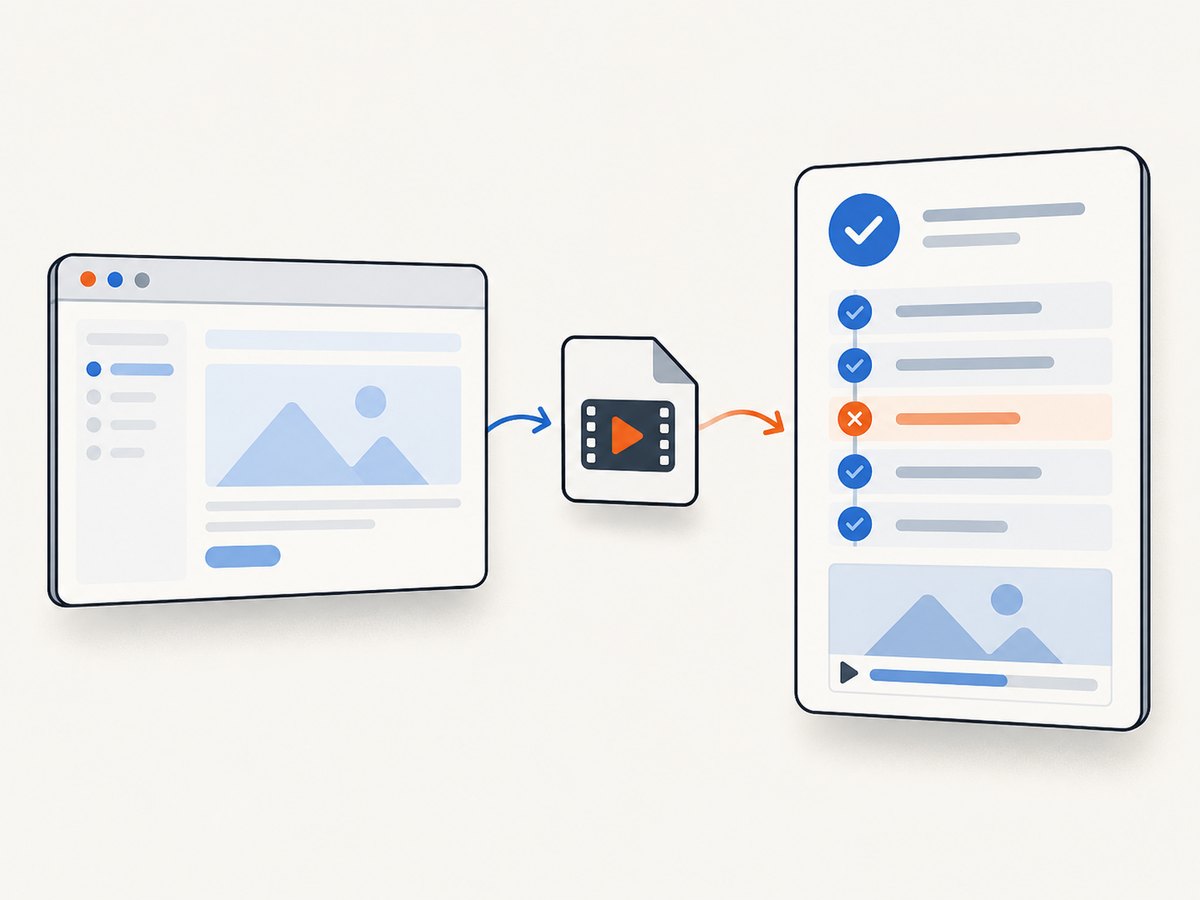
import { test } from '@playwright/test';
import * as allure from 'allure-js-commons';

 test('checkout flow', async ({ page }, testInfo) => {
  // Register cleanup before the test body runs. The test runner completes
  // this cleanup after the body, when the runner-managed context is closing.
  testInfo.onTestFinished(async () => {
    const video = page.video();
    if (!video) return;

    const videoPath = await video.path();
    await allure.attachmentPath('Playwright video', videoPath, {
      contentType: 'video/webm',
      fileExtension: 'webm',
    });
  });

  await page.goto('https://example.com');
  // Add assertions and application interactions here.
});
Use this lifecycle pattern with the Playwright and Allure versions installed in your project. If your version or fixture arrangement does not expose cleanup at the right point, use a custom fixture teardown that closes the context first, then attach the resulting file. Do not attempt to read the video while the context is still recording.
For a minimal illustration of the Allure call once you already have a finalized video path, use:
await allure.attachmentPath('Playwright video', videoPath, {
  contentType: 'video/webm',
  fileExtension: 'webm',
});
The JavaScript API also accepts in-memory content with allure.attachment(name, content, options). Prefer attachmentPath() when the completed recording is already stored as a file. Both forms need an appropriate media type so Allure can recognize the attachment.
3. Attach with Playwright’s testInfo API
If you want Playwright’s reporter-facing attachment mechanism, use testInfo.attach(). It accepts a file path and copies the file to a location available to reporters when the call is awaited. Allure Playwright can consume Playwright test attachments as part of the test result integration; confirm the behavior against the reporter version configured in your repository.
import { test } from '@playwright/test';

test('checkout flow', async ({ page }, testInfo) => {
  await page.goto('https://example.com');

  // After the runner has finalized the video, obtain its path and attach it.
  // Place this operation in teardown that runs after the context closes.
  const video = page.video();
  if (video) {
    const videoPath = await video.path();
    await testInfo.attach('Playwright video', {
      path: videoPath,
      contentType: 'video/webm',
    });
  }
});
The sample highlights the API shape, but the attachment must run after video finalization. With standard runner-managed fixtures, put it in an appropriate teardown fixture or hook rather than relying on the test body to run after context closure. Await the attachment call so the reporter has time to copy the file before the test finishes.
4. Manage a browser context yourself
When your test creates its own browser context, you control when recording ends. Close it explicitly and await closure before obtaining the path or attaching the video. Playwright documents that videos are saved upon browser context closure at the end of a test. This ordering prevents incomplete files and missing-path errors.
import { test, expect } from '@playwright/test';
import * as allure from 'allure-js-commons';

 test('custom context video', async ({ browser }) => {
  const context = await browser.newContext({
    recordVideo: { dir: 'test-results/videos' },
  });
  const page = await context.newPage();

  try {
    await page.goto('https://example.com');
    await expect(page).toHaveTitle(/Example Domain/);
  } finally {
    const video = page.video();
    await context.close();

    if (video) {
      const videoPath = await video.path();
      await allure.attachmentPath('Playwright video', videoPath, {
        contentType: 'video/webm',
        fileExtension: 'webm',
      });
    }
  }
});
For manually created contexts, configure recording through the context’s video options and make sure its output directory exists or is writable by the test process. The runner-level use.video setting manages runner contexts; a custom context should be treated as its own recording configuration.
5. Generate and inspect the Allure report
- Install and configure the Allure Playwright reporter and its JavaScript API according to the official integration guide.
- Set the Playwright video mode appropriate to your use case.
- Run the test command already used by your project, ensuring its output directory is writable.
- Confirm the run produces a video file for a test that should retain one.
- Generate the Allure report using your project’s configured Allure command, then open the test result and check the attachment.
Use video/webm for Playwright’s typical video output. Allure documents playable video attachments for video/webm, video/mp4, and video/ogg. Match contentType and fileExtension to the actual file; do not relabel a file as another format to force playback. See Allure attachments.
6. Or skip the browser setup
If what you need is a screenshot of a page rather than a recording of a test’s interactions, ScreenshotNeo returns a screenshot or PDF with one GET request. Its API documentation has the full parameter reference. This does not replace Playwright video evidence: it is a separate option for capturing a page image.
curl -G "https://api.screenshotneo.com/v1/shot" -d access_key=YOUR_API_KEY --data-urlencode url=https://stripe.com -o shot.webpPython:
import requests
r = requests.get("https://api.screenshotneo.com/v1/shot", params={"access_key": "YOUR_API_KEY", "url": "https://stripe.com"}, timeout=90)
open("shot.webp", "wb").write(r.content)
Node.js:
const q = new URLSearchParams({ access_key: 'YOUR_API_KEY', url: 'https://stripe.com' });
const res = await fetch(`https://api.screenshotneo.com/v1/shot?${q}`);
ScreenshotNeo removes cookie banners, newsletter popups and chat widgets before the shot. Bot checks, blank pages and failed loads are never billed. Its MCP server lets AI agents take screenshots. The free plan includes 1,000 screenshots a month with no card; paid plans start at $5 for 3,000. Sign up for the free plan.
7. Troubleshooting missing or unplayable videos
| Symptom | Likely cause | Fix |
|---|---|---|
| No video file exists | Recording is still off, or the test uses a custom context that was not configured for video. |
Set an active use.video mode for runner contexts; configure recording for manually created contexts. |
| Video file is missing from the Allure result | The test’s attachment step ran before context closure, did not await the call, or used a path that does not exist. | Close and await the context, then resolve the video path and await attachmentPath() or testInfo.attach(). |
| Only some tests have recordings | The configured mode intentionally retains only failures or first retries, or successful recordings are removed. | Check the mode’s retention behavior. Use on if every test needs a retained recording. |
| Allure shows a generic file instead of a playable video | The content type or extension is missing or does not match the media. | Set the correct contentType, such as video/webm, and matching fileExtension. |
| Video exists locally but disappears in report output | The file was attached by path before it was complete, or reporter output was cleaned before report generation. | Attach after finalization and preserve Playwright and Allure result directories until the report has consumed them. |
| Custom-context path lookup fails | The context was not closed, or its page/context lifecycle ended differently than expected. | Keep the video handle, await context.close(), then call video.path() and attach. |
8. Performance, reliability, and storage
Video recording creates files that the test runner and report must retain and process. Recording every test provides broader evidence but produces more artifacts than retaining failures or capturing only a retry. Pick a mode based on the number of tests, how often teams inspect passing runs, and the storage available to CI artifacts. The official documentation does not provide a universal file-size or runtime overhead figure, so measure those costs in your own suite rather than budgeting from an unsupported benchmark.
For reliable attachments, keep the lifecycle explicit: create the recording, finish the browser context, resolve the finalized path, attach with the right content type, then generate the report. Avoid attaching during a test while its page is still active. In parallel test runs, use the path returned by the video object rather than guessing a filename; each test’s output path is managed by Playwright and avoids collisions from handcrafted names.
CI cleanup is another common source of lost evidence. Make sure both Playwright’s test output and Allure’s result data survive until the report is generated and uploaded as an artifact. If storage is tight, retain recordings only for failures or retries, and apply your CI system’s normal artifact retention policy.
9. Frequently asked questions
Can I attach a video only when a test fails?
Use retain-on-failure to remove successful-run videos. Ensure the attachment code runs in teardown at a point when the recording has been finalized and is retained.
Can Allure play the video inside the report?
Allure documents video attachments with video/mp4, video/ogg, and video/webm media types. Supply the media type that matches your file.
Can I attach the video without Allure’s path API?
Yes. Playwright’s testInfo.attach() accepts a path and a content type, and Allure’s JavaScript API also supports attaching content directly. In every case, wait until the video is complete.
Why is there no video for a passing test?
With retain-on-failure, successful recordings are removed. Use on if passing-test recordings must remain available.
Does this capture the whole browser session across tests?
Playwright video is associated with a browser context. Configure and manage context lifecycle according to the evidence you need; the examples above attach a test’s context recording.


