How to Attach Screenshots to Allure Reports with Playwright
Capture Playwright screenshots and attach them to Allure tests or steps with correct MIME types, failure handling, and reusable fixtures.
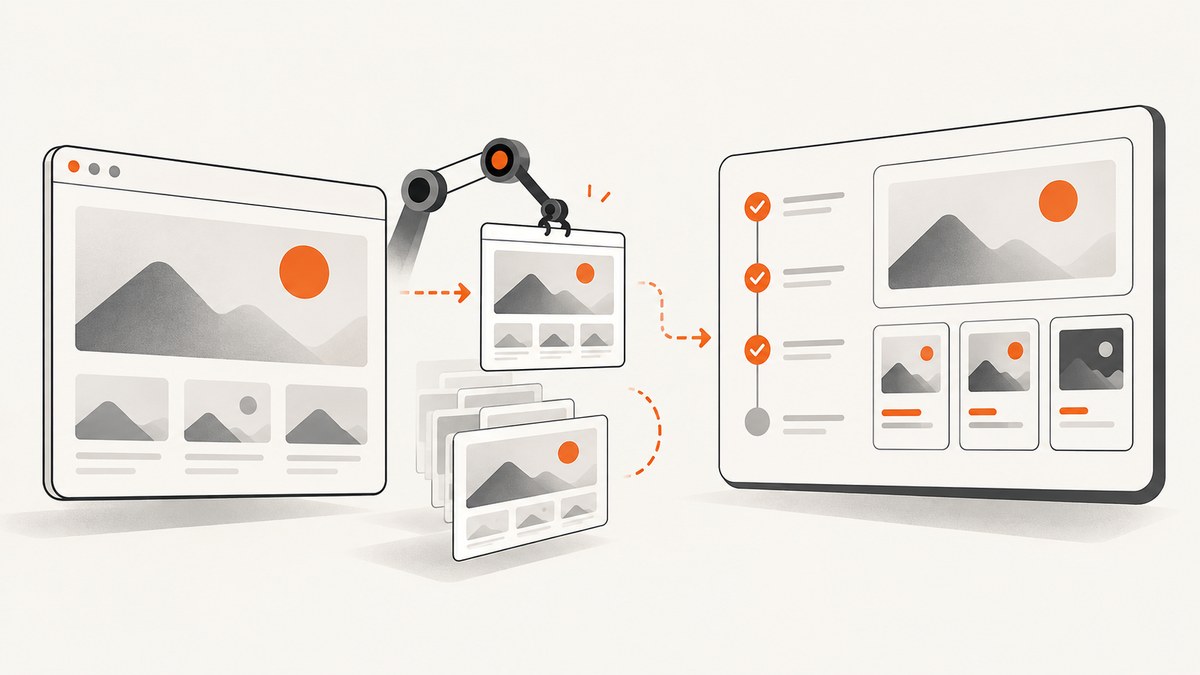
To attach a screenshot to an Allure report in Playwright, capture the image as a Buffer and pass it to testInfo.attach() with contentType: 'image/png'. Use step.attach() when the image belongs to one named test step, or Allure’s attachment() API when you want to work directly with the Allure integration.
1. Attach a screenshot to a Playwright test
Install the Playwright and Allure packages used by your project, configure the Allure reporter, and then capture the screenshot after the page reaches the state you want to document. The following example keeps the screenshot in memory and attaches it directly to the current test.
import { test } from '@playwright/test';

test('authentication page', async ({ page }, testInfo) => {
  await page.goto('https://example.com/login');

  const screenshot = await page.screenshot();
  await testInfo.attach('Login page', {
    body: screenshot,
    contentType: 'image/png',
  });
});
page.screenshot() returns a Buffer by default. The attachment name is shown in the report, while image/png tells the reporter and Allure that the bytes should be rendered as an image preview. The call is awaited so Playwright can copy the attachment to the location used by reporters before the test continues.
Playwright’s testInfo.attach() accepts either body or path, never both. Use body for a Buffer and path when a screenshot already exists on disk.
Attach an existing image file
import { test } from '@playwright/test';

test('dashboard image from file', async ({ page }, testInfo) => {
  await page.goto('https://example.com/dashboard');

  await page.screenshot({ path: 'dashboard.png' });
  await testInfo.attach('Dashboard page', {
    path: 'dashboard.png',
    contentType: 'image/png',
  });
});
For a JPEG, use a .jpg or .jpeg file and set contentType: 'image/jpeg'. Do not label JPEG bytes as PNG; an incorrect media type can prevent an image preview or make the attachment confusing to consume.
2. Put the screenshot under a named test step
A test-level attachment is useful for the final state of a test. A step-level attachment is better when the image explains one action, such as inspecting a login form immediately before submitting it.
import { test } from '@playwright/test';

test('authentication page', async ({ page }) => {
  await page.goto('https://example.com/login');

  await test.step('inspect login page', async step => {
    const screenshot = await page.screenshot();
    await step.attach('Login page', {
      body: screenshot,
      contentType: 'image/png',
    });
  });
});
step.attach() attributes the file to that step. testInfo.attach() places it at the test level. The TestStepInfo API was added in Playwright 1.51, so check the Playwright version pinned by your project before adopting step attachments. If your installed version does not expose step.attach(), use testInfo.attach() or the Allure API instead.
3. Attach with the Allure JavaScript API
The Allure Playwright integration also supports attachments through allure-js-commons. This approach is useful when the rest of your reporting code already uses Allure labels, links, steps, or attachment helpers.
import { test } from '@playwright/test';
import * as allure from 'allure-js-commons';
import { ContentType } from 'allure-js-commons';

test('authentication page', async ({ page }) => {
  await page.goto('https://example.com/login');

  const screenshot = await page.screenshot();
  await allure.attachment('Login page', screenshot, ContentType.PNG);
});
For a file path, use Allure’s attachmentPath() helper:
import { test } from '@playwright/test';
import * as allure from 'allure-js-commons';
import { ContentType } from 'allure-js-commons';

test('dashboard page', async ({ page }) => {
  await page.goto('https://example.com/dashboard');

  const filePath = 'dashboard.png';
  await page.screenshot({ path: filePath });
  await allure.attachmentPath('Dashboard page', filePath, {
    contentType: ContentType.PNG,
  });
});
Choose one attachment style for a given screenshot. Playwright attachments are integrated with the Playwright test result, while Allure’s helpers write directly through the Allure integration. Both are documented by the Allure Playwright guide and the Allure attachment reference.
4. Capture screenshots only when a test fails
If every test should have a failure artifact, let the Playwright runner manage capture:
import { defineConfig } from '@playwright/test';

export default defineConfig({
  use: {
    screenshot: 'only-on-failure',
  },
});
Playwright supports off, on, and only-on-failure. Generated screenshots and other artifacts are written to the test output directory, commonly test-results. Your Allure reporter consumes the attachments produced by the Playwright test run; verify the generated report with the exact versions installed in your project.
Failure-only capture and deliberate named attachments solve different problems:
| Need | Recommended method |
|---|---|
| Always show a specific checkpoint | Call testInfo.attach() or allure.attachment() in the test |
| Group an image under an action | Use step.attach() on Playwright 1.51 or newer |
| Collect evidence only after failures | Set screenshot: 'only-on-failure' |
| Keep every test artifact | Set screenshot: 'on', while watching storage size |
5. Reusable helpers and fixtures
A small helper keeps names and MIME types consistent across a suite.
import type { TestInfo } from '@playwright/test';

export async function attachPng(
  testInfo: TestInfo,
  name: string,
  bytes: Buffer,
) {
  await testInfo.attach(name, {
    body: bytes,
    contentType: 'image/png',
  });
}
import { test } from '@playwright/test';
import { attachPng } from './attachments';
test('settings page', async ({ page }, testInfo) => {
await page.goto('https://example.com/settings');
await page.waitForLoadState('networkidle');
const image = await page.screenshot({ fullPage: true });
await attachPng(testInfo, 'Settings full page', image);
});Use fullPage: true for a document-length image. For a focused diagnostic, capture one element instead:
const form = page.locator('[data-testid="settings-form"]');
const image = await form.screenshot();
await testInfo.attach('Settings form', {
  body: image,
  contentType: 'image/png',
});
Wait for the UI state you want to preserve. A screenshot taken before fonts, animations, lazy images, or a loading spinner settle can be valid bytes but poor evidence. Prefer explicit locators and assertions over arbitrary sleeps.
6. Make the attachment visible in the generated report
- Configure the Allure reporter in Playwright.
- Run the test suite so the reporter receives the result and attachment files.
- Generate the Allure report with the Allure command used by your project.
- Open the test result and expand its attachments or the named step.
If the report has no image, inspect the raw result directory first. Confirm that an attachment file was generated, that the test completed the awaited attachment call, and that the reporter is reading the same output directory. The integration documentation explains the supported setup, but it does not define a compatibility matrix for every Playwright, Allure Playwright, and Node.js release combination. Keep those packages pinned and verify the report in your own environment.
7. Troubleshooting
| Symptom | Likely cause | Fix |
|---|---|---|
| No attachment in Allure | The attachment call was not awaited, or the reporter reads another output directory | Add await, then compare Playwright and Allure result paths |
| Image appears as a download | Missing or incorrect content type | Use image/png for PNG and image/jpeg for JPEG |
step.attach is undefined |
Playwright is older than the API version | Upgrade to a version that provides TestStepInfo.attach, or attach with testInfo |
| Screenshot is blank | Capture happened before navigation or rendering completed | Wait for a meaningful locator, visibility, or page state before capture |
| Only failed tests have images | The runner is configured with only-on-failure |
Use a manual attachment for successful checkpoints, or change the policy |
| Attachments consume too much disk | Full-page or every-test capture creates large files | Capture only diagnostic states, prefer element screenshots, and retain artifacts for the needed period |
| Temporary file disappears | The source was deleted before Playwright copied it | Await testInfo.attach(); Playwright documents that the awaited call copies the file for reporters |
8. Reliability, performance, and cost considerations
Screenshot capture adds browser work and artifact I/O. Full-page images take longer and use more storage than element images. Failure-only capture is usually a sensible default for large suites, while a few named checkpoints provide useful visual context on passing tests.
Keep attachment names stable and descriptive. Include the state or step, such as checkout-cart-before-submit, rather than a timestamp that makes reports difficult to scan. Avoid capturing sensitive pages unless your artifact storage has the required access controls; screenshots can contain account data, tokens rendered in the UI, or personal information.
For deterministic output, set the viewport and browser project explicitly, disable unnecessary animations in test CSS, and wait for the specific component being inspected. These choices reduce visual noise and make failures easier to compare. They do not guarantee identical pixels across operating systems or browser versions, so keep your CI image and browser versions consistent.
9. Or skip the browser setup
If your goal is to obtain clean screenshots for test evidence, documentation, or a report without maintaining a capture browser, ScreenshotNeo provides a single screenshot API request. It accepts the URL and returns PNG, JPEG, WebP, or PDF. See the ScreenshotNeo API documentation for the complete parameter list.

curl -G "https://api.screenshotneo.com/v1/shot" \
  -d access_key=YOUR_API_KEY \
  --data-urlencode url=https://stripe.com \
  -o shot.webp
import requests
r = requests.get(
"https://api.screenshotneo.com/v1/shot",
params={"access_key": "YOUR_API_KEY", "url": "https://stripe.com"},
timeout=90,
)
r.raise_for_status()
open("shot.webp", "wb").write(r.content)const q = new URLSearchParams({
access_key: 'YOUR_API_KEY',
url: 'https://stripe.com',
});
const res = await fetch(`https://api.screenshotneo.com/v1/shot?${q}`);
if (!res.ok) throw new Error(`Screenshot failed: ${res.status}`);
const image = Buffer.from(await res.arrayBuffer());ScreenshotNeo removes cookie and consent banners, newsletter popups, and chat widgets before capture. Bot checks or CAPTCHAs, blank pages, timeouts, failed loads, and cache hits are not billed; response headers identify the page verdict and whether the request was billed. You can also configure full-page capture with lazy images, CSS element capture, dark mode, device presets or custom viewports, retina scale, custom CSS and JavaScript, clicks, selector or network-idle waits, blocked requests, headers, cookies, user agents, authorization, timezone, geolocation, transparent backgrounds, resizing, caching, signed links, asynchronous jobs, webhooks, bulk capture, and usage reporting.
An MCP server exposes take_screenshot, get_page_info, and capture_pdf to Claude, Cursor, and other MCP clients. The Free plan includes 1,000 screenshots per month with no card; paid plans start at $5 for 3,000 shots. Create a free ScreenshotNeo account to try the API.
10. FAQ
Should I use Playwright or Allure’s attachment API?
Use Playwright’s API when you want attachments managed as Playwright test artifacts or tied to a Playwright step. Use Allure’s API when your reporting code already centers on Allure helpers. Both are supported by the integration.
Can I attach a screenshot after an assertion fails?
Use a test fixture or failure hook that captures the current page, or configure Playwright’s only-on-failure screenshot policy. A screenshot placed after a throwing assertion will not run unless the failure is handled.
Do I need to save screenshots to disk first?
No. A Buffer from page.screenshot() can be attached directly. Saving to disk is useful when another tool needs the file or when you want to inspect artifacts outside the report.
Which content type should a WebP screenshot use?
Use the media type that matches the bytes, such as image/webp, if your installed reporter and Allure version support that preview. PNG remains the most interoperable choice for test artifacts.
Why does a successful test have no automatic screenshot?
only-on-failure intentionally captures failed tests only. Add an explicit attachment at the checkpoint you need or select the runner’s on policy.


