How to Attach Existing Screenshots to an Allure Report
Attach an existing screenshot to its Allure test result, generate the report, and fix common image preview and file path problems.

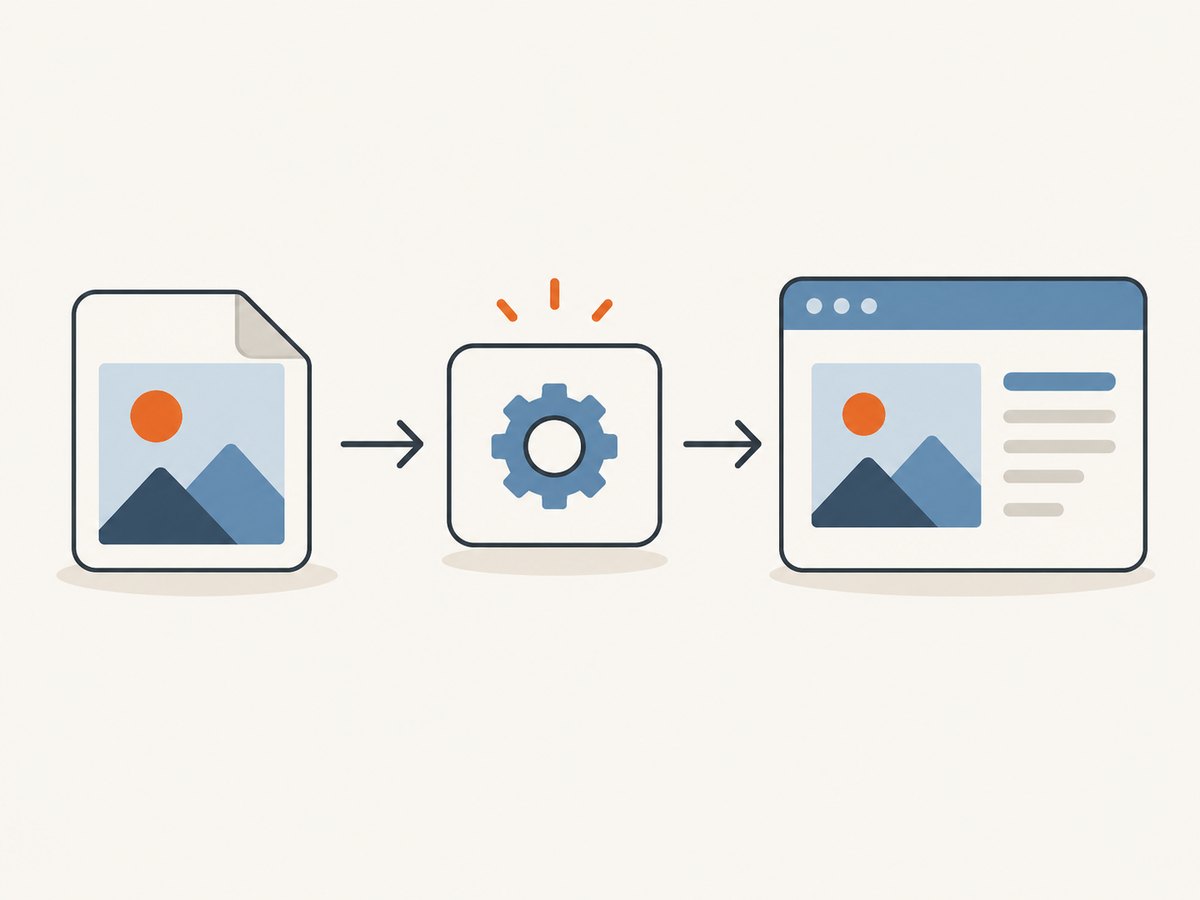
To attach an existing screenshot to a Pytest Allure result, call allure.attach.file() with the file path, a readable name, and an attachment type matching the image. For a PNG:
import allure

allure.attach.file(
    "artifacts/login-page.png",
    name="Login page after submit",
    attachment_type=allure.attachment_type.PNG,
)
Run the test with the Allure Pytest integration configured to write results to a results directory, then generate or serve the report from those results. The attachment appears with the test result, where supported image formats can be previewed and downloaded. If the screenshot already exists as bytes in memory, use allure.attach() instead. [Allure attachment documentation; Allure Pytest reference]
1. Choose the right attachment method
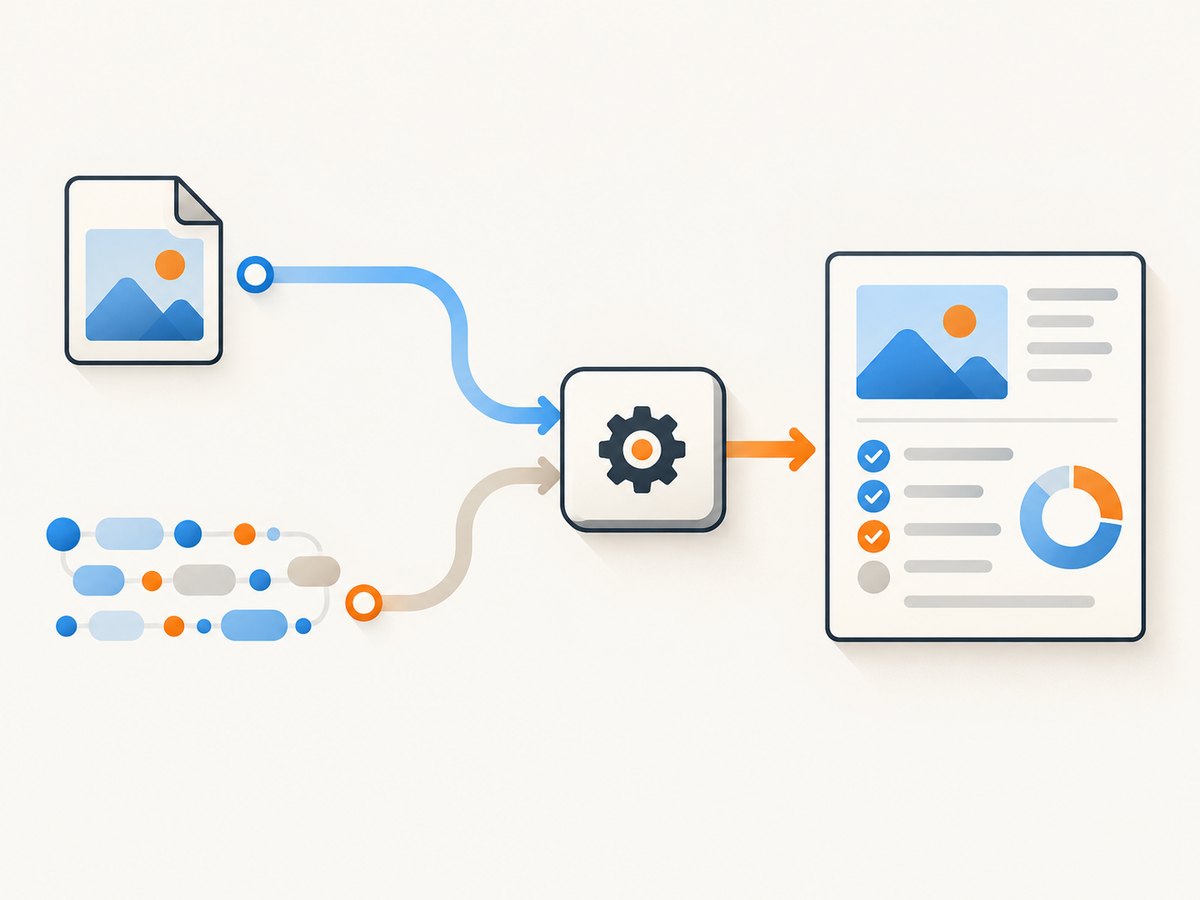
The key distinction is where the screenshot is now. An existing file on disk is simplest with allure.attach.file(). Image bytes already held in your test process can be attached directly with allure.attach(), without writing them to disk and reading them back.
| What you have | Use | Why |
|---|---|---|
| Saved screenshot file | allure.attach.file(path, ...) |
Attaches the existing artifact. |
| Screenshot bytes | allure.attach(bytes, ...) |
Avoids an unnecessary file round trip. |
| File intended to be visible at report level, independent of a test | Allure Report 3 globalAttachments |
For report-level material, not a test-specific result. |
Allure integrations can associate attachments with a test result and, depending on the integration, a step or fixture. If a screenshot explains one test’s outcome, attach it while that test is running so the artifact is linked to the relevant result. [Allure attachment documentation]
2. Attach an existing screenshot with Pytest
Minimal example
import allure

@allure.title("User can sign in")
def test_sign_in():
    # Perform the test and save or obtain the screenshot beforehand.
    screenshot_path = "artifacts/sign-in.png"

    allure.attach.file(
        screenshot_path,
        name="Sign-in page",
        attachment_type=allure.attachment_type.PNG,
    )
The name is the label readers see in the report. Make it describe the page or state, such as “Checkout after submitting address,” rather than using an opaque temporary filename. The media type tells Allure how to present the attachment; set it to the actual format. The Pytest API also accepts an optional extension when you need to control the download filename extension. [Allure Pytest reference]
Attach several files
Attach each screenshot with a distinct, descriptive name. This keeps related images together under the same test result and makes the report navigable.
from pathlib import Path
import allure

for path in sorted(Path("artifacts/sign-in").glob("*.png")):
    allure.attach.file(
        str(path),
        name=f"Sign-in: {path.stem}",
        attachment_type=allure.attachment_type.PNG,
    )
Use an explicit file list or a narrowly scoped directory when the artifact folder can contain unrelated images. A broad glob can attach stale screenshots from prior runs, making the report misleading and larger than necessary.
Use a different image format
Match the attachment type to the bytes on disk. Allure documents image media types including BMP, GIF, JPEG, PNG, SVG, TIFF, and generic image/*. In Pytest, use the corresponding allure.attachment_type constant where available, or provide a matching media type string. Do not label a JPEG as PNG: a mismatched type or extension can interfere with preview or with the downloaded file’s interpretation. [Allure attachment documentation; Allure Pytest reference]
3. Attach screenshots from memory
If your browser or test framework already provides the screenshot as bytes, attach those bytes directly. The argument name, type, and readable label follow the same idea:
import allure

# screenshot_bytes must contain the actual image bytes, for example PNG bytes.
allure.attach(
    screenshot_bytes,
    name="Login page after submit",
    attachment_type=allure.attachment_type.PNG,
)
This is useful when a test captures a screenshot at failure time and has no need to retain a separate file. The Allure Pytest and Playwright guide recommends this route for a screenshot just taken, since a newly written file may not yet be available for reading in some circumstances. For an already-existing file, the file helper is the direct option. [Allure Pytest and Playwright screenshot guide]
4. Attach only on failure, or at the point of interest
For a screenshot that should appear only when a test fails, capture it in a failure hook or fixture supported by your test setup, then attach it while the failing test context is active. The exact hook depends on the integration and how the browser fixture is managed; keep the attachment call in the test’s lifecycle so Allure can associate it with the correct result.
For a screenshot that documents one step, attach it after that step has reached the relevant state. Allure’s integration determines whether the attachment is scoped to a step, fixture, or whole test. Use a name that says what the image records, especially when a result contains multiple captures. [Allure attachment documentation]
5. Generate and open the report
Attaching a file writes attachment data into Allure’s test results; it does not itself create the browsable HTML report. Once the test run has produced results, use the Allure CLI workflow appropriate to the installed integration and CLI version. The documented Playwright guide describes these commands:
# Generate an HTML report from the results directory
allure generate allure-results --clean -o allure-report

# Or generate the report and open it in a browser
allure serve allure-results
Adjust the results directory to match your test configuration. The generated report is a separate output from the raw results. Preserve the results directory until generation is complete; it contains the attachment references and data used to build the report. [Allure Playwright guide]
6. Add report-level files with Allure Report 3
Sometimes a screenshot is useful as a general report artifact but does not belong to any one test—for example, a shared environment capture. Allure Report 3 documents a separate globalAttachments configuration option that accepts glob patterns relative to the working directory. These are global report attachments, not substitutes for attaching a screenshot to the result that produced it.
Files resolving outside the working directory are silently skipped, so keep the configured files under that directory and verify the paths relative to the process working directory. This feature is documented for Allure Report 3; check the documentation for the version you use before relying on it. [Allure Report 3 documentation]
7. Attach existing screenshots in other integrations
JUnit 5
The JUnit 5 documentation demonstrates opening an existing image as an InputStream and passing it to Allure.attachment(). A try-with-resources block ensures the stream is closed after attachment:
import io.qameta.allure.Allure;
import java.io.InputStream;
import java.nio.file.Files;
import java.nio.file.Path;

Path imagePath = Path.of("artifacts", "checkout.png");
try (InputStream image = Files.newInputStream(imagePath)) {
    Allure.attachment("Checkout page", image);
}
Use the API from the Allure JUnit 5 integration version in your project. The documented pattern reads the file stream and attaches it under the provided name. [Allure JUnit 5 documentation]
Selenium with Pytest
The Allure Selenium guide uses allure.attach.file() for a saved screenshot and allure.attach() for bytes returned by Selenium’s screenshot method. Choose the route that matches your capture code; the attachment mechanism is the same as in the Pytest examples above. [Allure Pytest and Selenium screenshot guide]
8. Troubleshooting
| Symptom | Likely cause | Fix |
|---|---|---|
| No attachment appears | The attachment call did not run in the test context, or the report was generated from another results directory. | Confirm the test reached the call and generate from the directory written by the integration. |
| File not found | The path is relative to a different current working directory, or the artifact was not created before attachment. | Resolve the path from the test process working directory; check existence immediately before attach.file(). |
| Image downloads but has no useful preview | The declared media type does not match the image format, or the type is not handled as expected. | Use the correct image attachment type and extension for the actual file. |
| Old or duplicate screenshots appear | A reused artifact directory or broad glob includes files from prior executions. | Clean or uniquely name the run’s artifact directory, and select only current-run files. |
| Report has no test results | The report command points at the wrong results folder or test results were not generated. | Check the integration’s output directory and pass that exact directory to the report command. |
| Global attachment is missing in Report 3 | The pattern is relative to the wrong working directory, or the target resolves outside it. | Use a working-directory-relative pattern and keep the file within that directory. |
When debugging, inspect the raw results directory as well as the HTML report. Verify that the test result references an attachment and that the corresponding artifact exists. This separates a capture or path problem from a report generation or display problem.
9. Performance, reliability, and storage
Screenshot attachments increase the amount of data in test results and generated reports. Large full-page images and multiple screenshots per test can make results slower to transfer, archive, and open. Attach images that explain a result, use sensible capture dimensions in the test itself, and avoid attaching every intermediate state unless each one adds diagnostic value.
For reliable attachment, create or finish writing the file before calling allure.attach.file(). If the screenshot is already available as bytes, attaching the bytes avoids file timing and path issues. Use deterministic names and isolate artifacts by test run so parallel jobs do not overwrite one another. Keep the result directory intact through report generation, and archive it if reports need to be regenerated later.
Allure attachment documentation describes the report preview and download behavior, but the cited sources give no fixed size limit or universal performance benchmark. Actual report size and processing time depend on the image dimensions, number of attachments, and storage and CI environment. [Allure attachment documentation]
Or skip the browser setup
If the screenshot you need is of a public web page rather than your test’s live browser state, ScreenshotNeo can capture it with one request. This does not replace attaching your test-run screenshot; it is useful when you need a page capture without managing browser automation. See the ScreenshotNeo API documentation for request options.
curl -G "https://api.screenshotneo.com/v1/shot" \
  -d access_key=YOUR_API_KEY \
  --data-urlencode url=https://stripe.com \
  -o shot.webp
ScreenshotNeo removes cookie and consent banners, newsletter popups, and chat widgets before the shot. Bot checks, blank pages, failed loads, timeouts, and cache hits are not billed; response headers report the page verdict and billing status. Its MCP server lets AI agents use screenshot tools. The free plan includes 1,000 shots per month with no card; paid plans start at $5 for 3,000 shots. Create a free account and get 1,000 screenshots a month with no card.
FAQ
Can I attach a screenshot created before the test run?
Yes. Pass its path to allure.attach.file() while the test result is active. Make sure the file is available in the test process and the path resolves in that environment.
Can Allure preview formats besides PNG?
Allure documents multiple image media types, including JPEG and GIF. Declare the attachment type that matches the actual file, and check the integration documentation for the accepted type values.
Should I attach screenshots globally or to a test?
Attach a diagnostic screenshot to the test, step, or fixture it explains. Use Allure Report 3 global attachments for files intended to sit at report level independently of a particular result.
Can I put a screenshot in the report without saving it first?
Yes. If the image bytes are in memory, use allure.attach(). This avoids writing the image to disk before attaching it.


