How to Attach Screenshots to Extent Reports in Java Selenium
Capture Selenium screenshots on failure and attach them to ExtentReports 5 with file paths or Base64, including reliable paths, hooks, and fixes.
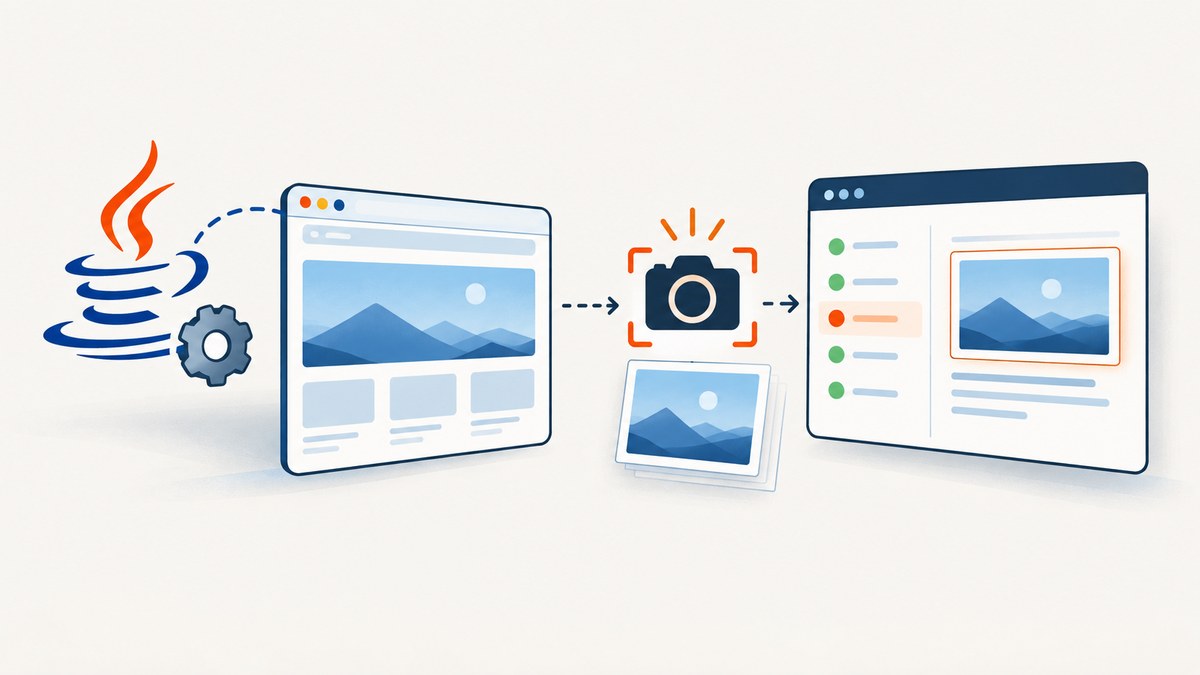
To attach a Selenium screenshot to ExtentReports, capture it with Selenium’s TakesScreenshot, save it somewhere the HTML report can reach, then attach the saved path to the failing test. With ExtentReports 5, create an ExtentSparkReporter, attach it to ExtentReports, record the failure with a media entity, and call flush() after logging is complete. Use a path when you want an ordinary image file you can inspect; use Base64 when you prefer the screenshot data embedded in the report.
This guide uses ExtentReports 5 and Java. The same attachment concepts exist in v4, but reporter classes and imports can differ, so check the major version in your build file. The primary references are the Selenium TakesScreenshot API and ExtentReports 5 Java documentation.
1. Add the screenshot to a failing test
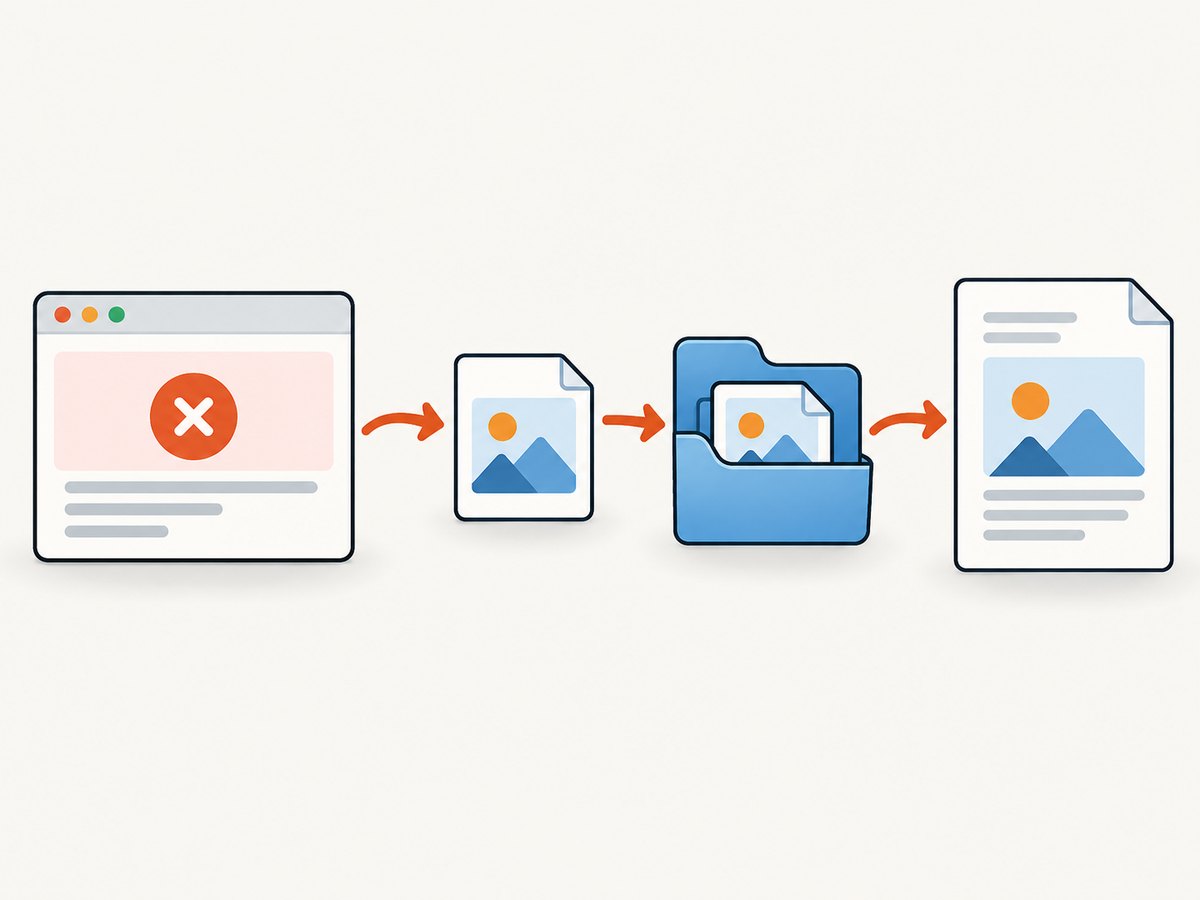
The example below is a complete reporting pattern. It assumes you already have a working WebDriver and an assertion that detects failure. The test captures the current browser view, copies the temporary screenshot to a stable report media directory, records the failure and image together, and flushes the report.
import com.aventstack.extentreports.ExtentReports;
import com.aventstack.extentreports.ExtentTest;
import com.aventstack.extentreports.MediaEntityBuilder;
import com.aventstack.extentreports.reporter.ExtentSparkReporter;
import org.openqa.selenium.OutputType;
import org.openqa.selenium.TakesScreenshot;
import org.openqa.selenium.WebDriver;

import java.io.File;
import java.nio.file.Files;
import java.nio.file.Path;
import java.nio.file.StandardCopyOption;

public class ExtentScreenshotExample {
    public static void main(String[] args) throws Exception {
        // Supply a driver configured for your browser and test environment.
        WebDriver driver = createDriver();
        ExtentReports extent = new ExtentReports();
        ExtentSparkReporter spark = new ExtentSparkReporter("target/Spark.html");
        extent.attachReporter(spark);

        ExtentTest test = extent.createTest("Login test");
        try {
            driver.get("https://example.com/login");
            // Replace this with your real assertion and application interaction.
            boolean loginSucceeded = false;
            if (!loginSucceeded) {
                throw new AssertionError("Expected login to succeed");
            }
            test.pass("Login succeeded");
        } catch (Throwable failure) {
            try {
                File source = ((TakesScreenshot) driver)
                    .getScreenshotAs(OutputType.FILE);
                Path destination = Path.of(
                    "target", "screenshots", "login-test-failure.png");
                Files.createDirectories(destination.getParent());
                Files.copy(source.toPath(), destination,
                    StandardCopyOption.REPLACE_EXISTING);

                test.fail("Login failed: " + failure.getMessage(),
                    MediaEntityBuilder
                        .createScreenCaptureFromPath(destination.toString())
                        .build());
            } catch (Exception captureFailure) {
                test.fail("Login failed: " + failure.getMessage());
                test.warning("Could not capture or attach screenshot: "
                    + captureFailure.getMessage());
            }
            throw failure;
        } finally {
            driver.quit();
            extent.flush();
        }
    }

    private static WebDriver createDriver() {
        throw new UnsupportedOperationException(
            "Create a WebDriver for your browser here");
    }
}
The createDriver() method is deliberately the one environment-specific piece: Selenium driver setup depends on the browser, driver management, and project configuration. Replace it with the WebDriver your test already uses. In a real test framework, do not put suite-wide report creation inside every test; initialize the report at the appropriate suite or class scope.
Why copy the file?
getScreenshotAs(OutputType.FILE) returns a temporary file. Copy it to a predictable directory under the build output before attaching it. Otherwise, the temporary file may disappear, or a report opened on another machine may not find it. The HTML report references the file path; the image must remain at that location relative to the report or at the path the report records.
2. Choose a file or Base64 attachment
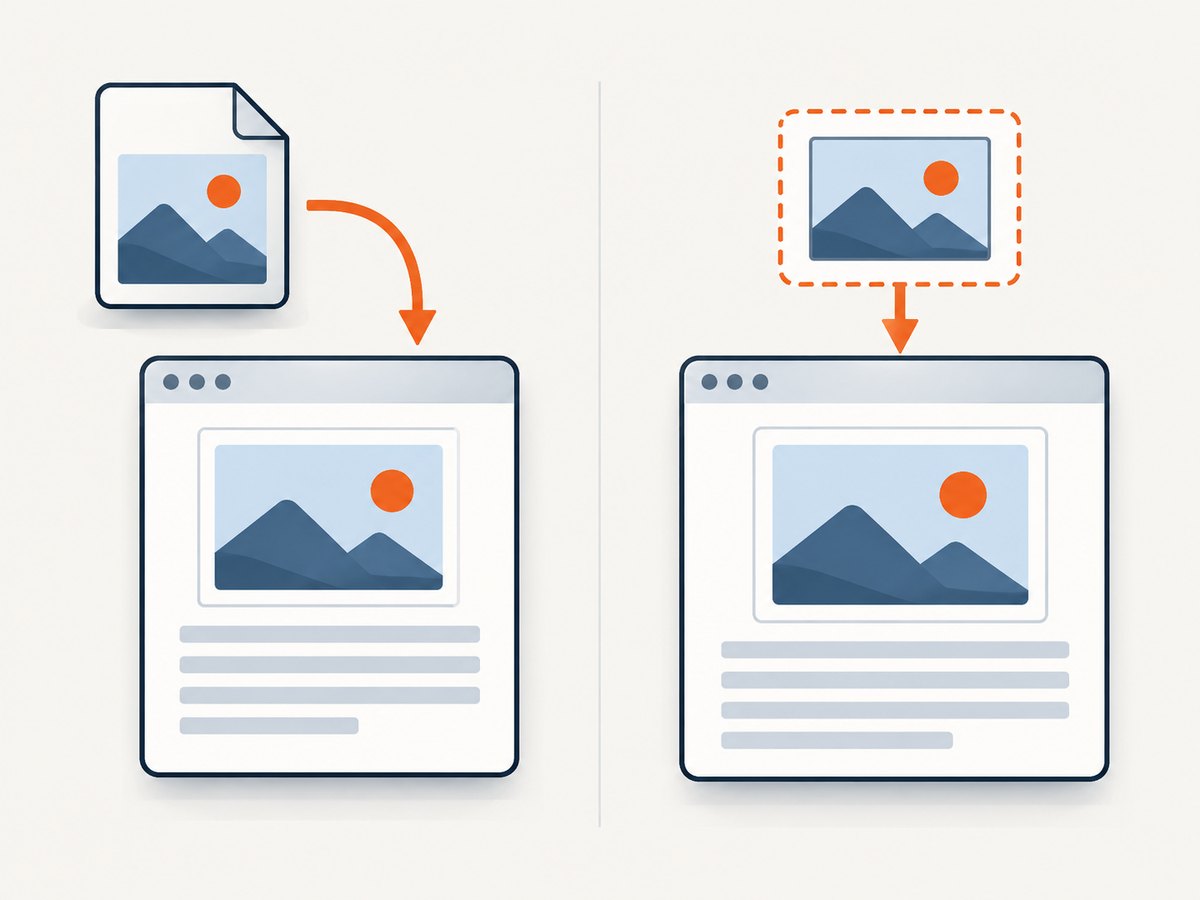
ExtentReports offers two related attachment styles. A test-level attachment is useful when the image is a general artifact for the test. A media entity passed to a log or status method ties the image to a specific event, such as the failure message.
| Pattern | Use it when | Trade-off |
|---|---|---|
addScreenCaptureFromPath(path) |
The image describes the test as a whole. | The image file must stay reachable from the report. |
MediaEntityBuilder.createScreenCaptureFromPath(path).build() |
The image belongs beside one failure or log entry. | Still requires a persistent image file and valid path. |
addScreenCaptureFromBase64String(data) |
You want an image attached at test level without managing a separate image file. | Image data becomes part of report content and uses memory/storage there. |
MediaEntityBuilder.createScreenCaptureFromBase64String(data).build() |
You want the image beside one status/log entry and embedded as data. | Large or numerous screenshots can make report content heavier. |
Test-level file attachment
test.fail("details").addScreenCaptureFromPath("target/screenshots/failure.png");Media entity attached to a failure
test.fail("Assertion failed",
    MediaEntityBuilder.createScreenCaptureFromPath(
        "target/screenshots/failure.png").build());
Base64 attachment
String base64 = ((TakesScreenshot) driver)
    .getScreenshotAs(OutputType.BASE64);
test.fail("Assertion failed",
    MediaEntityBuilder.createScreenCaptureFromBase64String(base64).build());
Base64 avoids a separate screenshot file and path management. It does not eliminate the need to keep the HTML report itself. For reports with many large captures, separate files can be easier to inspect and manage. Choose based on how the report is archived, shared, and opened.
3. Capture only when a test fails
Capture after an assertion or exception reveals the failure. Taking screenshots for every passing step increases disk use and report size without necessarily helping diagnosis. A failure hook centralizes capture and attachment, but it must be able to locate the correct ExtentTest for the test that just failed.
TestNG lifecycle pattern
In TestNG, a common arrangement is to create the report once for the suite, create one Extent test per test invocation, attach it in an @AfterMethod hook when the result failed, and flush once in @AfterSuite. The exact lifecycle setup depends on how your project manages drivers and parallel execution. The core failure-hook operation looks like this:
import org.testng.ITestResult;
import org.testng.annotations.AfterMethod;

@AfterMethod
public void attachOnFailure(ITestResult result) {
    if (!result.isSuccess()) {
        WebDriver driver = driverForCurrentTest();
        ExtentTest test = extentTestFor(result);
        try {
            File source = ((TakesScreenshot) driver)
                .getScreenshotAs(OutputType.FILE);
            String method = result.getMethod().getMethodName();
            Path destination = Path.of("target", "screenshots",
                method + "-" + System.nanoTime() + ".png");
            Files.createDirectories(destination.getParent());
            Files.copy(source.toPath(), destination,
                StandardCopyOption.REPLACE_EXISTING);
            test.fail("Test failed",
                MediaEntityBuilder.createScreenCaptureFromPath(
                    destination.toString()).build());
        } catch (Exception e) {
            test.fail("Test failed; screenshot attachment failed: "
                + e.getMessage());
        }
    }
}
driverForCurrentTest() and extentTestFor(result) stand for your framework’s driver and test registries. Store those objects in a thread-safe way if tests run concurrently. A shared mutable driver or a single shared test reference can attach the wrong browser image to the wrong result.
For JUnit, use an extension or teardown callback that receives the test outcome and has access to both the test’s driver and its Extent test. The callback should follow the same sequence: check failure, capture, copy to a unique path, attach to the matching test, then let the report lifecycle flush after the relevant logging is finished.
4. Keep report paths valid
- Put the report and screenshot directory in a known build output location, such as
target/. - Create parent directories with
Files.createDirectories()before copying. - Use a unique filename containing the test identity and, for parallel runs or retries, an invocation identifier.
- Attach the path that corresponds to the saved destination, not Selenium’s temporary source file.
- Archive or publish the report and its screenshot directory together.
- Open the generated report after the build has finished to confirm relative references resolve in the environment where teammates will view it.
Absolute paths may work on the machine that generated a report and fail on another machine. A stable relative layout is more portable, provided the report’s recorded path resolves from the report location. Avoid cleaning the screenshot directory before the report is archived.
5. Selenium capture options and edge cases
Selenium’s screenshot API provides several output forms. OutputType.FILE is convenient for copying into report assets; OutputType.BASE64 returns encoded data for an embedded attachment; and OutputType.BYTES gives raw bytes if your own storage layer needs them. The screenshot target must support the TakesScreenshot interface. The driver screenshot represents the browser’s current view, while an element can also be captured where the driver and element support screenshot capture.
File file = ((TakesScreenshot) driver).getScreenshotAs(OutputType.FILE);
String base64 = ((TakesScreenshot) driver).getScreenshotAs(OutputType.BASE64);
byte[] bytes = ((TakesScreenshot) driver).getScreenshotAs(OutputType.BYTES);
Capture before quitting the driver or navigating away from the failure state. If an alert, browser crash, or lost session prevents screenshot capture, preserve the original test failure and log the capture failure separately. A screenshot failure should not replace the assertion or exception that caused the test to fail.
6. Or skip the browser setup
If the artifact you need is a website screenshot rather than the live Selenium session state, ScreenshotNeo can capture a URL in one request. Selenium remains useful when you need the exact state created by your test interactions; a URL screenshot service is useful for capturing a page without managing a browser driver.
curl -G "https://api.screenshotneo.com/v1/shot" \
  -d access_key=YOUR_API_KEY \
  --data-urlencode url=https://stripe.com \
  -o shot.webp
See the ScreenshotNeo API documentation for request options. Cookie banners, newsletter popups, and chat widgets are removed before the shot. Bot checks, blank pages, and failed loads are never billed, and response headers identify the page verdict and billing status. Its MCP server lets AI agents use screenshot tools. The Free plan includes 1,000 shots per month without a card; paid plans start at $5 for 3,000 shots.
Create a free ScreenshotNeo account to get 1,000 screenshots a month with no card.
7. Troubleshooting
| Symptom | Likely cause | Fix |
|---|---|---|
| Broken image icon in the report | The file was temporary, moved, deleted, or the report path does not resolve. | Copy to a persistent report asset directory and archive it with the HTML report. |
| Screenshot appears far from the failure entry | The screenshot was added at test level rather than to the failure’s media entity. | Pass MediaEntityBuilder output to the same fail or log call. |
| Report is empty or missing recent entries | extent.flush() did not run, or ran before all logs were added. |
Flush in a lifecycle cleanup that runs after test logging and attachment. |
WebDriverException or unsupported operation during capture |
The driver does not support screenshots, or the browser session is already unavailable. | Check TakesScreenshot support and capture before quitting or losing the session. |
| Two failures show the same image | Parallel tests reused a filename or shared driver/test reference. | Use unique invocation paths and per-thread or otherwise isolated test state. |
| Failure is reported as a screenshot error | The capture exception replaced the original test exception. | Catch attachment errors separately, log them, and retain the original failure as the test result. |
| Compilation errors after a version change | Imports or reporter APIs do not match the ExtentReports major version. | Align dependencies and code with the documentation for the version in the build. |
| Screenshot is blank or shows the wrong moment | Capture occurred before the page settled, after navigation, or after teardown. | Capture immediately when the failure is detected, before cleanup changes the page state. |
8. Performance, reliability, and cost
Screenshot capture adds browser and file work to the failure path. Capturing only on failure generally avoids that overhead for passing tests. Base64 makes the report self-contained with respect to the image, but the encoded content enlarges report data and remains in memory while being handled. File attachments keep image bytes separate, which can be easier to archive and inspect, but require path management and storage retention.
No benchmark or reliability percentage for ExtentReports screenshot attachment is provided by the cited documentation, so there is no defensible universal timing or success-rate figure to give. Reliability depends on a live browser session, driver screenshot support, writable storage, unique paths, correct report references, and flushing after attachment. The relevant costs are the time spent capturing and copying, disk space for image files or larger embedded reports, and the storage/transfer cost of retaining artifacts in your build system.
9. FAQ
Can one test have more than one screenshot?
Yes. Attach multiple images at test level or log each image beside the event it documents. Use distinct names and paths so later captures do not overwrite earlier ones.
Should I capture on every step?
Usually capture at meaningful failure points. If you need a sequence for a hard-to-reproduce issue, record selected checkpoints, while accounting for the larger report and artifact storage.
Can I attach an element screenshot?
Where the WebElement implementation supports screenshot capture, obtain its screenshot through Selenium’s screenshot interface and attach the resulting file or Base64 data using the same ExtentReports methods.
Does the HTML report contain a file-based screenshot?
It contains a reference to the image path. Keep the image accessible at that path and distribute it with the report.


