How to Attach Screenshots to Failed Tests in JUnit Reports
Capture a browser screenshot when a JUnit 5 test fails, attach it to Allure, and understand what generic JUnit reports can and cannot display.
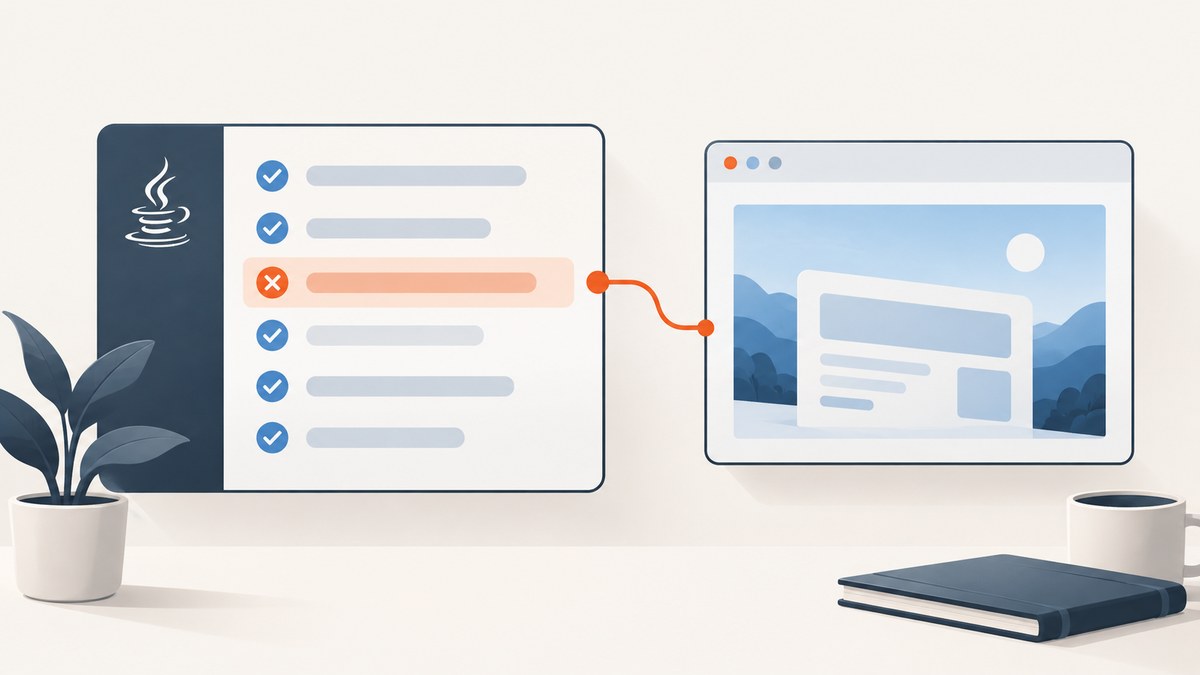
To attach a screenshot to a failed JUnit 5 browser test, capture the image while the test’s browser session is still available, then send its bytes to a reporting integration that supports image attachments. JUnit detects and reports the failure; Selenium or Selenide captures the browser; Allure can store and preview the image. Those are three separate steps.
The example below uses JUnit Jupiter, Selenium, and Allure. It registers a JUnit extension to handle a failed test, takes a PNG screenshot, and adds it to Allure as image/png. For a test whose reporting requirement is only generic JUnit XML, check the viewer’s attachment support before expecting an inline image: JUnit’s reporting data does not make every report viewer an image gallery.
1. Choose the failure hook and report integration
For failures in test methods, JUnit 5’s TestWatcher is a straightforward hook. Its testFailed callback receives the failed test’s extension context and throwable. It does not take a screenshot itself; the extension needs access to the correct WebDriver and must call a reporting API with the resulting image bytes.
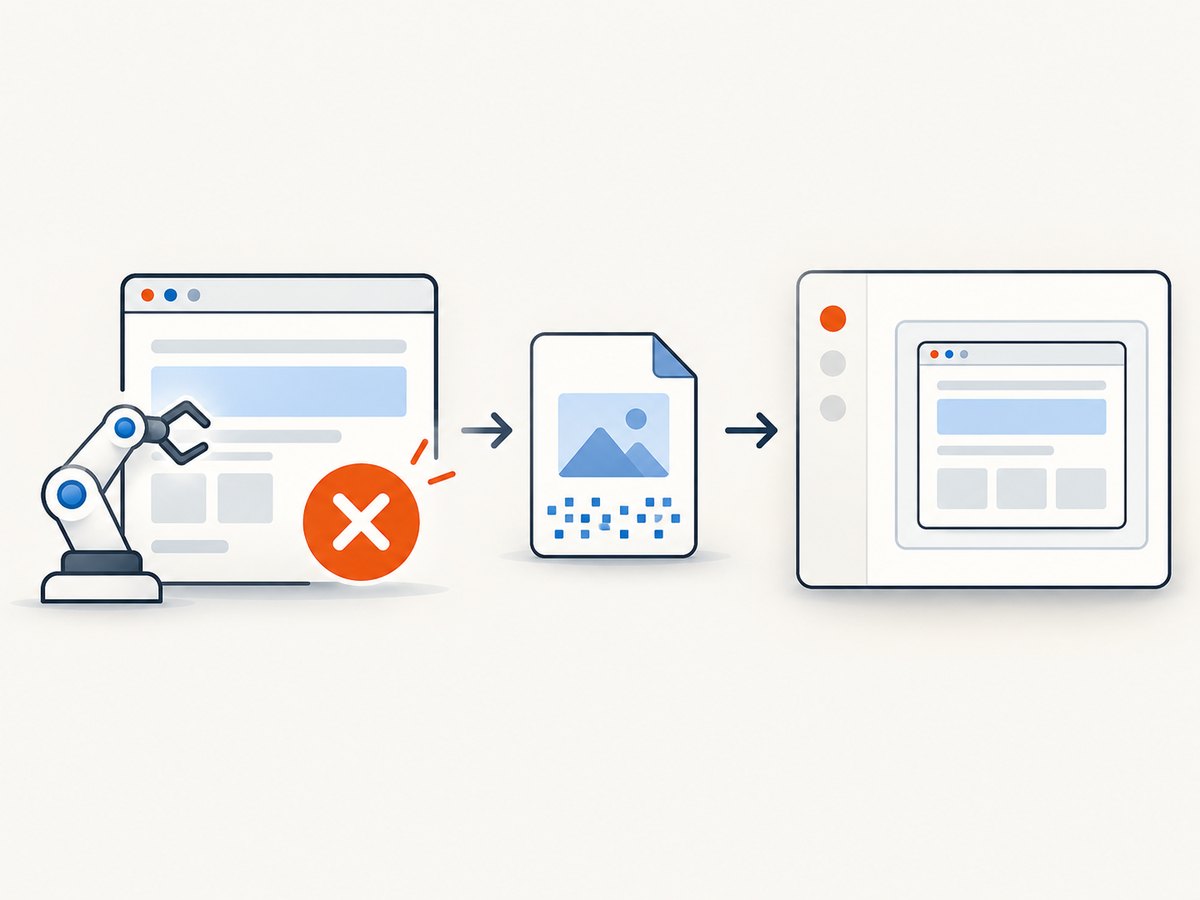
Use an exception handler instead when you need to act directly on a thrown test exception. Allure’s Selenium guide documents this route. Neither hook can capture a browser that has already been quit, so review when your test teardown closes the driver and make the capture happen before that point.
| Choice | Useful for | Keep in mind |
|---|---|---|
TestWatcher |
Recording test-method failure outcomes | Has documented scope and registration limits; does not report every class or setup failure. |
TestExecutionExceptionHandler |
Handling a thrown test exception at the point it occurs | Still needs a live browser session and an attachment call. |
| Allure attachment API | Storing an image with an image media type | Preview behavior depends on supported media type and report integration. |
| Selenide Allure listener | Projects already using Selenide | Register the listener and verify screenshot folder and project dependency versions. |
2. Add a failure watcher and attach the image
This minimal pattern uses a small driver holder so the extension can reach the WebDriver used by the test. In a parallel test suite, use a thread-local or another test-scoped mechanism instead of a shared static driver. The example assumes a single test thread for clarity.
import org.junit.jupiter.api.extension.ExtensionContext;
import org.junit.jupiter.api.extension.TestWatcher;
import org.openqa.selenium.OutputType;
import org.openqa.selenium.TakesScreenshot;
import org.openqa.selenium.WebDriver;
import io.qameta.allure.Allure;

import java.io.ByteArrayInputStream;

public final class DriverHolder {
    private static WebDriver driver;

    private DriverHolder() {}

    public static void set(WebDriver value) {
        driver = value;
    }

    public static WebDriver get() {
        return driver;
    }

    public static void clear() {
        driver = null;
    }
}

public final class FailureScreenshotWatcher implements TestWatcher {
    @Override
    public void testFailed(ExtensionContext context, Throwable cause) {
        WebDriver driver = DriverHolder.get();
        if (driver == null) {
            return; // No live browser is available for this failure.
        }

        try {
            byte[] png = ((TakesScreenshot) driver)
                    .getScreenshotAs(OutputType.BYTES);
            String label = "Failure screenshot - " + context.getDisplayName();
            Allure.addAttachment(label, "image/png",
                    new ByteArrayInputStream(png), ".png");
        } catch (RuntimeException screenshotError) {
            // Preserve the original test result if screenshot capture fails.
            System.err.println("Could not capture failure screenshot: "
                    + screenshotError.getMessage());
        }
    }
}
Register the watcher on the test class. Set the holder after creating the driver, and arrange cleanup in your normal teardown.
import org.junit.jupiter.api.AfterEach;
import org.junit.jupiter.api.BeforeEach;
import org.junit.jupiter.api.Test;
import org.junit.jupiter.api.extension.ExtendWith;
import org.openqa.selenium.WebDriver;
import org.openqa.selenium.chrome.ChromeDriver;

@ExtendWith(FailureScreenshotWatcher.class)
class CheckoutTest {
    private WebDriver driver;

    @BeforeEach
    void startBrowser() {
        driver = new ChromeDriver();
        DriverHolder.set(driver);
    }

    @Test
    void checkoutShowsConfirmation() {
        driver.get("https://example.com/checkout");
        // Add the test's actions and assertions here.
    }

    @AfterEach
    void stopBrowser() {
        if (driver != null) {
            driver.quit();
        }
        DriverHolder.clear();
    }
}
Use dependencies compatible with your project’s JUnit, Selenium, and Allure versions. The code uses Allure’s runtime attachment API with a byte stream, a descriptive name, an explicit PNG media type, and a file extension. The Allure JUnit 5 integration documentation describes its attachment APIs; its attachment documentation explains image previews and downloads.
3. Understand watcher coverage before relying on it
A watcher is not a universal “anything went wrong” callback. JUnit documents that TestWatcher reports test-method and template outcomes, but not class-level failures such as an exception from @BeforeAll, or disabled classes. A non-static instance extension field under the default per-method test instance lifecycle also misses template events. Register at class level with @ExtendWith, as above, or use a static extension field when template coverage matters. See the JUnit TestWatcher API for the exact scope and registration rules.
If setup can fail after opening a browser, decide explicitly how to capture that failure. A test watcher may not receive it. An exception handler can wrap the execution path where the exception occurs, but it still must be able to locate a live driver. Do not assume the report attachment API creates or owns a browser session.
4. Selenium and Selenide paths
Selenium
The example above is the manual Selenium path: cast the driver to TakesScreenshot, request OutputType.BYTES, and attach the returned PNG to Allure. If you use an exception handler, place the screenshot-and-attachment work in its handler, and rethrow the original exception so the test remains failed. Capture before teardown calls quit(). The Allure Selenium guide documents this integration approach.
Selenide
For Selenide projects, the Allure Selenide listener can attach Selenide’s failure screenshots automatically. Register AllureSelenide with screenshots enabled using the configuration for the versions in your build. The integration guide gives this registration form:
import io.qameta.allure.selenide.AllureSelenide;
import com.codeborne.selenide.logevents.SelenideLogger;

SelenideLogger.addListener("allure",
        new AllureSelenide().screenshots(true));
The guide lists build/reports/tests as the default screenshot output location and describes changing it with -Dselenide.reportsFolder=test-result/reports. Check the current Allure Selenide guide and your dependency versions before copying configuration into a build.
5. Make sure the report can show the image
An attachment is useful only if it survives the reporting and CI path. With Allure, use an image media type such as image/png; the report documents previews for supported media types and a download link. Give the file a descriptive label so it is easy to associate with the failed test.
JUnit also provides ways to publish additional test data through TestReporter and supports Open Test Reporting XML output. Those capabilities do not guarantee that an arbitrary JUnit XML consumer will render image bytes inline. Choose a viewer with documented image-attachment support when inline preview is required. The JUnit User Guide covers reporting and output capture; confirm the selected CI provider’s artifact retention rules separately.
6. Troubleshoot common failures
| Symptom | Likely cause | Fix |
|---|---|---|
| No screenshot is attached for a failed test | The extension is not registered, or the driver holder has no driver. | Confirm @ExtendWith is on the test class and set the holder after driver creation. |
| Screenshot callback does not run for setup failure | The failure occurred at class setup or outside watcher coverage. | Use an exception-handling hook appropriate to that execution path; make the browser available there. |
| Screenshot is blank or capture throws | The driver was closed, is not a screenshot-capable driver, or browser startup failed. | Capture before teardown; check the driver type and session state. Preserve the test failure if capture itself errors. |
| Attachment downloads but has no preview | The attachment has an absent or incorrect media type. | Attach PNG bytes as image/png and use a .png extension. |
| Only some template tests attach images | A non-static instance watcher is registered under the default per-method lifecycle. | Use class-level registration or a static extension field, following JUnit’s documented guidance. |
| Parallel tests attach the wrong browser image | A shared static driver is overwritten between tests. | Use per-test or thread-local driver storage and avoid sharing sessions across concurrent tests. |
| Local Allure report has no attachment | The listener or Allure integration is missing, or results are generated elsewhere. | Check listener registration, result output location, and report generation inputs. |
| Generic JUnit HTML/XML report has no inline image | The chosen viewer does not render image attachments. | Use a report integration with documented image previews, or retain the image as a CI artifact and link it appropriately. |
7. Reliability, runtime, and artifact cost
Screenshot capture adds work to the failure path and produces an artifact that must be stored and retained. Capture only when it helps diagnosis, use a descriptive test name, and keep the capture failure from hiding the original assertion or exception. Avoid logging image bytes or embedding them in console output.
Full-page captures and high-resolution browser screenshots can create larger files than viewport captures. If storage or report size becomes a problem, review retention policy, capture scope, and whether videos or duplicate screenshots are also being retained. The research sources do not prescribe a universal storage limit or CI retention duration; those depend on the report and CI configuration in use.
Reliability depends on lifecycle order: open browser, run test, capture while session is live, attach bytes, then quit browser. In parallel suites, bind the correct driver to the correct test context. For setups that fail before a usable browser exists, report the setup error clearly instead of implying a screenshot was captured.
Or skip the browser setup
If you need a screenshot of a publicly reachable page for documentation or an external-page check, ScreenshotNeo is a website screenshot API and MCP server from Yorker Media. It does not capture the live, authenticated WebDriver state from the test above; use your test browser for that. For a URL-based capture, the Java test can make one HTTP request and attach the response bytes to Allure. See the ScreenshotNeo API documentation for request options.
import io.qameta.allure.Allure;
import java.net.URI;
import java.net.URLEncoder;
import java.net.http.HttpClient;
import java.net.http.HttpRequest;
import java.net.http.HttpResponse;
import java.nio.charset.StandardCharsets;
import java.time.Duration;

String target = "https://stripe.com";
String query = "access_key=" + URLEncoder.encode("YOUR_API_KEY", StandardCharsets.UTF_8)
        + "&url=" + URLEncoder.encode(target, StandardCharsets.UTF_8);
HttpClient client = HttpClient.newBuilder()
        .connectTimeout(Duration.ofSeconds(20)).build();
HttpRequest request = HttpRequest.newBuilder()
        .uri(URI.create("https://api.screenshotneo.com/v1/shot?" + query))
        .timeout(Duration.ofSeconds(90)).GET().build();
HttpResponse<byte[]> response = client.send(request,
        HttpResponse.BodyHandlers.ofByteArray());
if (response.statusCode() < 200 || response.statusCode() >= 300) {
    throw new IllegalStateException("Screenshot request failed: HTTP "
            + response.statusCode());
}
Allure.addAttachment("External page screenshot", "image/webp",
        new java.io.ByteArrayInputStream(response.body()), ".webp");
The same URL capture can be requested with cURL:
curl -G "https://api.screenshotneo.com/v1/shot" \
  -d access_key=YOUR_API_KEY \
  --data-urlencode url=https://stripe.com \
  -o shot.webp
Or with Python:
import requests

r = requests.get(
    "https://api.screenshotneo.com/v1/shot",
    params={"access_key": "YOUR_API_KEY", "url": "https://stripe.com"},
    timeout=90,
)
r.raise_for_status()
open("shot.webp", "wb").write(r.content)
Or with Node.js:
const q = new URLSearchParams({
  access_key: 'YOUR_API_KEY',
  url: 'https://stripe.com'
});
const res = await fetch(`https://api.screenshotneo.com/v1/shot?${q}`);
if (!res.ok) throw new Error(`Screenshot request failed: ${res.status}`);
await Bun.write('shot.webp', res);
ScreenshotNeo accepts cookie banners and removes known consent platforms, newsletter popups, and chat widgets before capture; each of those steps can be turned off. Bot checks, blank pages, failed loads, timeouts, and cache hits are not billed, and response headers say the page verdict and billing status. Its MCP server gives AI agents tools for screenshots, page information, and PDF capture. The free plan includes 1,000 screenshots per month with no card; paid plans start at $5 for 3,000. Sign up for 1,000 free screenshots a month, no card required.
FAQ
Can I attach screenshots to plain JUnit XML?
JUnit offers reporting data and XML output, but inline display depends on the XML format and viewer. Use a reporting integration that explicitly documents image previews if that is required.
Will TestWatcher capture a failure in @BeforeAll?
Do not rely on it for class-level setup failures. Its documented result callbacks cover test methods and templates, subject to registration limits.
Should I attach PNG bytes or a file path?
For Allure, attaching PNG bytes with image/png is direct and portable. A file-based workflow can also work when the integration supports it, but ensure the file exists when results are generated.
Can ScreenshotNeo replace Selenium’s failure screenshot?
It can capture a page by URL. It does not represent the test’s live browser state, such as authenticated session state or unsaved interactions, so use WebDriver for that evidence.


