How to Attach Screenshots to JUnit XML Test Reports
Attach failure screenshots to JUnit XML safely across GitLab, Jenkins, and other CI viewers, with runnable Java, XML, and artifact examples.

Direct answer: save the screenshot as a file, reference that file using the attachment syntax your JUnit report viewer understands, and preserve the image with CI artifacts or the viewer’s attachment plugin. JUnit XML has no single universal screenshot standard. GitLab, Jenkins, and other consumers recognize different conventions, so choose the syntax after identifying the system that will display the report.
This guide shows a complete Java/JUnit 5 workflow, GitLab CI configuration, Jenkins configuration, portable XML patterns, troubleshooting, and a hosted-capture option using ScreenshotNeo.
1. Understand the four pieces of an attachment
A useful failure image requires four separate pieces:
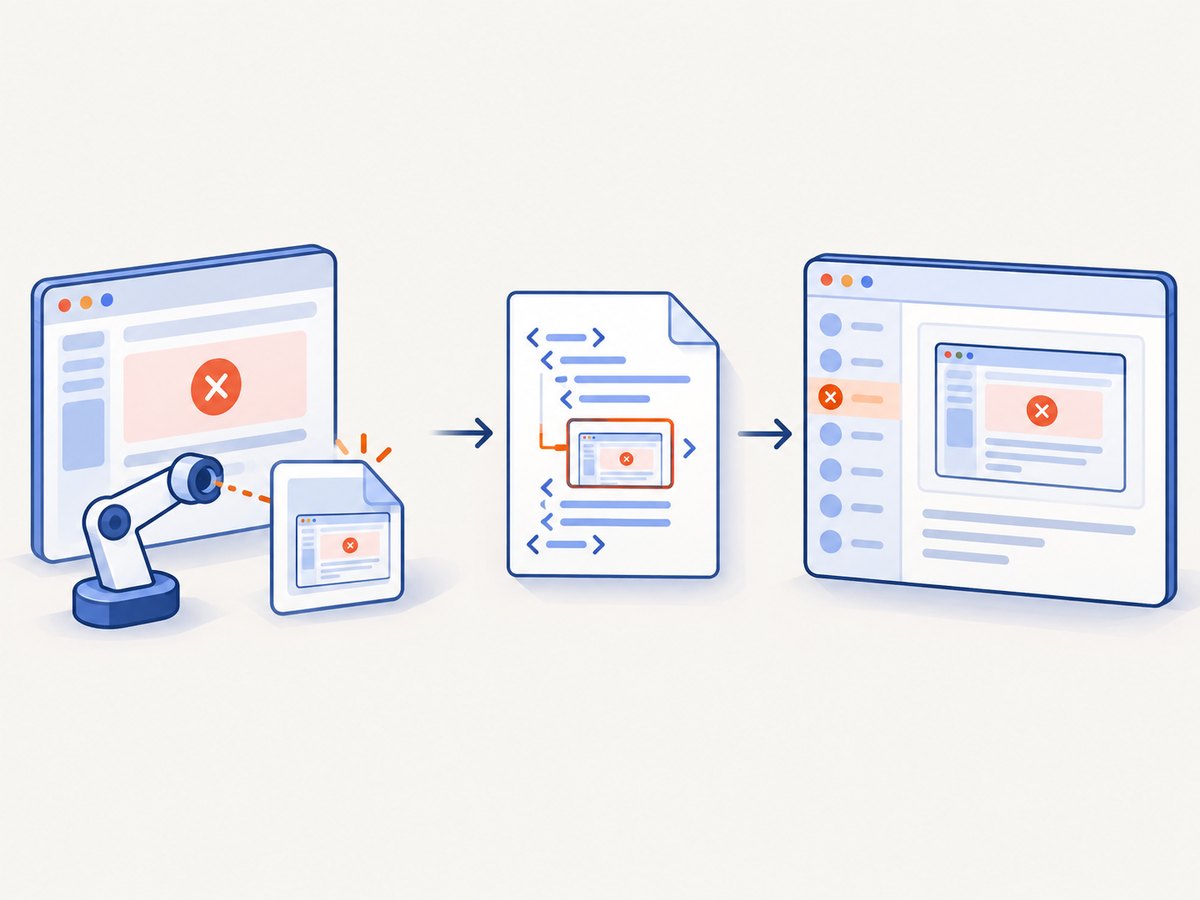
- Capture: the browser automation code writes a PNG, JPEG, or WebP file.
- Reference: the testcase XML contains a path, URL, data URI, or viewer-specific marker.
- Retention: CI archives the image after the job ends.
- Display: the report UI parses the reference and renders a link or inline image.
A screenshot can exist on disk and still be absent from the report if any one of these stages is missing. Framework output alone does not guarantee that a CI viewer will display an image. The JUnit 5 user guide describes test reporting and output capture, but it does not define automatic screenshot handling for every CI consumer. Treat test code, XML, artifact storage, and report rendering as independent steps.
2. Capture a screenshot in a JUnit 5 test
The following example uses Playwright for Java. It writes a deterministic file beneath build/test-artifacts, which is easy to archive from CI. Replace the URL and selectors with those used by your application.
import com.microsoft.playwright.*;
import org.junit.jupiter.api.*;

import java.nio.file.*;

class CheckoutTest {
    static Playwright playwright;
    static Browser browser;
    BrowserContext context;
    Page page;

    @BeforeAll
    static void startBrowser() {
        playwright = Playwright.create();
        browser = playwright.chromium().launch(
            new BrowserType.LaunchOptions().setHeadless(true));
    }

    @BeforeEach
    void openPage() {
        context = browser.newContext();
        page = context.newPage();
    }

    @AfterEach
    void closePage(TestInfo testInfo) throws Exception {
        context.close();
    }

    @AfterAll
    static void stopBrowser() {
        browser.close();
        playwright.close();
    }

    @Test
    void checkoutShowsConfirmation() throws Exception {
        Path screenshot = Path.of("build", "test-artifacts",
            "CheckoutTest-checkoutShowsConfirmation.png");
        Files.createDirectories(screenshot.getParent());

        try {
            page.navigate("https://example.test/checkout");
            page.getByRole(AriaRole.BUTTON,
                new Page.GetByRoleOptions().setName("Pay now")).click();
            Assertions.assertTrue(page.getByText("Confirmation").isVisible());
        } catch (Throwable failure) {
            page.screenshot(new Page.ScreenshotOptions()
                .setPath(screenshot)
                .setFullPage(true));
            throw failure;
        }
    }
}
Use a stable naming scheme containing the test class and method. Avoid spaces and characters such as : or /; they create invalid paths on some runners. If tests run in parallel, include a worker or retry identifier to prevent two tests from overwriting the same file.
Capture screenshots with Selenium
If your suite uses Selenium, the equivalent failure block is:
import org.openqa.selenium.OutputType;
import org.openqa.selenium.TakesScreenshot;
import java.nio.file.*;

catch (Throwable failure) {
    byte[] png = ((TakesScreenshot) driver)
        .getScreenshotAs(OutputType.BYTES);
    Files.createDirectories(Path.of("build/test-artifacts"));
    Files.write(Path.of("build/test-artifacts/LoginTest-login.png"), png);
    throw failure;
}
Capture before the driver is quit. A screenshot call after driver.quit() usually fails because the browser session no longer exists.
3. Add a reference to JUnit XML
There is no universal attachment element. Some viewers inspect testcase properties, some inspect system-out or system-err, and some only look in a special directory. The following patterns are common, but you must verify which one your report consumer parses.
Portable properties and URL patterns
<testcase classname="CheckoutTest" name="checkoutShowsConfirmation" time="1.24">
  <failure message="Confirmation was not visible" type="AssertionError" />
  <properties>
    <property name="screenshot" value="build/test-artifacts/CheckoutTest-checkoutShowsConfirmation.png" />
  </properties>
</testcase>
This is useful metadata even when the viewer does not render it. A URL property can be used when your CI publishes the image to an authenticated or public endpoint, but many report UIs will display it only as text.
Jenkins-style attachment marker
<testcase classname="CheckoutTest" name="checkoutShowsConfirmation">
  <failure message="Confirmation was not visible" />
  <system-out>[[ATTACHMENT|build/test-artifacts/CheckoutTest-checkoutShowsConfirmation.png]]</system-out>
</testcase>
The Jenkins JUnit Attachments plugin documents this marker and also supports collecting files from a directory named after the test class beside the XML report. The marker must normally be a standalone line in standard output or standard error. Keep the path valid from the Jenkins agent’s workspace.
4. GitLab unit test reports
GitLab’s documented workflow places [[ATTACHMENT|...]] in a testcase-level system-out element and uploads both the XML and image files as job artifacts. GitLab states that the path is relative to $CI_PROJECT_DIR and exposes a screenshot link in failed-test details. See the GitLab unit test reports documentation.
GitLab XML and CI configuration
<testsuite name="checkout" tests="1" failures="1">
  <testcase classname="CheckoutTest" name="checkoutShowsConfirmation" time="1.24">
    <failure message="Confirmation was not visible" type="AssertionError" />
    <system-out>
[[ATTACHMENT|build/test-artifacts/CheckoutTest-checkoutShowsConfirmation.png]]
    </system-out>
  </testcase>
</testsuite>
test:
image: maven:3.9-eclipse-temurin-21
script:
- mvn test
artifacts:
when: always
paths:
- target/surefire-reports/*.xml
- build/test-artifacts/
reports:
junit: target/surefire-reports/*.xmlUse the actual output directory produced by your build. when: always is important when screenshots are created only after failures; without it, a failed job may discard the evidence you need. Keep the XML path under reports:junit and the image directory under artifacts:paths.
5. Jenkins attachments
Install and enable the Jenkins JUnit Attachments plugin in addition to the normal JUnit publisher. The plugin supports two main layouts:
- A directory named after the test class, placed beside the XML report, containing the image files.
- A standalone
[[ATTACHMENT|path]]line printed to standard output or standard error.
A Jenkins Pipeline can publish the XML with the regular JUnit step:
pipeline {
  agent any
  stages {
    stage('Test') {
      steps {
        sh './mvnw test'
      }
    }
  }
  post {
    always {
      junit testResults: 'target/surefire-reports/*.xml',
            keepLongStdio: false
      archiveArtifacts artifacts: 'build/test-artifacts/**/*',
                       allowEmptyArchive: true
    }
  }
}
Configure the attachment publisher according to the plugin version installed on your controller. The ordinary JUnit publisher consumes XML; attachment parsing is an additional plugin capability. Jenkins warns that retaining large standard output and error streams increases controller memory use, so do not dump base64 screenshots into logs.
6. Generate XML yourself when the framework does not add attachments
If your test framework creates XML without a usable output field, write a small post-processor or custom reporter. Preserve XML escaping for paths and messages:
static String xmlEscape(String value) {
return value.replace("&", "&")
.replace("<", "<")
.replace(">", ">")
.replace("\"", """)
.replace("'", "'");
}
String relative = "build/test-artifacts/LoginTest-login.png";
String systemOut = "[[ATTACHMENT|" + xmlEscape(relative) + "]]";Do not embed binary data directly unless your viewer explicitly supports data URIs. Base64 increases XML size, slows parsing, and can exceed report limits. A relative file plus artifact retention is usually easier to operate.
7. Handle paths, retries, and parallel tests
| Situation | Recommended handling |
|---|---|
| Workspace path differs locally and in CI | Write paths relative to the repository root or CI project directory. |
| Parameterized tests | Include a sanitized parameter value or unique index in the filename. |
| Retries | Use -retry-1 or a timestamp so the retry does not overwrite the first failure. |
| Parallel workers | Create one subdirectory per worker or use a UUID. |
| Very large pages | Prefer viewport screenshots for diagnosis; reserve full-page captures for layout failures. |
| Secrets in the page | Mask sensitive data before capture or restrict artifact access. |
Use forward slashes in attachment paths even when Java runs on Windows; then normalize only when opening the local file. Before publishing, verify that every referenced file exists and that the path is inside the artifact set.
8. Troubleshooting checklist
The report shows no image
- Cause: the viewer does not parse your chosen syntax. Fix: check its attachment documentation and switch between a property,
system-outmarker, or plugin directory. - Cause: the image was not uploaded. Fix: add its directory to artifacts and use an always-run retention rule.
- Cause: the path is absolute or points outside the workspace. Fix: use a path relative to the CI project directory.
The screenshot file is empty or missing
- Capture before closing the browser and flush the file stream.
- Create the parent directory before writing.
- Check permissions in containerized runners.
- For full-page captures, wait for the page or selector that proves the UI is ready.
GitLab reports an invalid attachment
Ensure the marker is inside the testcase’s system-out, the path is relative to $CI_PROJECT_DIR, and the same path exists under artifacts:paths. A path that is valid on a developer laptop may not exist in the GitLab job.
Jenkins does not render inline images
Confirm that the JUnit Attachments plugin is installed and that the marker is a standalone line. Also check that the file is in a location Jenkins can archive. The regular JUnit publisher alone does not add attachment rendering.
XML parsing fails after adding a path
Escape ampersands, angle brackets, and quotes in attribute values. Keep binary bytes out of XML and validate the report with an XML parser before uploading it.
9. Performance, reliability, and cost considerations
Capture only on failure when screenshots are diagnostic evidence. This reduces browser time, artifact volume, and report parsing work. A small viewport image is usually faster than a full-page image; full-page mode can become expensive on pages with long, lazy-loaded content. Set explicit navigation and assertion timeouts so a failed test does not hold a worker indefinitely.
Artifact retention is part of reliability. Choose a retention period long enough for the team to investigate failures, then expire old images. Keep XML and screenshots in the same job result so a report cannot outlive its evidence. If images contain credentials, customer data, or personal information, restrict artifact visibility and sanitize the page before capture.
Do not put screenshots in stdout. Jenkins specifically cautions that retaining large output increases memory consumption, and base64 data makes both XML and logs much larger. Store files and reference them by path instead.
10. Or skip the browser setup
ScreenshotNeo captures a URL through one API request and returns PNG, JPEG, WebP, or PDF. It accepts consent banners as a visitor and removes more than 60 known consent platforms, newsletter popups, and chat widgets before capture. Bot checks, blank pages, timeouts, failed loads, and cache hits are not billed; response headers identify the page verdict and whether the request was billed. Its MCP server provides take_screenshot, get_page_info, and capture_pdf tools for Claude, Cursor, and other MCP clients.

For a test artifact, save the response body beside your JUnit XML and emit the same attachment marker shown above.
curl -G "https://api.screenshotneo.com/v1/shot" -d access_key=YOUR_API_KEY --data-urlencode url=https://stripe.com -o shot.webpimport requests
r = requests.get("https://api.screenshotneo.com/v1/shot", params={"access_key": "YOUR_API_KEY", "url": "https://stripe.com"}, timeout=90)
open("shot.webp", "wb").write(r.content)const q = new URLSearchParams({ access_key: 'YOUR_API_KEY', url: 'https://stripe.com' }); const res = await fetch(`https://api.screenshotneo.com/v1/shot?${q}`);See the ScreenshotNeo API documentation for request options. You can choose full-page or element capture, dark mode, device presets, custom viewport and retina scale, PDF paper and margins, custom CSS or JavaScript, clicks and waits, blocked resources, headers, cookies, user agent, timezone, geolocation, transparent backgrounds, resizing, cache TTL, signed links, asynchronous jobs with signed webhooks, bulk capture of up to 100 URLs, usage data, and the OpenAPI specification. Existing parameter names used by other screenshot APIs also work, which helps when migrating.
Plans include 1,000 screenshots per month free with no card; paid plans start at $5 for 3,000. Every feature is available on every plan. Create a free ScreenshotNeo account and use the returned image as the artifact referenced by your JUnit XML.
11. A repeatable implementation checklist
- Identify the exact CI report viewer.
- Capture a screenshot before browser teardown.
- Write it to a stable, unique path.
- Add the viewer’s supported XML reference.
- Upload both XML and image files.
- Retain artifacts when tests fail.
- Run one intentional failure and open it in the CI UI.
- Check path resolution, permissions, and retention before enabling parallel execution.
FAQ
Is there an official JUnit XML attachment standard?
No single standard is implemented by every consumer. Attachment properties, data URIs, and [[ATTACHMENT|...]] markers are conventions; support depends on the report viewer.
Should I attach screenshots for passing tests?
Usually no. Attach on failure unless a passing screenshot is a required visual regression artifact.
Can I use a hosted screenshot URL?
Yes when the viewer accepts URLs and the report readers can access them. Otherwise archive a local file with the job.
Why does my XML look correct but still show no link?
The viewer may ignore that XML field, or the image may not have been retained. Validate both the parser convention and the artifact path.
Can a screenshot API replace browser tests?
No. A capture API supplies an image; assertions, browser interactions, and test result generation remain your test suite’s responsibility.


