How to Attach Selenium Screenshots to ReportNG Reports
Capture Selenium screenshots on TestNG failures, copy them to durable ReportNG artifacts, and link them correctly from the generated report.

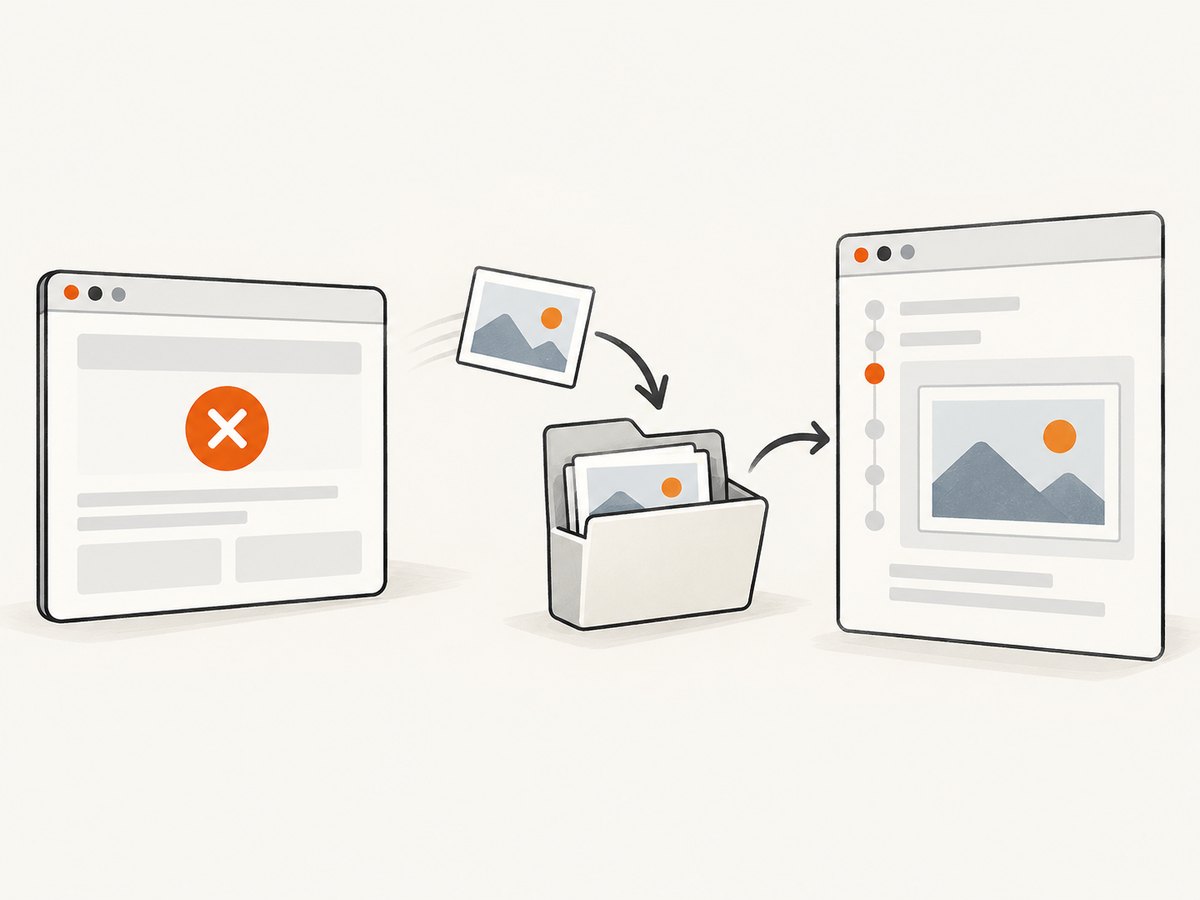
ReportNG does not capture Selenium screenshots by itself. The reliable pattern is to capture the browser image in a TestNG listener, copy Selenium’s temporary file into the report artifact directory, and write a relative link with Reporter.log. The link must be relative to the generated ReportNG HTML file and must continue to work when the report is archived or moved.
1. The workflow at a glance
- Keep the current
WebDriveravailable to the listener when a test fails. - Call
((TakesScreenshot) driver).getScreenshotAs(OutputType.FILE). - Copy that temporary file to a stable directory below your test output.
- Generate a collision-safe filename for parallel and data-driven tests.
- Log an anchor or image path with
Reporter.log. - Open the generated ReportNG HTML and verify the link after moving the entire report directory.
Selenium documents OutputType.FILE as a temporary file that is deleted when the JVM exits. Saving only that temporary path produces broken report links later. The TakesScreenshot API describes the capture contract, and OutputType lists file, Base64, and byte output forms.
2. Configure ReportNG and TestNG
Use the ReportNG instructions for your build system and verify dependency compatibility in the project rather than copying a version blindly. The TestNG-hosted documentation identifies ReportNG 1.2.2 as the current stable version and says it was tested with TestNG 6.14.3. A legacy ReportNG site describes older versions, so prefer the TestNG-hosted ReportNG documentation.
ReportNG’s HTML and JUnit XML reporters are wired through service providers. Maven users should follow its Maven dependency and provider configuration. Ant users should follow its listener configuration. If you use Gradle, an IDE, or another runner, register the ReportNG reporter and your custom listener through TestNG as supported by that environment.
For a listener class registered in testng.xml, use:
<suite name="UI suite">
  <listeners>
    <listener class-name="com.example.reporting.ScreenshotListener"/>
  </listeners>
  <test name="browser tests">
    <classes>
      <class name="com.example.LoginTest"/>
    </classes>
  </test>
</suite>
Keep ReportNG’s output escaping enabled unless you have reviewed the security and rendering consequences of changing it. ReportNG warns that disabling escaping allows raw log content to become HTML or XML.
3. Implement an ITestListener failure hook
ITestListener receives lifecycle callbacks while a test is running, so onTestFailure is normally the best point to capture a screenshot while the driver still exists. IReporter runs after suites complete; by then many projects have already quit the browser.
package com.example.reporting;

import java.io.IOException;
import java.nio.file.Files;
import java.nio.file.Path;
import java.nio.file.StandardCopyOption;
import java.time.Instant;
import java.util.regex.Pattern;

import org.openqa.selenium.OutputType;
import org.openqa.selenium.TakesScreenshot;
import org.openqa.selenium.WebDriver;
import org.testng.ITestListener;
import org.testng.ITestResult;
import org.testng.Reporter;

public final class ScreenshotListener implements ITestListener {
    private static final Path SCREENSHOT_DIR = Path.of("test-output", "screenshots");
    private static final Pattern UNSAFE = Pattern.compile("[^a-zA-Z0-9._-]");

    @Override
    public void onTestFailure(ITestResult result) {
        WebDriver driver = DriverManager.getDriver();
        if (driver == null) {
            Reporter.log("Screenshot unavailable: no WebDriver was registered");
            return;
        }

        try {
            Files.createDirectories(SCREENSHOT_DIR);
            Path temporary = ((TakesScreenshot) driver)
                    .getScreenshotAs(OutputType.FILE).toPath();

            String testName = safe(result.getTestClass().getName()) + "-"
                    + safe(result.getMethod().getMethodName());
            String uniqueName = testName + "-" + Instant.now().toEpochMilli()
                    + "-" + Thread.currentThread().getId() + ".png";
            Path destination = SCREENSHOT_DIR.resolve(uniqueName);
            Files.copy(temporary, destination, StandardCopyOption.REPLACE_EXISTING);

            // ReportNG HTML is normally written under test-output. Adjust this
            // path if your report file is in another directory.
            Reporter.log("<a href=\"screenshots/" + uniqueName
                    + "\">Open failure screenshot</a>");
        } catch (IOException | RuntimeException e) {
            Reporter.log("Screenshot capture failed: " + safe(e.getMessage()));
        }
    }

    private static String safe(String value) {
        if (value == null || value.isBlank()) return "unknown";
        return UNSAFE.matcher(value).replaceAll("_");
    }
}

// Replace this with the project's existing driver lifecycle.
final class DriverManager {
    private static final ThreadLocal<WebDriver> CURRENT = new ThreadLocal<>();
    static WebDriver getDriver() { return CURRENT.get(); }
    static void setDriver(WebDriver driver) { CURRENT.set(driver); }
    static void clear() { CURRENT.remove(); }
}
The example escapes the anchor markup in the Java source so the code block remains readable; the string passed to Reporter.log contains the intended HTML. Replace DriverManager with your own ThreadLocal, dependency-injected driver, or test base. Do not create a second browser in the listener.
4. Make the link portable and safe
Calculate the relative path from the report
If ReportNG writes test-output/index.html and screenshots to test-output/screenshots/abc.png, the link is screenshots/abc.png. If your report is nested more deeply, use the correct number of ../ segments. Test the link from the exact HTML file, not from the project root.
Use unique names
Class and method names alone collide when tests run in parallel or use data providers. Include a timestamp, thread ID, UUID, or a stable data-row identifier. Sanitize names so slashes, spaces, and query characters cannot create unintended directories.
Choose an anchor or inline image
Reporter.log("<a href=\"screenshots/" + fileName
        + "\">Open failure screenshot</a>");
An anchor is usually the most portable choice. An inline image can make failures faster to scan:
Reporter.log("<img src=\"screenshots/" + fileName
        + "\" alt=\"Failure screenshot\" width=\"900\"/>");
ReportNG may escape raw log HTML depending on its configuration and version. If the generated report displays the tags as text, keep escaping enabled and use a project-specific template or reporter extension that deliberately renders trusted links. Do not disable escaping just to make one link work; raw test data can then become executable markup.
5. A complete test and listener example
package com.example;

import org.openqa.selenium.By;
import org.openqa.selenium.WebDriver;
import org.openqa.selenium.chrome.ChromeDriver;
import org.testng.Assert;
import org.testng.annotations.AfterMethod;
import org.testng.annotations.BeforeMethod;
import org.testng.annotations.Test;

import com.example.reporting.DriverManager;

public class LoginTest {
    private WebDriver driver;

    @BeforeMethod
    public void setUp() {
        driver = new ChromeDriver();
        DriverManager.setDriver(driver);
    }

    @Test
    public void invalidLoginShowsError() {
        driver.get("https://example.test/login");
        driver.findElement(By.id("username")).sendKeys("wrong-user");
        driver.findElement(By.id("password")).sendKeys("wrong-password");
        driver.findElement(By.cssSelector("button[type='submit']")).click();
        Assert.assertTrue(driver.findElement(By.id("error")).isDisplayed());
    }

    @AfterMethod
    public void tearDown() {
        try {
            if (driver != null) driver.quit();
        } finally {
            DriverManager.clear();
        }
    }
}
Register the listener before the test runs, then inspect the generated report. The screenshot must be taken before quit(). If your framework closes the driver in an earlier teardown callback, move cleanup after listener capture or preserve the driver until TestNG has delivered onTestFailure.
6. Troubleshooting
| Symptom | Cause | Fix |
|---|---|---|
| No screenshot file | The listener was not registered, or the callback ran after driver cleanup. | Register the listener in testng.xml or your runner and keep the driver alive through onTestFailure. |
ClassCastException |
The driver does not implement TakesScreenshot. |
Use a Selenium driver that supports screenshots and cast only at capture time. |
| Broken link | The URL is relative to the wrong HTML directory. | Open the generated report file’s folder and calculate the path from there. |
| Link appears as text | ReportNG escaped the log markup. | Confirm the escaping setting and use a reviewed template or reporter customization; do not disable escaping casually. |
| Files overwrite each other | Parallel or data-driven tests share a filename. | Add a UUID, timestamp, thread ID, and data-row value. |
| Screenshot is blank or stale | Capture occurred before navigation, rendering, or an animation completed. | Wait for the application condition in the test before asserting; capture the failure state in the callback. |
AccessDeniedException |
The output directory is read-only or is being cleaned concurrently. | Choose a writable artifact directory and avoid cleanup jobs during the suite. |
| Works locally, fails in CI | Headless browser, display, permissions, or report archiving differs. | Verify browser startup, writable paths, and that CI archives the entire test-output directory. |
7. Performance, reliability, and cost
- A screenshot adds disk I/O and encoding time only for the tests that reach the callback. Capture failures by default; make success screenshots opt-in.
- Use PNG for pixel-accurate debugging. If artifact size matters and your pipeline supports it, convert after capture rather than changing the evidence before the report is generated.
- Keep screenshots under the same report root so archiving one directory preserves links. Do not use absolute filesystem paths.
- For large parallel suites, partition screenshots by suite, class, or worker and clean old artifact directories before a run starts.
- Redact secrets before publishing reports. Screenshots can contain tokens, customer data, or personal information displayed by the application.
- Run a clean report build with the actual Selenium, TestNG, and ReportNG versions in your dependency tree. The documented ReportNG compatibility statement is not a guarantee for every current TestNG release.
8. Or skip the browser setup
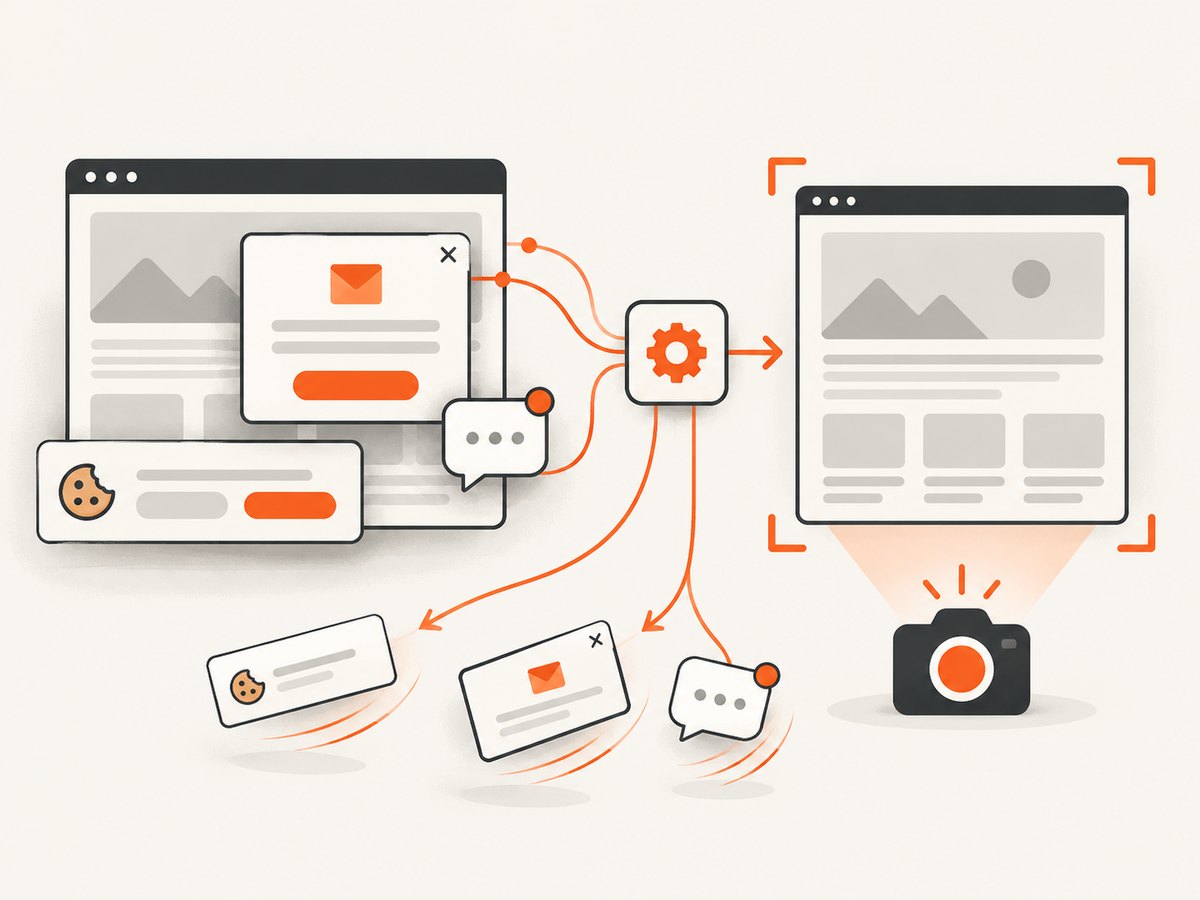
If you only need a clean image or PDF for a URL, ScreenshotNeo provides a single screenshot API request. Its consent step accepts cookie banners and removes more than 60 known consent platforms, newsletter popups, and chat widgets before capture. Bot checks, CAPTCHAs, blank pages, timeouts, failed loads, and cache hits are not billed, and each response reports its verdict in X-Page-Verdict and X-Billed headers.
See the ScreenshotNeo API documentation for all options.
curl -G "https://api.screenshotneo.com/v1/shot" -d access_key=YOUR_API_KEY --data-urlencode url=https://stripe.com -o shot.webpimport requests
r = requests.get("https://api.screenshotneo.com/v1/shot", params={"access_key": "YOUR_API_KEY", "url": "https://stripe.com"}, timeout=90)
open("shot.webp", "wb").write(r.content)const q = new URLSearchParams({ access_key: 'YOUR_API_KEY', url: 'https://stripe.com' });
const res = await fetch(`https://api.screenshotneo.com/v1/shot?${q}`);For Java, the same endpoint can be called with Java 11’s HTTP client:
var request = java.net.http.HttpRequest.newBuilder()
    .uri(java.net.URI.create("https://api.screenshotneo.com/v1/shot?access_key=YOUR_API_KEY&url=https%3A%2F%2Fstripe.com"))
    .GET().build();
var client = java.net.http.HttpClient.newHttpClient();
var response = client.send(request, java.net.http.HttpResponse.BodyHandlers.ofByteArray());
java.nio.file.Files.write(java.nio.file.Path.of("shot.webp"), response.body());
ScreenshotNeo also supports full-page captures with lazy images loaded, CSS-element capture, dark mode, device presets and custom viewports, retina scale, PDF options, custom CSS and JavaScript, clicks, selector or network-idle waits, request blocking, headers, cookies, user agents, authorization, timezone, geolocation, transparent backgrounds, resizing, chosen cache TTLs, signed links, asynchronous jobs with signed webhooks, bulk capture for 100 URLs per call, usage data, and an OpenAPI specification. Its MCP server exposes take_screenshot, get_page_info, and capture_pdf to Claude, Cursor, and other MCP clients.
Plans include 1,000 screenshots per month free with no card; paid plans start at $5 for 3,000 screenshots. Create a free ScreenshotNeo account.
9. FAQ
Should I use IReporter instead?
Use ITestListener when the driver is available during a failure. Use IReporter for post-suite aggregation or custom summaries; it may be too late to capture the browser.
Can I attach screenshots without HTML?
Yes. Log a plain relative path and have your CI system publish the artifact, or customize the report template. Verify the chosen renderer and archive layout.
Why does the temporary Selenium file disappear?
OutputType.FILE returns a temporary file. Copy it into your report directory during the listener callback.
Can this work with multiple browsers?
Yes, provided each test’s listener lookup returns the correct driver. Thread-local driver storage and unique filenames are essential for parallel execution.


