How to Attach Failed Test Screenshots to TestNG HTML Reports
Capture a browser screenshot when a TestNG test fails, attach it to an HTML report, and keep its file path working when the report is shared.
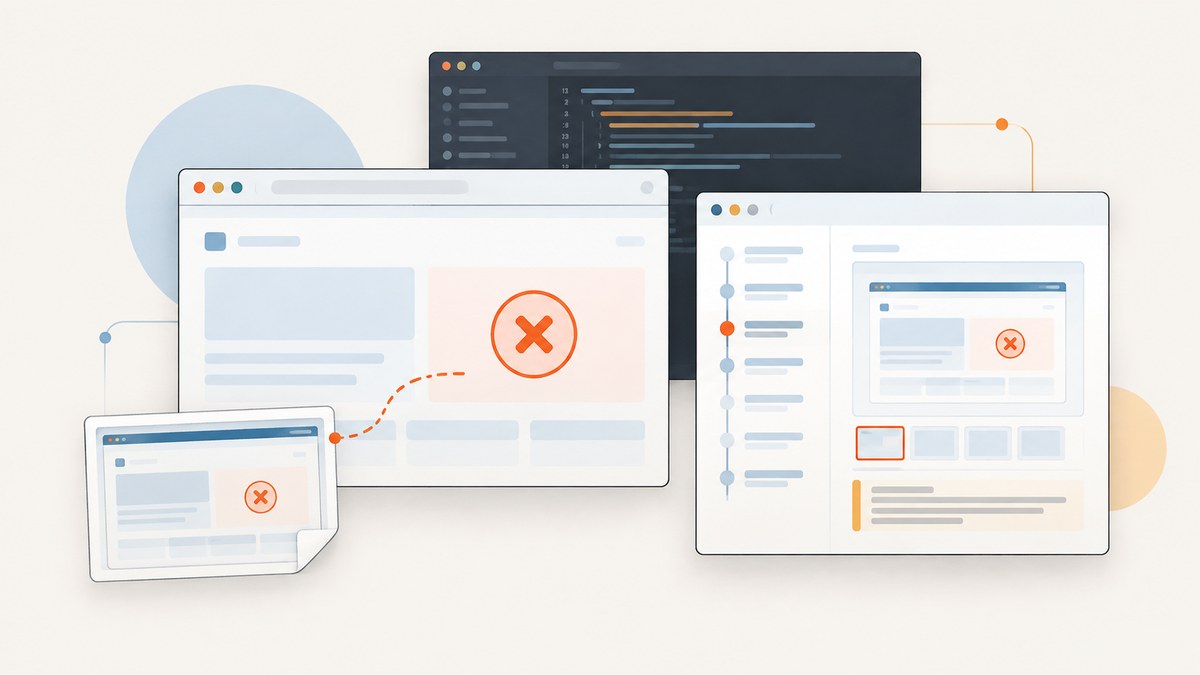
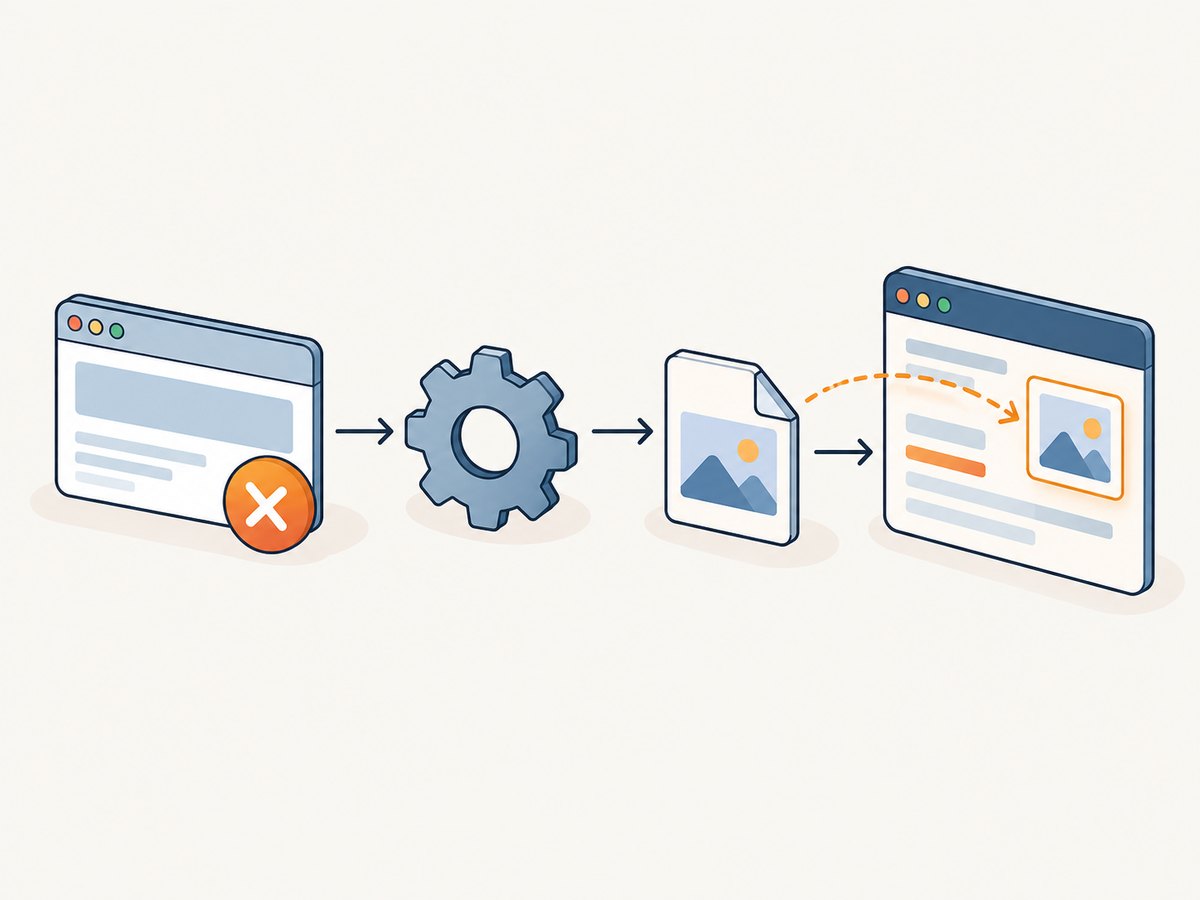
To attach a failed test screenshot to a TestNG HTML report, capture it in an ITestListener.onTestFailure callback, save it beside the report output, and add a report entry that points to the saved image. The listener needs the WebDriver belonging to the failed test. Register the listener with testng.xml or @Listeners, and preserve the image file whenever you move or publish the HTML report.
This guide shows a complete Selenium and TestNG pattern, including an ExtentReports example. Driver lookup and report lifecycle vary between frameworks, so the examples make those boundaries explicit. TestNG itself does not provide a universal WebDriver store or an HTML screenshot attachment API.
1. Choose the right TestNG hook
ITestListener receives real-time test lifecycle events, including failure. That makes onTestFailure(ITestResult) the natural place to capture the browser before teardown closes it. IReporter runs after suites finish and can assemble output from completed suite results; use it when capture has already happened and you are building or post-processing a report. The standard TestNG output includes index.html and testng-failed.xml, but those files do not automatically add browser screenshots.
| Need | Hook or component |
|---|---|
| Capture while the failed test’s browser is still open | ITestListener.onTestFailure |
| Assemble or transform results after suites complete | IReporter.generateReport |
| Display an image in a custom or third-party HTML report | That report library’s media or link API |
See the official TestNG documentation on results and listener registration. The exact methods and reporting APIs should be checked against the versions in your project.
2. Make the driver available to the listener
TestNG supplies an ITestResult, not a browser driver. Your test framework must associate the current test execution with its WebDriver. A simple ThreadLocal store is suitable for a common parallel-by-thread setup, provided the test puts the driver into the store before executing and removes it during teardown. If your framework uses a different concurrency model, use its per-test context instead.
import org.openqa.selenium.WebDriver;

public final class DriverStore {
  private static final ThreadLocal<WebDriver> CURRENT = new ThreadLocal<>();

  private DriverStore() {}

  public static void set(WebDriver driver) {
    CURRENT.set(driver);
  }

  public static WebDriver get() {
    return CURRENT.get();
  }

  public static void clear() {
    CURRENT.remove();
  }
}
Set the driver before the test can fail, and clear it after the listener has run. If a base class owns driver creation, it can set the store after constructing the driver and clear it in teardown. Do not let parallel tests overwrite one shared mutable static driver: the failure callback could capture another test’s browser.
3. Capture the failure screenshot and save it with the report
The following listener uses Selenium’s TakesScreenshot capability and writes a uniquely named PNG beneath target/surefire-reports/screenshots. The test name is sanitized, and a UUID prevents collisions when the same method fails more than once or runs in parallel.
import java.io.IOException;
import java.nio.file.Files;
import java.nio.file.Path;
import java.nio.file.Paths;
import java.util.UUID;

import org.openqa.selenium.OutputType;
import org.openqa.selenium.TakesScreenshot;
import org.openqa.selenium.WebDriver;
import org.testng.ITestListener;
import org.testng.ITestResult;

public final class FailureScreenshotListener implements ITestListener {
  private static final Path SCREENSHOT_DIR = Paths.get(
      "target", "surefire-reports", "screenshots");

  @Override
  public void onTestFailure(ITestResult result) {
    WebDriver driver = DriverStore.get();
    if (driver == null) {
      System.err.println("No driver available for failed test: "
          + result.getName());
      return;
    }

    try {
      Files.createDirectories(SCREENSHOT_DIR);
      String safeName = result.getName().replaceAll("[^A-Za-z0-9._-]", "_");
      String fileName = safeName + "-" + UUID.randomUUID() + ".png";
      Path image = SCREENSHOT_DIR.resolve(fileName);
      byte[] bytes = ((TakesScreenshot) driver).getScreenshotAs(OutputType.BYTES);
      Files.write(image, bytes);
      System.out.println("Failure screenshot: " + image.toAbsolutePath());
    } catch (IOException | RuntimeException e) {
      System.err.println("Could not save screenshot for " + result.getName()
          + ": " + e.getMessage());
    }
  }
}
This code captures and saves the image. To make it visible in a report, connect the resulting path to the report implementation as shown below. For a production framework, prefer a structured logger or report event over System.out, and include a run identifier if multiple jobs write to the same artifact directory.
Register the listener
Register it in the suite XML when you want suite-level configuration:
<suite name="UI suite">
  <listeners>
    <listener class-name="example.FailureScreenshotListener"/>
  </listeners>
  <test name="Browser tests">
    <classes>
      <class name="example.CheckoutTest"/>
    </classes>
  </test>
</suite>
Or annotate a test class:
import org.testng.annotations.Listeners;

@Listeners(FailureScreenshotListener.class)
public class CheckoutTest {
  // test methods
}
Use one registration route unless your setup intentionally combines them; duplicate registration can produce duplicate callback handling. For package names and XML structure, follow your TestNG version’s listener documentation.
4. Link the image from the HTML report
Saving a PNG does not modify TestNG’s built-in report markup. You need either a report library, a custom report writer, or a separate artifact link. ExtentReports Java provides path-based screenshot references and base64 media. With a file-based reference, the HTML points to the image file; it does not automatically package that file. Keep the PNG in a stable relative location next to the report, or use the library’s supported base64 mechanism when a self-contained report is required. See the ExtentReports Java documentation.
For an ExtentReports 4-style setup, create or retrieve the test node for the failed method, then attach the image path as a media entity. Keep report initialization and flushing in your existing reporter lifecycle. The exact adapter and method signatures depend on the installed ExtentReports version:
import com.aventstack.extentreports.ExtentTest;
import com.aventstack.extentreports.MediaEntityBuilder;
import org.testng.ITestResult;

// In onTestFailure, after writing image:
ExtentTest node = extent.createTest(result.getMethod().getQualifiedName());
node.fail(result.getThrowable(),
    MediaEntityBuilder.createScreenCaptureFromPath(
        "screenshots/" + image.getFileName().toString()).build());
Here extent is your configured ExtentReports instance, and image is the saved Path. The relative path assumes the report HTML sits in target/surefire-reports, while the PNG sits in its screenshots child directory. If your report is elsewhere, calculate a relative path from the HTML file’s directory. Do not pass an absolute path that only exists on the test runner if readers open the report on another machine.
The ExtentReports TestNG adapter offers listener-style output as tests finish and reporter-style output after tests finish. An adapter can reduce custom report plumbing, but check its compatibility with your TestNG and ExtentReports dependencies before adopting it. See the ExtentReports TestNG adapter documentation.
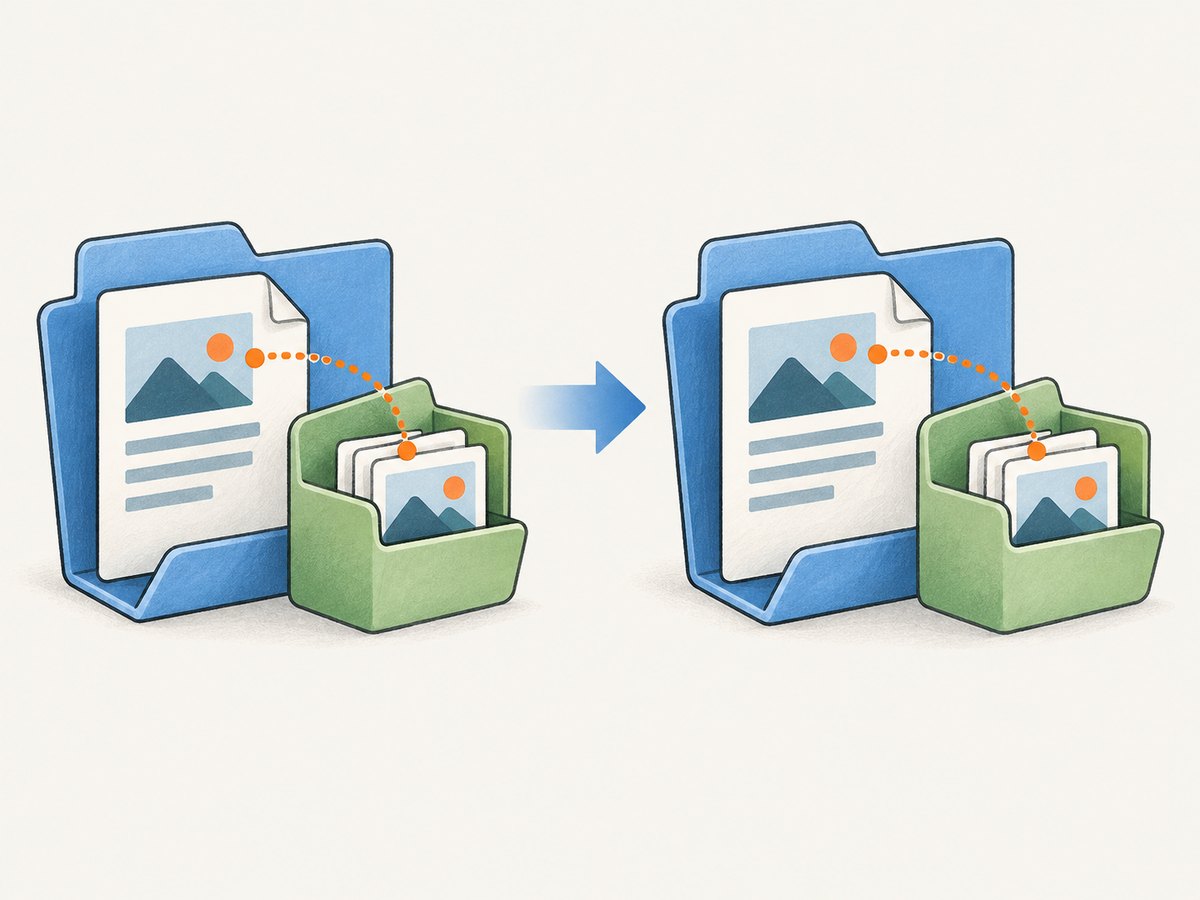
5. Keep report artifacts portable
- Choose one report root directory for the HTML and related assets.
- Write screenshots under that root, using relative paths in report entries.
- When archiving or publishing, copy the whole report directory, not only
index.html. - Open the copied report from its final location and verify each image link.
- For a self-contained output, use a supported base64 attachment option and account for the larger HTML file.
CI systems often collect artifacts as separate files. Configure the job to retain the report directory recursively so that the PNG paths remain available after the job ends. A link that works on the original runner can still break after download if the image was omitted or the relative directory structure changed.
6. Handle timing, parallel runs, and other edge cases
- Driver already quit: A teardown method may run before the listener in a particular framework arrangement. Capture earlier, or restructure teardown so it closes the driver only after failure handling. Verify callback order in your own test setup.
- Parallel methods: Scope drivers and report nodes per test or thread. Use unique image names and avoid a shared report object unless its API and your configuration support concurrent writes.
- Non-browser failure: A setup error may happen before a driver exists. Check for null and report the missing capture without masking the original test failure.
- Screenshot unsupported: Remote or custom drivers may not implement
TakesScreenshot. Check capability support and record a clear attachment error. - Parameterized tests: Include a sanitized parameter or invocation identifier in the filename if method names alone are not enough to identify the failing case.
- Large artifacts: Full-page images and base64 attachments can increase storage or HTML size. Retain only what helps diagnosis and apply your CI artifact retention policy.
- Failure during teardown: If the failure occurs after browser shutdown, there may be no live page to capture. Save diagnostic state before quitting when teardown itself can fail.
7. Troubleshooting missing or unusable screenshots
| Symptom | Likely cause | Fix |
|---|---|---|
| No screenshot file appears | Listener was not registered, callback did not run, or the driver lookup returned null. | Confirm registration, log callback entry, and set the per-test driver before execution. |
| Callback throws after browser closes | Teardown quit the driver before capture. | Move capture earlier in the lifecycle or delay quit() until failure handling completes. |
| Report shows a broken image | HTML references a path that is wrong relative to the report, or the PNG was not copied. | Use a report-relative path and archive the entire directory tree. |
| Wrong test’s page is captured | Parallel tests share a mutable driver reference. | Use per-thread or per-invocation driver context and unique filenames. |
| Duplicate report entries | Listener registered both in XML and annotations, or a retry generated multiple failure events. | Choose the intended registration scope and include invocation identity in output. |
| Report is much larger than expected | Images are embedded as base64 or many large screenshots are retained. | Use file references with packaged assets, or reduce image dimensions and retention where appropriate. |
8. Reliability, performance, and cost considerations
A screenshot is an additional browser command and file write on the failure path. It can add time to a failing test, and a remote WebDriver may need to transfer image bytes from the browser service. Capture only when useful, avoid repeatedly saving the same image in multiple callbacks, and do not let screenshot errors replace the original test exception.
For reliability, use unique filenames, create directories before writing, preserve the full artifact tree, and emit enough metadata to associate an image with the test, parameters, and run. Consider browser screenshots sensitive: pages may contain account data, tokens, or personal information. Restrict artifact access and retention according to your team’s policies. There is no universal performance or cost figure for this workflow; it depends on browser execution, image size, CI storage, retention, and report format.
9. Or skip the browser setup
If you need a screenshot of a public page rather than the exact live state of the browser session that failed, ScreenshotNeo is a website screenshot API and MCP server from Yorker Media. Its one-request API returns an image or PDF, with options including viewport or full-page capture, element selection, device presets, wait conditions, custom headers, cookies, and JavaScript. It does not replace a failure-time Selenium capture when the relevant state exists only inside your test browser.
See the ScreenshotNeo API documentation. Example cURL request:
curl -G "https://api.screenshotneo.com/v1/shot" \
  -d access_key=YOUR_API_KEY \
  --data-urlencode url=https://stripe.com \
  -o shot.webp
Cookie banners, newsletter popups, and chat widgets are removed before the shot, and each step can be turned off. Bot checks or CAPTCHAs, blank pages, timeouts, failed loads, and cache hits cost nothing; response headers identify the page verdict and billing status. AI agents can use its MCP server tools to take screenshots, get page information, or capture PDFs. The free plan includes 1,000 screenshots per month with no card; paid plans start at $5 for 3,000 shots. Every feature is on every plan.
Sign up for 1,000 free screenshots a month, with no card required.
10. Frequently asked questions
Does TestNG’s default HTML report include browser screenshots?
No. TestNG provides result reports and lifecycle hooks; your listener and reporting layer must capture and reference the image.
Should I use an ITestListener or IReporter?
Use the listener for capture at failure time. Use the reporter for work that should happen after suites complete, such as assembling a report from artifacts already recorded.
Why does the image work locally but not after sharing?
The HTML likely references a local or missing path. Copy the image with the report and preserve the relative directory structure, or use a supported embedded-media approach.
Can I take a screenshot if the browser failed to start?
No browser image exists when startup failed before a session was created. Record the setup error and attach any available logs or other diagnostics instead.


