How to Attach WebDriver Screenshots to Robot Framework Logs
Attach SeleniumLibrary WebDriver screenshots to Robot Framework logs, save artifacts, capture failures automatically, and troubleshoot common errors.
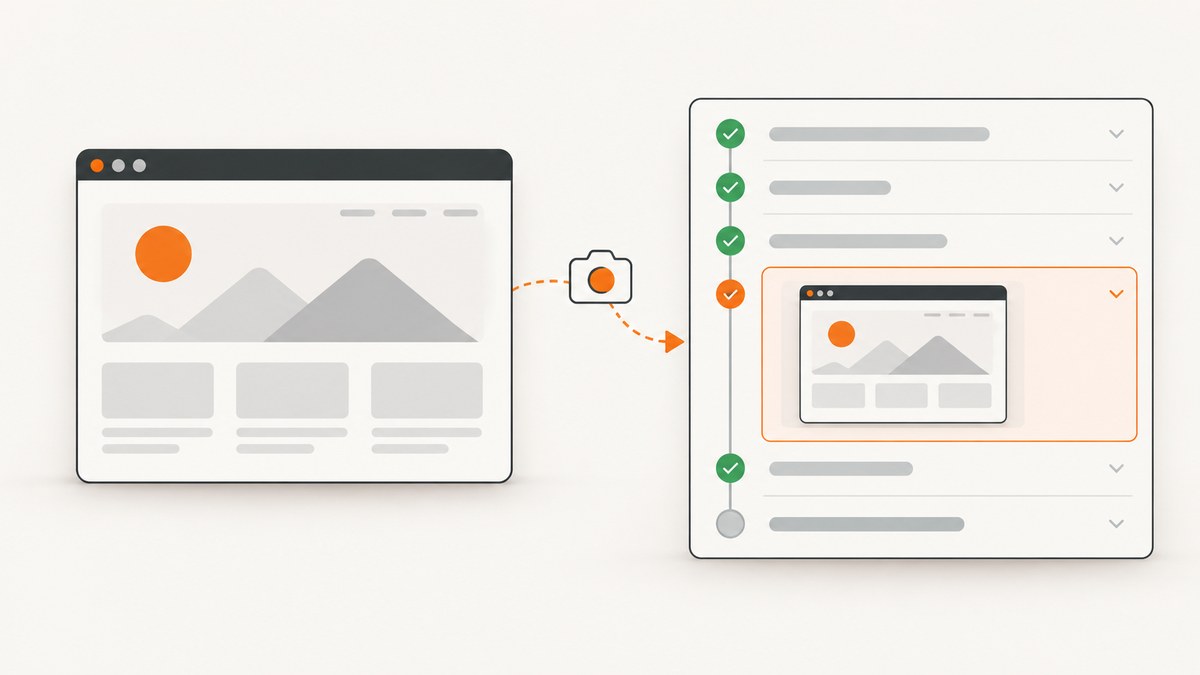
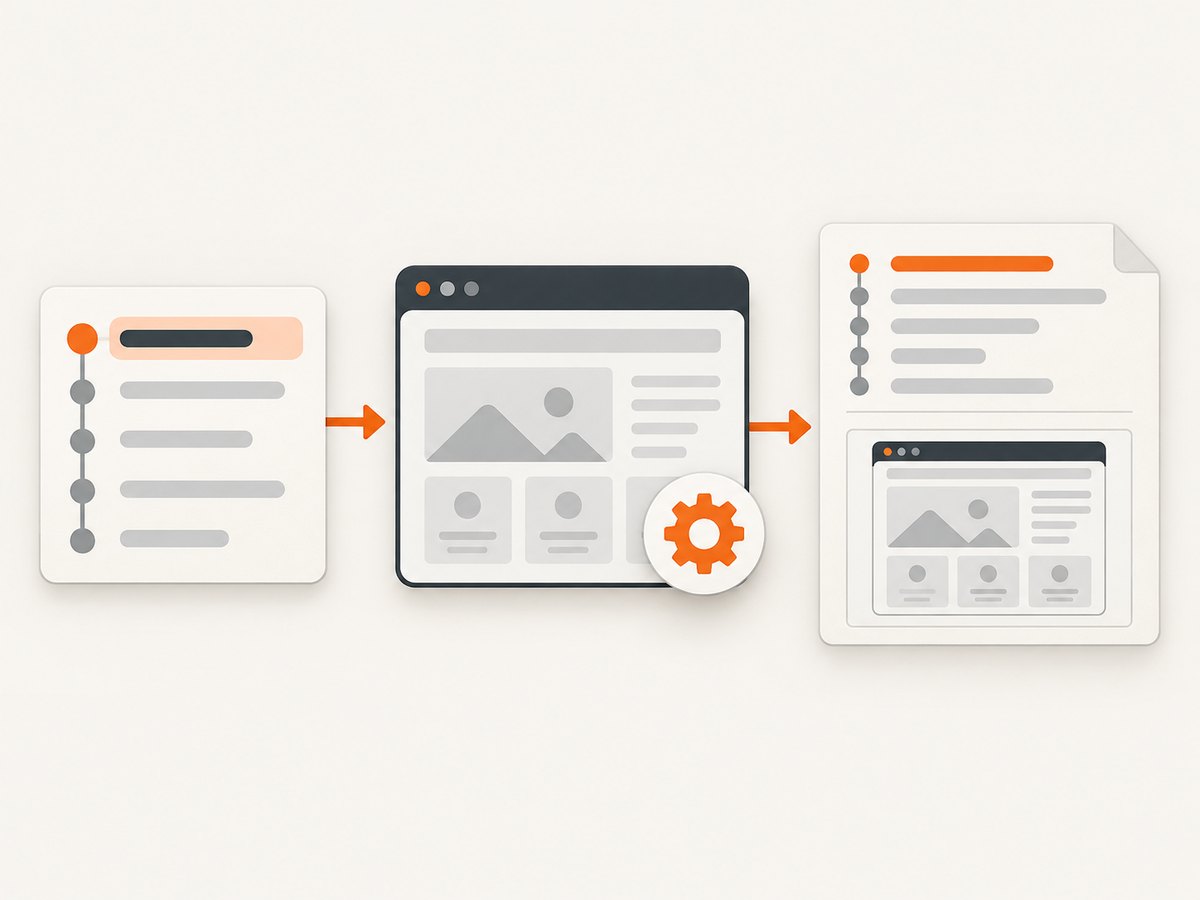
Use SeleniumLibrary’s Capture Page Screenshot keyword. It captures the current WebDriver page and embeds the image in Robot Framework’s log.html. By default, SeleniumLibrary also writes a PNG file and links or embeds it in the log. Use EMBED when you want the image stored only inside the log, configure a directory when you need predictable artifacts, and register the keyword as SeleniumLibrary’s failure hook to capture screenshots automatically.
1. Capture the current WebDriver page
Install SeleniumLibrary and a WebDriver, then call the keyword after the browser is open:
*** Settings ***
Library    SeleniumLibrary

*** Test Cases ***
Capture Current Page
    Open Browser    https://example.com    chrome
    Capture Page Screenshot
    [Teardown]    Close All Browsers
Capture Page Screenshot takes the current page screenshot and embeds it in the Robot Framework log. See the SeleniumLibrary keyword documentation for the argument behavior.
2. Choose whether to save a file
Embed only
Pass EMBED as the filename when the log is the only artifact you need:
*** Test Cases ***
Embed Screenshot In Log
    Open Browser    https://example.com    chrome
    Capture Page Screenshot    EMBED
    [Teardown]    Close All Browsers
The image is encoded in log.html; SeleniumLibrary does not create a separate screenshot file for this call.
Save a file and show it in the log
Use the default behavior or provide a filename:
*** Test Cases ***
Save Named Screenshot
    Open Browser    https://example.com    chrome
    Capture Page Screenshot    checkout-{index}.png
    [Teardown]    Close All Browsers
The {index} marker is replaced with a running index. Keep it when a test captures more than one image so later captures do not overwrite earlier files. The default filename pattern is selenium-screenshot-{index}.png.
3. Set the screenshot directory
If you do not configure a directory, SeleniumLibrary writes screenshot files beside the Robot Framework log. Set one explicitly when CI collects artifacts from a known path:
*** Settings ***
Library    SeleniumLibrary

*** Test Cases ***
Screenshot In Dedicated Directory
    Set Screenshot Directory    ${OUTPUT DIR}${/}screenshots
    Open Browser    https://example.com    chrome
    Capture Page Screenshot
    [Teardown]    Close All Browsers
SeleniumLibrary creates the directory when needed. You can also set the directory during library import:
*** Settings ***
Library    SeleniumLibrary    screenshot_root_directory=${OUTPUT DIR}${/}screenshots
Use EMBED as the screenshot root configuration when you want default page or element screenshot calls to embed images in log.html instead of writing files. Check the installed SeleniumLibrary version’s import arguments if your project uses a custom configuration.
4. Capture a screenshot after a SeleniumLibrary failure
Register Capture Page Screenshot as the failure handler:
*** Settings ***
Library    SeleniumLibrary    run_on_failure=Capture Page Screenshot

*** Test Cases ***
Screenshot On Failure
    Open Browser    https://example.com    chrome
    Click Element    css=.missing-element
    [Teardown]    Close All Browsers
The same setting can be changed at runtime:
*** Settings ***
Library    SeleniumLibrary

*** Test Cases ***
Configure Failure Handler
    Register Keyword To Run On Failure    Capture Page Screenshot
    Open Browser    https://example.com    chrome
    Click Element    css=.missing-element
    [Teardown]    Close All Browsers
Register Keyword To Run On Failure applies to SeleniumLibrary keyword failures. A custom failure keyword must accept no arguments. The documented default failure keyword is Capture Page Screenshot; see its documentation for the registration behavior.
5. Return Base64 for custom HTML
Use BASE64 when your own keyword or report needs the encoded image data:
*** Test Cases ***
Build Custom Image Markup
    Open Browser    https://example.com    chrome
    ${image}=    Capture Page Screenshot    BASE64
    Log    <img src="data:image/png;base64,${image}" alt="Page screenshot">    html
    [Teardown]    Close All Browsers
This is useful when a custom report already owns the HTML. The normal EMBED mode is simpler when Robot Framework’s standard log is sufficient.
6. A complete suite with predictable artifacts
*** Settings ***
Library    SeleniumLibrary    timeout=10 seconds
Suite Setup    Open Browser    https://example.com    chrome
Suite Teardown    Close All Browsers

*** Test Cases ***
Home Page Is Visible
    Set Screenshot Directory    ${OUTPUT DIR}${/}screenshots
    Wait Until Page Contains    Example Domain
    Capture Page Screenshot    home-{index}.png

Checkout Failure Keeps Evidence
    Register Keyword To Run On Failure    Capture Page Screenshot
    Click Element    css=.checkout
    [Teardown]    Run Keywords
    ...    Capture Page Screenshot    checkout-final-{index}.png
    ...    AND    Register Keyword To Run On Failure    NONE
Use a teardown capture when you want a final state even after a test passes. Reset the failure hook with NONE when later tests should not capture automatically.
7. Which Robot Framework screenshot keyword should you use?
| Library | Keyword | What it captures | Typical output |
|---|---|---|---|
| SeleniumLibrary | Capture Page Screenshot |
The current Selenium WebDriver page | Embedded in log.html, optionally saved as a file |
| Robot Framework Browser | Take Screenshot |
A page controlled by Browser/Playwright | Browser library screenshot output, with its own EMBED option |
| Robot Framework Screenshot | Take Screenshot |
The desktop screen | Desktop image embedded or linked from the log |
Choose SeleniumLibrary when the test uses Selenium WebDriver. Do not replace it with the standalone Screenshot library if you need the browser page rather than the entire desktop. Robot Framework Browser is a separate automation library with a separate screenshot keyword; its documentation is at robotframework-browser.org.
8. Troubleshooting
No image appears in log.html
- Cause: The browser was never opened, or the capture ran after teardown closed it.
Fix: CallCapture Page Screenshotwhile a browser is active and place teardown captures beforeClose All Browsers. - Cause: You are viewing an old log file.
Fix: Open thelog.htmlgenerated by the current run and verify the output directory.
The file is saved somewhere unexpected
- Cause: No screenshot directory was configured.
Fix: SetSet Screenshot Directoryor configure the library’s screenshot root; otherwise files are placed beside the Robot log.
Repeated screenshots overwrite one another
- Cause: A fixed filename is reused.
Fix: Include{index}, for examplefailure-{index}.png.
Failure screenshots are not captured
- Cause: The failure hook was not registered, or the failing operation is not a SeleniumLibrary keyword.
Fix: Setrun_on_failure=Capture Page Screenshotat import time or callRegister Keyword To Run On Failure. The hook applies to SeleniumLibrary keyword failures. - Cause: A custom handler expects arguments.
Fix: Make the registered handler take no arguments.
The log becomes very large
- Cause: Many high-resolution images are embedded as Base64 in
log.html.
Fix: Save files in a dedicated directory and keep only the captures needed for diagnosis, or useEMBEDselectively.
The screenshot shows the wrong state
- Cause: The page has not finished navigating or rendering.
Fix: Wait for a visible element or expected text before capturing, then capture after the action whose result you are investigating.
9. Performance, reliability and cost considerations
- Capture only useful points: A screenshot after every keyword increases log size and storage. Prefer failure hooks plus a few checkpoints around critical transitions.
- Use stable names: Keep
{index}in filenames and store screenshots under the run’s output directory so parallel CI jobs do not collide. - Keep browser cleanup separate: Capture before closing the browser. A teardown that closes the session first cannot capture the page that failed.
- Plan CI retention: Publish the screenshot directory and
log.htmlas the same build artifact so links remain valid. - Desktop versus page evidence: A WebDriver page screenshot is usually smaller and more focused than a desktop capture, while a desktop screenshot can show browser chrome, dialogs, or another application.
10. Or skip the browser setup
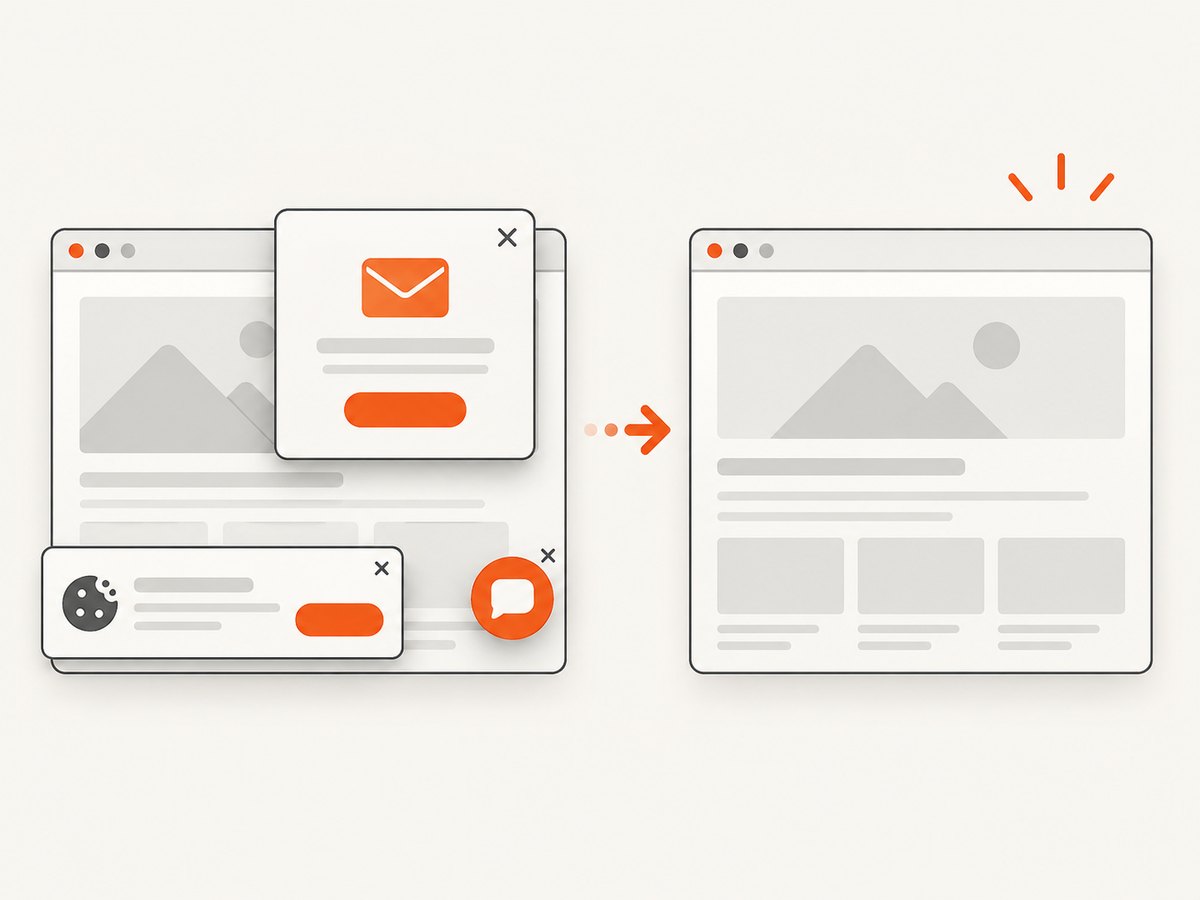
If you only need a clean image of a URL, ScreenshotNeo provides a single GET request that returns PNG, JPEG, WebP or PDF. Its cleanup steps accept cookie and consent banners and remove more than 60 known consent platforms, newsletter popups and chat widgets before capture; each step can be disabled. Bot checks, blank pages, timeouts, failed loads and cache hits are not billed, and the response identifies the result with X-Page-Verdict and X-Billed headers.
See the ScreenshotNeo API documentation for all options.
cURL
curl -G "https://api.screenshotneo.com/v1/shot" -d access_key=YOUR_API_KEY --data-urlencode url=https://stripe.com -o shot.webpPython
import requests
r = requests.get("https://api.screenshotneo.com/v1/shot", params={"access_key": "YOUR_API_KEY", "url": "https://stripe.com"}, timeout=90)
open("shot.webp", "wb").write(r.content)
Node.js
const q = new URLSearchParams({ access_key: 'YOUR_API_KEY', url: 'https://stripe.com' });
const res = await fetch(`https://api.screenshotneo.com/v1/shot?${q}`);
ScreenshotNeo also supports full-page capture with lazy images loaded, CSS element capture, device presets and custom viewports, dark mode, retina scale, custom CSS and JavaScript, waits, request blocking, headers, cookies, user agents, authorization, timezone, geolocation, transparent backgrounds, resizing, caching, signed links, asynchronous jobs, signed webhooks, bulk capture and a usage API. Its MCP server provides take_screenshot, get_page_info and capture_pdf tools for Claude, Cursor and other MCP clients.
There is a free allowance of 1,000 screenshots per month with no card. Paid plans start at $5 for 3,000 shots; every feature is available on every plan. Create a free ScreenshotNeo account.
FAQ
Does Capture Page Screenshot capture the whole page?
It captures the current WebDriver page viewport. Full-page behavior depends on the browser and library capabilities; configure your browser or use a service designed for full-page capture when you need the entire document.
Can I attach a screenshot without creating a PNG?
Yes. Pass EMBED so the image is embedded in log.html without a standalone file.
How do I reuse a screenshot in another report?
Use BASE64, store the returned value, and place it in your own HTML as a data URI.
Why is my desktop screenshot different from my WebDriver screenshot?
They come from different libraries and targets. SeleniumLibrary captures the browser page; the standalone Screenshot library captures the desktop.
Can a failure hook receive the failed keyword name?
The registered failure keyword is called without arguments. If you need context, collect it in test variables or logs before the failure handler runs.


