How to Auto-Generate Unique Video Banners with Stock Footage
Build a repeatable pipeline that combines licensed stock clips, campaign data, and a reusable composition to render unique video banners.
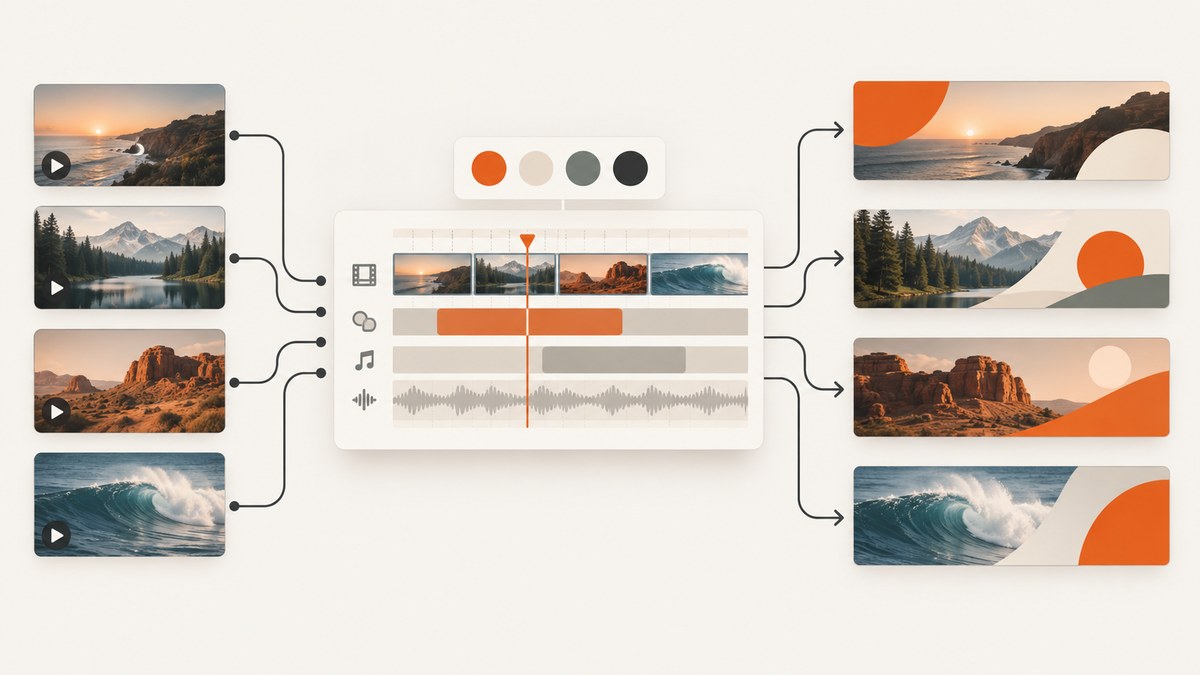
Direct answer: create one reusable banner composition, then automate the inputs that change: licensed stock clip, headline, offer, colors, logo treatment, crop, and output format. A stock provider API can help you search and license footage, but it does not automatically edit and render complete banners. Your pipeline still needs a composition engine such as FFmpeg, a video editor automation layer, or a rendering service.
The reliable workflow is: define placements and technical requirements, prepare a master composition, search and license suitable footage, generate meaningful combinations from campaign data, render every variation, and inspect the outputs for rights, legibility, crop, and delivery requirements.
1. Define the banner contract before automating
Write down the exact output contract for each destination. Platforms differ, and the sources reviewed do not establish universal banner specifications.
| Decision | What to record | Why it matters |
|---|---|---|
| Placement | Website hero, display ad, social placement, email, or in-app slot | Each slot can require a different crop and safe area. |
| Dimensions | Pixel width and height, aspect ratio, and maximum file size | Determines scaling, text wrapping, and export settings. |
| Duration | Runtime, first-frame requirement, and loop behavior | Controls edit timing and whether the message survives muted playback. |
| Safe areas | Regions where text and logos must remain visible | Prevents copy being clipped by responsive crops or platform overlays. |
| Captions | Burned-in captions, optional subtitles, or no spoken message | Many placements are viewed without sound. |
| Format | H.264 MP4, WebM, GIF, or another accepted format | Affects browser support, quality, and file size. |
Keep these requirements in a machine-readable file. A simple campaign manifest can contain the fields your renderer needs:
{
  "campaign": "spring-sale",
  "placement": "homepage-hero",
  "width": 1920,
  "height": 600,
  "duration_seconds": 8,
  "safe_area": {"left": 120, "right": 120, "top": 60, "bottom": 60},
  "font": "Inter-Bold.ttf",
  "variants": [
    {"clip": "clips/mountain.mp4", "headline": "Explore further", "accent": "#F4B942"},
    {"clip": "clips/city.mp4", "headline": "Your next weekend starts here", "accent": "#65D6C5"}
  ]
}
2. Build a master composition with controlled variables
Create one composition with layers for footage, a darkening or color grade layer, headline, supporting copy, logo, call to action, and optional captions. Lock the hierarchy and animation timing. Expose only the values that should vary.

- Footage: source path, in-point, out-point, speed, and crop.
- Copy: headline, subhead, CTA, and line-break rules.
- Branding: logo path, accent color, background color, and contrast treatment.
- Motion: intro, hold, and outro durations; keep the message readable during the hold.
- Output: width, height, frame rate, codec, bitrate, and audio policy.
Use consistent safe areas while allowing footage to change. A clip with a subject in the center may work for one crop but fail when the headline sits on top. Store a focal point for each asset, such as normalized coordinates from 0 to 1, and use it when calculating the crop.
3. Search stock footage for variation that remains relevant
Search by topic, mood, action, and framing. Prefer clips with negative space where your copy will sit and enough resolution for the target output. Generate variations from meaningful combinations: a travel headline should pair with travel-relevant footage, not arbitrary clips selected only to increase a count.
Adobe documents programmatic Stock search, asset retrieval, licensing, and license history. Its current getting-started documentation says Stock API access is available to Stock for Enterprise customers; non-enterprise access requires qualifying affiliate acceptance or another compelling business reason or Adobe sponsor. Confirm eligibility before designing around it: Adobe Stock API getting started.
Shutterstock’s official API reference documents searching, licensing, and downloading media. Its getting-started instructions require an application and paid subscription for licensing, while a free media collection is available for trying the API: Shutterstock Developers.
Record the asset identifier, creator or provider, license transaction, permitted distribution, resolution, and any restrictions beside every downloaded source. Adobe documents HD and 4K license values and notes that not every clip is available in 4K, so treat resolution as an asset-level field rather than a global assumption.
4. License the asset for the actual delivery model
Using a clip in a finished banner and redistributing a template containing that clip are different rights. Adobe’s video-template rules state that stock images, videos, and graphics cannot be embedded in video templates submitted to Adobe Stock because stock licenses prohibit redistribution. Read the license for each provider and marketplace before distributing editable project files.
Shutterstock also describes an API Platform License for products that integrate its library and licensing. Its help documentation says raw Shutterstock files cannot be accessed or downloaded separately under that platform license; an end user who wants a separate download needs their own Standard or Enhanced license. Confirm whether your application delivers only a rendered banner or exposes the underlying media.
Keep a rights checklist for every render:
- Asset ID and provider account recorded.
- License type covers commercial use and your distribution channels.
- Any model, property, editorial, or territory restrictions reviewed.
- Template redistribution rules checked if customers receive editable files.
- License receipt or history retained with the campaign record.
5. Automate rendering with FFmpeg and a manifest
The following Python example reads a JSON manifest, creates a temporary filter graph for each variant, and renders MP4 files. It assumes FFmpeg is installed and that your clips, font, logo, and copy have already been approved.
import json
import pathlib
import subprocess

manifest = json.loads(pathlib.Path("campaign.json").read_text())
out_dir = pathlib.Path("renders")
out_dir.mkdir(exist_ok=True)

for index, variant in enumerate(manifest["variants"], start=1):
    clip = variant["clip"]
    headline = variant["headline"].replace("'", "\\'")
    accent = variant["accent"]
    output = out_dir / f"{manifest['campaign']}-{index:03d}.mp4"

    # Scale to cover the banner, crop the center, then add a readable overlay.
    vf = (
        f"scale={manifest['width']}:{manifest['height']}:force_original_aspect_ratio=increase,"
        f"crop={manifest['width']}:{manifest['height']},"
        "drawbox=x=0:y=0:w=iw:h=ih:color=black@0.30:t=fill,"
        f"drawtext=fontfile={manifest['font']}:text='{headline}':"
        "x=120:y=(h-text_h)/2:fontsize=64:fontcolor=white:"
        f"borderw=2:bordercolor={accent}:enable='between(t,0,8)'"
    )
    cmd = [
        "ffmpeg", "-y", "-i", clip, "-t", str(manifest["duration_seconds"]),
        "-vf", vf, "-an", "-c:v", "libx264", "-pix_fmt", "yuv420p",
        "-movflags", "+faststart", str(output)
    ]
    subprocess.run(cmd, check=True)
    print(output)
For production, replace the center crop with focal-point-aware coordinates, validate text length before rendering, and add a deterministic seed if you select clips randomly. Keep source media immutable so a rerun produces the same output from the same manifest.
6. Generate combinations without creating weak variants
Use a campaign table or JSON file as the source of truth. A useful record includes:
- Audience, placement, language, and campaign objective.
- Approved headline and CTA pairs with maximum character counts.
- Clip ID, focal point, duration, and license status.
- Brand palette and contrast score for the chosen footage.
- Output filename, renderer version, and render timestamp.
Filter combinations before rendering. Reject clips that are too short, too low-resolution, missing a license record, or have a focal point under the text area. Reject copy that exceeds the line or character limit. This saves compute and prevents a large batch of unusable files.
7. Inspect every output automatically and manually
Rendering success only means the encoder completed. Add checks for duration, dimensions, codec, file size, and black or empty frames. Then review thumbnails or contact sheets for:
- Headline legibility over bright or moving backgrounds.
- Logo visibility after the crop and on small screens.
- Correct spelling, punctuation, price, currency, and CTA.
- Subjects or key actions not hidden behind copy.
- Correct license and campaign metadata.
Keep a rejected status and reason instead of silently overwriting a failed variant. That makes reruns auditable and lets editors correct only the affected inputs.
8. Preview rendered banners with ScreenshotNeo
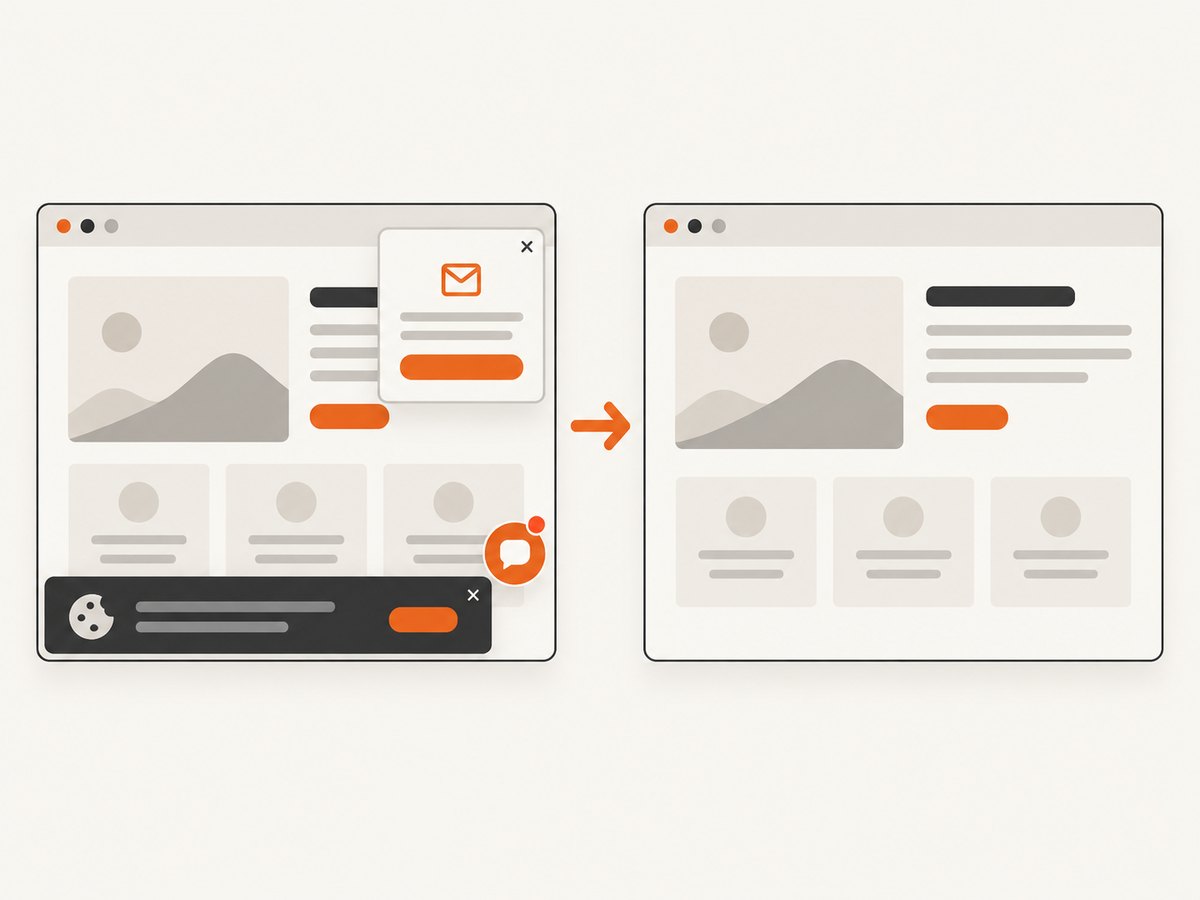
Video generation happens in your renderer, but you can capture a web page that embeds each finished banner and use the screenshots for QA, approval, or documentation. ScreenshotNeo is a website screenshot API and MCP server. It can capture PNG, JPEG, WebP, or PDF output from one GET request.
Or skip the browser setup:
After uploading a preview page that embeds your rendered MP4, call the API directly. Full options are documented at ScreenshotNeo’s API documentation.
curl -G "https://api.screenshotneo.com/v1/shot" -d access_key=YOUR_API_KEY --data-urlencode url=https://stripe.com -o shot.webpimport requests
r = requests.get("https://api.screenshotneo.com/v1/shot", params={"access_key": "YOUR_API_KEY", "url": "https://stripe.com"}, timeout=90)
open("shot.webp", "wb").write(r.content)const q = new URLSearchParams({ access_key: 'YOUR_API_KEY', url: 'https://stripe.com' });
const res = await fetch(`https://api.screenshotneo.com/v1/shot?${q}`);Cookie banners, newsletter popups, and chat widgets are removed before the shot. Bot checks, blank pages, failed loads, timeouts, and cache hits are not billed, and the response identifies the result with X-Page-Verdict and X-Billed headers. The MCP server includes take_screenshot, get_page_info, and capture_pdf tools for Claude, Cursor, and other MCP clients. You also get 1,000 screenshots a month free with no card; paid plans start at $5 for 3,000. Create a free ScreenshotNeo account.
9. Performance, reliability, and cost planning
Rendering cost is driven by source duration, resolution, codec, and the number of variants. Render a low-resolution review pass first, then encode approved variants at delivery resolution. Reuse downloaded source files and cache metadata, but recheck license status when a campaign is renewed.
For reliability, make each variant idempotent: derive its filename from campaign, clip ID, copy version, and renderer version. Write to a temporary file and rename only after FFmpeg exits successfully. Retry transient provider or storage failures with a limit and record the error. Do not retry license failures as if they were network errors.
When preview pages load slowly, wait for a selector or a known delay before capturing. For large batches, ScreenshotNeo supports bulk capture of up to 100 URLs per call, caching with a TTL you choose, async jobs with signed webhooks, custom headers and cookies, and signed links for public <img> tags. Its usage API and OpenAPI specification help you monitor consumption and integrate from typed clients.
10. Troubleshooting checklist
| Symptom | Likely cause | Fix |
|---|---|---|
| Text is clipped | Copy exceeds the safe area or crop changed | Validate character count, add line wrapping, and calculate crop from the focal point. |
| Subject is hidden | Center crop ignores the subject position | Store a focal point per clip and shift the crop before rendering. |
| FFmpeg exits with a filter error | Unescaped apostrophe, colon, or path in drawtext | Escape filter characters and use absolute, tested font paths. |
| Output has no sound | The example intentionally disables audio | Keep -an for silent banners or add a licensed audio track and matching codec settings. |
| API search is unavailable | Account is not eligible or subscription is missing | Confirm Adobe or Shutterstock access requirements before building the integration. |
| Rendered file cannot be distributed | License covers finished use but not raw asset or template redistribution | Review the provider’s platform and template terms and deliver only what the license permits. |
| Preview screenshot shows a popup | Page finished loading after the capture or the widget was not recognized | Use a wait condition, hide the selector, or disable the widget in the preview page. |
| Screenshot response is not billed as expected | Page verdict or cache state differs from your assumption | Inspect X-Page-Verdict and X-Billed and adjust caching or wait settings. |
FAQ
Can a stock API generate the entire video banner?
No. The documented APIs cover discovery, retrieval, licensing, and downloads. Editing, compositing, and encoding remain your responsibility.
How many variations should one campaign produce?
Choose a number your team can review and your placement requirements justify. The research does not establish a universal count or an engagement benchmark.
Can I ship an editable template with the stock clip inside?
Do so only when the provider’s license explicitly permits redistribution. Adobe’s video-template rules prohibit stock content in templates submitted to Adobe Stock.
Is Premiere Pro automation the same as an API pipeline?
No. Premiere’s Stock panel provides an in-editor search, preview, license, and import route. It is a manual or semi-automated discovery workflow, not proof of automatic banner generation.
What should I measure?
Track render success rate, rejection reasons, license completeness, file size, load performance, and approval time. Do not claim speed, uniqueness, or engagement improvements without your own evidence.