How to Autofill Login Credentials in Headless Chrome
Use runtime secrets and scripted form filling for reliable Headless Chrome logins. Learn Puppeteer, Selenium, and CDP patterns, plus how to verify authentication safely.
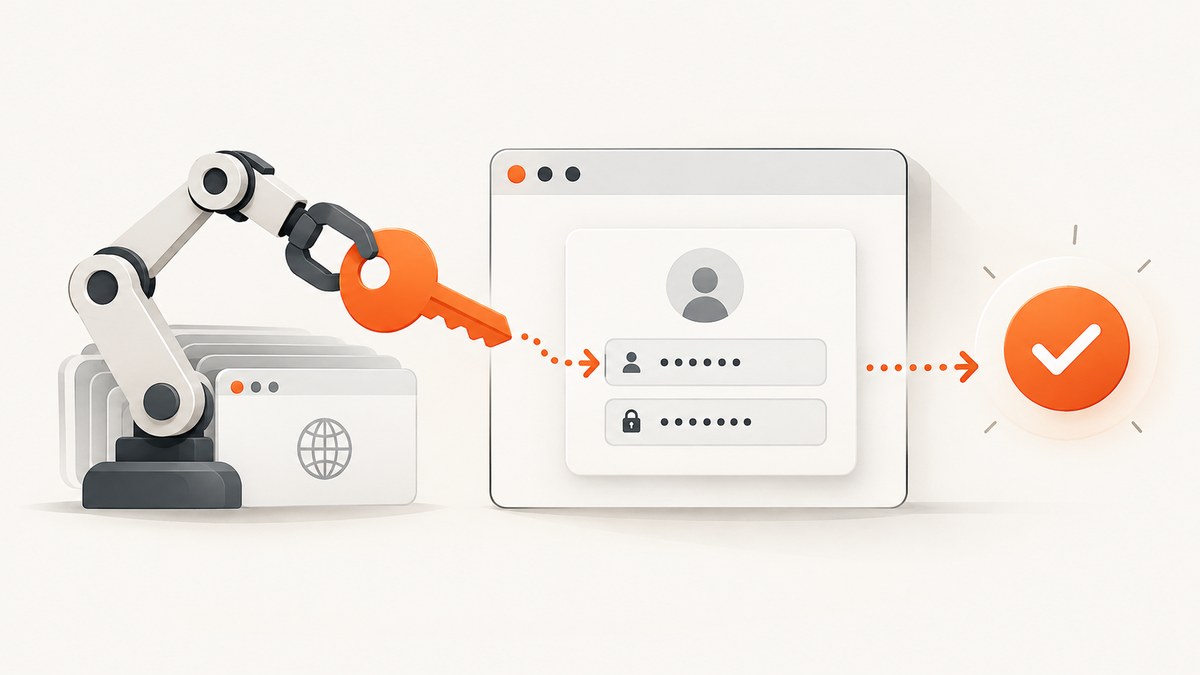
Direct answer: For a repeatable Headless Chrome login, read the username and password from a protected runtime secret source, navigate to the sign-in page, fill the form with Puppeteer or Selenium, submit it, and assert a page condition that proves authentication succeeded. Chrome Password Manager may autofill a saved login from a browser profile, but it is not a portable credentials API for CI. The public Chrome DevTools Protocol (CDP) Autofill documentation does not provide a command to retrieve or inject saved password-manager credentials.
Headless mode runs Chrome without a visible UI. The same basic browser automation approaches—Puppeteer, Selenium/WebDriver, and CDP—can drive it. For CI, scripted form filling is the predictable path: your automation controls where credentials come from and when they are entered. [Chrome Headless documentation] [Chrome DevTools documentation]
1. Choose the right kind of autofill
“Autofill” can refer to two different things. Keeping them separate helps avoid brittle tests:
- Scripted form filling: your test reads credentials at runtime and enters them into the page using browser automation. This is the recommended pattern for reproducible CI runs.
- Chrome Password Manager autofill: Chrome may fill saved credentials when a matching sign-in form is available and the browser profile and settings permit it. Matching can depend partly on field names and labels supplied by the site. Treat this as browser behavior, not as a dependable automation interface. [Chrome Help: manage passwords]
The CDP Autofill domain documents operations such as Autofill.enable, Autofill.disable, Autofill.setAddresses, and Autofill.trigger. Its documented data model covers address-style autofill; it does not document a Password Manager command for exporting or injecting saved login credentials. [CDP Autofill protocol]
2. Prepare a stable, safe login flow
- Use a dedicated test account. Give it only the permissions the test needs, and point it at a test environment where possible. Treat MFA, CAPTCHA, device verification, and SSO as separate flows; Headless Chrome does not imply that those checks can or should be bypassed.
- Store credentials outside the repository. Use your CI secret store or a protected runtime environment. Never place real credentials in source files, fixtures, screenshots, videos, traces, test reports, or logs. Configure your CI platform to mask secret values where it supports masking.
- Use stable form selectors. Prefer names, labels, or application test IDs over positional selectors such as
input:nth-child(2). The example below usesinput[name="username"]andinput[type="password"]; adapt these to the target application. - Pin the browser toolchain. Use a known Chrome for Testing version and its matching ChromeDriver for WebDriver runs, or a Puppeteer version compatible with its managed browser. Chrome recommends matched Chrome for Testing and ChromeDriver releases for automation. [ChromeDriver version selection]
- Assert a specific authenticated condition. Check a post-login URL, an authenticated-only element, or a known application response. A successful click or navigation alone does not prove the session is authenticated.
3. Puppeteer: fill and verify a login form
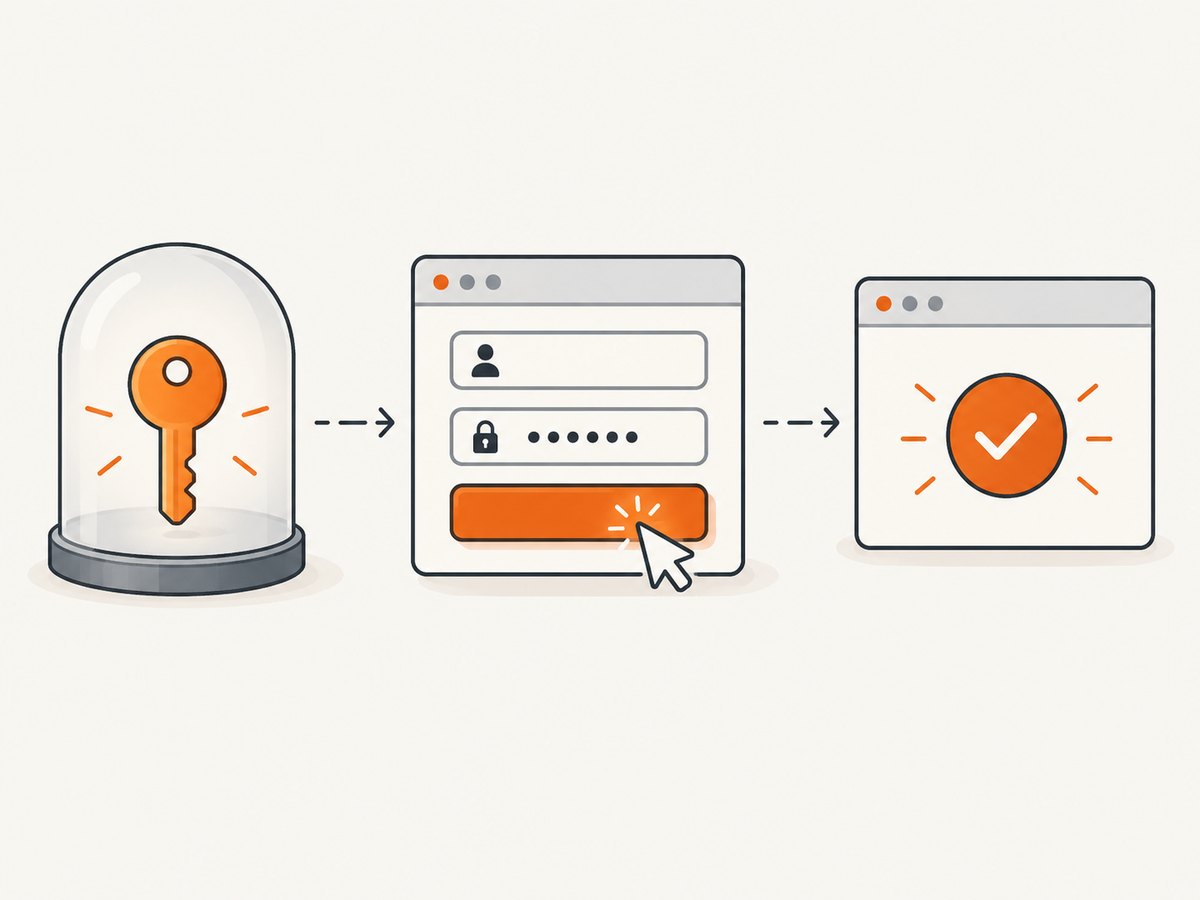
This runnable JavaScript example expects LOGIN_URL, LOGIN_USER, and LOGIN_PASSWORD in the process environment. Install Puppeteer in your project and run the file in an environment where those values are supplied securely. Puppeteer automates Chrome and provides page interaction APIs. [Puppeteer documentation]
import puppeteer from 'puppeteer';

const { LOGIN_URL, LOGIN_USER, LOGIN_PASSWORD } = process.env;
if (!LOGIN_URL || !LOGIN_USER || !LOGIN_PASSWORD) {
  throw new Error('Set LOGIN_URL, LOGIN_USER, and LOGIN_PASSWORD');
}

const browser = await puppeteer.launch({ headless: true });
try {
  const page = await browser.newPage();
  page.setDefaultTimeout(15_000);
  await page.goto(LOGIN_URL, { waitUntil: 'domcontentloaded' });

  await page.locator('input[name="username"]').fill(LOGIN_USER);
  await page.locator('input[type="password"]').fill(LOGIN_PASSWORD);

  await Promise.all([
    page.waitForNavigation({ waitUntil: 'domcontentloaded' }).catch(() => null),
    page.locator('button[type="submit"]').click(),
  ]);

  // Replace with an authenticated-only selector from your application.
  await page.locator('[data-authenticated="true"]').wait();
  console.log('Login succeeded');
} finally {
  await browser.close();
}
Some applications submit with an in-page request and never navigate. In that case, waiting for navigation is unnecessary; click the button and wait for the authenticated element or URL instead. Conversely, a redirect chain may take longer than the default timeout. Set a deliberate timeout for the application rather than adding an arbitrary long sleep.
If the login uses a label rather than a stable name, use the locator strategy supported by your installed Puppeteer version, or inspect the page and use the app’s test ID. If the page has multiple password inputs, scope the selector to the login form to avoid filling a password reset or confirmation field by mistake.
4. Selenium/WebDriver: use ChromeDriver
Selenium is a good fit when your existing test suite already uses the W3C WebDriver interface or needs Selenium’s language bindings. Install Selenium and configure ChromeDriver to match the Chrome for Testing version used in CI. Chrome’s Headless guide includes Selenium launch examples. [Chrome Headless documentation]
import os
from selenium import webdriver
from selenium.webdriver.common.by import By
from selenium.webdriver.support import expected_conditions as EC
from selenium.webdriver.support.ui import WebDriverWait

login_url = os.environ['LOGIN_URL']
username = os.environ['LOGIN_USER']
password = os.environ['LOGIN_PASSWORD']

options = webdriver.ChromeOptions()
options.add_argument('--headless')

driver = webdriver.Chrome(options=options)
try:
    driver.set_page_load_timeout(30)
    driver.get(login_url)
    wait = WebDriverWait(driver, 15)

    wait.until(EC.visibility_of_element_located(
        (By.NAME, 'username'))).send_keys(username)
    wait.until(EC.visibility_of_element_located(
        (By.CSS_SELECTOR, 'input[type="password"]'))).send_keys(password)
    driver.find_element(By.CSS_SELECTOR,
                        'button[type="submit"]').click()

    # Replace with an authenticated-only element from your application.
    wait.until(EC.presence_of_element_located(
        (By.CSS_SELECTOR, '[data-authenticated="true"]')))
    print('Login succeeded')
finally:
    driver.quit()
Use explicit waits for the form and the authenticated state. A fixed sleep can be too short on a slow run and wastes time on a fast one. Keep the Chrome and ChromeDriver versions aligned and update them deliberately; mismatches can cause session startup failures or inconsistent behavior.
5. cURL, Python, and Node.js for a screenshot after login
cURL cannot operate a browser form by itself. It sends HTTP requests, so it does not execute the page’s JavaScript, interact with browser controls, or follow an application’s browser-only login flow automatically. For a site that supports a documented API login, cURL may be appropriate; for a browser login, use Puppeteer or Selenium first.
Once your browser automation has authenticated and captured the page, you can save or upload the resulting file with ordinary tools. If the goal is simply to capture a public page without building and maintaining a browser setup, the one-call ScreenshotNeo example below is an alternative. Its screenshot request does not log in to private accounts or replace an authenticated browser test.
6. When Chrome Password Manager autofill is appropriate
Chrome can save passwords and fill them when sign-in fields are available. Whether it does so in Headless Chrome depends on the profile, password-manager settings, saved entry, and page markup. Field names and labels can affect matching. [Chrome Help: manage passwords]
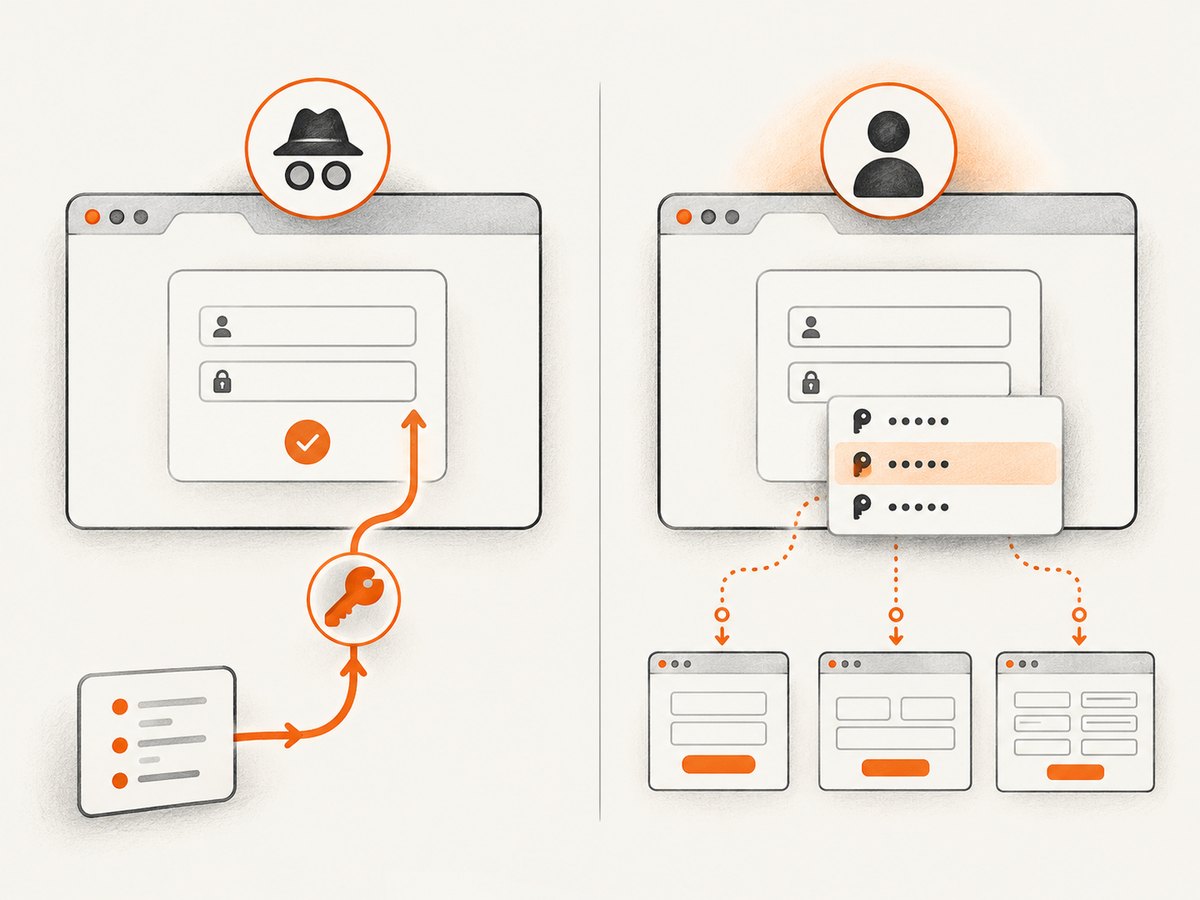
This can be useful when you are validating a browser profile or investigating why a form is not recognized. It is a poor foundation for portable CI because the run now depends on profile state and settings outside the test. Avoid copying a personal Chrome profile into automation unless you have reviewed the security and policy implications. The cited Chrome documentation does not recommend copying personal profiles for automation.
Do not treat CDP Autofill as a way to retrieve saved account passwords. The public protocol documentation does not establish that capability. For a reproducible login, pass a test credential from a runtime secret source and fill the form explicitly.
7. Direct CDP: use it when you need lower-level control
CDP is Chrome’s lower-level control and inspection protocol. It is useful for specialized browser operations, but it adds protocol and browser-version management that higher-level tools handle for you. When remote debugging is enabled, Chrome exposes a browser WebSocket endpoint through /json/version. Protect that endpoint: anyone who can control it may be able to inspect or operate the browser. [Chrome DevTools Protocol]
For a normal login form, CDP is not necessary. Use Puppeteer or WebDriver to locate and fill controls. Choose direct CDP only when the protocol gives you a specific capability you need, and pin the Chrome version because protocol details can evolve. The CDP Autofill domain is not a documented password-manager credential injection API.
8. Reliability, privacy, and performance checklist
- Credentials: load secrets at runtime; never print them or include them in artifacts. Avoid logging full URLs if the application places sensitive tokens in query strings.
- Session isolation: use a dedicated temporary profile or clean CI workspace so one run does not inherit another run’s cookies or saved state.
- Selectors: use stable labels, names, or test IDs. Confirm that the selector matches exactly the intended field.
- Waits: wait for the form to become visible and for a specific authenticated condition after submission. Distinguish navigation-based login from in-page login.
- Browser versions: pin and update Chrome, ChromeDriver, and automation dependencies as a set. This reduces failures caused by toolchain drift.
- Artifacts: do not save screenshots, traces, or videos of credential entry unless necessary and protected. Capture after the form is filled only if the test truly requires it.
- Retries: retry transient page-load failures selectively. Repeatedly resubmitting a login can trigger account lockouts or rate limits, so do not blindly retry rejected credentials.
- Runtime: use
domcontentloadedor a specific selector when full network idle is unreliable because the application polls or keeps connections open. Prefer condition-based waits over sleep calls. - Cost: browser automation consumes CI compute and requires maintenance of browser dependencies. Reuse a browser within a test job when appropriate, while keeping user sessions isolated. A screenshot API can reduce browser setup for public-page capture, but it does not perform this private login flow.
9. Troubleshooting common login failures
| Symptom | Likely cause | Fix |
|---|---|---|
| Chrome fails to start in CI | Chrome/ChromeDriver mismatch, missing runtime dependencies, or an incompatible launch environment. | Pin Chrome for Testing and its matching ChromeDriver; inspect the startup error and use the supported Headless launch configuration. |
| Element not found | The selector differs from the site markup, the form has not rendered, or the page is on a different route. | Inspect the actual DOM in a safe test run. Wait for the form, then use a stable name, label, or test ID. |
| Typing has no effect | The field is hidden, disabled, covered by an overlay, or replaced after the page renders. | Wait for visibility and interact with the current field. Handle consent or modal UI according to the application’s approved test setup. |
| Click completes but login is not established | Client-side validation failed, credentials were rejected, or the app submits without navigation. | Wait for an error state or authenticated-only element. Do not infer success from the click alone. |
| Navigation wait times out | The login is an in-page request, or a redirect/background connection prevents the selected load condition. | Wait for the app’s authenticated selector or URL instead of navigation; use a narrower readiness condition. |
| Password Manager does not fill | The profile has no matching saved credential, settings prevent filling, or field metadata is not recognized. | Check profile and site field metadata for a manual diagnostic. Use runtime secrets and DOM filling for CI. |
| Login works locally but fails in CI | Different browser versions, absent secrets, profile state, network restrictions, or MFA/SSO differences. | Compare pinned versions and environment configuration. Confirm secrets are present without printing their values, and follow the application owner’s test strategy for verification steps. |
| Account is locked or rate limited | A test is retrying rejected credentials or submitting too frequently. | Stop automatic retries for authentication failures, verify the test account, and use the approved environment and rate limits. |
10. Or skip the browser setup
For a public URL screenshot, ScreenshotNeo can return an image or PDF with one GET request. It is a screenshot API and MCP server; it does not sign into private accounts. Cookie banners, popups, and chat widgets are removed before the shot; bot checks, blank pages, and failed loads are never billed. An MCP server lets AI agents take screenshots. The free plan includes 1,000 screenshots a month with no card, and paid plans start at $5 for 3,000. Every feature is on every plan. See the ScreenshotNeo API documentation.
curl -G "https://api.screenshotneo.com/v1/shot" \
  -d access_key=YOUR_API_KEY \
  --data-urlencode url=https://stripe.com \
  -o shot.webp
Create a free ScreenshotNeo account for 1,000 screenshots a month with no card.
11. Frequently asked questions
Can Puppeteer use Chrome’s saved passwords?
Chrome may autofill from an enabled profile when the page and saved entry match, but Puppeteer does not turn the public CDP Autofill methods into a password-manager retrieval API. For tests, provide runtime secrets and fill the form directly.
Can Headless Chrome bypass MFA or CAPTCHA?
Headless mode is a way to run Chrome without a visible UI; it is not a supported bypass for authentication challenges. Use an application-approved test strategy for MFA, CAPTCHA, SSO, and device verification.
Should I reuse a logged-in browser profile?
A dedicated test profile can preserve state when your test explicitly needs it. Keep it isolated and controlled. Do not copy a personal profile into CI without reviewing its security and policy implications.
What should the test assert after login?
Choose a stable signal that only appears after authentication, such as a known account element or a protected route. Avoid logging the page’s full contents if they may contain private data.


