How to Automate Agency Portfolio Updates with Website Screenshots
Build a repeatable screenshot workflow to spot client-site changes, review what matters, and refresh agency portfolio evidence with approval.

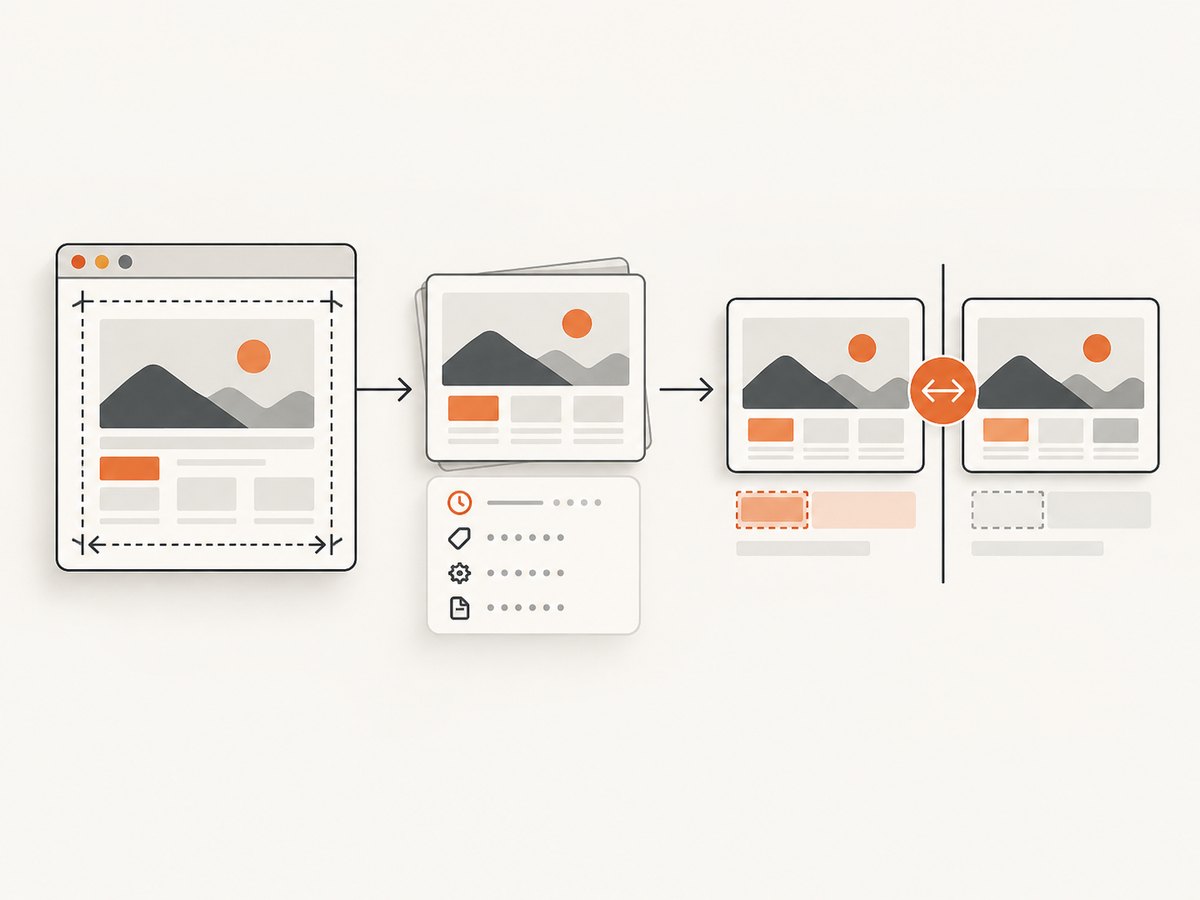
Automate the evidence-gathering step of an agency portfolio update: capture selected client pages on a schedule with the same viewport and settings, compare each capture with an approved baseline, then have a person decide whether the change represents portfolio-worthy work. Save the screenshot with its URL, date, viewport, and project context. Once the client and project team approve the update, revise the case study through your normal editorial or CMS process.
A screenshot can show what a page looked like at a point in time. A visual difference can prompt useful inspection. Neither one proves that a project milestone occurred, determines whether the change is worth showcasing, nor automatically creates or publishes a case study. Keep those decisions explicit.
1. Choose pages that document the work
Start with a small, intentional list of URLs. Choose pages that represent work the agency may want to show: a homepage after a redesign, a product or service page, or a campaign landing page. Include a page because it provides useful project evidence, not simply because it changes often.
Record a little context alongside each URL:
- Client and project name, plus the internal owner.
- The reason this page represents the work and which milestone matters.
- The public URL or approved staging URL and any access requirements.
- Whether the capture should show the initial viewport or the full page.
- The viewport, locale, and other settings needed to make repeat captures comparable.
- Who can approve using the screenshot and related project details in a public portfolio.
Ask the client or account team which pages and data you may capture and retain. Treat authenticated content, personal information, unpublished work, and client terms as matters to resolve with the client before scheduling captures. Use least-privilege credentials if access is required; never put secrets in a public repository.
2. Capture repeatably with a small Playwright job
For a self-managed workflow, a scheduled script can visit each page, use a fixed viewport, save a screenshot, and retain a JSON manifest. This example uses Python and Playwright. It makes page capture repeatable; it does not perform pixel comparisons or decide whether a change is meaningful.
- Install Python, then install Playwright and its Chromium browser:
python -m pip install playwright
python -m playwright install chromium- Save the following as
capture.py. It reads a CSV with aname,urlheader and writes dated screenshots and a manifest. SetFULL_PAGE=1to capture full pages.
import asyncio
import csv
import json
import os
from datetime import datetime, timezone
from pathlib import Path
from playwright.async_api import async_playwright

OUT = Path("captures")
WIDTH, HEIGHT = 1440, 1000
FULL_PAGE = os.getenv("FULL_PAGE", "0") == "1"

async def main():
    OUT.mkdir(exist_ok=True)
    stamp = datetime.now(timezone.utc).strftime("%Y%m%dT%H%M%SZ")
    with open("pages.csv", newline="", encoding="utf-8") as f:
        pages = list(csv.DictReader(f))
    manifest = []
    async with async_playwright() as p:
        browser = await p.chromium.launch(headless=True)
        context = await browser.new_context(
            viewport={"width": WIDTH, "height": HEIGHT},
            device_scale_factor=1,
            color_scheme="light",
            locale="en-US",
        )
        page = await context.new_page()
        for item in pages:
            name, url = item["name"], item["url"]
            filename = f"{name}-{stamp}.png"
            record = {"name": name, "url": url, "captured_at": stamp,
                      "viewport": {"width": WIDTH, "height": HEIGHT},
                      "full_page": FULL_PAGE, "file": filename}
            try:
                response = await page.goto(url, wait_until="networkidle", timeout=60000)
                record["http_status"] = response.status if response else None
                await page.screenshot(path=str(OUT / filename), full_page=FULL_PAGE)
                record["result"] = "captured"
            except Exception as exc:
                record["result"] = "error"
                record["error"] = str(exc)
            manifest.append(record)
        await browser.close()
    (OUT / f"manifest-{stamp}.json").write_text(
        json.dumps(manifest, indent=2), encoding="utf-8")

asyncio.run(main())
Create pages.csv, for example:
name,url
client-a-home,https://example.com/
client-a-product,https://example.com/product/
Run python capture.py. Schedule that command with your CI scheduler or operating-system scheduler at an interval appropriate to the project. Keep the approved baseline separate from routine captures; otherwise an accidental overwrite can erase the comparison point. A useful directory layout is client/project/page/date.png, with the manifest stored next to the images.
The example waits for network idle, which may never happen on sites with analytics or long-lived connections. If that occurs, use wait_until="domcontentloaded" and add a short, bounded wait for a known page element or fixed delay. Avoid arbitrary long sleeps: they increase run time without ensuring that the page is ready. For pages with animations, rotating content, or consent prompts, choose consistent capture conditions and document any approved exclusions. Test the settings on representative pages before using alerts as a review queue.
3. Compare captures against an approved baseline
Choose a baseline that represents an approved state: for example, the delivered redesign or a campaign launch. Keep it identifiable and preserve the capture conditions that produced it. Later captures should use the same URL, browser setup, viewport, device scale, color scheme, locale, and full-page setting when possible. A mismatch in these inputs can look like a site change.
A visual diff is a review cue. Inspect the current image and baseline side by side, and consider an overlay or difference image if your chosen comparison tool provides one. Don’t treat every changed pixel as a meaningful project update. Rotating banners, dates, third-party widgets, ads, consent notices, font rendering, and browser-version changes can introduce noise. Conversely, a diff can reveal a broken layout, missing image, or error message rather than successful work.
When a change is intentional, review it and decide whether to accept it as the new monitoring baseline. Keep a record of who accepted the change, when, and why. Preserve earlier baselines if you need to tell the story of a project over time. The documented workflows from Visidaily and Site-Shot describe baseline comparison, scheduled captures, alerts, and screenshot history; their capabilities and fit should be checked against your own requirements.
4. Triage before changing portfolio materials
Give each flagged difference a quick human review. A practical triage process asks:

- Is the capture valid? Check the page loaded, the expected content is visible, and the image is not blank or an error screen.
- What changed? Identify the specific content or layout change instead of relying on a generic change score.
- Why might it have changed? Check for a launch, routine content rotation, third-party widget, site regression, or a capture-environment difference.
- Does it connect to documented agency work? Confirm against the project record or client team; the screenshot itself cannot establish cause.
- May it be shown publicly? Confirm client approval for the image, project description, and any outcomes or details that will accompany it.
If the evidence supports a portfolio update, retain the timestamped screenshot and note the URL, viewport, relevant change, project context, reviewer, and approval. Then update the portfolio image and case-study copy using the agency’s approved editorial or CMS workflow. The reviewed sources describe capture, comparison, monitoring, and integrations; they do not establish a turnkey feature that automatically writes and publishes agency case studies.
5. Choose how to operate the capture workflow
| Approach | Good fit | Check before adopting |
|---|---|---|
| ScreenshotNeo screenshot API | An agency wants to place website captures inside scripts or reporting workflows. It offers a one-call screenshot API and MCP server. | Rendering controls, authentication, retention, scheduling in your workflow, and whether the result suits your client pages. |
| Hosted visual monitoring | A team wants a managed service with scheduled captures, stored screenshots, diffs, and review. | Page and viewport coverage, baseline management, history, alert routing, team access, and dynamic-page handling. Visidaily describes an agency-oriented monitoring workflow. |
| Screenshot API integrated by your team | A developer wants to connect capture to an existing dashboard, script, or report. | Rendering options, API limits, storage, scheduling, and integration effort. APIVerve describes periodic screenshot capture and API/SDK access for monitoring use cases. |
| Monitoring API with integrations | A team wants screenshot evidence connected to reports, notifications, or incidents. | API scopes, webhooks, access controls, evidence retrieval, and connections to your systems. See the Visual Sentinel API documentation. |
| Self-managed visual testing | A technical team needs control and can maintain browser automation, comparisons, and storage. | Browser maintenance, reliability, baseline ownership, and alert handling. The AET project documentation describes visual-change detection and page-health checks. |
| WordPress-oriented checks | A team wants checks around WordPress updates or scheduled comparisons. | Supported configurations, update triggers, review process, and whether the exact portfolio publishing system is integrated. WebChange Detector describes WordPress-oriented update checks. |
These options support different parts of the workflow; none should be assumed to approve or publish portfolio material for you. Choose based on control, integration effort, review needs, and how much browser infrastructure your team wants to maintain.
Or skip the browser setup
ScreenshotNeo is a website screenshot API and MCP server for developers. Its API accepts one GET request for an image or PDF; its documentation describes the available capture options. For a quick capture:
curl -G "https://api.screenshotneo.com/v1/shot" -d access_key=YOUR_API_KEY --data-urlencode url=https://stripe.com -o shot.webpimport requests
r = requests.get("https://api.screenshotneo.com/v1/shot", params={"access_key": "YOUR_API_KEY", "url": "https://stripe.com"}, timeout=90)
open("shot.webp", "wb").write(r.content)const q = new URLSearchParams({ access_key: 'YOUR_API_KEY', url: 'https://stripe.com' });
const res = await fetch(`https://api.screenshotneo.com/v1/shot?${q}`);ScreenshotNeo removes cookie banners, popups, and chat widgets before the shot. Bot checks, blank pages, and failed loads are never billed. Its MCP server lets AI agents take screenshots. The free plan includes 1,000 screenshots a month with no card; paid plans start at $5 for 3,000. Sign up free and capture 1,000 screenshots a month with no card.
Configuration choices that affect evidence quality
Viewport and page extent
Pick viewports that match how the agency presents the work. A desktop screenshot and a mobile screenshot answer different questions; maintain separate baselines rather than comparing one to the other. Full-page captures can include below-the-fold content, while viewport captures focus on the first screen. Choose intentionally and keep the setting stable.
Readiness and dynamic content
Set a readiness condition that suits the page. Network idle is convenient when requests settle; it can stall on analytics, streaming, chat, or long polling. DOM content loaded is faster but can occur before images and client-rendered sections appear. Prefer waiting for a meaningful selector when possible, and use a bounded timeout. For dynamic regions, consider an approved mask or exclusion only if the chosen tool supports it, and record that choice because it affects what evidence the screenshot contains.
History and metadata
Store enough history to understand the sequence of changes and the approval trail, subject to client retention requirements. Keep screenshots with a manifest that includes capture time in UTC, page URL, viewport, full-page setting, tool or browser version where available, outcome, and reviewer notes. Site-Shot’s guide describes a capture history and execution ledger; monitoring APIs such as Visual Sentinel document evidence and report workflows.
Reliability, performance, and cost
Estimate workload from pages × viewports × capture frequency, then account for retries and full-page rendering. Run captures with a concurrency limit so one large batch does not overload your browser worker or client sites. Use sensible timeouts, record failures as failures, and retry transient errors with a cap and backoff. A screenshot job should not silently replace a valid baseline when a request times out or returns an error page.
Self-managed browser automation requires maintaining browser binaries, execution capacity, storage, comparison logic, and alert handling. Hosted monitoring shifts some of that operational work to a service, while an API approach gives the team control over orchestration and retention but requires integration work. Compare service limits, pricing, storage policy, and scheduled-capture support directly before committing; the research sources provide no comparable cost or time-savings figures, so do not assume a specific financial return.
Visual comparison reliability improves when captures use consistent conditions and when the team reviews representative pages before turning on alerts. Do not page someone for every pixel difference. Tune thresholds or exclusions, route notifications to the people who can verify the project context, and periodically check that scheduled jobs still run. Protect API credentials server-side, rotate them when access changes, and use scoped permissions where available; Visual Sentinel’s API documentation advises key-scope and credential practices.
Troubleshooting
| Symptom | Likely cause | Fix |
|---|---|---|
| Capture times out at network idle | Persistent requests or analytics keep the network active. | Use DOM content loaded or wait for a specific selector with a bounded timeout. |
| Screenshot is blank or incomplete | Page rendering is delayed, a script failed, or access was blocked. | Inspect the response and screenshot; wait for a meaningful selector and confirm the URL is accessible from the capture environment. |
| Diff fires on every run | Rotating content, ads, consent UI, animations, or changed capture conditions. | Stabilize the conditions, account for known dynamic areas where supported, and review whether the page belongs in the monitoring set. |
| Images below the fold are missing | Lazy-loaded content did not load before capture. | Use full-page capture or scroll through the page before capturing if your tool requires it; confirm the images appear in the resulting file. |
| Different results across runs | Viewport, locale, browser version, session state, or third-party content differs. | Fix and record the capture settings; test again on a stable page state. |
| Portfolio update cannot be approved | The visual change has no confirmed project context or public-use approval. | Hold publication, ask the client or project owner to verify the change and approve the image and wording. |
| Credentials appear in logs or code | Secrets were embedded in a script, URL, or public repository. | Revoke or rotate the exposed key, move it to a protected secret store, and limit access. |
FAQ
Does a screenshot change mean the agency completed new work?
No. It means the rendered page differs under the capture conditions. Confirm the reason with the client team or project record before connecting it to a milestone.
Should every monitored page become a portfolio item?
No. Monitor pages that provide useful project evidence. Portfolio selection still depends on relevance, client approval, and the story the agency can substantiate.
Can a monitoring service publish the case study automatically?
The reviewed sources do not establish automatic case-study writing and publication. Keep editorial review and CMS publishing in an approved human workflow unless a specific integration is verified.
How often should captures run?
Choose a cadence that matches the project’s review needs and the page’s expected change rate. More frequent captures create more evidence to review; they do not make a change more meaningful.