How to Automate App Screenshots with Fastlane
Build repeatable iOS and Android screenshot runs with Fastlane, localized devices, reviewable output, and reliable troubleshooting.

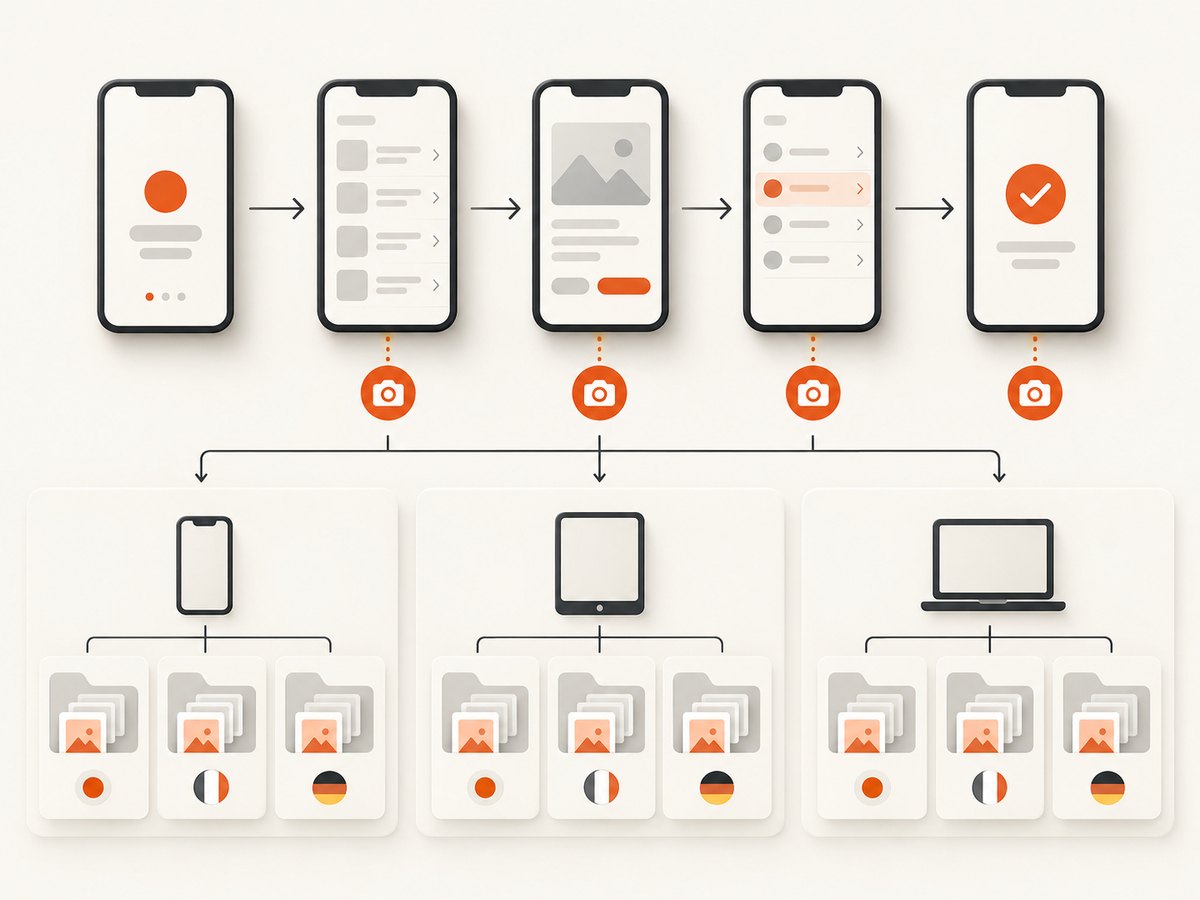
Fastlane automates app screenshots by driving your app with UI or instrumented tests, capturing named screens on selected devices and languages, and organizing the resulting files for review or store delivery. On iOS, the workflow is called snapshot and uses Xcode UI Tests. On Android, the separate screengrab workflow uses instrumented tests and Espresso.
The reliable pattern is:
- Create the platform test target.
- Initialize Fastlane’s screenshot helper.
- Launch the app with a deterministic test setup.
- Call a screenshot function at each stable UI state.
- Store devices, locales, arguments and output settings in version-controlled configuration.
- Run Fastlane from the command line, inspect the summary, then optionally frame or upload the files.
This guide covers the complete setup, repeatability, localization, failure handling, review, framing, uploads and an API alternative when you do not need to run a mobile simulator.
What Fastlane automates
Fastlane does not take arbitrary screenshots of a running app by itself. It coordinates a test that reaches the screen you want, then captures it at a named point. That distinction matters: your test must wait for the right state, dismiss onboarding consistently and use stable test data.
| Platform | Fastlane action | Test technology | Typical output |
|---|---|---|---|
| iOS | snapshot |
Xcode UI Tests and SnapshotHelper.swift | Localized screenshots grouped by device and language, plus an HTML overview |
| Android | screengrab |
Instrumented tests and Espresso | Screenshot sets suitable for review and Google Play workflows |
Use the official Fastlane iOS screenshots documentation for current command syntax and the Android Screengrab documentation for Android-specific setup. The iOS helper and configuration do not apply to Android.
Automate iOS screenshots with snapshot
1. Create and configure a UI Test target
In Xcode, add a UI Test target to the application project. Create a scheme for the test target and share it so that every developer and CI runner can select the same scheme. In the scheme’s Run configuration, enable the test target. A shared scheme is essential: Fastlane needs a reproducible build and test entry point rather than a developer’s private Xcode state.
2. Initialize SnapshotHelper
From the project directory, run:
fastlane snapshot initThis creates the files and configuration needed for snapshot capture. Add the generated SnapshotHelper.swift file to the UI Test target and confirm it is included in that target’s compile sources.
3. Launch the app in test setup
Import and initialize the helper in your UI test. A minimal Swift UI test looks like this:
import XCTest

class ScreenshotsUITests: XCTestCase {
    override func setUpWithError() throws {
        continueAfterFailure = false

        let app = XCUIApplication()
        setupSnapshot(app)
        app.launch()
    }

    func testScreenshots() throws {
        let app = XCUIApplication()

        // Replace these identifiers and waits with your app's real UI.
        let welcome = app.buttons["Get started"]
        if welcome.waitForExistence(timeout: 10) {
            welcome.tap()
        }

        snapshot("home")

        let settings = app.buttons["Settings"]
        if settings.waitForExistence(timeout: 10) {
            settings.tap()
        }
        snapshot("settings")
    }
}
Call snapshot("name") between interactions when the desired screen is fully rendered. Fastlane’s documentation summarizes the operation as: “To take a screenshot, call the following between interactions.” Use a unique, stable name for each state. Avoid capturing while an animation, network request or skeleton view is still visible.
4. Put the run in a Snapfile
A Snapfile keeps the capture matrix with the project. It should define the shared scheme, simulator devices, languages, launch arguments and output behavior your team expects. A representative configuration is:
scheme("MyAppUITests")
devices([
  "iPhone 15 Pro",
  "iPhone SE (3rd generation)"
])
languages(["en-US", "de-DE", "ja-JP"])
output_directory("./fastlane/screenshots")
clear_previous_screenshots(true)
Device names and simulator availability depend on the Xcode installation. Keep the list aligned with simulators installed on your build machine. The important practice is to check this file into source control so a rerun uses the same inputs.
Snapshot supports additional run controls, including launch argument sets, output configuration, clearing old screenshots, status-bar overrides and concurrent simulator runs. Use launch arguments for deterministic states such as a test account, seeded content or a feature flag. If a flag changes the UI, encode that variation in the screenshot name or in a separate configuration so files are not silently overwritten.
5. Run from the command line
fastlane snapshotRun the action from the command line rather than pressing Run on the test in Xcode. The Fastlane command creates the organized screenshot directories and HTML overview expected by the workflow; running the test directly from Xcode does not produce the same snapshot output structure.
After completion, inspect both the terminal summary and the output folders. Fastlane can continue after an error on one device or language unless you configure stop_after_first_error. A successful process exit can therefore coexist with missing screenshots. Treat the matrix as complete only when every expected device-language combination has files.
Make iOS captures deterministic
Repeatability comes from controlling every input that can change pixels:
- Data: use a known account and predictable records. Do not depend on whatever data a previous test left behind.
- Navigation: start from a known launch state and dismiss onboarding explicitly.
- Synchronization: wait for accessibility elements or other stable conditions before calling
snapshot. - Locale: list the languages in the Snapfile and verify that strings do not clip or change layout unexpectedly.
- Arguments: pass launch arguments for test mode, seeded content and feature flags rather than editing production data.
- Old files: clear or clean the output directory so a stale screenshot cannot look like a current result.
- Simulator matrix: use only devices installed on the runner, and keep the list intentionally small enough for the required coverage.
When a screen depends on asynchronous content, wait for a visible element rather than sleeping for an arbitrary duration. Fixed delays can be useful as a last resort for animation settling, but they increase runtime and still fail when a simulator is slower than expected.
Review output before delivery
Snapshot generates an HTML summary of the captured set. Open it after every matrix run and check:
- Every requested device has the expected named screens.
- Every requested language produced files.
- Text is translated, unclipped and not unexpectedly truncated.
- Keyboard, permission prompts and debug overlays are absent.
- Loading indicators, error banners and stale test data are not visible.
- Images have the intended orientation and status-bar treatment.
The HTML report is useful for QA, marketing and localization review because it puts variants in one place. Keep the raw directories as the source files even if you publish a separate review artifact.
Frame screenshots with Frameit (optional)
Frameit can add a device frame, background, padding and text around a screenshot. Framing is a presentation step, not a requirement for capturing the underlying app screen. Fastlane warns that framed output without the App Store-oriented title and background configuration may have dimensions that App Store Connect rejects.
Use this sequence:
- Capture and review the unframed files.
- Apply Frameit only to the files that need a marketing presentation.
- Validate the final dimensions and orientation against the current store requirements.
- Keep the unframed originals so you can regenerate frames without rerunning the app.
Upload screenshots after review
A lane can join capture and upload. Fastlane documents deliver and the upload_to_app_store lane action as upload paths for iOS. Uploading changes App Store Connect metadata and screenshots, so inspect the upload summary and target application before approving the run.
lane :screenshots do
  snapshot
  # Review the generated files before enabling an upload in CI.
  # deliver
  # or: upload_to_app_store
end
Keep capture and upload separable until the output is trusted. A failed or partial device run should not replace a complete store set.
Automate Android screenshots with Screengrab
Android uses Fastlane’s distinct Screengrab workflow. It captures from instrumented tests and Espresso interactions; the iOS SnapshotHelper.swift, UI Test target and Snapfile instructions do not apply.
- Configure the Android project and instrumented test target according to the Screengrab documentation.
- Write Espresso tests that navigate to each stable screen.
- Configure locales and output for the Android project.
- Run Screengrab from Fastlane and inspect the generated directories.
- Use Fastlane’s Google Play tooling only after reviewing the complete set.
Keep Android and iOS capture code separate. Their test runners, synchronization behavior, device naming and output conventions differ, even when the product screens are intended to match.
Common errors and fixes
| Symptom | Likely cause | Fix |
|---|---|---|
setupSnapshot or snapshot is undefined |
SnapshotHelper.swift is not in the UI Test target | Add the generated file to the target membership and compile sources, then rebuild the test target. |
| Fastlane cannot find the scheme | The scheme is private or the name differs from the configuration | Share the scheme in Xcode and make the Snapfile scheme value match exactly. |
| No organized snapshot folders appear | The test was run directly from Xcode | Run fastlane snapshot from the project directory. |
| Some locales are missing but the command continues | A device or language failed and the action continued | Read the summary, inspect each output directory and consider stop_after_first_error when partial output is unsafe. |
| Screenshot shows a spinner or old data | The test captured before the UI was stable | Wait for a real accessibility element, seed deterministic data and capture only after navigation completes. |
| Localized text clips | The translation changes line length or layout | Review every language separately and adjust constraints or copy before rerunning. |
| Frameit files are rejected by the store | Framed dimensions or title/background settings are unsuitable | Validate final framed dimensions; submit the unframed capture when a frame is unnecessary. |
| Android test instructions do not work in iOS | Screengrab and snapshot are separate workflows | Use SnapshotHelper and Xcode UI Tests for iOS; use Screengrab and Espresso for Android. |
Performance, reliability and cost planning
Screenshot runs multiply work by the number of devices, languages and launch-argument variants. Start with one device and one locale while developing the test, then expand the matrix in CI. Concurrent simulator runs can reduce wall-clock time, but they consume more CPU, memory and simulator resources and can expose tests that accidentally share state.
For reliability, keep each screenshot test short and independent. Make cleanup explicit, avoid network-dependent assertions where possible and archive the HTML summary with the generated files. Configure the action to stop early when a partial set must never reach a store upload; otherwise rely on the summary and a completeness check in CI.
Fastlane itself does not remove the cost of simulator execution. Budget CI time for booting devices, installing builds, running UI tests and repeating failures. A deterministic smaller matrix on every commit, followed by the full localization matrix on a scheduled build, is often easier to maintain than running every variant for every change.
Or skip the browser setup
If your goal is website or web-app screenshots rather than native simulator captures, ScreenshotNeo provides a single GET request that returns PNG, JPEG, WebP or PDF. It accepts the cookie or consent banner like a visitor, then removes more than 60 known consent platforms, newsletter popups and chat widgets before the capture. Each step can be turned off.

Only clean shots are billed. Bot checks or CAPTCHAs, blank pages, timeouts, failed loads and cache hits cost nothing, and the response identifies the result with X-Page-Verdict and X-Billed headers. It also includes an MCP server with take_screenshot, get_page_info and capture_pdf tools for Claude, Cursor and other MCP clients.
See the ScreenshotNeo API documentation for the complete parameter list. The same service supports full-page capture with lazy images loaded, CSS-selector element capture, dark mode, 12 device presets or any viewport, retina scale, PDF paper size and margins, custom CSS and JavaScript, clicks, waits, blocking rules, headers, cookies, user agents, Authorization, timezone, geolocation, transparent backgrounds, resizing, chosen cache TTLs, signed links, asynchronous jobs with signed webhooks, bulk capture of up to 100 URLs per call, a usage API and an OpenAPI specification.
cURL
curl -G "https://api.screenshotneo.com/v1/shot" \
  -d access_key=YOUR_API_KEY \
  --data-urlencode url=https://stripe.com \
  -o shot.webp
Python
import requests

r = requests.get(
    "https://api.screenshotneo.com/v1/shot",
    params={"access_key": "YOUR_API_KEY", "url": "https://stripe.com"},
    timeout=90,
)
r.raise_for_status()
open("shot.webp", "wb").write(r.content)
Node.js
const q = new URLSearchParams({ access_key: 'YOUR_API_KEY', url: 'https://stripe.com' });
const res = await fetch(`https://api.screenshotneo.com/v1/shot?${q}`);
if (!res.ok) throw new Error(`HTTP ${res.status}`);
const body = Buffer.from(await res.arrayBuffer());
await import('node:fs/promises').then(fs => fs.writeFile('shot.webp', body));
ScreenshotNeo’s Free plan includes 1,000 shots per month without a card. Paid plans start at $5 for 3,000 shots, and every feature is available on every plan. Create a free ScreenshotNeo account to try the API.
Fastlane screenshot checklist
- UI Test target exists and the shared scheme is committed.
- SnapshotHelper.swift belongs to the UI Test target.
- Tests launch a known app state and use deterministic data.
- Snapshot names are stable and unique.
- Devices, languages, arguments and output settings are in version control.
- The command runs through
fastlane snapshot, not only Xcode. - HTML summary and every expected output directory are reviewed.
- Partial failures cannot silently proceed to upload.
- Framed dimensions are validated before App Store Connect upload.
- Android uses Screengrab and Espresso independently of iOS Snapshot.
FAQ
Can I call snapshot from any XCTest?
Use it in the UI Test target initialized with SnapshotHelper and setupSnapshot(app). A unit test target is not the same capture environment.
Why keep a Snapfile if the command already works?
The Snapfile records the matrix and output decisions so another developer or CI runner can reproduce the same run.
Should I frame every screenshot?
No. Frames are optional presentation assets. Validate their final dimensions, and retain the original unframed captures.
Does Fastlane upload automatically?
Capture and upload are separate actions. A lane can connect them, but review the generated set and upload summary before changing store metadata.
Is ScreenshotNeo a replacement for native app screenshots?
No. Fastlane drives iOS and Android app tests. ScreenshotNeo is useful when the target is a web page, web app or PDF and you want an API or MCP workflow instead of maintaining browser capture infrastructure.


