How to Automate a Browser with Java
Learn browser automation in Java with Selenium and Playwright, including setup, reliable tests, troubleshooting, CI guidance, and a hosted screenshot option.
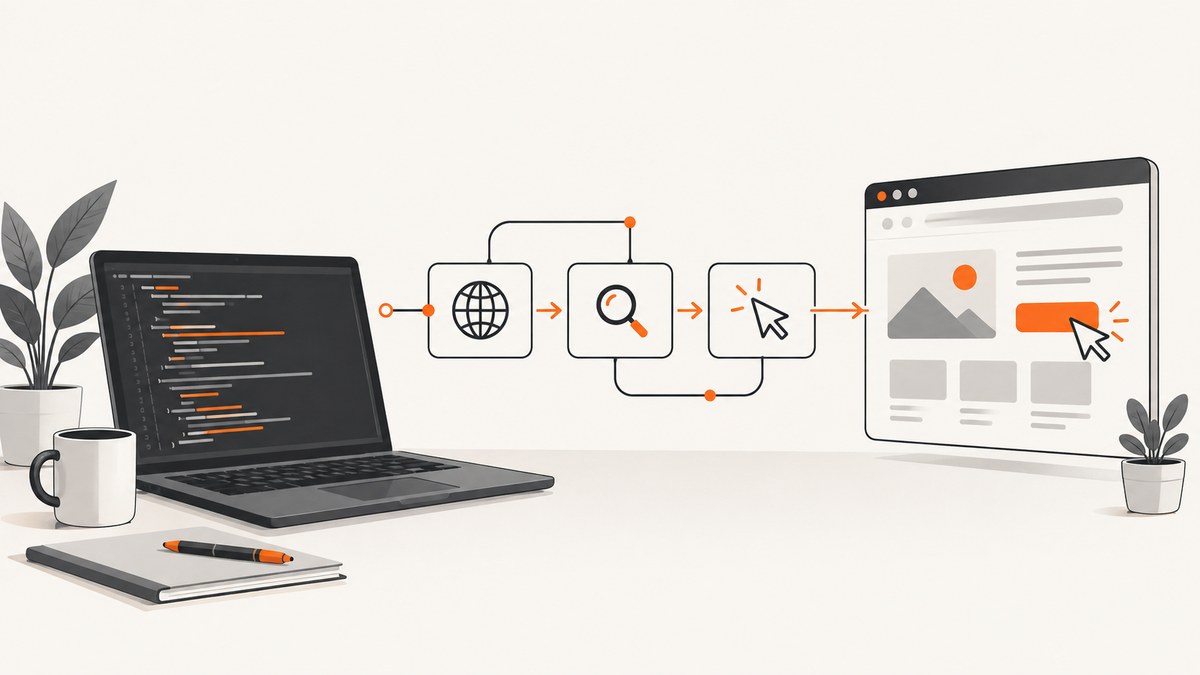
Java browser automation means creating a browser session, opening a page, locating elements, performing actions, checking results, and closing the session. The two commonly documented choices are Selenium WebDriver and Playwright for Java.
Use Selenium when you want the WebDriver standard, its browser-specific driver ecosystem, or Selenium Grid workflows. Use Playwright when its Chromium, WebKit, and Firefox support and version-managed browser binaries fit your project. The official documentation does not provide a controlled performance comparison, so choose from workflow and environment requirements rather than assumed speed rankings.
Prerequisites
- A supported JDK and a Java build tool such as Maven or Gradle.
- A browser installed for Selenium, or Playwright-managed browser binaries for Playwright.
- A project that can run from a terminal or CI runner.
Browser, driver, Java, and library versions change. Check the current Selenium setup guide and Playwright Java guide before pinning versions in a new project.
Option 1: Selenium WebDriver with Java
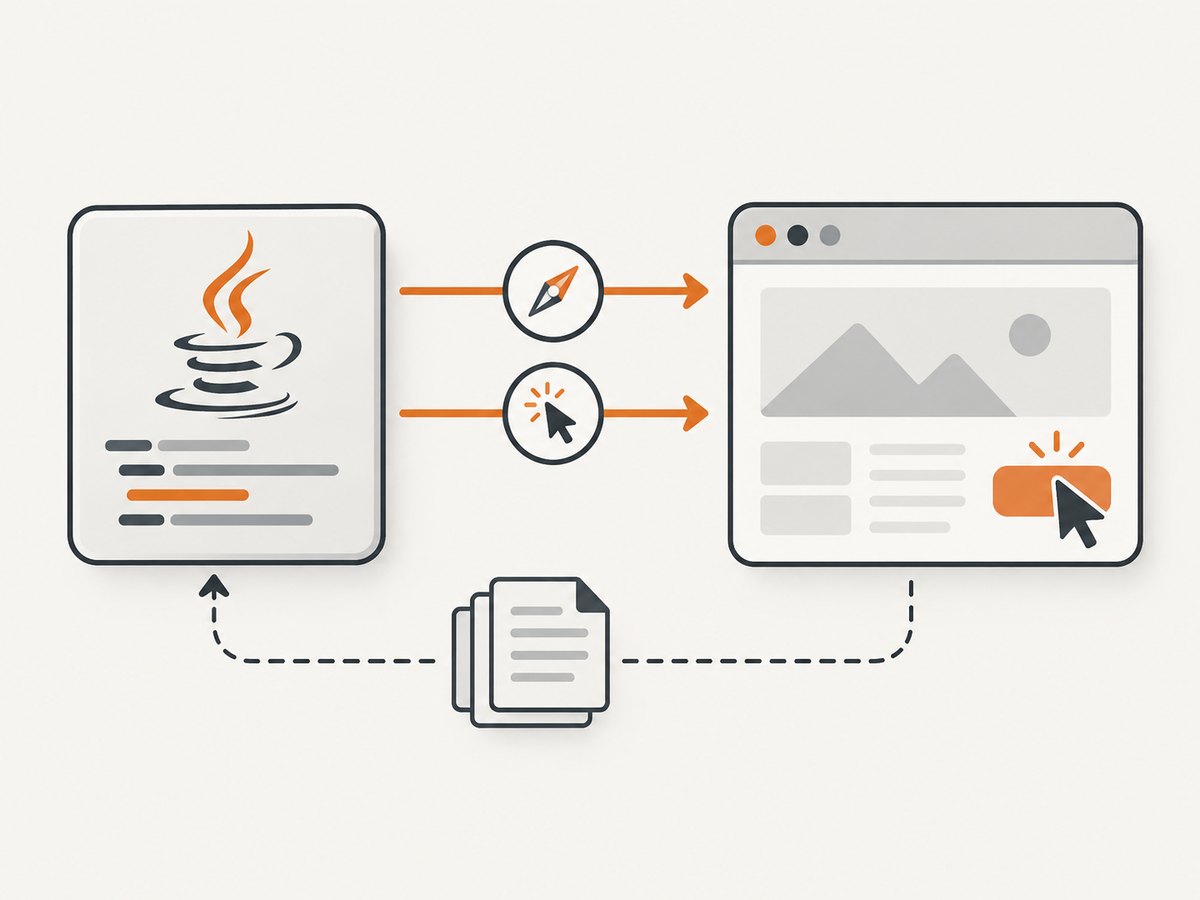
Selenium’s Java bindings are installed through Maven or Gradle. A Selenium setup consists of the language library, a browser, and the browser’s driver implementation. WebDriver is a W3C Recommendation and drives a browser natively.
Add Selenium with Maven
<dependency>
  <groupId>org.seleniumhq.selenium</groupId>
  <artifactId>selenium-java</artifactId>
  <version>CURRENT_VERSION</version>
</dependency>
Replace CURRENT_VERSION with the version shown in the current official installation documentation. With Gradle, use the same artifact in your dependencies block.
Complete Selenium example
This example opens a page, finds an element, performs an action, prints the resulting title, and always closes the session.
import org.openqa.selenium.By;
import org.openqa.selenium.WebDriver;
import org.openqa.selenium.chrome.ChromeDriver;

public class BrowserAutomation {
    public static void main(String[] args) {
        WebDriver driver = new ChromeDriver();
        try {
            driver.get("https://example.com");

            String heading = driver.findElement(By.cssSelector("h1")).getText();
            System.out.println("Heading: " + heading);
            System.out.println("Title: " + driver.getTitle());
        } finally {
            driver.quit();
        }
    }
}
The workflow follows Selenium’s first-script guidance: create a WebDriver, navigate with get, locate an element, interact with or read it, and close the session.
Finding elements and interacting
driver.findElement(By.id("email")).sendKeys("dev@example.com");
driver.findElement(By.name("password")).sendKeys("secret");
driver.findElement(By.cssSelector("button[type='submit']")).click();

String message = driver.findElement(By.className("alert")).getText();
if (!message.contains("Welcome")) {
    throw new AssertionError("Unexpected message: " + message);
}
Prefer stable IDs, accessible labels, or dedicated test attributes when available. CSS selectors are useful for structure; long XPath expressions are more sensitive to markup changes.
Wait for dynamic pages
Do not rely on arbitrary sleeps for every page. An explicit wait ties the next action to a condition.
import java.time.Duration;
import org.openqa.selenium.support.ui.ExpectedConditions;
import org.openqa.selenium.support.ui.WebDriverWait;

WebDriverWait wait = new WebDriverWait(driver, Duration.ofSeconds(15));
wait.until(ExpectedConditions.visibilityOfElementLocated(By.cssSelector(".results")));
driver.findElement(By.cssSelector(".results a")).click();
Useful conditions include visibility, presence, clickability, a URL change, or a specific title. Set the timeout according to the slowest environment you support, and keep the condition specific so failures explain what was missing.
Headless and remote execution
import org.openqa.selenium.chrome.ChromeOptions;

ChromeOptions options = new ChromeOptions();
options.addArguments("--headless=new");
options.addArguments("--window-size=1440,1000");
WebDriver driver = new ChromeDriver(options);
For remote execution, create a RemoteWebDriver pointing at your Selenium server or Grid and provide the browser capabilities required by that server. Selenium documents Grid as a way to scale execution across machines and browsers. Keep local and CI configuration separate so a developer can reproduce a failure with the same browser arguments and URL.
Option 2: Playwright for Java
Playwright for Java is distributed through Maven. Its documented workflow installs browser binaries through a CLI, and those binaries are tied to the Playwright version in your project.
Add Playwright with Maven
<dependency>
  <groupId>com.microsoft.playwright</groupId>
  <artifactId>playwright</artifactId>
  <version>CURRENT_VERSION</version>
</dependency>
Use the current version from the Playwright Java documentation. After changing the dependency, follow the browser-install command in the matching browser guide; updating the library can require installing its matching binaries again.
Complete Playwright example
import com.microsoft.playwright.Browser;
import com.microsoft.playwright.BrowserType;
import com.microsoft.playwright.Page;
import com.microsoft.playwright.Playwright;

public class PlaywrightAutomation {
    public static void main(String[] args) {
        try (Playwright playwright = Playwright.create()) {
            Browser browser = playwright.chromium().launch(
                new BrowserType.LaunchOptions().setHeadless(true));
            Page page = browser.newPage();
            page.navigate("https://example.com");

            System.out.println("Title: " + page.title());
            System.out.println("Heading: " + page.locator("h1").innerText());

            browser.close();
        }
    }
}
Actions, locators, and assertions
page.locator("input[name='email']").fill("dev@example.com");
page.locator("button[type='submit']").click();
page.locator(".results").waitFor();
String status = page.locator(".status").innerText();
if (!status.contains("Welcome")) {
    throw new AssertionError("Unexpected status: " + status);
}
Playwright locators wait for elements to become actionable in many common cases. Keep selectors tied to stable semantics, and use explicit waits for page-specific states such as a result row or URL.
Choose another browser or a viewport
Browser browser = playwright.firefox().launch();
Page page = browser.newPage(new Browser.NewPageOptions()
    .setViewportSize(1440, 900));
Playwright documents Chromium, WebKit, and Firefox. Install the binaries required by your selected release before running locally or in CI.
Selenium or Playwright?
| Decision point | Selenium | Playwright |
|---|---|---|
| Browser strategy | Browser-specific WebDriver implementations | Version-matched browser binaries installed through its CLI |
| Java setup | selenium-java via Maven or Gradle, plus browser and driver setup |
Playwright Maven module plus its browser installation step |
| Browser coverage | Choose drivers and capabilities for the browsers you support | Chromium, WebKit, and Firefox are documented targets |
| Scaling | Selenium documents Grid for distributed execution | Run workers in your CI or remote environment using the installed Playwright browsers |
| Best fit | WebDriver standard, existing Selenium ecosystem, Grid requirements | Playwright’s browser version management and multi-browser model |
Both frameworks need deterministic environment setup. Record the JDK, dependency, browser, and operating-system versions in CI logs. There is no source-backed benchmark here that justifies calling one universally faster or more reliable.
Reliable automation patterns
- Always clean up: call
quit()in a Seleniumfinallyblock, or close Playwright resources with try-with-resources. - Wait for state: wait for a selector, URL, title, or network-driven result instead of a fixed delay wherever possible.
- Keep tests isolated: create a fresh browser context or driver for each independent scenario when state could leak.
- Capture diagnostics: save the URL, browser logs, screenshots, and page HTML when a failure occurs.
- Control data: use test accounts and resettable fixtures; never hard-code production credentials.
- Make CI explicit: install the exact browser or driver dependencies in the runner image and fail early if installation is missing.
Common errors and fixes
| Error or symptom | Likely cause | Fix |
|---|---|---|
SessionNotCreatedException |
Browser, driver, or Selenium versions are incompatible. | Check the installed browser and current Selenium setup instructions; align the driver and browser used by the runner. |
| Driver executable not found | The browser driver is not installed or is not discoverable. | Install the required browser and driver, configure the documented path or environment, and verify the CI image. |
| Playwright browser executable missing | The matching Playwright browser binaries were not installed. | Run the browser-install command from the Playwright Java browser guide for the dependency version in use. |
NoSuchElementException or locator timeout |
The selector is wrong, the element is inside a frame, or the page has not reached the expected state. | Inspect the DOM, wait for a specific condition, switch to the correct frame, and prefer a stable selector. |
| Element is covered or not clickable | A modal, cookie banner, animation, or overlay blocks the target. | Wait for the overlay to disappear, close it intentionally, scroll the element into view, and avoid coordinate clicks. |
| Works locally but fails in CI | Different browser versions, viewport, fonts, permissions, network access, or headless behavior. | Pin the runner image and browser setup, set a known viewport, log versions, and preserve failure artifacts. |
| Browser process remains after a failure | Cleanup was skipped when an exception occurred. | Use Selenium finally or Playwright try-with-resources and close nested contexts and pages. |
Performance, reliability, and cost
Browser automation cost is mostly the compute and concurrency of your own runners or remote browser service. Reuse a browser process when isolation allows it, keep contexts short-lived, avoid unnecessary navigation, and wait on precise conditions. Parallel workers can reduce wall-clock time but increase CPU, memory, browser startup, and site-load pressure.
Reliability improves when browser binaries and dependencies are installed from a repeatable image, selectors express user-visible behavior, and retries are limited to transient failures. Retrying every assertion can hide real regressions. Record enough diagnostics to distinguish an application failure from an environment failure.
For screenshots where you do not need to manage a browser, ScreenshotNeo provides a GET-based website screenshot API and MCP server. Its pricing is per clean screenshot: failed loads, bot checks or CAPTCHAs, blank pages, timeouts, and cache hits are not billed, and responses identify the page verdict and billing status in headers.
Or skip the browser setup
When the goal is a screenshot rather than interactive browser control, call ScreenshotNeo directly. See the ScreenshotNeo API documentation for the current options.
cURL
curl -G "https://api.screenshotneo.com/v1/shot" -d access_key=YOUR_API_KEY --data-urlencode url=https://stripe.com -o shot.webpPython
import requests
r = requests.get("https://api.screenshotneo.com/v1/shot", params={"access_key": "YOUR_API_KEY", "url": "https://stripe.com"}, timeout=90)
open("shot.webp", "wb").write(r.content)
Node.js
const q = new URLSearchParams({ access_key: 'YOUR_API_KEY', url: 'https://stripe.com' });
const res = await fetch(`https://api.screenshotneo.com/v1/shot?${q}`);
ScreenshotNeo removes cookie and consent banners, newsletter popups, and chat widgets before capture. Bot checks, blank pages, and failed loads are never billed. Its MCP server provides take_screenshot, get_page_info, and capture_pdf tools for Claude, Cursor, and other MCP clients. The free plan includes 1,000 screenshots a month with no card; paid plans start at $5 for 3,000 screenshots. Create a free ScreenshotNeo account.
FAQ
Does Selenium require Chrome?
No. Selenium uses browser-specific WebDriver implementations, so choose the browser and driver that match your target coverage.

Does Playwright replace Selenium?
It can be an alternative for many projects, but the choice depends on browser coverage, version management, team familiarity, and local, CI, or remote execution requirements.
Should I use fixed sleeps?
Use condition-based waits for page state. A short delay is appropriate only when a real external timing requirement cannot be expressed as a condition.
Can Java automation run headlessly?
Yes. Selenium can pass headless browser arguments, and Playwright launches headless by default in the example above.


