How to Automate Browser Tasks with Headless Browsers
Learn how to automate browser workflows with Playwright or Puppeteer, wait for dynamic pages, debug failures, and save reliable artifacts.
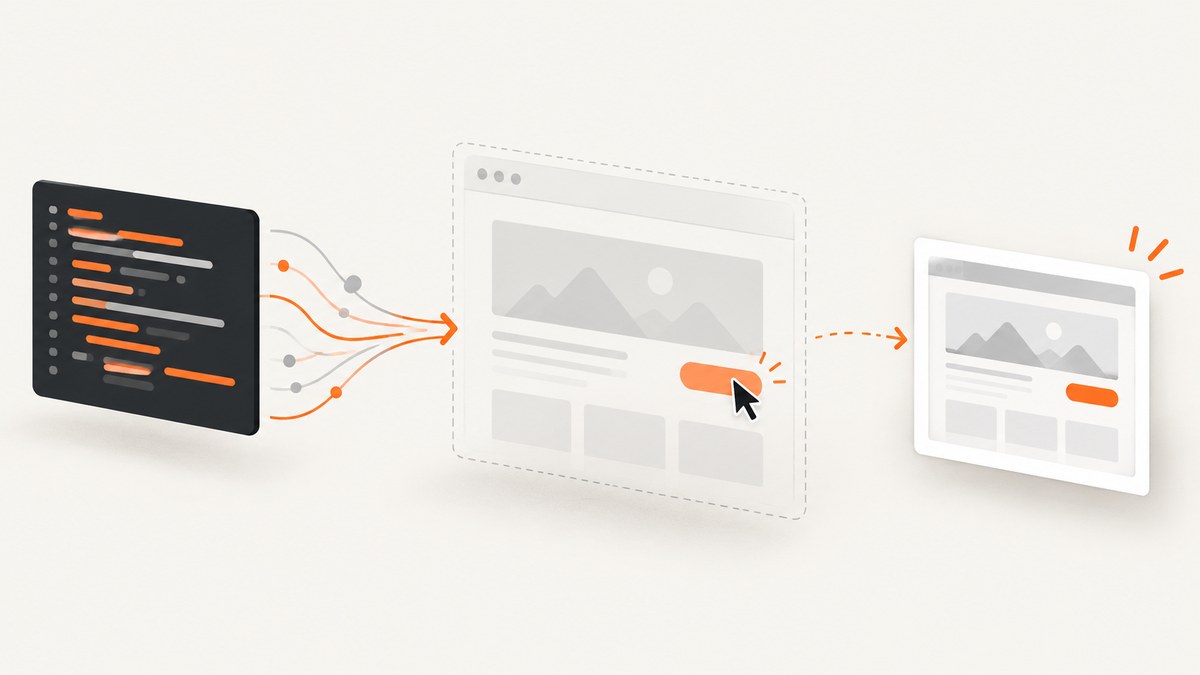
Direct answer: use a browser automation library such as Playwright or Puppeteer to launch a browser without a visible window, create an isolated context, navigate to a page, interact through stable locators, wait for the state you need, assert the result, and save an artifact such as a screenshot or PDF. Playwright is a strong default when you need Chromium, Firefox, and WebKit coverage; Puppeteer fits projects centered on its JavaScript API and Chrome or Firefox automation model.
A headless browser is still a real browser workflow. Dynamic rendering, consent dialogs, downloads, authentication, overlays, network failures, browser versions, and CI restrictions all affect the result. The examples below use Playwright with Node.js, then show equivalent Puppeteer concepts and a managed screenshot option.
1. Choose Playwright or Puppeteer
| Decision | Playwright | Puppeteer |
|---|---|---|
| Browser engines | Chromium, Firefox, WebKit, plus branded Chrome and Edge channels are documented. | Chrome for Developers documents Chrome and Firefox automation through CDP and WebDriver BiDi. |
| Workflow | Locators, auto-waiting, web-first assertions, Page APIs, and Playwright Test. | JavaScript API for page interaction, screenshots, PDFs, network interception, and performance analysis. |
| Best fit | Cross-browser validation, locator-driven tests, and a unified test runner. | Existing Puppeteer code or a Chrome-focused JavaScript service. |
| Headless behavior | Chromium headless shell, newer Chromium headless mode, and branded browser channels can differ. | Headless, headful, and shell modes are available; verify the mode used in deployment. |
Pick based on the browser engines, language, existing tests, runtime, and fidelity requirements. No reliable general speed winner was established by the available research, so benchmark your own workflow if latency matters.
2. Install the package and browser binaries
Playwright versions expect specific browser binaries. Install them after adding or updating the package, and install system dependencies on Linux CI when required.
mkdir browser-automation
cd browser-automation
npm init -y
npm install -D playwright
npx playwright install
# Linux CI, when dependencies are missing:
npx playwright install --with-deps
Pin your package version and record the browser revision in deployment logs. After a Playwright upgrade, rerun the browser installation so the binary matches the package. Browser downloads use Microsoft’s CDN by default; restricted build environments may need an approved mirror or prebuilt image. See the browser installation guide.
3. A complete Playwright workflow
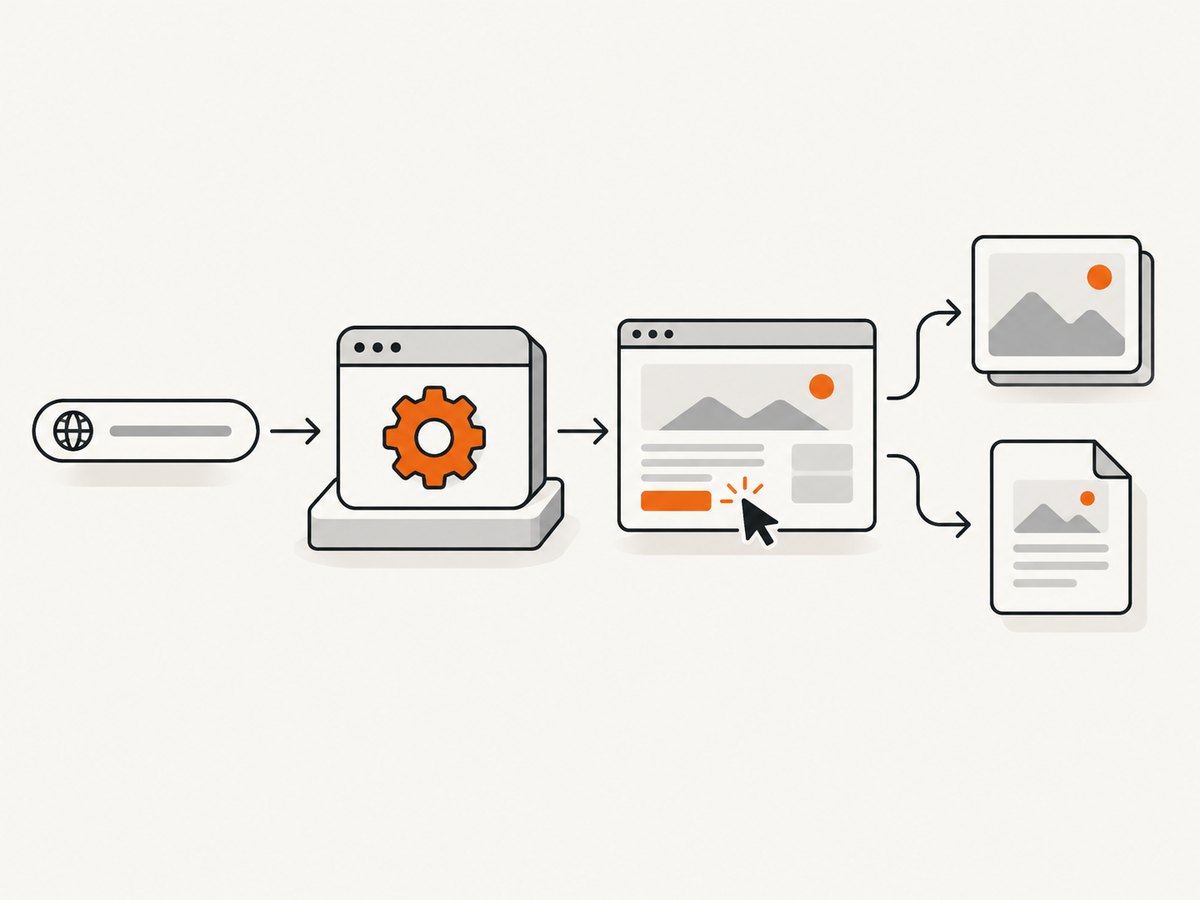
This runnable example opens an isolated context, navigates to a page, dismisses a predictable banner if present, clicks a control by role, checks visible state, captures a screenshot, and closes the browser even when an assertion fails.
import { chromium, expect } from 'playwright';

const url = process.env.TARGET_URL || 'https://example.com';
const browser = await chromium.launch({ headless: true });
const context = await browser.newContext({
  viewport: { width: 1440, height: 900 },
  colorScheme: 'light',
  locale: 'en-US',
});
const page = await context.newPage();

try {
  await page.goto(url, { waitUntil: 'domcontentloaded', timeout: 30_000 });

  const consent = page.getByRole('button', { name: /accept|agree|allow all/i });
  if (await consent.first().isVisible().catch(() => false)) {
    await consent.first().click();
  }

  await expect(page).toHaveTitle(/.+/, { timeout: 10_000 });
  await page.screenshot({ path: 'result.png', fullPage: true });
  await page.pdf({ path: 'result.pdf', format: 'A4', printBackground: true });

  console.log(JSON.stringify({ url, title: await page.title() }));
} finally {
  await context.close();
  await browser.close();
}
Run it as an ES module (for example, add "type":"module" to package.json) with node workflow.js. Replace the example URL and assertion with the state your application must produce. The Page API documents navigation, screenshots, PDFs, and lifecycle methods at playwright.dev/docs/api/class-page.
Use locators and web-first assertions
Prefer getByRole, getByLabel, getByText, or a stable test identifier over brittle CSS paths. Locators are strict and auto-wait for actionable state; if a locator matches multiple elements, the failure exposes an ambiguity that should be fixed rather than silently choosing one. Playwright’s migration guide explains this model at playwright.dev/docs/puppeteer.
Wait for application state, not an arbitrary delay
await page.getByRole('button', { name: 'Refresh' }).click();
await expect(page.getByText('Updated just now')).toBeVisible();
await page.waitForURL('**/dashboard');
await page.waitForSelector('[data-testid="results"]', { state: 'visible' });
A fixed sleep can hide a race on a fast run and still be too short on a slow one. Use a selector, URL, response, assertion, or another observable state. Explicit waits are still appropriate when the application has a known state transition that cannot be expressed by a locator.
4. Configure the browser context
A context isolates cookies, local storage, permissions, viewport, locale, and timezone without starting another browser process.
const context = await browser.newContext({
  viewport: { width: 1280, height: 800 },
  deviceScaleFactor: 2,
  isMobile: false,
  colorScheme: 'dark',
  locale: 'en-GB',
  timezoneId: 'Europe/London',
  userAgent: 'automation-service/1.0',
  extraHTTPHeaders: { 'X-Test-Run': 'ci' },
  storageState: 'auth-state.json',
});
Use a fresh context for independent jobs. Reuse a context only when sharing authenticated state is intentional. Store credentials outside source control, and avoid logging cookies or authorization headers.
Authentication
For a login flow, navigate, fill fields by label, submit, assert the authenticated page, then save state:
await page.goto('https://app.example.com/login');
await page.getByLabel('Email').fill(process.env.TEST_EMAIL);
await page.getByLabel('Password').fill(process.env.TEST_PASSWORD);
await page.getByRole('button', { name: 'Sign in' }).click();
await expect(page.getByRole('heading', { name: 'Dashboard' })).toBeVisible();
await context.storageState({ path: 'auth-state.json' });
On later runs, pass that file as storageState. Treat it as a secret because it can contain reusable session cookies.
Downloads, uploads, dialogs, and overlays
const downloadPromise = page.waitForEvent('download');
await page.getByRole('link', { name: 'Export CSV' }).click();
const download = await downloadPromise;
await download.saveAs('export.csv');

const chooserPromise = page.waitForEvent('filechooser');
await page.getByRole('button', { name: 'Upload' }).click();
const chooser = await chooserPromise;
await chooser.setFiles('fixture.pdf');

page.on('dialog', async dialog => {
  if (dialog.type() === 'confirm') await dialog.accept();
  else await dialog.dismiss();
});
Handle expected overlays as part of the flow. Playwright’s overlay-handler guidance warns that a handler can change focus and mouse state, so keep the interaction that depends on the handler self-contained.
5. Headless modes and browser fidelity
“Headless” does not describe one identical binary. Playwright distinguishes its Chromium headless shell from newer Chromium headless behavior, and Chrome or Edge channels can render differently from the bundled Chromium build. Chrome’s documentation describes newer headless mode this way: “New Headless on the other hand is the real Chrome browser, and is thus more authentic, reliable, and offers more features.” That statement refers to Chrome’s newer mode, not every headless implementation.
// Bundled Chromium headless (default)
const browser = await chromium.launch({ headless: true });

// Branded Chrome channel, installed on the machine
const chrome = await chromium.launch({ channel: 'chrome', headless: true });

// Diagnostic run with a visible window
const headed = await chromium.launch({ headless: false, slowMo: 100 });
Run the same channel and mode in CI that you use for release checks. Capture a screenshot when diagnosing layout differences, and record the Playwright and browser versions.
6. Puppeteer equivalent
Puppeteer is a reasonable choice when your project already uses it or targets its Chrome and Firefox automation model.
import puppeteer from 'puppeteer';

const browser = await puppeteer.launch({ headless: true });
try {
  const page = await browser.newPage();
  await page.setViewport({ width: 1440, height: 900, deviceScaleFactor: 1 });
  await page.goto(process.env.TARGET_URL || 'https://example.com', {
    waitUntil: 'networkidle2',
    timeout: 30_000,
  });
  await page.screenshot({ path: 'puppeteer-result.png', fullPage: true });
  await page.pdf({ path: 'puppeteer-result.pdf', format: 'A4', printBackground: true });
} finally {
  await browser.close();
}
Translate the same design principles: isolate state, use stable selectors, wait for an observable condition, capture failure artifacts, and close the browser in a finally block. The Chrome for Developers Puppeteer guide lists page interaction, screenshots, PDFs, network interception, and performance analysis as supported use cases.
7. Capture evidence and diagnostics
Automation should leave evidence that explains both success and failure.
- Save a screenshot at the failed step.
- Record URL, browser channel, package version, viewport, locale, and elapsed times.
- Save console errors and failed request URLs.
- Keep a trace or video for difficult, intermittent failures when your runner supports it.
- Use assertions for business outcomes, not only for the absence of exceptions.
page.on('console', message => console.log('[console]', message.type(), message.text()));
page.on('requestfailed', request => {
  console.error('[requestfailed]', request.url(), request.failure()?.errorText);
});

try {
  await page.goto(url, { waitUntil: 'domcontentloaded' });
  await expect(page.getByRole('heading', { name: 'Reports' })).toBeVisible();
} catch (error) {
  await page.screenshot({ path: 'failure.png', fullPage: true }).catch(() => {});
  throw error;
}
8. Troubleshooting common failures
| Symptom | Likely cause | Fix |
|---|---|---|
| Browser executable is missing | The package was installed without its matching binary, or the package was upgraded. | Run npx playwright install again and pin compatible versions. |
| CI cannot launch Chromium | Linux system libraries or sandbox permissions are unavailable. | Use npx playwright install --with-deps, a supported container, and the minimum required sandbox configuration. |
| Click times out | The element is hidden, covered by an overlay, disabled, or the locator matches the wrong element. | Assert visibility, inspect the locator count, handle the overlay, and use a role or stable attribute. |
| Strict-mode violation | A locator matches more than one element. | Make the locator specific with an accessible name, parent scope, or test identifier. |
| Page is still loading | The application renders after navigation or uses long-lived connections. | Wait for the relevant selector, URL, response, or web-first assertion instead of waiting for a guessed duration. |
| Screenshot differs in CI | Different browser channel, fonts, viewport, device scale, timezone, or color scheme. | Pin the environment and context settings; compare screenshots from the same channel. |
| Consent modal blocks the flow | A cookie or privacy banner appears before the target control. | Locate and accept or dismiss it deliberately, or configure a test environment where the banner is predictable. |
| Download never arrives | The click was not awaited, the request failed, or a new tab opened. | Start the download or popup event promise before clicking and inspect request failures. |
| Authentication disappears | Cookies or storage are not shared with the new context. | Load a valid storageState file or perform login in that context. |
| Headless output differs from headed output | Different headless implementation, browser channel, GPU path, or installed fonts. | Run the deployment channel in headed diagnostic mode, then align the production configuration. |
9. Performance, reliability, and cost
Performance
- Reuse one browser process and create short-lived contexts for jobs; launching a process for every URL adds startup overhead.
- Run independent contexts in parallel only within the CPU, memory, network, and target-site limits of your environment.
- Block unnecessary analytics or media requests in test environments when those resources are irrelevant to the assertion.
- Prefer targeted selectors and element screenshots when a full-page artifact is unnecessary.
- Set explicit navigation and action timeouts so a stuck page releases resources.
Reliability
- Use retries only for known transient failures and keep the original failure artifact.
- Make jobs idempotent where possible; avoid submitting a payment or mutating record twice on retry.
- Close pages, contexts, and browsers in
finallyblocks. - Respect the target site’s terms, robots guidance, authentication rules, and rate limits. Browser automation does not grant permission to automate a third-party site.
- Do not assume a headless browser bypasses bot checks or CAPTCHAs.
Cost
Self-hosted automation consumes compute, memory, browser storage, CI minutes, and engineering time. Parallelism can reduce wall-clock time while increasing peak resource usage. A managed screenshot API can be cheaper for one-off renders or high-volume image generation when you do not need arbitrary clicks, uploads, or application assertions.
10. Or skip the browser setup
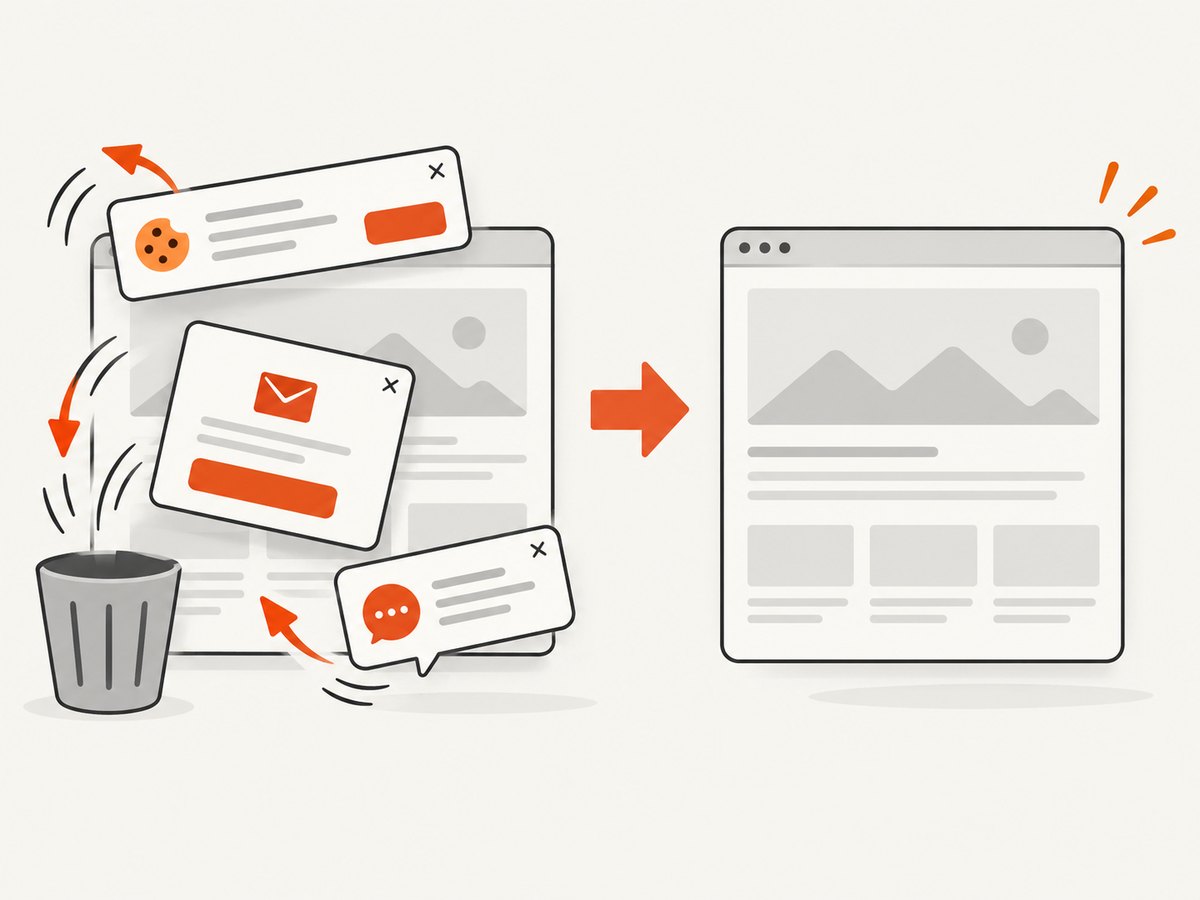
If the result you need is a clean screenshot or PDF rather than an interactive test, ScreenshotNeo provides a single HTTP request. Its API accepts a URL and returns PNG, JPEG, WebP, or PDF. Before capture it accepts cookie or consent banners as a visitor and removes more than 60 known consent platforms, newsletter popups, and chat widgets; each step can be turned off. Only clean shots are billed: bot checks or CAPTCHAs, blank pages, timeouts, failed loads, and cache hits cost nothing, and the response identifies the page verdict and billing status with X-Page-Verdict and X-Billed headers. See the ScreenshotNeo API documentation.
cURL
curl -G "https://api.screenshotneo.com/v1/shot" -d access_key=YOUR_API_KEY --data-urlencode url=https://stripe.com -o shot.webpPython
import requests

r = requests.get(
    "https://api.screenshotneo.com/v1/shot",
    params={"access_key": "YOUR_API_KEY", "url": "https://stripe.com"},
    timeout=90,
)
r.raise_for_status()
open("shot.webp", "wb").write(r.content)
Node.js
const q = new URLSearchParams({ access_key: 'YOUR_API_KEY', url: 'https://stripe.com' });
const res = await fetch(`https://api.screenshotneo.com/v1/shot?${q}`);
if (!res.ok) throw new Error(`ScreenshotNeo returned ${res.status}`);
const image = Buffer.from(await res.arrayBuffer());
await import('node:fs/promises').then(fs => fs.writeFile('shot.webp', image));
ScreenshotNeo also supports full-page capture with lazy images loaded, CSS element capture, dark mode, device presets and custom viewports, retina scale, PDF paper size and margins, custom CSS and JavaScript, clicks, selector hiding, selector or network-idle waits, request blocking, headers, cookies, user agents, authorization, timezone, geolocation, transparent backgrounds, resizing, TTL caching, signed image links, asynchronous jobs with signed webhooks, bulk capture of up to 100 URLs per call, usage reporting, and an OpenAPI specification. Its MCP server exposes take_screenshot, get_page_info, and capture_pdf for Claude, Cursor, and other MCP clients.
There is a free plan with 1,000 shots per month and no card. Paid plans start at $5 for 3,000 shots; yearly billing provides two months free, and every feature is available on every plan. Create a free ScreenshotNeo account.
11. FAQ
Can a headless browser interact with any website?
It can automate pages that the browser can load and interact with, but authentication, CAPTCHAs, bot defenses, cross-origin rules, rate limits, and the site’s terms may restrict what is appropriate or technically possible.
Should I use a browser context for every test?
Use a fresh context when isolation matters. Reuse a context only when sharing cookies, local storage, or other state is part of the workflow.
Is networkidle always the right wait condition?
No. Long polling, analytics, and WebSockets can prevent network idle. Wait for the application state that proves the task is complete.
When should I run headed mode?
Use headed mode to diagnose selectors, overlays, focus, and rendering differences. Run the same browser channel and configuration headless in deployment.
Can ScreenshotNeo replace Playwright tests?
It replaces browser setup for screenshot and PDF generation. Keep Playwright or Puppeteer when you need arbitrary multi-step interactions, assertions, uploads, or end-to-end application tests.


