How to Automate Cascading Dropdowns With Pyppeteer
Select dependent dropdowns reliably with Pyppeteer by waiting for real option changes, handling navigation, custom widgets, errors, and edge cases.
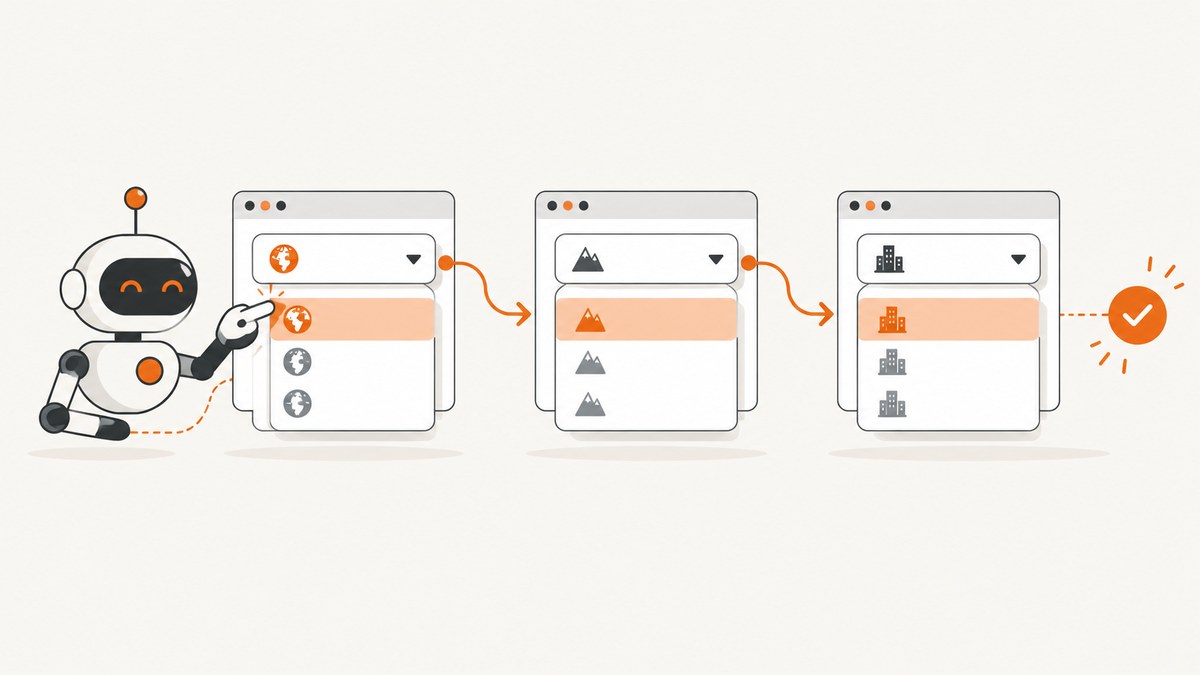
Use Page.select() for each native <select>, then wait for a condition that proves the dependent control has updated before selecting the next value. In practice, the reliable sequence is:
- Select the parent option by its
value. - Wait until the child is enabled and contains the expected option, or until another page-specific ready condition is true.
- Select the child option.
- Repeat from ancestor to descendant for deeper chains.
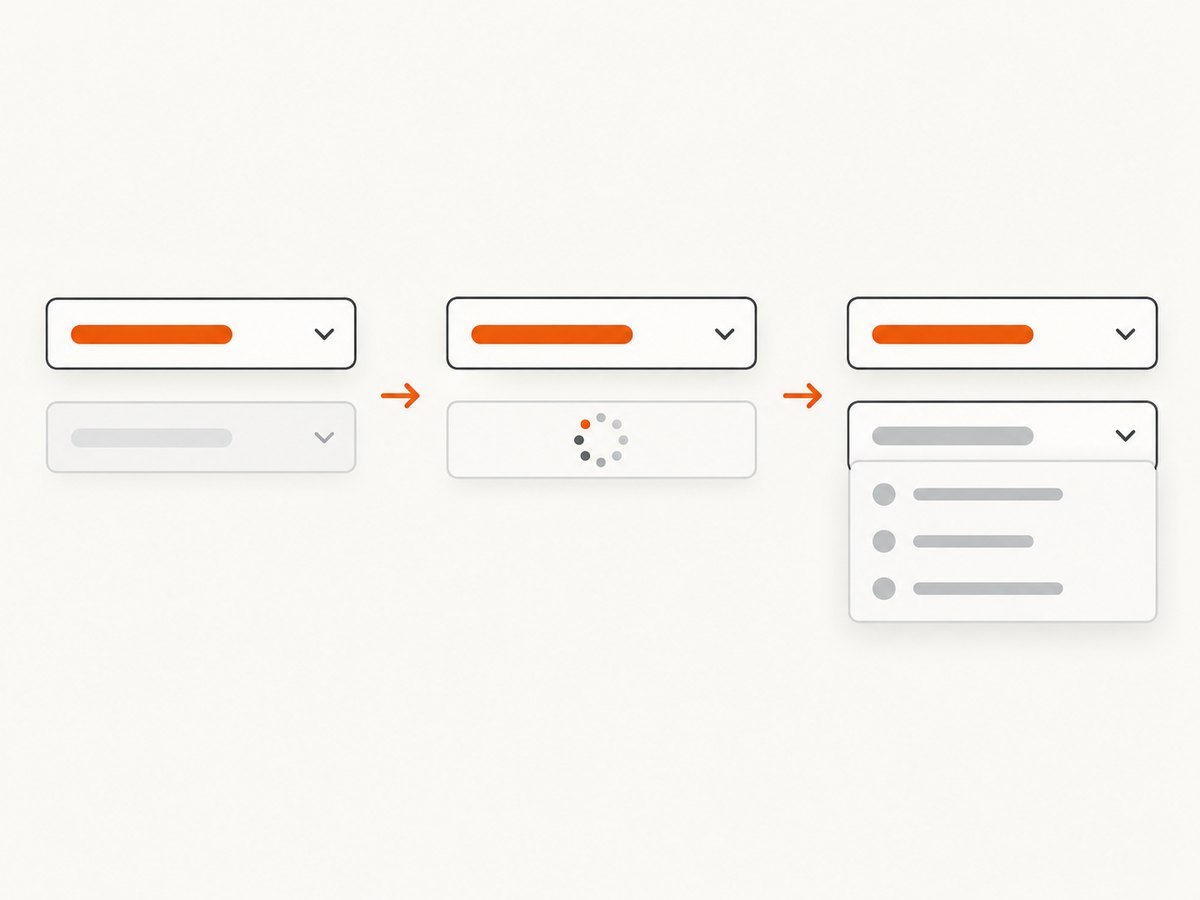
Do not use a fixed sleep as the main synchronization mechanism. A child element may already exist while its options are still stale or incomplete.
Pyppeteer is an unofficial Python port of Puppeteer for headless Chrome and Chromium automation. Its API is asynchronous and designed for asyncio. See the project repository and Pyppeteer documentation.
1. Install Pyppeteer and identify the controls
Install the package in the environment that will run the automation:
python -m pip install pyppeteerBefore writing selectors, inspect the live DOM. You need:
- The CSS selector for each control, such as
#countryand#region. - The option
valueattributes. A visible label such as “United States” can have a submitted value such asus. - How the site signals that loading has finished: an expected option, an enabled control, a loading indicator disappearing, or a known response.
- Whether changing a control updates the page in place or triggers navigation.
For native controls, browser developer tools can show the relevant HTML:
<select id="country">
  <option value="">Choose a country</option>
  <option value="us">United States</option>
</select>

<select id="region" disabled>
  <option value="">Choose a region</option>
</select>
The examples below are generic. Replace the URL, selectors, values, and readiness predicate with those observed on your target page.
2. Complete example: country, region, and city
This script selects three dependent native dropdowns. After selecting a parent, waitForFunction checks both that the child is enabled and that the desired option exists.
import asyncio
from pyppeteer import launch

URL = "https://example.com/form"

async def main():
    browser = await launch({
        "headless": True,
        "args": ["--no-sandbox"],
    })
    try:
        page = await browser.newPage()
        await page.setViewport({"width": 1365, "height": 900})
        await page.goto(URL, {"waitUntil": "networkidle2", "timeout": 60000})

        await page.waitForSelector("#country", {"visible": True})
        await page.select("#country", "us")

        await page.waitForFunction("""() => {
            const child = document.querySelector('#region');
            return child &&
                   !child.disabled &&
                   [...child.options].some(option => option.value === 'ca');
        }""", {"timeout": 30000})
        await page.select("#region", "ca")

        await page.waitForFunction("""() => {
            const child = document.querySelector('#city');
            return child &&
                   !child.disabled &&
                   [...child.options].some(option => option.value === 'sf');
        }""", {"timeout": 30000})
        await page.select("#city", "sf")

        selected = await page.evaluate("""() => ({
            country: document.querySelector('#country').value,
            region: document.querySelector('#region').value,
            city: document.querySelector('#city').value
        })""")
        print(selected)
    finally:
        await browser.close()

if __name__ == "__main__":
    asyncio.get_event_loop().run_until_complete(main())
Page.select(selector, *values) selects by option value. The API reference documents select, waitForFunction, and waitForSelector in the Pyppeteer API reference.
3. Wait for the state that matters
Wait for a specific option
This is usually the strongest condition when the target value is known:
await page.waitForFunction("""() => {
    const select = document.querySelector('#region');
    return select && [...select.options].some(o => o.value === 'ca');
}""", {"timeout": 30000})
Wait for an enabled control and a non-placeholder option
Use this when the exact value varies but the application has a clear non-placeholder state:
await page.waitForFunction("""() => {
    const select = document.querySelector('#region');
    if (!select || select.disabled) return false;
    return [...select.options].some(o => o.value && !o.disabled);
}""", {"timeout": 30000})
Wait for a loading indicator to disappear
await page.waitForFunction("""() => {
    const spinner = document.querySelector('#region-loading');
    return !spinner || getComputedStyle(spinner).display === 'none';
}""", {"timeout": 30000})
waitForSelector is appropriate when an element is created only after loading. It is insufficient when the child select is present from the initial page load, because the wait can finish before its options change.
Use a known network response when the contract is stable
If changing the parent makes a predictable request, waitForResponse can synchronize with that response. The URL and status predicate are site-specific:
response_task = asyncio.ensure_future(
    page.waitForResponse(
        lambda response: "/api/regions" in response.url and response.status == 200,
        {"timeout": 30000},
    )
)
await page.select("#country", "us")
response = await response_task
await page.waitForFunction("""() => {
    const select = document.querySelector('#region');
    return select && [...select.options].some(o => o.value === 'ca');
}""")
Waiting for the response alone does not guarantee that the JavaScript handler has finished rendering the options, so also check the resulting DOM when possible.
4. Reset stale child selections
Some applications keep the old child value while replacing its option list. After changing the parent, inspect the child value and reset it if the page requires an empty placeholder:
await page.select("#country", "us")
await page.waitForFunction("""() => {
    const region = document.querySelector('#region');
    return region && !region.disabled &&
           [...region.options].some(o => o.value === 'ca');
}""")

current = await page.evaluate("document.querySelector('#region').value")
if current not in ("", "ca"):
    await page.select("#region", "")

await page.select("#region", "ca")
The correct reset behavior belongs to the target form. Pyppeteer does not decide whether an application should preserve or clear a value.
5. When a selection causes navigation
If a change submits a form or navigates, start the navigation wait and the triggering action together. Starting a separate navigation wait after awaiting the action can miss a fast navigation. Pyppeteer documents this race in its navigation guidance.
navigation = asyncio.ensure_future(
    page.waitForNavigation({"waitUntil": "networkidle2", "timeout": 60000})
)
await page.select("#country", "us")
await navigation

await page.waitForSelector("#region", {"visible": True})
await page.select("#region", "ca")
If selecting the option itself does not trigger navigation but a following submit does, coordinate the wait with the click or submit action that actually navigates.
6. Three or more levels
For country → state → city → neighborhood, repeat the same state transition for every level:
- Select the country value.
- Wait for the state readiness condition.
- Select the state value.
- Wait for the city readiness condition.
- Select the city value.
- Continue until the final control is ready.
Keep each predicate specific to its control. A generic “network is idle” check can be misleading when analytics or polling requests never stop.
7. Custom dropdowns, shadow DOM, and iframes
Custom JavaScript widgets
A control styled as a dropdown may be a button and list of elements rather than a native <select>. In that case, Page.select cannot operate on it. Inspect the DOM, click the widget’s trigger, wait for the menu, and click the option using the widget’s actual role or selector:
await page.click("[data-testid='country-trigger']")
await page.waitForSelector("[role='option'][data-value='us']", {"visible": True})
await page.click("[role='option'][data-value='us']")

await page.waitForFunction("""() => {
    return document.querySelector('[data-testid="region-trigger"]')
        ?.getAttribute('aria-disabled') !== 'true';
}""")
Use the application’s stable attributes where available. Class names generated by a CSS-in-JS library are often less durable.
Shadow DOM
A regular page-level selector may not cross a shadow root. Query inside the component from page JavaScript, or interact through the component’s public controls. The exact code depends on whether the shadow root is open.
Iframes
First locate the frame, then query and interact with elements in that frame rather than the top-level page. The frame URL and name are page-specific; verify them in developer tools. A selector that works in the top document will not match an element isolated inside an iframe.
8. JavaScript evaluation details
evaluate accepts a JavaScript function or expression represented as a string. If Pyppeteer misidentifies an expression string as a function, the documentation recommends using force_expr=True:
value = await page.evaluate("document.querySelector('#region').value", force_expr=True)Prefer a function body when returning structured state:
state = await page.evaluate("""() => ({
    disabled: document.querySelector('#region').disabled,
    values: [...document.querySelector('#region').options].map(o => o.value)
})""")
9. Troubleshooting
| Symptom | Likely cause | Fix |
|---|---|---|
| The child wait finishes immediately | The child element exists from the initial HTML. | Check for the expected option, enabled state, changed option count, or another post-update signal. |
Page.select does nothing |
The selector is not a native <select>, or it matches the wrong element. |
Inspect the live DOM. Use widget-specific clicks for custom controls. |
| The visible label is correct but selection fails | The option’s value differs from its label. |
Read the value attributes and pass the exact value to select. |
| Timeout while waiting for options | The request failed, the parent value is invalid, or the readiness predicate does not match the site. | Log the parent value, inspect browser console/network errors, and adjust the predicate to the actual DOM state. |
| The old child remains selected | The application preserves the prior value during refresh. | Check the value after the parent change and reset it according to the form’s behavior before selecting the new option. |
| Navigation is missed | The navigation wait was installed after the action. | Start waitForNavigation concurrently with the action that triggers navigation. |
| An expression evaluation error appears | The string was parsed as a function instead of an expression. | Use a function string or pass force_expr=True. |
| Selector not found | Wrong document, iframe, shadow root, or selector syntax. | Inspect the live DOM and query the correct frame or shadow root. |
| Options appear only after a delay | The page performs asynchronous work after the request returns. | Wait for the rendered option or application state, rather than a guessed fixed delay. |
10. Reliability checklist
- Use selectors tied to IDs, labels, roles, or test attributes that the application intentionally exposes.
- Pass option values, not assumptions about visible text.
- Wait for a state transition that proves the child list is current.
- Give every wait a finite timeout and include the control name in error logs.
- Capture the URL, parent value, child option values, and a screenshot or HTML snapshot when diagnosing failures.
- Close the browser in a
finallyblock so failed runs do not leave Chromium processes behind. - Coordinate navigation waits with the action that triggers navigation.
- Use a response wait only when the endpoint and response condition are stable, then verify the DOM update.
11. Performance, reliability, and cost considerations
Browser startup is usually more expensive than the individual DOM operations. Reuse one browser process for multiple pages or jobs when isolation requirements allow it, and close pages when each job finishes. Keep selectors and predicates narrow so the browser does not repeatedly scan unrelated parts of the DOM.
Do not reduce reliability by replacing state-based waits with very short sleeps. A fixed delay can be longer than necessary on a fast run and still too short on a slow run. If a site has a documented API that returns the dependent data, calling that API may be simpler than driving the widget, subject to the site’s authentication and usage rules.
Pyppeteer itself does not define a service price for the target website. Your costs come from the machine or hosted browser environment, network traffic, and any external service being automated. Set timeouts, limit concurrency to what the host can support, and record failures separately from successful selections.
12. Playwright as an alternative framework
Playwright for Python is a separate browser automation option with locator-based interactions and select-option support. Its official Page API and input documentation are useful if you are starting a new project and want to compare frameworks. The interaction principles remain the same: identify the real control, select the parent, and wait for a meaningful child-ready state.
Or skip the browser setup
If you only need a rendered page image or PDF after the form state is established elsewhere, ScreenshotNeo provides a one-request screenshot API and an MCP server for AI agents. It is not a replacement for interacting with a dropdown, but it can remove the Chromium setup when your job is capturing a URL.
Cookie banners, newsletter popups, and chat widgets are removed before the shot. Bot checks, blank pages, timeouts, failed loads, and cache hits are not billed, and the response identifies the result with X-Page-Verdict and X-Billed headers. Its MCP tools include take_screenshot, get_page_info, and capture_pdf for Claude, Cursor, and other MCP clients. See the ScreenshotNeo API documentation for all options.
curl -G "https://api.screenshotneo.com/v1/shot" -d access_key=YOUR_API_KEY --data-urlencode url=https://stripe.com -o shot.webpimport requests
r = requests.get("https://api.screenshotneo.com/v1/shot", params={"access_key": "YOUR_API_KEY", "url": "https://stripe.com"}, timeout=90)
open("shot.webp", "wb").write(r.content)const q = new URLSearchParams({ access_key: 'YOUR_API_KEY', url: 'https://stripe.com' });
const res = await fetch(`https://api.screenshotneo.com/v1/shot?${q}`);ScreenshotNeo includes full-page capture with lazy images loaded, CSS-selector element capture, custom JavaScript and CSS, waits, headers, cookies, blocking rules, device presets, retina scale, PDF output, caching, signed links, asynchronous jobs, bulk capture, and a usage API. It has 1,000 screenshots per month free with no card; paid plans start at $5 for 3,000 shots. Create a free ScreenshotNeo account.
FAQ
Can Pyppeteer select by visible text?
Page.select selects option values. Find the matching option’s value first, then pass that value.
Should I wait for the child selector or the child option?
Wait for the option or another changed state when the child control already exists. Waiting only for the selector can return before the asynchronous update.
What if the dropdown is not a native select?
Use the widget’s trigger and option elements, or its keyboard and accessibility behavior. Page.select is for native select elements.
How do I handle a four-level cascade?
Apply the same select → readiness wait → select sequence from the first ancestor through each descendant.
Is Pyppeteer the same project as Puppeteer?
No. Pyppeteer is an unofficial Python port. Its documentation points readers toward Puppeteer resources, but the APIs and maintenance status should be checked for your project before committing to it.


