How to Automate Chrome Without Selenium
Automate Chrome with Playwright, Puppeteer, or the Chrome DevTools Protocol. Compare setup, code, browser choice, reliability, and costs.
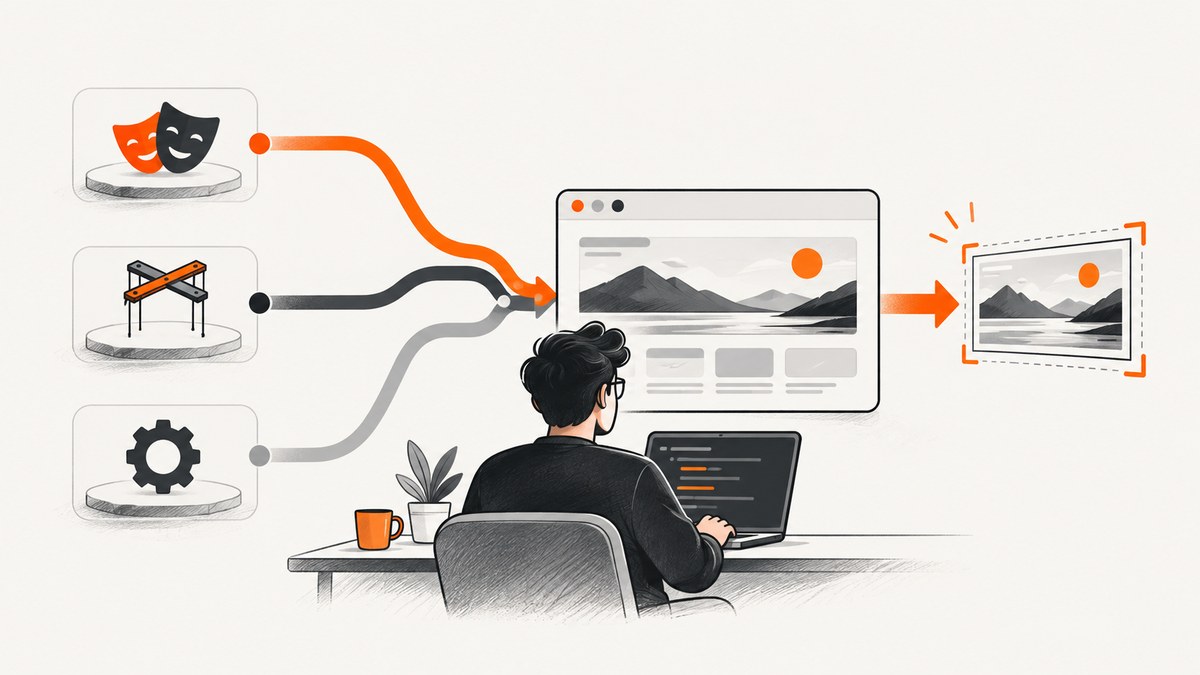
Yes, you can automate Chrome without Selenium. Use Playwright when you need a complete end-to-end test framework, Puppeteer when you want a high-level JavaScript library centered on Chrome, or a Chrome DevTools Protocol (CDP) client when you need low-level browser control.
The right choice depends on four things: how much setup you want to own, your programming language, whether you need browsers beyond Chrome, and whether tests must run against bundled Chromium or branded Google Chrome. This guide shows runnable implementations, explains the trade-offs, and covers production concerns such as browser versions, waiting, failures, parallelism, and screenshots.
Choose the right Selenium alternative
| Need | Start with | Reason |
|---|---|---|
| End-to-end test suite, isolation, parallel runs, or multiple browsers | Playwright | Its documented test bundle includes a runner, assertions, isolation, parallelization, and tooling. It supports Chromium, Firefox, and WebKit on Windows, Linux, and macOS. |
| JavaScript or TypeScript browser automation focused on Chrome | Puppeteer | High-level APIs cover navigation, DOM interaction, network interception, screenshots, PDFs, and UI testing. It supports Chrome and Firefox through CDP and WebDriver BiDi. |
| Protocol-level inspection, debugging, profiling, or custom tooling | CDP client | You send Chrome DevTools Protocol commands directly and control the lifecycle yourself. |
| Reproduce users’ installed Google Chrome | Playwright with a Chrome channel, or a Puppeteer/Chrome setup | Bundled Chromium and branded Chrome are different targets with different version and policy implications. |
There is no independent benchmark in the available research that makes one option universally fastest or most reliable. Treat abstraction, browser coverage, and operational ownership as the deciding factors.
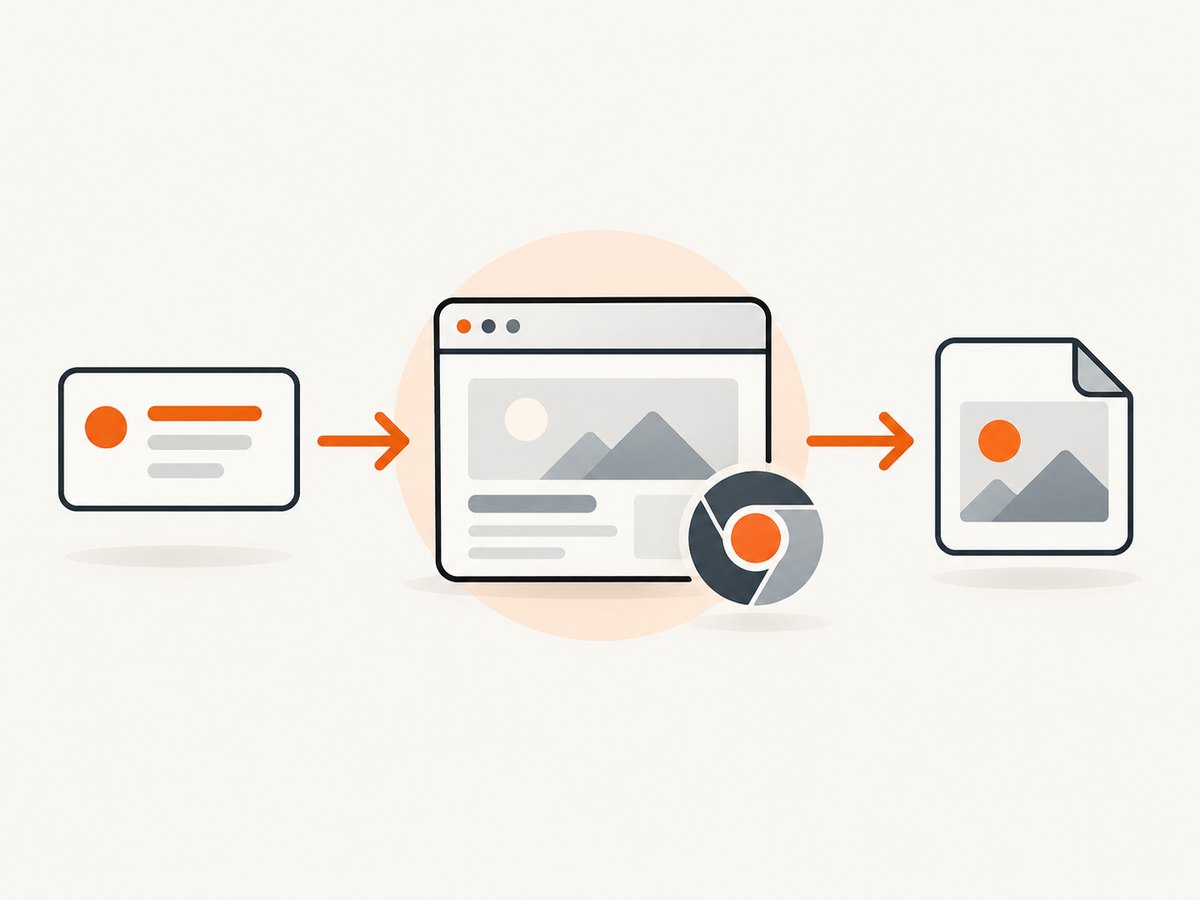
1. Automate Chrome with Playwright
Playwright is the strongest default for a maintained test suite. Its core browser automation APIs are available in JavaScript/TypeScript, Python, Java, and .NET; runner integration differs by language. The examples below use JavaScript and Python.
Install and run a JavaScript script
npm init -y
npm install playwright
npx playwright install chromium
// screenshot.js
const { chromium } = require('playwright');

(async () => {
  const browser = await chromium.launch({ headless: true });
  const page = await browser.newPage({
    viewport: { width: 1440, height: 900 },
    deviceScaleFactor: 1
  });

  await page.goto('https://example.com', {
    waitUntil: 'domcontentloaded',
    timeout: 30_000
  });
  await page.screenshot({ path: 'example.png', fullPage: true });
  await browser.close();
})();
node screenshot.jsUse the Playwright test runner
npm install -D @playwright/test
npx playwright install
// tests/home.spec.js
const { test, expect } = require('@playwright/test');

test('home page has a heading', async ({ page }) => {
  await page.goto('https://example.com');
  await expect(page.locator('h1')).toHaveText('Example Domain');
});
npx playwright testPlaywright launches its supported Chromium build by default. You can launch branded Chrome with a documented channel:
const browser = await chromium.launch({
  channel: 'chrome',
  headless: true
});
Use bundled Chromium for a controlled, Playwright-supported browser version. Use chrome or chrome-beta when matching the Chrome users receive, installed codecs, or enterprise behavior matters. Playwright warns that compatibility with an arbitrary Chrome executable is not guaranteed; supported channels are safer. Browser binaries are tied to Playwright releases, so rerun npx playwright install after upgrades when needed.
Playwright Python
pip install playwright
playwright install chromium
from playwright.sync_api import sync_playwright

with sync_playwright() as p:
    browser = p.chromium.launch(headless=True)
    page = browser.new_page(viewport={"width": 1440, "height": 900})
    page.goto("https://example.com", wait_until="domcontentloaded", timeout=30_000)
    page.screenshot(path="example.png", full_page=True)
    browser.close()
2. Automate Chrome with Puppeteer
Puppeteer is a high-level JavaScript library with a Chrome emphasis. It downloads a compatible Chrome for Testing binary by default, which helps make local and CI runs reproducible. Installation-script restrictions in some package managers can prevent that download; consult the current installation documentation if the browser is missing.
npm init -y
npm install puppeteer
// puppeteer-shot.js
const puppeteer = require('puppeteer');

(async () => {
  const browser = await puppeteer.launch({ headless: true });
  const page = await browser.newPage();
  await page.setViewport({ width: 1440, height: 900, deviceScaleFactor: 1 });
  await page.goto('https://example.com', {
    waitUntil: 'domcontentloaded',
    timeout: 30_000
  });
  await page.screenshot({ path: 'example.png', fullPage: true });
  await browser.close();
})();
node puppeteer-shot.jsPuppeteer can use Chrome DevTools Protocol or WebDriver BiDi. That makes it a good fit for a Node project that needs page control, screenshots, PDFs, request interception, or a small automation utility without adopting a full test runner.
Useful Puppeteer controls
await page.setExtraHTTPHeaders({ 'X-Test-Run': 'ci' });
await page.setCookie({
  name: 'session', value: 'abc123', domain: 'example.com'
});
await page.setRequestInterception(true);
page.on('request', request => {
  if (request.resourceType() === 'image') request.abort();
  else request.continue();
});
await page.waitForSelector('[data-ready="true"]', { timeout: 10_000 });
await page.pdf({ path: 'example.pdf', format: 'A4', printBackground: true });
3. Use Chrome DevTools Protocol directly
CDP is Chrome’s protocol for instrumentation, inspection, debugging, and profiling. A CDP client gives you precise control, but it does not launch Chrome for you. Your application must start Chrome with remote debugging enabled, connect to the endpoint, issue commands, and shut the process down.
Start Chrome with a debugging port
google-chrome --headless=new --no-sandbox \
  --remote-debugging-port=9222 \
  --user-data-dir=/tmp/chrome-automation
Connect from Node.js
npm install chrome-remote-interface
const CDP = require('chrome-remote-interface');

(async () => {
  const client = await CDP({ port: 9222 });
  const { Page, Runtime } = client;
  await Page.enable();
  await Page.navigate({ url: 'https://example.com' });
  await new Promise(resolve => Page.loadEventFired(resolve));

  const result = await Page.captureScreenshot({ format: 'png' });
  require('fs').writeFileSync('example.png', Buffer.from(result.data, 'base64'));
  await client.close();
})();
Raw CDP is appropriate for specialized tooling or when a protocol domain such as performance, tracing, or target management is central to the product. For routine navigation and assertions, the lifecycle and synchronization code usually make Playwright or Puppeteer easier to maintain.
4. Navigation, waiting, and interaction patterns
Most flaky automation is caused by waiting for the wrong condition. A page load event only says that a particular navigation milestone occurred; it does not guarantee that an application finished rendering.
- Use a meaningful locator: wait for the button, table, or application state you will use.
- Use network idle carefully: analytics, WebSockets, and long polls can prevent it from ever becoming idle.
- Prefer web assertions: Playwright’s assertions retry until a timeout instead of relying on fixed sleeps.
- Use a short delay only for known animation or debounce behavior: document why it exists.
- Make actions deterministic: use stable data attributes such as
data-testidrather than fragile CSS paths.
await page.goto('https://example.com/app', { waitUntil: 'domcontentloaded' });
await page.locator('[data-testid="results"]').waitFor({ state: 'visible' });
await page.locator('button[type="submit"]').click();
5. Browser and context configuration
Keep browser processes long-lived when running many independent jobs, but create a fresh context or incognito profile per test. This isolates cookies, local storage, permissions, and cache while avoiding the cost of starting a new browser for every case.
- Headless versus headed: headless is suitable for CI and servers; headed mode helps diagnose visual or focus issues.
- Viewport and device scale: set both explicitly when screenshots or responsive behavior matter.
- Authentication: store and reuse an authenticated browser state instead of logging in for every test, while keeping secrets outside source control.
- Network control: block unnecessary resources for speed, but do not block assets your assertions depend on.
- Time zone and locale: configure them when date, number, or translation behavior is under test.
- Permissions: grant only the camera, geolocation, notifications, or clipboard permissions required by the scenario.
6. Reliability and performance in CI
- Pin the automation package version and install its matching browser binaries.
- Use one supported browser image in CI and record its version in build logs.
- Retry only at the test or job boundary, not inside every click; repeated retries can hide real defects.
- Capture a screenshot, trace, console log, and failed network request when a job fails.
- Run independent tests in isolated contexts and cap worker count to the CPU and memory available.
- Close pages, contexts, and browsers in a
finallyblock so a failure does not leak processes.
Parallelism improves throughput until CPU, memory, disk, or the target application’s rate limits become the bottleneck. Measure your own workload; the supplied research contains no independent speed benchmark. Reusing a browser with fresh contexts is often a practical compromise between isolation and startup overhead.
7. Common errors and fixes
| Error | Likely cause | Fix |
|---|---|---|
| Browser executable not found | Playwright or Puppeteer browser download was skipped, or versions are out of sync. | Run npx playwright install or reinstall Puppeteer’s compatible browser; check package-manager install-script policy. |
| Timeout waiting for a selector | The selector is wrong, the app is still loading, or a frame contains the element. | Verify the locator, wait for the application’s ready state, and switch into the correct frame when required. |
| Navigation timeout | Slow server, blocked request, redirect loop, or a page that never reaches the chosen load milestone. | Inspect requests, set a justified timeout, and use domcontentloaded plus a specific readiness assertion. |
| Works locally but fails in CI | Different browser binary, missing fonts, sandbox restrictions, viewport, or environment variables. | Pin versions, install dependencies, set viewport and secrets explicitly, and save traces from the CI run. |
| CDP connection refused | Chrome was not started with remote debugging, the port is wrong, or the process exited. | Start Chrome first, verify the port is reachable, use a unique user-data directory, and manage process shutdown. |
| Screenshot is blank or incomplete | Capture happened before rendering, lazy content was not triggered, or an overlay covered the page. | Wait for a content locator, scroll or interact to trigger lazy loading, and hide the overlay before capture. |
| Tests interfere with one another | Shared cookies, local storage, files, or accounts. | Create a new context per test, isolate test data, and avoid shared mutable state. |
8. Or skip the browser setup
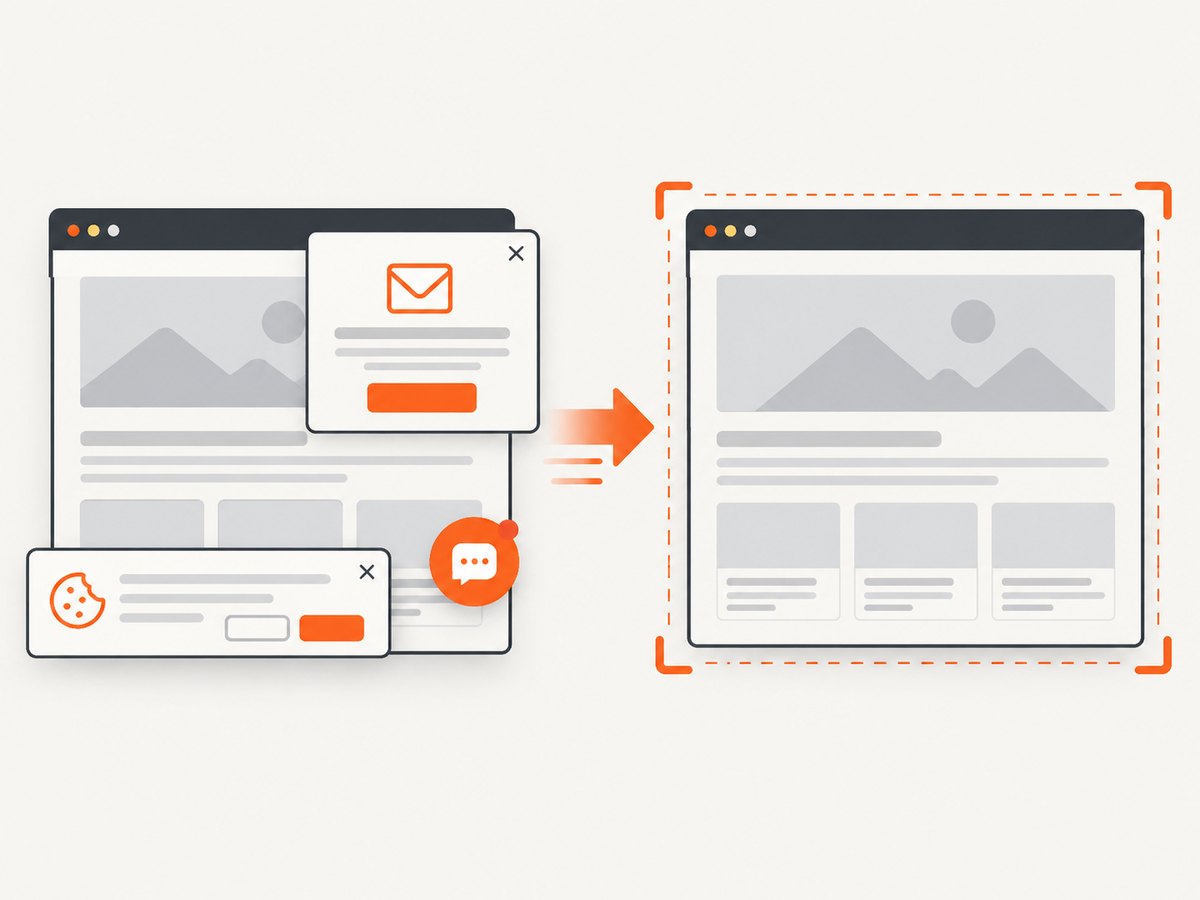
If your goal is dependable website screenshots rather than controlling every browser interaction, ScreenshotNeo provides a single HTTP request. It accepts the cookie or consent banner like a visitor and removes more than 60 known consent platforms, newsletter popups, and chat widgets before capture; each step can be turned off. Bot checks, CAPTCHAs, blank pages, timeouts, failed loads, and cache hits are not billed, and response headers identify the page verdict and billing result.
Read the ScreenshotNeo API documentation for all options, including full-page screenshots with lazy images loaded, CSS-selector element capture, dark mode, 12 device presets or custom viewports, retina scale, PDF paper sizes and page ranges, HTML/CSS rendering, custom CSS and JavaScript, clicks, selector or network-idle waits, request blocking, headers, cookies, user agents, Authorization, timezone, geolocation, transparent backgrounds, resizing, TTL caching, signed image links, asynchronous jobs with signed webhooks, bulk capture of up to 100 URLs per call, usage reporting, and the OpenAPI specification.
cURL
curl -G "https://api.screenshotneo.com/v1/shot" \
  -d access_key=YOUR_API_KEY \
  --data-urlencode url=https://stripe.com \
  -o shot.webp
Python
import requests

r = requests.get(
    "https://api.screenshotneo.com/v1/shot",
    params={"access_key": "YOUR_API_KEY", "url": "https://stripe.com"},
    timeout=90,
)
r.raise_for_status()
open("shot.webp", "wb").write(r.content)
Node.js
const q = new URLSearchParams({
  access_key: 'YOUR_API_KEY',
  url: 'https://stripe.com'
});
const res = await fetch(`https://api.screenshotneo.com/v1/shot?${q}`);
if (!res.ok) throw new Error(`HTTP ${res.status}`);
require('fs').writeFileSync('shot.webp', Buffer.from(await res.arrayBuffer()));
ScreenshotNeo also includes an MCP server with take_screenshot, get_page_info, and capture_pdf tools for Claude, Cursor, and other MCP clients. The Free plan includes 1,000 screenshots per month with no card; paid plans start at $5 for 3,000. Create your free ScreenshotNeo account.
9. Cost and operational considerations
With Playwright, Puppeteer, or CDP, you operate the browser runtime: compute, memory, browser downloads, CI minutes, patching, concurrency limits, and failure diagnostics. This is appropriate when tests need arbitrary interaction or access to browser internals. A hosted screenshot API can be simpler when the output is an image or PDF and you do not need to maintain Chrome processes. Compare total engineering and infrastructure cost with the number of captures, required concurrency, and how often pages fail for reasons unrelated to your code.
FAQ
Is Selenium required for Chrome automation?
No. Playwright, Puppeteer, and CDP clients can navigate, interact, test, and capture Chrome without Selenium.
Should I use Chromium or Google Chrome?
Use bundled Chromium for a controlled supported build. Use a documented Chrome channel when reproducing branded Chrome behavior, codecs, or enterprise policy.
Can Puppeteer run browsers other than Chrome?
Its documented APIs support Chrome and Firefox through CDP and WebDriver BiDi. Playwright is the clearer starting point when cross-browser projects are central.
When is raw CDP worth the extra work?
Choose it for protocol-level debugging, profiling, tracing, or custom tooling where direct Chrome domains matter more than a high-level API.
Can I combine these tools?
Yes. A test suite can use Playwright for normal flows and a CDP session for a specialized Chromium capability, provided you manage ownership of the connection and browser lifecycle carefully.


