How to Automate Chromium Extension Interactions with Python
Use Playwright's persistent Chromium context to load extensions, test page effects, inspect Manifest V3 workers, and automate popups with Python.
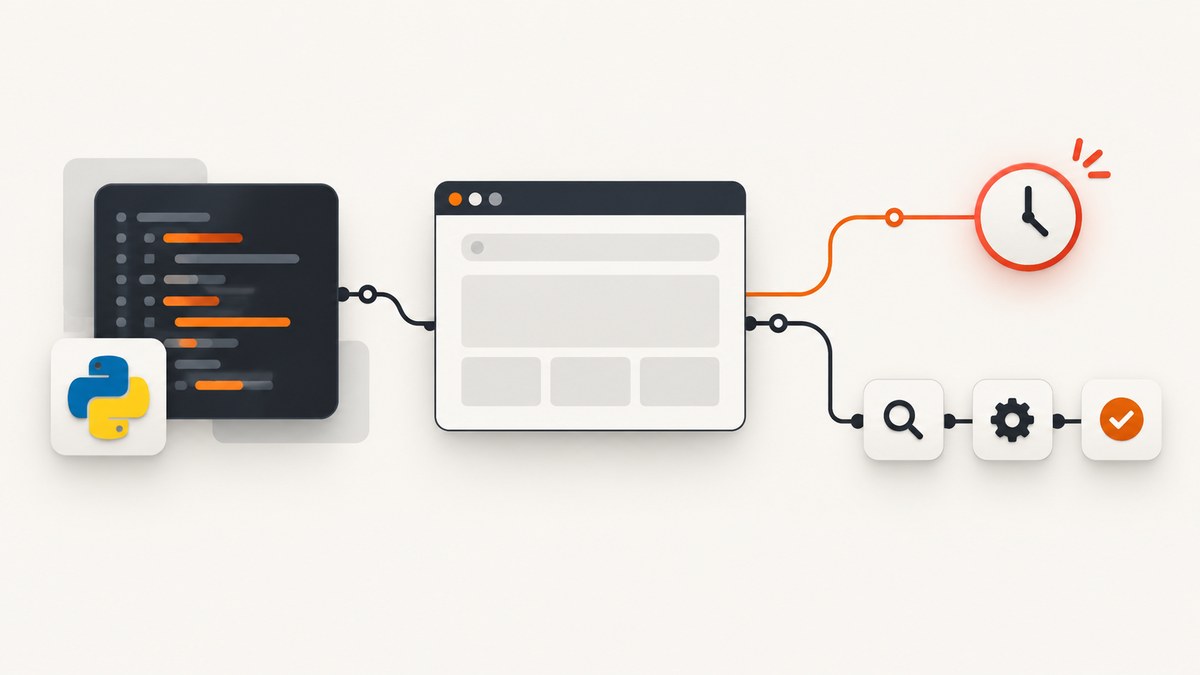
Use Playwright with a persistent Chromium context. Load the unpacked extension with --disable-extensions-except and --load-extension, then test the extension’s visible effect on ordinary pages. For Manifest V3 extensions, wait for the service worker and derive the extension ID from its URL. Open the popup through the library’s popup capability when available, or navigate to its chrome-extension:// URL.
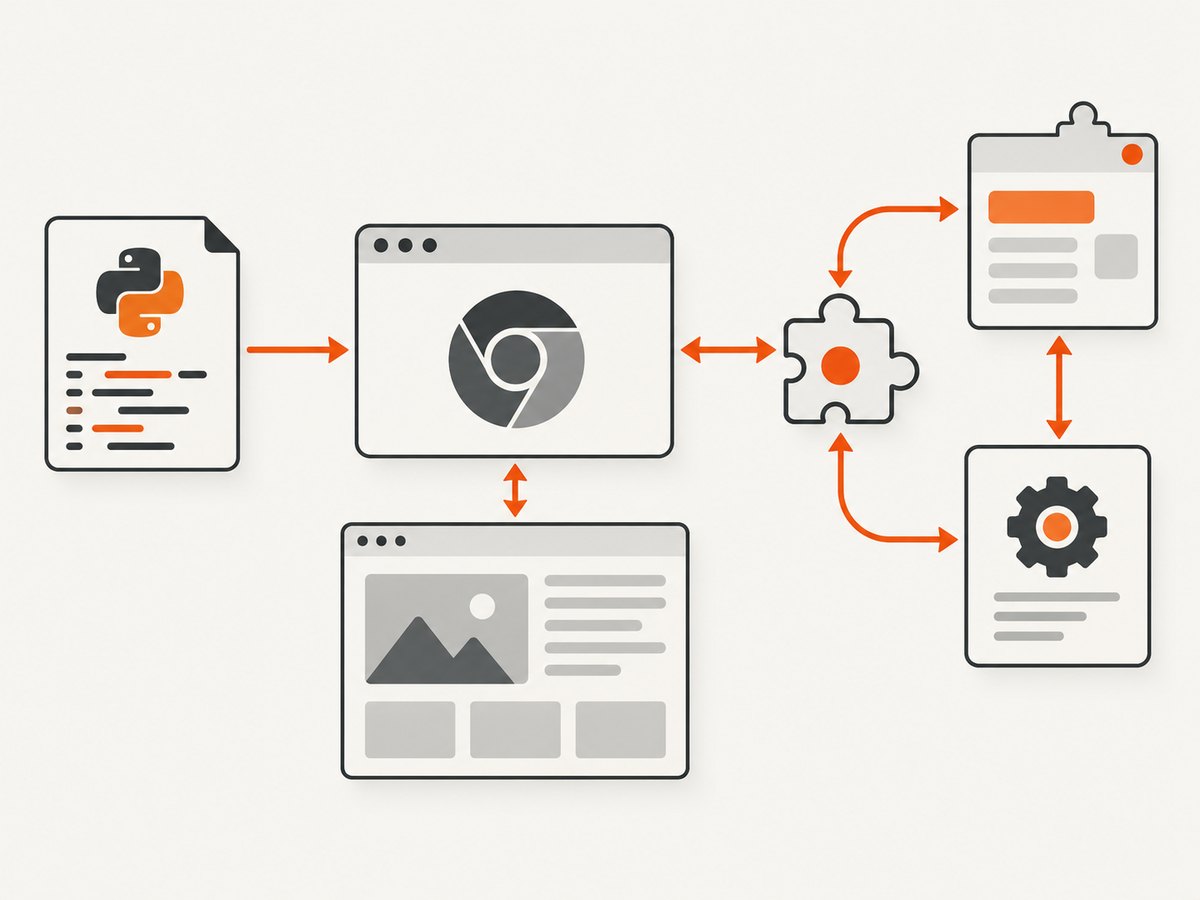
This distinction matters: automating a webpage that an extension modifies is usually straightforward, while extension-owned contexts such as a popup or Manifest V3 service worker need separate handling. Playwright’s Python guide documents the persistent-context approach and recommends its bundled Chromium because Google Chrome and Microsoft Edge removed the command-line flags needed to side-load extensions. Read the Playwright extension guide.
1. Choose the right test target
| What you need to verify | Recommended target | Typical assertion |
|---|---|---|
| Content script or page modification | A normal HTTP(S) page | A visible element, changed text, attribute, style, or navigation |
| Manifest V3 background logic | The extension service worker | Worker startup, messages, storage, or side effects required by the test |
| Toolbar popup UI | The popup document | Visible controls and the result of a user action |
| Options or settings page | The extension page URL | Form behavior and persisted settings |
Chrome recommends asserting user-visible behavior to keep extension tests less brittle. Use internals only when the test specifically covers worker or extension-page behavior. Chrome’s end-to-end extension testing guidance describes this approach.
2. Install Playwright and prepare an unpacked extension
python -m pip install playwright
python -m playwright install chromium
Your extension directory must contain the extension’s manifest.json and its referenced files. A minimal Manifest V3 layout might look like this:
my-extension/
  manifest.json
  content.js
  popup.html
  popup.js
  service-worker.js
{
"manifest_version": 3,
"name": "Example extension",
"version": "1.0.0",
"permissions": ["storage"],
"background": {"service_worker": "service-worker.js"},
"action": {"default_popup": "popup.html"},
"content_scripts": [{
"matches": ["https://example.com/*"],
"js": ["content.js"]
}]
}Use an absolute path for the extension. A dedicated temporary profile prevents cookies, permissions, and extension state from leaking between tests.
3. Load the extension in Chromium with Python
from pathlib import Path
from playwright.sync_api import sync_playwright

EXTENSION_PATH = Path(__file__).parent.joinpath("my-extension").resolve()
PROFILE_PATH = Path(__file__).parent.joinpath(".pw-profile").resolve()

with sync_playwright() as p:
    context = p.chromium.launch_persistent_context(
        user_data_dir=str(PROFILE_PATH),
        channel="chromium",
        headless=True,
        args=[
            f"--disable-extensions-except={EXTENSION_PATH}",
            f"--load-extension={EXTENSION_PATH}",
        ],
    )
    page = context.new_page()
    page.goto("https://example.com", wait_until="domcontentloaded")

    # Replace this with an assertion for your content script's effect.
    page.locator("body").wait_for()
    print(page.title())

    context.close()
Playwright requires a persistent context for extension loading. The chromium channel is the documented choice for headless extension runs; use headless=False when debugging visually. Browser flags and channel support can change, so pin the Playwright version in your project.

4. Test a content script on a normal webpage
from pathlib import Path
from playwright.sync_api import sync_playwright, expect

extension = Path("my-extension").resolve()
profile = Path(".pw-profile-content").resolve()

with sync_playwright() as p:
    context = p.chromium.launch_persistent_context(
        str(profile),
        channel="chromium",
        headless=True,
        args=[
            f"--disable-extensions-except={extension}",
            f"--load-extension={extension}",
        ],
    )
    page = context.new_page()
    page.goto("https://example.com", wait_until="domcontentloaded")

    # Example: content.js adds data-extension-ready="true" to <body>.
    expect(page.locator("body")).to_have_attribute(
        "data-extension-ready", "true"
    )
    context.close()
Prefer stable, user-visible selectors and behavior. If the extension waits for a late resource, wait for that visible result rather than adding a large fixed sleep.
5. Obtain and test a Manifest V3 service worker
from pathlib import Path
from playwright.sync_api import sync_playwright

extension = Path("my-extension").resolve()
profile = Path(".pw-profile-worker").resolve()

with sync_playwright() as p:
    context = p.chromium.launch_persistent_context(
        str(profile),
        channel="chromium",
        headless=True,
        args=[
            f"--disable-extensions-except={extension}",
            f"--load-extension={extension}",
        ],
    )

    worker = context.service_workers[0] if context.service_workers else None
    if worker is None:
        worker = context.wait_for_event("serviceworker")

    extension_id = worker.url.split("/")[2]
    print("worker:", worker.url)
    print("extension ID:", extension_id)

    # Evaluate only diagnostics that your worker intentionally exposes.
    # Example: service-worker.js defines self.testValue = "ready".
    value = worker.evaluate("() => self.testValue")
    print(value)

    context.close()
The worker may not exist until the extension starts background work. Waiting for the serviceworker event avoids racing startup. A worker can also be stopped and restarted by Chromium; design tests around observable behavior and reacquire the worker after a restart.
6. Open and automate the extension popup
The popup is an extension page, not the page currently under test. Once you have the extension ID, navigate directly to its URL:
from pathlib import Path
from playwright.sync_api import sync_playwright, expect

extension = Path("my-extension").resolve()
profile = Path(".pw-profile-popup").resolve()

with sync_playwright() as p:
    context = p.chromium.launch_persistent_context(
        str(profile),
        channel="chromium",
        headless=False,
        args=[
            f"--disable-extensions-except={extension}",
            f"--load-extension={extension}",
        ],
    )

    worker = context.service_workers[0] if context.service_workers else context.wait_for_event("serviceworker")
    extension_id = worker.url.split("/")[2]
    popup = context.new_page()
    popup.goto(f"chrome-extension://{extension_id}/popup.html")

    expect(popup.locator("body")).to_be_visible()
    popup.get_by_role("button", name="Enable").click()
    expect(popup.locator("[data-state]" )).to_have_attribute("data-state", "enabled")

    context.close()
If the popup assumes an active tab, direct navigation may not reproduce that context. Chrome’s guidance recommends using the automation library’s popup-opening capability when it provides one; otherwise open the popup URL in a tab and explicitly supply or mock the active-tab state your popup expects.
7. Handle permissions, storage, and test isolation
- Permissions: Declare the permissions required by the manifest and exercise the permission-dependent path explicitly. A missing host permission can look like a broken content script.
- Storage: Use a new profile directory per test or suite when state must be isolated. Reuse a profile only when testing persistence.
- Cross-origin pages: Match the URL in
content_scripts.matchesand account for frames. A script injected into the top frame may not run inside a cross-origin iframe. - Popup lifetime: Popups close when focus changes in headed operation. Keep assertions and clicks in one short sequence, or test shared logic separately on an extension page.
- Downloads and dialogs: Register Playwright listeners before the action that triggers the download, dialog, or new page.
- Network-dependent logic: Route or mock requests only when the test needs deterministic data. Keep at least one integration path against the real service.
8. Selenium as an alternative
Selenium can load an unpacked extension through Chrome options, but its service-worker behavior differs. Chrome’s documentation says Selenium does not directly access the service worker through the described approach, and ChromeDriver attaches a debugger to service workers, preventing their normal automatic termination during Selenium tests. See Selenium’s Chrome-specific documentation and Chrome’s extension testing notes.
from selenium import webdriver
from selenium.webdriver.chrome.options import Options

options = Options()
options.add_argument("--headless=new")
options.add_argument("--disable-extensions-except=/absolute/path/my-extension")
options.add_argument("--load-extension=/absolute/path/my-extension")

driver = webdriver.Chrome(options=options)
try:
    driver.get("https://example.com")
    print(driver.title)
finally:
    driver.quit()
Confirm the exact extension-installation API and flags for the Selenium and Chrome versions in your environment. Selenium’s current documentation also describes WebExtension installation through remote debugging and an enable-unsafe-extension-debugging switch.
9. Run reliably in CI
- Pin Playwright and install its Chromium revision during the build.
- Use a fresh writable profile directory for every worker.
- Run headless on CI machines without a graphical display; switch to headed mode locally when diagnosing popup or permission problems.
- For Selenium, use a pinned Chrome for Testing build with its matching ChromeDriver. Chrome recommends this pairing for repeatable automation. ChromeDriver downloads and version guidance.
- Collect screenshots, traces, console output, and the extension worker URL when a test fails.
- Close the persistent context in a
finallyblock so profiles and browser processes are released.
10. Performance, reliability, and cost considerations
- Startup: Launching a persistent browser is expensive compared with a single page action. Group related tests in one context when isolation permits, or run a small number of parallel contexts instead of one browser per assertion.
- Waiting: Prefer locator assertions, navigation conditions, and worker events over fixed sleeps. Fixed delays make fast runs slower and still fail on slower machines.
- Parallelism: Never share one profile directory between concurrent contexts. Give each worker its own directory.
- Worker lifecycle: Background workers can be suspended and restarted. Test the effect of the extension rather than assuming a worker remains alive.
- External services: Network calls add latency and flakiness. Mock deterministic cases and retain a smaller end-to-end suite.
- Cloud screenshots: Browser automation has infrastructure cost when you need rendered evidence from many URLs. ScreenshotNeo bills only clean shots; bot checks, blank pages, timeouts, failed loads, and cache hits are not billed, and each response reports the verdict and billing status in
X-Page-VerdictandX-Billedheaders.
11. Troubleshooting
| Symptom | Likely cause | Fix |
|---|---|---|
| Extension is not loaded | Non-persistent context or incorrect directory | Use launch_persistent_context, pass an absolute unpacked-extension path, and verify manifest.json is at the directory root. |
| Headless launch fails | Unsupported browser channel or flag | Install Playwright’s Chromium and use channel="chromium"; check the current Playwright and Chrome documentation. |
| Content script does nothing | URL does not match the manifest, permission is missing, or the page is inside a frame | Check matches, host permissions, frame targeting, and the browser console. |
| No service worker appears | Worker has not started or the extension is not Manifest V3 | Trigger the background path, wait for serviceworker, and verify the manifest’s background.service_worker entry. |
| Popup URL returns an error | Wrong extension ID or popup filename | Derive the ID from worker.url and use the exact file named by action.default_popup. |
| Popup loses state after a click | Popup closed when focus changed | Keep the interaction focused, use headed debugging, or move shared logic into a page that can be tested without popup lifetime constraints. |
| Tests pass locally but fail in CI | Unpinned browser, shared profile, missing display, or timing race | Pin browser versions, isolate profiles, run headless, and replace sleeps with event-based waits. |
| Selenium worker assertions hang | ChromeDriver’s debugger attachment changes worker lifecycle | Use Playwright for direct service-worker access, or limit Selenium tests to page and UI behavior. |
12. Or skip the browser setup
If your goal is a rendered image of a webpage affected by an extension, ScreenshotNeo handles website capture through one request. It does not replace tests of a private chrome-extension:// page or service worker, but it can remove the browser setup for capturing public URLs.
curl -G "https://api.screenshotneo.com/v1/shot" -d access_key=YOUR_API_KEY --data-urlencode url=https://example.com -o shot.webpimport requests
r = requests.get("https://api.screenshotneo.com/v1/shot", params={"access_key": "YOUR_API_KEY", "url": "https://example.com"}, timeout=90)
open("shot.webp", "wb").write(r.content)const q = new URLSearchParams({ access_key: 'YOUR_API_KEY', url: 'https://example.com' });
const res = await fetch(`https://api.screenshotneo.com/v1/shot?${q}`);See the ScreenshotNeo API documentation for the other capture options. Cookie banners, newsletter popups, and chat widgets are removed before the shot; bot checks, blank pages, and failed loads are never billed; and an MCP server lets AI agents such as Claude and Cursor take screenshots. The free plan includes 1,000 screenshots a month with no card, and paid plans start at $5 for 3,000 shots. Create a free ScreenshotNeo account.
FAQ
Can I load an extension into ordinary Google Chrome with Playwright?
The documented Playwright route uses its bundled Chromium because Google Chrome and Microsoft Edge removed the command-line flags needed to side-load extensions. Use the Chromium channel supplied by Playwright for this workflow.
How do I find the extension ID in a test?
Read the Manifest V3 worker URL and take the host portion: worker.url.split("/")[2]. That value is then used in a chrome-extension://<id>/... URL.
Should every test inspect the service worker?
No. Assert the visible page or popup result whenever possible. Inspect the worker only for background behavior that cannot be verified through the user-facing flow.
Can ScreenshotNeo capture my extension popup?
ScreenshotNeo captures website URLs. Use Playwright or Selenium for private chrome-extension:// pages and extension internals; use ScreenshotNeo when you need a clean capture of a publicly reachable webpage.


