How to Automate Form Submissions with Puppeteer
Use Puppeteer locators to fill and submit a form, then verify completion with the signal that matches the site. Includes runnable patterns, troubleshooting, and a screenshot API option.
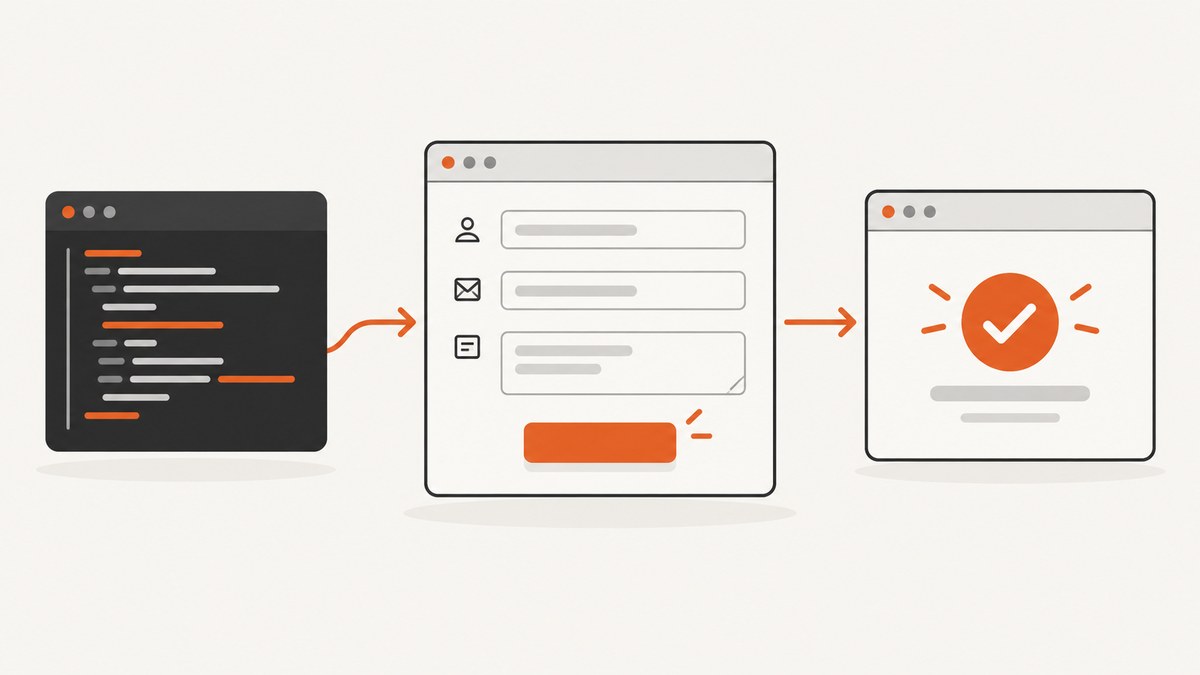
To automate a form submission with Puppeteer, open the form page, fill its controls with locators, submit it, and wait for the page’s actual completion signal. For a form that navigates or reloads, start waiting for navigation before clicking Submit. For a single-page app, wait for its success message or another site-specific state instead. Navigation alone does not prove that a submission succeeded.
The examples below use placeholder URLs, selectors, values, and success conditions. Replace them with ones from a form you are authorized to use. Puppeteer’s interaction guide recommends locators for selecting elements and interacting with them; locators wait for documented interaction preconditions such as visibility, enabled state, and a stable bounding box. [Puppeteer page interactions]
1. Install Puppeteer and prepare a script
Use a Node.js project with ES modules. The following setup installs Puppeteer, which the official getting-started guide uses to launch a browser, open a page, and perform interactions. The package can download a compatible browser as part of installation. If your project already has Puppeteer configured, use its existing setup. [Puppeteer getting started]
mkdir puppeteer-form
cd puppeteer-form
npm init -y
npm install puppeteer
Save the script as submit-form.mjs. You will replace https://example.com/form, the selectors, the field values, and the success selector with details from the target site.
2. Fill fields and submit a form that navigates
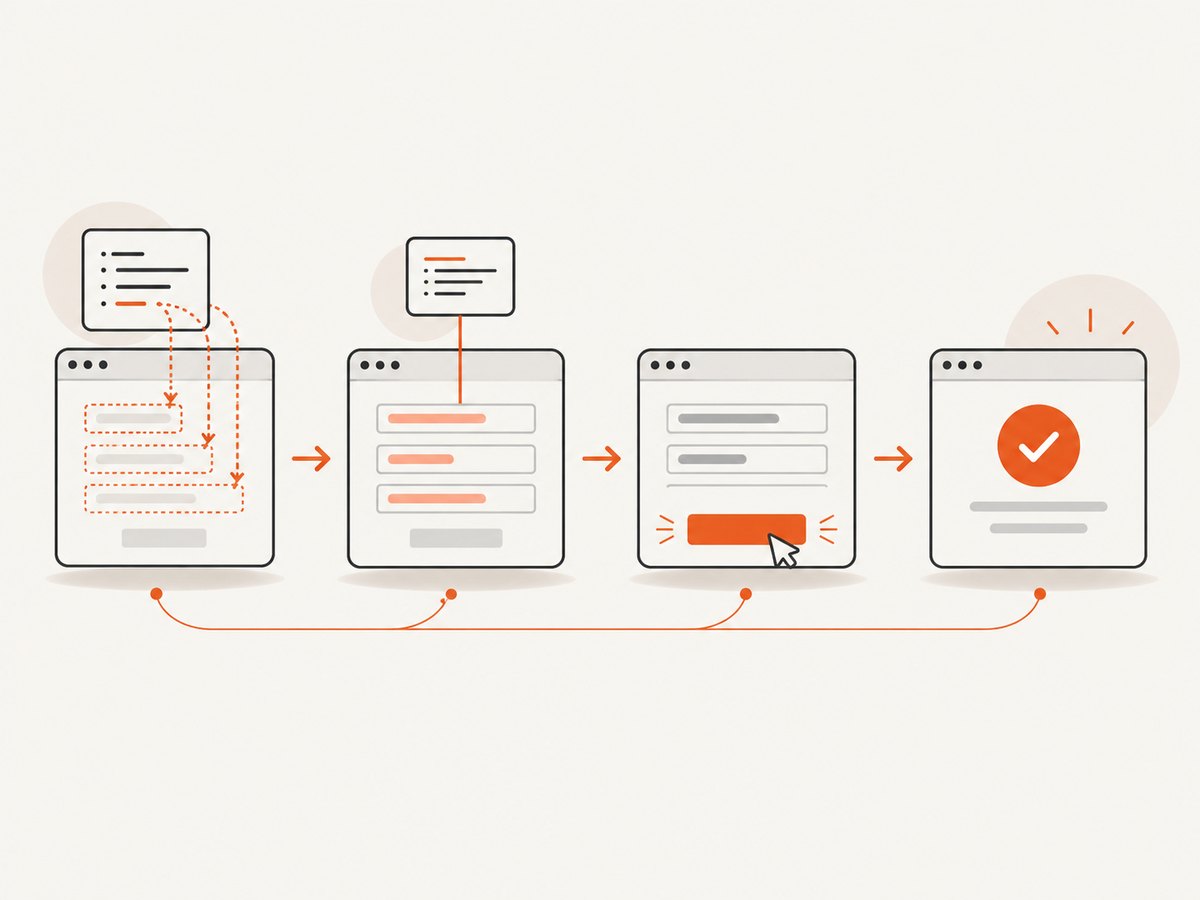
This complete example fills text and email inputs, selects a native option, submits the form, and checks for a site-specific confirmation. The navigation wait is registered before the click with Promise.all, avoiding a race in which navigation starts before Puppeteer begins waiting for it. [waitForNavigation API]
import puppeteer from 'puppeteer';

const browser = await puppeteer.launch();
try {
  const page = await browser.newPage();
  await page.goto('https://example.com/form', {
    waitUntil: 'domcontentloaded',
  });

  await page.locator('input[name="name"]').fill('Ada Lovelace');
  await page.locator('input[name="email"]').fill('ada@example.com');
  await page.locator('select[name="topic"]').fill('support');
  await page.locator('textarea[name="message"]').fill(
    'I have a question about my account.'
  );

  const [response] = await Promise.all([
    page.waitForNavigation(),
    page.locator('button[type="submit"]').click(),
  ]);

  // Navigation can return null for some History API or anchor changes.
  // Check the real success state before treating the submission as complete.
  await page.locator('[data-testid="submission-success"]').wait();
  console.log('Confirmation appeared. Navigation response:', response?.status() ?? 'none');
} finally {
  await browser.close();
}
The confirmation selector is illustrative: the target page may use a heading, URL, status message, or another signal. A successful HTTP response only says something about the navigation response; it does not establish that the form’s business operation succeeded. Inspect the target page’s behavior and choose a confirmation signal that represents completion.
3. Choose selectors that match the form
Use selectors that identify the intended control consistently. A semantic attribute such as input[name="email"] is usually easier to understand and maintain than a positional selector such as form > div:nth-child(2) input. Puppeteer supports CSS selectors and additional selector syntax, including text, accessibility, XPath, and shadow DOM traversal. [Selector and locator guidance]
| Control | Example | Notes |
|---|---|---|
| Text or email input | input[name="email"] |
Use fill() to set a value. |
| Textarea | textarea[name="message"] |
Use fill(); verify the field’s actual name. |
| Native select | select[name="topic"] |
Fill with an option value, not necessarily its visible label. |
| Checkbox | input[name="terms"] |
Click only if the intended state is unchecked; inspect its state when repeated runs are possible. |
| Submit button | button[type="submit"] |
Scope it to the intended form if the page has multiple forms. |
When a page has duplicate controls, scope the locator to the form itself, for example page.locator('form#contact').locator('input[name="email"]'). Avoid selectors derived from incidental styling classes if the page exposes a more stable name, label, role, or test identifier.
4. Handle selects, checkboxes, and repeated submissions
Locator fill() can fill select elements when appropriate. For a native select, the page-level select() method is another option; it selects option values and triggers input and change events. For a multiple select, pass the values to select. [Page.select API]
// Native single select: option value, not display text.
await page.select('select[name="topic"]', 'support');

// Native multiple select: provide all option values to select.
await page.select('select[name="interests"]', 'billing', 'technical');

// Checkbox: click only when it is not already checked.
const terms = page.locator('input[name="terms"]');
if (!(await terms.isChecked())) {
  await terms.click();
}
For repeatable automation, consider whether a rerun could create a duplicate record, send another email, or charge an account. Use the target service’s supported idempotency mechanism if it offers one, or check for an existing result before submitting again. Puppeteer does not make a form operation idempotent by itself.
5. Wait for the right completion signal
Choose a wait based on how the form behaves. Puppeteer’s navigation API returns the main resource response or null for some navigations, such as History API or anchor changes. A single-page application may submit in the background without a navigation at all. [Navigation API]
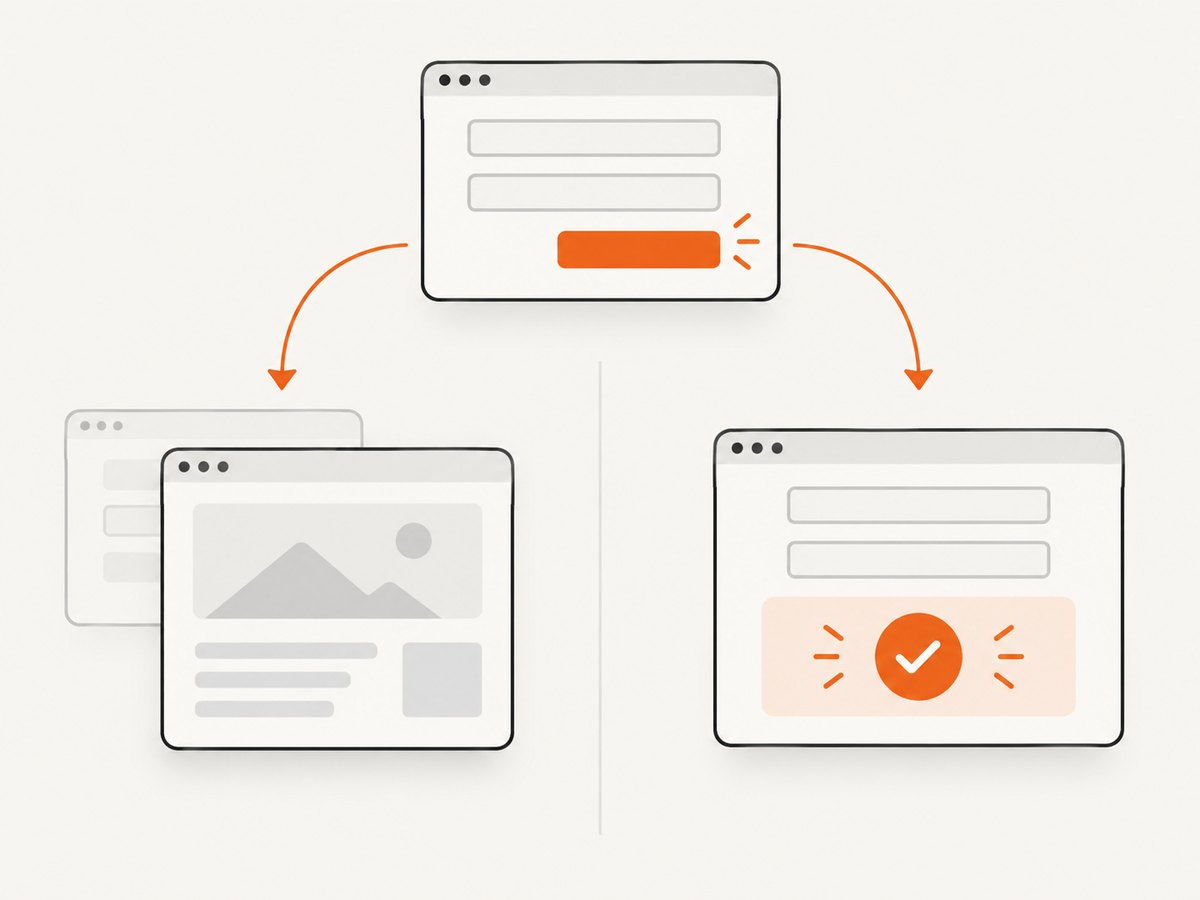
Traditional navigation or reload
const [response] = await Promise.all([
  page.waitForNavigation(),
  page.locator('button[type="submit"]').click(),
]);
console.log('Navigation status:', response?.status() ?? 'no main response');
Single-page app with a confirmation element
await page.locator('button[type="submit"]').click();
await page.locator('[role="status"]').wait();
Use the real selector and state from the application. A generic status role may exist before submission, so when necessary wait for a specific text or a change from the pre-submit state. Do not assume a particular form’s success message.
Completion tied to a request
If the application makes a distinct request during submission, you can wait for that request alongside the click. Match the actual endpoint and response behavior of the site; a request completing may still indicate a validation error or server failure, so inspect the result too. Puppeteer supports waiting for requests as well as navigation and page functions. [waitForRequest API]
const [request] = await Promise.all([
  page.waitForRequest(request =>
    request.url().includes('/api/forms') && request.method() === 'POST'
  ),
  page.locator('button[type="submit"]').click(),
]);
console.log('Observed submission request:', request.url());
6. Use lower-level selector APIs only when needed
Locators are the recommended interaction approach. A lower-level pattern using waitForSelector() and an element handle may help when you specifically need handle-based operations, but it requires more manual care. A selector wait does not automatically retry the subsequent action, and an ElementHandle may need disposal. [Interaction guide]
const button = await page.waitForSelector('button[type="submit"]');
if (!button) throw new Error('Submit button was not found');
try {
  await button.click();
} finally {
  await button.dispose();
}
For ordinary form filling and clicking, start with locators to reduce manual waiting and handle management.
7. Or skip the browser setup
If your goal is a screenshot of the form page before or after a workflow, ScreenshotNeo can return an image with one GET request. It is a website screenshot API and MCP server for developers. It does not submit forms; use Puppeteer for the form interaction itself. The API accepts a URL and returns PNG, JPEG, WebP, or PDF. See the ScreenshotNeo API docs.
curl -G "https://api.screenshotneo.com/v1/shot" \
  -d access_key=YOUR_API_KEY \
  --data-urlencode url=https://example.com/form \
  -o shot.webp
Python:
import requests

r = requests.get(
    "https://api.screenshotneo.com/v1/shot",
    params={"access_key": "YOUR_API_KEY", "url": "https://example.com/form"},
    timeout=90,
)
open("shot.webp", "wb").write(r.content)
Node.js:
const q = new URLSearchParams({
  access_key: 'YOUR_API_KEY',
  url: 'https://example.com/form',
});
const res = await fetch(`https://api.screenshotneo.com/v1/shot?${q}`);
if (!res.ok) throw new Error(`Screenshot request failed: ${res.status}`);
await Bun.write('shot.webp', res);
Cookie banners, newsletter popups, and chat widgets are removed before the shot; each cleanup step can be turned off. Bot checks, blank pages, timeouts, and failed loads are never billed, and cache hits cost nothing; response headers identify the page verdict and billing status. An MCP server gives AI agents tools to take screenshots, inspect page info, and capture PDFs. The free plan includes 1,000 shots a month with no card; paid plans start at $5 for 3,000 shots. Learn about ScreenshotNeo or sign up for 1,000 free screenshots a month.
8. Troubleshooting common failures
| Symptom | Likely cause | Fix |
|---|---|---|
| Locator times out | Wrong selector, delayed rendering, hidden control, or a different page state. | Inspect the current page and selector; wait for the relevant UI state, then use a locator matching the rendered control. |
| Fill appears to do nothing | The selector matched the wrong element, the field is not editable, or the app overwrote the value. | Use a specific locator for the editable field and verify the resulting value or visible state before submission. |
| Select option is not chosen | The supplied value is not an option value, or the control is not a native select. | Inspect the option values. For a custom dropdown, interact with its actual trigger and option elements. |
| Navigation wait hangs | The form submits asynchronously and does not navigate. | Remove the navigation wait and await the site’s confirmation state or relevant request instead. |
| Click races with navigation | The wait was started after the click. | Register the navigation wait before clicking using the documented Promise.all pattern. |
| Script reports completion after an error | It treated navigation or a request as proof of success. | Check a success state and handle validation or server errors exposed by the page. |
| Duplicate submissions on rerun | The previous result was not checked before retrying. | Determine whether the first attempt completed; use an idempotency feature or duplicate check supported by the target system. |
| Autofill does not populate ordinary fields | Puppeteer’s documented autofill API is limited to credit-card autofill and specified Chrome modes. | Use locators and fill() for general form fields. [Autofill API] |
9. Performance, reliability, and cost
Browser automation starts a browser and page, so reuse a browser process when running many authorized submissions rather than launching one per field or one per record. Keep each page’s waits focused on the required interaction and completion condition; waiting for a broad network-idle condition can be unsuitable on pages with persistent requests. Pick a navigation readiness condition that fits the page instead of treating every loaded resource as necessary.
Reliability comes from observing the actual outcome. Locators handle documented action preconditions, but they cannot make a changing site selector stable or decide whether a business operation succeeded. Use stable selectors, explicit validation handling, and a confirmation condition. Ensure browser closure in a finally block so failures do not leave the process running.
Cost depends on where the script runs: account for the compute or browser service you choose, execution time, and any target-site charges. Puppeteer itself does not define a universal per-submission price. Respect the target site’s terms, rate limits, and authorization, especially when automating repeated submissions. ScreenshotNeo pricing applies to screenshots rather than form submissions: Free is 1,000 shots/month; Starter is $5 for 3,000, Growth $15 for 15,000, Pro $39 for 60,000, Scale $99 for 250,000, and Business $249 for 1,000,000. Yearly billing gives two months free, and every feature is on every plan.
10. FAQ
Can Puppeteer submit a form without clicking its button?
It can interact with page elements in several ways, but for a normal user-like workflow, clicking the actual submit control makes the page’s event handling and validation run as expected. Choose an alternative only when the application’s behavior calls for it.
Can I use autofill for a contact form?
The documented ElementHandle.autofill() support is for credit-card autofill, not arbitrary contact or registration fields. Use locator fill() for ordinary inputs.
Does a 200 response mean the submission worked?
No. It may only show that a page or request returned successfully. Confirm the result using the application’s own success state or response semantics.
Can ScreenshotNeo perform the submission?
No. ScreenshotNeo captures a page as an image or PDF. Use Puppeteer to interact with and submit the form, then use a screenshot API if you need a captured visual result.


