How to Automate HTML5 Video Seek and Volume Controls
Build reliable HTML5 video seek, skip, volume, mute, autoplay, and accessible custom controls with complete JavaScript examples.
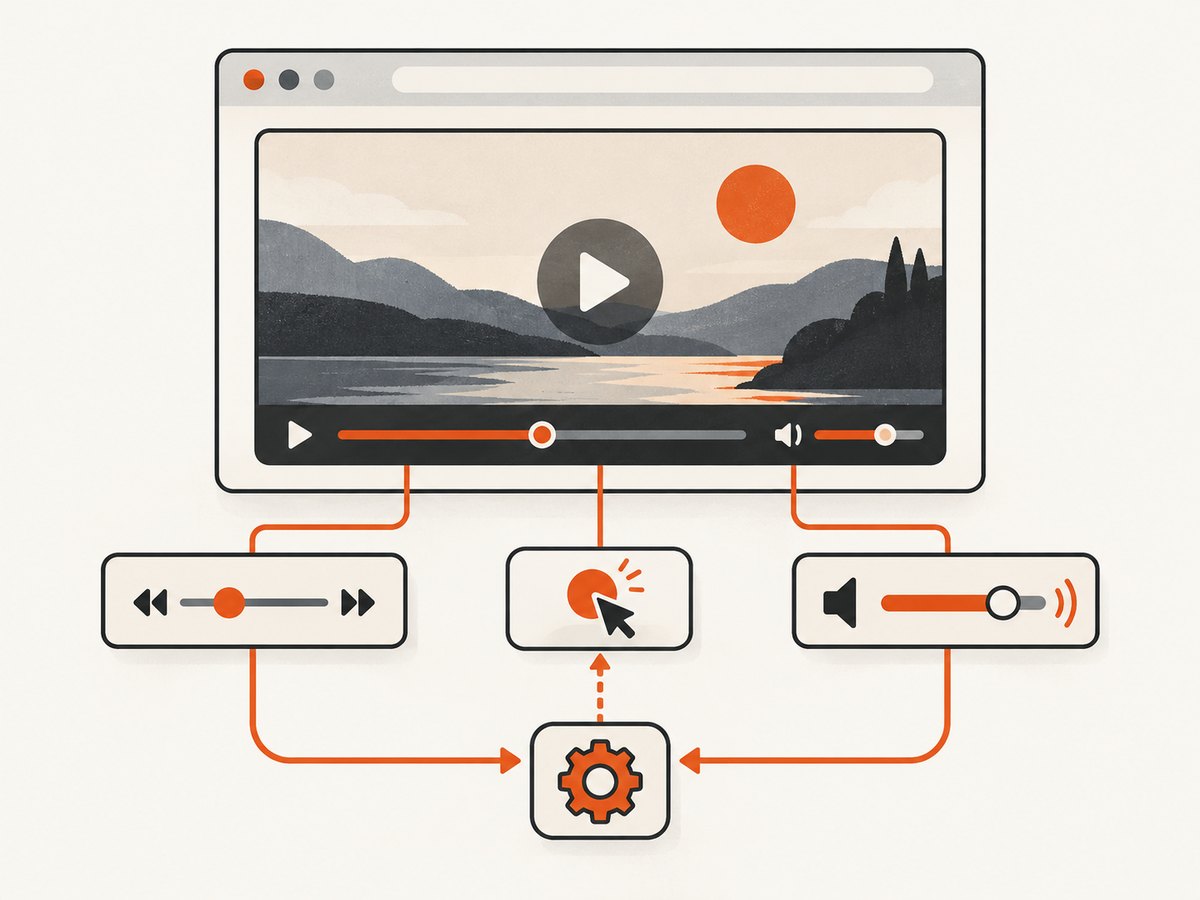
Use the HTMLMediaElement API. Set video.currentTime to seek, set video.volume between 0 and 1 for volume, and set video.muted for mute. Keep the native controls attribute as a fallback unless a custom interface is necessary.
The browser’s built-in video controls already provide play, pause, seeking, and volume controls when controls is present. For custom buttons and sliders, keep a reference to the <video> element and synchronize your interface with media events. The MDN video element reference and the WHATWG HTML media specification document the native behavior.
1. A complete working example
Save this as index.html and open it from a local web server. Replace movie.mp4 with a video your server can deliver.
<!doctype html>
<html lang="en">
<head>
  <meta charset="utf-8">
  <meta name="viewport" content="width=device-width, initial-scale=1">
  <title>Custom HTML5 video controls</title>
  <style>
    :root { color-scheme: light dark; }
    body { font: 1rem system-ui, sans-serif; max-width:  fiftyrem; margin: 2rem auto; padding: 0 1rem; }
    video { display: block; width: 100%; max-height: 60vh; background: #000; }
    .controls { display: flex; flex-wrap: wrap; gap: .75rem; align-items: center; margin-top: .75rem; }
    button, input { font: inherit; }
    button { padding: .45rem .7rem; }
    label { display: inline-flex; gap: .4rem; align-items: center; }
    output { min-width: 5rem; }
    [hidden] { display: none !important; }
  </style>
</head>
<body>
  <h1>Video controls</h1>

  <video id="player" controls preload="metadata" playsinline>
    <source src="movie.mp4" type="video/mp4">
    Your browser does not support HTML5 video.
  </video>

  <div class="controls" aria-label="Custom video controls">
    <button id="back10" type="button">−10 seconds</button>
    <button id="forward10" type="button">+10 seconds</button>
    <button id="mute" type="button" aria-pressed="false">Mute</button>
    <label for="volume">Volume
      <input id="volume" type="range" min="0" max="1" step="0.01" value="1">
    </label>
    <output id="time" aria-live="polite">0:00 / 0:00</output>
  </div>

  <p id="playHelp" hidden>Playback was blocked. Press the video play button to start it.</p>

  <script>
    const video = document.querySelector('#player');
    const back10 = document.querySelector('#back10');
    const forward10 = document.querySelector('#forward10');
    const volume = document.querySelector('#volume');
    const mute = document.querySelector('#mute');
    const time = document.querySelector('#time');
    const playHelp = document.querySelector('#playHelp');

    let volumeBeforeMute = 1;

    function clamp(value, minimum, maximum) {
      return Math.min(Math.max(value, minimum), maximum);
    }

    function formatTime(seconds) {
      if (!Number.isFinite(seconds)) return '0:00';
      const total = Math.max(0, Math.floor(seconds));
      const minutes = Math.floor(total / 60);
      const remaining = String(total % 60).padStart(2, '0');
      return `${minutes}:${remaining}`;
    }

    function updateTime() {
      time.value = `${formatTime(video.currentTime)} / ${formatTime(video.duration)}`;
    }

    function updateVolumeUI() {
      volume.value = String(video.muted ? 0 : video.volume);
      mute.textContent = video.muted ? 'Unmute' : 'Mute';
      mute.setAttribute('aria-pressed', String(video.muted));
    }

    back10.addEventListener('click', () => {
      video.currentTime = Math.max(0, video.currentTime - 10);
    });

    forward10.addEventListener('click', () => {
      const target = video.currentTime + 10;
      video.currentTime = Number.isFinite(video.duration)
        ? Math.min(video.duration, target)
        : target;
    });

    volume.addEventListener('input', (event) => {
      const nextVolume = clamp(Number(event.target.value), 0, 1);
      video.volume = nextVolume;
      video.muted = nextVolume === 0;
      if (nextVolume > 0) volumeBeforeMute = nextVolume;
    });

    mute.addEventListener('click', () => {
      if (video.muted || video.volume === 0) {
        video.muted = false;
        video.volume = volumeBeforeMute || 1;
      } else {
        volumeBeforeMute = video.volume;
        video.muted = true;
      }
      updateVolumeUI();
    });

    video.addEventListener('loadedmetadata', updateTime);
    video.addEventListener('timeupdate', updateTime);
    video.addEventListener('volumechange', updateVolumeUI);

    // play() returns a Promise and can reject when autoplay is not allowed.
    video.play().catch(() => {
      playHelp.hidden = false;
    });

    updateTime();
    updateVolumeUI();
  </script>
</body>
</html>
The example keeps native controls visible while the custom buttons add fixed ten-second jumps, a volume slider, mute state, and a time readout. The native controls remain useful if JavaScript fails or a browser exposes additional media controls.
2. Seeking with currentTime
currentTime is measured in seconds. Reading it tells you the current playback position; assigning it requests a seek. The MDN currentTime documentation covers the property and its limitations.
const video = document.querySelector('video');

// Rewind by ten seconds, never before the beginning.
video.currentTime = Math.max(0, video.currentTime - 10);

// Forward by ten seconds, never beyond a known duration.
const requested = video.currentTime + 10;
video.currentTime = Number.isFinite(video.duration)
  ? Math.min(video.duration, requested)
  : requested;
Seek to a percentage
function seekToFraction(fraction) {
  if (!Number.isFinite(video.duration)) return;
  const safeFraction = Math.min(1, Math.max(0, fraction));
  video.currentTime = safeFraction * video.duration;
}

seekToFraction(0.5); // seek to 50%
Do not calculate a percentage until metadata is available. Before loadedmetadata, duration may be NaN. For a custom seek bar, update its maximum after metadata loads and update its value during timeupdate.
const seek = document.querySelector('#seek');

video.addEventListener('loadedmetadata', () => {
  seek.max = String(video.duration);
  seek.value = String(video.currentTime);
});

video.addEventListener('timeupdate', () => {
  seek.value = String(video.currentTime);
});

seek.addEventListener('input', () => {
  video.currentTime = Number(seek.value);
});
Seeking can be restricted by the media itself. Live streams may have a moving seekable window rather than a duration, and a server that cannot satisfy byte-range requests may make seeking slow or unavailable. Inspect video.seekable when you need to present only ranges the browser can reach.
Seek events
seekingfires when a seek starts.seekedfires when the browser finishes seeking.timeupdateis suitable for a progress display, but its frequency is implementation-driven and multiple reads may show the same timestamp.
video.addEventListener('seeking', () => {
  document.body.dataset.seeking = 'true';
});

video.addEventListener('seeked', () => {
  delete document.body.dataset.seeking;
});
3. Volume, mute, and a slider
volume accepts a number from 0 to 1, where 0 is silent and 1 is full volume. The MDN volume documentation describes the property. A range input maps naturally to that interval.
const volumeSlider = document.querySelector('#volume');

volumeSlider.addEventListener('input', (event) => {
  const level = Number(event.target.value);
  video.volume = Math.min(1, Math.max(0, level));
  video.muted = level === 0;
});

video.addEventListener('volumechange', () => {
  volumeSlider.value = String(video.muted ? 0 : video.volume);
});
Mute is separate from volume. Setting muted = true preserves the previous volume, which lets an unmute button restore it. A user can also mute through the browser’s native controls, so listen for volumechange instead of assuming your button is the only source of state changes.
let previousVolume = video.volume;

function toggleMute() {
  if (video.muted || video.volume === 0) {
    video.muted = false;
    video.volume = previousVolume || 1;
  } else {
    previousVolume = video.volume;
    video.muted = true;
  }
}

video.addEventListener('volumechange', () => {
  console.log({ muted: video.muted, volume: video.volume });
});
4. Autoplay and play() failures
video.play() returns a Promise. Browsers commonly reject it when audible autoplay is not permitted. Autoplay may be allowed after user interaction, for muted or zero-volume media, through an allowlist, or under an iframe Permissions Policy. See MDN’s autoplay guide.
video.play().then(() => {
  // Playback started.
}).catch((error) => {
  // Keep the video paused and show an explicit play button.
  console.debug('Autoplay was blocked', error);
  document.querySelector('#playHelp').hidden = false;
});
For a muted inline preview, use muted and playsinline in the markup, but still provide an accessible unmute control:
<video autoplay muted playsinline loop>
  <source src="preview.mp4" type="video/mp4">
</video>
5. Native controls or a custom interface?
| Choice | Best when | Trade-off |
|---|---|---|
Native controls |
You need reliable playback, seeking, keyboard behavior, and a quick implementation. | Styling and exact control layout vary by browser. |
| Custom controls | Your design system needs custom actions, analytics hooks, external progress, or synchronized UI. | You must implement accessibility, keyboard behavior, state synchronization, and failure handling. |
Do not remove native controls until the custom interface covers play, pause, seeking, volume, mute, focus, keyboard operation, and failure states. Use actual <button> elements, visible labels or accurate aria-label values, and a visible focus style. Announce important state changes such as mute status when appropriate. MDN’s accessible multimedia example recommends pausing and setting currentTime = 0 for a stop-like action because HTMLMediaElement has no stop() method: accessible audio and video guidance.
6. Common errors and fixes
| Symptom | Likely cause | Fix |
|---|---|---|
play() rejects with a NotAllowedError |
Audible autoplay is blocked. | Catch the Promise rejection, show a play button, or start muted and provide unmute. |
| The seek button does nothing | Metadata is not loaded, the media is live, or the requested range is unavailable. | Wait for loadedmetadata, check duration and seekable, and use a server that supports byte ranges. |
| The slider jumps back | Only the slider is updated; native controls or another event changed the volume. | Listen for volumechange and update every volume indicator from media state. |
| Unmute restores silence | The previous volume was saved as zero or the element remains muted. | Store the last positive volume, set muted = false, and restore a value such as 1 when none exists. |
Time shows NaN |
Metadata has not loaded or the stream has no finite duration. | Format non-finite values safely and wait for loadedmetadata. |
| Seeking is slow or inaccurate | The file lacks efficient keyframes or range delivery. | Encode suitable keyframes and configure HTTP byte-range support; test on the actual delivery path. |
| Custom buttons cannot be reached by keyboard | Non-semantic clickable elements were used. | Use real buttons, preserve tab order, and test Enter and Space activation. |
| Video works locally but not in production | Wrong MIME type, CORS policy, mixed content, or an incorrect source URL. | Inspect the Network panel and response headers, serve the correct media type over HTTPS, and configure the required cross-origin policy. |
7. Performance and reliability guidance
- Use
preload="metadata"when you need duration without downloading the whole file immediately. Usepreload="none"for pages where playback is optional. - Use
playsinlinefor mobile layouts where inline playback is preferred. - Throttle expensive work triggered by
timeupdate. Updating a small text node or range value is inexpensive; layout-heavy rendering on every event is not. - Use
requestAnimationFramefor a smooth visual progress indicator, but treat media events as the source of truth. - Keep the UI resilient when duration is unknown, the network stalls, the user changes volume through native controls, or a seek request is outside the current range.
- For long files, encode keyframes often enough for the seek behavior your application promises. The browser cannot seek precisely to a frame that the delivery format cannot efficiently reach.
let animationFrame;

function renderProgress() {
  const fraction = Number.isFinite(video.duration) && video.duration > 0
    ? video.currentTime / video.duration
    : 0;
  document.querySelector('#progress').style.width = `${fraction * 100}%`;
  animationFrame = requestAnimationFrame(renderProgress);
}

video.addEventListener('play', () => {
  cancelAnimationFrame(animationFrame);
  renderProgress();
});

video.addEventListener('pause', () => {
  cancelAnimationFrame(animationFrame);
});
8. Or skip the browser setup
If your goal is to capture a page containing a video and inspect its rendered state, ScreenshotNeo provides a website screenshot API. It accepts one GET request and returns PNG, JPEG, WebP, or PDF. You can still build and debug the HTML5 controls yourself, then capture the result without maintaining browser automation.
See the ScreenshotNeo API documentation for request options.
cURL
curl -G "https://api.screenshotneo.com/v1/shot" -d access_key=YOUR_API_KEY --data-urlencode url=https://example.com/video-demo -o shot.webpPython
import requests

r = requests.get(
    "https://api.screenshotneo.com/v1/shot",
    params={"access_key": "YOUR_API_KEY", "url": "https://example.com/video-demo"},
    timeout=90,
)
r.raise_for_status()
open("shot.webp", "wb").write(r.content)
Node.js
const q = new URLSearchParams({
  access_key: 'YOUR_API_KEY',
  url: 'https://example.com/video-demo'
});
const res = await fetch(`https://api.screenshotneo.com/v1/shot?${q}`);
if (!res.ok) throw new Error(`Screenshot failed: ${res.status}`);
const buffer = Buffer.from(await res.arrayBuffer());
require('fs').writeFileSync('shot.webp', buffer);
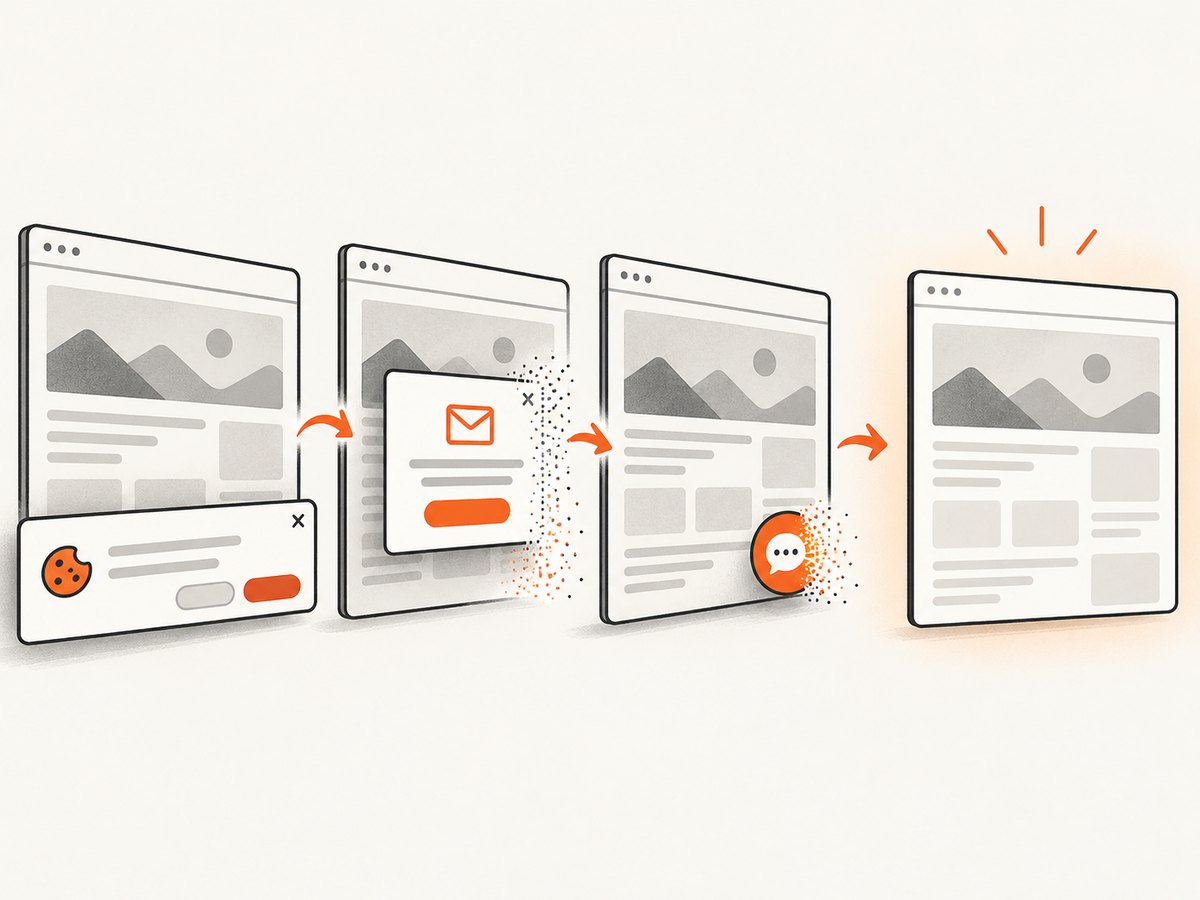
ScreenshotNeo removes cookie and consent banners, newsletter popups, and chat widgets before capture. Bot checks, blank pages, timeouts, failed loads, and cache hits are not billed, and the response identifies the result with X-Page-Verdict and X-Billed headers. Its MCP server provides take_screenshot, get_page_info, and capture_pdf tools for Claude, Cursor, and other MCP clients. The free plan includes 1,000 screenshots per month with no card; paid plans start at $5 for 3,000.
Create a free ScreenshotNeo account to capture up to 1,000 screenshots each month without a card.
9. Practical implementation checklist
- Keep
controlsuntil your custom UI covers the complete playback workflow. - Clamp rewind and fast-forward targets.
- Wait for
loadedmetadatabefore using a finite duration. - Handle live streams and unavailable seek ranges.
- Listen for
timeupdate,seeking,seeked, andvolumechange. - Catch the Promise returned by
play(). - Use semantic buttons, labels, keyboard access, and visible focus.
- Preserve a positive volume value when muting.
- Check media response headers, byte-range support, MIME type, HTTPS, and CORS in production.
FAQ
Can I seek without showing native controls?
Yes. Assign currentTime from your own buttons or range input, but you must provide equivalent keyboard and accessibility behavior yourself.
What is the difference between volume zero and muted?
Both are silent, but muted is a separate Boolean state. Muting lets you preserve and later restore the previous nonzero volume.
Why is video.duration infinite?
Live media commonly has no fixed end. Use the element’s seekable ranges and avoid a percentage seek bar that assumes a finite duration.
Should I use a ten-second button or a fixed percentage jump?
Use seconds for predictable user actions such as “skip 10 seconds.” Use a percentage only when the media has a known finite duration and the interface is explicitly position-based.
Does ScreenshotNeo replace HTML5 video controls?
No. Your page still implements and runs the video controls. ScreenshotNeo captures the rendered page when you need an image or PDF of that result.


