How to Automate Image Creation with Zapier
Build a reliable Zapier workflow that turns prompts into images, stores them safely, applies brand rules, and sends finished assets where they belong.
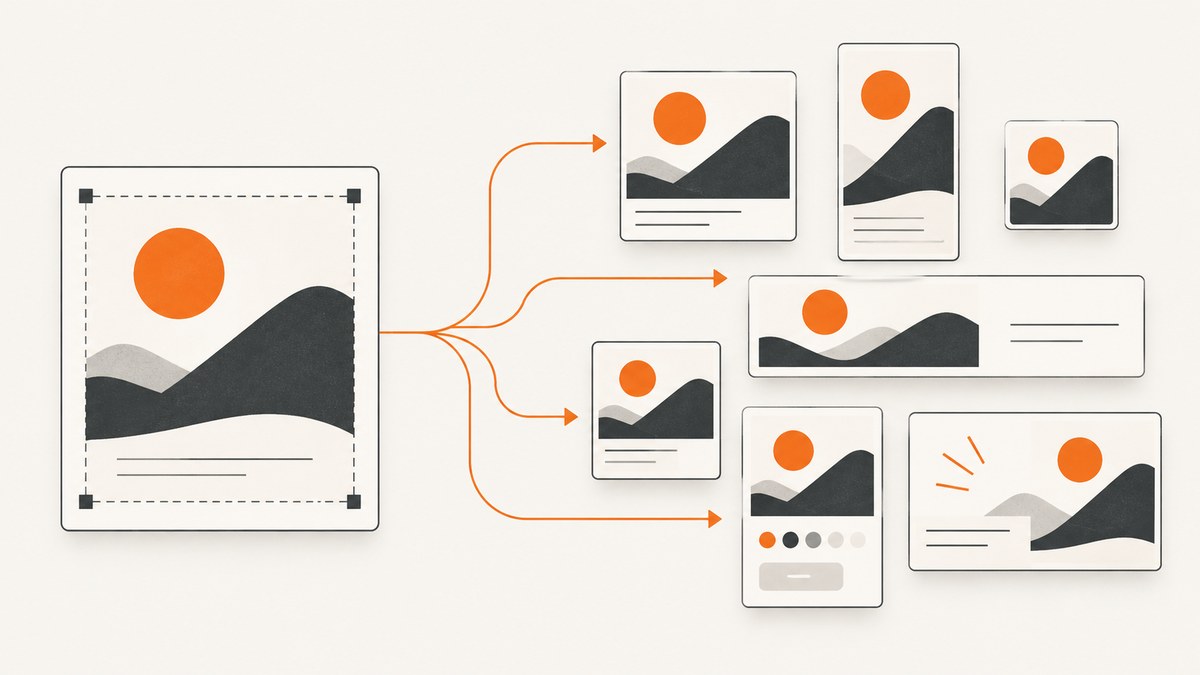
Direct answer: automate image creation in Zapier with a three-step pattern: trigger → AI image action → destination. Collect a prompt from a form, Slack message, spreadsheet row, Airtable record, Trello card, or browser extension; send that prompt to an image-generation action such as ChatGPT’s Generate an Image; then save, email, publish, or route the result into a design workflow.
The workflow below covers setup, prompt design, storage, approvals, branded graphics, errors, performance, and cost controls. It also shows how to make temporary image links durable before they expire.
1. Design the Zap before opening the editor
Write down four decisions first:

- Prompt source: Where does a request arrive? Use a Google Form, chat message, Airtable row, Trello card, spreadsheet, or browser extension. A structured form is easier to validate; chat is faster for ad hoc work.
- Generation provider: ChatGPT/OpenAI has a documented Zapier action named Generate an Image. AI by Zapier can also connect other providers, depending on the apps available in your account.
- Output requirements: Decide image size, quality, style, number of variations, file format, naming convention, and whether a person must approve the result.
- Destination: Choose email, Google Drive, a spreadsheet or database, a chat channel, a content system, or a templated renderer such as Canva, Placid, Creatomate, or Bannerbear.
A simple architecture looks like this:
| Stage | What it does | Useful fields |
|---|---|---|
| Trigger | Receives the request | prompt, campaign, requester, deadline, brand, approval status |
| Image action | Creates one or more images | prompt, size, quality, style, variation count |
| Delivery | Stores or distributes the file | file URL, filename, folder, recipients, permissions |
2. Build a basic Zap with Google Forms and ChatGPT
Step 1: Create the trigger
- Create a Google Form with fields such as
Prompt,Campaign,Aspect ratio,Brand notes, andRequester email. - In Zapier, create a new Zap and choose Google Forms (or the connected response source) as the trigger.
- Test the trigger with a real sample. Confirm that the prompt is complete and that optional fields have sensible defaults.
For a chat-based workflow, replace the form with Slack, Microsoft Teams, or another supported chat trigger. Keep the same downstream fields. For a spreadsheet or Airtable workflow, use one row or record as the event and add a status field such as Queued, Generated, Needs review, or Approved.
Step 2: Add the image-generation action
- Add ChatGPT as the action app and select Generate an Image.
- Connect the OpenAI account. Zapier’s setup may require an API key.
- Map the trigger’s prompt field into the image prompt.
- Set the number of variations, image size, quality, and style. Use fixed defaults when consistency matters; expose fields to the requester only when they understand the trade-offs.
- Run the test action and inspect the generated file, dimensions, visual style, and returned link.
A useful prompt template separates the subject from production constraints:
Subject: {{Prompt}}
Campaign: {{Campaign}}
Visual direction: {{Brand notes}}
Composition: clear focal point, room for headline text, balanced margins
Output: {{Aspect ratio}}, {{Style}}, {{Quality}}
Avoid: watermarks, extra limbs, unreadable text, invented logos
Do not assume that a generated image contains accurate written words. If the asset needs exact prices, legal copy, or a logo, generate the visual background first and place text through a template-rendering step.
Step 3: Add a destination
Choose the destination that matches the job:
- Email: send the image to the requester or an approval list.
- Google Drive: create a durable archive with a predictable folder and filename.
- Spreadsheet or database: store the prompt, owner, image URL, status, and review notes.
- Chat: post the result to a campaign or design channel.
- Design workflow: pass the image to Canva or a templated renderer such as Placid, Creatomate, or Bannerbear.
When the destination asks for a file, map the generated image URL into its file field. When it asks for text, include the prompt and a link separately. Test permissions with a user who is not the Zap owner.
3. Prevent expiring links and lost assets
AI image URLs may be temporary. Zapier’s AI-image template notes that an OpenAI image link can expire after a few hours. If an asset must remain available, copy it to durable storage in the same Zap run.
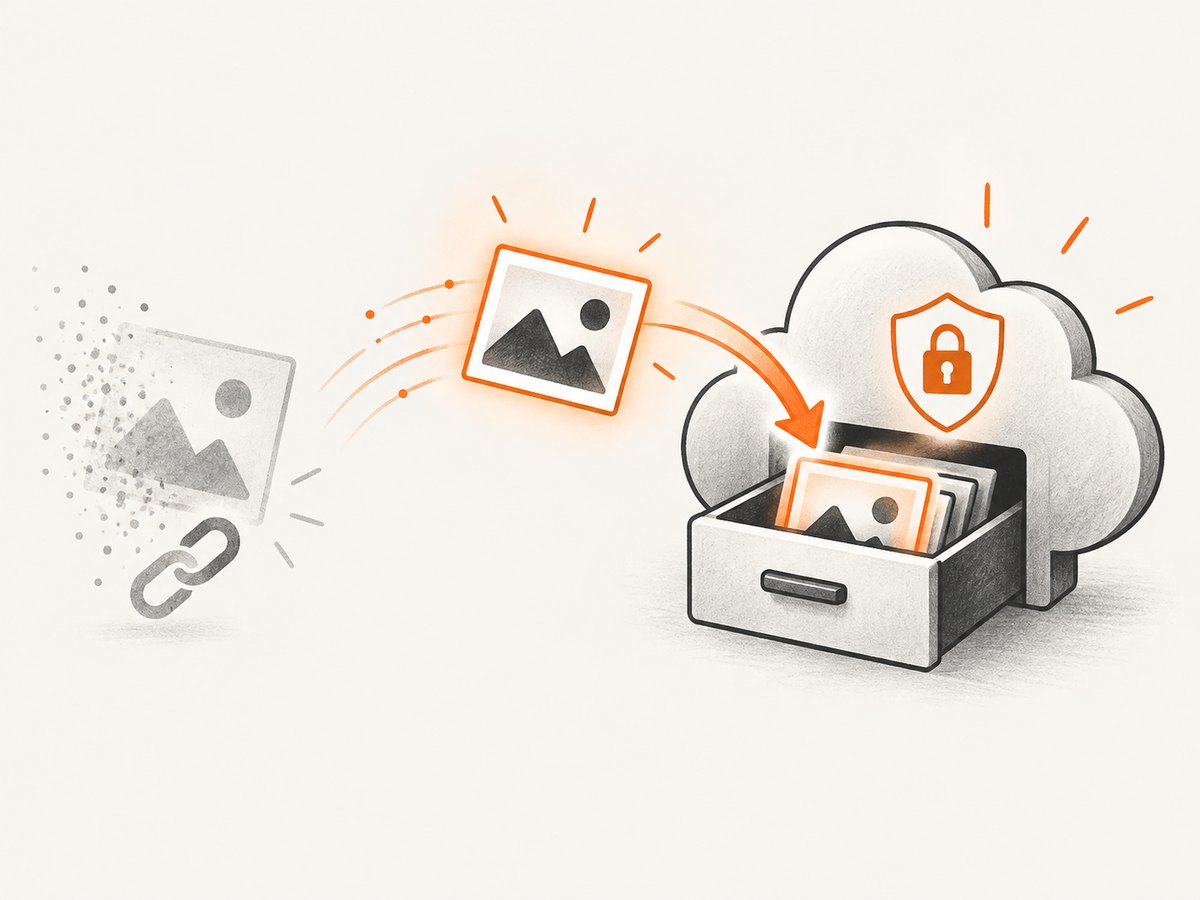
- Generate the image.
- Immediately upload the returned file to Google Drive or another durable file store.
- Save the durable file URL, filename, prompt, and campaign ID in your database or spreadsheet.
- Use the durable URL in email, approval, publishing, and later automation steps.
Use a deterministic filename such as {{campaign}}-{{date}}-{{short-id}}.png. Avoid using the entire prompt as a filename: prompts contain punctuation, can exceed path limits, and may expose sensitive text.
4. Add brand controls and human review
For repeatable social graphics, separate generation from layout. Let the AI action create an illustration or background, then place approved copy, colors, and logos in Canva, Placid, Creatomate, or Bannerbear. This makes the text and spacing deterministic.
Add a review gate when an image can publish publicly:
- Set the record status to
Needs review. - Email or post the durable file link to reviewers.
- Use a second Zap triggered by an approval field changing to
Approved. - Publish or distribute only after approval.
Include brand notes in every request: color family, prohibited motifs, audience, accessibility requirements, and whether people, products, or locations must be represented accurately. Keep a small prompt library for recurring formats such as product launch, event announcement, quote card, and blog header.
5. Automate from Slack, Airtable, Trello, and spreadsheets
Slack or chat
Use a command or message pattern such as /image campaign=summer prompt=.... Parse the campaign and prompt into separate fields before generation. Reply with the durable file link and an approval status rather than posting only a temporary URL.
Airtable or spreadsheets
Trigger when a new record or row meets a condition such as Status = Ready. Write back the image URL, generation timestamp, variation number, and error message. A status column prevents accidental duplicate runs when a row is edited.
Trello
Use a card created or moved to a “Generate” list as the trigger. Put the prompt in the description or a custom field, then attach the durable image and move the card to “Needs review.”
Browser extension or quick capture
Use a browser-extension trigger for one-off requests. Require a campaign or project field so files do not end up in an unsearchable shared folder.
6. Handle variations, retries, and duplicate requests
Generating several variations is useful for selection, but it multiplies work and downstream storage. Start with one variation for routine requests and allow more only for campaigns that need choice.
- Deduplication: create a request ID from the source record ID plus a version number. Store it before generation and check it before starting a retry.
- Retries: retry transient app errors, rate limits, or network failures with increasing delays. Do not retry malformed prompts or invalid credentials.
- Partial success: if one variation succeeds and another fails, keep the successful file and record the failed variation separately.
- Timeouts: keep the Zap step within the app’s execution limit. For large batches, split requests into smaller jobs or use a queue.
- Content checks: route images that violate internal rules to review instead of publishing automatically.
7. Troubleshooting common errors
| Symptom | Likely cause | Fix |
|---|---|---|
| Image action cannot connect | Missing, expired, or unauthorized API key | Reconnect the account, verify the key, and run the action test again. |
| Prompt is blank | Trigger sample lacks the mapped field or uses a different field name | Capture a new trigger sample and remap the exact field. |
| Destination receives a URL but no file | The destination expects binary file data | Use a file-upload step or map the URL into the destination’s file field. |
| Link stops working later | The provider URL is temporary | Copy the file to Google Drive or other durable storage immediately after generation. |
| Duplicate images appear | A row edit or retry fired the Zap twice | Add a request ID and status check before generation. |
| Brand text is wrong | AI-generated lettering is unreliable | Generate the artwork without exact copy, then add text in a template renderer. |
| Zap hits task or rate limits | Too many variations or high-volume triggers | Reduce variations, batch requests, add filtering, and monitor task usage. |
| Private files are exposed | Shared-link permissions are too broad | Use restricted folders, authenticated destinations, and least-privilege accounts. |
8. Performance, reliability, and cost planning
Keep the trigger lightweight and move expensive work into one deliberate generation step. Filter out incomplete requests before calling the image provider. Use fixed sizes and one variation by default. Batch only when the downstream system supports it and when a failure can be retried per item.
Track these fields for every run: trigger time, generation time, provider response, variation count, destination result, retry count, and final status. This makes it possible to distinguish a slow provider from a slow upload or a broken destination.
Estimate cost from volume rather than clicks alone. A Zap that creates three variations and sends each to two destinations performs substantially more work than one that creates one image and archives it once. Set a monthly usage alert, require a campaign field, and stop processing when a request exceeds your approved volume.
9. Or skip the browser setup
If your automation needs screenshots of web pages rather than generated artwork, ScreenshotNeo provides a single website screenshot API call. It accepts a URL and returns PNG, JPEG, WebP, or PDF. See the ScreenshotNeo API documentation for the complete parameter list.
curl -G "https://api.screenshotneo.com/v1/shot" -d access_key=YOUR_API_KEY --data-urlencode url=https://stripe.com -o shot.webpimport requests
r = requests.get("https://api.screenshotneo.com/v1/shot", params={"access_key": "YOUR_API_KEY", "url": "https://stripe.com"}, timeout=90)
open("shot.webp", "wb").write(r.content)const q = new URLSearchParams({ access_key: 'YOUR_API_KEY', url: 'https://stripe.com' });
const res = await fetch(`https://api.screenshotneo.com/v1/shot?${q}`);Cookie banners, newsletter popups, and chat widgets are removed before the shot. Bot checks, blank pages, failed loads, timeouts, and cache hits are not billed, and response headers identify the page verdict and billing result. ScreenshotNeo also provides an MCP server with take_screenshot, get_page_info, and capture_pdf tools for Claude, Cursor, and other MCP clients. The Free plan includes 1,000 screenshots per month with no card; paid plans start at $5 for 3,000. Create a free ScreenshotNeo account.
10. FAQ
Can Zapier generate images from a Slack message?
Yes. Use Slack as the trigger, map the message text into ChatGPT’s Generate an Image action, then post or store the result. Add parsing and approval fields for production use.
Can I send generated images to Google Drive?
Yes. Add Google Drive after generation and upload the returned file. This is the recommended step when the provider’s image URL may expire.
How do I create branded social graphics?
Generate the visual first, then pass it to Canva, Placid, Creatomate, or Bannerbear for fixed layouts, logos, and exact text.
Should every request create multiple variations?
No. Use one variation by default and increase the count only when selection value justifies extra generation and storage.
How do I stop a Zap from generating duplicates?
Store a request ID and status before generation. Filter out records already marked Generated, Needs review, or Approved.


