Automate the Generation of Images, PDFs, and Videos From Data
Build a reusable template, map data into its fields, and render images, PDFs, or videos through an API. Here’s a practical workflow, runnable examples, and provider guidance.

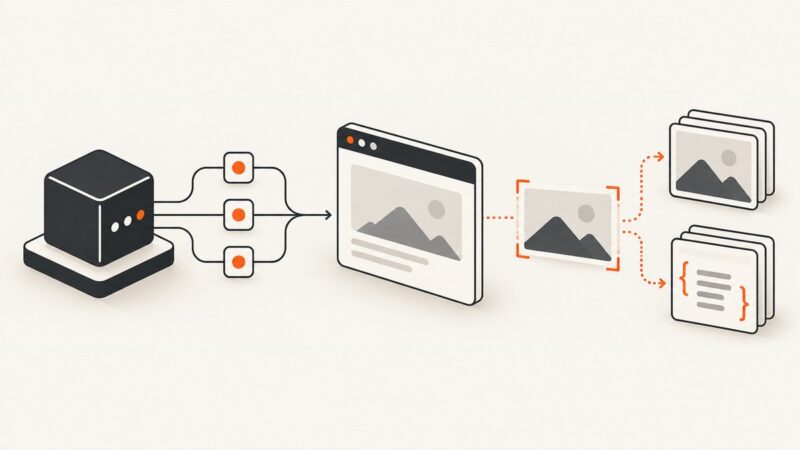
To automate images, PDFs, and videos from data, create a reusable template, identify its changeable fields, map each record into those fields, then request a render through an API. Keep the template stable and send only the values that vary: text, images, colors, dates, or other supported fields. For a single service whose documented API covers all three output types, Templated is a practical starting point; its API uses a template ID, optional layer changes, and an output format. [Templated API documentation](https://templated.io/docs/) [Create a render](https://templated.io/docs/renders/create/)
This pattern works for product cards, social graphics, personalized reports, invoices, certificates, and template-based videos. The key engineering work is usually not the POST request itself. It is making the data contract explicit, handling missing or oversized values, retrieving completed files reliably, and checking that the output suits its use.
1. Choose a rendering approach
There are two broad approaches. With a template API, a designer or developer defines layout once and code substitutes values for each record. With a programmatic renderer, code defines both the content and much of the layout for each output. Templates are generally easier to keep visually consistent; programmatic drawing can be useful when layouts change substantially or need highly custom logic.
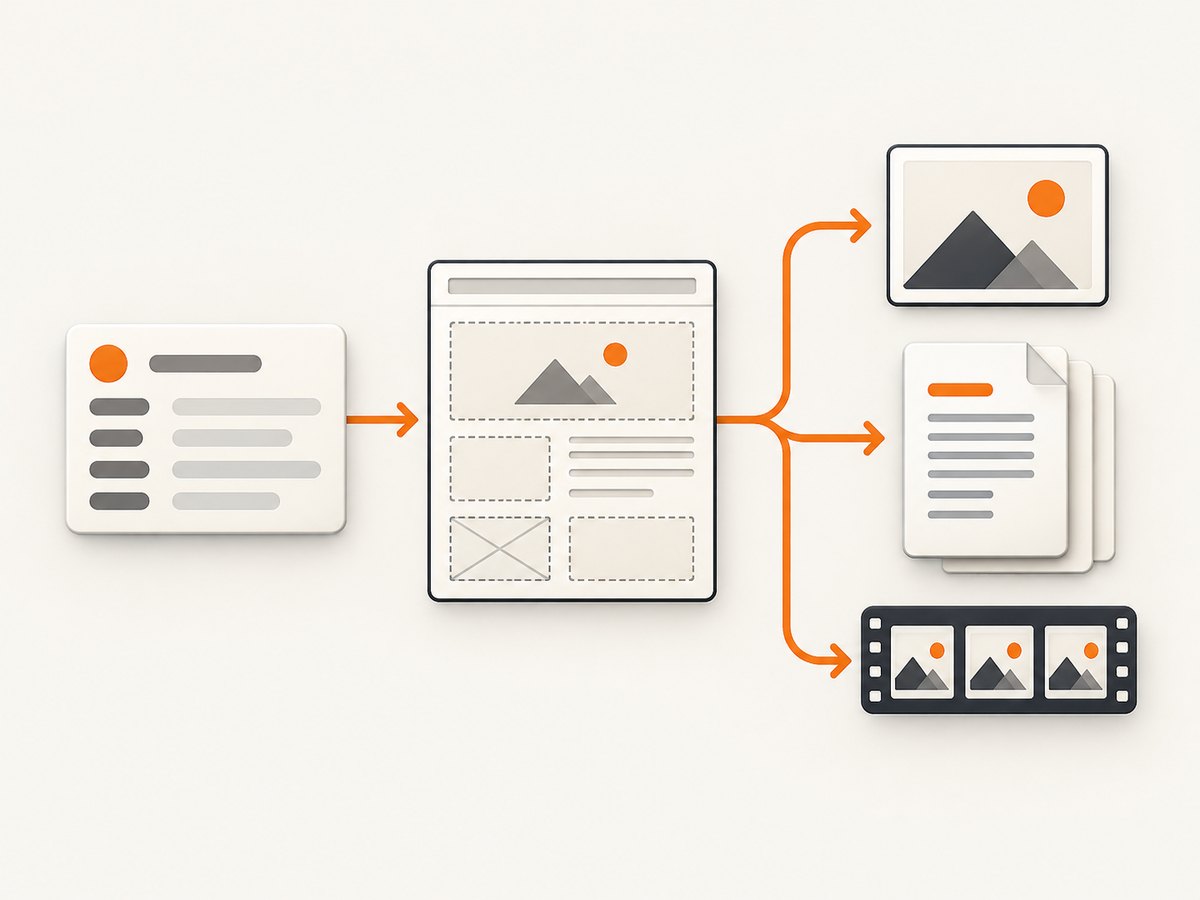
For a recurring workflow, evaluate a provider against the output formats you need, the way you define templates, whether data and image assets can be supplied through the API, and how the render fits your backend or event pipeline. Do not infer price, throughput, privacy, retention, or service quality from a feature page: confirm those points in current vendor documentation and terms for your use case.
| Service | Documented scope in the reviewed sources | Potential fit |
|---|---|---|
| Templated | Template API for images, videos, and PDFs; listed formats include JPG, PNG, WebP, MP4, and PDF. | One documented template workflow spanning the three output types in this guide. [API docs](https://templated.io/docs/) [Product formats](https://templated.io/) |
| Creatomate | Template-based image and video rendering through an API. | Image and video pipelines; its cited developer page does not establish PDF generation. [Developer page](https://creatomate.com/developers) |
| Adobe PDF Services | Generate PDF or Word documents from Microsoft Word templates and dynamic data. | Data-merged document workflows such as proposals, invoices, and contracts. [Document generation](https://developer.adobe.com/document-services/apis/pdf-services/document-generation/) |
| Synthesia | Generate personalized video from a published template and variable values. | Template-driven video when its media and variable model matches the workflow. [Template API guide](https://docs.synthesia.io/reference/guide-create-a-video-from-template) |
These are capability descriptions, not a quality or performance ranking. Compare current limits, formats, security terms, regions, pricing, and operational guarantees before committing. Templated’s documentation directly describes generating images, videos, and PDFs from a template API, so the walkthrough below uses it as a concrete example.
2. Design the data contract before the template
Start with one representative input record and define a stable schema. For example, a product promotion might include title, price, image_url, campaign_date, and destination_url. A report might add an array of rows and a summary. Make field names and types explicit in your application; convert dates and numeric values into display-ready strings before sending them unless the rendering service documents its own formatting behavior.
- List outputs and dimensions. Decide whether each record needs a square graphic, a PDF, a video, or multiple variants. Define dimensions, aspect ratio, and any page or duration needs.
- Build the template. Create named text and image layers, set typography and layout, and decide how long text should wrap, shrink, truncate, or be rejected.
- Map fields to layers. Keep an explicit mapping between application fields and template layer identifiers. Avoid constructing layer names dynamically from untrusted input.
- Validate records. Require essential fields, validate URLs and allowed formats, normalize whitespace, and cap text length before calling the API.
- Render and inspect representative cases. Include a typical record, long text, missing optional data, a large image, and non-ASCII characters. This is a review step for your content and layout; do not assume template changes will make every input fit.
Templated’s quick start describes creating or importing a template, obtaining an API key, and sending a render request with a template identifier and layer values. Its example uses bearer-token authorization and accepts text and image URL values. [Quick start](https://templated.io/docs/)
3. Render from the API
Create an API key and template in the selected service, then keep the key on your server or in a secrets manager. Do not embed it in browser JavaScript or a mobile application. The following examples use Templated’s documented render endpoint and a placeholder template ID. Set TEMPLATE_ID and TEMPLATED_API_KEY to your own values and make sure the layer names correspond to your template. [Render endpoint](https://templated.io/docs/renders/create/)
cURL
curl --fail-with-body --silent --show-error \
  --request POST 'https://api.templated.io/v1/render' \
  --header "Authorization: Bearer $TEMPLATED_API_KEY" \
  --header 'Content-Type: application/json' \
  --data '{
    "template": "TEMPLATE_ID",
    "format": "png",
    "layers": {
      "title": { "text": "Quarterly product update" },
      "hero_image": { "image_url": "https://example.com/assets/product.jpg" }
    }
  }'
Python
import os
import requests

api_key = os.environ["TEMPLATED_API_KEY"]
payload = {
    "template": "TEMPLATE_ID",
    "format": "png",
    "layers": {
        "title": {"text": "Quarterly product update"},
        "hero_image": {"image_url": "https://example.com/assets/product.jpg"},
    },
}
response = requests.post(
    "https://api.templated.io/v1/render",
    headers={
        "Authorization": f"Bearer {api_key}",
        "Content-Type": "application/json",
    },
    json=payload,
    timeout=90,
)
response.raise_for_status()
print(response.json())
Inspect the response from your account and current API documentation to determine how the render result is represented and retrieve the file. Do not blindly assume the endpoint returns image bytes: render APIs may return a result object or a URL, and the response contract is authoritative.
Node.js
const apiKey = process.env.TEMPLATED_API_KEY;
if (!apiKey) throw new Error("Set TEMPLATED_API_KEY");

const response = await fetch("https://api.templated.io/v1/render", {
  method: "POST",
  headers: {
    Authorization: `Bearer ${apiKey}`,
    "Content-Type": "application/json",
  },
  body: JSON.stringify({
    template: "TEMPLATE_ID",
    format: "png",
    layers: {
      title: { text: "Quarterly product update" },
      hero_image: {
        image_url: "https://example.com/assets/product.jpg",
      },
    },
  }),
  signal: AbortSignal.timeout(90_000),
});

if (!response.ok) {
  throw new Error(`Render request failed: ${response.status} ${await response.text()}`);
}
console.log(await response.json());
4. Set output-specific options deliberately
Format and layout choices change the final result. Templated’s render documentation lists jpg, png, webp, pdf, mp4, and html; it describes HTML export as Enterprise-only. Confirm the current API docs for the exact option names and availability before relying on them. [Render parameters](https://templated.io/docs/renders/create/) The practical considerations below apply across providers, but supported controls differ.
- Images: Choose dimensions and aspect ratio for the destination. Use transparency only when the format and downstream use support it. Prefer appropriately sized source assets to avoid oversized downloads and blurred output.
- PDFs: Decide whether the output is a single-page graphic or a paginated document. Check page dimensions, font embedding, page breaks, links, and whether recipients need selectable text. A flattened, print-oriented PDF and an accessible, searchable document are different requirements; verify the renderer’s behavior.
- Videos: Define duration and frame rate if supported, and ensure the template’s media and text fit the full timeline. Templated documents duration in milliseconds for MP4 renders and a documented maximum of 90 seconds; confirm current parameters and limits before depending on them. [Render parameters](https://templated.io/docs/renders/create/)
- Multiple pages: For a multipage PDF, map content to page-specific layers or repeated structures only if the chosen API supports that model. Templated documents multi-page templates and a
mergeoption for a single PDF; its docs say each page render counts as one credit toward API quota. [Render documentation](https://templated.io/docs/renders/create/)
Also settle whether the rendering service fetches remote image URLs directly, whether those URLs must be publicly accessible, and whether signed or expiring URLs are supported. The cited documentation examples use image URLs, but production asset access and privacy requirements must be checked for your actual provider and account.
5. Build a reliable data-to-render pipeline
For production, put rendering behind a small application service or job worker rather than letting arbitrary clients call a vendor directly. A typical flow looks like this:
- Receive a business event or scheduled batch and assign each record a stable internal ID.
- Validate and normalize the record; reject malformed data before spending a render request.
- Build the provider payload from an allowlisted schema and attach a template version.
- Submit the render and record its request or job identifier and state.
- When the output is ready, retrieve it, verify the file type and expected dimensions, and store it in your object storage if your workflow needs a durable copy.
- Update the business record with a result pointer and status. Make downstream notifications idempotent.
The exact synchronous or asynchronous response behavior, webhook support, retries, batching, rate limits, and retention periods are provider-specific. The reviewed source pages do not settle those operational details across vendors. Confirm them in the current API documentation before designing the worker. If the provider supports asynchronous jobs or callbacks, treat callbacks as potentially repeated or delayed: authenticate them as documented, deduplicate by job ID, and allow a reconciliation process to find stuck jobs.
Retry only failures that may recover, such as transient network errors or documented temporary server responses. Do not repeatedly retry invalid input, authorization failures, or a template mismatch. Use bounded exponential backoff with jitter and a maximum attempt count. Before retrying after a timeout, determine whether the service might already have accepted the original request; use a provider-supported idempotency mechanism if documented, or track request state to avoid duplicate outputs.
6. Handle edge cases and protect data
Templates tend to be designed around ideal examples. The real input distribution exposes the edge cases:
- Long or empty text: Specify required fields and define a maximum length. Provide a deliberate fallback for optional values. Test long names, addresses, and languages with different word lengths.
- Missing or inaccessible media: Validate the URL and, where possible, check that the asset is reachable from the provider’s environment. A URL available only inside your network may not be fetchable by a cloud renderer.
- Aspect-ratio mismatch: Decide whether an image should crop, contain, or stretch. For Synthesia specifically, its guide advises matching replacement media aspect ratio to the template media to avoid unexpected stretching or cropping. [Synthesia template guide](https://docs.synthesia.io/reference/guide-create-a-video-from-template)
- Case-sensitive variable names: Synthesia states that
templateDatakeys must match template variable casing exactly. Treat this as a Synthesia-specific constraint and validate names when updating templates. [Synthesia guide](https://docs.synthesia.io/reference/guide-create-a-video-from-template) - Special characters: Check whether the provider expects raw Unicode, escaped entities, or another encoding. Synthesia’s guide says text special characters are HTML-escaped by default and documents supplying an already escaped entity when that behavior is not wanted.
- Untrusted content: Treat input as data, not markup or executable code. Avoid passing user-controlled template identifiers, asset URLs, or custom template content without validation.
- Personal or confidential data: Review current retention, access, processing region, and contractual terms for the provider. The sources reviewed here do not establish comparable privacy or regional-processing terms.
7. Troubleshooting
| Symptom | Likely cause | What to check or change |
|---|---|---|
| Unauthorized response | Missing, invalid, expired, or incorrectly formatted credential. | Check the server-side secret, authorization scheme, and account key. Never paste the key into public client code or logs. |
| Template not found or rejected | Wrong template ID, wrong account, or template not available to that credential. | Copy the identifier from the intended workspace and confirm the template is ready for API rendering. |
| Layer value has no effect | Payload key does not match a layer or variable identifier. | Compare exact names and casing with the template. For Synthesia, variable keys are case-sensitive. |
| Image missing in result | Remote asset URL is inaccessible, malformed, expired, or unsupported. | Check the URL from outside your private network, its expiration, response type, and provider-supported asset rules. |
| Text is clipped or overlaps | Input exceeds the space the design allows, or font/layout behavior differs from expectations. | Test worst-case text, enlarge or redesign the field, set a product-level length limit, or use a documented auto-fit option. |
| Wrong output type | Format parameter omitted, misspelled, or unsupported for the template. | Check the current render endpoint’s accepted format names and inspect the actual result metadata. |
| Request times out | Large assets, complex render, network delay, or a slow job. | Use a reasonable client timeout, record request state, and follow the provider’s documented async or retry behavior. Avoid resubmitting blindly. |
| Output differs across records | Data normalization, template version, font availability, or conditional behavior varies. | Log a template version and sanitized input fingerprint; reproduce with a fixed record and template. |
8. Performance, reliability, and cost
Measure the full path: queue delay, render submission, time until output is ready, file transfer, and storage. A template with large source images or video media can spend substantial time transferring assets; resizing and compressing inputs to fit the actual design can reduce unnecessary work. For bulk jobs, control concurrency to match documented provider limits and your own worker capacity. Do not assume that a batch endpoint means unlimited throughput.
Track success rate by output type and template version, latency percentiles, retries, validation failures, and failed asset fetches. Keep a small set of representative records for regression review whenever templates change. Store enough diagnostic metadata to find the relevant job without logging API secrets or unnecessary personal data.
Cost depends on the provider’s current plan, quota model, and how its documentation counts outputs. The reviewed sources do not establish a current cross-vendor price or limit comparison. Estimate volume by multiplying records by outputs per record, including multi-page or multi-variant renders where they count separately, then verify current pricing, included quota, overage, and retention terms directly with the provider. Templated states that each page render in a multi-page template counts as one API quota credit; confirm the current account terms for your actual plan.
9. ScreenshotNeo for screenshot images
Template APIs are suited to designed assets whose layout is driven by data. If the image you need is instead a screenshot of a live web page, ScreenshotNeo is an alternative to try first: it is a website screenshot API and MCP server from ScreenshotNeo. It returns a PNG, JPEG, WebP, or PDF from one GET request. It is for capturing web pages; use a template rendering provider for data-merged marketing artwork or personalized video. See the API documentation.

Or skip the browser setup
For a web-page capture, send a single request:
curl -G "https://api.screenshotneo.com/v1/shot" \
  -d access_key=YOUR_API_KEY \
  --data-urlencode url=https://stripe.com \
  -o shot.webp
Python:
import requests

r = requests.get(
    "https://api.screenshotneo.com/v1/shot",
    params={"access_key": "YOUR_API_KEY", "url": "https://stripe.com"},
    timeout=90,
)
open("shot.webp", "wb").write(r.content)
Node.js:
const q = new URLSearchParams({
  access_key: "YOUR_API_KEY",
  url: "https://stripe.com",
});
const res = await fetch(`https://api.screenshotneo.com/v1/shot?${q}`);
if (!res.ok) throw new Error(`Screenshot request failed: ${res.status}`);
await Bun.write("shot.webp", res);
ScreenshotNeo removes cookie banners, popups, and chat widgets before the shot; bot checks, blank pages, and failed loads are never billed. Its MCP server lets AI agents take screenshots. The Free plan includes 1,000 screenshots a month with no card, and paid plans start at $5 for 3,000. Sign up for 1,000 free screenshots a month, with no card.
10. Frequently asked questions
Can one dataset produce several formats?
Yes, if your chosen service and template support each output format. Reuse the normalized record, but check the layout and output-specific settings for each format rather than assuming a single design will suit an image, multipage document, and video equally well.
Should I generate files on demand or in a background job?
For a user waiting on one small render, synchronous handling may fit if the API response time and behavior support it. For scheduled or high-volume work, a queue gives you control over concurrency, retries, and status tracking. Confirm whether your provider supports asynchronous jobs and its exact lifecycle.
Can AI generate the template too?
Some services offer template creation tools, but the reviewed implementation guidance here centers on reusable templates and data-driven renders. Whatever creates the layout, inspect its field names, text behavior, and output before automating production records.
What should I store for a rerender?
Keep the normalized input or a policy-approved reference to it, the template version, the provider job identifier, and the final asset location. This makes a rerender traceable when a template changes or an output needs correction.