Automate InvoiceBerry with Zapier
Build reliable InvoiceBerry Zaps: choose triggers, map fields, prevent duplicates, troubleshoot failures, and capture clean screenshots.
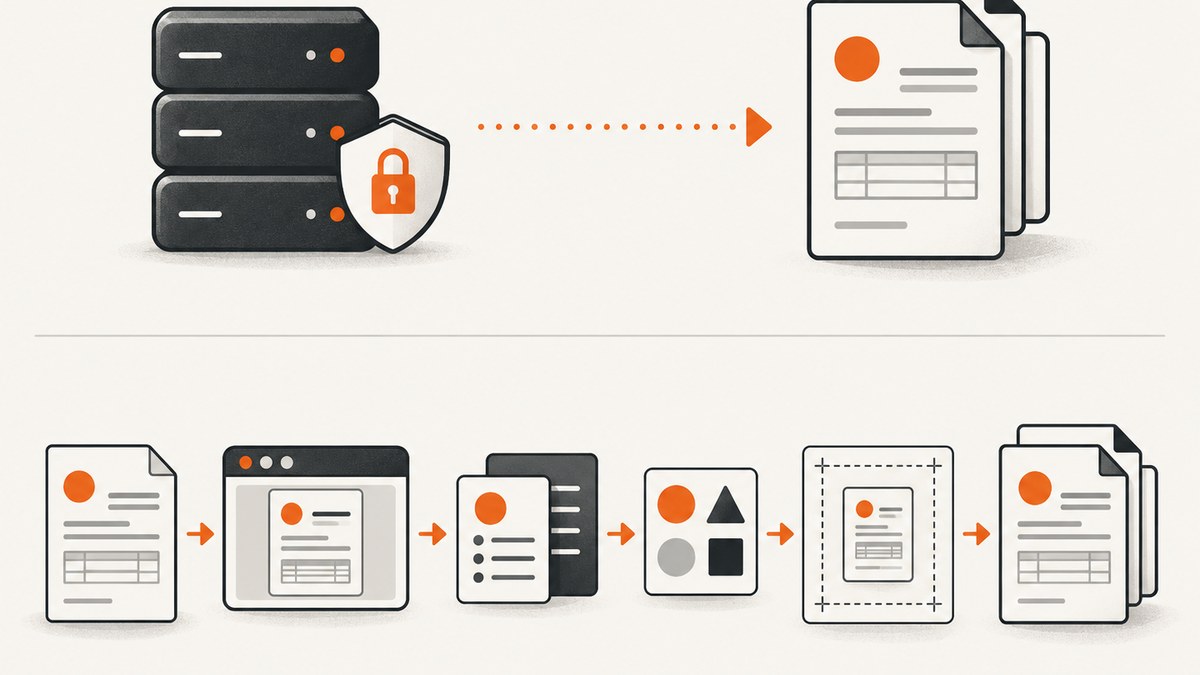
Direct answer: In Zapier, create a Zap with an InvoiceBerry event as the trigger, test the sample record, map its fields into an action, and publish the workflow. The InvoiceBerry catalog currently lists six instant triggers—New Client, New Expense, New Item, New Credit Note, New Invoice, and New Quote—and five actions: Create Client, Add Expense, Create Item, Create Recurring Invoice, and Create Invoice. You can also send the trigger data to another connected app instead of writing it back to InvoiceBerry.
This guide shows how to choose the right workflow, map required and optional fields, prevent duplicate invoices, and diagnose common problems. Zapier’s InvoiceBerry integration catalog is the source for the event and field names; labels and availability can change, so confirm what your account shows before publishing.
What you can automate
Zapier describes InvoiceBerry as online invoicing software for small businesses and freelancers. The catalog marks the six InvoiceBerry triggers below as Instant, meaning a new matching record starts a Zap as the event arrives in the integration.
| Trigger | Useful starting point |
|---|---|
| New Client | Send a welcome task to a CRM, spreadsheet, or project tool, or create a matching record elsewhere. |
| New Expense | Route expense details to an approval, reporting, or accounting workflow. |
| New Item | Keep a catalog or inventory list synchronized with another app. |
| New Credit Note | Notify a finance channel or update a customer record when a credit is issued. |
| New Invoice | Start fulfillment, collections, notification, or reporting steps. |
| New Quote | Create a follow-up task or copy quote details into a sales system. |
InvoiceBerry actions listed by Zapier are Create Client, Add Expense, Create Item, Create Recurring Invoice, and Create Invoice. A Zap can therefore run in either direction: an InvoiceBerry event can feed another application, or an event in another application can create a record in InvoiceBerry.
Plan the workflow before opening Zapier
- Name the business event. Write down the exact record that should start the automation: a new client, expense, item, credit note, invoice, or quote.
- Choose the destination action. Decide whether the result should create a client, add an expense, create an item, create a recurring invoice, create an invoice, or update a different connected application.
- List the source fields. Identify where each destination value comes from. Keep a written mapping for names, dates, currency, amounts, tax, and line items.
- Define duplicate behavior. Decide what makes a record unique, such as an invoice number or external ID. Add a lookup or filter step in your own Zap design when your connected apps support it; the catalog does not document a built-in deduplication rule.
- Choose a safe test record. Use a sample client, expense, or invoice that will not trigger a real payment or customer email while you validate the mapping.
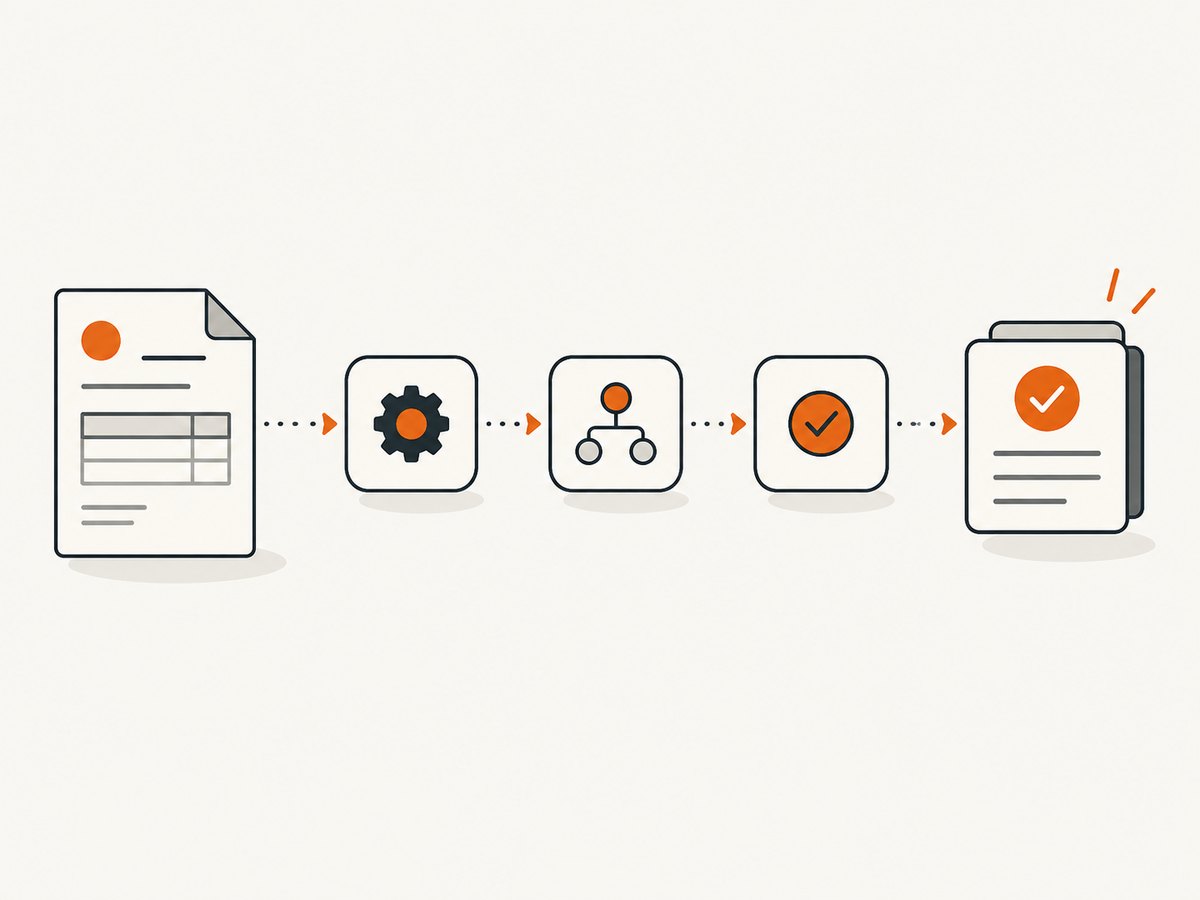
Step-by-step: build an InvoiceBerry Zap
1. Select InvoiceBerry as the trigger app
In Zapier, start a new Zap and select InvoiceBerry as the trigger app. Pick one of the six events from the catalog. For an outbound workflow, choose the event that represents the business fact you care about—for example, New Quote for sales follow-up or New Expense for review.
Connect the InvoiceBerry account when prompted, then use Zapier’s test control to load a representative record. Inspect the returned sample before mapping anything. The exact authentication and account-plan requirements are not specified in the catalog, so follow the connection instructions shown in your Zapier account.
2. Add an action and map fields
Select an action app, or choose an InvoiceBerry action when the workflow should create data there. Map each destination field from the trigger sample. Keep values in their native meaning: do not put a company name in a person-name field, and do not pass a formatted currency string into a numeric amount field unless the destination explicitly accepts it.
3. Configure a client action
For Create Client, the catalog lists company name and email as required. Optional fields include currency, country, first name, last name, phone numbers, street address, city, state, ZIP code, tax number, tax name, and notes.
Client mapping checklist
company name <-> source organization or legal name (required)
email <-> source primary email (required)
first name <-> source contact first name (optional)
last name <-> source contact last name (optional)
currency <-> source billing currency (optional)
tax number <-> source tax identifier (optional)
notes <-> source onboarding or account notes (optional)
Validate that the source always supplies both required values. If a lead can be a person without a company, choose a consistent company-name policy in your process before enabling the Zap.
4. Configure an expense action
For Add Expense, category, amount, and expense date are required in the catalog. Vendor, tax, and notes are also listed. Preserve the original date and amount, and agree on whether tax is represented as a rate or amount in the fields shown by your Zap.
5. Configure an item or invoice action
Create Item is useful when an external catalog should add billable items to InvoiceBerry. For Create Invoice, the catalog marks currency and date of issue as required. Other listed invoice fields include language, client details, discount, terms, payment-term days, reference, line-item name, description, unit cost, quantity, tax fields, invoice status, payment details, a send-invoice option, and message.
Map line items deliberately. A single source row can become one line; multiple rows may require the line-item structure exposed by Zapier. Before enabling “send invoice,” test with sending disabled or a controlled recipient if that option is available in your account. For Create Recurring Invoice, confirm the recurrence fields presented in the action step and document the schedule for your team; the catalog names the action but does not specify its complete recurrence schema.
6. Test, review, and publish
- Run the trigger test and inspect every field used by the action.
- Run the action test and verify the resulting record in the destination.
- Check dates, currency, tax, quantities, status, payment details, and message text.
- Confirm that a test did not send an unintended invoice or create a duplicate.
- Turn the Zap on only after the complete path is safe for a real record.
Useful workflow patterns
- New Client → CRM or project system: copy company, contact, phone, address, tax number, and notes so onboarding starts with complete context.
- New Expense → review queue: send category, amount, date, vendor, tax, and notes to an approval destination.
- New Quote → follow-up task: create a task containing the client, reference, and quote context.
- New Invoice → operations notification: pass invoice status, issue date, currency, client, and payment details to the team that needs to act.
- External order → Create Invoice: map client details and each line item, then decide explicitly whether the invoice should be sent.
Zapier’s catalog gives examples involving Zapier Tables, Zapier Forms, and Microsoft Dynamics 365 CRM. Treat those as examples of connected apps, not as a guarantee that a particular workflow fits your process.
Data quality and edge cases
Missing required values
A client without company name or email, or an invoice without currency or issue date, cannot be mapped reliably. Add a validation or filter step where your Zap supports it, or correct the source record before it reaches the trigger.
Currency and tax mismatches
Keep currency attached to every monetary mapping. Do not assume a default currency, tax name, or tax rate; use the values exposed by the source and destination fields.
Partial client details
Optional address, phone, and tax fields may be empty. Leave them empty rather than shifting values into the wrong field. If downstream users need a minimum profile, define that minimum and stop incomplete records for review.
Duplicate runs
Retries, manual tests, or edited source records can create repeated actions. Record the source identifier in a notes or reference field when available, and use a lookup or filter step in the surrounding workflow if your connected apps provide one.
Invoices that should not be sent
Creating an invoice and sending it are separate decisions represented by the action’s invoice fields. Keep the send-invoice option off during testing and enable it only after recipients, payment details, and message text are verified.
Troubleshooting
| Symptom | Likely cause | Fix |
|---|---|---|
| No trigger sample appears | No matching InvoiceBerry record is available to the test. | Create or select a safe sample of the chosen event, then test again. |
| Client action is rejected | Company name or email is blank or mapped from the wrong field. | Map both required fields and retest with a complete client. |
| Invoice action fails validation | Currency or date of issue is missing, or a value has the wrong format. | Map both required fields using the destination field controls and test again. |
| Amount or tax is wrong | Text formatting, currency conversion, or rate-versus-amount confusion. | Compare the source sample to the destination preview; use a numeric source and document the tax convention. |
| Duplicate records appear | The Zap was tested more than once, retried, or received repeated source events. | Use a unique source reference, add a lookup/filter where available, and avoid testing against production records. |
| An invoice was emailed unexpectedly | The send-invoice option or recipient data was enabled during a test. | Disable sending while testing, verify payment and message fields, then run one controlled test. |
| Fields are missing from the editor | The integration’s current field set differs from the catalog snapshot. | Refresh the fields, reconnect the account if Zapier requests it, and rely on the labels shown in your account. |
Performance, reliability, and cost considerations
The catalog marks the listed InvoiceBerry triggers as instant, but it does not provide latency targets, retry guarantees, task limits, account-plan eligibility, or pricing. Treat “instant” as the trigger classification shown by Zapier, not as a promised delivery time. Measure your own workflow by recording the source time and the time the action appears.
For reliability, keep each Zap narrow, validate required fields before expensive downstream actions, and make the workflow safe to replay. Use a reference that lets a person identify the source record. Review Zapier’s task history after launch for failed steps and corrected records. The research source does not establish a specific retention period or error-handling policy, so consult current Zapier and InvoiceBerry documentation for those terms.
Cost depends on the plans and task usage of the services in your account. The cited catalog does not state a price. Estimate how many trigger events and action steps each record will consume, then check current plan details before committing to a volume-sensitive workflow.
Or skip the browser setup
If your automation also needs a screenshot of an invoice, quote, client portal, or status page, ScreenshotNeo provides a single request that returns a PNG, JPEG, WebP, or PDF. See the ScreenshotNeo API docs for all options.

curl -G "https://api.screenshotneo.com/v1/shot" -d access_key=YOUR_API_KEY --data-urlencode url=https://stripe.com -o shot.webpimport requests
r = requests.get("https://api.screenshotneo.com/v1/shot", params={"access_key": "YOUR_API_KEY", "url": "https://stripe.com"}, timeout=90)
open("shot.webp", "wb").write(r.content)const q = new URLSearchParams({ access_key: 'YOUR_API_KEY', url: 'https://stripe.com' });
const res = await fetch(`https://api.screenshotneo.com/v1/shot?${q}`);Cookie banners, popups, and chat widgets are removed before the shot. Bot checks, blank pages, failed loads, and cache hits are never billed, and the response identifies the result with X-Page-Verdict and X-Billed headers. An MCP server lets AI agents such as Claude, Cursor, and other MCP clients take screenshots. The free plan includes 1,000 screenshots a month with no card; paid plans start at $5 for 3,000. Create a free ScreenshotNeo account.
FAQ
Are all InvoiceBerry triggers instant?
The Zapier catalog marks the six listed InvoiceBerry triggers as Instant. It does not define a latency guarantee.
Can a Zap create recurring invoices?
Yes. Create Recurring Invoice is listed as an InvoiceBerry action. Configure the recurrence fields shown in your current Zapier editor.
Which client fields are mandatory?
The catalog lists company name and email as required for Create Client; the other listed client fields are optional.
Which invoice fields are mandatory?
The catalog lists currency and date of issue as required for Create Invoice.
Does the catalog specify task limits or plan eligibility?
No. Check the current Zapier and InvoiceBerry account documentation for those details.


