How to Automate Screenshots for Landing Page Testing
Build reliable landing-page visual checks with Playwright: capture stable screenshots, compare them with reviewed baselines, and diagnose CI failures.

Automate landing-page screenshots by capturing a page in a fixed, repeatable browser environment and comparing the result with a reviewed baseline. Playwright Test has built-in screenshot assertions: await expect(page).toHaveScreenshot() creates a reference image on the first run and compares later captures against it.
This guide builds that workflow from a minimal visual check to a CI-ready setup. It covers full-page and element captures, stable page state, tolerances, baseline review, common failures, and when a hosted screenshot API is a better fit.
1. What a landing-page screenshot test checks
A screenshot test catches visible changes that ordinary assertions may miss: a missing hero image, a shifted call-to-action, unexpected wrapping, broken spacing, or a section that has moved below the fold. It is a visual regression check, not a complete usability or correctness test. Pair it with semantic assertions for important headings, form labels, links, and conversion actions.
Playwright compares a newly captured image with an expected image stored alongside the test suite. The first run creates the reference; subsequent runs report visual differences. Its screenshot APIs support page, element, and full-page captures. Full-page capture is useful when important sections, such as pricing or a signup form, sit below the initial viewport.
2. Install Playwright Test and choose a stable environment
Start with a Node.js project and install Playwright Test. The commands below use npm and Chromium; use the browser project your team intends to keep consistent in local development and CI.
npm init -y
npm install --save-dev @playwright/test
npx playwright install chromium
Create playwright.config.ts. Pin the viewport and browser project so the baseline is generated under the same rendering conditions as CI. Add the configuration to version control.
import { defineConfig } from '@playwright/test';

export default defineConfig({
  testDir: './tests',
  use: {
    browserName: 'chromium',
    viewport: { width: 1440, height: 900 },
    locale: 'en-US',
    timezoneId: 'UTC',
    // Keep screenshots deterministic while debugging layout differences.
    headless: true,
  },
  // Keep visual baselines in the repository beside the tests.
  snapshotPathTemplate: '{testDir}/__screenshots__/{testFilePath}/{arg}{ext}',
});
Playwright warns that operating system, browser version, settings, hardware, power source, and headless mode can affect rendering. Generate and compare baselines in the same environment where possible. A browser update or operating-system change may require deliberate baseline review.
3. Write a first landing-page visual test
Create tests/landing.spec.ts. Replace the example URL with the page under test. The viewport is already fixed in configuration; the test waits for a meaningful page landmark before asking Playwright to capture and compare the page.
import { test, expect } from '@playwright/test';

test('landing page visual check', async ({ page }) => {
  await page.goto('https://example.com/landing', { waitUntil: 'domcontentloaded' });

  // Wait for content that signals the page is ready for review.
  await expect(page.getByRole('heading', { name: /welcome/i })).toBeVisible();

  await expect(page).toHaveScreenshot('landing.png', {
    fullPage: true,
    maxDiffPixelRatio: 0.01,
  });
});
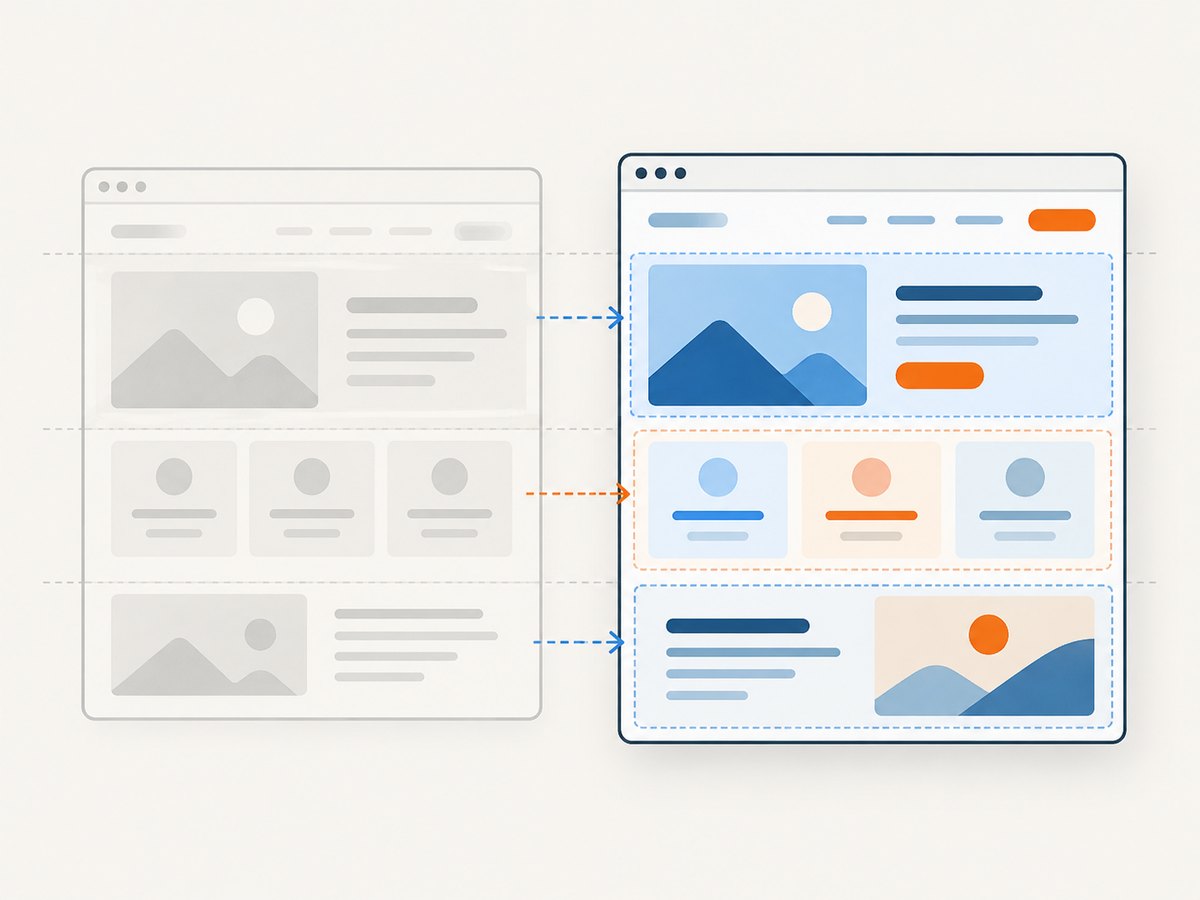
Run the test with npx playwright test. On the first run, Playwright writes a baseline image. Review that image before treating it as the expected design. On later runs, a mismatch fails the assertion and Playwright provides comparison output for diagnosis.
4. Decide what to capture
Choose the capture scope based on the behavior you need to protect. You can keep one full-page baseline, or use several smaller assertions when individual sections have different stability or ownership.
| Scope | Use it for | Trade-off |
|---|---|---|
| Viewport | Hero layout, first-screen messaging, primary call-to-action | Fast and focused, but misses below-the-fold sections |
| Element | A pricing table, signup form, or other independently meaningful block | Limits unrelated page noise; element must be visible and consistently sized |
| Full page | Checking the entire landing page, including conversion sections below the fold | Captures more content and can include more dynamic regions |
For an element screenshot, pass a locator to the assertion:
test('pricing section visual check', async ({ page }) => {
  await page.goto('https://example.com/landing');
  const pricing = page.getByRole('region', { name: /pricing/i });
  await expect(pricing).toBeVisible();
  await expect(pricing).toHaveScreenshot('pricing.png');
});
For a viewport-only check, omit fullPage or set it to false. Page and element screenshot APIs also allow a filename, image type, and scale. Use full-page capture when the below-the-fold content is part of the contract; use a focused element when a stable component deserves a more targeted signal.
5. Make the captured state deterministic
Most noisy visual tests are state-control problems. A fixed viewport does not help if a headline rotates, a timestamp changes, a live ad slot loads different content, or a user sees a different experiment variant on each run.
- Control test data. Use a predictable account, product catalog, and experiment assignment. Stub changing API responses where practical.
- Wait for meaningful content. Prefer a visible heading, hero, or section locator over a fixed sleep. If fonts and images affect layout, wait for them explicitly or use Playwright’s screenshot readiness behavior with a controlled page.
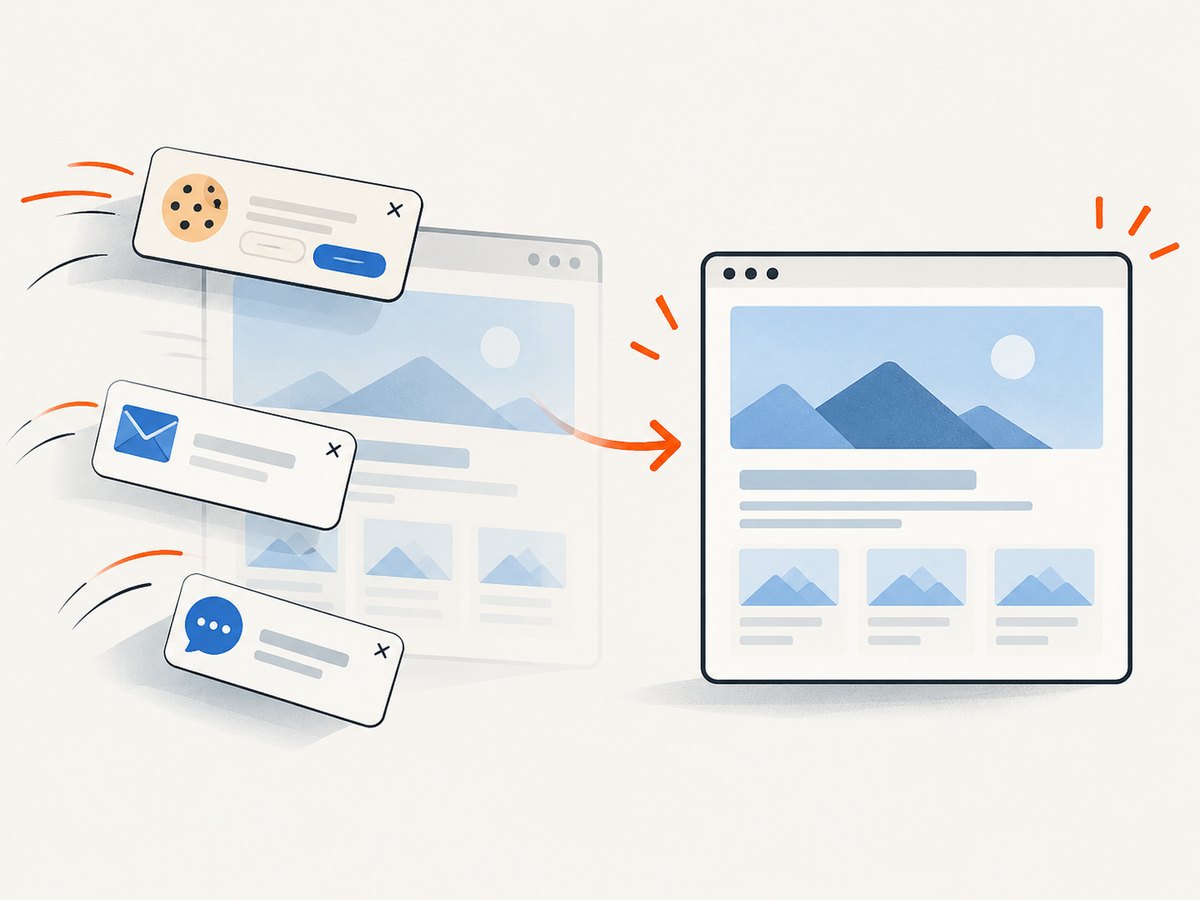
- Remove motion. Disable animations and transitions in the test environment, or use the screenshot assertion’s animation handling where appropriate. Do not rely on a capture happening at exactly the same animation frame.
- Mask or stabilize volatile regions. Mask timestamps, rotating testimonials, or other intentionally changing blocks if they are outside the visual contract. Better still, freeze their test data.
- Fix locale and timezone. Date formats and translated copy change line wrapping. Set locale and timezone in the browser context.
- Keep fonts available. A fallback font changes widths and vertical rhythm. Wait for the document’s fonts to load before capture when the page loads fonts asynchronously.
A small helper can wait for the document and its fonts before capture. Use a page-specific readiness condition as well; network idle alone does not prove that a landing page has rendered the content you care about.
await page.goto('https://example.com/landing', { waitUntil: 'domcontentloaded' });
await expect(page.getByRole('heading', { name: /welcome/i })).toBeVisible();
await page.evaluate(() => document.fonts.ready);
6. Set screenshot comparison tolerances deliberately
Playwright documents three useful controls: maxDiffPixels, maxDiffPixelRatio, and threshold. They govern how much image difference is acceptable. A permissive tolerance can hide a real layout regression; a very strict tolerance can fail on small rendering noise.
maxDiffPixelscaps the absolute number of pixels allowed to differ.maxDiffPixelRatiocaps the fraction of the image allowed to differ. The example uses 1% as an illustrative starting point, not a universal recommendation.thresholdadjusts the per-pixel color difference sensitivity. Consult the Playwright snapshot assertion documentation for its exact semantics and supported options.
Start with a narrow tolerance and inspect actual diffs. Tune it for the screenshot’s size and content, not to make an unstable test pass. An element screenshot may need a different allowance than a tall full-page image. Avoid increasing tolerance before checking whether CI is using the same browser, operating system, fonts, and test state as baseline generation.
7. Run it in CI and review baseline changes
Commit the visual test and its reference images. Run the same Playwright project in CI that generated the baseline. A minimal package script makes the command repeatable:
{
  "scripts": {
    "test:visual": "playwright test"
  }
}
When a visual assertion fails, inspect the actual, expected, and diff images. Decide whether the page change was intended. If it was, regenerate the expected image using Playwright’s documented snapshot update workflow, review the changed image, and commit it with the page change. If it was not, fix the layout or test-state issue. A baseline update is a code change and should receive the same review care as other expected-output changes.
Keep a short review checklist with the test or team process:
- Does the screenshot show the expected route, viewport, and content state?
- Is the changed area explained by the code change?
- Are conversion actions, form labels, and key copy still present? Check them semantically too.
- Was the baseline generated in the same browser and operating-system environment as CI?
- Does the diff reveal a real design change or only uncontrolled dynamic content?
8. Troubleshooting common failures
| Symptom | Likely cause | Fix |
|---|---|---|
| First run fails because no snapshot exists | No reference image has been recorded yet | Run the documented snapshot update flow, inspect the generated baseline, then commit it. |
| Diffs appear only in CI | Browser, operating system, font, headless mode, or hardware differs | Align the baseline-generation and CI environment; regenerate only after verifying the rendering change is understood. |
| Text moves or wraps between runs | Font loading, locale, viewport, or content differs | Pin locale and viewport, wait for fonts, and stabilize test data. |
| Images are blank or incomplete | Capture happened before image content was ready, or a remote asset failed | Wait for the relevant image or section to be visible and investigate the asset request. Avoid fixed sleeps as the main readiness condition. |
| Full-page screenshot is unexpectedly tall | Dynamic content, expanded menus, or an unintended route state added page height | Assert the expected state before capture and close overlays or menus that should not be present. |
| Test is flaky around a carousel or animation | Capture timing depends on motion or rotating content | Disable motion in the test environment, freeze the content, or mask a region that is intentionally variable. |
| Raising tolerance makes failures disappear but hides changes | The threshold is compensating for nondeterministic rendering | Find and control the source of variation first; keep a tolerance that still catches meaningful layout movement. |
9. Performance, reliability, and cost
Playwright screenshots run in your test browser, so the main cost is the CI time and maintenance needed to keep browser execution and baselines stable. Full-page images and many viewport variants create more capture and review work than a focused assertion. Start with the key landing-page route and viewport, then add other viewports or elements when they protect a distinct user-facing behavior.
Reliability depends on controlling inputs and environments more than on capture frequency. A stable test that checks a meaningful conversion path is more useful than a large set of screenshots that fail on timestamps or external content. Keep external dependencies predictable, review the diff artifacts, and pair pixels with semantic checks so an unchanged-looking image cannot conceal a missing accessible label or broken link.
The Playwright approach uses your project’s browser and CI setup. A screenshot API can be useful when you need a remote capture without maintaining browser setup for that task, or when you want an image endpoint for a workflow outside the test runner. Compare tools by capture scope, baseline storage and review, tolerance controls, browser consistency, runtime, and dynamic-content handling.
10. Or skip the browser setup
ScreenshotNeo is a website screenshot API and MCP server from Yorker Media. One GET request returns a PNG, JPEG, WebP, or PDF. Its API accepts the same parameter names used by other screenshot APIs, which can make switching straightforward. See the ScreenshotNeo API documentation for request options and setup.
curl -G "https://api.screenshotneo.com/v1/shot" -d access_key=YOUR_API_KEY --data-urlencode url=https://example.com/landing -o landing.webpimport requests
r = requests.get(
"https://api.screenshotneo.com/v1/shot",
params={"access_key": "YOUR_API_KEY", "url": "https://example.com/landing"},
timeout=90,
)
open("landing.webp", "wb").write(r.content)const q = new URLSearchParams({
access_key: 'YOUR_API_KEY',
url: 'https://example.com/landing'
});
const res = await fetch(`https://api.screenshotneo.com/v1/shot?${q}`);
if (!res.ok) throw new Error(`Screenshot request failed: ${res.status}`);
await Bun.write('landing.webp', res);ScreenshotNeo removes cookie and consent banners from 60+ known platforms, newsletter popups, and chat widgets before capture; each cleanup step can be turned off. Bot checks, blank pages, timeouts, failed loads, and cache hits are not billed, and response headers report the page verdict and billing status. An MCP server provides take_screenshot, get_page_info, and capture_pdf tools for Claude, Cursor, and other MCP clients. The free plan includes 1,000 screenshots a month with no card; paid plans start at $5 for 3,000 screenshots. All features are on every plan. The service is useful for captures and workflows, but Playwright’s visual assertion remains the piece that compares a new image with a reviewed baseline.
Create a free ScreenshotNeo account for 1,000 screenshots a month with no card.
11. Frequently asked questions
Can a screenshot test tell whether a landing page converts?
No. It can detect visible changes. Use analytics or end-to-end checks to measure conversion and verify the signup or purchase flow.
Should I make one screenshot per viewport?
Capture each viewport that represents a distinct layout contract, such as desktop and mobile. Keep the browser and viewport settings fixed for each baseline.
Can screenshot comparison replace accessibility checks?
No. Pixels do not establish that controls have accessible names, correct semantics, or keyboard behavior. Keep semantic and accessibility checks alongside visual assertions.
Should every page section get a separate baseline?
No. Split captures when a section needs independent review or has different stability characteristics. A small set of meaningful screenshots is easier to maintain.