How to Automate LinkedIn Carousels With SvelteKit Remote Functions
Build a SvelteKit workflow that turns carousel pages into a PDF document post, uploads it through LinkedIn’s APIs, and handles permissions and failures.

Direct answer: For an organic LinkedIn swipe-through post, export the carousel pages as one multi-page PDF, upload that document with LinkedIn’s Documents API, then create a post that references the returned document URN. A SvelteKit remote command can provide the server-side action behind a publish button, but it does not replace LinkedIn authorization or grant API access. Keep LinkedIn tokens and upload logic on the server.
LinkedIn uses “carousel” for more than one format. Organic document posts are uploaded multipage documents. Sponsored carousel ads are paid campaigns made of sequential image cards. This guide automates the organic document-post workflow; ad creation needs the separate advertising workflow and access.
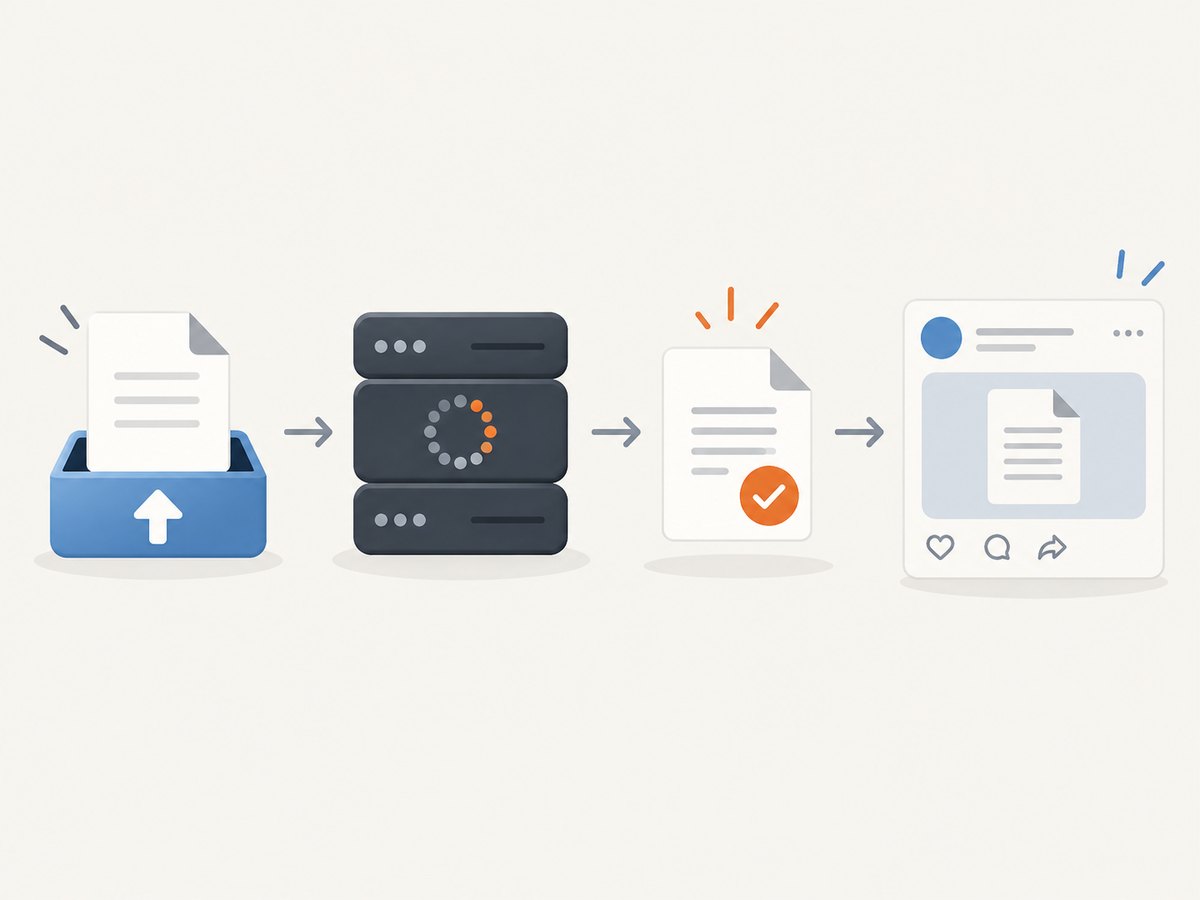
The complete process is: check your app and account permissions, produce and validate the PDF, initialize a document upload, transfer the bytes to the returned upload URL, wait for the document to become available, and create a post using its URN. LinkedIn’s documents support PDF, PPT, PPTX, DOC, and DOCX, with documented limits of 100 MB and 300 pages. PDF is the recommended format for consistent upload quality. See LinkedIn’s document upload help and Documents API reference.
1. Confirm the format, access, and API version
Before writing code, verify that your LinkedIn developer app has access to the API product and scopes required for the intended author. Member posting and organization posting use different permissions. Organization publishing is also limited by the person’s company-page role. Access is not universal; confirm your account and app’s current eligibility in LinkedIn’s Posts API documentation and developer settings.
Use a supported API version and the version header required by the current documentation. LinkedIn versions sunset. The Documents API page reviewed for this guide identifies Marketing Version 202510 as sunsetting October 15, 2026, so do not copy that version header into a new integration without checking its current support status.
| Question | Organic document post | Sponsored carousel ad |
|---|---|---|
| Purpose | Share a document as an organic post | Run a paid advertising campaign |
| Creative uploaded | One multipage document asset | Sequential image cards |
| Relevant workflow | Documents API, then Posts API | Advertising APIs and ad-account access |
| Specifications | Document type, size, and page limits | Ad-card count, image dimensions, and campaign rules |
LinkedIn’s API documentation says organic carousel posts are not supported in its sponsored-carousel post format. Don’t confuse that limitation with organic document posts, which are created by attaching a document to a post. The ad specifications describe two to ten cards and recommend 1080 × 1080 pixel images; those are ad requirements, not organic PDF requirements. See LinkedIn’s sponsored content specifications.
2. Prepare carousel pages as a PDF
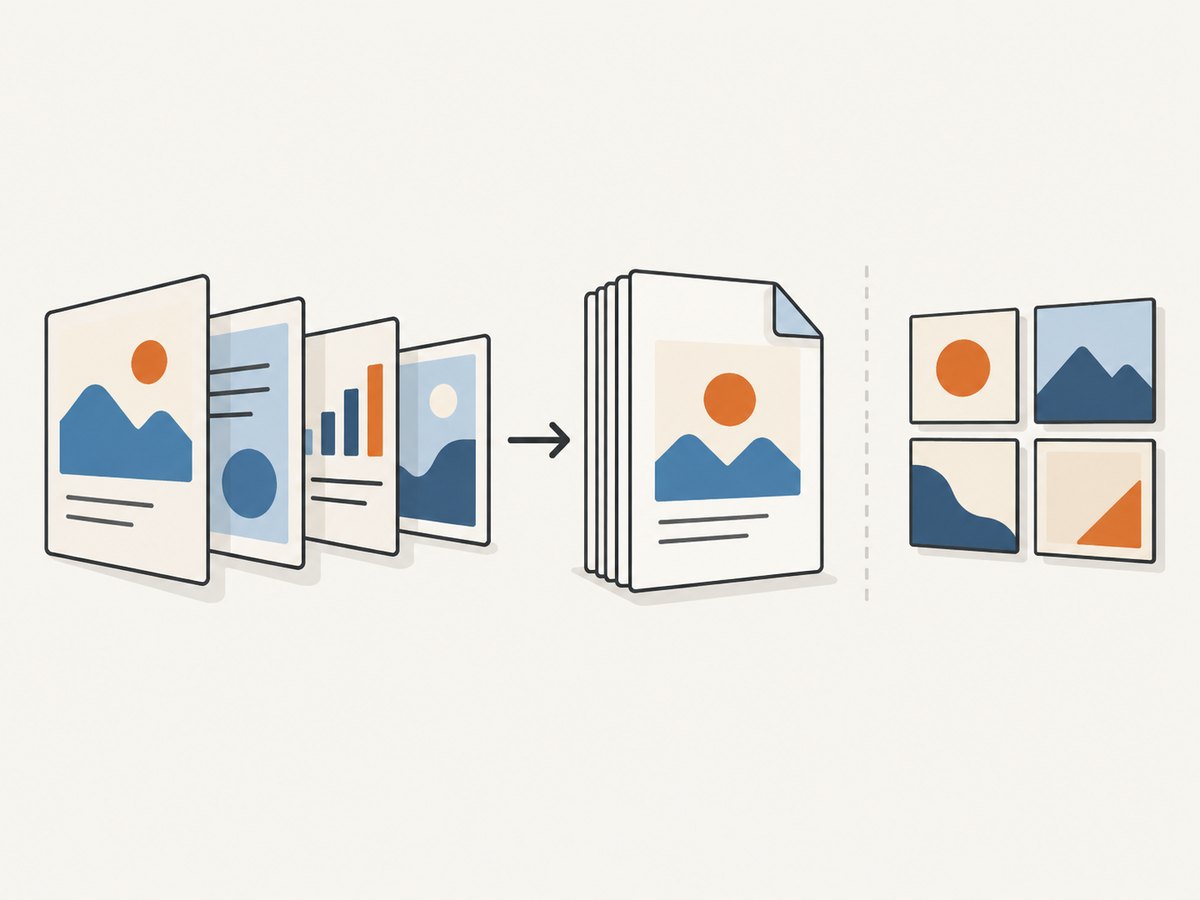
Create each slide as a page with the same dimensions, then export a flattened, multi-page PDF. Use a readable title and add the post description separately as commentary. PDF is usually the practical choice for a swipe-through document because it retains page order and layout. LinkedIn also accepts office document formats, but animations are not preserved as a slideshow. LinkedIn calls out layered PDFs, inconsistent page sizes, secure hyperlinks, and document titles as issues to consider; follow the upload guidance and inspect the exported file before posting.
Validate the file before consuming an upload request:
- Confirm it opens and contains the expected pages in order.
- Confirm pages share the intended dimensions and orientation.
- Keep it below 100 MB and at or below 300 pages.
- Check that fonts, images, and hyperlinks render as intended.
- Use a descriptive document title and concise post commentary.
For production, generate a unique export for each post attempt or track the content hash and reuse a successfully uploaded document where your workflow permits. Avoid silently changing a PDF between validation and upload; validate the exact bytes that will be sent.
3. Put LinkedIn calls in a server-only module
The code below uses TypeScript and SvelteKit’s command remote function pattern for a user-triggered mutation. SvelteKit remote functions are application interfaces to server-side code; LinkedIn’s API remains an external integration. Keep credentials in server environment variables or another server-side secret store. Never return access tokens to the browser or embed them in client code. Token storage, refresh, revocation, and authorization flows are implementation responsibilities; the exact setup depends on your app’s granted access.
Remote-function syntax and stability can vary by SvelteKit release. Match this pattern to the official remote functions documentation for the version installed in your project, and verify deployment support before adopting it.
// src/routes/publish.remote.ts
import { command } from '$app/server';
import { z } from 'zod';
import { publishPdfDocument } from '$lib/server/linkedin';

export const publishCarousel = command(
  z.object({
    pdfBase64: z.string().min(1),
    title: z.string().trim().min(1).max(200),
    commentary: z.string().trim().max(3000).default(''),
    authorUrn: z.string().regex(/^urn:li:(person|organization):[^\s]+$/)
  }),
  async ({ pdfBase64, title, commentary, authorUrn }) => {
    const pdf = Buffer.from(pdfBase64, 'base64');
    if (pdf.length === 0 || pdf.length > 100 * 1024 * 1024) {
      throw new Error('PDF must be non-empty and no larger than 100 MB.');
    }
    return await publishPdfDocument({ pdf, title, commentary, authorUrn });
  }
);
This simplified example accepts base64 input to make the boundary visible, but large documents should generally be passed through a controlled server upload flow rather than expanded into a large browser payload. For example, let the browser upload to your own authenticated endpoint or private object storage, then have the command receive a server-side file identifier. Authenticate the user, check ownership of that file, and enforce size and request limits. The command must not trust a browser-supplied author URN as proof the user is allowed to publish as that member or organization.
4. Initialize upload, transfer bytes, then create the post
The following server module shows the API sequence and the important response boundaries. Set LINKEDIN_ACCESS_TOKEN, LINKEDIN_API_VERSION, and an author URN only after completing the appropriate authorization flow and confirming current access. The API version must be one currently supported by LinkedIn; the placeholder deliberately does not freeze a sunset version.
// src/lib/server/linkedin.ts
import { env } from '$env/dynamic/private';

type PublishInput = {
  pdf: Buffer;
  title: string;
  commentary: string;
  authorUrn: string;
};

function apiHeaders(): HeadersInit {
  if (!env.LINKEDIN_ACCESS_TOKEN || !env.LINKEDIN_API_VERSION) {
    throw new Error('LinkedIn server configuration is missing.');
  }
  return {
    Authorization: `Bearer ${env.LINKEDIN_ACCESS_TOKEN}`,
    'LinkedIn-Version': env.LINKEDIN_API_VERSION,
    'X-Restli-Protocol-Version': '2.0.0'
  };
}

async function checkedJson(response: Response) {
  if (!response.ok) {
    const detail = await response.text();
    throw new Error(`LinkedIn API ${response.status}: ${detail}`);
  }
  return response.json();
}

export async function publishPdfDocument(input: PublishInput) {
  if (input.pdf.subarray(0, 5).toString() !== '%PDF-') {
    throw new Error('The uploaded file does not appear to be a PDF.');
  }
  const headers = apiHeaders();
  const initResponse = await fetch(
    'https://api.linkedin.com/rest/documents?action=initializeUpload',
    {
      method: 'POST',
      headers: { ...headers, 'Content-Type': 'application/json' },
      body: JSON.stringify({
        initializeUploadRequest: { owner: input.authorUrn }
      })
    }
  );
  const init = await checkedJson(initResponse);
  const uploadUrl = init.value?.uploadUrl;
  const documentUrn = init.value?.document;
  if (!uploadUrl || !documentUrn) {
    throw new Error('LinkedIn did not return an upload URL and document URN.');
  }

  const uploadResponse = await fetch(uploadUrl, {
    method: 'PUT',
    headers: { 'Content-Type': 'application/pdf' },
    body: new Uint8Array(input.pdf)
  });
  if (!uploadResponse.ok) {
    throw new Error(`Document transfer failed with status ${uploadResponse.status}.`);
  }

  // Check the document's processing state before creating a post.
  // Poll the Documents API GET endpoint for this URN with bounded backoff.
  // Proceed only when the state is AVAILABLE; surface PROCESSING_FAILED.
  await waitUntilAvailable(documentUrn, headers);

  const postResponse = await fetch('https://api.linkedin.com/rest/posts', {
    method: 'POST',
    headers: {
      ...headers,
      'Content-Type': 'application/json'
    },
    body: JSON.stringify({
      author: input.authorUrn,
      commentary: input.commentary,
      visibility: 'PUBLIC',
      distribution: {
        feedDistribution: 'MAIN_FEED',
        targetEntities: [],
        thirdPartyDistributionChannels: []
      },
      lifecycleState: 'PUBLISHED',
      isReshareDisabledByAuthor: false,
      content: {
        media: {
          title: input.title,
          id: documentUrn
        }
      }
    })
  });
  const post = await checkedJson(postResponse);
  return { documentUrn, post };
}

async function waitUntilAvailable(documentUrn: string, headers: HeadersInit) {
  const encodedUrn = encodeURIComponent(documentUrn);
  const delays = [500, 1000, 2000, 4000, 8000];
  for (const delay of delays) {
    const response = await fetch(
      `https://api.linkedin.com/rest/documents/${encodedUrn}`,
      { headers }
    );
    const data = await checkedJson(response);
    const state = data.status;
    if (state === 'AVAILABLE') return;
    if (state === 'PROCESSING_FAILED') {
      throw new Error('LinkedIn could not process this document. Check the PDF and retry.');
    }
    await new Promise((resolve) => setTimeout(resolve, delay));
  }
  throw new Error('Document processing did not finish before the polling limit.');
}
LinkedIn’s exact request schemas and media retrieval fields can evolve, so compare the payload with the live Documents API and Posts API versions enabled for your application. In particular, confirm the document status endpoint and post fields for the selected version. The significant workflow is initialize, upload, wait until available, and publish with the document URN. Initialization alone does not mean the post is live.
5. Connect the remote command to a Svelte page
Call the command from a user action and render the outcome. In a real application, the PDF should normally be produced or uploaded through a bounded server-side flow rather than embedded as a giant base64 string.
<script lang="ts">
  import { publishCarousel } from './publish.remote';

  let title = $state('Product update');
  let commentary = $state('Here is the latest update.');
  let error = $state('');
  let postResult = $state('');

  async function publish() {
    error = '';
    postResult = '';
    try {
      const result = await publishCarousel({
        pdfBase64: await loadPreparedPdfAsBase64(),
        title,
        commentary,
        authorUrn: selectedAuthorizedAuthorUrn()
      });
      postResult = `Published document ${result.documentUrn}`;
    } catch (e) {
      error = e instanceof Error ? e.message : 'Publishing failed.';
    }
  }
</script>

<button onclick={publish}>Publish document post</button>
{#if error}<p role="alert">{error}</p>{/if}
{#if postResult}<p>{postResult}</p>{/if}
This assumes the component is compatible with the Svelte version in use; follow the event syntax and reactive state conventions of your project. Avoid displaying sensitive API response bodies to end users. Log a correlation ID and safe error category instead, while retaining enough server-side detail to diagnose failures.
6. cURL, Python, and Node.js reference calls
These examples show the same LinkedIn sequence outside SvelteKit, useful for isolating authorization and API problems. Replace the placeholder token, author URN, API version, and file path. Use the current request schema and supported version documented for your app.
cURL: initialize a document upload
curl -X POST 'https://api.linkedin.com/rest/documents?action=initializeUpload' \
  -H 'Authorization: Bearer YOUR_ACCESS_TOKEN' \
  -H 'LinkedIn-Version: YOUR_SUPPORTED_VERSION' \
  -H 'X-Restli-Protocol-Version: 2.0.0' \
  -H 'Content-Type: application/json' \
  --data '{"initializeUploadRequest":{"owner":"urn:li:person:YOUR_MEMBER_ID"}}'
Read the returned upload URL and document URN, then transfer the file to that URL:
curl -X PUT 'UPLOAD_URL_FROM_INITIALIZE_RESPONSE' \
  -H 'Content-Type: application/pdf' \
  --data-binary '@carousel.pdf'
Python: initialize and transfer
import os
import requests

base = 'https://api.linkedin.com/rest'
headers = {
    'Authorization': f"Bearer {os.environ['LINKEDIN_ACCESS_TOKEN']}",
    'LinkedIn-Version': os.environ['LINKEDIN_API_VERSION'],
    'X-Restli-Protocol-Version': '2.0.0',
}
owner = 'urn:li:person:YOUR_MEMBER_ID'

with open('carousel.pdf', 'rb') as f:
    pdf = f.read()
if not pdf.startswith(b'%PDF-') or len(pdf) > 100 * 1024 * 1024:
    raise ValueError('Expected a valid PDF no larger than 100 MB')

response = requests.post(
    f'{base}/documents?action=initializeUpload',
    headers={**headers, 'Content-Type': 'application/json'},
    json={'initializeUploadRequest': {'owner': owner}}, timeout=30)
response.raise_for_status()
value = response.json()['value']
upload_url, document_urn = value['uploadUrl'], value['document']
with open('carousel.pdf', 'rb') as f:
    upload = requests.put(upload_url, data=f,
                          headers={'Content-Type': 'application/pdf'}, timeout=120)
upload.raise_for_status()
print('Uploaded document:', document_urn)
# Poll the Documents API until AVAILABLE, then POST to /rest/posts
# with content.media.id=document_urn, as in the SvelteKit example.
Node.js: initialize and transfer
import { readFile } from 'node:fs/promises';

const token = process.env.LINKEDIN_ACCESS_TOKEN;
const version = process.env.LINKEDIN_API_VERSION;
if (!token || !version) throw new Error('Set LinkedIn token and supported API version');
const headers = {
  Authorization: `Bearer ${token}`,
  'LinkedIn-Version': version,
  'X-Restli-Protocol-Version': '2.0.0'
};
const pdf = await readFile('carousel.pdf');
if (pdf.subarray(0, 5).toString() !== '%PDF-' || pdf.length > 100 * 1024 * 1024) {
  throw new Error('Expected a PDF no larger than 100 MB');
}
const initResponse = await fetch(
  'https://api.linkedin.com/rest/documents?action=initializeUpload', {
    method: 'POST',
    headers: { ...headers, 'Content-Type': 'application/json' },
    body: JSON.stringify({
      initializeUploadRequest: { owner: 'urn:li:person:YOUR_MEMBER_ID' }
    })
  });
if (!initResponse.ok) throw new Error(`Initialize failed: ${initResponse.status}`);
const { value } = await initResponse.json();
const uploadResponse = await fetch(value.uploadUrl, {
  method: 'PUT',
  headers: { 'Content-Type': 'application/pdf' },
  body: pdf
});
if (!uploadResponse.ok) throw new Error(`Upload failed: ${uploadResponse.status}`);
console.log('Uploaded document:', value.document);
// Poll until the document is AVAILABLE, then create the post referencing value.document.
7. Reliability, retries, performance, and cost
Publishing spans several network operations, so treat it as a small job with explicit states: prepared, initialized, uploaded, processing, available, published, or failed. Save the document URN and post response for reconciliation. If the request times out after LinkedIn may have accepted it, check the resulting state before repeating publication; blindly retrying a create-post request can produce duplicates.
- Retry transient failures selectively. Network errors and retryable server responses may be retried with bounded exponential backoff. Do not retry authorization, validation, or permission errors unchanged.
- Respect upload URL behavior. Treat the returned URL as a temporary transfer destination and use the method and headers specified by LinkedIn’s response and docs. Do not log the URL if it contains sensitive credentials.
- Bound processing waits. Poll with a maximum duration and surface
PROCESSING_FAILED,WAITING_UPLOAD, and still-processing states distinctly. LinkedIn documents media states includingPROCESSING,PROCESSING_FAILED,AVAILABLE, andWAITING_UPLOAD. - Keep memory predictable. A base64 payload expands data and creates copies. Stream files where your runtime and LinkedIn upload contract allow it, and enforce request size at the edge and application layers.
- Record safe diagnostics. Store timestamps, operation state, status code, and a correlation identifier. Keep access tokens and signed upload URLs out of logs.
The API cost model is governed by your LinkedIn access and any applicable product terms; this guide does not assert a per-request price. Your hosting, PDF generation, and storage can have separate costs. For large documents, generation and transfer time dominate the remote command’s response, so consider a background job and show users progress rather than holding a page request open.
8. Troubleshooting common failures
| Symptom | Likely cause | What to do |
|---|---|---|
| 401 Unauthorized | Expired, malformed, or absent token | Refresh or reauthorize using your approved flow; check the server secret configuration. |
| 403 Forbidden | Missing scope, app access, or organization role | Verify the required permission for the author type and the member’s Page role in LinkedIn settings and docs. |
| Unsupported version or request | Sunset API version or mismatched payload schema | Check the current version and endpoint schema; update headers and fields together. |
| Upload succeeds but post fails | Document still processing, wrong owner, or post payload mismatch | Poll until AVAILABLE; verify author and document owner align and validate the Posts API body. |
PROCESSING_FAILED |
Invalid or unsupported document structure | Re-export a flattened PDF with consistent page sizes; inspect it and retry with the exact validated file. |
| Upload URL returns 4xx | Expired URL, wrong transfer method, or altered bytes/headers | Initialize a fresh upload and use the returned URL, method, and required transfer headers exactly. |
| Remote command unavailable at build/runtime | Installed SvelteKit release or adapter does not support the pattern as configured | Check the remote functions documentation for that exact release and deployment adapter; use a conventional server endpoint if needed. |
| Duplicate posts after retry | Client retried after an ambiguous timeout | Reconcile post status before retrying, and persist job state so one user action maps to one publication attempt. |
9. When a screenshot belongs in the workflow
Carousel publishing itself needs a document, not a webpage screenshot. Screenshots can still help when documenting a rendered preview page, capturing a visual QA artifact, or creating a preview image for an internal review. A screenshot is not a substitute for exporting the multipage PDF that LinkedIn’s organic document post requires.
Or skip the browser setup
If your workflow also needs a screenshot of the carousel preview, ScreenshotNeo can capture a URL with one GET request. It is a website screenshot API and MCP server from ScreenshotNeo; the API documentation lists its request options.
curl -G "https://api.screenshotneo.com/v1/shot" -d access_key=YOUR_API_KEY --data-urlencode url=https://stripe.com -o shot.webpCookie banners, newsletter popups, and chat widgets are removed before the shot. Bot checks, blank pages, and failed loads are never billed. An MCP server lets AI agents take screenshots. The free plan includes 1,000 screenshots a month with no card; paid plans start at $5 for 3,000. Use it for visual preview capture, while keeping the LinkedIn document upload and post workflow described above.
Sign up free for 1,000 screenshots a month, with no card required.
10. Frequently asked questions
Can a SvelteKit remote function publish directly to LinkedIn?
It can call server-side integration code that calls LinkedIn, provided the app and account have the necessary permissions. The remote function itself is not LinkedIn’s SDK and does not create authorization.
Can I upload a PowerPoint instead of a PDF?
The Documents API lists PPT and PPTX among accepted formats, as well as PDF, DOC, and DOCX. PDF is the recommended option for consistent rendering; animations are not retained as a presentation.
Does uploading mean the carousel is published?
No. Upload the bytes, wait for document processing to reach an available state, then create a post referencing the document URN.
Are organic document posts limited to the sponsored carousel ad rules?
No. Sponsored carousel card counts and image dimensions apply to advertising creative. An organic document post is a multipage document attachment.
Can every developer publish as any LinkedIn member or Page?
No. App access, granted scopes, the chosen author, and organization role restrictions determine what a particular integration can publish.


