Save Time by Automating Monthly Invoice Downloads with Web RPA
Build a recurring invoice collection workflow with browser RPA, direct downloads, file checks, and human review for portal changes and sign-in challenges.
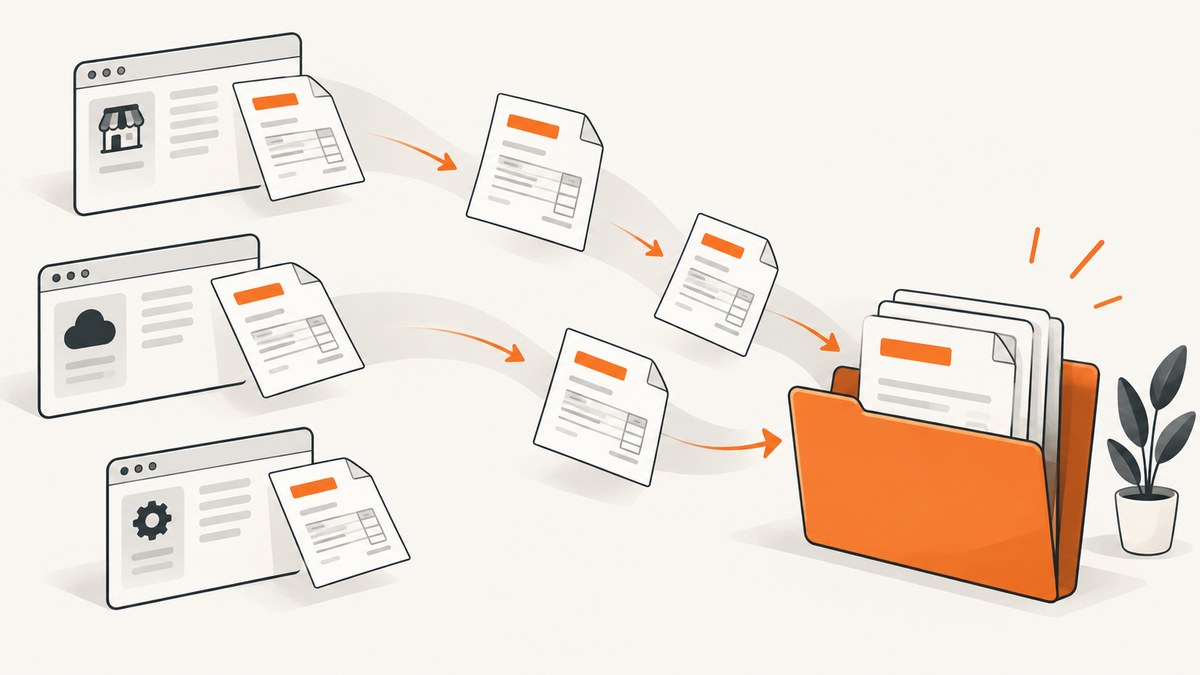
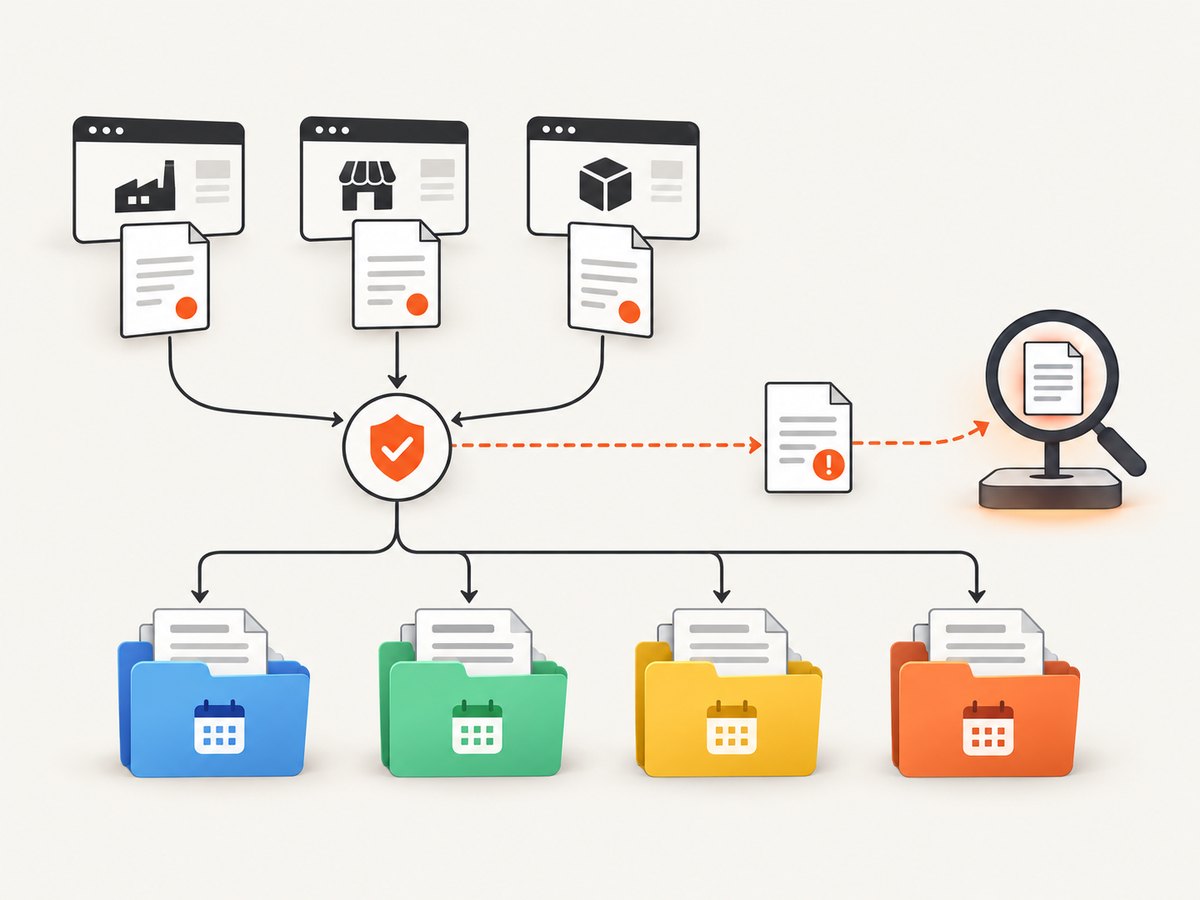
Yes. A recurring workflow can collect invoices from vendor portals, check that each downloaded file is for the expected billing period, and store the files in a predictable folder. For each supplier, first look for scheduled invoice emails, a supported API, or a finance-system integration. Use browser RPA when a person would otherwise sign in and navigate the portal. Keep a person in the loop for MFA prompts, missing invoices, unexpected page changes, and the final review before sending files to an accountant.
There is no reliable universal time-savings figure: the result depends on how many portals you use and how often their sign-in and billing pages change. Treat the workflow as exception-handling automation, not a guarantee that every monthly run will finish unattended.
1. Choose the least fragile way to get each invoice
There are two different jobs that can look similar from the outside:
- Interact with the portal: sign in, open billing history, select a period, and click its download control. This is browser UI automation, often called web RPA.
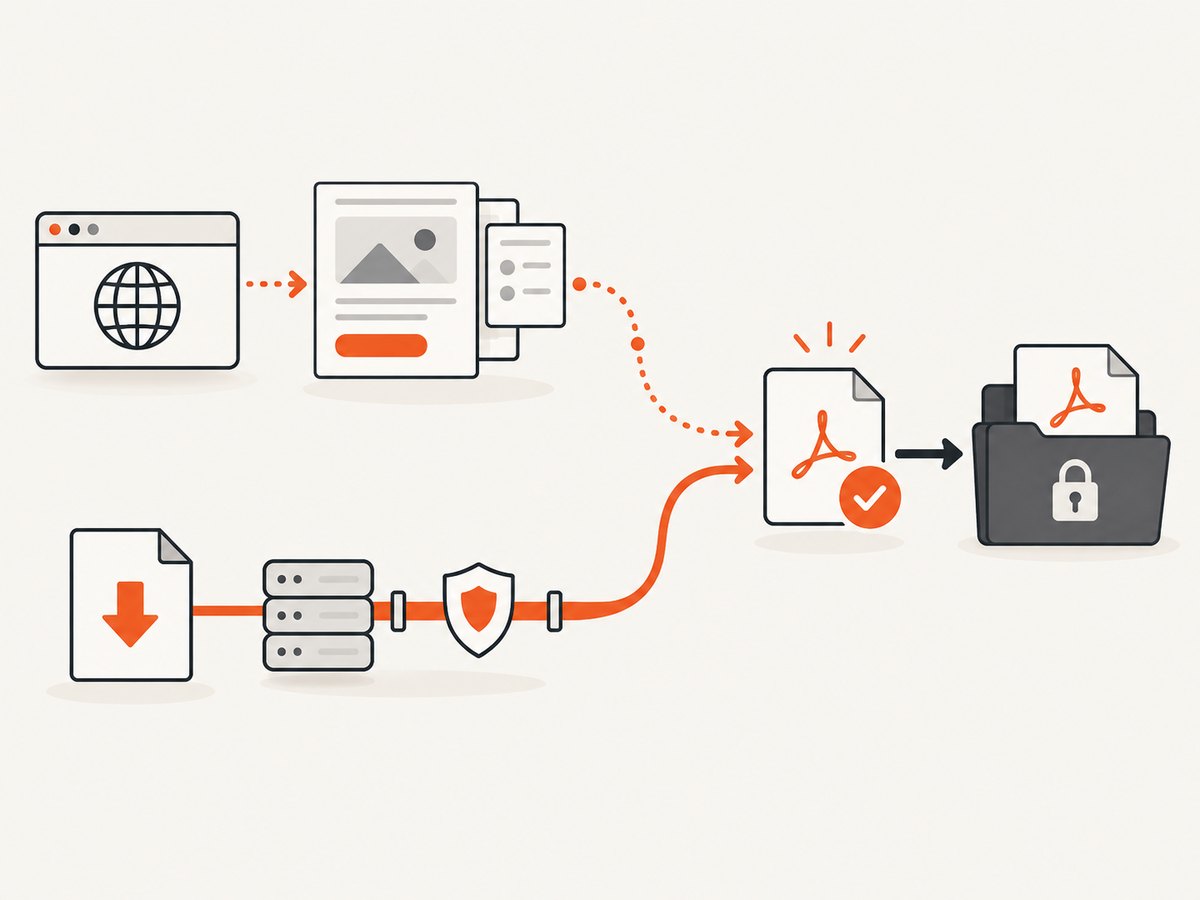
- Download a file directly: request a known file URL or endpoint and save its response. This can avoid page navigation when the supplier documents and permits that route.
Microsoft Power Automate documents both browser automation and a separate “Download from web” action. Its browser flows launch or attach to a supported browser and commonly use webpage elements captured during flow design. The web-download action can use GET or POST and save files to disk. A direct download is appropriate only when the supplier provides a supported route and your use is authorized; do not copy hidden session tokens or imitate undocumented requests. Microsoft’s browser automation documentation describes these actions and their constraints.
Check vendor options in this order:
- Scheduled invoice delivery by email or a finance-system integration.
- A documented API or documented direct invoice download.
- Browser RPA for portals that require page interaction.
- Manual retrieval for portals whose login challenge or terms do not support automation.
A supported integration is often less sensitive to layout changes than clicking page elements. That is an implementation consideration, not a guarantee: integrations also need credential, error, and data controls.
2. Make an inventory before building the flow
Record one row per vendor. This prevents the automation from guessing what “last invoice” means when billing dates differ or a vendor issues more than one document per month.
| Field | What to write down |
|---|---|
| Vendor and portal | Supplier name and the approved sign-in page. |
| Invoice location | Billing, invoices, history, or the documented API/email route. |
| Period rule | Calendar month, statement date, or another accounting period; define how to handle a missing current-month statement. |
| File format | PDF or other expected format and whether credit notes also need collection. |
| Authentication | Account owner, MFA method, and whether unattended access is supported. |
| Destination | Restricted archive folder and the naming convention. |
| Failure owner | Person who will resolve login challenges, missing files, or changed pages. |
Choose a clear filename, for example VendorName_2026-08_invoice.pdf, and a folder structure such as Invoices/2026/08/. Include a unique invoice number in the filename when available. Do not silently overwrite a file: if that vendor and period already exist, stop for a duplicate check or save a clearly marked revision.
3. Build a browser RPA flow for portal-only invoices
The steps below describe a workflow design, not a tested turnkey flow. Build and maintain a small flow for each distinct portal pattern rather than assuming one set of page selectors will work across suppliers.
- Set the run period. Decide which completed billing period the run is collecting. Make this explicit in the run input or schedule; avoid relying on a vague “latest” result.
- Start or attach to the supported browser. Use the same operating-system user and approved profile that owns the portal sign-in. In Power Automate Desktop, a flow cannot attach to a browser opened under a different system user.
- Sign in using the approved process. Retrieve credentials from the platform’s approved credential store if available. Do not put passwords in flow text, scripts, screenshots, or logs. If MFA or a CAPTCHA requires a person, pause and route the run to that person; do not attempt to bypass the challenge.
- Navigate to billing history. Use captured webpage elements and verify that the page is the expected vendor account before acting. Avoid brittle coordinates where the platform offers element-based actions.
- Select the intended period and invoice. Check the displayed date or invoice number before clicking download. If no invoice exists for that period, log “missing” and notify the owner rather than silently substituting a different month.
- Wait for the download to finish. Use the RPA tool’s completion signal where available. Then check that the file exists, has a plausible name and nonzero, plausible size, and is of the expected type. A file extension alone does not prove that the PDF is a valid invoice.
- Rename and file it. Apply the vendor/year/month naming scheme. Detect duplicates before writing. Keep temporary and incomplete downloads out of the accountant’s ready-to-send folder.
- Record the outcome. Write a run log with vendor, period, result, filename, timestamp, and a concise error category. Avoid logging passwords, session cookies, invoice contents, or unnecessary personal and financial data.
- Review exceptions and send deliberately. Route failures and questionable files to a person. Before emailing or importing an invoice, confirm the vendor and billing period. If sending is automated too, use an approved destination and retain a record of what was sent.
Power Automate notes that some browser actions can run with the browser minimized, but actions configured for physical interaction require the browser to remain focused and not minimized. That affects whether a flow can run unattended in your particular design. Check the action requirements and test your deployment process with a non-sensitive case before scheduling production runs.
4. Direct file-download example with Python
Use a direct download only when the supplier documents a stable URL and the request does not require you to evade access controls. This generic example fetches a publicly or appropriately authorized file URL; it is not a recipe for extracting a portal’s private session credentials. It writes to a temporary name, rejects HTTP errors and empty content, and avoids replacing an existing destination.
from pathlib import Path
import requests

url = "https://example.com/documented-invoice-download.pdf"
destination = Path("Invoices/2026/08/VendorName_2026-08_invoice.pdf")
temporary = destination.with_suffix(destination.suffix + ".part")
destination.parent.mkdir(parents=True, exist_ok=True)

if destination.exists():
    raise FileExistsError(f"Refusing to overwrite {destination}")

try:
    with requests.get(url, stream=True, timeout=(10, 90)) as response:
        response.raise_for_status()
        content_type = response.headers.get("Content-Type", "").lower()
        if "pdf" not in content_type and "octet-stream" not in content_type:
            raise ValueError(f"Unexpected content type: {content_type or 'missing'}")
        with temporary.open("wb") as output:
            for chunk in response.iter_content(chunk_size=64 * 1024):
                if chunk:
                    output.write(chunk)
    if temporary.stat().st_size == 0:
        raise ValueError("Downloaded file is empty")
    temporary.replace(destination)
except Exception:
    temporary.unlink(missing_ok=True)
    raise

print(f"Saved {destination}")
Replace the example URL only with a supplier-supported download address. Some systems return an HTML login page with status 200, so checking content type and then validating the document matters. A successful HTTP response is not proof that the right invoice was received. If the documented endpoint requires authentication, use the supplier’s supported authorization method and a secrets manager; do not add credentials to source code.
5. Validate files and handle exceptions
A robust collection process distinguishes “download action ran” from “correct invoice is ready.” Use checks proportional to the consequence of sending the wrong file.
- Identity: vendor account and invoice number match the inventory.
- Period: the visible invoice date or billing-period label matches the run target.
- Completeness: file exists, is nonempty, and can be opened by an approved PDF reader or document-processing step.
- Uniqueness: duplicate period/vendor files are flagged rather than overwritten.
- Traceability: the log records success, missing invoice, sign-in needed, layout changed, download failed, or validation failed.
- Human handoff: failures stop that vendor’s processing and create a clear task for the owner. Do not label a partial batch complete if one vendor failed.
Keep the archive access-controlled, backed up, and subject to a retention policy that matches your accounting obligations. Limit the automation account to the portals and folders it needs. Review each platform’s handling and contractual terms before placing invoices or credentials in a cloud service. UiPath, for example, describes encryption in transit and at rest for its cloud customer data and distinguishes cloud from on-premise deployments in its security FAQ; those vendor statements are specific to UiPath and do not guarantee the security of another tool or your configuration. See UiPath’s trust and security FAQ.
6. Pick a tool that fits the workflow
Power Automate Desktop is a direct fit when you need visual browser actions and/or its documented web-download action. Account for captured page elements, browser and user-session requirements, and any focused-browser actions. The exact unattended runtime and licensing needs depend on how you deploy and schedule the flow, so verify current Microsoft product requirements.
UiPath is relevant when invoice collection is one part of a larger finance process. Its invoice-automation example describes retrieval, information extraction, entry into SAP, verification, posting, and notifications. That is a vendor example of a broader process, not evidence that every portal can be automated or that a particular time saving is guaranteed. UiPath lists a free Community License for eligible users, with components and limits subject to current terms; check its developer page before choosing it. The example is described in its invoice automation PDF.
Compare candidates on supplier-supported interfaces, browser and element support, scheduling/runtime requirements, MFA handoff, credential storage, file validation and logging, licensing, and maintenance effort. Neither the reviewed product sources nor this workflow establish that RPA bypasses MFA or supplier restrictions.
7. Troubleshooting
| Symptom | Likely cause | Practical fix |
|---|---|---|
| Flow cannot find a button or field | Portal markup or layout changed; the captured element is stale. | Stop the run, inspect the page, recapture the element, and update that portal’s flow. Add a failure branch so it does not click a nearby control by mistake. |
| Browser will not attach | Browser is running under a different system user, profile, or unsupported setup. | Launch/attach through the documented automation route under the intended user and check the platform’s supported browser setup. |
| Run stalls at sign-in | MFA, CAPTCHA, expired session, or an account policy requires human action. | Pause and notify the account owner. Use an officially supported integration if available; do not attempt to defeat the challenge. |
| Download folder is empty | Click did not trigger a download, the browser blocks it, or the portal has not finished generating the file. | Wait for a completion signal, inspect the portal’s status, and confirm the browser’s download permissions. Retry only with a bounded policy. |
| Downloaded “PDF” opens as a login page | A direct request received an HTML sign-in response or expired authorization. | Check status and content type, discard the invalid file, and use the documented authentication flow. Do not treat HTTP 200 as invoice validation. |
| Wrong month or duplicate file | “Latest” changed during the run, period selection was ambiguous, or a prior file was overwritten. | Pass an explicit period, verify invoice metadata, detect an existing vendor-period file, and route conflicts for review. |
| Some vendors succeed and others fail | Portals use different layouts, session rules, or release schedules. | Track results per vendor. Keep successful validated files, mark the batch partial, and route only failed or missing items for follow-up. |
8. Performance, reliability, and cost
For a small workflow, optimize first for predictable recovery rather than raw speed. Run vendors independently so one slow portal does not erase progress on the rest. Use bounded waits and retries for transient loading, but do not retry a login challenge or repeat an action that could create duplicate exports without checking state. Save each completed file atomically, keep a run log, and make reruns idempotent by detecting an existing vendor-period invoice.
RPA has an ongoing maintenance cost: supplier page changes, password rotation, MFA policies, browser updates, and changes to invoice timing can require attention. Measure your own baseline and exception rate if you need to estimate time saved; there is no sourced general percentage or payback period for this workflow. Also account for any unattended runtime, platform license, storage, and review effort. The researched sources do not establish current deployment prices for this particular setup, so check the vendors’ current terms.
9. A screenshot can help diagnose page changes
If a portal flow starts failing, a screenshot of the page at the failure point can help an operator see whether a notice, changed layout, or missing control caused it. Screenshots are diagnostic evidence, not proof that the invoice was downloaded or correct. Avoid capturing pages that expose more financial or personal information than needed, and protect diagnostic images as carefully as invoice files.
ScreenshotNeo is a website screenshot API and MCP server for developers. Its request can capture a page as an image or PDF; it does not replace an authenticated invoice integration or validate invoice contents. For API setup and parameters, see the ScreenshotNeo documentation.
Or skip the browser setup
For a page you are authorized to capture, one GET request returns a screenshot:
curl -G "https://api.screenshotneo.com/v1/shot" -d access_key=YOUR_API_KEY --data-urlencode url=https://stripe.com -o shot.webpimport requests
r = requests.get("https://api.screenshotneo.com/v1/shot", params={"access_key": "YOUR_API_KEY", "url": "https://stripe.com"}, timeout=90)
open("shot.webp", "wb").write(r.content)const q = new URLSearchParams({ access_key: 'YOUR_API_KEY', url: 'https://stripe.com' });
const res = await fetch(`https://api.screenshotneo.com/v1/shot?${q}`);ScreenshotNeo accepts cookie/consent banners before capture and removes 60+ known consent platforms, newsletter popups, and chat widgets; each step can be turned off. Bot checks, CAPTCHAs, blank pages, timeouts, failed loads, and cache hits cost nothing, and response headers report the page verdict and billing status. Its MCP server lets AI agents use take_screenshot, get_page_info, and capture_pdf. The Free plan includes 1,000 shots a month without a card; paid plans start at $5 for 3,000. Use it to inspect authorized pages, not to bypass portal access controls or fetch private invoices without an approved route.
Sign up free for 1,000 screenshots a month with no card.
10. FAQ
Can the workflow email invoices automatically?
It can be designed to, but first establish a reliable recipient, validate each vendor and period, and define what happens when only part of the batch succeeds. Many teams should keep an approval step before sending.
What if a supplier changes its portal?
Stop that supplier’s flow on an unexpected page, log the issue, and have an owner inspect and update the automation. Keep the other vendors’ independent results intact.
Can I run the flow with the browser minimized?
Some Power Automate browser actions support minimized operation, while actions requiring physical interaction need the browser focused and visible. Review the specific actions in your flow and deployment setup.
Should I store invoices on an external drive?
An external drive is optional. Choose storage based on access controls, backup, retention, and recovery requirements; the automation only needs a permitted destination.
Before scheduling the monthly run
- Every vendor has a documented route and explicit billing-period rule.
- Credentials use an approved store and least privilege.
- MFA and other challenges have a human handoff.
- Downloads are checked for vendor, period, file validity, and duplicates.
- Failures are visible in a log and have an assigned owner.
- The archive is access-controlled, backed up, and retained under your policy.


