How to Automate Native Select Elements in Browsers
Learn reliable native HTML select automation with Selenium, Playwright, and Cypress, including multi-selects, verification, failures, and custom dropdowns.
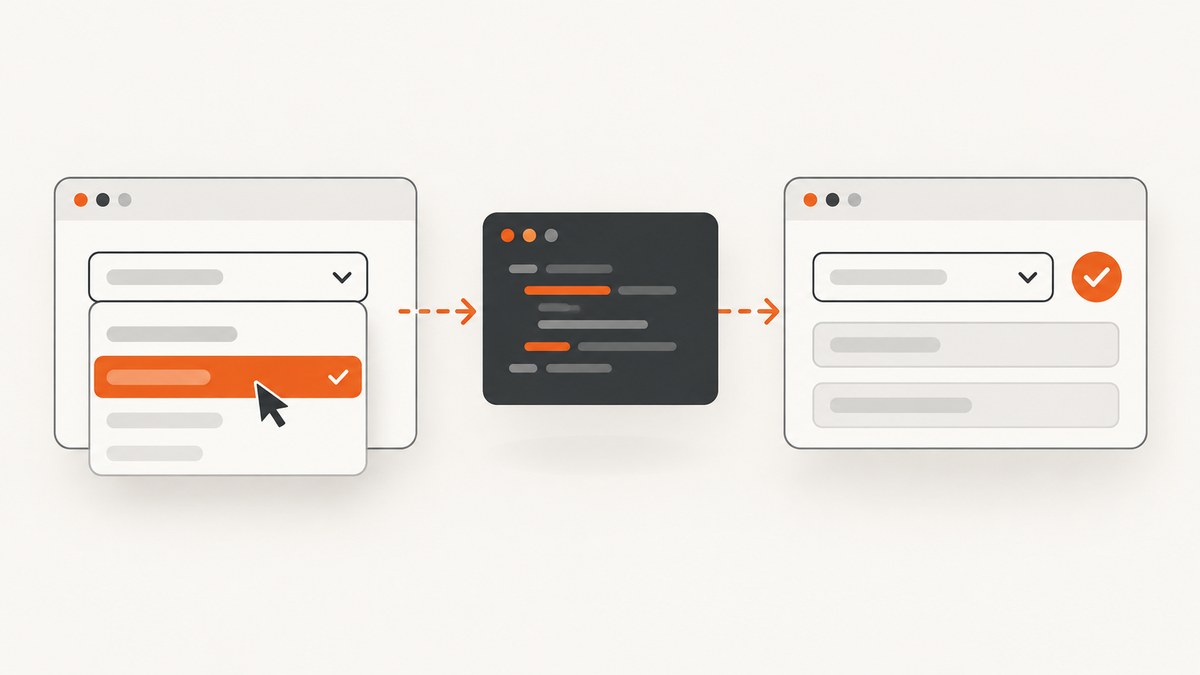
Direct answer: use your browser framework’s native select API when the control is a real HTML <select>. In Selenium, wrap it with Select; in Playwright, call locator.selectOption(); in Cypress, call .select(). Prefer a stable option value, use visible text or a label when that is the behavior you need to test, and use an index only when the order is intentionally stable. Always verify the selected value or values after the action.
These APIs handle the browser’s selection semantics and dispatch the expected input and change events. They do not apply to custom dropdown widgets built from buttons, divs, ARIA listboxes, or JavaScript menus. Those controls need role-based and keyboard interaction.
1. Confirm that the control is native
Inspect the DOM before writing the test. A native control has a <select> element containing one or more <option> elements:
<label for='country'>Country</label>
<select id='country' name='country'>
  <option value=''>Choose a country</option>
  <option value='US'>United States</option>
  <option value='CA'>Canada</option>
</select>
A custom dropdown may look identical but have markup such as <button aria-haspopup='listbox'> followed by a list of <div role='option'> elements. Native select helpers reject that target because it is not a select element. Use the widget’s button, listbox, and option roles instead.
2. Choose the right selection strategy
| Strategy | Use it when | Risk |
|---|---|---|
| Value | The option has a stable machine value such as US. |
Values can change if the application contract changes. |
| Visible text or label | The user-facing wording is the behavior under test. | Copy changes, whitespace, and localization can break the test. |
| Index | The order is deliberately fixed and part of the contract. | Insertions or sorting changes select a different option. |
For most regression tests, value is the least fragile choice. Use text when the requirement explicitly says “choose United States,” and reserve index for tightly controlled fixtures.

3. Selenium
Selenium’s Select wrapper works only with HTML select and option elements. It provides selection by value, visible text, and zero-based index. Disabled options cannot be selected, and deselection is available only for multi-select controls. See the Selenium select-list documentation.
from selenium import webdriver
from selenium.webdriver.common.by import By
from selenium.webdriver.support.ui import Select

options = webdriver.ChromeOptions()
options.add_argument('--headless=new')
driver = webdriver.Chrome(options=options)
try:
    driver.get('https://example.test/form')

    country = Select(driver.find_element(By.ID, 'country'))
    country.select_by_value('US')
    # Alternatives:
    # country.select_by_visible_text('United States')
    # country.select_by_index(1)

    assert country.first_selected_option.get_attribute('value') == 'US'
finally:
    driver.quit()
select_by_visible_text matches the rendered option text. If no option matches, Selenium raises a no-such-element error. A locator error means the select itself was not found; an option error means the select was found but the requested option was absent.
Selenium multi-select
colors = Select(driver.find_element(By.ID, 'colors'))
assert colors.is_multiple
colors.select_by_value('red')
colors.select_by_value('blue')
selected = [option.get_attribute('value')
            for option in colors.all_selected_options]
assert selected == ['red', 'blue']

# Remove one selection or all selections:
colors.deselect_by_value('red')
colors.deselect_all()
Do not call deselection methods on a single-select element. Check is_multiple first when the test can run against different fixtures.
4. Playwright
Playwright’s locator.selectOption() waits for the element, performs actionability checks, waits for the requested options to exist, selects them, and dispatches input and change events. The API accepts a value, a label, an index, or an array for multiple options. See the Playwright API documentation.
import { test, expect } from '@playwright/test';

test('selects a country', async ({ page }) => {
  await page.goto('https://example.test/form');
  const country = page.locator('select#country');

  await country.selectOption('US');
  await expect(country).toHaveValue('US');

  // Label and index forms:
  await country.selectOption({ label: 'Canada' });
  await country.selectOption({ index: 1 });
});
For a multi-select, pass an array. Playwright returns the values that were selected, which is useful when you want a direct assertion:
const colors = page.locator('select#colors');
const values = await colors.selectOption(['red', 'blue']);
expect(values.sort()).toEqual(['blue', 'red']);
await expect(colors).toHaveValues(['red', 'blue']);
Do not add arbitrary sleeps before selectOption. If options are loaded asynchronously, wait for the relevant option or application state:
await page.locator('select#country option[value="US"]').waitFor();
await page.locator('select#country').selectOption('US');
5. Cypress
Cypress applies .select() to a command yielding a native select. The argument can be a value, index, visible text, or an array for multiple selections. Cypress automatically waits for actionability and retries chained assertions. See the Cypress select command.
describe('country form', () => {
  it('selects and verifies a country', () => {
    cy.visit('https://example.test/form');
    cy.get('select#country').select('US').should('have.value', 'US');

    // Visible text and index:
    cy.get('select#country').select('Canada');
    cy.get('select#country').select(1);
  });
});
For multiple selections:
cy.get('select#colors')
  .select(['red', 'blue'])
  .find('option:selected')
  .should('have.length', 2);
If a select is hidden behind a collapsed panel or otherwise fails actionability, Cypress supports { force: true }:
cy.get('select#country').select('US', { force: true });Force mode does not make a disabled option or disabled optgroup selectable. Prefer opening the panel or fixing the test fixture when the hidden state represents a real user flow.
6. Events, dependent fields, and asynchronous options
Changing a select often triggers validation or populates another select. Select through the framework API, then assert the dependent state instead of inspecting the DOM immediately after a click. For example, after choosing a country, wait for the state option to appear.
// Playwright
await page.locator('select#country').selectOption('US');
await expect(page.locator('select#state option[value="CA"]')).toBeAttached();
await page.locator('select#state').selectOption('CA');
A disabled option can be present in the DOM but invalid to choose. A placeholder with an empty value is a real option; decide whether the test should reject it or explicitly select it. If the application replaces the entire select node after a choice, reacquire the locator or element before the next operation.
7. Native select versus custom dropdown
Do not force a native API onto a custom widget. For an ARIA listbox, the typical flow is:
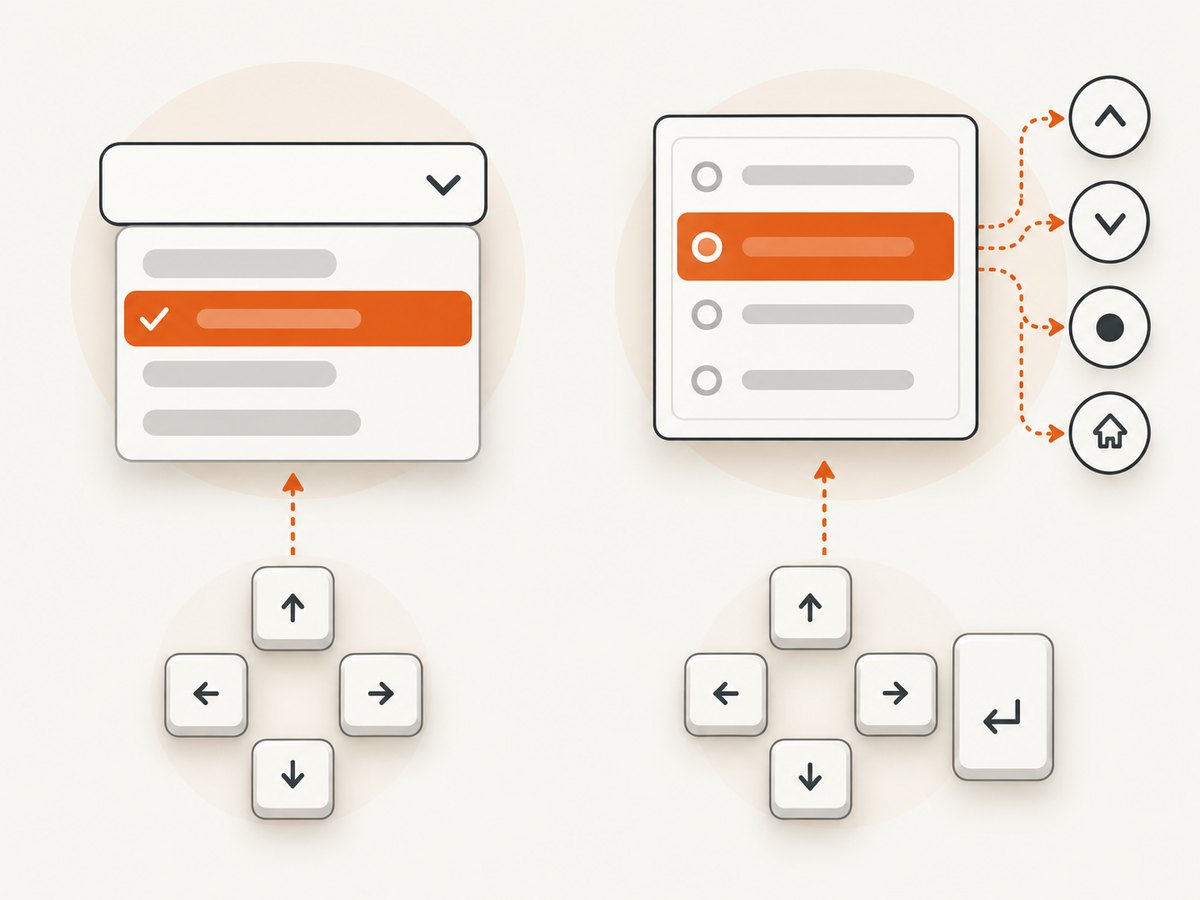
- Locate and activate the button or combobox.
- Wait for the listbox to become visible.
- Locate an option by its role and accessible name.
- Click it or use the documented keyboard sequence.
- Assert the button’s accessible value and any form value.
// Playwright custom widget example
await page.getByRole('combobox', { name: 'Country' }).click();
await page.getByRole('option', { name: 'United States' }).click();
await expect(page.getByRole('combobox', { name: 'Country' }))
  .toHaveText('United States');
The exact interaction depends on the widget’s accessibility implementation. A custom control may support typeahead, arrow keys, or virtualized options; test those behaviors as a user would.
8. Verification checklist
- Confirm the target is a real
select. - Use a stable, meaningful selector such as an ID, label, or test attribute.
- Prefer option values unless visible wording is the contract.
- Verify the selected value, text, or selected-option set.
- For multi-selects, assert the complete set and its order only if order matters.
- Check that the option is enabled and present before selecting it.
- Assert downstream effects such as validation messages or dependent fields.
9. Troubleshooting common failures
| Symptom | Likely cause | Fix |
|---|---|---|
| “Element is not a select” | The widget is custom, or the locator matched a wrapper. | Inspect the DOM; use role and keyboard actions for a custom widget. |
| No matching option | Wrong value, label, whitespace, localization, or options not loaded yet. | Log available options, wait for the option, and choose the correct contract. |
| Element not found | Wrong selector, iframe, shadow root, or page not ready. | Switch into the iframe, use the framework’s shadow DOM support, or wait for the page state. |
| Selection has no effect | Application listens for events on a custom control or the node was replaced. | Use the widget’s supported interaction and reacquire replaced nodes. |
| Disabled option error | The option or its optgroup is disabled. | Choose an enabled option or fix the fixture; force mode does not override disabled state. |
| Flaky dependent select | Network-backed options arrive after the first select. | Wait for a specific option or API-driven state, then select and assert. |
| Multi-select loses a prior choice | The control is single-select or the framework call supplied one value. | Confirm the multiple attribute and pass all desired values as an array where supported. |
10. Performance and reliability
Native selection is faster and more deterministic than clicking through a browser’s platform dropdown. Keep selectors stable, avoid fixed delays, and wait on observable conditions. Reuse a browser context where your framework supports it, but isolate tests that mutate shared server-side data. For asynchronous forms, waiting on a specific option is usually cheaper and more reliable than waiting for an entire network-idle period.
Capture diagnostic information on failure: the select’s outer HTML, option values and labels, disabled attributes, current value, URL, and screenshot. This distinguishes a selector regression from a backend response problem. Use one assertion for the selection itself and another for the business effect so failures identify the broken layer.
11. Or skip the browser setup
If your goal is a visual record of the resulting page rather than an interaction test, ScreenshotNeo can capture the page with one request. The API supports PNG, JPEG, WebP, and PDF output, plus full-page and element capture, custom JavaScript, waits, headers, cookies, device presets, and other options. Read the ScreenshotNeo API documentation for the complete parameter list.
curl -G 'https://api.screenshotneo.com/v1/shot' \
  -d access_key=YOUR_API_KEY \
  --data-urlencode url=https://example.test/form \
  -o shot.webp
import requests
r = requests.get(
'https://api.screenshotneo.com/v1/shot',
params={'access_key': 'YOUR_API_KEY', 'url': 'https://example.test/form'},
timeout=90,
)
r.raise_for_status()
open('shot.webp', 'wb').write(r.content)const q = new URLSearchParams({
access_key: 'YOUR_API_KEY',
url: 'https://example.test/form'
});
const res = await fetch(`https://api.screenshotneo.com/v1/shot?${q}`);
if (!res.ok) throw new Error(`Screenshot failed: ${res.status}`);
const bytes = new Uint8Array(await res.arrayBuffer());
await Bun.write('shot.webp', bytes);Cookie banners, newsletter popups, and chat widgets are removed before the shot. Bot checks, blank pages, timeouts, failed loads, and cache hits are not billed, and the response identifies the result with X-Page-Verdict and X-Billed headers. ScreenshotNeo also provides an MCP server so Claude, Cursor, and other MCP clients can call take_screenshot, get_page_info, and capture_pdf. The free plan includes 1,000 screenshots per month with no card; paid plans start at $5 for 3,000. Create a free ScreenshotNeo account.
12. Cost and operational notes
Running Selenium, Playwright, or Cypress yourself means maintaining browser binaries, workers, fonts, sandbox permissions, retries, storage, and network access. A hosted capture API shifts those browser concerns to an HTTP boundary. For ScreenshotNeo, choose caching with a TTL when the same URL is captured repeatedly, use bulk capture for up to 100 URLs per call, and use asynchronous jobs with signed webhooks for larger workflows. Custom headers, cookies, user agents, authorization, timezone, and geolocation help reproduce authenticated or localized pages. Treat credentials as secrets and avoid placing them in public URLs or logs.
FAQ
Should I select by text or value?
Use value for a stable application contract. Use visible text when the test is specifically about what a user sees or chooses.
Can I select an option that is not visible?
Native select APIs can select an option in the DOM when it is enabled. A custom widget may require opening the menu and scrolling or searching before its option becomes actionable.
Why does an index-based test break after a harmless UI change?
Indexes depend on order. Adding a placeholder, sorting options, or inserting a new option changes the meaning of every later index.
Do these APIs submit the form?
No. They change the selection and dispatch selection events. Submit the form separately and assert the resulting navigation or response.
How do I test a select inside an iframe?
Obtain the frame context using your framework’s iframe API, then locate the select within that context before applying the native select method.


