How to Automate PDF Generation with Zapier
Build a Zap that turns form submissions, spreadsheet rows, or existing files into PDFs, then routes and checks each result before enabling it.
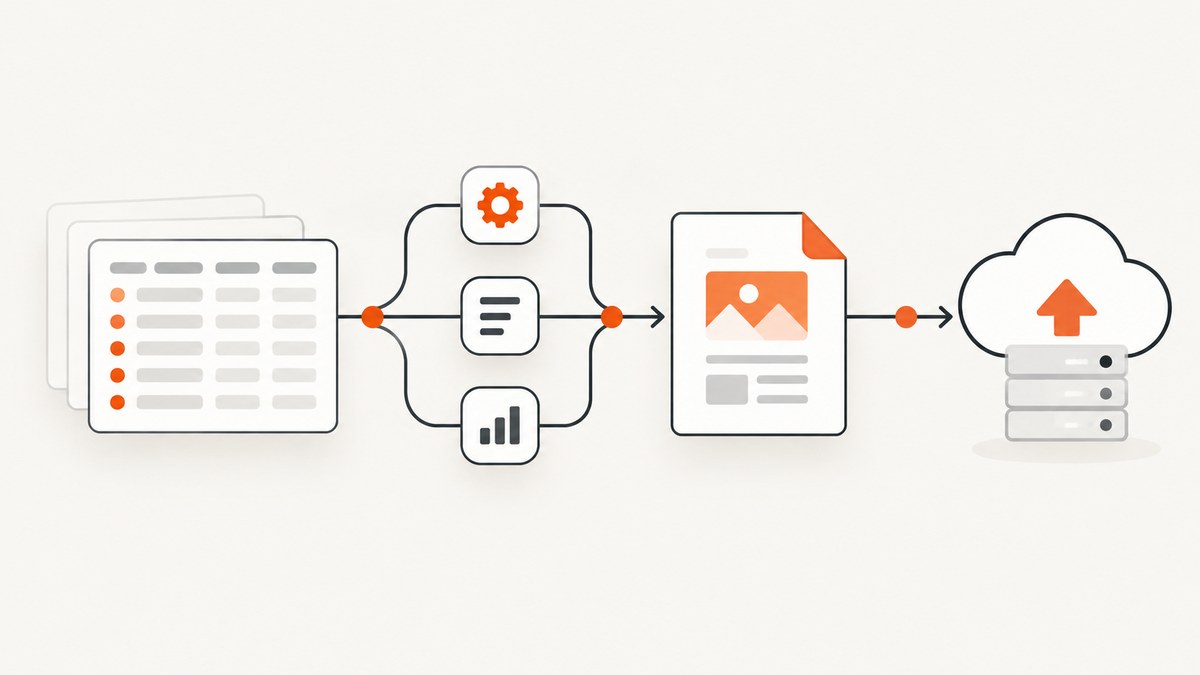
To automate PDF generation with Zapier, start with an event in a source app, pass its fields to a document-generation or PDF-processing action, then send the returned document to its destination. For repeatable invoices, contracts, or reports, use a service that fills a template. For a file that already exists, use a PDF service to convert or process it. Before switching on the Zap for routine use, test realistic records and confirm the resulting file and destination.
The right setup depends on what you start with: a structured record, a document file, or HTML/Markdown content. Zapier’s available integrations and action fields can change, so check the current action picker and test the actual output in your account.
1. Choose the workflow that matches your input
First identify what starts the workflow and what operation should happen to it. These are different jobs, even though both can end with a PDF.
| Your starting point | What you need | Possible Zapier approach |
|---|---|---|
| A form response, spreadsheet row, or database record | Put fields into a repeatable invoice, contract, or report | Use a template-based document action. Zapier lists Docupilot’s Create Document action for a specified template, with example workflows involving Google Sheets rows and Airtable records. |
| An existing file or document | Convert it to PDF, extract data, split pages, or merge files | Use a PDF-processing action. Zapier describes PDF.co for these operations; connecting it requires an active account, an API key, and enough service credits. |
| HTML, Markdown, or template content | Produce a hosted PDF from prepared content | Zapier lists PDFgen as a service that turns HTML, Markdown, or templates into hosted PDFs. Verify its current action fields and output behavior in the editor. |
Google Docs can create a document from text or a template through Zapier. You need a Google account, and the connected user needs appropriate access to target documents. The documentation reviewed for this guide does not establish a direct Google Docs-to-PDF export action, so confirm the current integration provides the PDF output you need before building around it. PDF Maker – Automate Documents is another template-based option surfaced by Zapier; assess its live actions and terms in your account.
2. Prepare the source data and document template
For template-driven generation, prepare the document before wiring up the Zap. Use stable, clearly named fields such as customer_name, invoice_number, and due_date. Keep a short mapping list between source fields and template fields. This makes it easier to spot a wrong or missing value later.
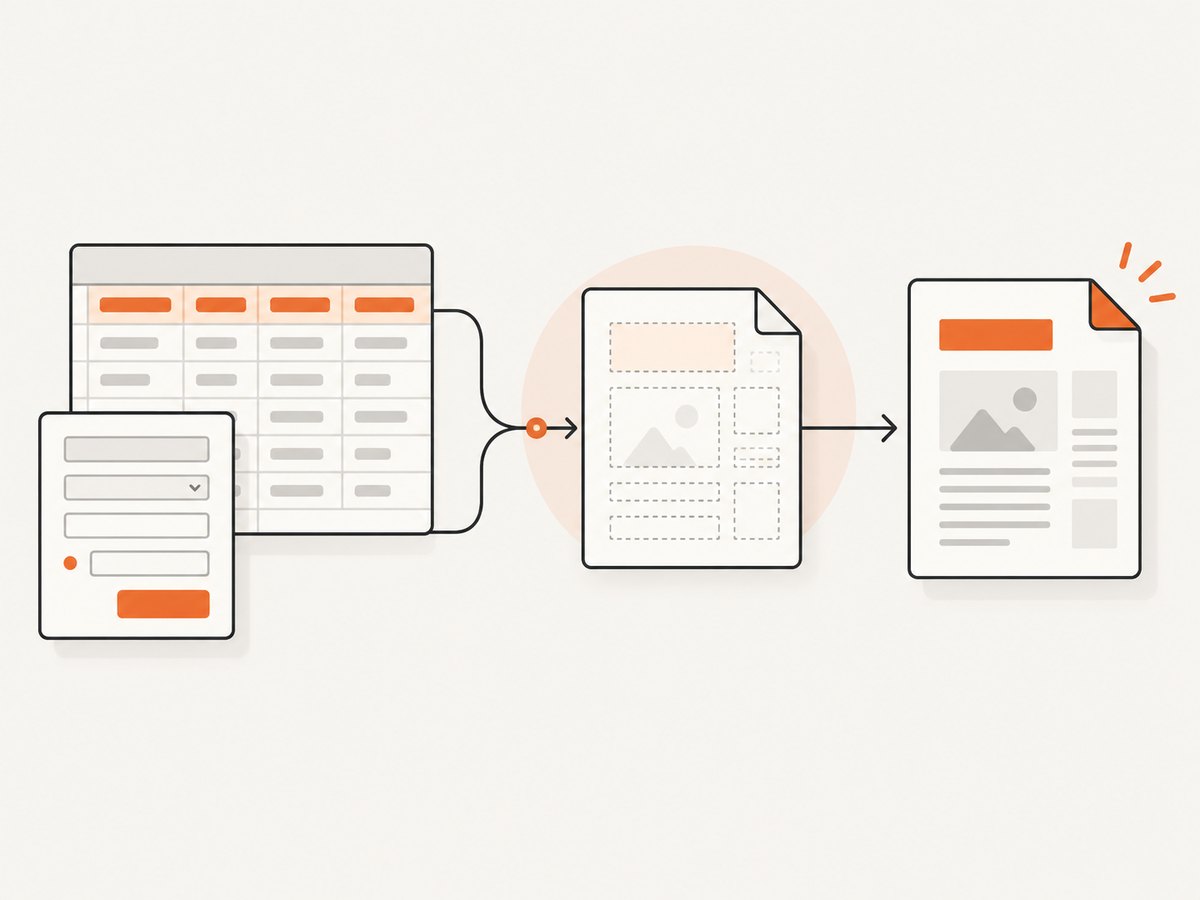
- Pick a representative record. Choose one with ordinary values and a complete set of required fields.
- Identify required and optional fields. Decide what should happen when an optional field is empty. For example, should its line disappear, or should the document show a blank space?
- Check formatting assumptions. Dates, currency, addresses, and long descriptions can render differently than their source values. Decide how those values should appear in the final document.
- Keep the template layout resilient. Test long names and paragraphs so they do not overlap other fields or run off a page.
For conversion or processing, locate the source file and confirm it is available to the Zapier action in the form that action expects. A file link, an uploaded file, and document text are not interchangeable inputs. Check the action’s required fields in the editor before choosing a source step.
3. Build the Zap, one step at a time
- Choose a trigger. Common patterns include a new form response, a new spreadsheet row, or a new database record. Select the event that corresponds to one document being needed.
- Connect the source app. Authorize the account and select the relevant form, sheet, table, or other source. Run the editor’s trigger test so you have a sample record to map.
- Add a document action. For structured data and a reusable template, check the current Docupilot integration and its Create Document action. Select the template and map each source value to its corresponding template field. For a different template workflow, evaluate Google Docs or PDF Maker in the live action picker and verify the final format you need.
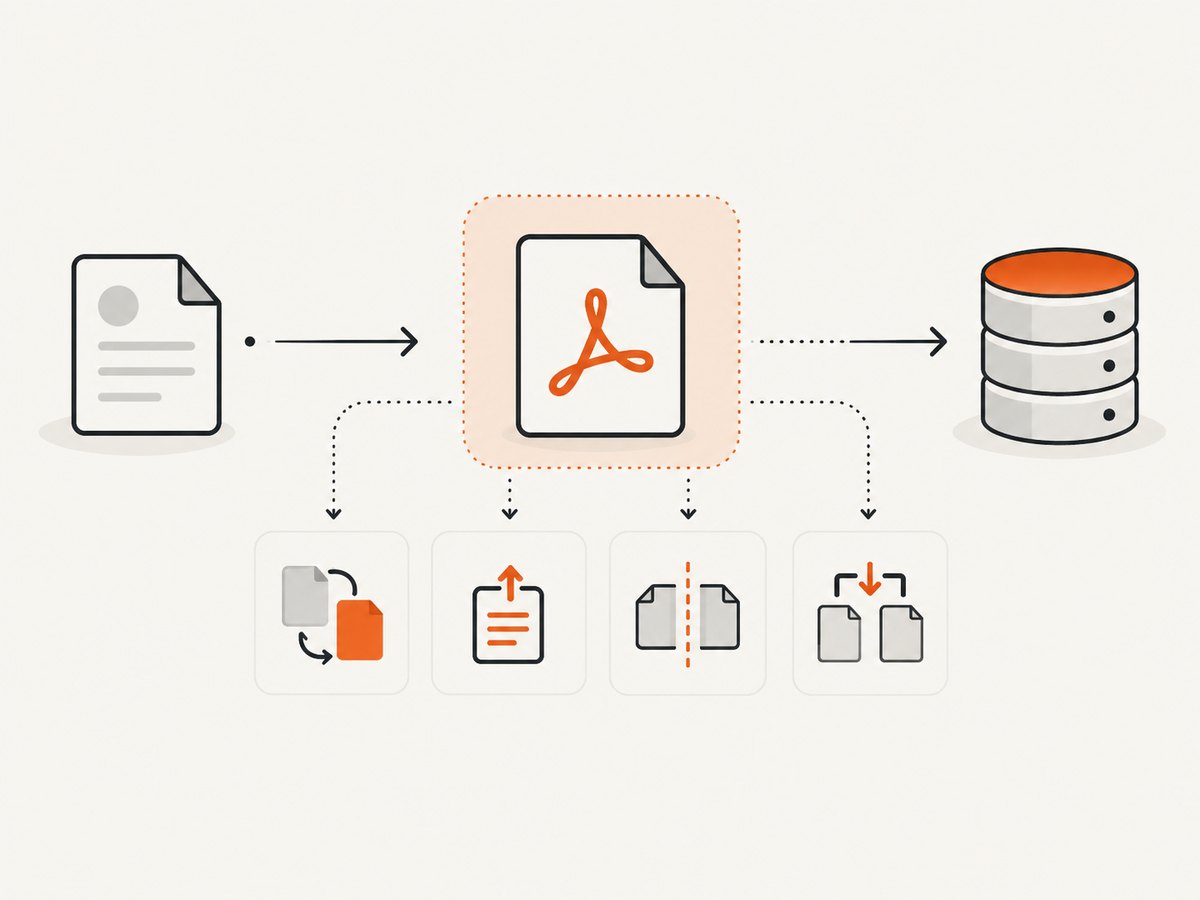
- Add a PDF-processing action if needed. When a source file needs conversion or processing, add a suitable PDF.co action. Zapier documents conversion, extraction, splitting, and merging. Connect PDF.co with an active account and API key, and make sure the account has enough credits for the work.
- Route the result. Add the connected storage or email step required by your process. Choose a destination action available in your Zapier account. Map the generated file or hosted PDF output from the prior step, and check that the downstream action receives the file rather than a text description or unrelated link.
- Test the complete path. Run a sample all the way from trigger through generation and delivery. Open the output and confirm its contents, formatting, filename, and destination.
- Enable the Zap after review. Before routine use, verify the connected accounts, selected template, mappings, destination, and test result.
The exact action names, required fields, and returned output are integration-specific and may change. The Zap editor is the source of truth for what your connected accounts can do now.
4. Map fields and test edge cases
A successful test with one tidy record does not show how the workflow handles unusual values. Use representative test records that cover the data your source can actually produce.
- Empty optional values: confirm blank fields do not create awkward labels, stray punctuation, or broken layout.
- Long text: check long names, notes, addresses, and descriptions for wrapping or overflow.
- Special characters: include apostrophes, accented characters, ampersands, and punctuation that appear in real data.
- Unexpected formats: check dates, decimal separators, and currency values against the intended document format.
- Multiple or missing files: for processing workflows, confirm the step gets the intended file and behaves sensibly when one is absent.
- Destination handling: open the result from its final storage or delivery location, not only from the test preview.
If a mapping is wrong, correct it at the generation step and run the full path again. If the output is correct but delivery is wrong, inspect the destination action’s file or link field and its account connection.
5. Pick a service by the operation you need
For records that fill a reusable template
Docupilot is the clearest documented match in the reviewed Zapier listings when incoming app data needs to populate a specified template. Zapier describes it as generating PDFs and other documents from online-service data, and lists a Create Document action. Confirm the template fields, output format, and current terms in the integration before relying on a particular behavior.
Google Docs is an option when the job is creating a document from text or a template and the connected Google account has the needed permissions. The reviewed setup guide does not establish a PDF export step, so verify the available action and output in your Zap. PDF Maker – Automate Documents also offers a Create Document action and uses Google Docs for templates according to its Zapier listing; check the live integration for supported outputs and limits.
For files that need conversion or processing
PDF.co fits workflows where a source file already exists and needs PDF conversion, data extraction, splitting, or merging. Zapier’s setup guide says you need an active PDF.co account, its API key, and sufficient credits. Those requirements are separate from the Zap’s own connected-app setup.
For HTML or Markdown input
PDFgen is worth assessing when content is already represented as HTML, Markdown, or a template. The Zapier listing describes hosted PDFs and a Create Template action, but does not establish every action field or usage term. Check the actual editor options and confirm how the resulting PDF is passed to your next step.
Compare services by starting input, operation, authentication, output, downstream handling, and current commercial terms. The reviewed documentation does not support a reliable price or volume comparison. Check the vendor plan and the live Zapier action picker before estimating cost or committing to a workflow.
6. Reliability, performance, and cost considerations
Keep the workflow easy to diagnose: use a clear Zap name, label templates and fields consistently, and make the test record easy to recognize. A failure can occur at the trigger, document generation, PDF processing, or delivery step. Identify which step failed before changing mappings or reconnecting accounts.
Generation and processing time can depend on the service, document, and connected apps. The reviewed sources do not establish speed guarantees. If a downstream step requires a generated file, confirm that the preceding action has finished and returned the expected file or hosted PDF before mapping it onward.
For cost planning, account for the services involved: Zapier, the template or PDF provider, and any per-use credits required by that provider. PDF.co specifically requires sufficient credits. The sources reviewed do not establish current prices, quotas, or volume limits for the listed services, so check live plan details and estimate using your expected run volume. A test run confirms behavior; it does not establish ongoing plan capacity.
7. Troubleshooting common problems
| Symptom | Likely cause | What to check |
|---|---|---|
| The source test returns no record | The trigger has no eligible sample or points to the wrong source | Confirm the selected form, sheet, or table and create a representative source record before retesting. |
| A field is blank in the document | The wrong source field was mapped, the source value is empty, or the template field name does not match | Inspect the sample trigger data and template field list; map the intended value and test again. |
| The document layout breaks for some records | Long or special-character values exceed the layout’s assumptions | Test with realistic long values and adjust the template layout or source formatting. |
| PDF.co cannot connect or an action fails | The account is inactive, the API key is incorrect, or there are not enough credits | Reconnect with the correct PDF.co account and API key, then check available credits. |
| The next step cannot find the output file | The mapped value is not the generated file or hosted PDF expected by that action | Review the prior step’s test output and select its actual file or PDF field in the destination step. |
| Google Docs cannot access a document | The connected Google account lacks permission | Connect an account with view or edit access to the target document, as appropriate. |
| A service action shown in a guide is missing | The integration or account’s live action picker differs from the guide | Check the current Zapier listing and editor; choose an available action that supports the same operation. |
8. When the output is a screenshot instead
If the thing you need to save is a webpage view rather than a generated document or an existing file, that is a screenshot workflow. ScreenshotNeo is a website screenshot API and MCP server. A single GET request can return a PNG, JPEG, WebP, or PDF. It can also capture full pages, selected elements, or HTML/CSS content. This is useful when a PDF workflow needs a visual record of a page; it does not replace a template service for filling structured records into contracts or invoices.
Or skip the browser setup:
curl -G "https://api.screenshotneo.com/v1/shot" -d access_key=YOUR_API_KEY --data-urlencode url=https://stripe.com -o shot.webpimport requests
r = requests.get("https://api.screenshotneo.com/v1/shot", params={"access_key": "YOUR_API_KEY", "url": "https://stripe.com"}, timeout=90)
open("shot.webp", "wb").write(r.content)const q = new URLSearchParams({ access_key: 'YOUR_API_KEY', url: 'https://stripe.com' });
const res = await fetch(`https://api.screenshotneo.com/v1/shot?${q}`);See the ScreenshotNeo API documentation for request options. Cookie banners, popups, and chat widgets are removed before the shot. Bot checks, blank pages, and failed loads are never billed. An MCP server lets AI agents take screenshots. The free plan includes 1,000 screenshots a month with no card; paid plans start at $5 for 3,000. Sign up free for ScreenshotNeo.
FAQ
How do I automatically generate a PDF from a form submission?
Use the new submission as the Zap trigger, map its fields to a reusable document template, then route the generated output to the required destination. Test a complete submission, including optional fields, before enabling the workflow.
Can Zapier create PDFs from Google Sheets rows?
Zapier’s Docupilot listing surfaces a sample workflow based on new Google Sheets rows. Check the current trigger and action fields in your Zapier account and test the template output.
How do I convert a document to PDF automatically?
Start with a trigger that supplies the existing file, then add a PDF conversion action such as one available through PDF.co. Connect the service with its required account credentials and confirm the resulting file reaches the next step.
Can I use the same Zap to generate and email a document?
Potentially, if the live integrations provide a generation action and a destination action that can accept its returned file or link. Verify those fields in the editor and test the full route.
Before you turn it on
- The trigger produces the intended record or file.
- Each template field maps to the correct source value.
- Empty fields, long text, and special characters have been checked.
- The final output is the expected PDF and opens from its destination.
- Connected accounts, permissions, API keys, credits, and current plan limits are in order.
Zapier’s setup guidance for PDF.co and Google Docs, along with its Docupilot, PDFgen, and PDF Maker listings, are useful starting points. Recheck the live integration details before relying on a particular action, output format, or service term.


