How to Automate Screenshots for Portfolio Sites
Automate repeatable portfolio screenshots with Playwright, stable viewports, full-page and element captures, visual checks, and a hosted API option.
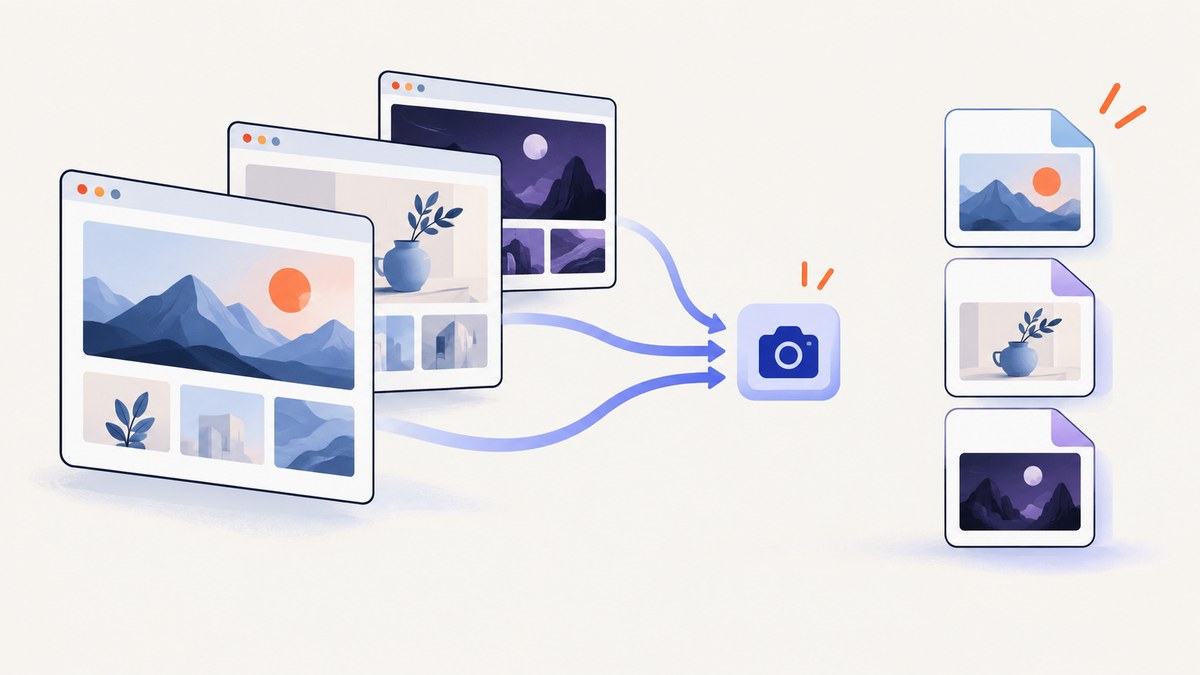
Yes. You can automate portfolio screenshots with a browser script. A practical workflow is to keep a list of URLs, open each page with Playwright, set an explicit viewport, wait for the page to settle, and save a predictable filename. Playwright can capture the visible viewport, the complete scrollable page, a selected element, or image bytes for further processing. Its official screenshot documentation covers these modes in detail: Playwright screenshots.
This guide builds a repeatable batch capture script, explains rendering and visual comparison issues, and shows when a managed screenshot API is a better operational fit.
1. Decide what each portfolio screenshot should show
Choose the capture scope before writing code. The choice changes both the image dimensions and what a reviewer can learn from it.
| Scope | Use it for | Playwright option |
|---|---|---|
| Viewport | How the page looks on a specific screen size | page.screenshot() |
| Full page | A complete landing page, including content below the fold | fullPage: true |
| Element | A project card, hero, navigation bar, or other component | locator.screenshot() |
A desktop image and a mobile image answer different questions. Pick widths that match your review or publishing need rather than treating one viewport as proof of responsive behavior. For visual regression work, capture the same dimensions every run.
2. Set up Playwright
Install Node.js, create a directory, and install Playwright. The browser download is part of the setup.
mkdir portfolio-captures
cd portfolio-captures
npm init -y
npm install -D playwright
npx playwright install chromium
Create urls.json with stable names. Keeping the name separate from the URL makes output files predictable and avoids unsafe filenames.
[
  { "name": "studio-home", "url": "https://example.com/" },
  { "name": "case-study", "url": "https://example.com/work/case-study" }
]
3. Build a repeatable batch capture script
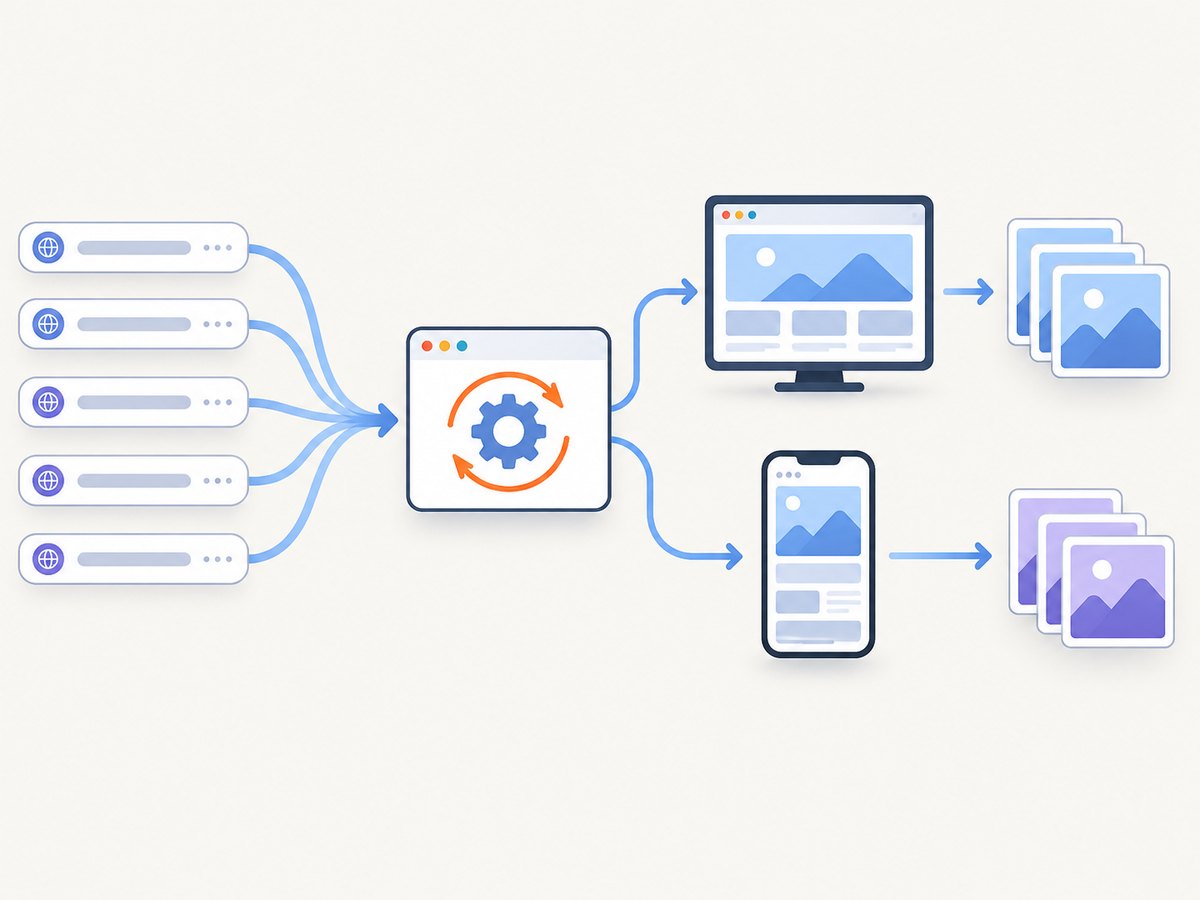
The following script captures each URL at desktop and mobile widths. It waits for the load event, allows a short settling period for late layout changes, and writes both viewport and full-page images. Adjust the delay for the sites you control; it is not a universal guarantee that every animation has finished.
import { chromium } from 'playwright';
import { readFile } from 'node:fs/promises';
import { mkdir } from 'node:fs/promises';

const targets = JSON.parse(await readFile('./urls.json', 'utf8'));
const viewports = [
  { name: 'desktop', width: 1440, height: 900 },
  { name: 'mobile', width: 390, height: 844 }
];

await mkdir('./captures', { recursive: true });
const browser = await chromium.launch();

try {
  for (const target of targets) {
    for (const viewport of viewports) {
      const context = await browser.newContext({
        viewport: { width: viewport.width, height: viewport.height },
        deviceScaleFactor: 1,
        colorScheme: 'light'
      });
      const page = await context.newPage();
      const safeName = target.name.replace(/[^a-z0-9_-]/gi, '-');

      try {
        await page.goto(target.url, { waitUntil: 'load', timeout: 60000 });
        await page.waitForTimeout(500);
        await page.screenshot({
          path: `captures/${safeName}-${viewport.name}-viewport.png`,
          fullPage: false
        });
        await page.screenshot({
          path: `captures/${safeName}-${viewport.name}-full.png`,
          fullPage: true
        });
        console.log(`Captured ${target.url} at ${viewport.name}`);
      } catch (error) {
        console.error(`Failed ${target.url} at ${viewport.name}:`, error.message);
      } finally {
        await context.close();
      }
    }
  }
} finally {
  await browser.close();
}
Run it with:
node capture.mjsName the file capture.mjs, or set "type": "module" in package.json. For a single page, remove the outer loops and keep one page.screenshot call.
4. Capture one portfolio component
Element screenshots are useful when a portfolio has a consistent project-card grid and you want to archive only one card. Wait for the selector, then capture its bounding box.
await page.goto('https://example.com/work', { waitUntil: 'load' });
const card = page.locator('[data-project-card="featured"]');
await card.waitFor({ state: 'visible', timeout: 30000 });
await card.screenshot({ path: 'captures/featured-card.png' });
A semantic or data attribute is usually more stable than a generated CSS class. If the selector matches multiple elements, use locator.nth(0) or refine it so the script fails clearly instead of silently capturing the wrong item.
5. Make lazy content and page state deterministic
Portfolio pages often load images as they approach the viewport. A full-page screenshot can trigger scrolling, but custom lazy-loading code may still need help. You can scroll through the document before capture:
await page.evaluate(async () => {
  await new Promise(resolve => {
    let y = 0;
    const step = 600;
    const timer = setInterval(() => {
      window.scrollBy(0, step);
      y += step;
      if (y >= document.body.scrollHeight) {
        clearInterval(timer);
        window.scrollTo(0, 0);
        resolve();
      }
    }, 100);
  });
});
await page.waitForTimeout(500);
For pages with a known readiness marker, prefer waiting for that marker over a fixed sleep:
await page.goto(target.url, { waitUntil: 'domcontentloaded' });
await page.locator('[data-page-ready]').waitFor({ state: 'visible', timeout: 30000 });
Disable motion when animation makes captures inconsistent. This is appropriate for archival images and visual tests, but keep the CSS in the capture script so the production page itself is unchanged.
await page.addStyleTag({ content: `
  *, *::before, *::after {
    animation-delay: 0s !important;
    animation-duration: 0s !important;
    transition: none !important;
    caret-color: transparent !important;
  }
` });
6. Add authentication, cookies, and request controls
For a private portfolio preview, create a context with storage state exported from a prior login. Never commit the state file because it can contain session credentials.
const context = await browser.newContext({
  storageState: './playwright/.auth/portfolio.json',
  viewport: { width: 1440, height: 900 }
});
Headers can identify an automated capture or select a staging variant:
const context = await browser.newContext({
  extraHTTPHeaders: { 'X-Screenshot-Run': 'portfolio-archive' }
});
If a site blocks third-party resources, the screenshot may contain missing fonts, images, or embeds. Check the browser console and failed requests before treating a blank region as a design change.
7. Generate visual regression baselines
Use screenshot assertions when the goal is to detect visual changes, rather than simply produce images. Playwright Test can create reference screenshots and compare later runs. Its toHaveScreenshot() behavior waits for two consecutive screenshots to match before comparing the result. See the visual comparisons documentation.
import { test, expect } from '@playwright/test';

test('portfolio home remains stable', async ({ page }) => {
  await page.setViewportSize({ width: 1440, height: 900 });
  await page.goto('https://example.com/', { waitUntil: 'load' });
  await expect(page).toHaveScreenshot('portfolio-home.png', {
    fullPage: true,
    animations: 'disabled'
  });
});
Generate a baseline deliberately, review it, and commit it with the test. Update it only after confirming that a visual difference is intentional.
8. Keep rendering consistent across machines
Screenshot output can vary with the host operating system, browser version, browser settings, hardware, power source, and headless mode. Generate and compare baselines in the same environment when pixel-level consistency matters. Pin your Playwright version, install the same browser revision in CI, use the same viewport and device scale factor, and avoid comparing a laptop capture with a Linux CI baseline. These environment effects are documented by Playwright in its visual comparison guidance.
Fonts are a frequent source of differences. Install the required fonts in the capture environment or load web fonts before taking the image. A font fallback changes line wrapping, which can move every section below it.
9. Handle batches, failures, and retries
For a list of many URLs, isolate each page in its own context, record the URL and error, and continue. A single timeout should not discard successful captures. Add a retry only for transient navigation failures; repeated retries cannot fix a permanently blocked page.
async function withRetry(action, attempts = 2) {
  let lastError;
  for (let i = 0; i < attempts; i++) {
    try { return await action(); }
    catch (error) { lastError = error; }
  }
  throw lastError;
}

await withRetry(() =>
  page.goto(target.url, { waitUntil: 'load', timeout: 60000 })
);
For scheduled jobs, write a small manifest containing URL, viewport, timestamp, output path, and status. That makes partial reruns and audits straightforward.
10. Troubleshooting common errors
| Symptom | Likely cause | Fix |
|---|---|---|
page.goto times out |
Slow server, blocked request, or page never reaches the chosen load event | Increase the timeout, use domcontentloaded, then wait for a page-specific readiness selector. |
| Blank or half-rendered image | JavaScript error, bot check, failed assets, or capture started too early | Inspect console and request failures, wait for a stable selector, and record the response status. |
| Images are missing | Lazy loading, blocked CDN, or images loaded only after scrolling | Scroll before capture, verify asset requests, and wait for img elements to complete. |
| Text wraps differently in CI | Different fonts, browser revision, OS, or device scale factor | Use a pinned environment and install the same fonts and browser version. |
| Cookie banner covers content | Consent state is new in the browser context | Accept it in setup, reuse approved storage state, or hide it only when that reflects your review requirement. |
| Element selector finds nothing | Selector changed, content is behind a route, or the element is inside an iframe | Use a stable data attribute, wait for the route, or obtain the frame locator before selecting. |
| Full-page image is extremely tall | Long case study or repeated infinite-scroll content | Capture the viewport, a bounded element, or a defined page section instead. |
11. Performance, reliability, and cost considerations
Launching one browser and reusing it is cheaper and faster than launching a new browser for every URL. Contexts provide isolation while keeping the browser process warm. Limit concurrency to what the capture machine and target sites can handle; too many simultaneous pages increase memory use and can trigger rate limits.
Viewport captures are smaller and faster than full-page captures. Element captures are often the least expensive operation locally because they produce less image data. If you need image buffers for storage or further processing, omit path and use the returned bytes:
const buffer = await page.screenshot({ type: 'png' });
// send buffer to your storage or image pipeline
Local automation has no API charge, but you maintain browsers, fonts, scheduling, storage, and retries. A hosted service can reduce that maintenance. Evaluate the provider’s authentication, output formats, data handling, scheduling, reliability, and current pricing from provider-owned documentation before committing.
12. Or skip the browser setup
ScreenshotNeo provides a website screenshot API and MCP server. One GET request returns a PNG, JPEG, WebP, or PDF. It can capture full pages with lazy images loaded, a CSS-selected element, specific device presets or custom viewports, dark mode, retina scale, custom CSS and JavaScript, clicks, waits, headers, cookies, user agents, authorization, timezone, geolocation, transparent backgrounds, resizing, caching, signed links, asynchronous jobs, webhooks, bulk capture of up to 100 URLs per call, usage data, and an OpenAPI specification. See the ScreenshotNeo documentation for parameter details.
cURL:
curl -G "https://api.screenshotneo.com/v1/shot" -d access_key=YOUR_API_KEY --data-urlencode url=https://stripe.com -o shot.webpPython:
import requests
r = requests.get("https://api.screenshotneo.com/v1/shot", params={"access_key": "YOUR_API_KEY", "url": "https://stripe.com"}, timeout=90)
open("shot.webp", "wb").write(r.content)
Node.js:
const q = new URLSearchParams({ access_key: 'YOUR_API_KEY', url: 'https://stripe.com' });
const res = await fetch(`https://api.screenshotneo.com/v1/shot?${q}`);
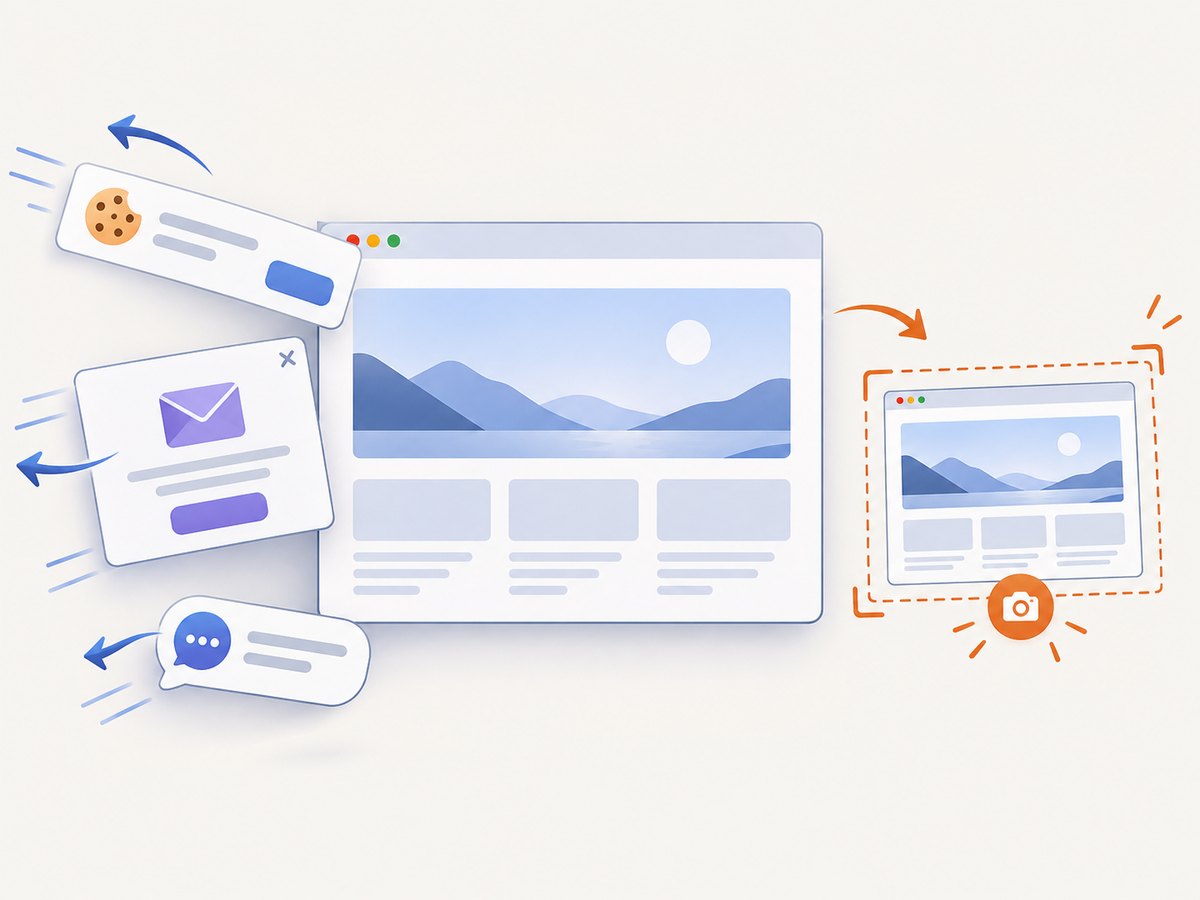
ScreenshotNeo accepts cookie and consent banners before capture and removes more than 60 known consent platforms, newsletter popups, and chat widgets; each step can be turned off. Bot checks, CAPTCHAs, blank pages, timeouts, failed loads, and cache hits are not billed, and response headers identify the page verdict and whether it was billed. Its MCP server gives Claude, Cursor, and other MCP clients take_screenshot, get_page_info, and capture_pdf tools. The Free plan includes 1,000 screenshots each month with no card; paid plans start at $5 for 3,000 shots. Create a free ScreenshotNeo account.
13. FAQ
Should I capture viewport or full page?
Use viewport captures to show a defined device view. Use full page when the complete information architecture or case study matters. Many portfolio reviews keep both.
How many viewports should a portfolio batch include?
Choose the widths your audience actually uses. A desktop and mobile pair is a reasonable starting point, but it is a project decision rather than a universal standard.
Can Playwright save screenshots without writing files?
Yes. Call page.screenshot() without path to receive image bytes for an upload or image-processing pipeline.
Why do two screenshots of the same URL differ?
Animations, changing data, fonts, browser versions, OS rendering, ads, consent state, and responsive breakpoints can all change pixels. Freeze the relevant state and keep the capture environment consistent.
When is a hosted API preferable?
Use one when browser installation, maintenance, scheduling, batch orchestration, or clean handling of consent and failed pages would otherwise become part of your application. Confirm the provider’s current limits and terms first.