How to Automate Screenshots of Power BI Reports
Automate Power BI report screenshots with Power Automate or the ExportTo REST API, including filters, polling, capacity limits, and PNG ZIP handling.
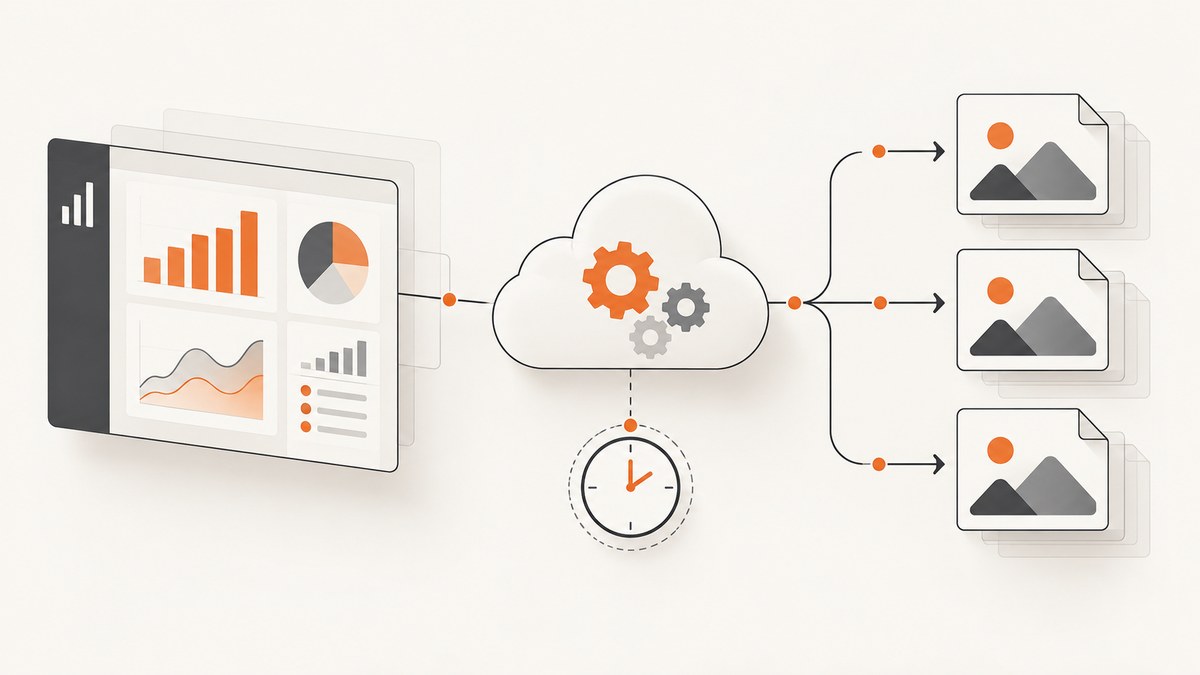
Short answer: Use a scheduled Power Automate flow when you need a recurring export with minimal code. Use Power BI’s ExportTo REST API when you need programmatic control over pages, filters, bookmarks, identities, polling, and downstream file processing. Both routes use Power BI’s export service. PNG exports provide report-page images; PDF and PPTX exports produce document files.
For the REST API, submit an export job, poll until it succeeds, then download the file. The API is asynchronous, so a successful POST does not immediately return the finished report.
Choose the right automation route
| Requirement | Best route |
|---|---|
| Weekly or monthly delivery with little code | Power Automate scheduled cloud flow |
| Custom filters, bookmarks, pages, or effective identities | ExportTo REST API |
| Post-processing, storage, image splitting, or CI jobs | ExportTo REST API |
| A single screenshot from a public URL | A website screenshot API such as ScreenshotNeo |
Requirements and limits to check first
- The report workspace must be backed by Premium, Embedded, or Fabric capacity. Export is not supported for Premium Per User.
- For PNG exports, the tenant’s export-to-image setting must be enabled. Microsoft says this setting is disabled by default. PDF and PowerPoint export is enabled by default according to the API overview.
- Your application needs
Report.Read.AllorReport.ReadWrite.All, plusDataset.Read.AllorDataset.ReadWrite.All. - Microsoft documents a maximum of 500 concurrent requests per capacity, five pages processed concurrently, 50 pages or visuals in one export job, and a 250 MB maximum output file size. Treat these as service limits and verify the current documentation before designing a high-volume system.
- The download URL returned after a successful job is available for 24 hours, so download it promptly.
These requirements come from Microsoft’s ExportToFile REST API documentation and its Power Automate export tutorial.
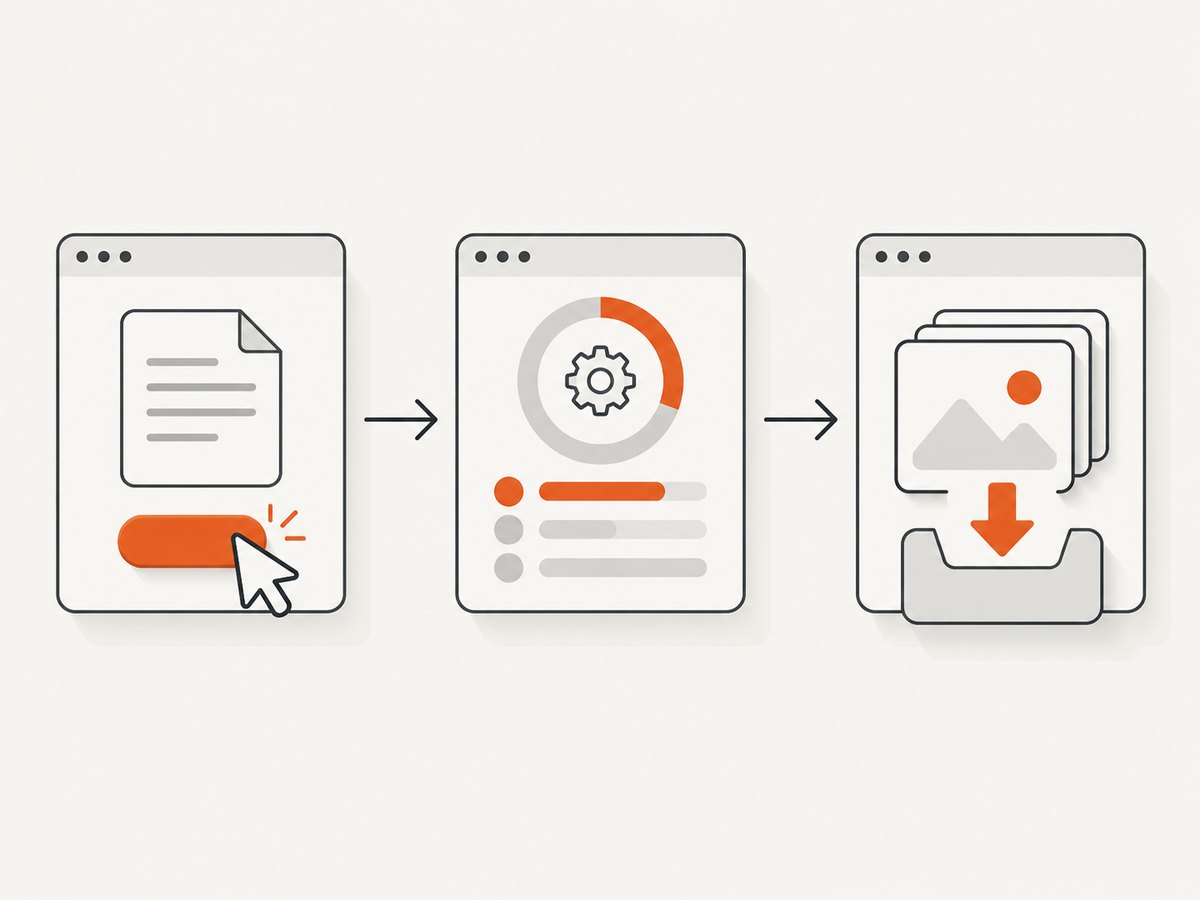
Route 1: schedule exports with Power Automate
1. Create the scheduled flow
- Open Power Automate and create a scheduled cloud flow.
- Choose the recurrence interval and time zone.
- Add the Export To File for Power BI Reports action.
- Select the workspace and report.
- Choose PNG, PDF, or PPTX.
- If needed, select specific report pages.
- Add a destination or delivery action, such as email, SharePoint, OneDrive, or another connector available in your tenant.
- Save the flow and run it once manually before relying on the schedule.
Microsoft’s example sends a report weekly. A multi-page PNG export is compressed into a ZIP file containing one image per page, so add an extraction step if the recipient or downstream system needs individual PNG files.
2. Configure audience and report state
The export uses the report’s saved default slicer values unless you explicitly configure supported filters or bookmarks. A user’s later interactive slicer changes do not automatically become the scheduled export state.
For row-level security, provide the effective username, semantic model ID, and role required by the report. Confirm that the resulting file represents the intended audience before distributing it.
3. Wait for embedded reports to finish rendering
If your application embeds the report and starts an export from the page, wait for the report’s Rendering event to finish. Starting the export earlier can produce an incomplete or incorrectly rendered file.
Route 2: use the ExportTo REST API
The REST workflow has three stages:
- POST an export request to create a job.
- Poll the job status until it is
Succeededor reaches a terminal failure state. - GET the file and save it immediately.
The examples below use placeholders for your tenant, report, and access token. Obtain an OAuth token with the scopes documented by Microsoft; do not put a client secret in source code.
Basic PNG export with cURL
curl -X POST \
  "https://api.powerbi.com/v1.0/myorg/groups/GROUP_ID/reports/REPORT_ID/ExportTo" \
  -H "Authorization: Bearer ACCESS_TOKEN" \
  -H "Content-Type: application/json" \
  -d '{
    "format": "PNG"
  }'
The response is HTTP 202 Accepted and includes an export job identifier. Save that identifier for polling.
Export selected pages and filters
curl -X POST \
  "https://api.powerbi.com/v1.0/myorg/groups/GROUP_ID/reports/REPORT_ID/ExportTo" \
  -H "Authorization: Bearer ACCESS_TOKEN" \
  -H "Content-Type: application/json" \
  -d '{
    "format": "PNG",
    "powerBIReportConfiguration": {
      "pages": [
        {"pageName": "ReportSectionOverview"},
        {"pageName": "ReportSectionFinance"}
      ],
      "reportLevelFilters": [
        {"filter": "Sales/Region eq 'West'"}
      ]
    }
  }'
Use the report configuration fields supported by the current API schema for your report. Page names are report-internal names, not always the visible tab labels. Filters and bookmarks must be validated against the report model; an accepted request does not guarantee that an unintended filter was applied.
Poll and download with cURL
curl -s \
  "https://api.powerbi.com/v1.0/myorg/groups/GROUP_ID/reports/REPORT_ID/exports/EXPORT_ID" \
  -H "Authorization: Bearer ACCESS_TOKEN"

curl -L \
  "https://api.powerbi.com/v1.0/myorg/groups/GROUP_ID/reports/REPORT_ID/exports/EXPORT_ID/file" \
  -H "Authorization: Bearer ACCESS_TOKEN" \
  -o powerbi-export.bin
Poll with an increasing delay rather than a tight loop. Download only after the status is Succeeded. For a multipage PNG export, inspect the downloaded file as a ZIP archive and extract each page image.
Complete Python example
import io
import time
import zipfile
import requests

BASE = "https://api.powerbi.com/v1.0/myorg/groups"
GROUP_ID = "GROUP_ID"
REPORT_ID = "REPORT_ID"
ACCESS_TOKEN = "ACCESS_TOKEN"
headers = {"Authorization": f"Bearer {ACCESS_TOKEN}", "Content-Type": "application/json"}

payload = {
    "format": "PNG",
    "powerBIReportConfiguration": {
        "pages": [{"pageName": "ReportSectionOverview"}],
        "reportLevelFilters": [{"filter": "Sales/Region eq 'West'"}]
    }
}

start = requests.post(
    f"{BASE}/{GROUP_ID}/reports/{REPORT_ID}/ExportTo",
    headers=headers,
    json=payload,
    timeout=30,
)
start.raise_for_status()
export_id = start.json()["id"]

status_url = f"{BASE}/{GROUP_ID}/reports/{REPORT_ID}/exports/{export_id}"
for attempt in range(30):
    status = requests.get(status_url, headers=headers, timeout=30)
    status.raise_for_status()
    data = status.json()
    state = data.get("status")
    if state == "Succeeded":
        break
    if state in {"Failed", "Cancelled"}:
        raise RuntimeError(f"Power BI export ended with status {state}: {data}")
    time.sleep(min(2 ** attempt, 30))
else:
    raise TimeoutError("Power BI export did not finish within the polling window")

file_url = f"{status_url}/file"
result = requests.get(file_url, headers=headers, timeout=120)
result.raise_for_status()
content_type = result.headers.get("Content-Type", "")

if "zip" in content_type or result.content[:2] == b"PK":
    with zipfile.ZipFile(io.BytesIO(result.content)) as archive:
        archive.extractall("powerbi-pages")
else:
    with open("powerbi-export", "wb") as output:
        output.write(result.content)

print("Export saved")
Complete Node.js example
const fs = require('node:fs/promises');

const base = 'https://api.powerbi.com/v1.0/myorg/groups';
const groupId = 'GROUP_ID';
const reportId = 'REPORT_ID';
const token = 'ACCESS_TOKEN';
const headers = {
  Authorization: `Bearer ${token}`,
  'Content-Type': 'application/json'
};

const start = await fetch(`${base}/${groupId}/reports/${reportId}/ExportTo`, {
  method: 'POST',
  headers,
  body: JSON.stringify({
    format: 'PNG',
    powerBIReportConfiguration: {
      pages: [{ pageName: 'ReportSectionOverview' }]
    }
  })
});
if (!start.ok) throw new Error(`Export start failed: ${start.status}`);
const { id } = await start.json();
const statusUrl = `${base}/${groupId}/reports/${reportId}/exports/${id}`;

let status;
for (let attempt = 0; attempt < 30; attempt++) {
  const response = await fetch(statusUrl, { headers });
  if (!response.ok) throw new Error(`Status failed: ${response.status}`);
  status = await response.json();
  if (status.status === 'Succeeded') break;
  if (['Failed', 'Cancelled'].includes(status.status)) {
    throw new Error(`Export ended with ${status.status}`);
  }
  await new Promise(resolve => setTimeout(resolve, Math.min(2 ** attempt * 1000, 30000)));
}
if (status.status !== 'Succeeded') throw new Error('Export polling timed out');

const file = await fetch(`${statusUrl}/file`, { headers });
if (!file.ok) throw new Error(`Download failed: ${file.status}`);
await fs.writeFile('powerbi-export.bin', Buffer.from(await file.arrayBuffer()));
console.log('Export saved');
PNG, PDF, and PPTX behavior
| Format | Use it for | Automation detail |
|---|---|---|
| PNG | Page images, thumbnails, notifications, image archives | Multiple pages arrive as a ZIP containing one image per page |
| Printable or archival reports | One document download after the asynchronous job completes | |
| PPTX | Editable presentation handoffs | One presentation download after the asynchronous job completes |
Do not assume ordinary Power BI reports support every image format mentioned for paginated reports. Microsoft documents formats such as TIFF or JPEG under the paginated-report image schema; the ordinary report export path is documented for PNG, PDF, and PPTX.
Reliability checklist
- Confirm capacity and tenant export settings before debugging code.
- Wait for embedded report rendering to complete.
- Use exponential backoff while polling and stop on terminal states.
- Download within the 24-hour retrieval window.
- Validate the output’s page count, file type, and expected filter state.
- Track HTTP status, export ID, report ID, elapsed time, and final state in logs.
- Throttle workers below the documented capacity concurrency limit and retry transient HTTP failures with a bounded backoff.
- Keep credentials in a secret store and grant only the required report and dataset scopes.
Troubleshooting
| Symptom | Likely cause | Fix |
|---|---|---|
| PNG export is rejected | Export-to-image tenant setting is disabled | Ask a Power BI administrator to enable the setting, then retry. |
| Capacity or unsupported-operation error | Workspace is not on Premium, Embedded, or Fabric capacity, or uses Premium Per User | Move the report to eligible capacity and verify the tenant’s licensing configuration. |
| 401 or 403 response | Missing, expired, or insufficient OAuth scopes | Acquire a fresh token with report and dataset read scope and confirm workspace access. |
| Export stays queued | Capacity load or too many concurrent requests | Back off, limit parallel jobs, and monitor the documented 500-request-per-capacity ceiling. |
| Wrong slicer values | Export used saved defaults | Supply supported report filters or bookmarks explicitly; do not rely on a user’s interactive session. |
| Images show an error symbol | Unsupported visual or report content | Check Microsoft’s current limitations list. Unsupported content includes some uncertified custom visuals, R, Python, PowerApps, Power Automate, Visio, ArcGIS, paginated-report visuals, personal bookmarks, and persistent filters. |
| Only one file appears for many pages | PNG pages were packaged as a ZIP | Detect the ZIP response and extract its entries before handing files to the next system. |
| Download fails after a delay | Retrieval URL expired | Download immediately after success; Microsoft documents a 24-hour availability window. |
| Embedded export misses visuals | Export started before rendering completed | Trigger after the report’s Rendering event. |
Performance, reliability, and cost planning
Power BI’s documented concurrency and file-size limits are capacity limits, not guaranteed response times. Design for variable queue time: submit jobs, poll with backoff, and avoid launching hundreds of simultaneous exports. Split a large report into separate jobs only when the resulting files and page limits fit your delivery process.
Measure the complete workflow rather than only the POST request: queue time, render time, download time, file size, and retry count. Cache or reuse an export when several recipients need the same report state. For recurring delivery, keep the schedule below the capacity’s sustained concurrency and add alerting when a job fails or produces an unexpected page count.
Microsoft licensing and connector availability can change. The Power Automate tutorial describes Microsoft 365 access to standard connectors, but confirm licensing for your tenant before publishing a production flow.
Or skip the browser setup
If you only need a clean image from a reachable report URL, ScreenshotNeo provides a single GET request. Read the ScreenshotNeo API documentation for the full option set.

curl -G "https://api.screenshotneo.com/v1/shot" -d access_key=YOUR_API_KEY --data-urlencode url=https://app.powerbi.com/view?r=YOUR_REPORT_URL -o report.webpimport requests
r = requests.get("https://api.screenshotneo.com/v1/shot", params={"access_key": "YOUR_API_KEY", "url": "https://app.powerbi.com/view?r=YOUR_REPORT_URL"}, timeout=90)
r.raise_for_status()
open("report.webp", "wb").write(r.content)const q = new URLSearchParams({ access_key: 'YOUR_API_KEY', url: 'https://app.powerbi.com/view?r=YOUR_REPORT_URL' });
const res = await fetch(`https://api.screenshotneo.com/v1/shot?${q}`);ScreenshotNeo removes cookie and consent banners, newsletter popups, and chat widgets before capture. Bot checks, blank pages, failed loads, timeouts, and cache hits are not billed, and the response identifies the page verdict and billing result in headers. It also offers an MCP server so AI agents can take screenshots. The Free plan includes 1,000 screenshots per month with no card; paid plans start at $5 for 3,000 screenshots. Create a free ScreenshotNeo account.
FAQ
Can I capture a report every morning?
Yes. Use a scheduled Power Automate flow or a scheduled worker that submits an ExportTo job, polls it, and stores the resulting file.
Does a PNG export return one PNG for the whole report?
A multipage PNG export is delivered as a ZIP containing one image per page.
Why did my changed slicer value disappear?
Exports use saved defaults unless you pass supported filters or bookmarks in the export configuration.
Can I export a report from Premium Per User?
The documented ExportTo path requires Premium, Embedded, or Fabric capacity and does not support Premium Per User.
How soon must I download the file?
Download after success; Microsoft documents a 24-hour retrieval window.
Which route is easier for a non-developer?
Power Automate is the simpler scheduled workflow. The REST API is better when you need code-level control over state, identity, pages, and file handling.


