How to Automate Real Estate Marketing Images
Build a rights-safe workflow for automating listing images, virtual staging, disclosures, review, and multi-channel marketing.
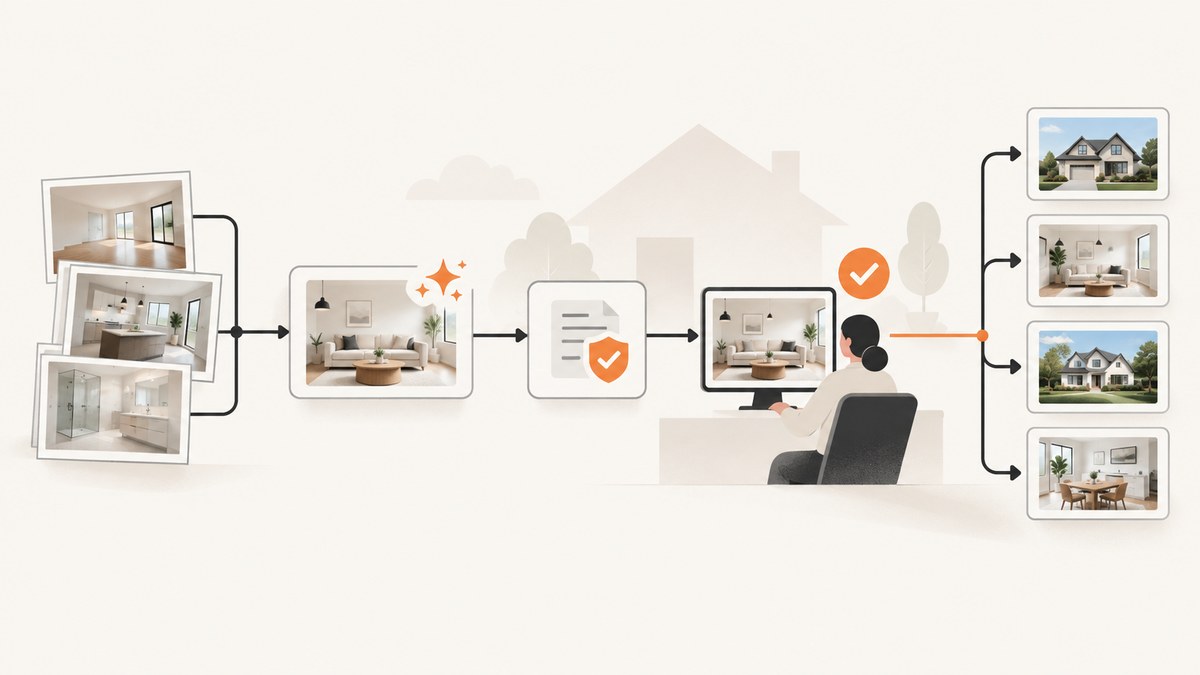
Direct answer: automate real-estate marketing images as a controlled pipeline, not a one-click filter. Confirm image rights, preserve the original, apply only permitted corrections or clearly disclosed alterations, compare every output with the source, and export channel-specific assets only after review. The safest workflow keeps the original and edited file paired, records the edit and approval status, and applies the disclosure rules for the MLS and state where the listing appears.
1. Define what you are automating
Real-estate image automation usually combines several jobs:
- Routine correction: exposure, white balance, color correction, sharpening, cropping, and straightening.
- Content alteration: virtual staging, decluttering, removing or adding objects, seasonal changes, sky replacement, or other changes to what the viewer sees.
- Production: resizing, watermarking, creating flyers and social graphics, generating web thumbnails, and organizing files.
- Compliance: rights checks, original-image retention, disclosure labels, and a human review against the source.
Separate these categories in your job record. A correction that does not change how the property is represented may be treated differently from a digitally altered image, but the definitions and processes vary by MLS. Never assume that a vendor watermark satisfies a local disclosure rule.
2. Confirm rights before uploading
Before an image enters an editor or AI service, establish that the agent or brokerage owns the photograph or has permission to edit and publish it. Canopy MLS places responsibility on the listing brokerage to obtain the necessary rights from the copyright holder. StageMLS terms similarly require the uploader to attest that they own, or are permitted to use and modify, the image.
- Record the photographer, license or assignment, listing address, and permitted uses.
- Confirm that editing, virtual staging, social distribution, and reuse in future marketing are covered.
- Keep the written permission with the source file and job ID.
- Do not treat MLS possession of a photo as permission for every later use.
3. Keep an immutable original and an audit record
Use a source-first data model. Store the original file in write-protected storage and create a separate candidate for each edit. Pair the files with metadata such as:
| Field | Example | Why it matters |
|---|---|---|
| Source ID | 1234-front-exterior | Connects every derivative to the original. |
| Edit type | white balance, virtual staging | Determines review and disclosure treatment. |
| Tool and version | vendor name, workflow version | Makes a result reproducible. |
| Approval status | pending, approved, rejected | Prevents unreviewed files from publishing. |
| Disclosure label | digitally altered | Travels with the export. |
| Original location | immutable object path | Supports MLS and buyer requests. |
CRMLS, Canopy MLS, and ARMLS each describe workflows requiring the original adjacent to, or accessible alongside, an altered image. Build that pairing into your export rather than trying to reconstruct it after publication.
4. Choose edits that do not misrepresent the property
Use automation for repeatable work, then stop for judgment where the image could change a buyer’s understanding. Reject an output that changes architecture, room dimensions, fixtures, views, landscaping, or visible defects. Do not generate an amenity, remove a structural problem, or improve a view that does not exist.

CRMLS guidance says actual property components such as flooring, cabinets, wall dimensions, and landscaping should not be altered and does not permit AI-generated landscaping images in MLS listings. Canopy guidance prohibits impossible views, invented amenities and structural features, concealment of material defects, and unauthorized reuse of listing content.
For virtual staging, define a locked style and a permitted room list. A batch operation can keep furniture consistent, but each room still needs a comparison with the source. If a staged image is materially different, label it according to the local rule and retain the empty-room original.
5. Build the automated pipeline
A practical pipeline has explicit gates:
- Intake: accept the source, rights confirmation, listing ID, MLS jurisdiction, and requested channels.
- Validation: reject unsupported formats, missing permission, corrupted files, or images without a source ID.
- Processing: run deterministic corrections first; run staging or removal only when requested.
- Quality checks: compare dimensions, edges, architecture, fixtures, views, and defects against the original.
- Human approval: approve, reject, or request a new candidate with a reason.
- Disclosure export: add the required label and pair the original as required by the MLS.
- Channel derivatives: create web, social, email, flyer, and presentation variants from the approved master.
- Archive: retain source, candidate, final, metadata, and approval event.
job = {
  "listing_id": "L-1042",
  "source": "s3://immutable/L-1042/kitchen.jpg",
  "rights_confirmed": true,
  "jurisdiction": "CRMLS",
  "edit": "virtual_staging",
  "candidate": "s3://candidates/L-1042/kitchen-staged-v1.jpg",
  "review": "pending",
  "disclosure": "digitally altered",
  "original_pair": true
}
Keep processing idempotent. Give each job a stable key so a retry cannot create duplicate listing assets or overwrite the source.
6. Apply local MLS disclosure rules
Rules are jurisdiction-specific examples, not a nationwide summary. Check the current MLS and applicable state law before publishing.
| Jurisdiction | Key requirement described in the guidance |
|---|---|
| CRMLS, California | For a digitally enhanced image, place the original immediately before or after it in the listing. Put the altered label in the photo description field. Minor adjustments that do not change representation are treated differently. |
| Canopy MLS | Use a clear, readily visible disclosure directly on the image or within the virtual tour. A caption or agent remarks alone are not sufficient. Keep the original immediately before or after, or accessible alongside the tour. |
| ARMLS, Arizona region | Rule 8.23 calls for a digitally altered disclosure and the original directly before or after the changed image. The published timeline describes implementation beginning May 28, 2026, with a $200 fine stated for December 2026. |
Make the jurisdiction a required field in your workflow. Store the exact label and placement instruction used for each export so a social graphic does not accidentally become the MLS upload.
7. Create channel assets after approval
NAR describes Canva as a downstream design layer for flyers, social graphics, email headers, and branded presentations. Use it, or an equivalent design tool, only with the approved image set. Preserve the disclosure and a route to the original wherever the channel or local rule requires it. A design template cannot replace an MLS disclosure process.
Generate derivatives from one approved master:
- MLS: required dimensions, watermark and disclosure placement.
- Website: responsive WebP or JPEG, descriptive filename, and accessible alt text.
- Social: platform-safe crop with disclosure retained when required.
- Email and flyers: print resolution and a short note linking to the original or tour.
8. Or skip the browser setup
If your workflow needs screenshots of listing pages, tours, approval dashboards, or public marketing pages, ScreenshotNeo provides a website screenshot API and MCP server. It accepts one GET request and returns PNG, JPEG, WebP, or PDF. Cookie and consent banners, newsletter popups, and chat widgets are removed before capture; each step can be disabled. Bot checks, blank pages, timeouts, failed loads, and cache hits are not billed, and the response identifies the result with X-Page-Verdict and X-Billed headers.
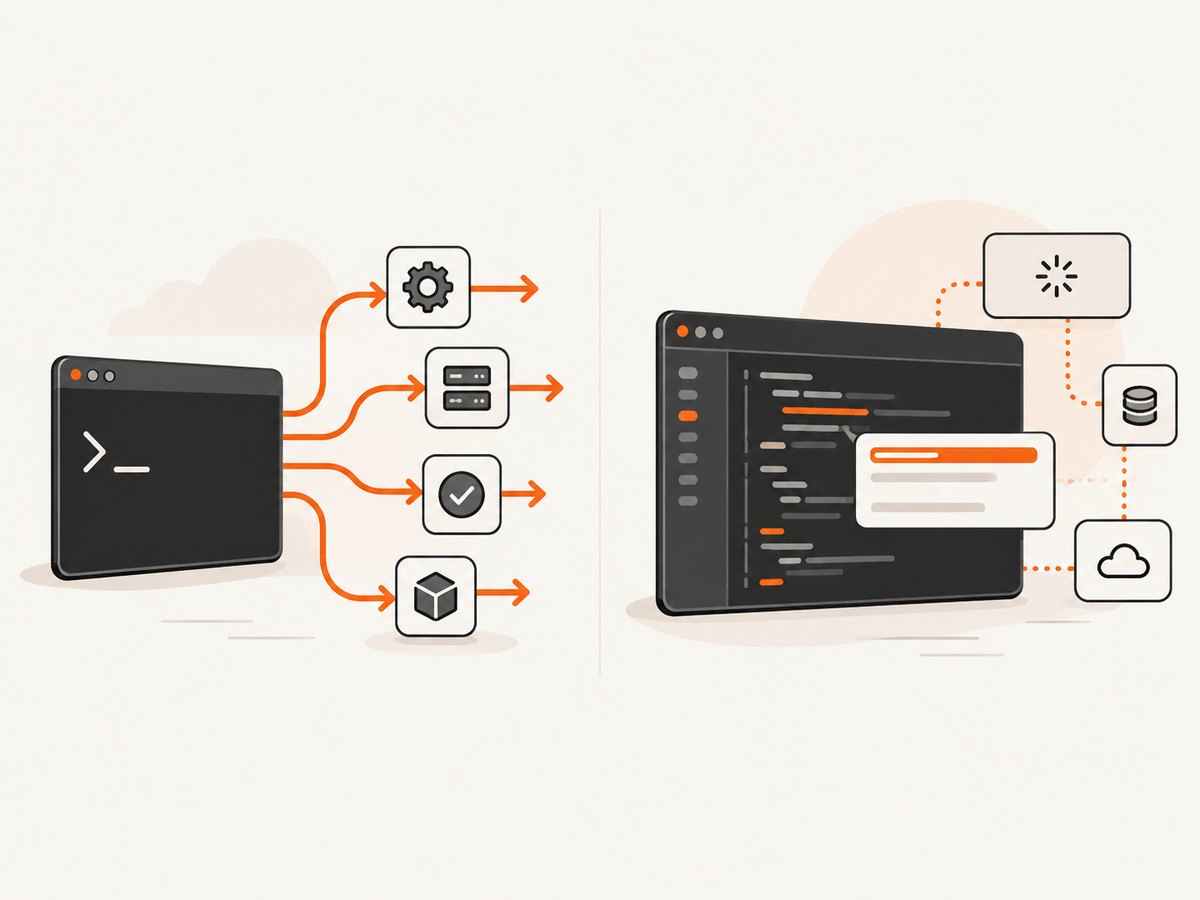
Read the complete option list in the ScreenshotNeo documentation. Relevant controls include full-page capture with lazy images loaded, CSS-selector element capture, device presets, custom viewport and retina scale, dark mode, custom CSS and JavaScript, clicks, selector or network-idle waits, blocked requests and resource types, headers, cookies, user agent, authorization, timezone, geolocation, transparent backgrounds, resizing, chosen cache TTL, signed links, asynchronous jobs with signed webhooks, bulk capture for up to 100 URLs, usage reporting, and PDF page, margin, paper-size, and landscape options.
cURL
curl -G "https://api.screenshotneo.com/v1/shot" \
  -d access_key=YOUR_API_KEY \
  --data-urlencode url=https://example.com/listing/1042 \
  -o listing.webp
Python
import requests

r = requests.get(
    "https://api.screenshotneo.com/v1/shot",
    params={"access_key": "YOUR_API_KEY", "url": "https://example.com/listing/1042"},
    timeout=90,
)
r.raise_for_status()
open("listing.webp", "wb").write(r.content)
print(r.headers.get("X-Page-Verdict"), r.headers.get("X-Billed"))
Node.js
const q = new URLSearchParams({
  access_key: 'YOUR_API_KEY',
  url: 'https://example.com/listing/1042'
});
const res = await fetch(`https://api.screenshotneo.com/v1/shot?${q}`);
if (!res.ok) throw new Error(`HTTP ${res.status}`);
const buffer = Buffer.from(await res.arrayBuffer());
await import('node:fs/promises').then(fs => fs.writeFile('listing.webp', buffer));
console.log(res.headers.get('X-Page-Verdict'), res.headers.get('X-Billed'));
ScreenshotNeo also includes an MCP server with take_screenshot, get_page_info, and capture_pdf tools for Claude, Cursor, and other MCP clients. It is useful when an AI agent must inspect or capture a page as part of a listing-content workflow.
Cookie banners, popups, and chat widgets are removed before the shot; bot checks, blank pages, and failed loads are never billed; an MCP server lets AI agents take screenshots; 1,000 screenshots a month are free with no card and paid plans start at $5 for 3,000. Create a free ScreenshotNeo account.
9. Reliability, performance, and cost controls
- Reliability: use stable job IDs, retries with backoff, immutable sources, and a dead-letter queue for repeated failures. Save verdict and billing headers with every capture.
- Performance: batch independent URLs, use caching with a TTL appropriate to the listing page, and wait for a selector or network idle when images load late. Capture an element when a full page is unnecessary.
- Cost: resize only after the approved master exists, avoid recapturing unchanged pages, and use cache hits where acceptable. ScreenshotNeo’s free plan includes 1,000 shots monthly; paid plans are Starter $5 for 3,000, Growth $15 for 15,000, Pro $39 for 60,000, Scale $99 for 250,000, and Business $249 for 1,000,000. Yearly billing gives two months free, and every feature is on every plan.
- Privacy: avoid placing private client data in public URLs or query strings. Use custom headers, cookies, and authorization only when your access policy permits.
10. Troubleshooting checklist
| Symptom | Likely cause | Fix |
|---|---|---|
| Edited image has no original | Derivative created outside the job record | Require a source ID and block export until the pair exists. |
| MLS rejects the upload | Wrong label, placement, or field | Load the jurisdiction-specific rule and re-export; verify the original adjacency. |
| Room looks structurally different | Generative edit changed architecture | Reject the candidate and rerun with a constrained edit or use the original. |
| Screenshot contains a popup | Popup removal or wait step was not enabled | Enable the relevant cleanup step and wait for the page to settle. |
| Screenshot is blank | Page timeout, bot check, or client-side rendering failure | Inspect verdict headers, increase the wait, use selector or network-idle waiting, and retry. |
| Repeated assets are billed | Cache disabled or URL changes on every request | Choose a cache TTL and normalize nonessential query parameters. |
| AI output hides a defect | Human review skipped | Compare side by side with the immutable source and reject any concealment. |
11. Final publishing checklist
- Rights to edit and publish are recorded.
- The original is immutable and paired with every derivative.
- Edit type is classified as correction or alteration.
- Architecture, fixtures, views, landscaping, and defects match the source.
- A human approved the candidate.
- The current MLS disclosure and placement rule was applied.
- Channel derivatives came from the approved master.
- Source, output, label, approval, and tool metadata are archived.
FAQ
Can I use AI to add furniture?
Yes, if your rights, MLS rules, disclosure, and review process allow virtual staging. Keep the unstaged original and label the altered image as required.
Is a watermark enough?
No. Some MLS guidance requires a clear label on the image or tour and an original adjacent to the altered image.
Should every color correction be disclosed?
Not necessarily. Rules often distinguish routine correction from a change in the property’s representation. Confirm the wording used by your MLS.
Can I automate publishing completely?
Automate intake, processing, metadata, and derivative creation, but keep a human approval gate for alterations and compliance.
What should I retain?
Retain the original, every approved final, rejected candidates when practical, rights evidence, edit metadata, disclosure text, and approval history.


