How to Automate Your Screenshot Workflow with Zapier
Build a reliable Zap that captures webpages on a schedule or change, then sends screenshots to email, Slack, Dropbox, and more.
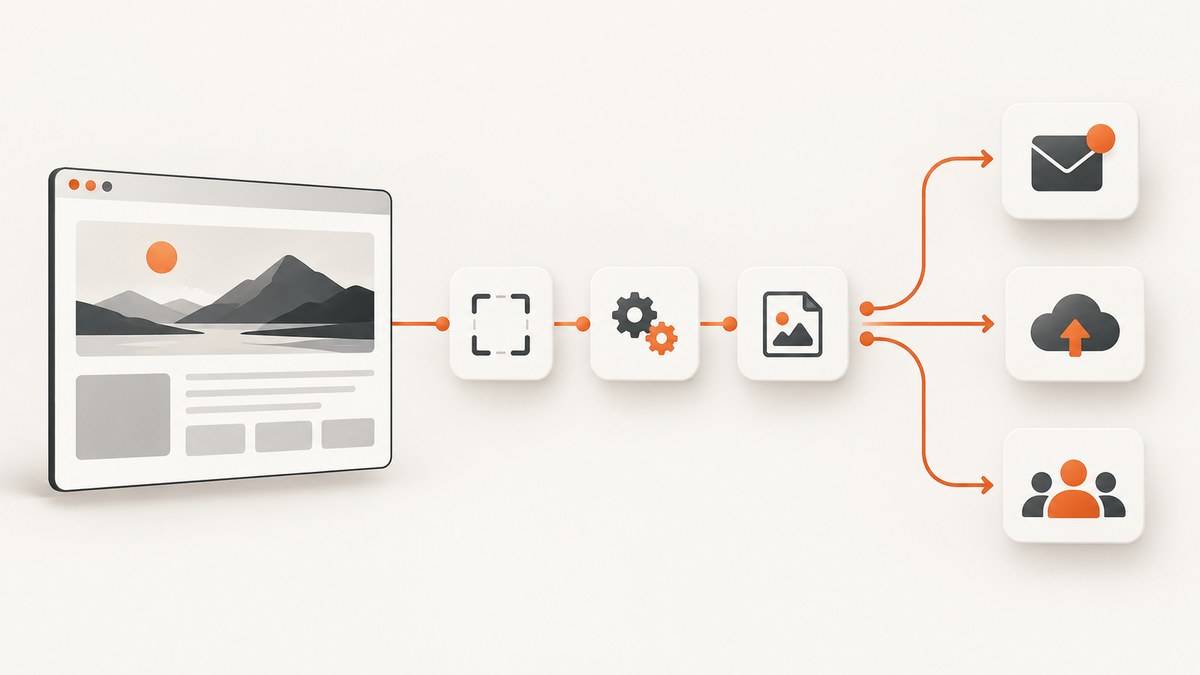
To automate screenshots with Zapier, build a Zap with three parts: a trigger, a screenshot action, and a destination action. The trigger starts the workflow (for example, a schedule or a browser push); the screenshot action captures a URL; the final action stores or shares the resulting image. This pattern works for scheduled archives, review queues, customer reports, and visual change alerts.
Zapier calls the event that starts a workflow a trigger and the event performed by the workflow an action. Screenshot integrations expose different fields and capabilities, so configure the screenshot step for the page you are capturing instead of assuming every provider behaves the same way. GetScreenshot’s Zapier examples, for example, include scheduled captures sent by email and uploads to Dropbox.
1. Plan the workflow before creating the Zap
Write down four decisions:

- What starts the Zap? Use a schedule for recurring reports, a browser push when a person wants to capture the current page, or a visual-change trigger when you need an alert only after a page changes.
- Which URL is captured? Use a fixed URL for a monitoring job or map a URL field from the trigger for user-driven captures.
- What must the screenshot include? Decide on viewport dimensions, full-page mode, output format, delay or load behavior, dark mode, and whether cookie banners should be hidden.
- Where should the file go? Choose email, Dropbox, Slack, Google Sheets, Notion, or another connected destination that matches the review and retention process.
Keep the trigger, capture, and destination as separate steps. That makes it easier to replace a destination without changing capture settings and helps you diagnose failures.
2. Create a scheduled screenshot Zap
Step 1: Add the schedule trigger
In Zapier, create a new Zap and select a schedule trigger. Choose the interval that matches your requirement, such as hourly, daily, or weekly. Set the timezone explicitly when the capture must correspond to a business reporting period. A daily screenshot at midnight UTC can be different from a daily screenshot at midnight in your team’s local timezone.
Step 2: Add a screenshot action
Search Zapier’s app directory for a screenshot provider and select its capture action. The available fields depend on the integration. The GetScreenshot listing documents controls such as full-page capture, width, a highlighted word or phrase, PDF output, and an additional wait for slow pages. The Screenshot API listing documents output format, file type, full-page capture, fresh screenshots, delay, load event, dimensions, text or HTML extraction, lazy loading, Retina, and dark mode. The screenshot.fyi listing includes width, height, full-page capture, dark mode, image format, and cookie-banner hiding. Review the live action fields before publishing because integrations change. (GetScreenshot, Screenshot API, screenshot.fyi)
| Requirement | Settings to look for | Why it matters |
|---|---|---|
| Long page | Full-page capture; lazy loading | Captures content below the initial viewport when supported. |
| Consistent layout | Width, height, device or viewport dimensions | Prevents responsive breakpoints from changing between runs. |
| Slow application | Delay, load event, or wait condition | Allows client-rendered content to appear before capture. |
| Dark interface | Dark mode | Captures the theme your team reviews. |
| Document delivery | PDF or image format | Matches the destination’s preview and archival needs. |
Run the action’s test with the exact URL. Change one setting at a time, especially viewport dimensions, full-page behavior, load delay, or cookie/banner handling. Inspect the returned file after each change; the available settings describe what the integration can request, not a guarantee that every site will render identically.
Step 3: Route the result
Add a destination action and map the screenshot output. For email, attach the returned file and include the URL and capture time in the subject or body. For Dropbox, map the file to a folder and construct a predictable filename from the date and page name. Other documented pairings include Slack, Google Sheets, Smartsheet, Gmail, and Notion through screenshot.fyi integrations; available pairings and field names can change. (screenshot.fyi integrations)
Use a filename pattern such as product-home-{{zap_meta_timestamp}}.png when the destination supports mapped fields. Include the source URL as metadata or in the message so a reviewer can identify the page without opening the image.
3. Capture a page when someone pushes it from a browser
A scheduled trigger is best for recurring snapshots. For ad hoc review, use a browser extension integration with a New Push trigger. The documented trigger includes the page title, URL, timestamp, and the person who triggered the Zap by default. (Screenshot API integration examples)
- Add the browser push or extension app as the trigger and connect the team account.
- Test a push from the page you want to review.
- Map the pushed URL into the screenshot action instead of hard-coding a URL.
- Send the image to a shared Slack channel, an email reviewer, or a folder for later triage.
Map the title and triggering person’s name into the destination message. This gives reviewers context when multiple pages are captured in a short period.
4. Alert only when a webpage changes
A visual-change workflow is different from a periodic archive. Snapshot Site’s documented Website Changed trigger re-screenshots a URL on each polling interval, compares it with the previous capture, and fires only when the change exceeds the selected threshold. The first check establishes a baseline and does not fire. (Snapshot Site on Zapier)
Configure the trigger with:
- Minimum change percentage, to avoid alerts for insignificant differences.
- Pixel sensitivity, to control how small visual changes are treated.
- Dimensions and full-page behavior, so comparisons use the same canvas.
- Country, when the page varies by visitor location.
After the change trigger, add an action that posts the new screenshot and source URL to Slack or sends an email. If the page has rotating ads, timestamps, or personalized content, expect noisy alerts; reduce noise by using stable dimensions, a consistent country, and a capture mode that excludes nonessential regions when the provider supports it.
5. Handle multi-step Zaps and plan limits
A workflow with a trigger, screenshot action, and destination is a three-step Zap. The GetScreenshot integration page states that creating Zaps with three or more steps requires a Starter plan; verify the current requirement in Zapier before publishing because plan details can change. (GetScreenshot integration)
Count steps before designing a chain with filters, formatters, storage, and notifications. If a plan limit blocks the design, remove nonessential transformations or use a destination action that accepts the screenshot directly. Keep an audit record of the URL, timestamp, and result status even when the image is sent to a chat channel.
6. A robust production design
Use stable inputs
Set an explicit viewport and use full-page mode only when the complete document is needed. A fixed viewport makes visual comparisons meaningful. For pages that render after JavaScript, use the provider’s documented delay or load-event field and then confirm the test output contains the expected content.
Separate capture from notification
Store the file before sending notifications when the destination supports it. A durable copy in Dropbox or another repository gives reviewers access if a Slack message expires or an email attachment is blocked. Use a deterministic folder structure such as screenshots/{site}/{yyyy}/{mm}/{dd}.
Prevent duplicate work
For scheduled captures, choose one schedule and one timezone. For change detection, let the visual-change trigger compare captures instead of building a second scheduled screenshot that creates duplicate files. If you must notify multiple teams, branch after the single capture action.
Protect sensitive pages
Do not place passwords, session cookies, or private URLs in Slack messages or filenames. Use the screenshot provider’s authentication fields only where the page owner permits automated access, and limit the destination audience to people who are authorized to view the page.
7. Troubleshooting common failures
| Symptom | Likely cause | Fix |
|---|---|---|
| Blank or partly rendered image | The page needs more time or waits for client-side data. | Increase the documented delay or select an appropriate load event; retest with the same URL. |
| Mobile layout appears unexpectedly | Viewport dimensions changed the responsive breakpoint. | Set explicit width and height and keep them constant across runs. |
| Bottom-of-page content is missing | Full-page capture is disabled or lazy content was not loaded. | Enable full-page capture and the integration’s lazy-loading option when available. |
| Cookie dialog covers content | The provider does not hide consent UI by default. | Use a cookie-banner hiding option when offered, or add the provider’s supported custom CSS. |
| Zap test succeeds but scheduled runs fail | The test URL differs, credentials expired, or the page is intermittently unavailable. | Compare the mapped URL and authentication fields, then inspect the run history for the failing step. |
| Visual-change alerts fire constantly | Dynamic ads, clocks, personalization, or an overly sensitive threshold. | Use stable dimensions and country, increase the minimum change percentage, or exclude unstable content if supported. |
| Attachment is missing in the destination | The action received a URL or metadata field instead of a file field. | Map the screenshot file output explicitly and test the destination action with a real capture. |
| Three-step Zap cannot be published | The connected Zapier plan does not allow the required number of steps. | Check the current plan requirement and upgrade or simplify the workflow. |
8. Performance, reliability, and cost considerations
Capture time is affected by page size, JavaScript execution, lazy-loaded media, and any wait you configure. Start with the shortest wait that produces complete content, then increase it only for pages that need it. Full-page images and PDFs consume more storage than a fixed viewport image, so choose the smallest output that meets the review requirement.
Reliability improves when the URL, viewport, timezone, country, and destination path are deterministic. Keep the original URL and run timestamp with every file. When a run fails, preserve the error in the workflow history rather than silently sending an empty notification. For change detection, remember that the first Snapshot Site check is a baseline and intentionally produces no alert.
Budget for both Zapier tasks and screenshot-provider usage. A three-step workflow consumes more Zapier steps than a trigger-only workflow, and provider plan limits can change. Review the live pricing and task counters before scaling a high-frequency schedule.
Or skip the browser setup
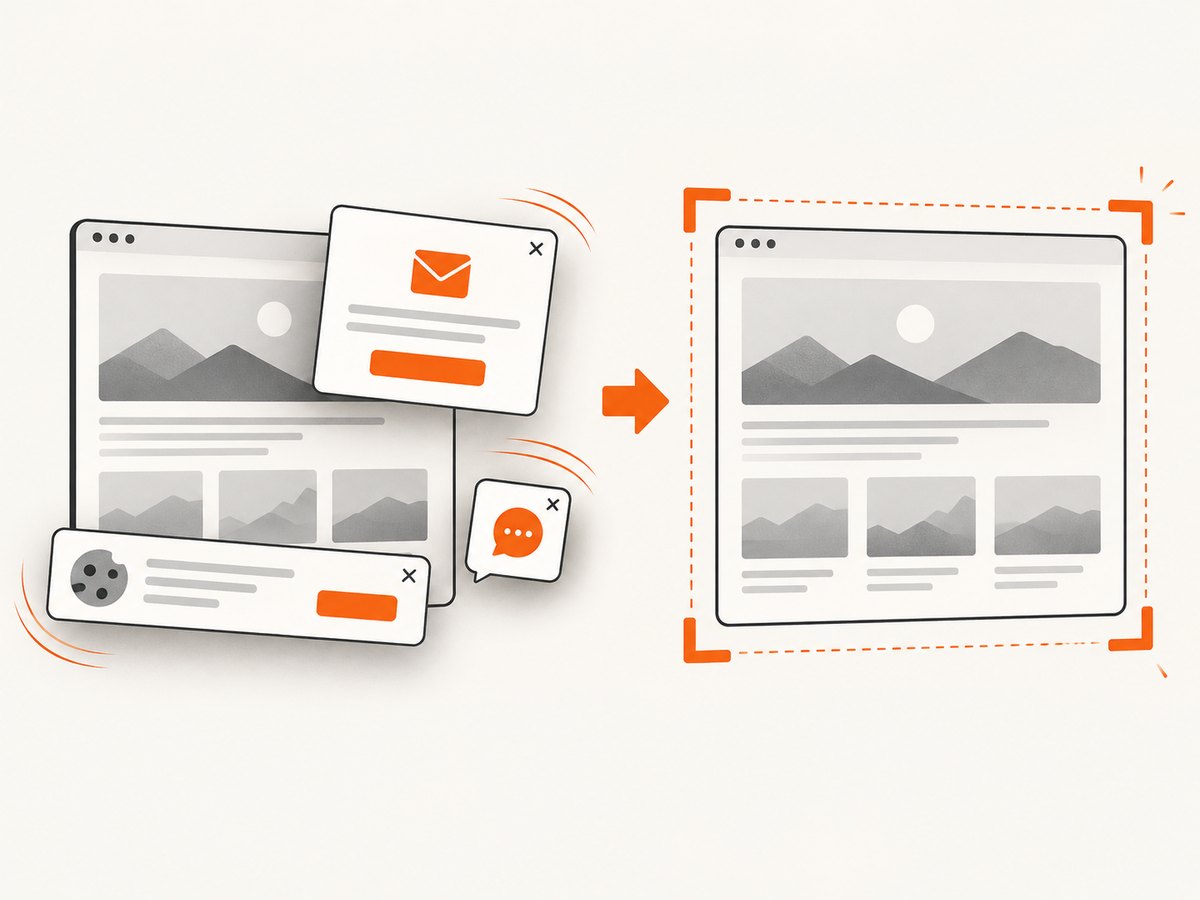
ScreenshotNeo provides a website screenshot API and MCP server. Send one GET request with a URL and receive a PNG, JPEG, WebP, or PDF. It accepts the cookie or consent banner like a visitor, then removes more than 60 known consent platforms, newsletter popups, and chat widgets; each cleanup step can be turned off. Bot checks and CAPTCHAs, blank pages, timeouts, failed loads, and cache hits are not billed, and the response reports the result through X-Page-Verdict and X-Billed headers.
Use the returned image URL or file in a Zapier webhook step, then pass it to Dropbox, email, Slack, or another destination. The API supports full-page capture with lazy images loaded, CSS-selector element capture, dark mode, 12 device presets plus custom viewports, Retina scale, PDF paper size and margins, custom CSS and JavaScript, click actions, hide selectors, waits for selectors or network idle, request and resource blocking, custom headers and cookies, user agent and Authorization, timezone and geolocation, transparent backgrounds, resizing, cache TTL, signed links, asynchronous jobs with signed webhooks, bulk capture of up to 100 URLs per call, usage reporting, and an OpenAPI specification. Parameter names used by other screenshot APIs also work, which can simplify migration.
cURL
curl -G "https://api.screenshotneo.com/v1/shot" -d access_key=YOUR_API_KEY --data-urlencode url=https://stripe.com -o shot.webpPython
import requests
r = requests.get("https://api.screenshotneo.com/v1/shot", params={"access_key": "YOUR_API_KEY", "url": "https://stripe.com"}, timeout=90)
open("shot.webp", "wb").write(r.content)
Node.js
const q = new URLSearchParams({ access_key: 'YOUR_API_KEY', url: 'https://stripe.com' });
const res = await fetch(`https://api.screenshotneo.com/v1/shot?${q}`);
See the ScreenshotNeo documentation for request parameters and response handling. An MCP server supplies take_screenshot, get_page_info, and capture_pdf tools to Claude, Cursor, and other MCP clients, so an AI agent can perform the capture before a Zapier webhook routes the result.
ScreenshotNeo has a free tier of 1,000 screenshots per month with no card. Paid plans start at $5 for 3,000 shots; yearly billing gives two months free, and every feature is included on every plan. Create a free ScreenshotNeo account to connect your automated workflow.
9. Implementation checklist
- Trigger selected: schedule, browser push, or visual change.
- URL is fixed or mapped from the trigger.
- Viewport, full-page mode, format, and wait behavior are explicit.
- Cookie and banner handling has been checked on a real capture.
- Destination receives the file and the source URL.
- Filenames and folders are deterministic.
- Credentials and private page access are protected.
- Plan limits and task usage are understood.
- A failed run produces an actionable error.
- For change alerts, the baseline run is expected and documented.
FAQ
Can Zapier take a screenshot without a schedule?
Yes. A browser extension integration can trigger a Zap when someone pushes the current page. The trigger can provide the title, URL, timestamp, and triggering person.
Should I use a scheduled capture or a visual-change trigger?
Use a schedule when you need an archive at fixed times. Use a visual-change trigger when you need a notification only after the rendered page differs from its baseline.
Why is my first change-detection check silent?
Snapshot Site uses the first check to establish a baseline. Alerts begin on later checks when the selected threshold is exceeded.
Can I send screenshots to more than one app?
Yes. Add multiple destination actions or branches after the capture step, subject to your Zapier plan and the connected app’s file fields.
Where do I find the exact screenshot options?
Open the selected screenshot app’s live Zapier action. Providers expose different controls for dimensions, full-page behavior, waits, formats, extraction, and banner handling.