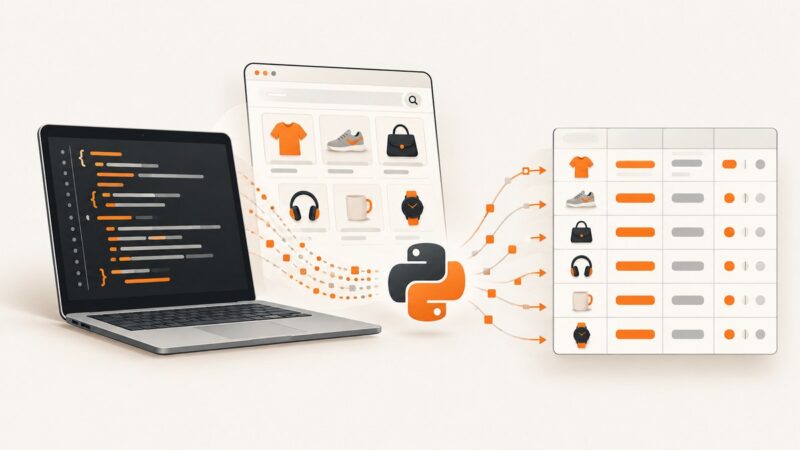
How to Automate Screenshots for Brand Monitoring
Build a repeatable screenshot monitor for your brand, campaigns, and competitors. Compare stable captures, filter noise, and alert with enough context to act.
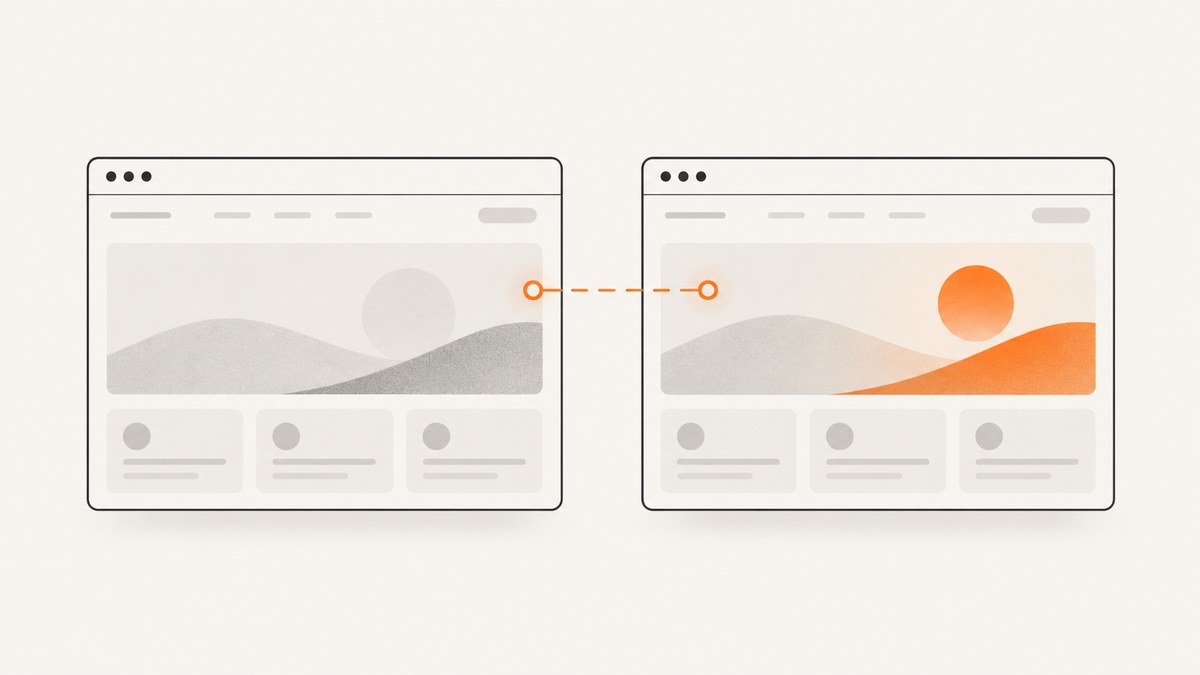
To automate screenshots for brand monitoring, capture the same page or page element on a schedule, compare each new capture with a known baseline, filter expected variation, and send a human enough context to decide whether the change matters. The reliable part is not just taking a screenshot: it is keeping URL, viewport, browser, locale, authentication, and wait behavior consistent across captures.
For a managed workflow, ScreenshotNeo can return a screenshot with one API request, including options such as full-page capture, element selection, cookies, custom headers, and wait conditions. For full monitoring, you still need to decide your schedule, baseline policy, diff rules, alert routing, and retention.
1. Decide what to monitor
Start with a list of pages whose changes could affect brand perception, revenue, compliance, or competitive decisions. Include the page owner and the reason it matters so an alert has an operational destination.
- Your homepage and product pages
- Campaign and promotion landing pages
- Pricing and packaging pages
- Competitor homepages, pricing, and product messaging
- App-store listings and marketplace pages
- Regulatory, policy, or compliance pages
Choose a monitoring frequency based on how quickly a change must be noticed and how often the page realistically changes. A campaign launch may justify frequent checks during a short window; a policy page may need a slower cadence with longer evidence retention. Estimate the capture volume before choosing a service: monitored URLs multiplied by checks per URL per day multiplied by days in the period. Retries and multiple viewports increase that total.
2. Choose a monitoring approach
| Approach | Useful when | Tradeoff |
|---|---|---|
| ScreenshotNeo API | You need screenshot capture integrated into your own scheduler, storage, diff, and alert pipeline. | You own comparison and operational workflow; the capture endpoint is a building block. |
| Visualping | You want managed scheduled monitoring, visual, text, or code change detection, and alerts. | Less control over a custom browser pipeline than running your own code. |
| Distill | You want scheduled HTML monitoring, optional conditions, and configured notification actions. | Local monitors depend on the device being on; cloud monitors run on Distill servers. |
| Playwright | You need a code-owned browser process, screenshot assertions, and integration with engineering systems. | You operate browsers, scheduling, baselines, storage, comparison, and alerts. |
| Puppeteer | You need direct browser screenshot capture with a Node.js workflow. | You build the monitoring layers around the capture API. |
ScreenshotNeo is the first API option to try when you want clean shots, billing only for clean captures, and a paid plan starting at $5 for 3,000 shots. Visualping describes scheduled checks, comparisons, and alerts; its API can create, update, and delete monitors, retrieve changes, and automate actions. Distill supports local and cloud monitors with notifications such as email, Discord, Slack, Teams, and webhooks. See the product documentation for Visualping and Distill; check current feature and plan details before adopting them.
3. Make captures repeatable
For each monitored target, record a capture specification. A screenshot from a different viewport or locale can look like a real change even when the page did not change. Use the same settings for every baseline and subsequent capture.
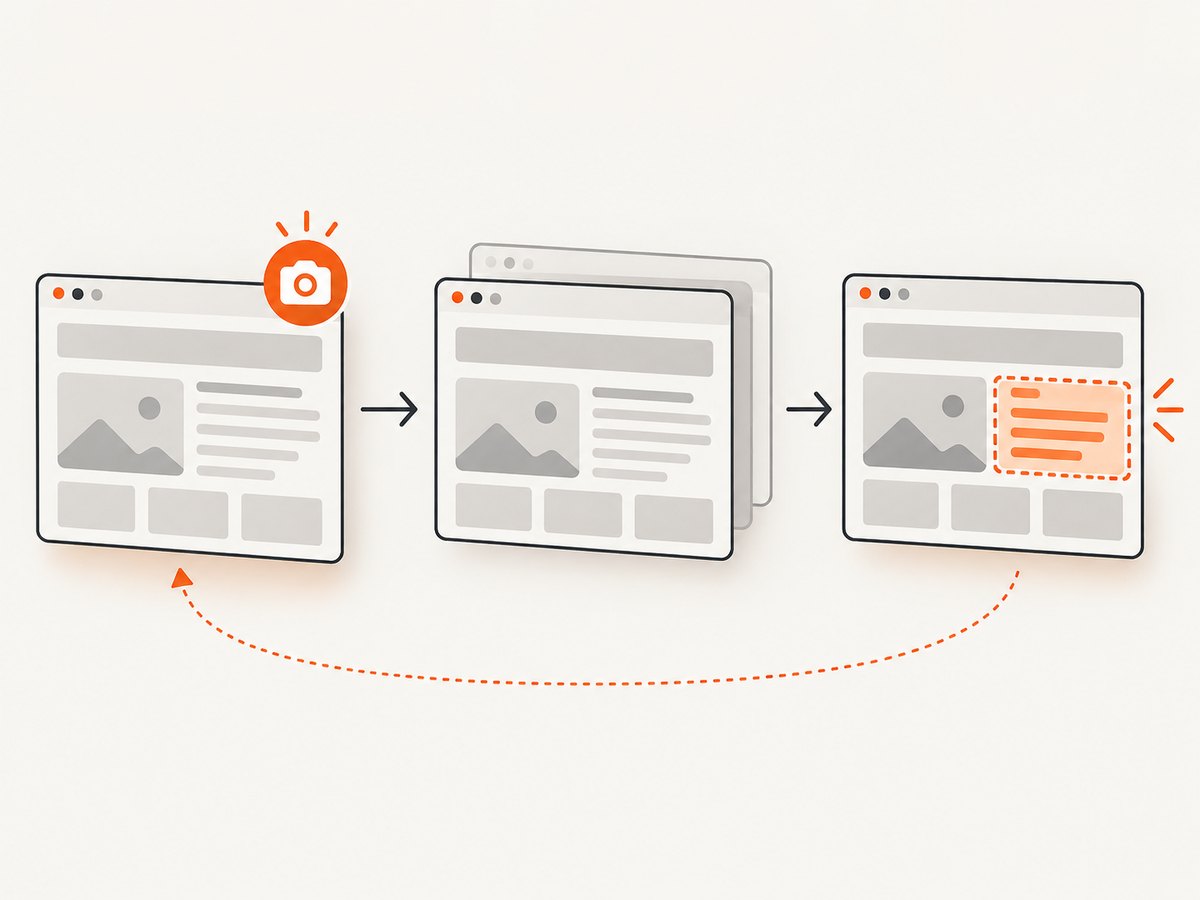
- Use a stable URL. Normalize query parameters and remove campaign parameters that are irrelevant to the content being monitored.
- Set the viewport and device scale. Monitor desktop and mobile separately if both matter. Keep the browser engine and viewport constant.
- Set locale, timezone, and location. Pages may change currency, dates, language, or location-specific content.
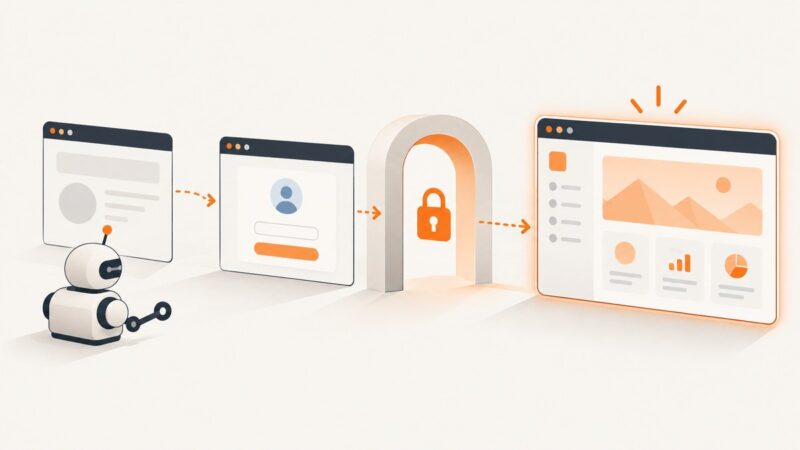
- Reproduce access state. For authenticated pages, use a dedicated account and stable cookies or authorization headers. Keep secrets out of source control and logs.
- Wait for the right signal. Prefer a meaningful selector or application-ready condition. A fixed delay can work for a known animation, but it adds latency and may still capture too early.
- Choose full page or an element. Monitor only the useful section when unrelated page regions change frequently.
- Save metadata with the image. Record timestamp, URL, viewport, browser, locale, target selector, and a cryptographic hash of the image.
Do not assume that a quiet network means a page is ready. Playwright documents networkidle as a navigation wait choice, but it is not a guarantee that every application has finished rendering. Choose the readiness signal that matches the page.
4. Capture with Playwright
The following Node.js example takes an initial screenshot and then uses Playwright Test’s screenshot assertion to compare against a stored baseline. Initialize the project with npm init playwright@latest, then save as a test file such as tests/brand-monitor.spec.js. On the first run, review and establish the baseline through Playwright’s snapshot workflow; do not treat an unreviewed first capture as trusted truth.
import { test, expect } from '@playwright/test';

const targetUrl = process.env.TARGET_URL || 'https://example.com';

test('brand page matches its approved visual baseline', async ({ page }) => {
  await page.setViewportSize({ width: 1440, height: 1000 });
  await page.goto(targetUrl, { waitUntil: 'domcontentloaded' });
  await page.locator('body').waitFor({ state: 'visible' });

  await expect(page).toHaveScreenshot('brand-home.png', {
    fullPage: true,
    maxDiffPixels: 200,
    stylePath: './tests/screenshot.css'
  });
});
Use a stylesheet to suppress known volatile regions. For example, save this as tests/screenshot.css and replace the selectors with elements on the site:
[data-testid="rotating-banner"],
.chat-widget,
.ad-slot,
.live-timestamp {
  visibility: hidden !important;
}
Playwright’s visual comparison runner stores baseline snapshots and supports maxDiffPixels thresholds. Set a threshold cautiously: a permissive value can conceal a meaningful change, while a strict comparison can flag antialiasing or dynamic rendering differences. Keep baselines in version control or an artifact store with review history. See the official Playwright visual comparisons documentation and assertion API.
5. Capture with Puppeteer
Puppeteer provides direct page screenshot capture; add scheduling, comparison, baseline management, and alerting around it. Install with npm install puppeteer. This runnable script writes a full-page image after navigation and a visible-body readiness check.
import puppeteer from 'puppeteer';

const targetUrl = process.env.TARGET_URL || 'https://example.com';
const browser = await puppeteer.launch({ headless: true });
try {
  const page = await browser.newPage({
    viewport: { width: 1440, height: 1000 },
    deviceScaleFactor: 1
  });
  await page.goto(targetUrl, { waitUntil: 'domcontentloaded', timeout: 45000 });
  await page.waitForSelector('body');
  await page.addStyleTag({ content: '.chat-widget, .ad-slot { visibility: hidden !important; }' });
  await page.screenshot({ path: 'capture.png', fullPage: true });
} finally {
  await browser.close();
}
For an element capture, use a selector-backed element handle and screenshot that element. Validate that the selector exists and is visible; a missing selector should become a logged monitor failure rather than a silently empty image. Puppeteer’s official Page.screenshot API documents screenshot output and options. The page screenshot call alone does not provide a complete change-monitor service.
6. Compare, filter, and alert
Keep visual and semantic checks distinct. A visual diff catches layout, color, image, and copy changes as rendered. A text or DOM check helps identify a meaningful wording change that occupies few pixels or is obscured by a broad visual threshold. When the rendered page is highly dynamic, normalize or ignore volatile areas before comparing.
- Use the smallest useful element or region to reduce unrelated changes.
- Hide rotating banners, clocks, ads, chat widgets, cursors, and personalized fragments when they are outside the monitoring objective.
- Keep color scheme, fonts, locale, authentication, and viewport fixed.
- Review any changed baseline intentionally; do not auto-accept every new image.
- Store the before-and-after images together with metadata and a link to the relevant deployment, campaign, or review record.
Route alerts through the system the owning team already checks: email, Slack, Teams, Discord, or a webhook. Include the URL, capture time, before and after images, changed region, and a short summary. Define whether repeated identical changes should be grouped, and give the alert an owner. A screenshot is evidence for triage, not a verdict about intent.
7. Managed monitoring services
Visualping says it checks pages on a chosen schedule, compares versions, detects visual, text, and code changes, and can alert on matching criteria. It supports whole-page or selected-element monitoring, and its alerts can include highlighted before-and-after comparisons and an AI-generated summary. The documented API can manage monitors and retrieve changes, useful when monitor lifecycle needs to follow another system. See the Visualping API documentation.
Distill describes scheduled monitors that read page HTML, compare it with a previous version, evaluate optional conditions, and trigger configured actions. Local monitors run on the user’s browser or app and require that device to stay on; cloud monitors run on Distill servers. Its listed notification options include email, SMS, push, Discord, Slack, Teams, and webhooks. See Distill’s monitor documentation.
When selecting a managed service, compare target selection, visual versus text or code detection, cloud versus local execution, browser and viewport controls, dynamic-content filtering, authentication, notifications, API access, retention, audit history, and total cost at your intended frequency. Verify current capabilities and pricing directly with each service.
8. Or skip the browser setup
ScreenshotNeo provides website screenshots through one GET request. The capture endpoint and available options are documented at ScreenshotNeo docs. This example saves the response as a WebP image; replace the target URL and provide an API key.
curl -G "https://api.screenshotneo.com/v1/shot" \
  -d access_key=YOUR_API_KEY \
  --data-urlencode url=https://example.com \
  -o shot.webp
import requests
r = requests.get(
"https://api.screenshotneo.com/v1/shot",
params={"access_key": "YOUR_API_KEY", "url": "https://example.com"},
timeout=90,
)
r.raise_for_status()
open("shot.webp", "wb").write(r.content)const q = new URLSearchParams({
access_key: 'YOUR_API_KEY',
url: 'https://example.com'
});
const res = await fetch(`https://api.screenshotneo.com/v1/shot?${q}`);
if (!res.ok) throw new Error(`Screenshot request failed: ${res.status}`);
await Bun.write('shot.webp', new Uint8Array(await res.arrayBuffer()));Cookie banners, newsletter popups, and chat widgets are removed before the shot, and each step can be turned off. Bot checks, blank pages, timeouts, failed loads, and cache hits cost nothing; response headers report the page verdict and billing status. ScreenshotNeo also has an MCP server with take_screenshot, get_page_info, and capture_pdf for AI agents. It offers 1,000 screenshots a month free with no card; paid plans start at $5 for 3,000 shots, and every feature is on every plan. For brand monitoring, connect captures to your chosen scheduler, comparison, retention, and alert flow. Sign up for 1,000 free screenshots a month, no card required.
9. Reliability, latency, and cost
For code-owned monitoring, browser startup and page load dominate work; full-page capture can also take longer and produce larger artifacts than a selected element. Reuse browser processes where appropriate, but isolate pages and clean up resources after failures. Bound navigation time, use limited retries with backoff for transient network errors, and avoid retrying deterministic errors such as a bad URL or missing selector without changing the configuration.
Schedule checks with jitter if many targets share a cadence, and cap concurrency to avoid exhausting browser memory or overloading a target. Record each attempt, including timeout and page-verdict outcomes. A failed capture should be visible as a failed monitor run, not mistaken for a valid unchanged screenshot. Consider caching only when the freshness requirement permits it; stale cached images are unsuitable as evidence of current state.
Cost includes more than API or subscription charges: include browser compute, storage, diff processing, notification delivery, and engineering maintenance. For a managed monitor, calculate checks per month from the inventory and cadence, then account for multiple selected regions, devices, and retries. For ScreenshotNeo, listed plans are Free with 1,000 shots/month and no card; Starter $5 for 3,000; Growth $15 for 15,000; Pro $39 for 60,000; Scale $99 for 250,000; Business $249 for 1,000,000. Yearly billing gives two months free. Check the current plan page before purchasing.
10. Troubleshooting
| Symptom | Likely cause | Fix |
|---|---|---|
| Alerts fire on every capture | Rotating content, timestamps, ads, personalization, or viewport drift. | Fix capture settings, monitor a smaller element, and hide volatile selectors with a stylesheet. |
| Screenshot is blank or incomplete | Navigation or application rendering had not completed, or a required resource failed. | Wait for a meaningful selector or ready condition, inspect page errors, and distinguish failed runs from valid images. |
| Capture times out intermittently | Long resources, third-party scripts, or overly strict network-idle waiting. | Set a bounded timeout, wait for the content needed, and retry transient failures with backoff. |
| Authenticated page shows a login screen | Expired cookie, incorrect headers, or a changed login flow. | Refresh the dedicated account’s credentials and verify the access state before comparing. |
| Small rendering differences persist | Font loading, browser version, device scale, or animation variation. | Pin the environment, wait for fonts/content, disable animation where suitable, and choose a reviewed diff threshold. |
| ScreenshotNeo response indicates no billable clean page | The response may describe a bot check, blank page, failed load, timeout, or cache hit. | Inspect X-Page-Verdict and X-Billed; treat non-clean outcomes as capture status, not evidence that the page is unchanged. |
| Screenshot API rejects a request | Missing or invalid key, malformed URL, or invalid options. | Check credentials, URL encoding, response status, and the documented parameter names at the API docs. |
11. Operational checklist
- Every target has an owner, reason, cadence, and retention rule.
- Baseline captures were reviewed and use fixed browser settings.
- Dynamic regions are removed or explicitly accepted as noise.
- Alerts include before and after evidence, URL, timestamp, and changed region.
- Authentication secrets and API keys are stored securely and rotated when access should be revoked.
- Failed captures are reported separately from detected changes.
- Baselines are updated only after a human confirms an intentional change.
FAQ
Should I use screenshots or HTML diffs?
Use screenshots for rendered appearance and pair them with text or DOM checks when the exact semantic change matters. They answer different questions.
Can I monitor a page behind a login?
Yes, if the chosen runner or service can reproduce the authenticated state. Use a dedicated account and keep credentials outside source control.
How many pages should I put in one monitor?
Organize by team, business objective, and alert destination. A small, owned set of meaningful targets is easier to triage than an unbounded list with no clear response owner.
Should every difference page someone?
No. Use thresholds and conditions to control noise, but retain the evidence and make the threshold strict enough to surface changes your team cares about.