How to Automate Screenshots in Chrome
Automate Chrome screenshots with Puppeteer, Playwright, CDP, and CI-ready patterns for full pages, elements, PDFs, and reliable output.
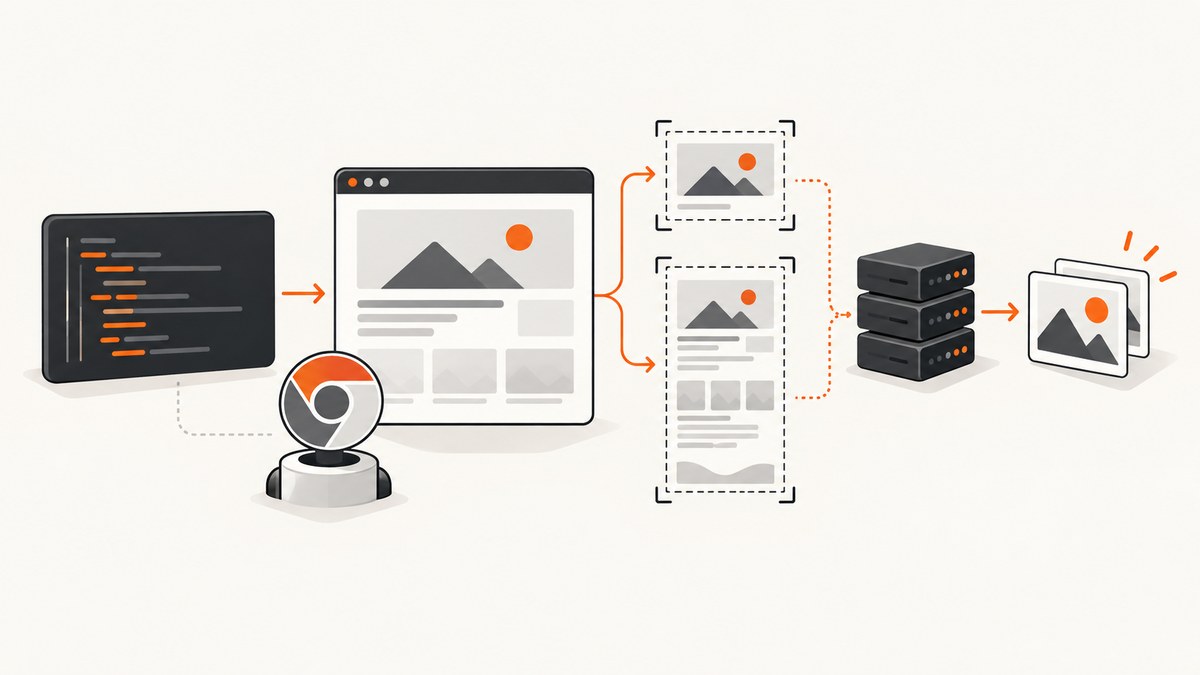
To automate screenshots in Chrome, use Puppeteer for a Chrome-first JavaScript workflow: launch headless Chrome, open a page, wait for the page’s real ready state, then call page.screenshot(). The same approach works locally, on a server, and in CI.
For a dependable result, control the Chrome version, viewport, device scale factor, fonts, animations, authentication state, lazy-loaded content, and readiness checks. A browser’s load event or networkidle2 is only a starting point; neither proves that the page is visually settled.
1. Choose the right Chrome screenshot method
| Method | Best fit | Trade-offs |
|---|---|---|
| Puppeteer | Chrome-focused scripts, PDFs, crawling, and CI capture | JavaScript-first and closely aligned with Chrome DevTools Protocol |
| Playwright | Teams testing Chromium, Firefox, and WebKit | Broader API; you use its page screenshot options |
| Direct CDP | A service that already exposes a Chrome debugging endpoint | Lowest-level control, with browser lifecycle and protocol handling left to you |
| Selenium/WebDriver | Teams standardized on WebDriver or extension testing | Screenshot details depend on the driver and language binding |
Chrome for Developers describes Puppeteer as a JavaScript library that automates Chrome and Firefox through the Chrome DevTools Protocol and WebDriver BiDi, with screenshot capture as a core use case. Playwright is a good choice when the same test model must cover several browser engines. Use CDP when Chrome is already running and your service can connect to its debugging endpoint. Selenium remains practical when your organization already manages WebDriver.
2. Install Puppeteer and capture your first screenshot
Create a small Node.js project and install Puppeteer. The package downloads a compatible browser for normal local use; in CI, pin the library and browser versions or use a controlled Chrome for Testing installation.
mkdir chrome-shots
cd chrome-shots
npm init -y
npm install puppeteer
Save this as capture.mjs and run it with node capture.mjs:
import puppeteer from 'puppeteer';

const browser = await puppeteer.launch({ headless: true });
try {
  const page = await browser.newPage();
  await page.setViewport({ width: 1440, height: 900, deviceScaleFactor: 1 });
  await page.goto('https://example.com', { waitUntil: 'networkidle2' });
  await page.screenshot({ path: 'page.png', fullPage: true });
} finally {
  await browser.close();
}
The fullPage option captures the document beyond the viewport. Omit it for a viewport screenshot. Use PNG for lossless diffs and text-heavy pages, JPEG for smaller photographic images, and WebP when your downstream tools accept it.
3. Make captures deterministic
Automation becomes flaky when the browser takes a screenshot before the application has finished rendering. Build readiness into the script instead of relying on a fixed sleep.
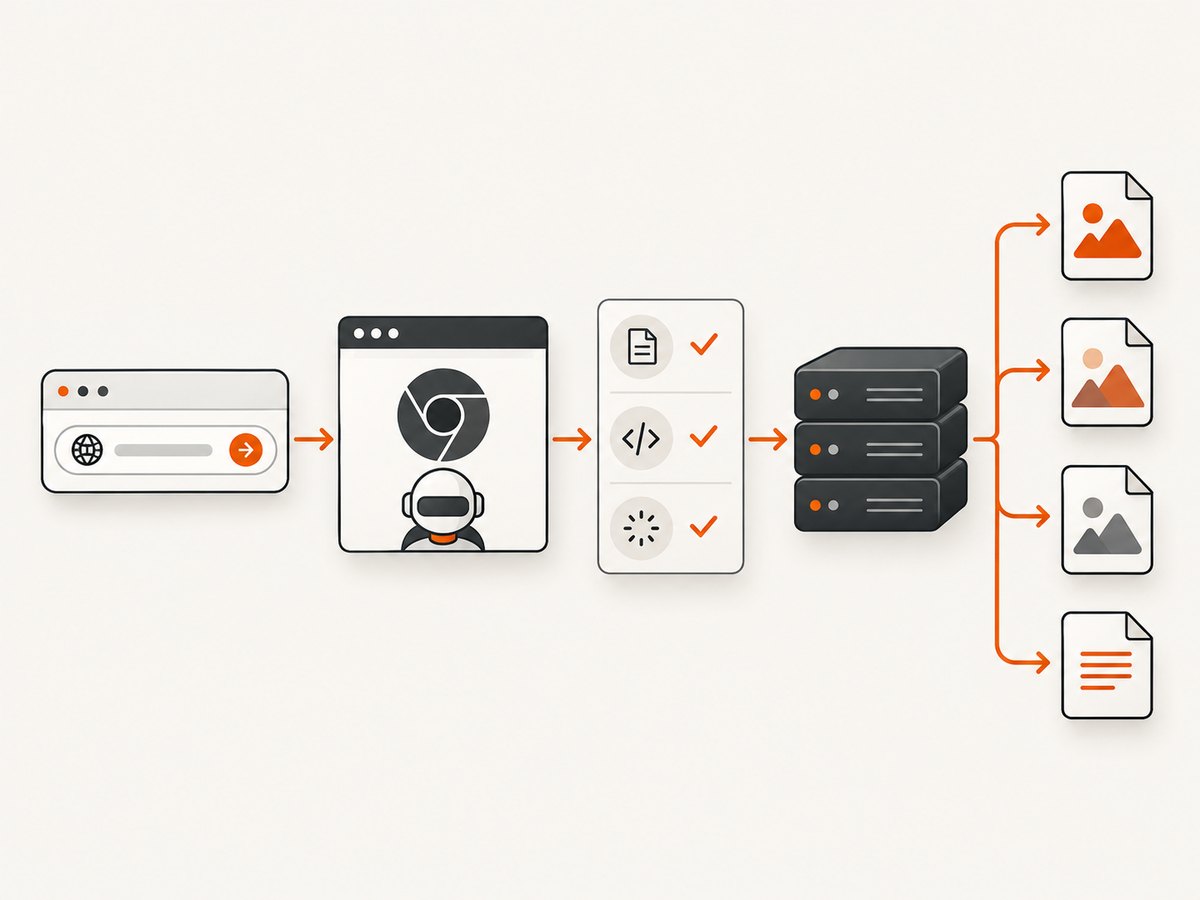
Wait for an application-ready selector
await page.goto('https://app.example.test/dashboard', {
  waitUntil: 'domcontentloaded'
});
await page.waitForSelector('[data-testid="dashboard-ready"]', {
  visible: true,
  timeout: 30000
});
await page.screenshot({ path: 'dashboard.png', fullPage: true });
A selector such as data-testid="dashboard-ready" is more meaningful than a generic load event. If you own the application, add a stable marker after data fetching and layout initialization complete.
Wait for fonts and images
await page.evaluate(async () => {
  if (document.fonts?.ready) await document.fonts.ready;
  const images = Array.from(document.images);
  await Promise.all(images.map(img => {
    if (img.complete) return Promise.resolve();
    return new Promise(resolve => {
      img.addEventListener('load', resolve, { once: true });
      img.addEventListener('error', resolve, { once: true });
    });
  }));
});
This prevents a screenshot from containing fallback fonts or empty image boxes. For lazy images, scroll through the page before capturing:
await page.evaluate(async () => {
  await new Promise(resolve => {
    let y = 0;
    const step = 600;
    const timer = setInterval(() => {
      window.scrollBy(0, step);
      y += step;
      if (y >= document.body.scrollHeight) {
        clearInterval(timer);
        window.scrollTo(0, 0);
        resolve();
      }
    }, 100);
  });
});
Freeze animations and transitions
await page.addStyleTag({ content: `
  *, *::before, *::after {
    animation: none !important;
    transition: none !important;
    caret-color: transparent !important;
  }
` });
Also control clocks and random content where your application allows it. A rotating banner, live counter, ad slot, or cursor can otherwise make visual comparisons fail even when the page is healthy.
4. Capture full pages, elements, and regions
Full-page screenshot
await page.screenshot({
  path: 'full-page.png',
  fullPage: true,
  type: 'png'
});
Full-page capture is useful for documentation and regression artifacts. Very tall documents can require substantial memory. If the page contains a fixed header, decide whether you want it repeated, hidden, or captured only in the viewport.
One element
Puppeteer’s screenshot guide documents element capture through ElementHandle.screenshot():
const card = await page.waitForSelector('.pricing-card');
if (!card) throw new Error('pricing card was not found');
await card.screenshot({ path: 'pricing-card.png' });
The element must be attached and visible. If it is inside a collapsed tab, open the tab first. If it is inside an iframe, obtain the frame and query the element there.
Clip a rectangle
const clip = await page.evaluate(() => {
  const r = document.querySelector('.hero').getBoundingClientRect();
  return { x: r.x, y: r.y, width: r.width, height: r.height };
});
await page.screenshot({ path: 'hero.png', clip });
Coordinates are CSS pixels. The final bitmap dimensions also depend on deviceScaleFactor.
5. Control viewport, device scale, and color
await page.setViewport({
  width: 1280,
  height: 800,
  deviceScaleFactor: 2,
  isMobile: false,
  hasTouch: false
});
await page.emulateMediaType('screen');
await page.emulateTimezone('UTC');
Set these values explicitly so a developer laptop and a CI runner produce the same layout. A scale factor of 1 is convenient for pixel comparisons; 2 produces a retina-sized image. To capture dark mode, set the preferred color scheme before navigation:
await page.emulateMediaFeatures([
  { name: 'prefers-color-scheme', value: 'dark' }
]);
For responsive coverage, run the same URL at a small mobile viewport, a tablet viewport, and your desktop viewport. Keep each output’s dimensions and metadata in its filename.
6. Authentication, cookies, headers, and blocked resources
Use a dedicated test account or a reproducible session. Never bake a live secret into source control.
await page.setCookie({
  name: 'session',
  value: process.env.SESSION_COOKIE,
  domain: 'app.example.test',
  path: '/',
  httpOnly: true,
  secure: true
});
await page.setExtraHTTPHeaders({
  'X-Screenshot-Run': process.env.GITHUB_SHA || 'local'
});
For HTTP Basic Authentication, call page.authenticate() before navigation. For bearer tokens used by an application, inject them through the same mechanism the application expects, or use a controlled test login flow.
Blocking analytics, video, advertisements, or third-party fonts can make captures faster, but it can also change layout. If you intercept requests, document the policy and confirm that the resulting page still represents the artifact you intend to publish.
7. PDFs and direct Chrome DevTools Protocol
Puppeteer can create PDFs from print CSS:
await page.pdf({
  path: 'document.pdf',
  format: 'A4',
  printBackground: true,
  margin: { top: '16mm', right: '12mm', bottom: '16mm', left: '12mm' }
});
When you already operate a Chrome debugging endpoint, CDP exposes the low-level Page.captureScreenshot command. The CDP reference supports image format and clipping parameters. You must manage connection retries, target selection, page lifecycle, and cleanup yourself.
8. Playwright alternative
If your team already uses Playwright, keep the same readiness principles and use its page API:
import { chromium } from 'playwright';

const browser = await chromium.launch({ headless: true });
try {
  const page = await browser.newPage({
    viewport: { width: 1440, height: 900 },
    deviceScaleFactor: 1
  });
  await page.goto('https://example.com', { waitUntil: 'networkidle' });
  await page.screenshot({ path: 'playwright.png', fullPage: true });
} finally {
  await browser.close();
}
Playwright is especially useful when the same suite must run against Chromium, Firefox, and WebKit. Its animation handling and tracing features can help diagnose visual timing issues.
9. Run Chrome screenshots reliably in CI
- Pin versions. Control the automation library and Chrome for Testing version. For WebDriver stacks, use matching ChromeDriver releases.
- Set the environment. Define viewport, scale factor, timezone, locale, color scheme, and fonts explicitly.
- Wait for readiness. Prefer an application signal, selector, or known data state over a fixed delay.
- Stabilize content. Disable animations, freeze clocks where possible, load lazy images, and remove nondeterministic ads.
- Choose the artifact. Decide between viewport, full page, element, or clipped region before writing assertions.
- Preserve diagnostics. Store console messages, failed requests, traces, and the failed screenshot together.
- Close every browser. Put cleanup in
finallyso repeated jobs do not exhaust runners.
Headless Chrome is designed for unattended server and CI execution. There is no authoritative universal benchmark proving one automation library is always fastest or most reliable, so measure startup, navigation, rendering, and output time in your own environment.
10. Troubleshooting common failures
| Symptom | Likely cause | Fix |
|---|---|---|
| Blank or partly blank image | Capture happened before application rendering | Wait for a stable selector and verify fonts/images before capture |
Timeout in goto |
Third-party request, service worker, or page never reaches the chosen state | Use a realistic timeout, wait for an application signal, and inspect network failures |
| Missing lazy images | Images load only after entering the viewport | Scroll the document, wait for image completion, then restore the scroll position |
| Text differs between runs | Fonts are not installed or font loading is incomplete | Install and pin fonts; await document.fonts.ready |
| Animated element in different positions | CSS animation, transition, carousel, or timer | Inject a reduced-motion stylesheet and freeze application state |
| Element screenshot throws | Selector is missing, hidden, detached, or inside an iframe | Wait for visibility, check the handle, and query the correct frame |
| Chrome crashes in CI | Resource limits, excessive parallelism, or incompatible browser build | Reduce concurrency, allocate memory, pin Chrome, and capture crash logs |
| Different desktop and CI layout | Viewport, scale, locale, timezone, or fonts differ | Set every environment value explicitly |
11. Or skip the browser setup
If you need an API instead of maintaining Chrome processes, ScreenshotNeo returns a PNG, JPEG, WebP, or PDF from one GET request. See the ScreenshotNeo API documentation for all options.
cURL
curl -G "https://api.screenshotneo.com/v1/shot" -d access_key=YOUR_API_KEY --data-urlencode url=https://stripe.com -o shot.webpPython
import requests

r = requests.get("https://api.screenshotneo.com/v1/shot", params={"access_key": "YOUR_API_KEY", "url": "https://stripe.com"}, timeout=90)
r.raise_for_status()
open("shot.webp", "wb").write(r.content)
Node.js
const q = new URLSearchParams({ access_key: 'YOUR_API_KEY', url: 'https://stripe.com' });
const res = await fetch(`https://api.screenshotneo.com/v1/shot?${q}`);
if (!res.ok) throw new Error(`HTTP ${res.status}`);
const bytes = Buffer.from(await res.arrayBuffer());
await import('node:fs/promises').then(fs => fs.writeFile('shot.webp', bytes));
ScreenshotNeo accepts 63 options, including full-page capture with lazy images loaded, CSS element capture, dark mode, 12 device presets or a custom viewport, retina scale, PDF paper and page-range controls, custom CSS and JavaScript, clicks, selector or network-idle waits, request and resource blocking, headers, cookies, user agents, authorization, timezone, geolocation, transparent backgrounds, resizing, selectable cache TTLs, signed image links, asynchronous jobs with signed webhooks, bulk capture of up to 100 URLs per call, a usage API, and an OpenAPI specification. Parameter names used by other screenshot APIs also work, which helps when switching.
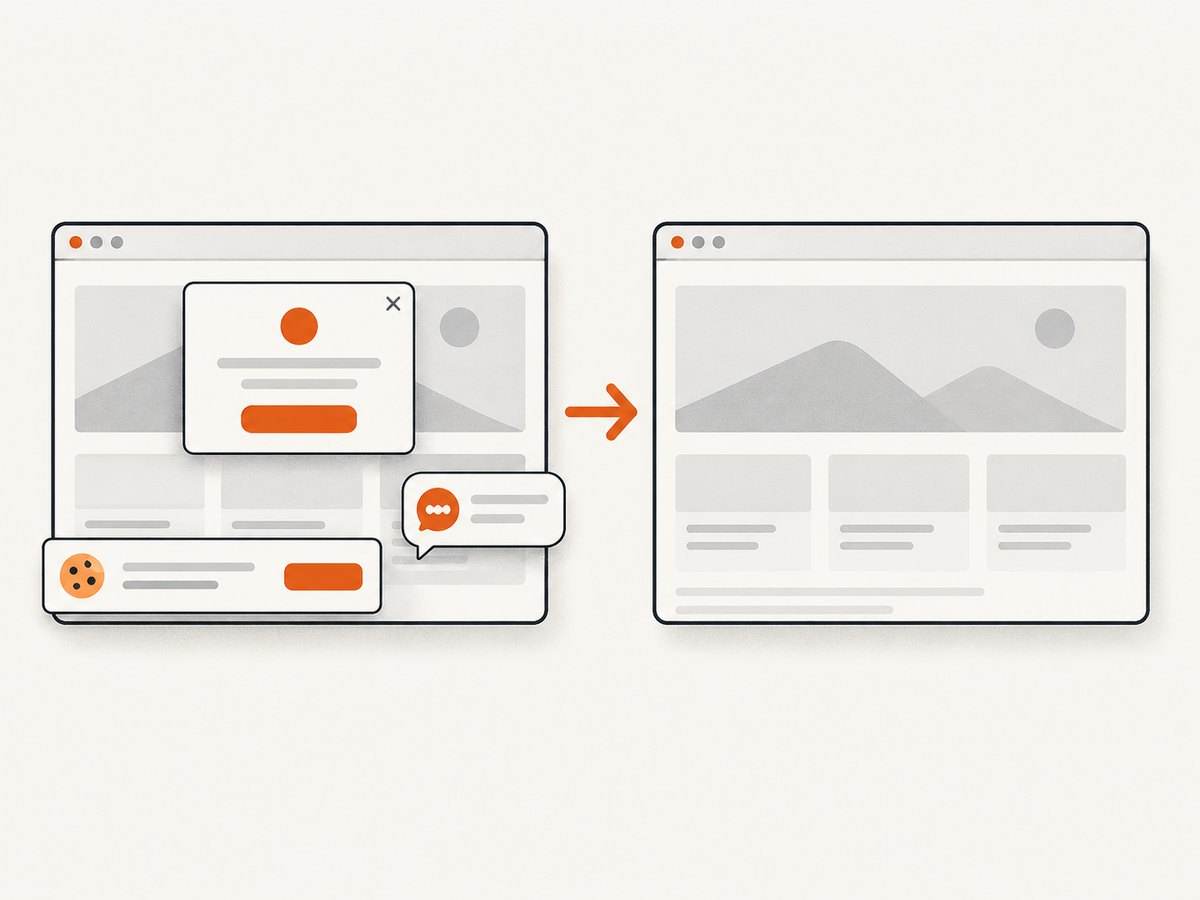
Cookie and consent banners, newsletter popups, and chat widgets are accepted or removed before capture; each step can be turned off. Bot checks or CAPTCHAs, blank pages, timeouts, failed loads, and cache hits cost nothing, and response headers report the page verdict and whether the shot was billed. An MCP server provides take_screenshot, get_page_info, and capture_pdf for Claude, Cursor, and other MCP clients.
The Free plan includes 1,000 shots per month with no card. Paid plans start at $5 for 3,000 shots; yearly billing gives two months free, and every feature is available on every plan. Create a free ScreenshotNeo account.
12. Performance, reliability, and cost decisions
Browser automation spends time starting Chrome, navigating, loading assets, rendering, and encoding the image. Reuse a browser process for a controlled batch, but create an isolated page per job and close pages after capture. Limit concurrency to what the runner can sustain. Full-page screenshots and high device scales consume more memory and produce larger files.
For visual regression, PNG and fixed fonts simplify comparisons. For delivery bandwidth, JPEG or WebP may be smaller, but compression can hide small rendering changes. Cache only when the URL, authentication state, viewport, and content freshness policy make a repeated image valid.
With a self-hosted browser, budget for Chrome processes, patches, fonts, sandbox configuration, retries, artifact storage, and operational diagnosis. With a screenshot API, compare request pricing, cache behavior, failure billing, concurrency, output formats, and the controls needed by your pages. ScreenshotNeo reports billing and page verdict headers so a failed page can be separated from a successful billed capture.
13. Chrome extension screenshots
For an extension, load the extension into the test browser and drive the same visible journey a person uses. Chrome’s extension testing guidance lists Puppeteer, Playwright, and Selenium as supported end-to-end choices. Capture only after the popup, options page, or content-script state is visibly ready. Base integration assertions on user-visible state rather than internal implementation details.
FAQ
Is Puppeteer or Playwright better for Chrome screenshots?
Puppeteer is the most direct Chrome-first choice. Use Playwright when you also need one automation model across Chromium, Firefox, and WebKit.
Does networkidle2 guarantee a complete screenshot?
No. Long polling, lazy content, fonts, animations, and application rendering can continue after network activity becomes quiet. Add an application-ready check.
Can headless Chrome capture an authenticated page?
Yes. Reproduce a controlled login or set the required cookies and headers before navigation, and keep credentials outside source control.
What is CDP’s screenshot command?
Page.captureScreenshot is Chrome DevTools Protocol’s low-level screenshot method. It is useful when your service already manages a Chrome debugging connection.
Should CI compare full-page images?
Only when document height and dynamic content are controlled. Otherwise compare a stable element or clipped region and retain the full page as a diagnostic artifact.


