How to Automate Screenshots for Legal Evidence
Build a repeatable workflow for capturing, documenting, hashing, and preserving web pages. Learn what automation can—and cannot—establish for authentication.

Automating a screenshot can make a web capture repeatable and easier to document. It does not, by itself, prove that the image accurately represents a page, identify who published the page, establish that its statements are true, or guarantee that a court will admit it.
For a defensible process, define what you are capturing, record how and when you captured it, preserve the original output, and document custody and later changes. In federal court, authentication generally requires evidence sufficient to support a finding that an item is what its proponent claims it is. Federal Rule of Evidence 901(b)(9) identifies evidence describing a process or system and showing that it produces an accurate result as one possible authentication route. The rule is not an automatic approval of any automated screenshot. Read the current Federal Rules of Evidence.
This guide gives you a practical, repeatable workflow and runnable examples. It is process guidance, not legal advice. State and local rules, case orders, discovery duties, privacy requirements, and the specific facts may change what foundation is appropriate.
1. Decide what the capture needs to show
Before you automate anything, write down the claim the capture is intended to support. “This is a screenshot of a page” is different from “this page was publicly visible at a particular time,” and both are different from “the named organization published this statement.” A screenshot is an image; the context and meaning attributed to it need their own support.
Define the target and scope:
- Record the exact URL, including relevant path and query parameters. Note whether access requires an account or a particular state.
- Identify the content that matters and the time window in which it may change.
- Decide whether a viewport screenshot is enough or whether you need a full-page capture, screenshots of several states, or a screen recording for interactive content.
- Note what may affect the result: login prompts, redirects, location, timezone, personalization, consent banners, or content loaded after scrolling.
- Choose a stable matter identifier for logs and storage. Avoid putting confidential information in filenames unnecessarily.
A screenshot captures rendered pixels. It usually does not capture all the surrounding context, such as the page source, server response, account state, or how the operator reached the page. If those details matter, plan to preserve relevant companion records separately and label them clearly.
2. Make the capture process repeatable
Automation is most useful when another person can understand and, where appropriate, repeat the process. Record the capture tool and version, operating system or browser, configuration, viewport or page dimensions, capture time with timezone, and whether the result came from a viewport, full-page, scrolled, or video capture. Record errors and anomalies rather than silently retrying until you get a preferred result.
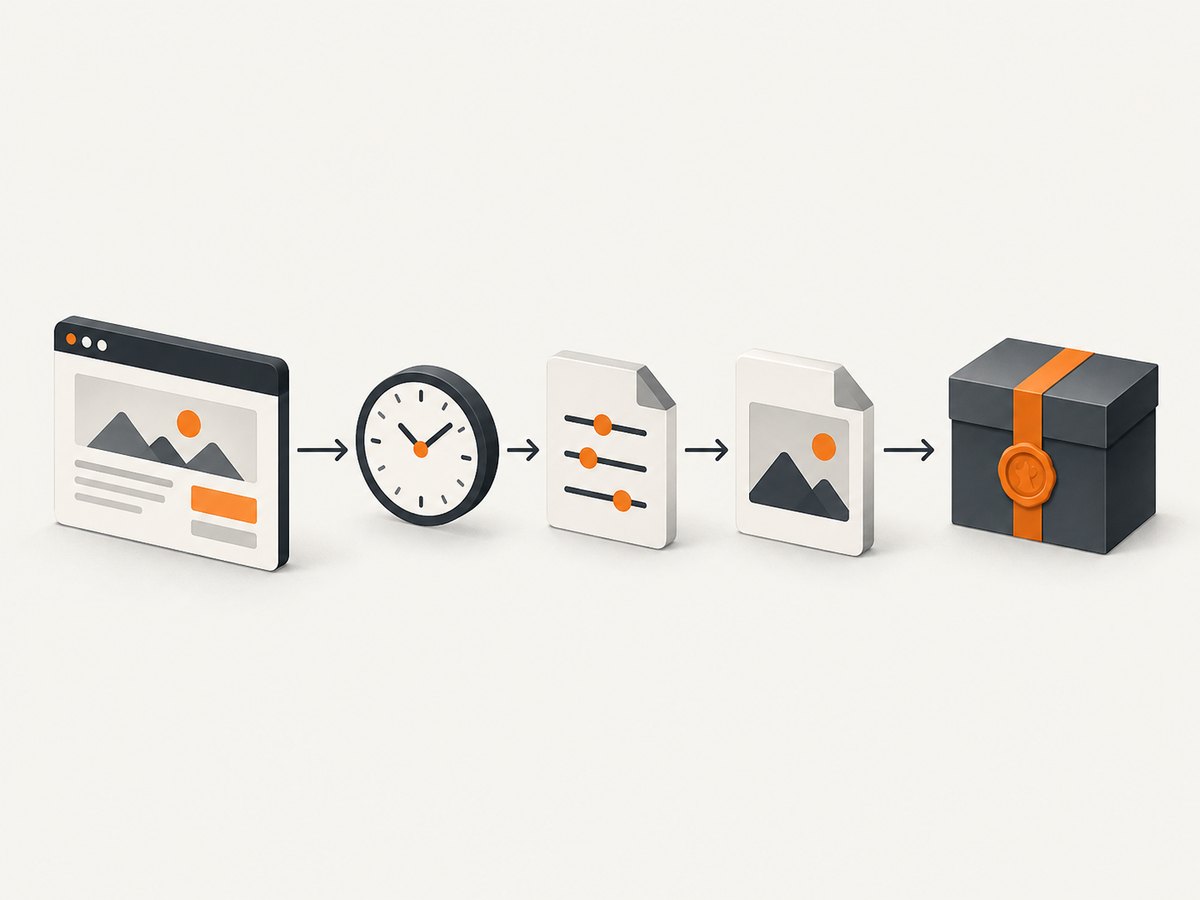
The following Node.js example uses Playwright to visit a URL and save a full-page PNG. It also writes a JSON sidecar with the URL, UTC timestamp, tool version, viewport, and observed final URL. Install the dependencies with npm install playwright and install the browser with npx playwright install chromium. Save the script as capture.mjs, then run node capture.mjs 'https://example.com' capture.png.
import { chromium } from 'playwright';
import { writeFile } from 'node:fs/promises';

const targetUrl = process.argv[2];
const outputPath = process.argv[3] ?? 'capture.png';
if (!targetUrl) {
  throw new Error('Usage: node capture.mjs <url> [output.png]');
}

const startedAt = new Date().toISOString();
const browser = await chromium.launch({ headless: true });
const page = await browser.newPage({
  viewport: { width: 1440, height: 1000 },
  deviceScaleFactor: 1,
  timezoneId: 'UTC'
});
let navigationError = null;
try {
  const response = await page.goto(targetUrl, {
    waitUntil: 'networkidle',
    timeout: 45000
  });
  await page.screenshot({ path: outputPath, fullPage: true });
  const record = {
    requestedUrl: targetUrl,
    finalUrl: page.url(),
    capturedAt: new Date().toISOString(),
    startedAt,
    httpStatus: response?.status() ?? null,
    browser: 'Chromium via Playwright',
    playwrightVersion: 'Record the installed package version here',
    viewport: { width: 1440, height: 1000 },
    deviceScaleFactor: 1,
    fullPage: true,
    navigationError
  };
  await writeFile(`${outputPath}.json`, JSON.stringify(record, null, 2));
} catch (error) {
  navigationError = String(error);
  throw error;
} finally {
  await browser.close();
}
For a production workflow, retrieve the installed Playwright version programmatically from your package metadata and write that exact value to the record; do not leave a placeholder. Consider recording the browser version, host identifier, job ID, and operator or service identity. Protect logs and artifacts under your organization’s access and retention rules.
Be deliberate about readiness. networkidle can wait indefinitely or time out on pages with ongoing requests; a page’s visual content may also appear before the network becomes idle. For a known page, waiting for a specific selector can be more meaningful. If you use a delay, record its duration. If the page is dynamic, capture relevant states and document the steps that produced them. Avoid changing settings between retries without logging the change.
3. Preserve the original, log custody, and calculate a hash
Keep the unaltered screenshot in its native output format. Do not crop, annotate, redact, compress, or convert that file in place. Make a working copy for review and log each derivative: who created it, when, from which original, and what changed. If the capture tool creates a JSON log, PDF, page-source file, or other companion artifact, preserve it as a separate, related item.
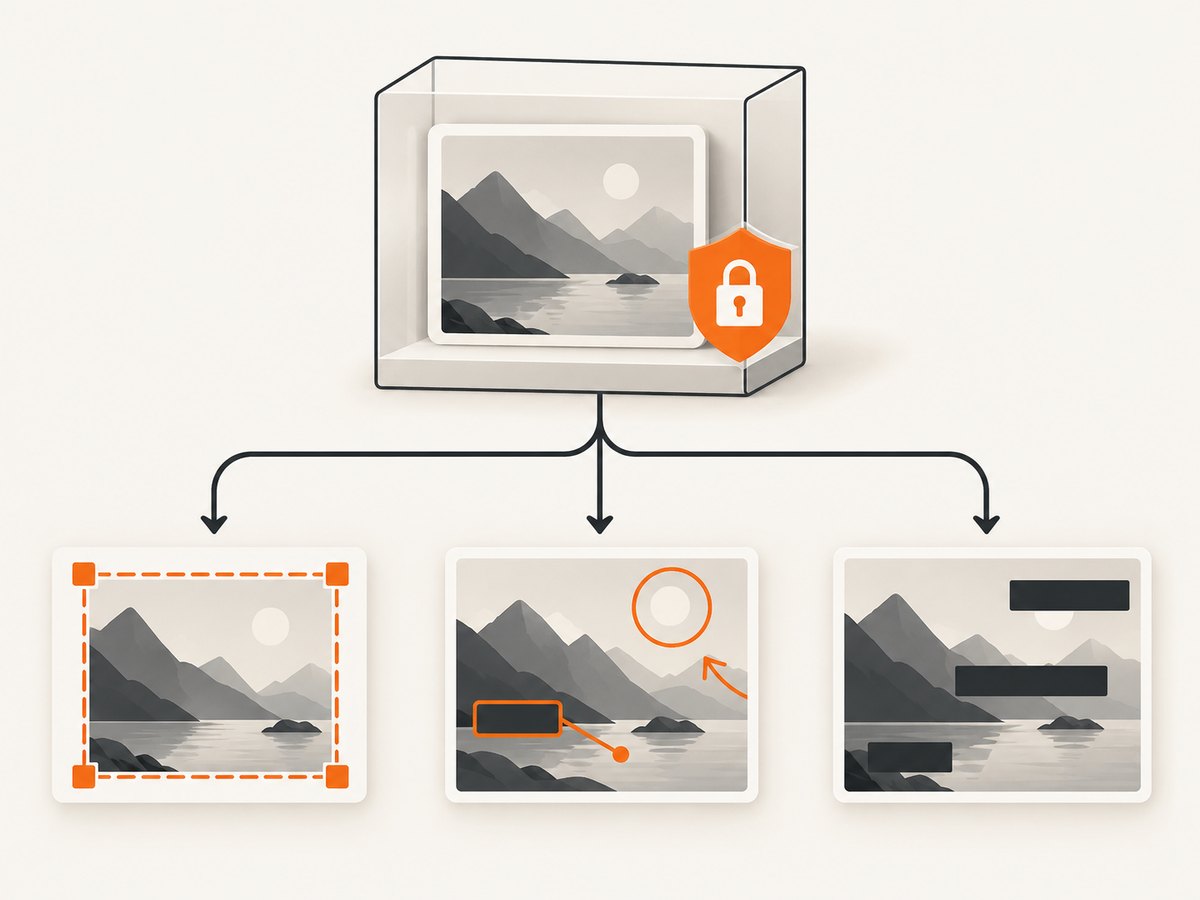
A SHA-256 hash can help detect whether a file changed after the hash was calculated. It does not prove what the page looked like before capture, that the capture was accurate, who authored the page, or that its contents are true. Record the hash alongside the artifact identifier and the time and method used to calculate it.
On macOS or Linux, calculate a hash with:
sha256sum capture.png capture.png.json > SHA256SUMS.txtOn Windows PowerShell:
Get-FileHash .\capture.png -Algorithm SHA256
Get-FileHash .\capture.png.json -Algorithm SHA256
Keep the capture log and custody log distinct enough to answer two questions: what process produced this artifact, and who had access to or transferred it afterward? A log can include an artifact ID, matter ID, requested and final URL, capture timestamp and timezone, operator or automated job, tool and version, settings, result status, hash, storage location, and each transfer or access event required by your protocol. Do not place credentials or sensitive page contents in a broadly accessible log.
4. Create a capture log you can review
A small structured record is easier to audit than informal notes. Here is a Python example that reads the sidecar from the Node.js example, adds an artifact ID and operator field, and calculates SHA-256 digests. Save as record_capture.py and run python record_capture.py capture.png CASE-2026-0042 operator-17. It writes a new manifest; it does not alter the screenshot.
import hashlib
import json
import sys
from datetime import datetime, timezone
from pathlib import Path

if len(sys.argv) != 4:
    raise SystemExit('Usage: python record_capture.py <image> <artifact-id> <operator-id>')

image_path = Path(sys.argv[1])
artifact_id = sys.argv[2]
operator_id = sys.argv[3]
sidecar_path = Path(f'{image_path}.json')
if not image_path.is_file() or not sidecar_path.is_file():
    raise SystemExit('Image and matching .json sidecar must both exist')

def sha256(path):
    digest = hashlib.sha256()
    with path.open('rb') as file:
        for chunk in iter(lambda: file.read(1024 * 1024), b''):
            digest.update(chunk)
    return digest.hexdigest()

capture_record = json.loads(sidecar_path.read_text(encoding='utf-8'))
manifest = {
    'artifactId': artifact_id,
    'operatorId': operator_id,
    'manifestCreatedAt': datetime.now(timezone.utc).isoformat(),
    'captureRecord': capture_record,
    'files': [
        {'path': image_path.name, 'sha256': sha256(image_path)},
        {'path': sidecar_path.name, 'sha256': sha256(sidecar_path)}
    ]
}
manifest_path = image_path.with_name(f'{artifact_id}-manifest.json')
manifest_path.write_text(json.dumps(manifest, indent=2), encoding='utf-8')
print(manifest_path)
For a real matter, use your approved matter and operator identifiers, define who may write or edit records, and preserve transfer events in the system of record required by counsel or your organization. A hash file stored beside an image is useful only if your process also controls and documents access to both.
5. Understand the evidence rules and their limits
Federal Rule of Evidence 1001 defines a “photograph” to include an image stored in any form and addresses originals and accurate duplicates, including for electronically stored information. That definition does not resolve authentication. Authentication under Rule 901 asks whether there is evidence sufficient to support a finding that the item is what the proponent claims it is.
Rule 901(b)(9) gives as one example “Evidence describing a process or system and showing that it produces an accurate result.” A documented capture method may help explain how an image was generated. Whether it is enough depends on the claim, the evidence, and the dispute. It is not a legal safe harbor.
Rules 902(13) and 902(14) provide specified self-authentication routes for evidence produced by a process or system and for data copied from an electronic device, storage medium, or file, subject to the rules’ requirements, including certification. A screenshot, software export, or hash is not automatically self-authenticating simply because it is digital. Review the official text of Article IX and the Federal Judicial Center’s explanation of Rule 902 with counsel.
Website evidence can be contested on whether the capture accurately reflects the site and whether the content can be attributed to the claimed publisher. Historical committee material discusses these issues and differing approaches to Internet Archive captures; it is background, not binding current rule text. The current rules and controlling cases for the relevant court and matter should guide the foundation. U.S. Courts committee material on electronic evidence and website authentication.
6. Troubleshoot common capture problems
| Symptom | Likely cause | Practical response |
|---|---|---|
| Navigation times out | The page keeps network requests open, loads slowly, or is inaccessible. | Record the timeout and error. For a known page, wait for a specific selector or use a documented readiness condition. Do not omit failed attempts from the record. |
| Screenshot is blank or incomplete | Content is delayed, blocked, below the fold, or rendered only after interaction. | Capture the error state as an anomaly, inspect the page behavior, and document a revised wait or interaction. Preserve both attempts if relevant. |
| Full-page image misses lazy-loaded sections | Some sites load images or text only as the page is scrolled. | Use a capture method that scrolls through the page before taking the final image, and record that behavior. Verify the output visually without changing the original. |
| Page redirects or shows a login/consent screen | Access depends on session, region, account, or consent state. | Record requested and final URLs and the visible state. If an authorized session is required, document how it was established and protect session data. |
| Different runs produce different images | Dynamic content, personalization, timezone, viewport, ads, or page updates vary. | Fix and record controllable settings. Capture relevant runs with timestamps; do not imply they are identical page states. |
| Hash does not match later | The file changed, a different file was used, or the hash was calculated on another version. | Preserve both versions, compare the manifest and custody history, and document the discrepancy. Do not overwrite the earlier record. |
7. Performance, reliability, and cost considerations
Browser automation consumes compute and time, especially for full-page captures, large pages, and repeated browser launches. Reusing a browser process across a controlled batch can reduce startup overhead, but isolate sessions where account state or confidentiality requires it. Set a timeout, cap retries, and make retries visible in the log. A failed capture is a recorded outcome; silently retrying until a convenient page appears weakens the story of how the exhibit was produced.
For reliability, pin dependency versions, keep the capture script and configuration under version control, record changes, and periodically review whether browser updates affect the output. Store artifacts in access-controlled storage with retention and backup rules set by counsel or your organization. A local hash detects changes only relative to the value you retained; it does not replace access controls, custody records, or backup policy.
Estimate cost from the number of URLs, number of repeated states, browser runtime, storage, and staff review time. Full-page captures and retries can take longer than a single viewport capture. Avoid capturing more personal or confidential data than the matter requires, and define retention and deletion with counsel. No general-purpose tool setting establishes admissibility or guarantees a particular result.
8. Or skip the browser setup
ScreenshotNeo is a website screenshot API and MCP server from Yorker Media. One GET request returns a PNG, JPEG, WebP, or PDF. Its clean-capture flow accepts cookie or consent banners like a visitor and removes more than 60 known consent platforms, newsletter popups, and chat widgets before capture; each step can be turned off. Its page-verdict and billing headers distinguish clean captures from bot checks, blank pages, failed loads, timeouts, and cache hits, which cost nothing. For legal work, treat its output as a capture artifact: preserve the original, record the response and configuration, and establish any required foundation independently.
For a quick capture, use the API key and target URL as parameters. Review the ScreenshotNeo API documentation for request options and response details.
curl -G "https://api.screenshotneo.com/v1/shot" \
  -d access_key=YOUR_API_KEY \
  --data-urlencode url=https://example.com \
  -o shot.webp
Or use Python:
import requests

r = requests.get(
    "https://api.screenshotneo.com/v1/shot",
    params={"access_key": "YOUR_API_KEY", "url": "https://example.com"},
    timeout=90,
)
r.raise_for_status()
open("shot.webp", "wb").write(r.content)
Or use Node.js:
const q = new URLSearchParams({
  access_key: 'YOUR_API_KEY',
  url: 'https://example.com'
});
const res = await fetch(`https://api.screenshotneo.com/v1/shot?${q}`);
if (!res.ok) throw new Error(`Screenshot request failed: ${res.status}`);
await Bun.write('shot.webp', res);
For an evidentiary workflow, also retain relevant response headers, request parameters, timestamps, and any error or verdict information with the image. ScreenshotNeo’s MCP server provides take_screenshot, get_page_info, and capture_pdf for Claude, Cursor, and other MCP clients; an agent workflow still needs a documented operator and custody process.
Cookie banners, popups, and chat widgets are removed before the shot; bot checks, blank pages, and failed loads are never billed; an MCP server lets AI agents take screenshots; 1,000 screenshots a month are free with no card, and paid plans start at $5 for 3,000. Pricing continues with Growth at $15 for 15,000, Pro at $39 for 60,000, Scale at $99 for 250,000, and Business at $249 for 1,000,000 per month; yearly billing gives two months free. Every feature is on every plan. Create a free ScreenshotNeo account.
9. Before relying on a capture
- Confirm that the original image and its metadata sidecar are preserved and linked by artifact ID.
- Check that the capture log identifies URL, time and timezone, tool/version, settings, operator or job, and anomalies.
- Verify hashes against the retained manifest and document any later derivative.
- Review the custody history and storage permissions.
- Ask counsel to assess authentication, attribution, hearsay, discovery, privacy, and any required witness or certification for the specific matter and jurisdiction.
FAQ
Does automating a screenshot make it admissible?
No. Automation can make the capture process more repeatable and explainable. The proponent still needs an adequate foundation under the applicable rules, and admissibility depends on the matter and court.
Does a SHA-256 hash prove the screenshot is authentic?
A matching hash can help show that a file has not changed since the hash was recorded. It does not establish what the webpage showed before capture or whether the page’s contents were accurate.
Is a screenshot an original under the evidence rules?
Rule 1001 defines originals for electronically stored information and includes images among photographs. Whether a particular file qualifies as an original or accurate duplicate is a question to assess under the rule and facts; retain the native output and its provenance.
Can an archived webpage replace a contemporaneous capture?
Not automatically. Archived pages can raise their own foundation and attribution questions. The historical U.S. Courts committee material notes differing approaches; consult current controlling authority for the relevant matter.


