How to Automate Screenshots for PDF Invoices
Automate invoice screenshots and PDFs with Playwright, choose the right capture mode, handle authentication, and use ScreenshotNeo when you need a hosted API.
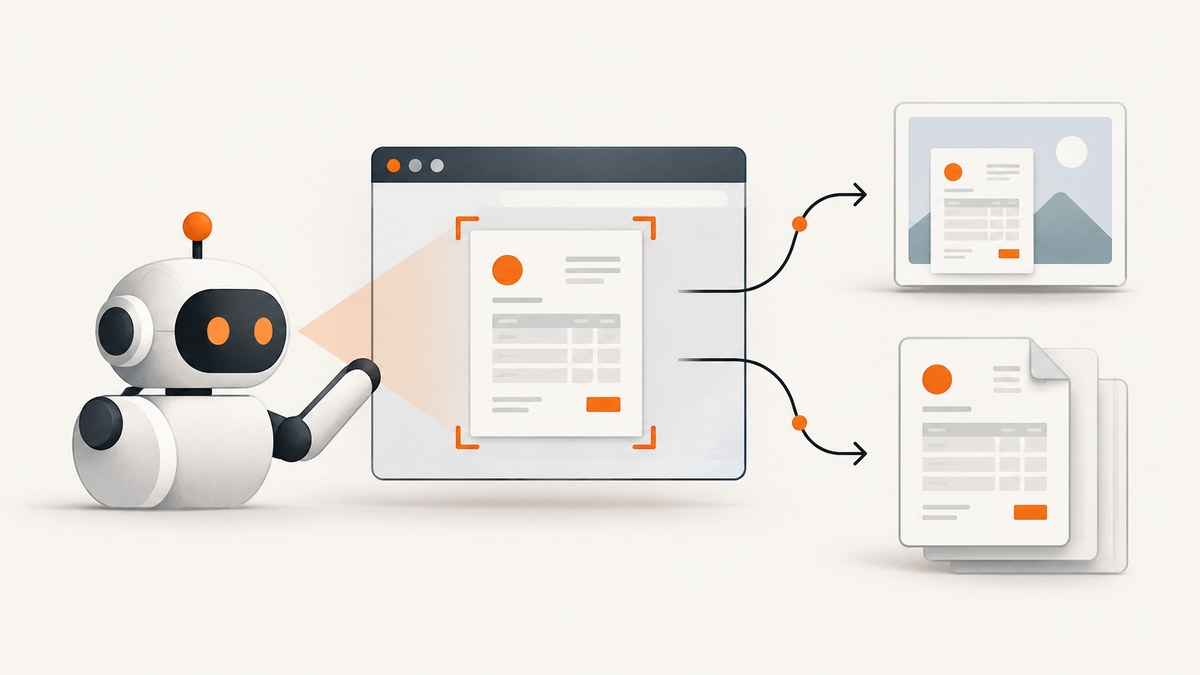
Direct answer: Open the invoice in a browser automation tool, wait for an invoice-specific element, then capture either the viewport, the invoice element, the full page, or a PDF. These are different outputs. A screenshot is an image of rendered pixels; a PDF is generated through the browser’s print pipeline and can use different CSS. Playwright supports all of these capture modes through its CLI and API. If you need a hosted endpoint instead of maintaining browsers, ScreenshotNeo can return a PNG, JPEG, WebP, or PDF from one request.
Choose the artifact before writing code
Define what the receiving system actually needs. Use an image when a ticket, audit record, visual diff, or email attachment needs a faithful view of the rendered page. Use a PDF when the invoice must be printed, archived as a document, or passed to a downstream PDF workflow. Do not create a screenshot and convert it to PDF unless an image-only PDF is explicitly acceptable; browser PDF generation preserves document pagination and print styling.
| Need | Capture | Important detail |
|---|---|---|
| Visible screen area | Viewport screenshot | Only content currently inside the viewport is included. |
| Invoice without app chrome | Element screenshot | Use a stable locator such as [data-testid="invoice"]. |
| Entire scrollable invoice as one image | Full-page screenshot | Very long invoices may become difficult to read or process. |
| Printable document | page.pdf() |
Print CSS is used by default; screen media can be selected explicitly. |
Prerequisites and a repeatable workflow
- Use the application’s supported authentication flow and open the exact invoice record.
- Wait for a reliable invoice signal, such as a visible heading, invoice number, or container. An arbitrary sleep alone is fragile.
- Choose viewport, element, full-page, or PDF output based on the artifact requirements.
- Set an explicit output format and deterministic filename when your storage policy allows it. Use a non-sensitive invoice identifier; do not put payment data or unnecessary personal information in filenames.
- Validate that the captured record, amount, date, and status match the requested invoice before storing or forwarding it.
Playwright’s official screenshots and PDF guide documents CLI capture scopes and PDF export. The Page API reference documents screenshot options and PDF behavior.
Automate invoice screenshots with Playwright (Node.js)
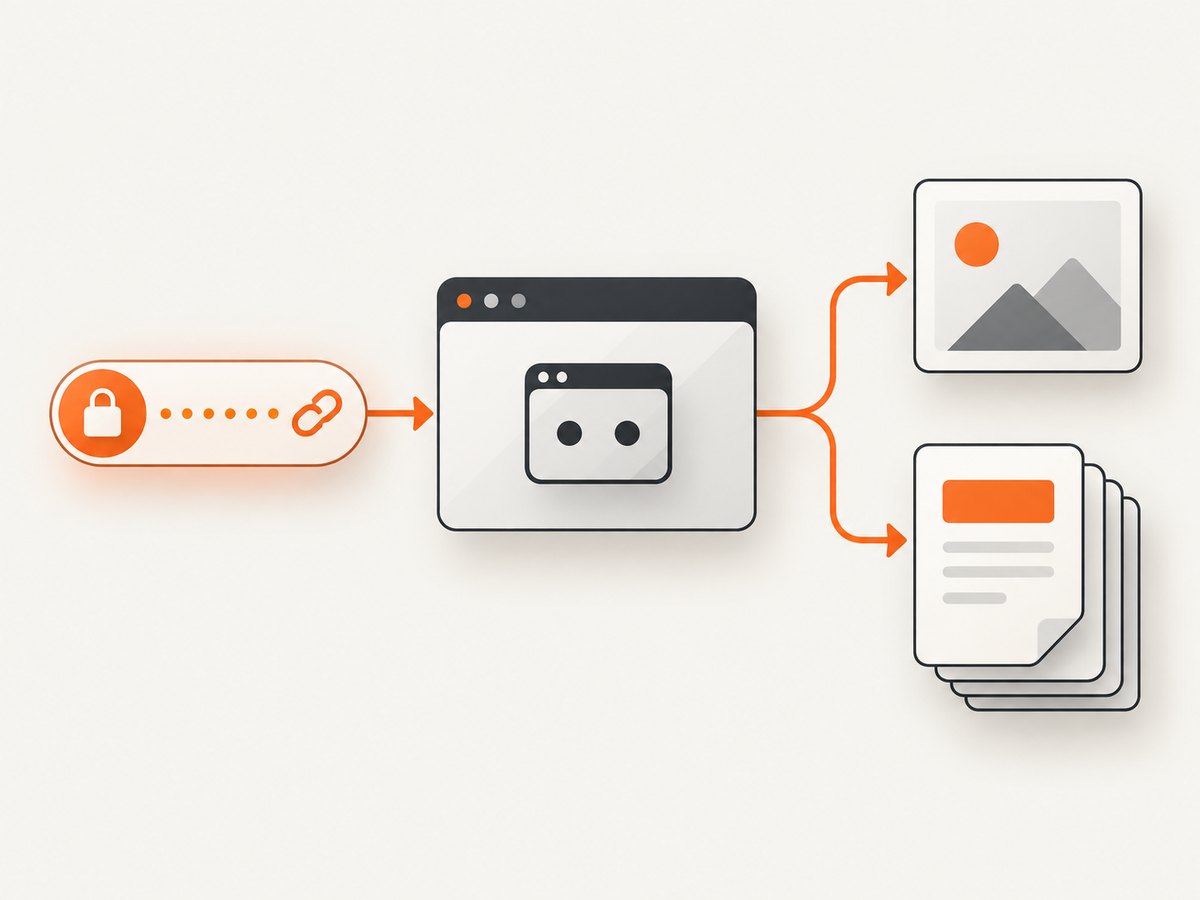
The following script logs in through a normal application flow, opens an invoice URL, waits for the invoice container, and writes an element screenshot, a full-page screenshot, and a PDF. Replace selectors and URLs with those used by your application.
import { chromium } from 'playwright';

const browser = await chromium.launch({ headless: true });
const context = await browser.newContext({
  viewport: { width: 1440, height: 1000 },
  deviceScaleFactor: 1
});
const page = await context.newPage();

try {
  await page.goto('https://billing.example.com/login', {
    waitUntil: 'domcontentloaded',
    timeout: 60000
  });
  await page.getByLabel('Email').fill(process.env.BILLING_EMAIL);
  await page.getByLabel('Password').fill(process.env.BILLING_PASSWORD);
  await page.getByRole('button', { name: 'Sign in' }).click();

  await page.goto('https://billing.example.com/invoices/inv_123', {
    waitUntil: 'domcontentloaded',
    timeout: 60000
  });

  const invoice = page.locator('[data-testid="invoice"]');
  await invoice.waitFor({ state: 'visible', timeout: 30000 });
  await page.waitForLoadState('networkidle');

  await invoice.screenshot({ path: 'invoice-inv_123.webp', type: 'webp' });
  await page.screenshot({ path: 'invoice-inv_123-full.png', fullPage: true });

  await page.pdf({
    path: 'invoice-inv_123.pdf',
    format: 'A4',
    printBackground: true,
    margin: { top: '12mm', right: '12mm', bottom: '12mm', left: '12mm' }
  });
} finally {
  await browser.close();
}
For a PDF that follows screen styling rather than print styling, call await page.emulateMedia({ media: 'screen' }) immediately before page.pdf(). The API reference states that page.pdf() uses print CSS by default.
Viewport, element, and full-page details
- Viewport:
await page.screenshot({ path: 'invoice.png' }). Configure the viewport when responsive layout matters. - Element:
await page.locator('#invoice').screenshot({ path: 'invoice.png' }). This excludes navigation, buttons, and surrounding application controls. - Full page:
await page.screenshot({ path: 'invoice.png', fullPage: true }). Use it for a single long image, but check maximum image dimensions and downstream viewer limits.
Playwright supports PNG, JPEG, and WebP output. JPEG and WebP can reduce storage size; PNG is useful when lossless text and sharp edges matter. Quality settings apply to lossy formats. Mask sensitive regions with the screenshot API’s masking options when the capture should conceal dynamic or private fields.
Playwright CLI examples
The CLI is useful for one-off jobs and shell pipelines. Start with a URL that is already accessible to the browser session:
npx playwright screenshot --device="Desktop Chrome" \
  --wait-for-selector='[data-testid="invoice"]' \
  https://billing.example.com/invoices/inv_123 invoice.png

npx playwright screenshot --full-page \
  --wait-for-selector='[data-testid="invoice"]' \
  https://billing.example.com/invoices/inv_123 invoice-full.png

npx playwright pdf \
  --wait-for-selector='[data-testid="invoice"]' \
  https://billing.example.com/invoices/inv_123 invoice.pdf
Use the CLI’s element and viewport options where supported by your installed Playwright version. Run npx playwright --help to confirm the exact flags for that version, because command-line options can change independently of your application.
Waiting for invoices that render asynchronously
Invoices commonly load line items, tax calculations, logos, or payment status after the initial document. Prefer a semantic readiness signal:
await page.locator('[data-testid="invoice-number"]').waitFor({ state: 'visible' });
await page.locator('[data-testid="invoice-total"]').waitFor({ state: 'visible' });
await page.waitForFunction(() => document.fonts?.status === 'loaded');
A fixed delay can still be useful for a known animation or delayed chart, but keep it as a supplement to a selector or network condition. If lazy-loaded images are part of the invoice, scroll the page or use a capture service that loads lazy images before the full-page shot. Wait for custom fonts if text reflow would change page breaks.
Authentication, privacy, and deterministic output
- Keep credentials in environment variables or a secret manager, never in source control.
- Use a dedicated service account with read-only invoice access when the billing system supports it.
- Persist browser storage state only in protected storage and rotate it according to your organization’s policy.
- Send a stable invoice ID through your job queue and derive the output filename from that ID after validating it.
- Redact or mask card fragments, addresses, or tax identifiers when the recipient does not need them.
- Record the source URL, capture time, rendering mode, and result status beside the artifact so an auditor can reproduce the decision.
When a PDF is the actual requirement
Use the browser PDF function instead of converting a screenshot. Set paper size, margins, landscape mode, and background printing explicitly. Long invoices may require page-break CSS in the invoice application. Check that headers, footers, totals, and terms do not split in unacceptable places. If your workflow includes PDF creation, conversion, transformation, securing, or extraction after capture, Adobe describes those capabilities in its PDF Services API documentation. That documentation also lists Microsoft Power Automate and UiPath integrations; it does not establish browser screenshot capture.
Adobe’s article on Acrobat automation and document workflows describes limits on enterprise automation of a licensed Acrobat installation and points readers toward separate Document Cloud offerings and APIs. Check current licensing terms before making a desktop Acrobat copy the automation engine. Acrobat’s Snapshot Tool is documented as a manual selection and print feature, not an automated invoice capture system.
Or skip the browser setup
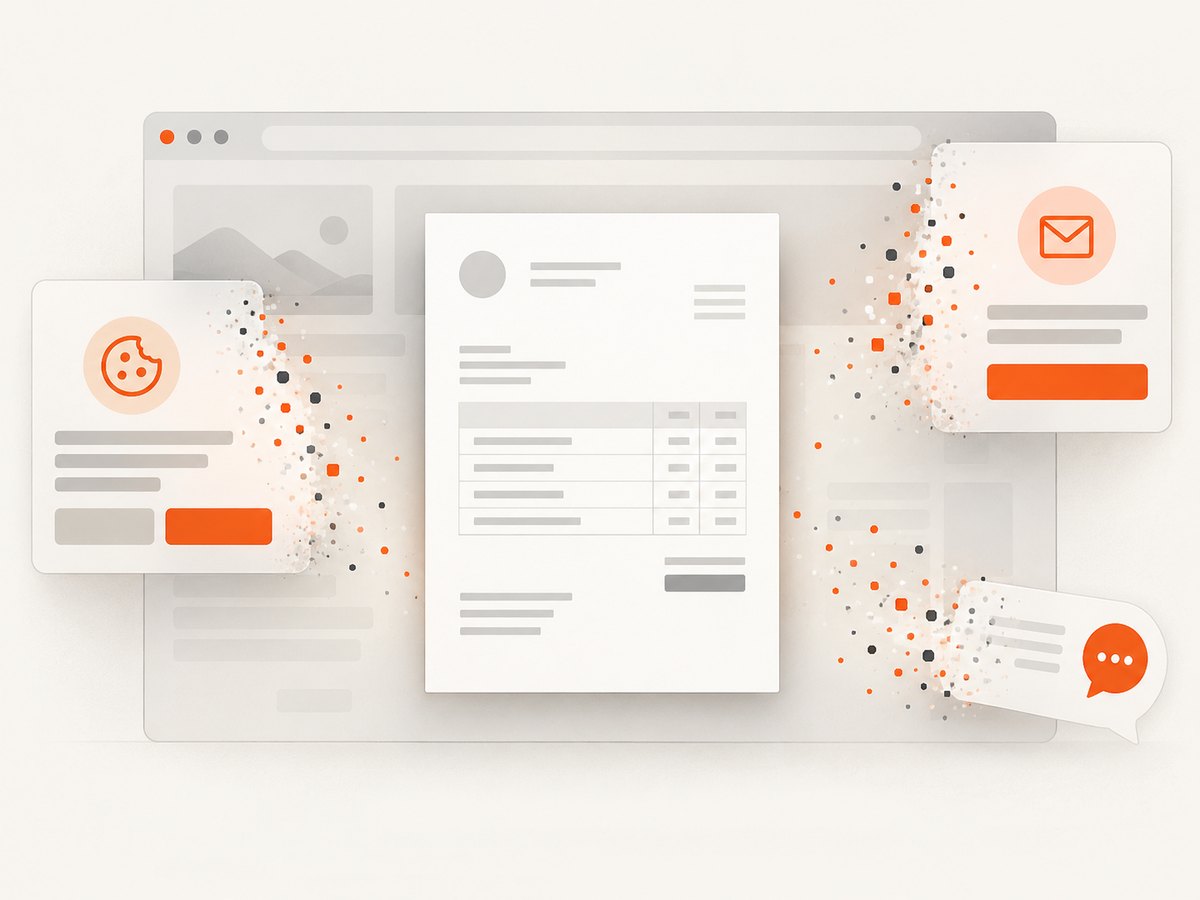
ScreenshotNeo is a hosted website screenshot API and MCP server. One GET request can return a PNG, JPEG, WebP, or PDF. It accepts the cookie or consent banner like a visitor and removes more than 60 known consent platforms, newsletter popups, and chat widgets before capture; each step can be turned off. Bot checks or CAPTCHAs, blank pages, timeouts, failed loads, and cache hits cost nothing, and response headers report the page verdict and whether the shot was billed.
See the full option list and request details in the ScreenshotNeo documentation. The basic call is:
curl -G "https://api.screenshotneo.com/v1/shot" -d access_key=YOUR_API_KEY --data-urlencode url=https://stripe.com -o shot.webpimport requests
r = requests.get("https://api.screenshotneo.com/v1/shot", params={"access_key": "YOUR_API_KEY", "url": "https://stripe.com"}, timeout=90)
open("shot.webp", "wb").write(r.content)const q = new URLSearchParams({ access_key: 'YOUR_API_KEY', url: 'https://stripe.com' });
const res = await fetch(`https://api.screenshotneo.com/v1/shot?${q}`);For invoice workflows, relevant options include full-page capture with lazy images loaded, CSS element capture, PDF paper size and margins, custom CSS or JavaScript, click and wait actions, hidden selectors, blocked resource types, custom headers and cookies, timezone and geolocation, transparent backgrounds, image resizing, a chosen cache TTL, signed links, asynchronous jobs with signed webhooks, bulk capture of up to 100 URLs per call, and a usage API. An MCP server exposes take_screenshot, get_page_info, and capture_pdf to Claude, Cursor, and other MCP clients. Parameter names used by other screenshot APIs also work, which can simplify migration.
Free includes 1,000 screenshots per month with no card. Starter is $5 for 3,000, Growth $15 for 15,000, Pro $39 for 60,000, Scale $99 for 250,000, and Business $249 for 1,000,000; yearly billing gives two months free, and every feature is on every plan. Create a free ScreenshotNeo account and start with 1,000 screenshots a month without a card.
Troubleshooting checklist
| Symptom | Likely cause | Fix |
|---|---|---|
| Blank or partial invoice | Capture ran before client rendering finished. | Wait for invoice-specific selectors and required totals, then capture. |
| Missing images | Lazy loading or blocked image requests. | Scroll before capture, wait for image completion, and inspect network failures. |
| PDF layout differs from the screen | Print CSS is active. | Inspect print styles or call emulateMedia({ media: 'screen' }). |
| Element locator timeout | Wrong selector, authentication redirect, or changed UI. | Save a diagnostic screenshot and URL, verify login state, and use a stable data attribute. |
| Fonts or totals move between runs | Web fonts or late calculations are not settled. | Wait for document.fonts.status and a visible total; avoid arbitrary short sleeps. |
| Navigation timeout | Slow upstream, redirect loop, or bot challenge. | Increase the timeout within a bounded limit, inspect the final URL, and handle challenge pages explicitly. |
| Huge artifact | Full-page capture of a long invoice at high scale. | Capture the invoice element, reduce device scale, or generate a paginated PDF. |
| Sensitive data appears | Capture scope includes account controls or payment details. | Capture a narrower element and mask selectors before writing the file. |
Performance, reliability, and cost
Browser startup is usually the most expensive part of a self-hosted job. Reuse a browser process and create isolated contexts per invoice when security boundaries permit. Limit concurrency to what the target billing system and your worker have been sized for. Prefer selector-based readiness over long global delays, and avoid full-page images when an element capture meets the requirement. Cache immutable invoice pages only when your retention and privacy policy allows it.
Make jobs idempotent: key them by invoice ID and rendering configuration, write to a temporary filename, then atomically move the completed artifact. Retry navigation and transient network failures with a bounded exponential backoff, but do not retry authentication failures or a page that clearly contains a bot challenge. Store a small manifest with URL, invoice ID, capture mode, media mode, timestamp, and checksum. For a hosted API, inspect response status and the X-Page-Verdict and X-Billed headers so failed loads and cache hits are handled correctly.
Estimate cost from successful clean captures rather than all attempted requests when using ScreenshotNeo, because only clean shots are billed. For self-hosted Playwright, account for browser workers, storage, queueing, and maintenance rather than treating the library as free infrastructure.
FAQ
Should I capture the invoice element or the whole page?
Capture the element when application navigation and controls should be excluded. Use full-page only when the entire scrollable page belongs in one image.
Can a screenshot replace an invoice PDF?
Only when an image-based document is acceptable. A browser-generated PDF is the better choice for pagination, printing, and downstream PDF processing.
Why does my PDF look different from the browser?
page.pdf() uses print CSS by default. Compare the application’s print stylesheet or emulate screen media before generating the PDF.
How do I handle invoices behind login?
Use the billing application’s supported login flow or a protected storage state, and run the worker with a least-privilege account. Never put credentials in URLs or filenames.
When is a hosted screenshot API preferable?
Use one when you do not want to operate browser workers, need bulk or asynchronous capture, or want built-in handling for consent banners, popups, failed loads, and cache reporting.