How to Automate Screenshots with Python on a Schedule
Build a Python screenshot script with Playwright, then schedule it with APScheduler or your operating system. Covers capture options, reliability, and troubleshooting.

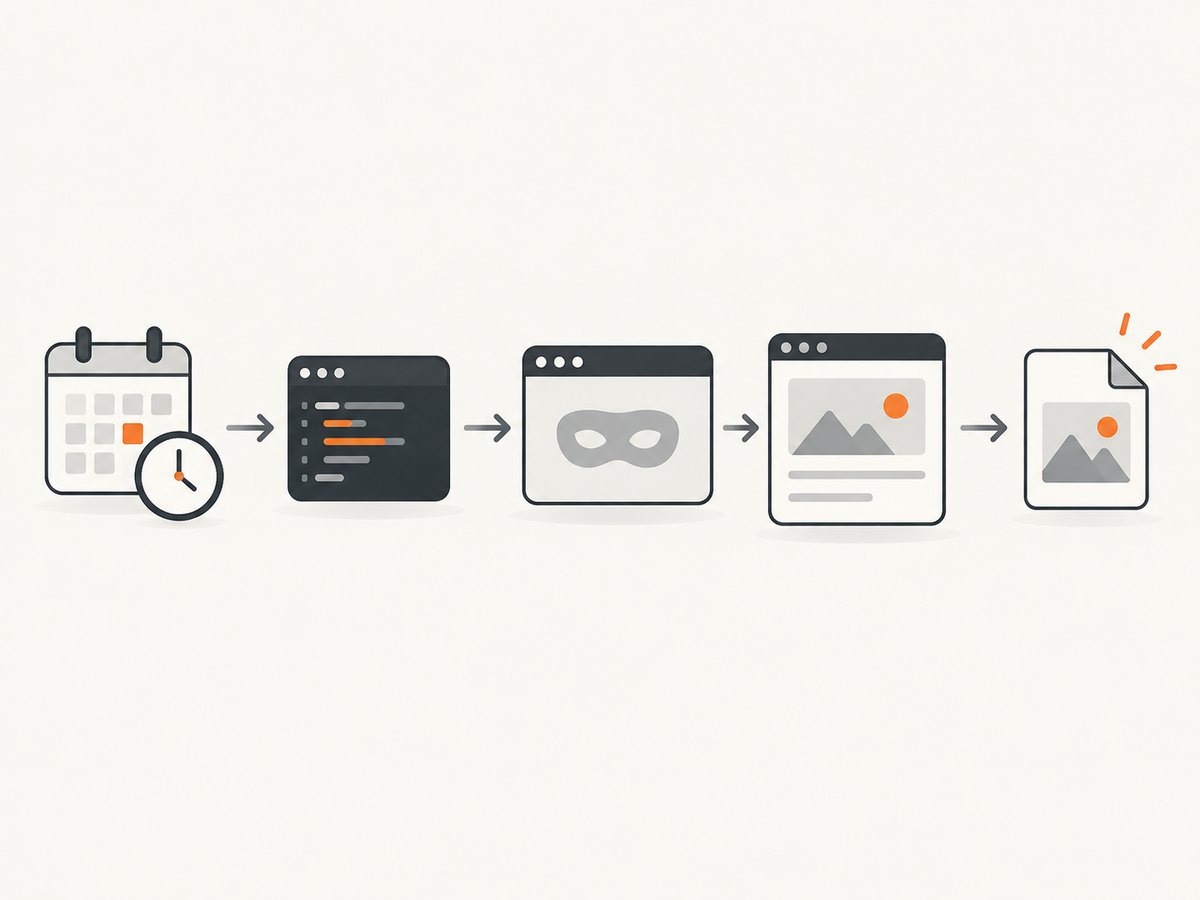
To automate screenshots on a schedule, write a Python script that opens a page with Playwright, waits for the content you need, saves an image, and closes the browser. Then run that script on a recurring trigger: use APScheduler when a Python process already runs continuously, or an operating-system scheduler when each capture should start as a separate process.
This guide builds the capture first, then adds scheduling, output naming, reliability practices, and troubleshooting. The examples are illustrative; adapt the wait condition and destination to your page and environment.
1. Install Python and Playwright
Use a virtual environment so the scheduled job can use a known Python interpreter and dependencies. From a project directory:
python -m venv .venv
# macOS or Linux
source .venv/bin/activate
# Windows PowerShell
.venv\Scripts\Activate.ps1

python -m pip install playwright apscheduler
python -m playwright install chromium
Playwright’s Python library launches browsers headlessly by default, so a visible desktop session is not required for the normal capture workflow. Install the browser binary for the browser you intend to use. See the Playwright Python getting started guide.
When a scheduled task runs, call the interpreter inside this environment explicitly. A scheduler may not inherit the same PATH, working directory, or activated environment as your interactive terminal.
2. Create a reusable screenshot function
This synchronous example captures the visible viewport as PNG. It creates the destination directory, uses an absolute output path, sets navigation and screenshot timeouts, and closes the browser even if navigation or saving fails.
from pathlib import Path
from playwright.sync_api import sync_playwright

URL = "https://example.com"
OUTPUT = Path(__file__).resolve().parent / "captures" / "latest.png"

def capture_page() -> Path:
    OUTPUT.parent.mkdir(parents=True, exist_ok=True)

    with sync_playwright() as playwright:
        browser = playwright.chromium.launch()
        try:
            page = browser.new_page(viewport={"width": 1440, "height": 1000})
            page.goto(URL, wait_until="load", timeout=30_000)
            page.screenshot(path=str(OUTPUT), timeout=30_000)
            return OUTPUT
        finally:
            browser.close()

if __name__ == "__main__":
    print(f"Saved screenshot: {capture_page()}")
Save this as capture.py and run python capture.py manually before configuring a schedule. A successful navigation is not proof that every app-specific chart, image, or delayed component is ready. Replace wait_until="load" or add an explicit wait for the element that matters to your page.
The Playwright screenshots guide documents ordinary, full-page, and element captures. The Page screenshot API includes options for output type, quality, scale, animation handling, and timeouts.
3. Choose what the image should contain
The right capture scope depends on what you need to compare or archive.

| Capture | Use it for | Playwright call |
|---|---|---|
| Viewport | A stable, fixed-size view of the visible screen. | page.screenshot(path="view.png") |
| Entire page | Long articles or pages where below-the-fold content matters. | page.screenshot(path="full.png", full_page=True) |
| One element | A chart, card, widget, or specific component. | page.locator(".report").screenshot(path="report.png") |
Here is a full-page variant. The rest of the function can remain the same:
page.goto(URL, wait_until="load", timeout=30_000)
page.screenshot(path=str(OUTPUT), full_page=True, timeout=30_000)
For an element capture, check that the selector exists and that the element is visible before saving:
page.goto(URL, wait_until="load", timeout=30_000)
report = page.locator(".report")
report.wait_for(state="visible", timeout=15_000)
report.screenshot(path=str(OUTPUT), timeout=30_000)
A selector that matches nothing will time out when you wait for it. If a site changes its markup, update the selector. For a lazy-loaded page, scrolling or waiting for the particular content may be necessary before capturing; a full-page screenshot selects the full scrollable page, but the page’s own loading behavior still matters.
4. Set format, scale, and animation behavior
PNG is a lossless choice and is the default when the path ends in .png. Playwright also supports JPEG and WebP. JPEG and WebP can use a quality setting; it applies to lossy output. Make the extension and requested type agree to keep the output unambiguous.
# JPEG output with a quality value
page.screenshot(path="capture.jpg", type="jpeg", quality=80)

# WebP output
page.screenshot(path="capture.webp", type="webp", quality=80)
Scale controls output pixels relative to CSS pixels. Use scale="css" when you want dimensions tied to the CSS viewport, or scale="device" when the device pixel ratio should affect image resolution. Higher pixel counts increase file size and may make captures slower to write.
Animations can make successive screenshots differ even when the page is otherwise similar. Playwright provides an animation option to disable or finish animations during a screenshot. This can reduce movement, but it cannot make changing data, personalized content, or a live clock identical across runs. If those elements matter, control them at the application or test-data level where possible.
5. Add useful waits without making every run slow
Choose readiness based on the page, not on a generic delay alone:
- Navigation state:
page.goto(..., wait_until="load")waits for the page load event. For pages with continuing network activity, other navigation states may have different tradeoffs. - Specific content: wait for a selector, such as
page.locator(".report").wait_for(state="visible"). - Known delay: use a short fixed wait only when the page has a known delayed update and no better readiness signal.
Waiting for a broad condition that never settles can waste time or hit a timeout. Conversely, capturing as soon as navigation returns may miss content rendered afterward. Start with the smallest condition that represents a complete capture, then set a finite timeout so one stuck page does not occupy the job indefinitely.
6. Schedule captures with APScheduler
APScheduler queues Python code for future or recurring execution. This approach is appropriate when the application is already a long-running process and you want the schedule managed there. The process must remain running and the machine must be available for the scheduled time.
Add this entry point to capture.py or put it in a separate file that imports capture_page. This example runs every day at 08:30 according to the machine’s local timezone:
from apscheduler.schedulers.blocking import BlockingScheduler
from capture import capture_page

scheduler = BlockingScheduler()
scheduler.add_job(
    capture_page,
    trigger="cron",
    hour=8,
    minute=30,
    id="daily-page-capture",
    max_instances=1,
    coalesce=True,
)
print("Scheduler started; daily capture is set for 08:30 local time.")
scheduler.start()
Install the APScheduler package in the same environment as Playwright. The scheduler process must keep running; closing its terminal or stopping the service stops future in-process jobs. Review the APScheduler user guide for the scheduler version and configuration you use.
The example limits a job to one concurrent instance and coalesces accumulated runs. Think through what a missed run should mean for your use case: capture once after recovery, skip it, or catch up. A long capture that overlaps the next interval also needs an explicit policy. Scheduling features and defaults vary by APScheduler version, so check the version-specific documentation before relying on a particular missed-run behavior.
7. Schedule the script with the operating system
An OS scheduler starts the script as a separate process. This suits a small capture job that should start, save an image, and exit. Configure the task to use the virtual environment’s Python executable and an absolute script path. The exact UI or syntax depends on the operating system.
For example, find the interpreter path from the activated environment with:
python -c "import sys; print(sys.executable)"Use that full path and the full path to capture.py in the scheduler. Set a working directory if the script reads relative files. Configure output and error logging through the scheduler or a small wrapper script. The OS scheduler and APScheduler are alternatives in how they start and manage work; choose according to whether you want a long-running Python process or an independent process per run.
8. Keep a history and log failures
If each run should be retained, write a timestamped file rather than overwriting latest.png. Use a timezone-aware timestamp to make the intended zone explicit:
from datetime import datetime, timezone
from pathlib import Path

CAPTURE_DIR = Path(__file__).resolve().parent / "captures"

def timestamped_path() -> Path:
    stamp = datetime.now(timezone.utc).strftime("%Y%m%dT%H%M%SZ")
    return CAPTURE_DIR / f"page-{stamp}.png"
Pass the returned path to page.screenshot after creating its parent directory. UTC filenames sort consistently and avoid ambiguity during daylight-saving transitions. If you only need the latest image, overwrite one fixed path instead and make sure downstream readers do not consume it while it is being replaced.
Log the URL, scheduled time, start and finish, output path, and exception details. Do not log credentials or sensitive cookies. A practical reliability checklist:
- Run the script manually using the exact interpreter and account the scheduler will use.
- Use absolute script and output paths; create directories before capture.
- Use finite navigation, selector, and screenshot timeouts.
- Record failures so a missing image is distinguishable from a missed schedule.
- Decide whether a failed run should be retried, skipped, or alerted; avoid unbounded retries.
- Ensure the host is powered on and the job process is alive at the desired time.
- Capture only pages and data you are authorized to access.
9. Or skip the browser setup
If your goal is simply to get a page image on a schedule, ScreenshotNeo provides a website screenshot API. Your scheduled task can make a GET request and save the response. See the ScreenshotNeo API documentation for request options.
import requests

r = requests.get(
    "https://api.screenshotneo.com/v1/shot",
    params={"access_key": "YOUR_API_KEY", "url": "https://stripe.com"},
    timeout=90,
)
r.raise_for_status()
open("shot.webp", "wb").write(r.content)
ScreenshotNeo removes cookie banners, newsletter popups, and chat widgets before the capture. Bot checks, blank pages, and failed loads are never billed. Its MCP server lets AI agents take screenshots. The free plan includes 1,000 screenshots per month with no card, and paid plans start at $5 for 3,000. ScreenshotNeo is a website screenshot API and MCP server from Yorker Media; every plan includes every feature.
Sign up free for 1,000 screenshots a month, with no card required.
10. Troubleshooting common failures
| Symptom | Likely cause | Fix |
|---|---|---|
| Browser executable missing | The Playwright package is installed but its browser binary is not installed in this environment. | Run python -m playwright install chromium with the same interpreter used by the scheduled job. |
| Works in terminal, fails on schedule | The task may use another interpreter, working directory, environment, account, or permissions. | Configure the full interpreter and script paths; set the working directory and verify the scheduler account can write the destination. |
| Navigation timeout | The page is slow, unreachable, or waits on resources longer than the configured limit. | Check the URL and network access, increase the timeout only when justified, and choose a readiness condition that does not wait on irrelevant activity. |
| Screenshot is blank or incomplete | The page may render content after navigation, require a selector wait, or defer images until scroll. | Wait for the specific visible content; inspect the page’s loading behavior and capture scope. |
| Element screenshot times out | The selector does not match, the element is hidden, or the page changed. | Verify the selector against current markup and wait for the element to become visible. |
| No output file | The directory does not exist or the task account lacks write permission. | Create the parent directory in the script and verify its owner and permissions. |
| Runs overlap or images overwrite | The schedule interval is shorter than capture duration, or all runs share one filename. | Set a concurrency policy and use timestamped names when keeping history. |
| Different images each run | Live content, animation, personalization, or timestamps vary. | Disable animations where appropriate, use stable test data, and avoid treating dynamic pages as pixel-identical. |
11. Performance, reliability, and cost
A local Playwright capture consumes the machine’s CPU, memory, browser startup time, and network bandwidth. Full-page captures and high device-pixel scale can produce larger files than a viewport screenshot. JPEG or WebP quality settings can reduce output size when lossy images are acceptable. Close the browser after each job so the process does not retain browser resources across runs.
For an occasional capture, starting a fresh browser per run is straightforward. For frequent captures, measure the actual page and interval in the environment that will run the job, then choose timeouts and schedule spacing that leave room for slow pages and failures. No universal timing or resource benchmark applies to all sites.
Local scheduling has no per-screenshot API charge, but the host, storage, and maintenance have their own costs. APScheduler requires an available long-running process; an OS scheduler still requires an available host and a configured task. A hosted screenshot API trades browser installation and upkeep for service pricing. ScreenshotNeo’s stated tiers are Free: 1,000 shots/month; Starter: $5 for 3,000; Growth: $15 for 15,000; Pro: $39 for 60,000; Scale: $99 for 250,000; and Business: $249 for 1,000,000. Yearly billing gives two months free. Only clean shots are billed; cache hits and unsuccessful outcomes such as bot checks, blank pages, timeouts, and failed loads cost nothing. Check the product documentation for current request configuration before deployment.
12. Frequently asked questions
How do I take screenshots automatically on a schedule?
Put navigation and screenshot saving in a Python function, verify it manually, then invoke it from APScheduler or configure the operating system to run the script at the desired time.
Does Playwright need a visible browser window?
No. Playwright’s documented browser launch workflow is headless by default. A graphical browser is not required for this scheduled capture pattern.
Should I use APScheduler or the operating-system scheduler?
Use APScheduler when scheduling belongs inside a Python application that stays running. Use the host scheduler when you prefer a separate process that starts and exits for each capture. Availability, missed-run behavior, and operational comfort should guide the choice.
Can I capture only part of the page?
Yes. Use a locator and take an element screenshot. This is useful when the page contains unrelated content that should not be part of the saved image.
Will scheduled screenshots be identical every time?
Not necessarily. Live data, animation, personalization, and time-dependent content can change between runs. Screenshot options can reduce some variation, but the page itself must be stable for identical output.