How to Automate Screenshots for SEO Audits
Pair Lighthouse’s SEO findings with repeatable Playwright screenshots so you can review what pages showed during an audit and compare changes over time.

Automate SEO audit screenshots by running Lighthouse for technical findings and Playwright for visual records of the same URLs. Lighthouse reports SEO issues such as missing meta tags or canonical links; Playwright saves viewport, element, or full-page screenshots. Keep the URL, run identifier, browser context, screenshots, and Lighthouse report together so you can review what the page looked like alongside what the audit found. A screenshot is evidence of rendering, not an SEO audit result or a ranking factor.
1. Decide what the run should capture
Start with a deliberate URL set. Include representative page templates and high-value pages: for example, a landing page, a product or service page, an article, and any template where metadata or layout differs. This is a practical sampling strategy, not a threshold imposed by Lighthouse or Playwright. Add URLs that have recently changed or are connected to a specific audit finding.

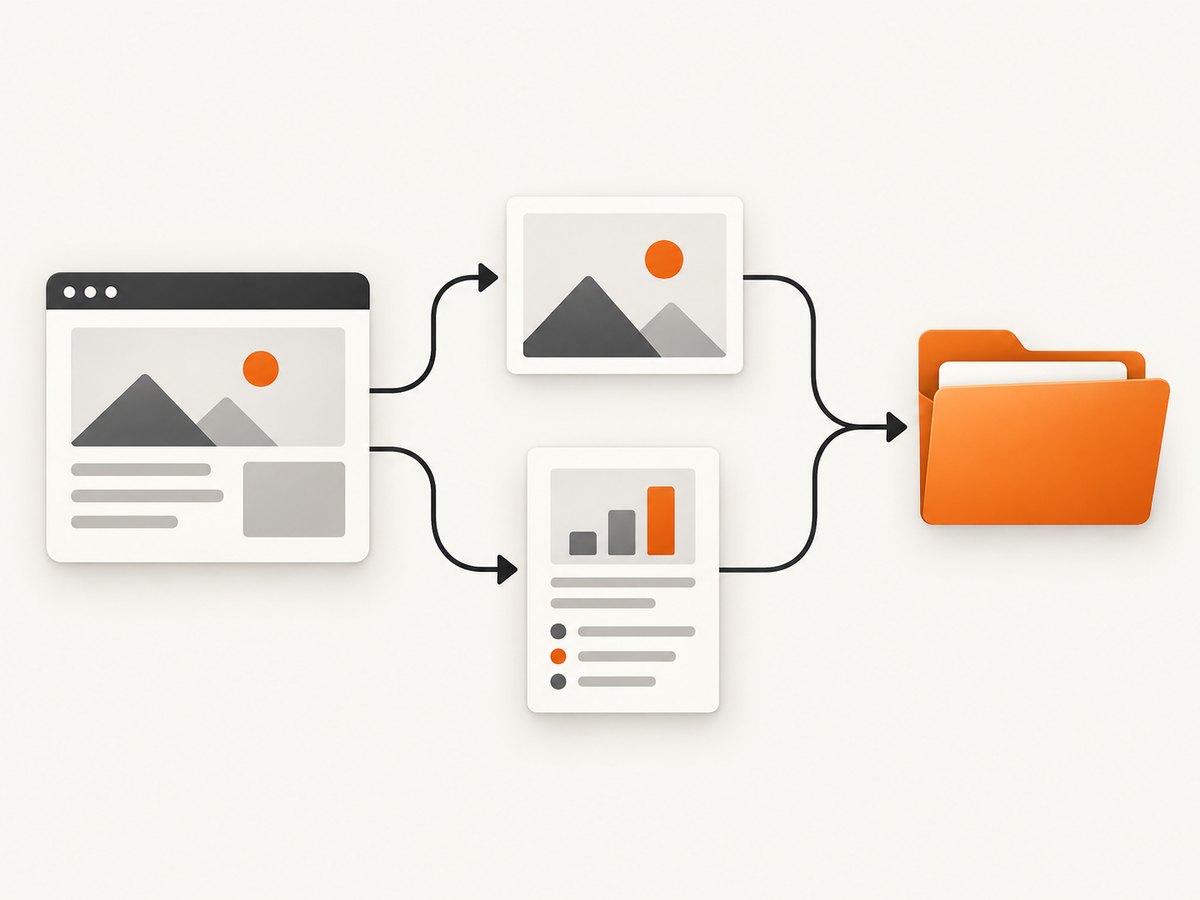
Choose a capture scope for each URL:
| Capture | Use it for | Trade-off |
|---|---|---|
| Viewport | Consistent above-the-fold review and quick comparison | Does not include below-the-fold content |
| Element | A header, navigation, or component connected to a finding | Needs a selector that reliably identifies the element |
| Full page | Reviewing the complete scrollable layout | Can create tall, larger images and take longer |
Record the intended viewport and scope as part of each run. If the question is whether a title or canonical is present in the document, inspect the HTML or Lighthouse details too; a screenshot may not show that information.
2. Set up Playwright and capture pages
The following Node.js example is a runnable baseline for viewport and full-page shots. It reads URLs from a text file, creates a screenshot folder, and writes a JSON manifest that associates each image with its URL, scope, viewport, and run time. Playwright’s screenshot API also supports element screenshots and returning image bytes for post-processing. See the Playwright screenshots documentation.
npm init -y
npm install playwright
npx playwright install chromium
Create urls.txt, with one URL per line:
https://example.com/
https://example.com/products/
https://example.com/blog/
Save this as capture.mjs:
import { chromium } from 'playwright';
import { mkdir, readFile, writeFile } from 'node:fs/promises';

const urls = (await readFile('urls.txt', 'utf8'))
  .split(/\r?\n/).map(line => line.trim()).filter(Boolean);
const runId = new Date().toISOString().replaceAll(':', '-');
const outputDir = `artifacts/${runId}`;
await mkdir(outputDir, { recursive: true });
const browser = await chromium.launch({ headless: true });
const context = await browser.newContext({ viewport: { width: 1440, height: 1000 } });
const manifest = [];

try {
  for (const [index, url] of urls.entries()) {
    const page = await context.newPage();
    try {
      const response = await page.goto(url, { waitUntil: 'domcontentloaded', timeout: 45000 });
      // Allow a short settling period for client-side rendering. Adjust per site.
      await page.waitForTimeout(1000);
      const name = `${String(index + 1).padStart(3, '0')}-page.png`;
      await page.screenshot({ path: `${outputDir}/${name}`, fullPage: true });
      manifest.push({ url, status: response?.status() ?? null, screenshot: name,
        scope: 'fullPage', viewport: { width: 1440, height: 1000 }, capturedAt: new Date().toISOString() });
    } catch (error) {
      manifest.push({ url, error: String(error), capturedAt: new Date().toISOString() });
    } finally {
      await page.close();
    }
  }
  await writeFile(`${outputDir}/manifest.json`, JSON.stringify(manifest, null, 2));
} finally {
  await context.close();
  await browser.close();
}
Run it with node capture.mjs. The script keeps going if one URL fails and records the error in the manifest; inspect that manifest before treating the run as complete. For a viewport image, set fullPage: false or omit the option. Use stable, sanitized identifiers in filenames if URLs contain query strings or private data.
Capture a specific element
Use a locator when a component is the evidence you need. Prefer a semantic locator or a stable test identifier over a fragile position-based selector. The element must exist and be visible; otherwise the operation can time out or fail.
const page = await context.newPage();
await page.goto('https://example.com/', { waitUntil: 'domcontentloaded' });
const header = page.locator('header');
await header.waitFor({ state: 'visible', timeout: 10000 });
await header.screenshot({ path: 'header.png' });
await page.close();
Wait for the page you intend to document
There is no universal readiness signal for every website. domcontentloaded waits for document parsing, not for every image, API request, or client-rendered component. Use a locator wait for a known result when possible. A fixed delay can accommodate a known animation or delayed rendering, but it adds time to every page and can still be too short or unnecessarily long. Network-idle waits may be unsuitable for sites with analytics, polling, or long-lived requests. Pick a condition that matches the page and audit question.
For lazy-loaded content in a full-page capture, check that the page actually rendered the below-the-fold images and sections you need. Some sites only load them as the user scrolls. A full-page screenshot option does not guarantee every site-specific lazy-loading behavior has completed.
3. Run Lighthouse on the same URL set
Lighthouse is the source of the automated audit findings in this workflow. Its SEO category can identify issues such as missing meta tags and canonical links. It also audits performance, accessibility, and other areas. Chrome documents running Lighthouse in DevTools, from the command line, or as a Node module; CLI and Node workflows require Chrome installed. For repeatable checks, Lighthouse CI can help prevent regressions. See Introduction to Lighthouse and Chrome’s Lighthouse audit automation guidance.
For a simple local run, install the CLI and save JSON reports. Run this shell loop from a project with Lighthouse installed and Chrome available:
npm install --save-dev lighthouse
mkdir -p artifacts/lighthouse
while IFS= read -r url; do
  [ -z "$url" ] && continue
  slug=$(printf '%s' "$url" | sed 's#https\?://##; s#[^A-Za-z0-9._-]#_#g')
  npx lighthouse "$url" --only-categories=seo --output=json \
    --output-path="artifacts/lighthouse/${slug}.json" --chrome-flags="--headless"
done < urls.txt
The filename transformation is intentionally simple; distinct URLs can map to the same slug, especially when they differ only in query strings or trailing paths. For production runs, use a collision-resistant identifier and keep the original URL in a manifest. Lighthouse options and behavior can vary with installed versions, so pin tool versions in a repository when comparisons across runs matter.
Authenticated pages and staging
If a target needs authentication, use an authorized test account and a controlled environment. Chrome’s Lighthouse documentation describes auditing authenticated pages through DevTools, and its agent-oriented audit guidance covers local and staging pages. A separate Playwright browser context can hold login state for screenshots, but don’t commit credentials, cookies, or storage-state files to a public repository. Verify that the screenshot and Lighthouse run reach the same page state; otherwise the paired evidence is misleading.
4. Pair the evidence and make runs comparable
Keep each run self-describing. A practical artifact folder can look like this:
artifacts/2026-09-29T120000Z/
  manifest.json
  screenshots/
    home-full.png
    products-viewport.png
  lighthouse/
    home.json
    products.json
For every entry, record the requested URL, final URL after redirects if available, timestamp or run ID, screenshot scope, viewport, browser and Playwright versions, response status, and Lighthouse report path. Preserve the source URL list as well. This is a workflow recommendation: Lighthouse and Playwright produce separate outputs, so metadata is what lets a reviewer associate them accurately later.
Keep the capture environment steady when comparing screenshots. Playwright warns that operating system, browser version, settings, hardware, power source, and headless mode can change rendering. Its visual comparison guidance recommends using the same environment as the baseline where possible. See Playwright visual comparisons.
If you are checking deliberate visual regressions, Playwright Test supports screenshot baselines and comparison assertions. Screenshot assertions wait until two consecutive screenshots match before comparing; controls such as disabling animations and hiding the caret can reduce incidental variation when appropriate. These controls can make comparisons steadier, but they do not prove a difference is an SEO defect. See PageAssertions.
5. Handle common failures
| Symptom | Likely cause | Fix |
|---|---|---|
| Navigation timeout | Slow origin, an overly strict wait condition, or a page that never becomes idle | Use a suitable navigation condition, set a realistic timeout, and wait for a specific page element. Record failures rather than silently dropping URLs. |
| Screenshot is blank or incomplete | Capture happened before client rendering, authentication redirected, or content is lazy-loaded | Check the final URL and response, wait for a meaningful locator, confirm login state, and verify below-the-fold content. |
| Element locator times out | Selector changed, element is absent on that template, or it is hidden | Check the DOM for that URL, use a more stable selector, and make selector-specific captures conditional where templates differ. |
| Images differ on every run | Fonts, animation, dynamic content, or environment changes | Pin the browser and environment, use the same viewport, and mask or disable known transient content where suitable. |
| CLI cannot launch Chrome | Chrome is missing or unavailable to the process | Install Chrome in the runtime or use a supported Playwright browser installation for screenshots; ensure the CLI can locate its browser. |
| Report and screenshot show different content | Different URLs, authentication, cookies, geography, or time of capture | Use matching inputs and capture context, and retain final URL and run metadata for both outputs. |
| Some pages never finish | Persistent network activity or scripts keep loading | Don’t wait indefinitely for network idle. Choose a page-specific readiness signal and impose a timeout. |
6. Improve throughput without losing useful evidence
Browser startup and page navigation dominate many small runs. Reuse a browser and context for a batch, as in the example, while opening a fresh page per URL. Start with sequential navigation: it is easier to diagnose and less likely to overwhelm the target site. If you add concurrency, cap the number of pages and check the site’s acceptable request load. Large concurrent batches can contend for CPU and memory, alter page timing, and create less representative captures.
Capture only the scope needed for the question. Viewport images are usually smaller and quicker to inspect; full-page captures are useful when the complete layout matters. Avoid repeating captures when neither the page nor the audit context changed, but keep dated artifacts for runs that need historical comparison. Screenshot storage can grow quickly; define retention and remove obsolete artifacts according to your team’s review needs.
For reliability, record every URL’s success or failure, retry transient network failures selectively, and preserve partial results. Avoid retry loops for persistent 404s, authentication failures, or bot challenges. Schedule runs in an environment with pinned browser and package versions, stable fonts, and adequate disk space. Treat a completed process as distinct from a successful audit: inspect per-page outcomes and report files.
7. Cost and operational notes
With a self-hosted Playwright and Lighthouse workflow, the tooling is open source, but the run still consumes compute, browser execution time, network traffic, and storage. Your actual cost depends on where it runs, URL count, page weight, concurrency, retention, and how often the workflow executes. Lighthouse CLI and Node also need Chrome installed. Do not infer SEO value from the volume of screenshots: captures document appearance; Lighthouse reports and direct inspection supply technical findings.
If maintaining browser infrastructure is the expensive part, a hosted capture API can remove some setup. Compare it against your needs for authenticated access, reproducibility, page state, image scope, and artifact retention. ScreenshotNeo is a website screenshot API and MCP server from Yorker Media. Its API accepts one GET request with a URL and returns PNG, JPEG, WebP, or PDF. It supports full-page capture, element selection, device presets and custom viewports, waiting controls, cookies and headers, custom CSS and JavaScript, request blocking, caching, and async or bulk capture. See ScreenshotNeo and the API documentation. A screenshot service provides visual capture; keep Lighthouse in the workflow for SEO audit findings.
Or skip the browser setup
Make a one-call screenshot request with ScreenshotNeo (replace the example URL with a page you are authorized to capture):
curl -G "https://api.screenshotneo.com/v1/shot" -d access_key=YOUR_API_KEY --data-urlencode url=https://example.com/ -o shot.webpCookie banners, popups, and chat widgets are removed before the shot. Bot checks, blank pages, and failed loads are never billed, and response headers identify the page verdict and billing status. An MCP server gives AI agents tools to take screenshots, get page information, and capture PDFs. The free plan includes 1,000 screenshots a month with no card; paid plans start at $5 for 3,000. ScreenshotNeo does not replace Lighthouse’s SEO report; use it when you want to avoid setting up and maintaining browser capture for visual evidence.
Sign up free for 1,000 screenshots a month, with no card required.
FAQ
Do screenshots help SEO rankings?
The cited tools document screenshots as visual capture and Lighthouse as an auditing tool. They do not establish that taking screenshots improves rankings.
Should every URL get a full-page capture?
No. Match scope to the review question and page templates. Use full-page capture when below-the-fold layout is relevant; use viewport or element capture for narrower checks.
Can I use screenshots as the audit record?
Keep the corresponding Lighthouse report and URL context. A screenshot cannot establish whether metadata, canonical markup, or other document-level checks passed.
Can screenshot baselines prove an SEO regression?
They can reveal visual changes between runs. Investigate the change with Lighthouse and direct page inspection before classifying it as an SEO issue.


