How to Automate Screenshots for Website Archiving
Build a repeatable Playwright screenshot workflow, handle dynamic pages, and decide when screenshots need a WARC web archive alongside them.
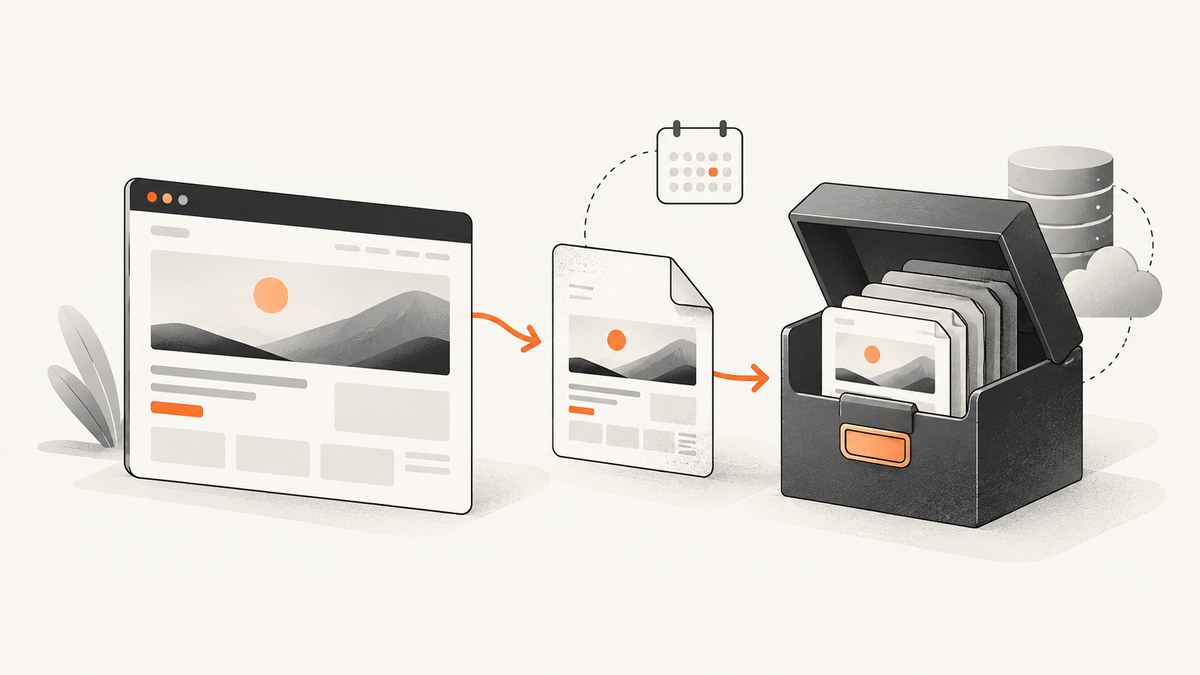
To automate screenshots for website archiving, run a browser automation script against a controlled list of URLs, wait for a site-specific readiness condition, capture a viewport or full page, and save each image with identifying metadata. Playwright supports saving screenshots, full-page capture, and element capture. A screenshot records a rendered visual view; when you need a preservation-oriented record of web content, assess a separate web-archiving workflow that produces WARC as well.
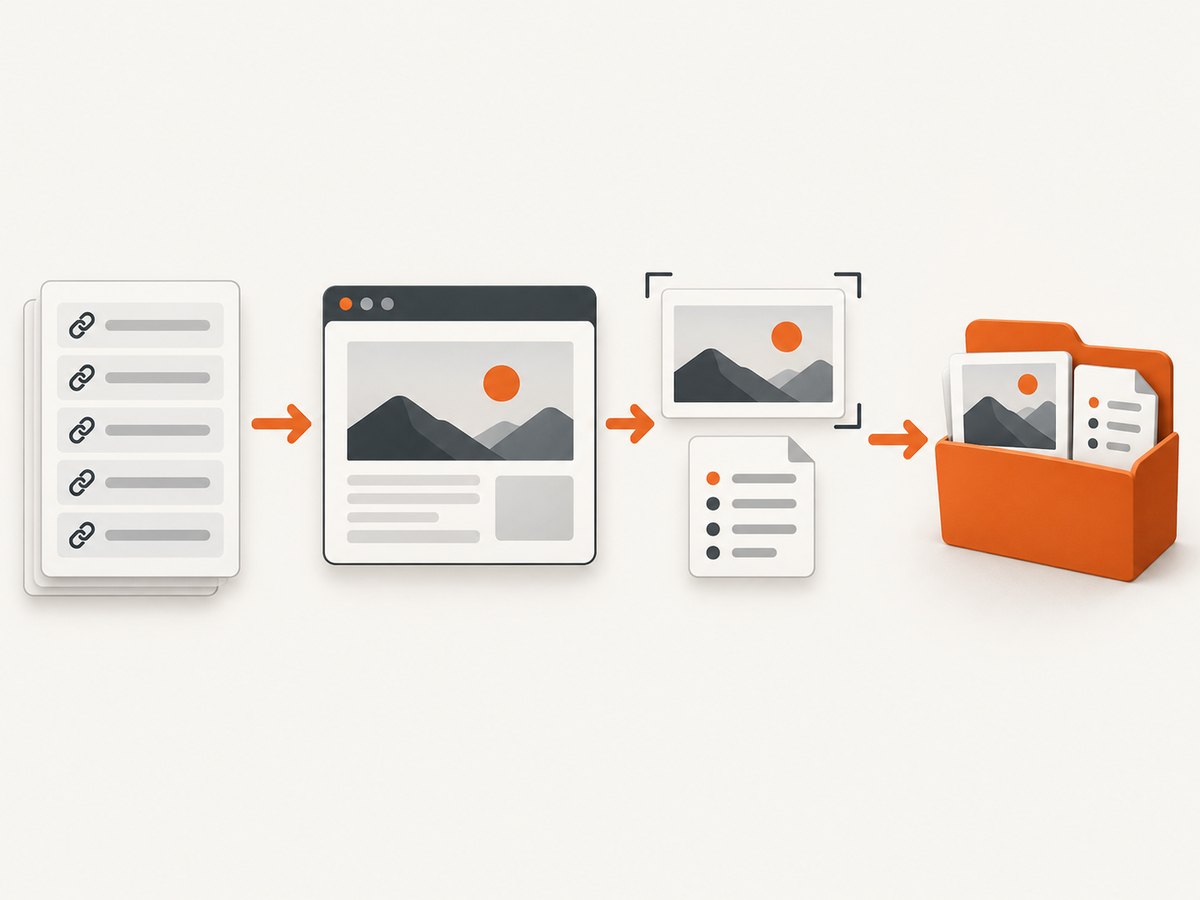
The example below uses Node.js and Playwright. It reads URLs from a text file, captures full-page PNGs, names them predictably, and writes a JSONL manifest containing the URL, timestamp, and output path. Choose readiness checks that match each site: no single wait setting guarantees that every dynamic page is complete.
1. Choose what the archive should preserve
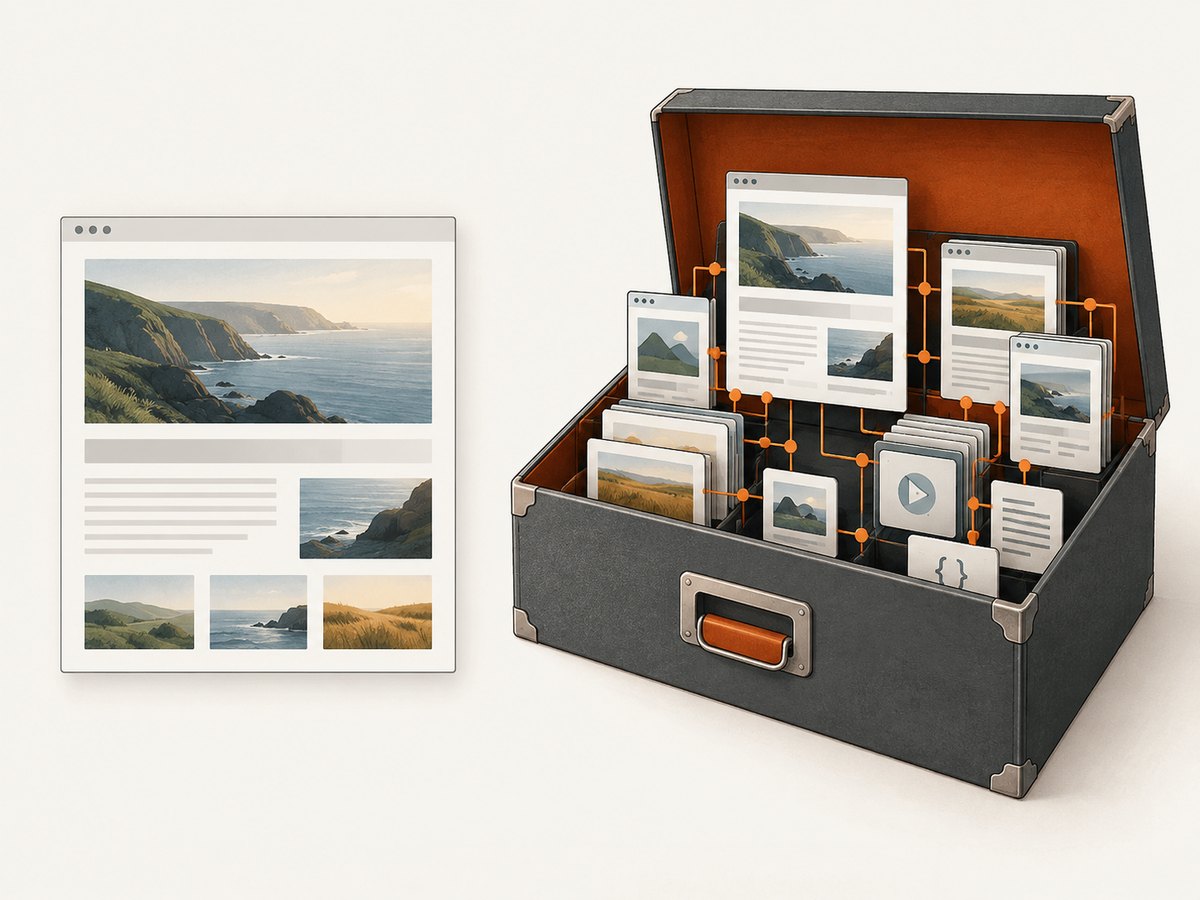
Start by deciding what a future reader needs to learn from each capture. A screenshot is a convenient visual record of a rendered page at a particular time. It does not, by itself, represent the collected web resources described in web-archive guidance. The Library of Congress identifies WARC as a format used by web-archiving organizations and favors non-proprietary formats for preservation and long-term access. If that is your goal, pair screenshots with an appropriate WARC-producing capture workflow instead of treating the image as a complete web archive. Library of Congress web archive format guidance.
| Capture choice | Useful for | Tradeoff to record |
|---|---|---|
| Viewport screenshot | A consistent first-screen view, such as a landing page header | Content below the visible viewport is omitted |
| Full-page screenshot | A visual record of the full scrollable page | Very tall pages can produce large images; lazy content may need attention |
| Element screenshot | A specific chart, article body, or page region | Requires a selector that continues to identify the intended element |
| WARC capture | Preservation of web content in an archive-oriented format | Requires a web-archiving workflow; it is not the same output as a screenshot |
For recurring captures, document the chosen view, viewport dimensions, output format, and readiness rule. If users will compare versions visually, keeping these choices stable matters as much as keeping the script stable.
2. Set up a repeatable Playwright capture
Install Node.js, create a project folder, and install Playwright. The Playwright screenshot guide documents writing screenshots to files, full-page capture, buffers, and element screenshots. The Page API documents navigation and page operations.
mkdir website-archive-shots
cd website-archive-shots
npm init -y
npm install playwright
npx playwright install chromium
Create urls.txt with one fully qualified URL per line:
https://example.com/
https://example.org/about
Save this as capture.mjs. It uses a small fixed delay after the document reaches the domcontentloaded state. That is a starting point, not a completeness guarantee. Replace or supplement it with a meaningful selector wait for sites where a specific content region signals readiness.
import { chromium } from 'playwright';
import { mkdir, readFile, appendFile } from 'node:fs/promises';

const input = await readFile('urls.txt', 'utf8');
const urls = input.split(/\r?\n/).map(s => s.trim()).filter(Boolean);
const outputDir = 'captures';
await mkdir(outputDir, { recursive: true });

const browser = await chromium.launch({ headless: true });
const context = await browser.newContext({
  viewport: { width: 1440, height: 1000 },
  deviceScaleFactor: 1
});

function safeName(url) {
  const parsed = new URL(url);
  const path = parsed.pathname.replace(/[^a-z0-9]+/gi, '-').replace(/^-|-$/g, '');
  return `${parsed.hostname}${path ? '-' + path : ''}`.slice(0, 120) || 'page';
}

try {
  for (const url of urls) {
    const startedAt = new Date().toISOString();
    const page = await context.newPage();
    try {
      const response = await page.goto(url, {
        waitUntil: 'domcontentloaded',
        timeout: 45000
      });

      // Use a site-specific selector when it reliably signals ready content:
      // await page.locator('main article').waitFor({ state: 'visible', timeout: 15000 });
      await page.waitForTimeout(1500);

      const file = `${outputDir}/${startedAt.replace(/[:.]/g, '-')}-${safeName(url)}.png`;
      await page.screenshot({ path: file, fullPage: true, animations: 'disabled' });
      const record = {
        requestedUrl: url,
        finalUrl: page.url(),
        capturedAt: new Date().toISOString(),
        navigationStatus: response?.status() ?? null,
        file,
        viewport: { width: 1440, height: 1000 },
        fullPage: true
      };
      await appendFile('manifest.jsonl', `${JSON.stringify(record)}\n`);
      console.log(`Saved ${file}`);
    } catch (error) {
      const record = {
        requestedUrl: url,
        capturedAt: new Date().toISOString(),
        error: String(error)
      };
      await appendFile('failures.jsonl', `${JSON.stringify(record)}\n`);
      console.error(`Failed ${url}: ${error.message}`);
    } finally {
      await page.close();
    }
  }
} finally {
  await context.close();
  await browser.close();
}
Run it with node capture.mjs. Successful images go in captures/; manifest.jsonl records the capture context, while failures.jsonl keeps failures visible for review. JSON Lines is convenient for appending records, but the fields are an implementation choice, not a prescribed archive metadata schema.
3. Tune capture options for the page
Playwright’s screenshot options control the image and region being captured. Keep the capture configuration explicit in code or a versioned configuration file so scheduled runs do not silently drift. See the Page API screenshot options for the complete current option set.
| Need | Configuration pattern | Consideration |
|---|---|---|
| First viewport | page.screenshot({ path: file }) |
Uses the configured viewport; ideal for consistent above-the-fold records |
| Full scrollable page | page.screenshot({ path: file, fullPage: true }) |
Captures the page as a tall image; inspect lazy-loaded sections |
| One element | page.locator('main article').screenshot({ path: file }) |
Wait for the locator to become visible and confirm it matches the intended region |
| JPEG or WebP | Set type to 'jpeg' or 'png'; use supported quality where applicable |
Choose based on whether smaller photographic files or lossless detail matters |
| Clipped region | Use the screenshot clip option with a rectangle |
Coordinates depend on page layout and viewport behavior |
| Transparent background | Use the documented omitBackground option where supported |
Useful for graphics; generally not a faithful record of a normal page background |
Keep the target viewport and device scale factor fixed for a recurring series. Use a separate configuration for mobile captures rather than letting the machine’s defaults decide the result. If the page content requires interaction, automate the required clicks or form state before capturing and describe that state in the manifest. Handle authentication only for sites and accounts you are authorized to access, and protect stored credentials and resulting captures accordingly.
4. Define “ready to capture” per site
Modern pages may render the shell first and load content later. Images can be lazy-loaded, consent overlays can cover the page, and authenticated routes can redirect. Pick a readiness rule for each site based on what the capture must show:
- Use navigation readiness for basic pages.
domcontentloadedwaits for document parsing, not every asynchronous request. Theloadevent can be suitable for pages whose required assets load normally, but neither state proves that application data has finished. - Wait for a meaningful page element. A known heading, article container, or status marker can be a better signal. Use a bounded timeout and report a failure if the condition does not occur.
- Use a short delay only for known transitions. A delay can accommodate a delayed animation or client-side update, but adds time to every page and can still miss variable network behavior.
- Handle consent and overlays deliberately. If the archive should represent the page after a visitor dismisses consent, automate the relevant choice and record that behavior. If it should preserve the initial presentation, capture the overlay as part of the page.
- Review full-page output. Some sites load below-the-fold media only after scrolling. If those assets matter, scroll through the page in controlled increments, wait for content, then capture and visually inspect the result.
There is no universally correct wait condition for every dynamic website. Avoid equating “network idle” or a fixed delay with proof of a complete page: long polling, analytics, streaming, and lazy content can make those assumptions unreliable.
5. Make scheduled runs reliable and comparable
For a recurring archive, schedule the script with the job runner already used in your environment, then make every run observable. Record a run identifier, start time, requested URL, final URL, status code when available, selected viewport and mode, output path, and error reason. Keep failed URLs in a separate log so the run does not appear complete when some captures are missing.
- Bound each operation. Set navigation and selector timeouts so one stalled site cannot occupy a worker indefinitely.
- Retry selectively. A transient navigation failure may merit a retry; a stable 404 or access-denied response generally needs investigation rather than repeated capture attempts. Preserve the original failure in logs.
- Keep outputs atomic. Write to a temporary filename and rename after a successful image write if downstream jobs may read the output directory while capture is running.
- Prevent filename collisions. Include a timestamp or run identifier. Sanitize URLs and avoid exposing query parameters that may contain secrets.
- Review a sample and failures. Automated success means the browser produced an image, not that the image contains the expected content.
- Control access and retention. Treat screenshots of private or authenticated content as sensitive. Define who can read them and how long they should remain available.
For visual comparisons, run with a controlled environment. Playwright’s guidance says rendering can vary with the operating system, browser version, settings, hardware, power source, and headless mode. Pin the browser/runtime used by the job, keep viewport and capture settings stable, and treat environment changes as a possible source of image differences. Playwright visual comparison guidance.
6. Troubleshoot common capture problems
| Symptom | Likely cause | Fix |
|---|---|---|
| Screenshot is blank or mostly empty | Navigation ended before client rendering, redirect, blocked resource, or page error | Log final URL and status; wait for a visible content selector; inspect the page in a headed browser during diagnosis |
| Content is cut off | Viewport capture used where a full-page image was intended, or the page has nested scroll regions | Set fullPage: true for a normal document; handle independently scrolling containers explicitly |
| Images are missing below the fold | Lazy loading has not been triggered by initial navigation | Scroll through in increments, wait for media, and verify the image itself is loaded before capture |
| Cookie banner obscures the page | Consent was not resolved or intentionally recorded | Decide whether the record should include the banner; automate the intended choice if authorized |
| Timeout on a page that appears usable | The script waits for an event or selector that never settles | Use the narrowest meaningful ready condition and a realistic timeout; do not wait for all network activity without a reason |
| Image differs between runs | Browser, operating system, viewport, fonts, animation, or site content changed | Pin the browser environment and options; disable animations where appropriate; compare metadata before treating pixels as a site change |
| “Browser executable not found” | Playwright package installed without its browser binary | Run npx playwright install chromium in the deployment environment |
| Access denied or challenge page captured | The site rejected the automation or requires authorization | Check access rules and credentials; do not attempt to bypass controls. Record the result as a failed or restricted capture |
7. Performance, reliability, and cost
Browser launches and page loads dominate many capture jobs. Reuse a browser and context across a batch, as in the example, but create a fresh page per URL to isolate page state. Use bounded concurrency only after checking the target sites’ access policies and the capacity of your worker. More parallel pages can increase memory and network load; it does not guarantee shorter or more complete captures.
Full-page screenshots can be substantially larger than viewport shots and take longer to encode. Pick PNG when exact pixel detail matters; consider JPEG or WebP when the archive policy allows lossy image output and storage or transfer size matters. Keep originals if later review or recompression requirements make them necessary. Set retention and backup policies based on your archive’s purpose, and include the capture settings in the manifest so later readers know what a file represents.
With self-hosted Playwright, account for compute, storage, and maintenance of the browser runtime in your own environment. There is no per-shot service price in the code above, but infrastructure and retention still have costs. If you use an API service, compare its billing rules, outputs, configuration and failure handling against your requirements; the research sources do not establish commercial service prices or quotas.
Or skip the browser setup
ScreenshotNeo is a website screenshot API and MCP server. A GET request returns an image or PDF. Cookie banners, newsletter popups and chat widgets are removed before the capture, with each step configurable. Bot checks, blank pages, timeouts, failed loads and cache hits are not billed; response headers report the page verdict and billing status. Its MCP server provides screenshot tools for AI agents. Use it for the visual screenshot step when you do not want to maintain a browser worker; if preservation requires WARC, keep a suitable web-archiving workflow alongside the screenshot.
See the ScreenshotNeo API documentation for request details. The code below saves a WebP response for a sample URL; replace it with a URL you are authorized to capture.
cURL
curl -G "https://api.screenshotneo.com/v1/shot" -d access_key=YOUR_API_KEY --data-urlencode url=https://stripe.com -o shot.webpPython
import requests

r = requests.get(
    "https://api.screenshotneo.com/v1/shot",
    params={"access_key": "YOUR_API_KEY", "url": "https://stripe.com"},
    timeout=90,
)
open("shot.webp", "wb").write(r.content)
Node.js
const q = new URLSearchParams({ access_key: 'YOUR_API_KEY', url: 'https://stripe.com' });
const res = await fetch(`https://api.screenshotneo.com/v1/shot?${q}`);
if (!res.ok) throw new Error(`Screenshot request failed: ${res.status}`);
await Bun.write('shot.webp', res);
That one-call option handles the screenshot request without installing a browser locally. ScreenshotNeo removes cookie banners, popups and chat widgets before the shot; bot checks, blank pages and failed loads are never billed; its MCP server lets AI agents take screenshots; and 1,000 screenshots a month are free with no card, with paid plans starting at $5 for 3,000. Create a free ScreenshotNeo account.
Frequently asked questions
Does a screenshot count as a website archive?
It is a visual record of a rendered page. If your requirement is preservation of web content for long-term access, assess a WARC-producing web-archiving workflow too.
Should I capture the whole page or just the viewport?
Use the viewport for a repeatable first-screen record and full-page mode when below-the-fold content is part of the record. Keep the choice consistent within a comparison series.
Can automated screenshots prove exactly what every visitor saw?
No. The result depends on the browser environment, page state, timing, access and capture settings. Record those conditions and review images when completeness matters.
What should I keep with each image?
At minimum, retain the requested and final URL, capture timestamp, viewport, capture mode, browser/runtime version, and result or failure status. Adapt the manifest to your preservation requirements.


