How to Automate Screenshots with n8n
Build scheduled and event-driven n8n screenshot workflows with Browserless, then compare a hosted API shortcut for clean, reliable captures.

n8n can automate screenshots by starting a workflow with a manual trigger, schedule, webhook, or application event, then sending an HTTP request to a browser screenshot API. The API returns image bytes that n8n can pass to storage, email, Slack, a database, or another service. A practical documented route is Browserless: its /screenshot endpoint accepts a POST request with a target URL and optional screenshot settings.
This guide builds that workflow, explains every important capture choice, shows how to handle binary data and failures, and finishes with a hosted alternative when you do not want to maintain browser automation.
1. The n8n workflow at a glance
A reliable screenshot workflow has five stages:

- Trigger: start manually while developing, then switch to a schedule, webhook, or event trigger.
- Prepare input: define the URL, viewport, capture mode, and output format.
- Capture: use an HTTP Request node to call the screenshot API.
- Store or transform: keep the response as binary data, upload it, or convert it to base64 for a downstream API.
- Observe failures: branch on HTTP errors, timeouts, and empty responses so a failed capture cannot look like a valid image.
n8n does not need a dedicated screenshot node for this route. The HTTP Request node is enough.
2. Create the basic Browserless workflow
Step 1: Add a trigger
Create a new workflow and add Manual Trigger. This is the fastest way to validate the request. For production, replace it with:
- Schedule Trigger: capture a page hourly, daily, or on another interval.
- Webhook: accept a URL or page identifier from your application.
- App trigger: start after a record, deployment, support ticket, or content item changes.
Step 2: Store the API token in n8n Credentials
Create an HTTP credential or another credential type supported by your n8n version. Keep the Browserless token there and reference it from the HTTP Request node. Do not place a token in a shareable workflow JSON, a Set node, or a URL that will be logged.
Step 3: Configure the HTTP Request node
Use these settings:
| Setting | Value |
|---|---|
| Method | POST |
| URL | Your Browserless /screenshot endpoint |
| Authentication | Credential, or the token query parameter required by your Browserless plan |
| Send body | On |
| Body format | JSON |
| Response format | File/Binary |
Use a JSON body such as:
{
  "url": "https://example.com",
  "options": {
    "fullPage": true,
    "type": "png"
  }
}
The documented API accepts a target url and optional Puppeteer-style screenshot options. The response is image data. PNG, JPEG, and WebP are available according to the requested options. See the Browserless REST documentation and its n8n integration guide for the current endpoint and authentication fields.
Step 4: Execute and inspect the binary output
Run the workflow. A successful response should appear in the node’s binary output, commonly under a property such as data. Give the binary property a stable name because later nodes will use it. Add a Read/Write Files from Disk node only when your deployment permits local file access and you specifically need a file on the n8n host; otherwise upload the binary directly to object storage or another API.
3. Choose the right capture mode
Viewport screenshot
Use the default viewport when you need what a user sees above the fold. Set the browser width and height to match the consumer of the image, such as a social card or visual regression check.
Full-page screenshot
Set fullPage: true when the complete document is required. Long pages can produce large files and may take longer. Pages with lazy-loaded images often need scrolling before capture; scrolling triggers content that is not loaded at the initial viewport.
Element screenshot
Capture a specific selector when the workflow needs a chart, invoice, product card, or article body rather than the entire page. Wait for the selector before taking the shot. If the selector is missing, treat that as a workflow error instead of accepting a blank result.
Clipped region
A clip rectangle is useful for a fixed coordinate region, such as a dashboard panel. It is sensitive to responsive layouts, so use an explicit viewport and test at every viewport your workflow supports.
Format and binary handling
| Format | Use it when |
|---|---|
| PNG | You need lossless text, diagrams, or transparent pixels. |
| JPEG | A smaller photograph-like file is more useful than lossless output. |
| WebP | Your destination supports modern compressed images. |
Keep the response binary through n8n whenever the next node accepts a file. Convert to base64 only for an API that explicitly requires an encoded string; base64 increases payload size and makes logs harder to inspect.
4. Add waits, scrolling, and browser-side behavior
Dynamic pages need a capture condition. A fixed delay is simple but can be wasteful. Waiting for a selector is more deterministic when a known component signals readiness. Network-idle behavior can help pages that load several resources, but analytics and live connections may prevent the page from becoming idle.
- Wait for a meaningful selector such as
[data-rendered='true']. - Use a short delay only for animations or a predictable client-side render.
- Scroll before a full-page shot when images are lazy-loaded.
- Use a custom function endpoint only when the workflow requires browser-side JavaScript or Puppeteer behavior beyond screenshot options.
When a page requires authentication, provide authorized headers or cookies through the browser API’s supported options. Never capture private data without permission, and avoid placing session cookies in execution data that other n8n users can read.
5. Pass the image to the next n8n node
Upload to object storage
Connect the HTTP Request node to your storage node and select the binary property. Generate a deterministic filename from the URL, record ID, and timestamp. Sanitize URL-derived names so query strings cannot create unexpected paths.
Send by email or chat
Most email and messaging nodes accept an attachment field that points to the binary property. Confirm the destination’s size limit before using full-page PNGs.
Call a base64-only API
Add a conversion step, then map the resulting base64 field into the downstream JSON body. Do not convert and reconvert repeatedly; retain the original binary until the last node that needs it.
6. Make failures visible and retryable
Enable the HTTP Request node’s option to continue on failure only when you immediately branch on the result. A safer pattern is:
- Check the HTTP status and whether a binary property exists.
- Route non-success responses to an error branch.
- Record the URL, workflow execution ID, status, and provider error without recording secrets.
- Retry transient timeouts with increasing delays, then alert after the final attempt.
Do not retry every error. A malformed URL, denied authentication, or missing selector will fail again until input changes. Retry network timeouts and temporary provider errors, with a bounded attempt count.
7. Troubleshooting common n8n screenshot errors
| Symptom | Likely cause | Fix |
|---|---|---|
| 401 or 403 | Missing, expired, or incorrectly placed token. | Recheck the credential, endpoint, and the provider’s current authentication requirement. |
| HTML or JSON appears instead of an image | The endpoint returned an error body or the node expects JSON. | Set the response format to File/Binary and inspect the HTTP status and content type. |
| Blank image | The page failed to load, a selector was wrong, or capture happened before rendering. | Open the URL directly, add a readiness selector or wait, and fail the workflow when the expected element is absent. |
| Images missing below the fold | Lazy loading did not run. | Scroll before capture and use full-page mode where appropriate. |
| Cut-off page | Viewport capture was used when a full-page shot was required. | Set fullPage: true and review resulting dimensions. |
| Workflow times out | Slow page, heavy assets, or a browser-side function that never resolves. | Increase the node timeout within safe limits, reduce unnecessary resources, and add bounded retries. |
| File node cannot write | Self-hosted permissions, container paths, or security policy. | Use object storage, or review n8n’s security audit guidance before allowing local file access. |
n8n’s security audit documentation highlights nodes that interact with the file system and nodes that can fetch or execute code on the host. Review those findings when a self-hosted workflow adds local execution or file access: n8n security audit documentation.
8. Reliability, performance, and cost considerations
Reliability
Web pages change by time, session, geography, consent state, and authentication. Pin the viewport, timezone, locale, and input data when visual consistency matters. Record the capture options with the resulting asset so you can reproduce a mismatch.
Performance
Full-page captures, high-resolution viewports, large images, and client-side applications consume more browser work and produce larger responses. Block unnecessary resources only when doing so does not change the page you intend to represent. Cache identical captures when the page is known to be unchanged.
Cost
The reviewed documentation does not establish current Browserless pricing, limits, or plan comparisons. Check the provider’s current pricing and quotas before production. Estimate usage from trigger frequency multiplied by URLs per run, then include retries and scheduled backfills.
9. Or skip the browser setup
ScreenshotNeo provides a one-request screenshot API and an MCP server for AI agents. It accepts cookie and consent banners before capture, removes more than 60 known consent platforms plus newsletter popups and chat widgets, and lets you turn each cleanup step off. Bot checks, blank pages, timeouts, failed loads, and cache hits are not billed; response headers report the page verdict and billing result.
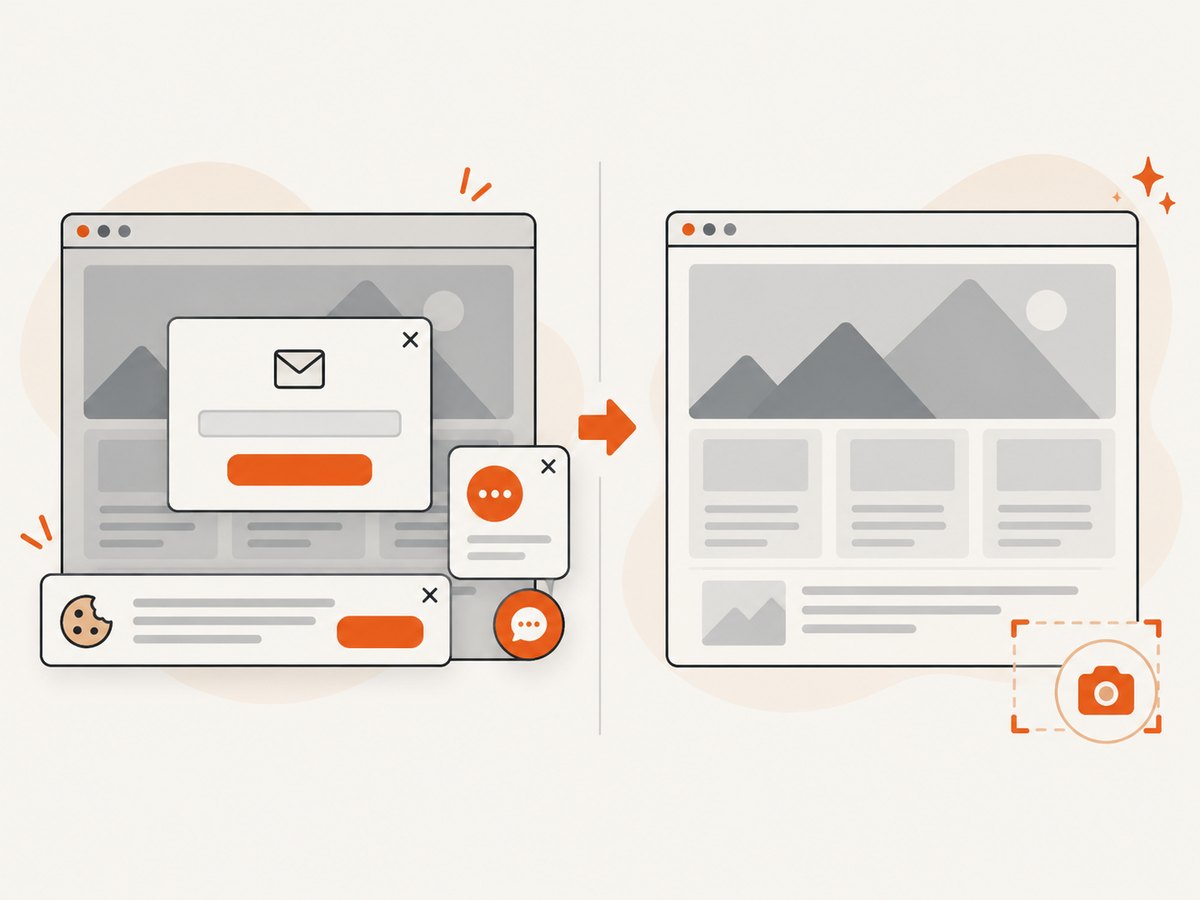
See the ScreenshotNeo API documentation for all options. A minimal call is:
curl -G "https://api.screenshotneo.com/v1/shot" -d access_key=YOUR_API_KEY --data-urlencode url=https://stripe.com -o shot.webpimport requests
r = requests.get("https://api.screenshotneo.com/v1/shot", params={"access_key": "YOUR_API_KEY", "url": "https://stripe.com"}, timeout=90)
open("shot.webp", "wb").write(r.content)const q = new URLSearchParams({ access_key: 'YOUR_API_KEY', url: 'https://stripe.com' });
const res = await fetch(`https://api.screenshotneo.com/v1/shot?${q}`);Use the same endpoint from an n8n HTTP Request node with GET parameters and a binary response. ScreenshotNeo also supports full-page and element captures, dark mode, device presets, custom CSS and JavaScript, clicks, waits, blocked requests, headers, cookies, user agents, timezone, geolocation, transparent backgrounds, resizing, configurable caching, signed image links, asynchronous jobs with signed webhooks, bulk capture of up to 100 URLs per call, and a usage API. Its MCP tools are take_screenshot, get_page_info, and capture_pdf, so Claude, Cursor, and other MCP clients can capture pages directly.
There is a free plan with 1,000 shots per month and no card. Paid plans start at $5 for 3,000 shots; every feature is available on every plan. Create a free ScreenshotNeo account.
10. A production checklist
- Store provider tokens in n8n Credentials.
- Test the exact URL, viewport, wait condition, authentication, and destination.
- Keep screenshot responses as binary data until a downstream API requires base64.
- Check status, content type, and expected selectors before publishing an asset.
- Use bounded retries for transient failures and alert on the final failure.
- Review self-hosted file and code execution risks.
- Measure URL volume, average file size, retries, and provider usage.
- Document whether the workflow captures public or authorized private content.
FAQ
Can n8n take a screenshot without a browser node?
Yes. The documented Browserless route uses n8n’s HTTP Request node to call a screenshot endpoint and receive image data.
Should I use a schedule or webhook?
Use Schedule Trigger for recurring snapshots and Webhook for on-demand captures initiated by another system.
Why is my screenshot different between runs?
Content can vary by time, session, geography, consent state, and asynchronous rendering. Fix the viewport and relevant browser context, and wait for a deterministic selector.
When is a custom browser function justified?
Use a function-style endpoint when you need browser-side JavaScript or Puppeteer interaction that ordinary screenshot options cannot express.
How do I avoid leaking credentials?
Keep tokens, cookies, and authorization headers in n8n Credentials or protected input fields, and prevent execution data containing secrets from being shared with untrusted users.