How to Automate SharePoint Authentication with Puppeteer and Node.js
Use Puppeteer for SharePoint browser tasks, but choose a modern Entra ID sign-in flow first. This guide covers MFA, CI, permissions, working patterns and common failures.
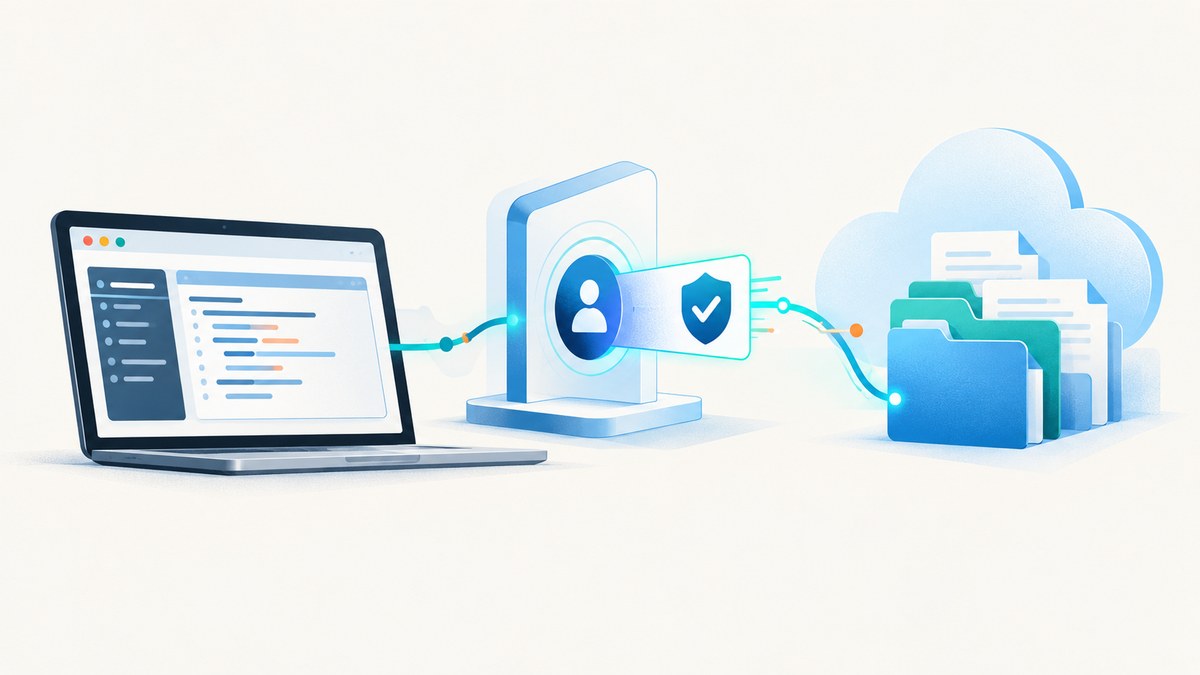
Puppeteer controls Chromium; it does not provide a safe or durable SharePoint sign-in method by itself. For SharePoint Online, use Microsoft Entra ID OAuth/OpenID Connect and MSAL to obtain access, then use Puppeteer when your task truly needs the SharePoint web interface. For unattended jobs, choose an approved app-only identity and permissions. For user work that requires MFA or conditional access, use an approved interactive flow instead of putting a password into a headless browser script.
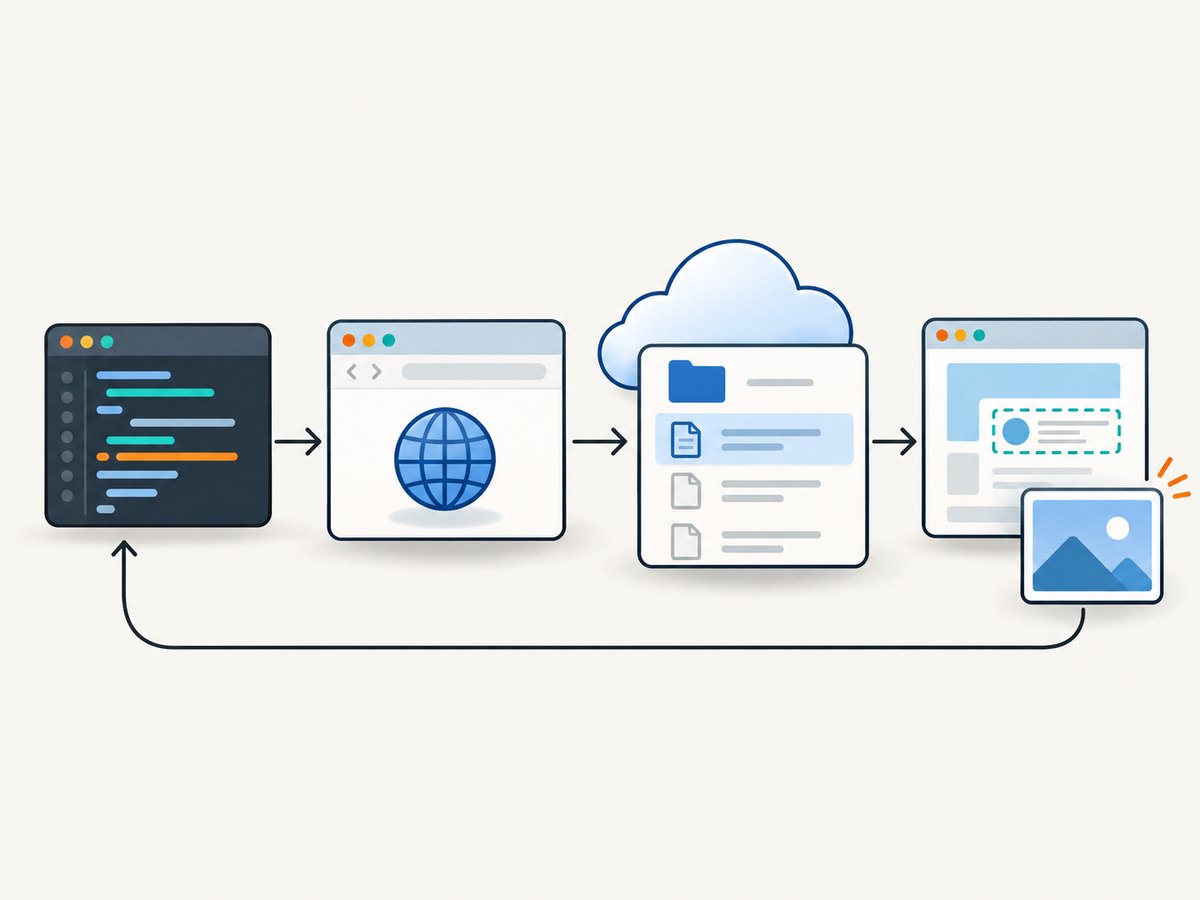
The practical sequence is: decide whether this is SharePoint Online or on-premises, decide whether access represents a person or an application, configure the corresponding identity and permissions, acquire the session or token, then use Puppeteer and verify access before changing data.
1. Choose the access pattern before writing browser code
| Need | Preferred pattern | What Puppeteer does |
|---|---|---|
| A person uses a site and may encounter MFA | Delegated sign-in, usually authorization code with PKCE or device code | Automates the browser UI after an approved sign-in, or participates in a headed interactive flow |
| A scheduled job runs without a person | Entra application identity with client credentials and authorized SharePoint application permissions | May be unnecessary if the task can call Graph or SharePoint APIs directly |
| Automate a browser-only workflow | Modern interactive sign-in and tenant-approved session handling | Clicks, navigates, reads UI, and captures browser diagnostics |
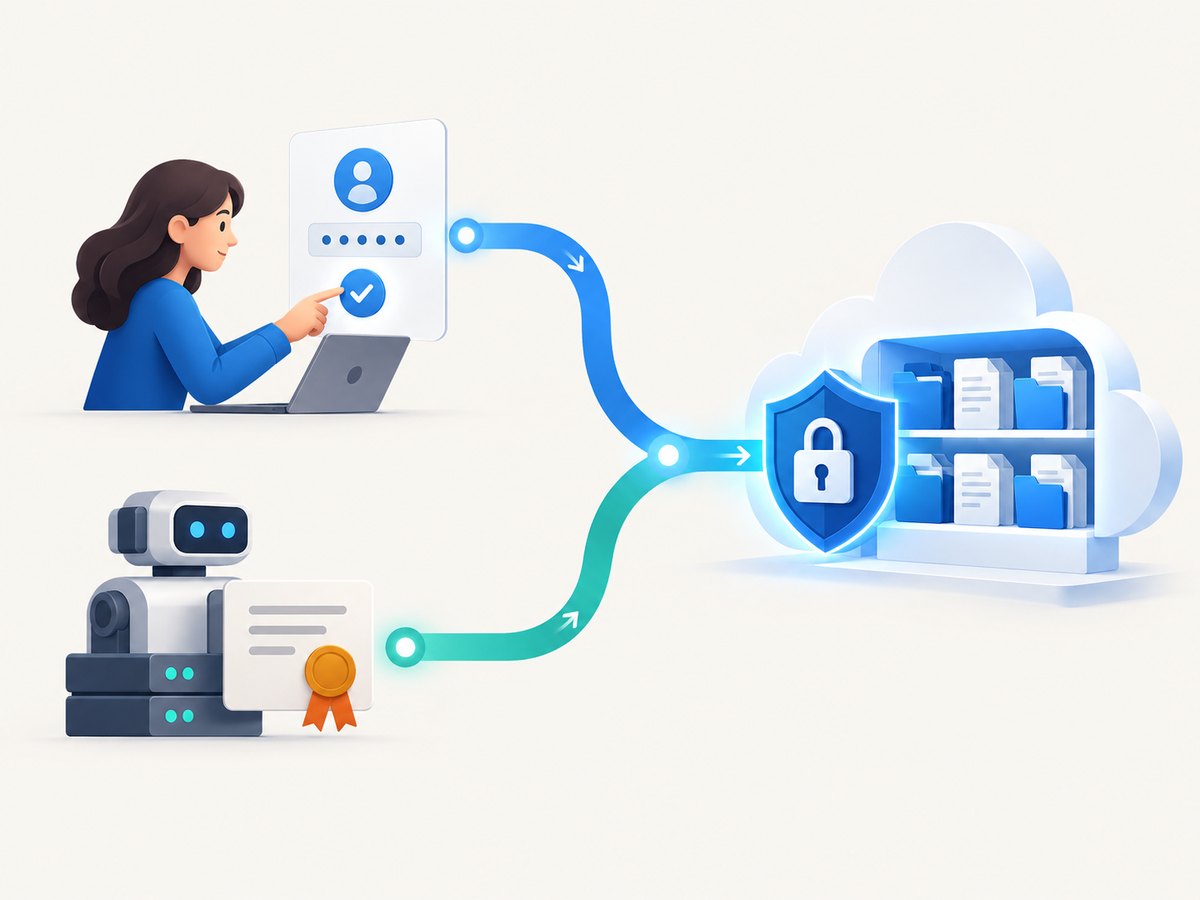
Authentication establishes an identity; authorization determines what that identity can access. A successful Microsoft sign-in does not prove that the app has permission to the requested site, list, or file. A token also needs to target the correct resource. A wrong tenant, token audience, scope, or permission can produce a 401 or 403 even after login succeeds. Microsoft’s [authentication concepts](https://learn.microsoft.com/en-us/graph/auth/auth-concepts) explain tokens and delegated versus application access.
For SharePoint Online, Microsoft recommends an Entra ID application for app-only access. Do not start a new implementation on legacy IDCRL or SharePoint ACS app-only authentication. Microsoft’s SharePoint team says legacy IDCRL authentication is fully retired on May 1, 2026 and cannot be re-enabled; the announcement identifies `SharePointOnlineCredentials`, `https://login.microsoftonline.com/rst2.srf`, and `/_vti_bin/idcrl.svc` as legacy indicators. See [Microsoft’s retirement guidance](https://techcommunity.microsoft.com/blog/microsoftmissioncriticalblog/legacy-sharepoint-authentication-idcrl-is-retiring-%E2%80%94-what-to-do-before-may-1-202/4499131/replies/4509653) and [SharePoint app-only guidance](https://learn.microsoft.com/en-us/sharepoint/dev/solution-guidance/security-apponly).
2. Register and configure the identity
- Confirm the tenant and exact site URL. Determine whether the job acts for a signed-in user (delegated) or as its own service identity (app-only).
- Register an application in Microsoft Entra ID. Configure the platform and redirect URI required by the chosen interactive flow. For a daemon, create a confidential-client registration.
- Add only the permissions needed for the resource and operation. SharePoint REST permissions and Microsoft Graph permissions are not interchangeable by assumption. Grant admin consent when required and scope site access as narrowly as your tenant’s supported model allows.
- For unattended workloads, use a certificate or managed identity where your environment supports it and policy permits. Store private key material in a secret store. If using a client secret, keep it in the CI secret store, rotate it, and never commit it.
- For user sign-in, pick authorization code with PKCE for an interactive web/native pattern or device code for command-line environments. Device code still requires the user to complete sign-in and any MFA prompt. MSAL documents these flows and identifies username/password (ROPC) as not recommended: [MSAL authentication flows](https://learn.microsoft.com/en-us/entra/msal/msal-authentication-flows).
Do not use a username/password browser helper as the future-proof default. Headless Chromium cannot reliably satisfy every MFA or conditional-access challenge, and trying to scrape or bypass those controls is not an authentication design. If tenant policy requires a person, make the interaction explicit and approved.
3. Install Puppeteer and build a reliable browser harness
This runnable baseline assumes Node.js 18 or newer and a project where Puppeteer installs its compatible browser. It deliberately keeps authentication separate: authPuppeteer(page) must be implemented using your approved Entra sign-in/session design. It is not a built-in Puppeteer function. Do not fill it with a hard-coded password or copy a legacy cookie exchange.
npm init -y
npm install puppeteer
// automate-sharepoint.mjs
import puppeteer from 'puppeteer';
const siteUrl = process.env.SP_SITE_URL;
if (!siteUrl) throw new Error('Set SP_SITE_URL to the target SharePoint site');
// Implement this integration with your approved Entra/MSAL flow.
// It may establish an approved browser session or leave the page ready
// for a human to complete sign-in. Never paste passwords into this file.
async function authPuppeteer(page) {
throw new Error('Connect authPuppeteer to your approved sign-in flow');
}
const browser = await puppeteer.launch({
headless: process.env.HEADFUL !== '1',
// Set executablePath only when your environment manages Chromium itself.
args: process.env.CI ? ['--no-sandbox'] : []
});
try {
const page = await browser.newPage();
page.setDefaultNavigationTimeout(60_000);
page.setDefaultTimeout(15_000);
await authPuppeteer(page);
await page.goto(siteUrl, { waitUntil: 'networkidle2' });
const finalUrl = page.url();
if (!finalUrl.startsWith(new URL(siteUrl).origin)) {
throw new Error(`Unexpected redirect after sign-in: ${finalUrl}`);
}
// Replace this with a stable, tenant-specific element or a permission-
// sensitive read. A site landing page alone may not prove list/file access.
await page.screenshot({ path: 'sharepoint-state.png', fullPage: true });
console.log(`Reached ${finalUrl}; inspect the expected page and permissions.`);
} catch (error) {
console.error(error);
throw error;
} finally {
await browser.close();
}The explicit placeholder fails fast because there is no single safe, universal browser login implementation: tenant federation, MFA, conditional access, and app registration settings differ. In production, implement the chosen MSAL flow outside this harness and pass only the minimum session material through a controlled integration. Where the job only reads or updates SharePoint data, a direct API call with an access token is generally simpler than browser automation. Microsoft lists MSAL Node as its recommended Node authentication library in its [migration documentation](https://learn.microsoft.com/en-us/azure/active-directory/develop/msal-node-migration).
MSAL flow sketch for an unattended Node process
This example demonstrates the client-credential token request shape. It does not make Puppeteer authenticated automatically: obtaining an API access token and creating a supported SharePoint browser session are distinct tasks. Configure the resource-specific scope and application permissions for your target API, and consult your tenant’s current SharePoint guidance before using the result.
npm install @azure/msal-nodeimport { ConfidentialClientApplication } from '@azure/msal-node';
const tenantId = process.env.ENTRA_TENANT_ID;
const clientId = process.env.ENTRA_CLIENT_ID;
const clientSecret = process.env.ENTRA_CLIENT_SECRET;
if (!tenantId || !clientId || !clientSecret) {
throw new Error('Set Entra credentials through a secure environment');
}
const msal = new ConfidentialClientApplication({
auth: {
clientId,
authority: `https://login.microsoftonline.com/${tenantId}`,
clientSecret
}
});
// Use the scope for the actual target resource and tenant configuration.
const result = await msal.acquireTokenByClientCredential({
scopes: ['https://graph.microsoft.com/.default']
});
if (!result?.accessToken) throw new Error('No access token returned');
console.log('Token acquired; call only APIs covered by granted permissions.');For a SharePoint REST endpoint, the token audience and granted permissions must be configured for SharePoint, not merely copied from a Graph example. For Graph endpoints, configure Graph permissions. An app-only token represents the application, not a user; use it only for workloads that need that identity and scope. Microsoft’s [app-only access primer](https://learn.microsoft.com/en-us/entra/identity-platform/app-only-access-primer) describes the model and its broader authority.
4. Handle MFA, interactive sign-in, and CI explicitly
A device-code flow is useful in a command-line setup because the job can display a code and the user completes sign-in in a browser on another device. That is interactive; it is not a trick for turning a user flow into unattended CI. Authorization code with PKCE is appropriate for supported interactive clients. For an unattended daemon, use client credentials with application permissions and an approved credential such as a certificate.
- Local development: run headed with
HEADFUL=1when a user needs to complete a challenge. Avoid persisting a browser profile unless tenant policy explicitly permits it. - CI: inject secrets/certificates from the platform secret store, mask values in logs, restrict job access, and prevent artifacts from containing token caches or browser profiles.
- Failure evidence: save a screenshot and relevant URL on error, but redact query strings, page content, cookies, and tokens before uploading artifacts.
- Retries: use bounded retries for transient navigation/network errors only. Do not retry sign-in denials or permission errors indefinitely.
- Cleanup: close browser and pages in
finally, and use a job timeout so hung Chromium processes do not accumulate.
When Puppeteer controls an already authenticated page, use a stable success check: a known site element, expected final URL, or a read-only request to the exact list/file needed. Before destructive work, first run a permission-sensitive read and validate the target identifiers. A redirect away from the login page is not sufficient evidence of authorization.
5. Puppeteer navigation and capture options
| Choice | Use | Watch for |
|---|---|---|
headless: true |
CI and repeatable browser work | Browser flags, missing system libraries, proxy and conditional-access differences |
headless: false |
Interactive troubleshooting or a user-approved login | Requires a display in remote environments |
waitUntil: 'networkidle2' |
Pages that settle after a few requests | Long polling or analytics may keep the network active |
waitForSelector() |
Wait for a stable site-specific element | Prefer it over arbitrary long sleeps when possible |
page.setDefaultNavigationTimeout() |
Bound navigation duration | Choose a value compatible with site and CI latency |
SharePoint pages can load dynamic content after navigation. Instead of assuming network idle means the business view is ready, wait for the selector that signals the relevant list or document view. If the page uses virtualized rows, scroll or use the supported data API rather than assuming every row exists in the DOM. For downloads, popups, and file uploads, handle the corresponding browser events explicitly and verify the resulting file or state.
6. Browser automation or API access?
Use the browser when the task depends on UI behavior that has no suitable API, or when the web interface itself is the thing being validated. Use Graph or SharePoint APIs for routine data reads and writes where supported: APIs avoid layout selectors and are generally easier to validate and retry. Browser scripts are sensitive to UI changes, network timing, cookie/session behavior, and browser version. API scripts are sensitive to token audience, scopes, throttling, and API-specific behavior. Neither approach removes the need for correct authorization.
For SharePoint Server on-premises, stop before copying an Online authority or endpoint. Deployments can use Windows, forms-based, SAML, or OIDC claims authentication, depending on configuration. Confirm the farm’s authentication provider, federation, and endpoint behavior with its administrator; Online and on-premises flows are not interchangeable.
7. Troubleshooting
| Symptom | Likely cause | Fix |
|---|---|---|
| Redirect loop or repeated sign-in | Wrong tenant/authority or redirect URI, stale cookies, federation mismatch, or legacy IDCRL flow | Check tenant ID, registered redirect URI, identity-provider logs, and final URL. Remove legacy endpoints and use the approved OAuth flow. |
| 401 from an API or page request | Missing/expired token, wrong audience/resource, wrong tenant, or token not sent as expected | Acquire a fresh token for the target resource; inspect MSAL result metadata and request host. Do not log the token itself. |
| 403 despite successful sign-in | Identity lacks site/list permission, wrong delegated versus application permission, or admin consent is missing | Check the exact resource permission and consent. Verify with a read-only request to the target before automating writes. |
| MFA or conditional-access challenge fails headless | The policy requires user interaction or a compliant context that the job does not have | Use an approved interactive/device-code process or redesign as a service-principal job with authorized app permissions. Do not bypass policy. |
| Works headed, fails headless | Different Chromium version/flags, viewport, proxy, downloads, or conditional-access signals | Pin the browser environment, compare launch configuration, log navigation and console errors, and use a supported auth design. |
| Only CI fails | Chromium missing, certificate/key unreadable, secret absent, network egress blocked, or clock skew | Check the runner image, key permissions, secret injection, outbound access, and system time. Capture sanitized diagnostics. |
| Timeout at network idle | Persistent requests or a slow page | Wait for a specific selector or use a suitable navigation condition; bound retries and the overall job duration. |
8. Performance, reliability, and cost
Browser startup and rendering add work, so reuse a browser process for a controlled batch when isolation requirements allow, while creating a fresh page/context for each independent task. Limit concurrency to the capacity of your runner and tenant; excessive parallel requests can increase failures or trigger throttling. Prefer selectors and API reads over fixed sleeps, and cap navigation, selector waits, retries, and total runtime. Capture only the diagnostics needed to reproduce errors and redact sensitive material.
There is no universal runtime or success-rate number for SharePoint automation: page size, tenant policy, network, browser image, and the operation all change the result. Measure your own representative workflow. Keep read operations separate from writes, make writes idempotent where possible, and record a correlation identifier, target URL, operation, result, and duration without recording credentials or tokens. Puppeteer itself is open source; operational costs come from compute, maintenance, and the identity/security setup. API calls may be more efficient than full browser rendering when the task is data access.
9. Or skip the browser setup
If your goal is to capture how a SharePoint page looks rather than automate its controls, ScreenshotNeo can return a screenshot or PDF from one GET request. It is a website screenshot API and MCP server; it does not authenticate to SharePoint on your behalf, so use it only for a page accessible to the capture service under the access model you have configured.
See the [ScreenshotNeo documentation](https://screenshotneo.com/docs/) and [ScreenshotNeo](https://screenshotneo.com). The cURL, Python, and Node.js calls below show the same request in each client. Replace the sample URL with a page you are authorized to capture.
curl -G "https://api.screenshotneo.com/v1/shot" -d access_key=YOUR_API_KEY --data-urlencode url=https://stripe.com -o shot.webpimport requests
r = requests.get("https://api.screenshotneo.com/v1/shot", params={"access_key": "YOUR_API_KEY", "url": "https://stripe.com"}, timeout=90)
open("shot.webp", "wb").write(r.content)const q = new URLSearchParams({ access_key: 'YOUR_API_KEY', url: 'https://stripe.com' });
const res = await fetch(`https://api.screenshotneo.com/v1/shot?${q}`);
if (!res.ok) throw new Error(`Screenshot request failed: ${res.status}`);
await Bun.write('shot.webp', res);ScreenshotNeo removes cookie banners, newsletter popups, and chat widgets before capture; each cleanup step can be turned off. Bot checks, blank pages, failed loads, timeouts, and cache hits are not billed, and response headers report the page verdict and billing status. Its MCP server provides take_screenshot, get_page_info, and capture_pdf for Claude, Cursor, and other MCP clients. The Free plan includes 1,000 shots/month with no card; paid plans start at $5 for 3,000 shots. [Create a free account](https://screenshotneo.com/account/sign-up/) and capture 1,000 screenshots a month without a card.
10. FAQ
Can Puppeteer sign into SharePoint using only a username and password?
A script can attempt browser form entry, but that is not a durable modern-auth design and will fail against many MFA or conditional-access configurations. Use an approved Entra/MSAL flow and avoid embedding credentials.
Does an access token let Puppeteer browse SharePoint automatically?
No. A token is for an audience and API request; it is not automatically a browser cookie or interactive web session. Use it with the resource it was issued for, or establish a browser session through a supported approved flow.
Can a daemon use device code?
Device code requires a user to complete sign-in. A genuinely unattended daemon should use an application identity and client credentials, with the necessary application permissions.
Should I use Puppeteer to take a SharePoint screenshot?
Use it when the task needs browser interaction or browser-level validation. For a straightforward screenshot of an accessible page, a screenshot API can avoid maintaining Chromium and page selectors.
Is SharePoint Server authentication the same as SharePoint Online?
No. On-premises deployments may have different providers, federation, and endpoints. Identify the configured farm authentication method before selecting a flow.


