How to Automate Screenshots of a User Interface
Automate UI screenshots with Playwright or Puppeteer, capture pages and components, and build reliable visual regression checks with stable baselines.
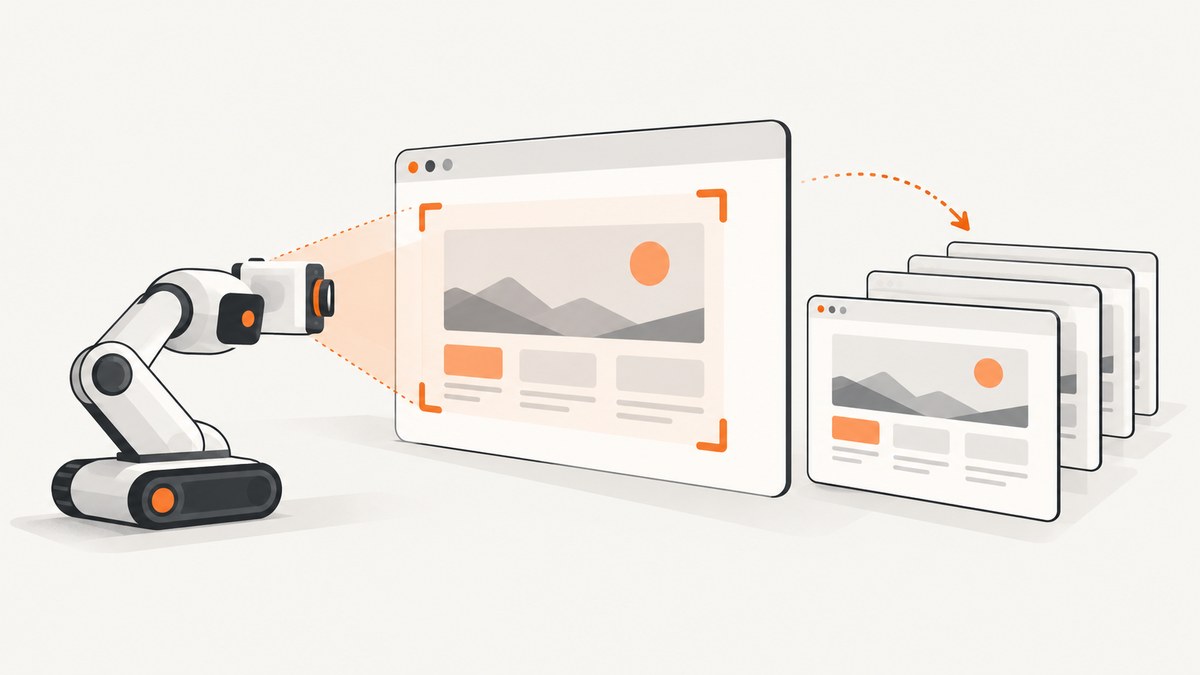
Use a browser automation library to open the interface in a known state, wait until it is ready, and capture it. With Playwright, call page.screenshot() for the visible viewport, add fullPage: true for the full scrollable page, or call locator.screenshot() to capture one component. For visual regression, use Playwright Test’s toHaveScreenshot() so later runs compare an image against a reviewed baseline. Puppeteer offers the similar Page.screenshot() capture API.
The screenshot call is the easy part. Repeatable navigation, data, fonts, viewport, browser version, and animation handling determine whether captures are useful or noisy.
1. Choose the screenshot type
| Capture | Use it for | Playwright API |
|---|---|---|
| Viewport | What a user sees without scrolling; quick page checks | page.screenshot() |
| Full page | Long-page layout, below-the-fold sections, page reviews | page.screenshot({ fullPage: true }) |
| Element | A component such as a header, card, or dialog | locator.screenshot() |
| Visual assertion | Fail a test when an image differs from an accepted baseline | expect(page).toHaveScreenshot() |
| In-memory buffer | Upload, attach, or process an image without writing a file first | page.screenshot() without path |
Pick the narrowest useful scope. A full-page capture can expose layout shifts far down the document, but it also makes unrelated content and dynamic regions part of the comparison. A locator screenshot isolates a component, though it will not catch how that component interacts with the rest of the page. Playwright documents file output, full-page capture, buffers, and element screenshots in its screenshot guide.
2. Set up a runnable Playwright capture
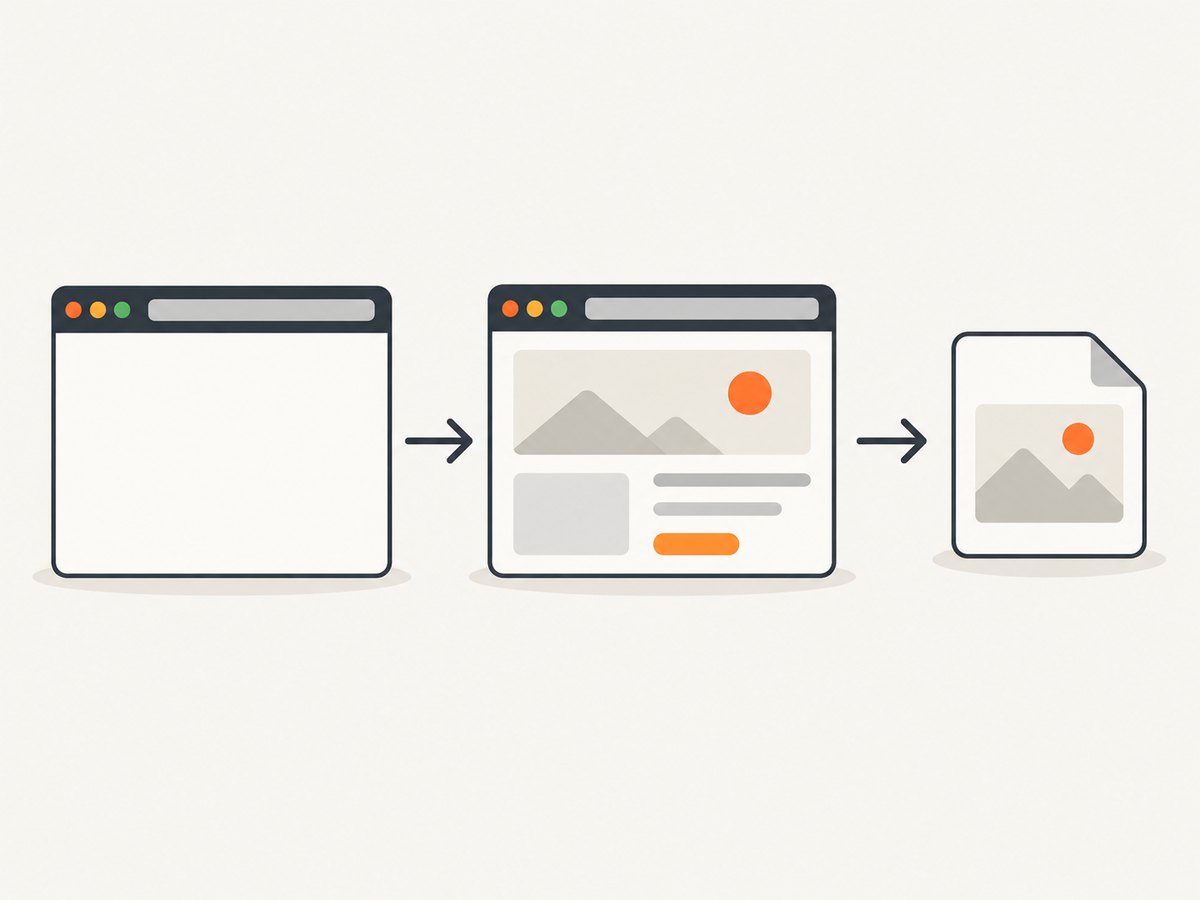
In a Node.js project, install Playwright Test and its browser. These commands create a package manifest if there is none, install the test runner, and download the Chromium browser used in this example:
npm init -y
npm install --save-dev @playwright/test
npx playwright install chromium
Create tests/capture.spec.js. The test creates its output directory, navigates, waits for a meaningful page signal, and writes both viewport and full-page images:
import { test, expect } from '@playwright/test';
import { mkdir } from 'node:fs/promises';

test('capture the example homepage', async ({ page }) => {
  await mkdir('artifacts', { recursive: true });
  await page.setViewportSize({ width: 1440, height: 900 });
  await page.goto('https://example.com', { waitUntil: 'domcontentloaded' });
  await expect(page.locator('h1')).toBeVisible();

  await page.screenshot({ path: 'artifacts/home.png' });
  await page.screenshot({ path: 'artifacts/home-full.png', fullPage: true });
});
Run it with npx playwright test tests/capture.spec.js. Playwright Test runs the test in its managed browser context. In CI, install the same Playwright package version and browser build as the project uses, and retain the artifact directory if the pipeline should make screenshots available after the job.
Wait for the state, not an arbitrary number of seconds
For a real application, use a stable locator or an application-specific ready signal rather than assuming that navigation means rendering is complete. For example, wait for a dashboard heading after login, a table row after data loads, or a loading indicator to disappear:
await page.goto('https://app.example.test/dashboard');
await page.getByRole('heading', { name: 'Dashboard' }).waitFor();
await page.locator('[data-testid="loading"]').waitFor({ state: 'hidden' });
await page.screenshot({ path: 'artifacts/dashboard.png' });
When custom fonts affect layout, wait for the document’s font set before capturing: await page.evaluate(() => document.fonts.ready). For applications backed by test data, seed or mock the data so the same records appear on each run. If authentication is required, use a dedicated test account and a repeatable setup path; do not rely on a manually logged-in browser profile.
3. Capture one component
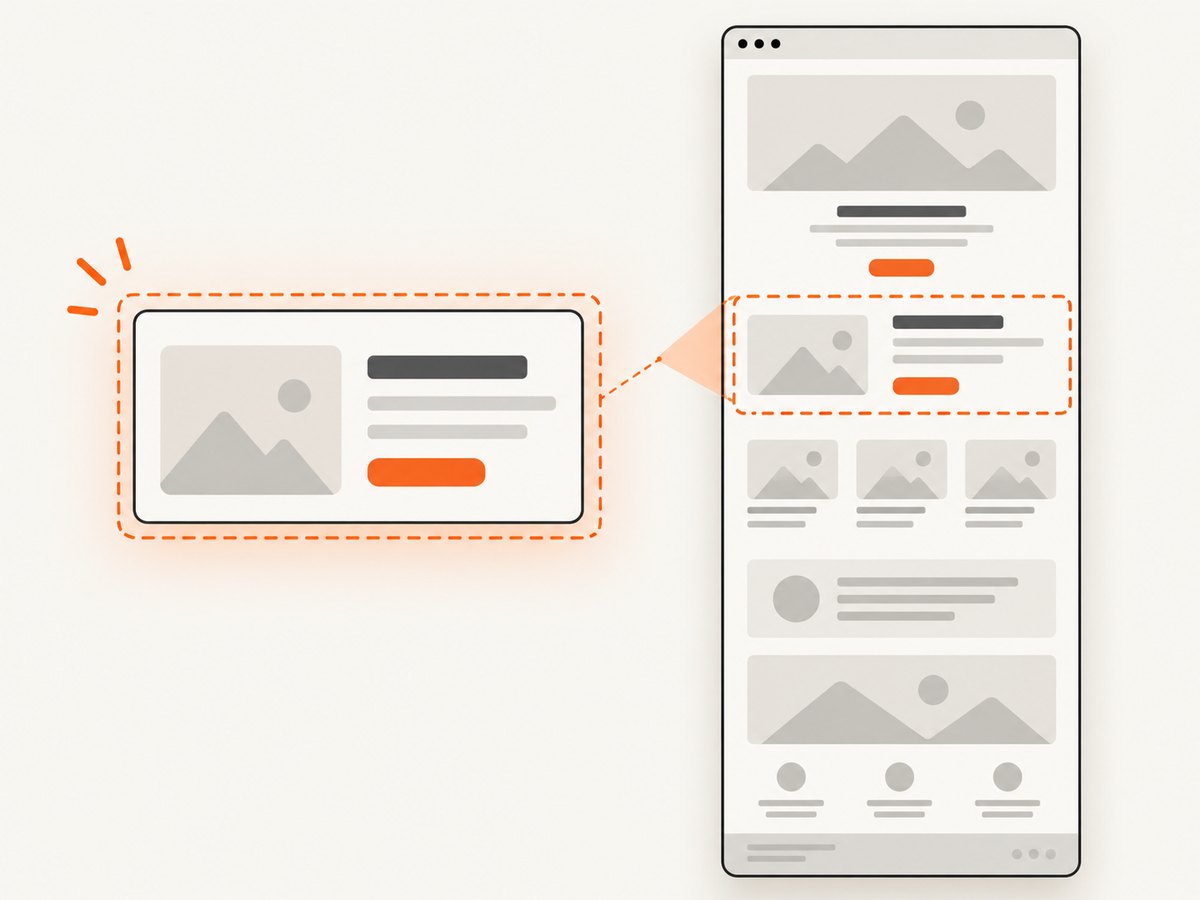
A locator screenshot is useful for a component-level review because it excludes the rest of the page. Ensure the element is visible and stable, then capture it:
const navigation = page.locator('header[role="banner"]');
await navigation.waitFor({ state: 'visible' });
await navigation.screenshot({ path: 'artifacts/navigation.png' });
Prefer selectors that express the intended component, such as a test ID or accessible role, over brittle chains of implementation-specific classes. If multiple elements match, narrow the locator explicitly. A hidden, detached, or zero-size element cannot produce the intended image; make sure the right element is selected and visible in the test state.
4. Turn screenshots into visual regression tests
Saving images is not regression testing by itself. A regression workflow needs an expected baseline, a comparison rule, and a review process for changes. Playwright Test provides screenshot assertions:
import { test, expect } from '@playwright/test';

test('landing page visual contract', async ({ page }) => {
  await page.setViewportSize({ width: 1440, height: 900 });
  await page.goto('https://example.com');
  await expect(page.locator('main')).toBeVisible();
  await expect(page).toHaveScreenshot('landing.png', {
    fullPage: true,
    animations: 'disabled',
  });
});
On the initial run, Playwright generates a reference image. Subsequent runs capture again and compare against that stored reference. Review generated baseline changes as code-review artifacts: accept an update only after confirming the visual difference is intended. The assertion waits for two consecutive screenshots to match before comparison, which helps avoid capturing a page that is still changing. See the Playwright visual comparisons documentation for baseline behavior and configuration.
For a component baseline, assert on the locator instead: await expect(page.locator('.product-card')).toHaveScreenshot('product-card.png'). Keep baselines with the test code or in the snapshot location your runner expects. A changed baseline should be reviewed alongside the associated UI change; blindly regenerating snapshots can normalize a defect.
Control motion and variable regions
Animations, rotating banners, timestamps, cursors, randomized IDs, live counters, and third-party content can produce diffs even when the code under test did not change. Disable or freeze motion for screenshot assertions, and mask or hide regions whose exact pixels are not part of the contract. Playwright’s screenshot assertion options include animation handling, masking, and stylesheets; consult the API reference for supported options and defaults.
await expect(page).toHaveScreenshot('account.png', {
  animations: 'disabled',
  mask: [page.locator('[data-testid="current-time"]')],
});
Masking is appropriate for genuinely volatile pixels, not for hiding a region that should be visually checked. For stronger determinism, make test data and application state stable at the source.
5. Use Puppeteer when it fits the project
Puppeteer’s Page.screenshot() provides viewport and full-page capture. Install Puppeteer in a Node project with npm install puppeteer; a minimal script can save an image like this:
import puppeteer from 'puppeteer';

const browser = await puppeteer.launch({ headless: true });
try {
  const page = await browser.newPage({
    viewport: { width: 1440, height: 900 },
  });
  await page.goto('https://example.com', { waitUntil: 'domcontentloaded' });
  await page.waitForSelector('h1');
  await page.screenshot({ path: 'home.png' });
  await page.screenshot({ path: 'home-full.png', fullPage: true });
} finally {
  await browser.close();
}
For a particular element, use Puppeteer’s element handle screenshot method after selecting and waiting for the element. Choose Playwright when its integrated test runner and screenshot assertions fit the existing workflow; choose Puppeteer when its browser automation API and the project’s surrounding tooling are the better fit. Both approaches require a controlled browser state for repeatable visual output. Google’s Puppeteer documentation describes it as a JavaScript library for automating Chrome and Firefox.
6. Keep screenshot runs reliable
- Pin the rendering environment. Keep browser version, operating system, installed fonts, viewport, device scale factor, and headless settings consistent. Rendering can vary across host OS, browser version, settings, hardware, power source, and headless mode; see Playwright’s visual comparison notes.
- Use deterministic page state. Fix test data, locale, account state, and feature flags. Wait for the page signal that means the relevant UI is ready.
- Set a deliberate viewport. Explicit dimensions avoid relying on machine defaults. If responsive layout matters, maintain separate captures at the viewports users actually need to support.
- Stabilize assets. Wait for required fonts and images, or assert on the specific UI readiness condition. Avoid timing guesses where a locator or app signal is available.
- Reduce volatile pixels. Disable motion and mask unstable data only when that data is outside the comparison’s purpose.
- Choose capture scope carefully. Use element snapshots for component contracts, viewport shots for initial visibility, and full-page images when the entire page layout matters.
- Review updates intentionally. A baseline change is a test change. Inspect it before accepting.
7. Troubleshooting common failures
| Symptom | Likely cause | Fix |
|---|---|---|
| Screenshot is blank or shows a loading shell | Capture ran before application data or client rendering finished | Wait for a stable heading, loaded row, or app-ready signal; verify the test account and backend data. |
| Element screenshot times out | Locator is wrong, ambiguous, hidden, or never attached | Inspect the locator, narrow it, and wait for the intended element to become visible. |
| Images differ across CI and a developer machine | Different OS, browser build, font set, scale, or headless configuration | Use the same browser package and CI image for generation and comparison; fix viewport and device scale. |
| Flaky diffs from run to run | Animation, timestamps, random data, ad rotation, or live content | Disable animation, stabilize inputs, and mask only truly variable areas. |
| Full-page capture misses content or changes layout | Lazy content was not loaded until scrolling, or page content changes during capture | Scroll through the page or trigger the application’s loading behavior before capture; wait for content to settle, then capture. |
| Snapshot assertion fails after a harmless update | Baseline represents an earlier intentional design | Review the diff and update the baseline only if the visual change is expected. |
| Browser launch fails in CI | Browser binaries are missing or system dependencies are unavailable | Install the browser for the pinned Playwright version and use the runner’s documented CI setup for its operating system. |
| Output file is missing | Parent directory does not exist or the process cannot write there | Create the directory first, use an explicit path, and check the job’s artifact collection configuration. |
8. Performance, reliability, and cost
Browser automation runs a browser process, so its time and resource use include launch, navigation, application rendering, and image encoding. Reuse a browser process across related captures where the test framework allows it, while keeping independent browser contexts or isolated data where state separation matters. Avoid capturing more pixels than the test needs: component images are smaller and easier to review than repeated full-page captures.
Reliability is mostly a determinism problem. A local run can be stable while CI differs because the rendering environment changed. Pin versions and environment, seed the page state, and make waits depend on UI readiness rather than a fixed delay. Treat browser or environment upgrades as changes that may require deliberate baseline review.
There is no universal cost figure for running these captures: it depends on the CI provider, run frequency, browser resources, retained artifacts, and how many viewports and pages are tested. Track job duration and artifact storage in the environment you use. Narrow component checks can reduce pixels and review burden; full-page captures remain useful when below-the-fold behavior is the target.
Or skip the browser setup
If you need screenshots of public pages without installing and maintaining a browser runner, ScreenshotNeo is a website screenshot API and MCP server. One GET request returns PNG, JPEG, WebP, or PDF. See the ScreenshotNeo API documentation for request options and formats.
curl -G "https://api.screenshotneo.com/v1/shot" -d access_key=YOUR_API_KEY --data-urlencode url=https://stripe.com -o shot.webpimport requests
r = requests.get(
"https://api.screenshotneo.com/v1/shot",
params={"access_key": "YOUR_API_KEY", "url": "https://stripe.com"},
timeout=90,
)
open("shot.webp", "wb").write(r.content)const q = new URLSearchParams({ access_key: 'YOUR_API_KEY', url: 'https://stripe.com' });
const res = await fetch(`https://api.screenshotneo.com/v1/shot?${q}`);
if (!res.ok) throw new Error(`Screenshot request failed: ${res.status}`);
await import('node:fs/promises').then(({ writeFile }) =>
writeFile('shot.webp', Buffer.from(await res.arrayBuffer()))
);ScreenshotNeo accepts cookie or consent banners like a visitor and removes more than 60 known consent platforms, newsletter popups, and chat widgets before capture; each of those steps can be turned off. Bot checks and CAPTCHAs, blank pages, timeouts, failed loads, and cache hits are not billed, and response headers report the page verdict and billing status. Its MCP server exposes take_screenshot, get_page_info, and capture_pdf to Claude, Cursor, and other MCP clients. The free plan includes 1,000 screenshots a month without a card; paid plans start at $5 for 3,000. Sign up for the free plan.
FAQ
Can screenshot automation run in a browser test?
Yes. Capture during a Playwright or Puppeteer test after the page reaches the state the test is meant to inspect. Playwright Test also supports screenshot assertions for visual comparisons.
Should I compare a whole page or a component?
Use a component when its local appearance is the contract. Use a viewport or full page when composition or below-the-fold layout is part of what you need to protect.
Why do screenshots change when application code does not?
The browser, OS, fonts, rendering settings, page data, or moving content may have changed. Match the environment and make state deterministic before relaxing comparisons.
Can I automate screenshots without using them as tests?
Yes. Save image files for reviews, attach buffers to reports, or send captures to another system. A baseline comparison is needed only when you want automated visual regression detection.


