How to Automate Visual CRO Audits with Website Screenshots
Build a repeatable screenshot audit that finds visual funnel friction, compares reviewed baselines, and connects changes to analytics evidence.

Direct answer: automate a visual CRO audit by capturing the same conversion pages and interaction states on a schedule, comparing each capture with an approved baseline, reviewing meaningful differences, and connecting visual findings to funnel and behavior data. Screenshots can prove that a page changed, failed to render, or obscured an action. They cannot prove why users abandoned or that a redesign will increase conversions. Treat the screenshot as a repeatable observation in a broader measurement process.
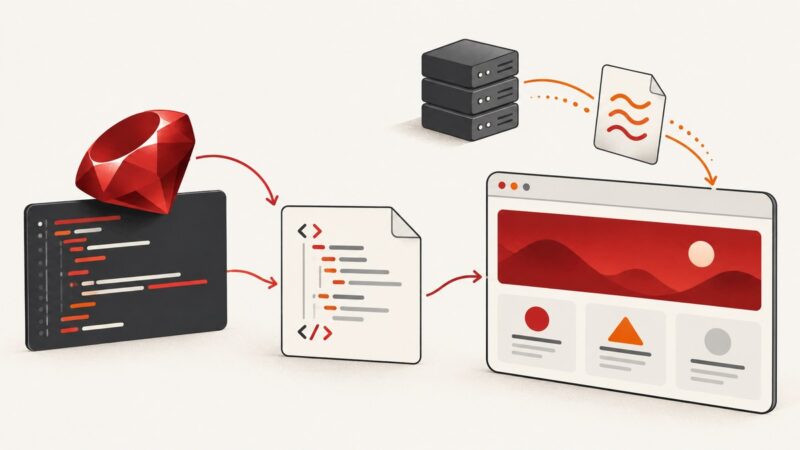
This guide shows a complete implementation with Playwright, baseline review, analytics context, accessibility checks, and production considerations. It also shows how to use ScreenshotNeo when you want an API call instead of maintaining browser infrastructure.
1. Define the conversion journey before writing capture code
Start with the business action and the ordered steps a visitor must complete. Typical checkpoints include:
- Acquisition landing page, including the above-the-fold headline, offer, and primary call to action.
- Navigation or menu open state, especially on mobile.
- Product or service detail page with pricing, proof, and eligibility information.
- Form, cart, checkout, or booking flow at validation and error states.
- Success or confirmation state.
Use GA4 Funnel exploration to identify ordered steps and abandonment. Check whether the funnel is open or closed before interpreting entry and completion counts. A page with a visual defect but little traffic may be less urgent than a small change on a high-volume step.
Create a capture inventory with the URL, state, audience, viewport, owner, and business metric. Do not screenshot every URL by default. Prioritize journeys with meaningful traffic, known friction, active experiments, or recent releases.
2. Make screenshots reproducible
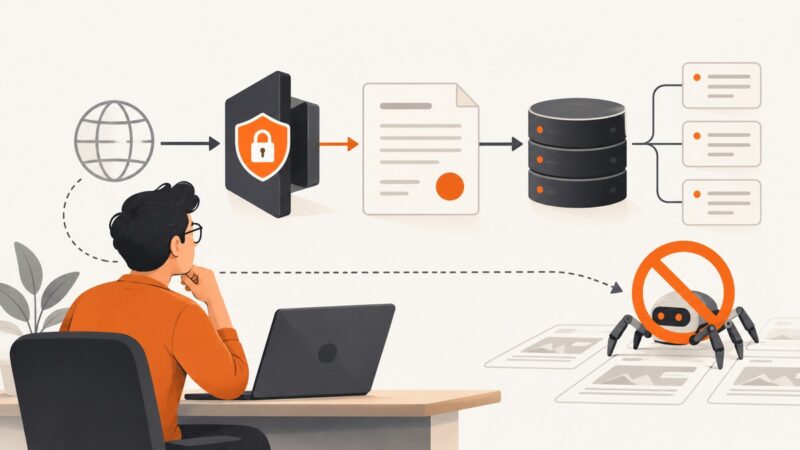
A useful comparison controls the variables that affect rendering. Record the browser version, viewport dimensions, device scale factor, locale, timezone, geolocation, authentication state, test data, consent state, and build identifier. Wait for the actual page readiness condition rather than an arbitrary short delay.
Playwright supports viewport, target-element, and full-page screenshots, with image format and scaling controls documented in its screenshot documentation. Use:
- Viewport captures for above-the-fold layout, navigation, and first interaction.
- Element captures for a form, pricing card, hero, or checkout summary.
- Full-page captures when below-the-fold sections, footer links, or lazy-loaded content matter.
Full-page mode cannot be combined with an element target. Capture the element separately when you need both views.
Runnable Playwright capture script
Install Playwright and its browser once in the project, then run this script in CI or a scheduled job.
npm install -D playwright
npx playwright install chromium
import { chromium } from 'playwright';
const checkpoints = [
{ name: 'landing', url: 'https://example.com/', fullPage: true },
{ name: 'pricing', url: 'https://example.com/pricing', fullPage: true },
{ name: 'signup-form', url: 'https://example.com/signup', selector: 'form' }
];
const browser = await chromium.launch();
const context = await browser.newContext({
viewport: { width: 1440, height: 900 },
deviceScaleFactor: 1,
locale: 'en-US',
timezoneId: 'UTC',
colorScheme: 'light'
});
for (const checkpoint of checkpoints) {
const page = await context.newPage();
await page.goto(checkpoint.url, { waitUntil: 'networkidle', timeout: 60_000 });
await page.locator('body').waitFor({ state: 'visible' });
// Establish a known interaction state when required.
const menu = page.locator('[data-test="menu-button"]');
if (await menu.count()) await menu.click();
if (checkpoint.selector) {
await page.locator(checkpoint.selector).screenshot({
path: `artifacts/${checkpoint.name}.png`
});
} else {
await page.screenshot({
path: `artifacts/${checkpoint.name}.png`,
fullPage: checkpoint.fullPage,
animations: 'disabled'
});
}
await page.close();
}
await browser.close();For a real site, replace selectors with stable test attributes. Avoid selectors based on generated class names. If a page has a cookie banner, decide explicitly whether the audit state includes the banner, an accepted-consent state, or both. A production visitor may see either state, so hiding it automatically can conceal a conversion problem.
3. Capture interaction states, not just URLs
Many CRO defects appear only after an action. Add named checkpoints for:
- Mobile menu open and closed.
- Autocomplete results visible.
- Form with inline validation errors.
- Disabled, loading, and completed submit buttons.
- Modal, cookie preferences, chat launcher, and exit-intent overlays.
- Logged-in and logged-out states.
- Each active A/B-test variant.
Keep the state setup deterministic. Seed test accounts and data, set a fixed clock where possible, and wait for a specific selector or network condition. Mask genuinely volatile regions such as a timestamp only when the mask cannot hide a customer-visible defect. Dynamic content, browser rendering differences, and live experiments can produce expected differences; matching settings and separate experiment baselines help, but a reviewer still needs to inspect the page.
4. Compare against reviewed baselines
A baseline is an intentionally approved image, not simply the last image produced by automation. The first successful run can seed a baseline. Every later run should follow this loop:
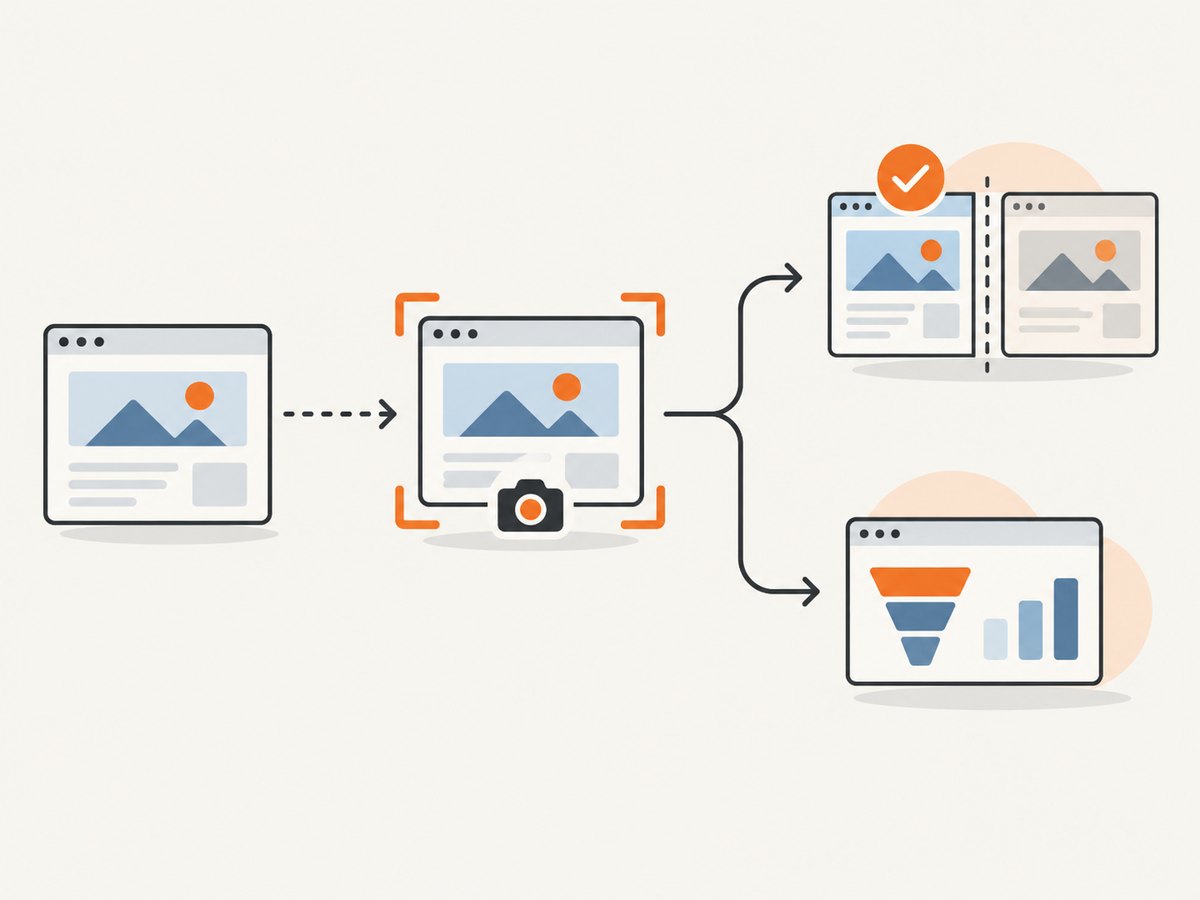
- Capture the named checkpoint with the same settings.
- Compare it with the approved image using a pixel or perceptual diff.
- Review the changed region and its context.
- Accept an intentional product change and save the new baseline.
- Report a likely defect while retaining the previous approved image.
Store the URL, checkpoint name, viewport, browser, locale, build, capture time, diff image, reviewer, and issue link. This turns a red CI result into a reproducible CRO observation.
Native image diffs are often enough for a small suite. Managed services add hosted review and other capabilities. Applitools’ overview describes strict, layout, and dynamic match levels, hosted baselines, cross-browser rendering, DOM/CSS context, and multiple baselines for A/B tests. Percy’s Playwright client provides a hosted visual review workflow and baseline seeding. These are vendor descriptions; evaluate them against your own browser matrix, review volume, and data-handling requirements.
A simple diff policy
| Result | Action |
|---|---|
| No meaningful change | Keep the baseline and mark the checkpoint passed. |
| Intentional design or content release | Link the change request, review it, and promote the new baseline. |
| Unexpected layout, missing asset, or overlap | Open a defect with the diff, build, URL, and reproduction state. |
| Dynamic or experiment variation | Use the correct variant baseline or stabilize the data, then review again. |
5. Turn visual differences into CRO hypotheses
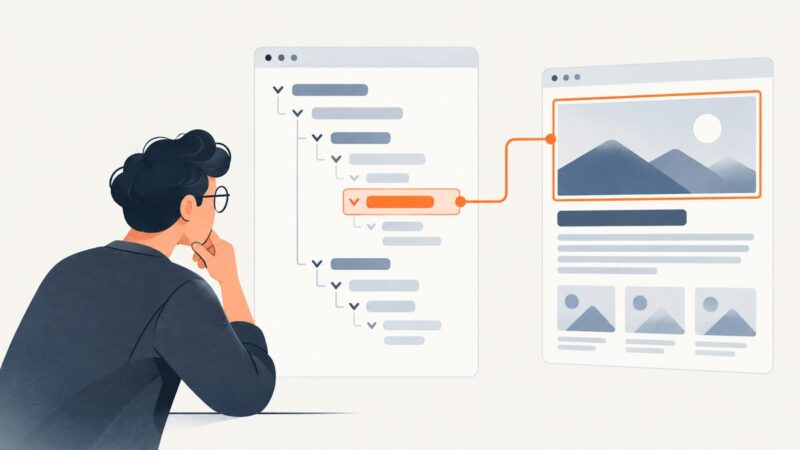
A screenshot finding is evidence for investigation, not conversion proof. Pair it with funnel and behavior data:
- Use GA4 Funnel exploration to locate the step where progression falls away.
- Use Microsoft Clarity funnels, documented at Microsoft Learn, to review conversion rate, sessions converted, and median time to convert, then open filtered heatmaps or recordings.
- Use Clarity behavior views for click, scroll, and attention patterns, plus rage or dead-click signals as clues. The behavioral overview is described by Microsoft Advertising.
Write each finding as a testable statement: “For [audience] at [step], [observed visual friction] may cause [behavior], so changing [element] may improve [defined outcome].” Verify event instrumentation and record a pre-change metric. If you run an experiment, evaluate conversion outcomes with a valid experiment design and use screenshots to verify what each variant actually rendered.
6. Add accessibility and human review
Visual automation catches overlap, missing assets, clipping, hierarchy problems, and unexpected responsive changes. It does not establish semantic correctness or full accessibility. Playwright’s accessibility guidance explains that automated checks find some common issues, while many problems require manual assessment and inclusive user testing.
Run automated scans alongside keyboard navigation, focus-order checks, zoom and reflow checks, screen-reader review, and appropriate user research. A high-contrast screenshot does not prove that labels, names, error announcements, or keyboard interactions work.
7. Schedule audits and control noise
Run a small critical-path suite on every release and a broader suite on a schedule. A practical cadence is determined by release frequency, traffic, and the cost of review; the sources do not establish a universal interval. Keep each checkpoint independent so one timeout does not hide failures elsewhere.
- Retry transient navigation failures once or twice, but preserve the failed artifact and error log.
- Use stable test data and a fixed browser image in CI.
- Capture console errors, failed requests, and the final URL with every screenshot.
- Set a review threshold that catches meaningful layout movement without filing noise for antialiasing.
- Never auto-accept all diffs from a failed run.
8. Or skip the browser setup
ScreenshotNeo provides a website screenshot API and MCP server. One GET request returns a PNG, JPEG, WebP, or PDF. It accepts full-page and element captures, dark mode, device presets or custom viewports, retina scale, custom CSS and JavaScript, clicks, selector or network-idle waits, hidden selectors, blocked ads and trackers, headers, cookies, user agents, Authorization, timezone, geolocation, transparent backgrounds, resizing, TTL caching, signed links, asynchronous jobs with signed webhooks, bulk capture for 100 URLs per call, usage data, and an OpenAPI specification. The parameter names used by other screenshot APIs also work, which helps when switching.
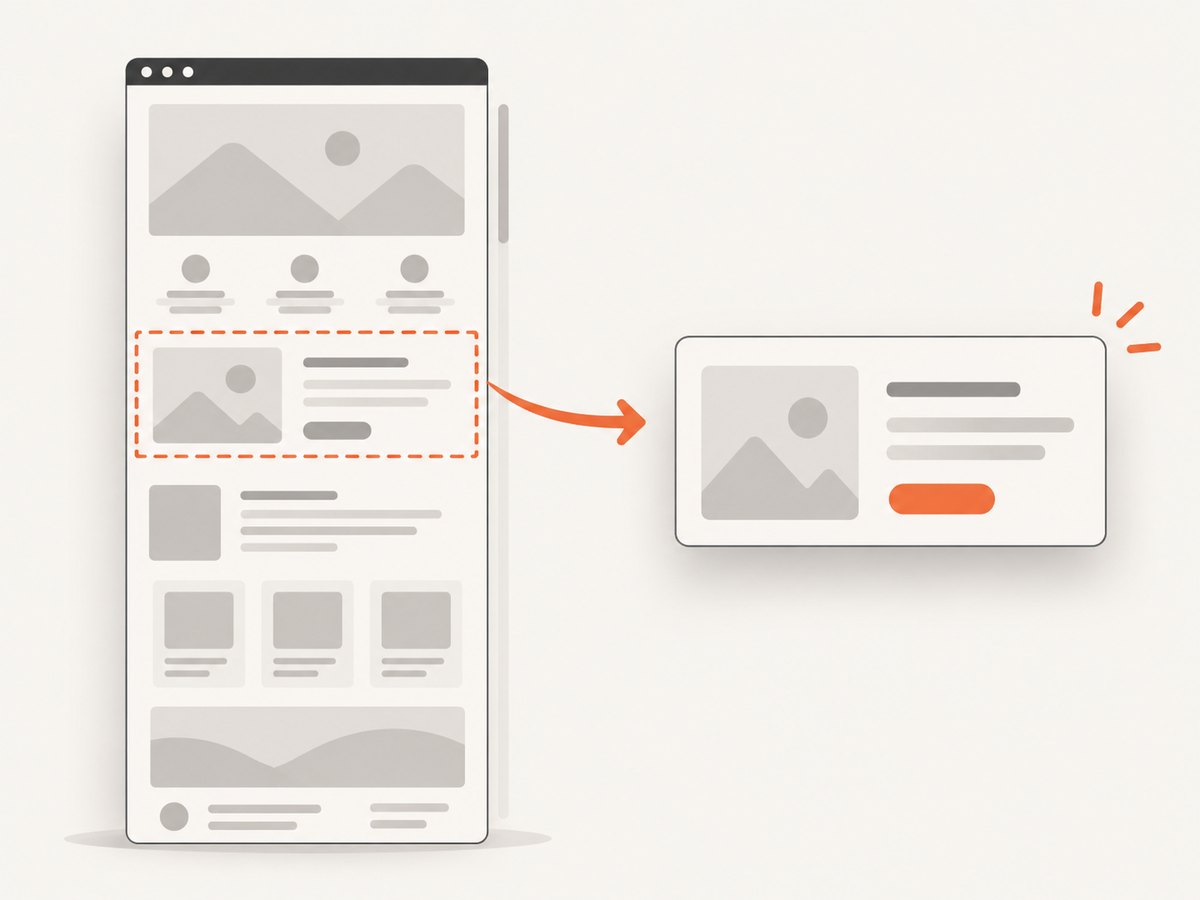
Clean shots are billed only after ScreenshotNeo accepts consent banners and removes more than 60 known consent platforms, newsletter popups, and chat widgets. Bot checks or CAPTCHAs, blank pages, timeouts, failed loads, and cache hits cost nothing; response headers identify the page verdict and whether it was billed. Each step can be turned off when your audit needs the original state.
cURL
curl -G "https://api.screenshotneo.com/v1/shot" \
  -d access_key=YOUR_API_KEY \
  --data-urlencode url=https://stripe.com \
  -o shot.webp
Python
import requests

r = requests.get(
    "https://api.screenshotneo.com/v1/shot",
    params={"access_key": "YOUR_API_KEY", "url": "https://stripe.com"},
    timeout=90,
)
r.raise_for_status()
open("shot.webp", "wb").write(r.content)
print("verdict:", r.headers.get("X-Page-Verdict"))
print("billed:", r.headers.get("X-Billed"))
Node.js
const q = new URLSearchParams({
  access_key: 'YOUR_API_KEY',
  url: 'https://stripe.com'
});
const res = await fetch(`https://api.screenshotneo.com/v1/shot?${q}`);
if (!res.ok) throw new Error(`HTTP ${res.status}`);
const bytes = Buffer.from(await res.arrayBuffer());
await import('node:fs/promises').then(fs => fs.writeFile('shot.webp', bytes));
console.log('verdict:', res.headers.get('X-Page-Verdict'));
console.log('billed:', res.headers.get('X-Billed'));
See the ScreenshotNeo API documentation for option names and response behavior. For an audit suite, store the returned image with the same checkpoint metadata used by Playwright, then run your reviewed baseline process. The MCP server exposes take_screenshot, get_page_info, and capture_pdf for Claude, Cursor, and other MCP clients.
Plans include 1,000 screenshots per month free with no card; paid plans start at $5 for 3,000. Yearly billing gives two months free, and every feature is on every plan. Create a free ScreenshotNeo account to start.
9. Troubleshooting
| Symptom | Likely cause | Fix |
|---|---|---|
| Large diff on every run | Different viewport, scale, font, locale, or browser image | Pin those settings and use the same CI image. |
| Only live counters or ads differ | Volatile third-party content | Stub or block it where appropriate, or mask only the known volatile region. |
| Full page is shorter than expected | Lazy content never loaded | Scroll through the page, wait for the content selector, then capture. |
| Click does nothing | Overlay, consent state, or unstable selector | Set consent deliberately, wait for the button, and use a stable test attribute. |
| Timeout or blank image | Slow dependency, bot check, navigation failure, or app error | Save logs and a failure artifact, retry transient errors, and inspect the final URL and response status. |
| False CRO conclusion | Visual evidence treated as causal evidence | Check funnel progression, recordings, instrumentation, and experiment results before changing the design. |
10. Performance, reliability, and cost notes
Browser capture consumes CPU, memory, and startup time. Reuse a browser process, run independent pages with a bounded concurrency, and reserve full-page captures for checkpoints where they answer a real question. Element captures are usually smaller and easier to review. Cache stable pages only when freshness is not part of the audit objective.
Reliability improves when each run records artifacts and metadata, uses deterministic data, and separates navigation failures from visual failures. A green screenshot diff does not mean the page was available to every visitor; retain HTTP, console, and accessibility signals.
For API capture, account for image storage, request volume, retries, and cache policy. ScreenshotNeo’s clean-only billing and verdict headers make failed loads, bot checks, blank pages, and cache hits distinguishable from billable captures. Do not claim conversion lift, universal accuracy, or a fixed audit frequency without your own data.
FAQ
Can screenshots replace analytics?
No. They show rendered states and visual changes. Analytics and behavioral tools show progression and observable interaction; experiments are needed to estimate outcome changes.
Should every URL have a baseline?
No. Begin with high-value conversion journeys and expand when a visual defect or release history justifies the review cost.
When should I use a full-page image?
Use it when below-the-fold layout, lazy-loaded sections, or footer content affects the audit. Use viewport or element images for focused review.
How do experiments affect visual diffs?
Each active variant can require its own reviewed baseline. Otherwise a valid experiment assignment may be reported as a defect.
Does an accessibility scan prove accessibility?
No. Combine automation with manual keyboard, screen-reader, reflow, and inclusive user testing.
What should a useful audit record contain?
Store the checkpoint, URL, state setup, viewport, browser, locale, build, timestamp, image, diff, verdict, reviewer, and linked issue or hypothesis.